Disclosure: this article contains affiliate links, and we may earn an affiliate commission when you buy through links on this page, at no extra cost to you.
Your router is the one piece of tech every other device in the house depends on, and it is also the one most people ignore until a video call freezes or a game lags at the worst possible moment. The good news is that home networking has improved dramatically in the last few years. Wi-Fi 6 is now the affordable baseline, Wi-Fi 6E added a wide-open 6 GHz band for homes crowded with neighbors’ networks, and Wi-Fi 7 has arrived with faster multi-gigabit potential and better handling of many simultaneous devices. The bad news is that marketing numbers have become nearly meaningless: the big speed figure on the box is a theoretical sum across bands that no single device will ever see, and “covers up to X square feet” claims assume a house with no brick, no concrete, and no floors in the way.
This guide cuts through that. We picked six routers and systems that cover the realistic range of homes: a dependable all-rounder for most households, a value tri-band model with 6 GHz, a performance pick for crowded homes, a gaming-leaning flagship, a forward-looking Wi-Fi 7 option, and one full mesh system for larger or awkwardly shaped houses where a single router simply cannot reach. For each one we explain what it genuinely does well, where it falls short, and the kind of household it suits, so you can match the hardware to your floor plan and your internet plan instead of buying the biggest number on a box.
One principle runs through every recommendation below: buy for the home you have and the connection you pay for. A gigabit-class router cannot make a 200 Mbps internet plan faster, and a premium gaming router placed in a basement corner will still struggle to reach a third-floor bedroom. Placement, layout, and the number of walls between the router and your devices matter as much as the model you choose, and we cover those decisions in depth after the picks.
Quick comparison: the six picks at a glance
| Router | Wi-Fi class | Best for | Positioning |
|---|---|---|---|
| ASUS RT-AX86U Pro | Wi-Fi 6 dual-band | Most households wanting one dependable router | Mid-range |
| TP-Link Archer AXE75 | Wi-Fi 6E tri-band | Condos and apartments with crowded airwaves | Budget-friendly |
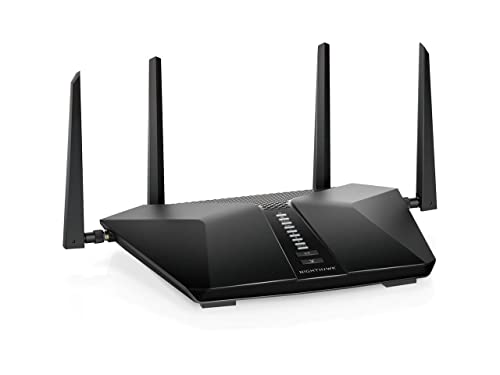
| Netgear Nighthawk RAXE300 | Wi-Fi 6E tri-band | Busy homes with many devices on 6 GHz-capable gear | Premium |
| ASUS ROG Rapture GT-AX6000 | Wi-Fi 6 dual-band | Gamers and power users who tweak settings | Premium |
| TP-Link Archer BE550 | Wi-Fi 7 tri-band | Early adopters future-proofing for multi-gig upgrades | Mid-range |
| Netgear Orbi RBK863S | Wi-Fi 6E mesh system | Large or multi-story homes needing whole-home coverage | Premium |
Read the table as a map, not a ranking. The right choice depends on three things: the size and construction of your home, how many devices compete for airtime at peak hours, and whether your newest phones and laptops support the 6 GHz band or Wi-Fi 7. The sections that follow explain how to judge each of those factors before you spend anything.
In this guide
What to look for in a home Wi-Fi router
Wi-Fi 6, 6E, or 7: what the generations actually change
Wi-Fi 6 (802.11ax) brought OFDMA and better scheduling, which means the router can serve many devices in the same instant instead of making them queue politely. In a home with phones, tablets, smart TVs, cameras, and a drawer full of smart plugs, that efficiency matters more than raw top speed. Wi-Fi 6E keeps the same foundation and adds the 6 GHz band: a huge stretch of clean spectrum with wide channels and, in most neighborhoods, almost no competing networks. The catch is range — 6 GHz signals fade faster through walls — and your devices need 6 GHz radios to use it, which mostly means phones, laptops, and tablets from the last few years.
Wi-Fi 7 (802.11be) pushes further with 320 MHz channels on 6 GHz, multi-link operation that lets a device use two bands at once, and better puncturing to dodge interference. In real homes today, Wi-Fi 7 mostly benefits households with multi-gigabit internet, very fast local transfers, or a desire to keep the same router for many years. If your internet plan is a few hundred megabits and your devices are Wi-Fi 5 and 6, a good Wi-Fi 6 router will feel identical in daily use. Match the generation to your devices, not to the calendar.
Coverage is about your walls, not the box claim
Every router’s range claim is measured in conditions no house reproduces. Drywall and wood studs are relatively kind to Wi-Fi; brick, stone, concrete, metal lath, foil-backed insulation, and even large mirrors and fish tanks are not. A single router placed centrally can comfortably serve most apartments and smaller single-story homes. Long ranch houses, multi-story homes, and homes with masonry interior walls are where single routers run out of reach and a mesh system or a wired access point earns its cost. Before shopping, note where your connection enters the house and whether you can place the router near the center; moving a router ten feet out of a corner closet often improves coverage more than upgrading a model tier.
Speed classes, decoded honestly
Labels like AX3000 or BE9300 add the theoretical maximum rates of every band together. Your phone connects to one band at a time, so the number that matters is the per-band capability and, more importantly, how the router behaves under load. For a typical household on a cable or fiber plan up to a gigabit, a solid Wi-Fi 6 dual-band router is not a bottleneck. What separates good routers from frustrating ones is stability: firmware that does not need weekly reboots, sensible automatic band steering, and enough processing headroom to handle dozens of chatty smart-home devices without stuttering when someone starts a large download.
Ports, and why multi-gig matters for some homes
Most routers still ship with gigabit Ethernet ports, which is fine if your internet plan is at or under a gigabit and your wired devices are a TV, a console, and a desktop. If you have a multi-gig fiber plan, a NAS you transfer large files to, or a wired backhaul run between mesh nodes, look for at least one 2.5 Gbps port. Gamers and work-from-home users should also value a router that lets them wire the most latency-sensitive device directly; no Wi-Fi generation beats a cable for consistency.
Security, updates, and parental controls
A router is your home’s front door to the internet, so ongoing firmware support matters. Prefer brands with a track record of automatic security updates and clear end-of-support policies. Built-in network security suites and parental controls are useful, but check whether the features you care about require a subscription after a trial; on some brands the headline protections are paid add-ons, while others include lifetime network security in the purchase. Guest networks are worth using for visitors and for isolating cheap smart-home gadgets from your laptops and phones.
Apps, interfaces, and living with the software
You will interact with your router’s software rarely, but those interactions cluster at stressful moments: installation day, the evening the internet misbehaves, the afternoon a new work laptop refuses to connect. A clear mobile app that shows which devices are online, which band each is using, and whether the connection itself is down will save real frustration, and it is worth checking whether everyday tasks — changing the Wi-Fi password, pausing a child’s tablet, updating firmware — live in the free app or behind a subscription wall. Power users should confirm the router still offers a full web interface, because some newer systems restrict advanced settings to the app alone, which ages poorly if the vendor ever loses interest in maintaining it.
Mesh or single router?
A single router is simpler, cheaper, and easier to manage, and it is the right answer for most apartments and compact homes. Mesh systems trade some peak speed and simplicity for even coverage: multiple nodes blanket a large or multi-story home, and devices roam between them. The best mesh results come from tri-band systems with a dedicated backhaul band, or from nodes connected by Ethernet. If your home is under roughly 1,500 square feet with ordinary wood-and-drywall construction, start with one good router placed well. If you already know you have dead zones — a back bedroom, a home office over the garage — plan for mesh from the start rather than bolting on extenders later, because traditional extenders create separate networks and halve throughput on the repeated band.
Reading a router spec sheet without getting fooled
Antennas and streams. More antennas generally help a router talk to several devices at once and shape signals toward them, but antenna count is not a range guarantee, and internal antennas on well-designed routers can match ostentatious external arrays. The stream notation (such as 4×4) tells you how many simultaneous data streams the radio supports; your phone typically uses two, so a 4×4 router’s advantage shows up when serving multiple devices, not in making one phone twice as fast.
MU-MIMO and OFDMA. These two Wi-Fi 6 features do the unglamorous work of modern networking. MU-MIMO lets the router exchange data with several devices in parallel rather than in rapid turns, while OFDMA subdivides a channel so small transmissions — a smart plug’s heartbeat, a voice command — stop waiting behind a movie download. Together they explain why a Wi-Fi 6 router can feel dramatically better than a Wi-Fi 5 model with a similar headline speed: the improvement is in scheduling, and scheduling is what a busy household actually feels.
QoS, honestly appraised. Quality of Service features prioritize some traffic over other traffic. Good QoS does not create bandwidth; it decides who waits. Adaptive implementations that classify traffic automatically suit most homes, while gamers and remote workers benefit from being able to pin a specific device or application to the front of the line. If your internet plan is fast and rarely saturated, QoS will rarely engage — which is fine. It is insurance for the worst hour of the day, not a daily speed boost.
Backhaul, for mesh shoppers. In a mesh system, backhaul is the traffic between nodes, and it shares your airwaves unless the system dedicates a band to it. Tri-band systems with a dedicated backhaul band preserve more of the front-facing bands for your devices, which is why they cost more and perform better in large homes. Wired backhaul — connecting nodes by Ethernet — is better still wherever the cabling exists, and every system in this guide that supports mesh also supports it.
Start with your internet plan and a census of your devices
Two facts should anchor your decision before you look at a single model. The first is the speed of the connection entering your home. A router only distributes what the modem or fiber terminal hands it, so a household on a 300 Mbps cable plan gains nothing from Wi-Fi 7’s multi-gigabit ceiling, while a household on a 2 Gbps fiber plan genuinely needs a router with multi-gig ports just to avoid bottlenecking at the front door. Check your plan’s actual tier, and if you are considering an internet upgrade in the next year or two, it is reasonable to buy the router for the plan you are moving to rather than the one you have today.
The second fact is your device census, which has quietly exploded in most homes. Count honestly: phones, tablets, laptops, TVs, streaming sticks, game consoles, cameras, doorbells, speakers, thermostats, lights, plugs, appliances, and the printer nobody remembers connecting. Homes routinely pass forty connected devices, and while most of them sip data, they all contend for the router’s attention. This is why scheduling efficiency — the core improvement of Wi-Fi 6 and later — matters more to daily experience than headline speed, and why tri-band routers earn their keep in device-dense homes: they give the crowd more lanes.
Also note which of your high-demand devices support the newer bands. A 6 GHz router only helps the phones, laptops, and tablets new enough to have 6 GHz radios; the TV from five years ago will stay on 5 GHz regardless. If your two most-used devices are recent flagships, the 6 GHz picks in this guide will reward you daily. If your household runs older hardware across the board, the Wi-Fi 6 all-rounders will feel just as fast and cost less, and you can revisit the question at your next device refresh.
Finally, think about where demand concentrates. A home office in a spare bedroom, a gaming setup in the basement, and a TV in the living room create three hotspots that a single router may not serve equally. Sketching that map — even roughly — tells you whether to invest in one strong router placed near the middle of the action, or in a mesh system that puts a radio in each hotspot. The picks below are organized to match those maps.
The best home Wi-Fi routers, reviewed
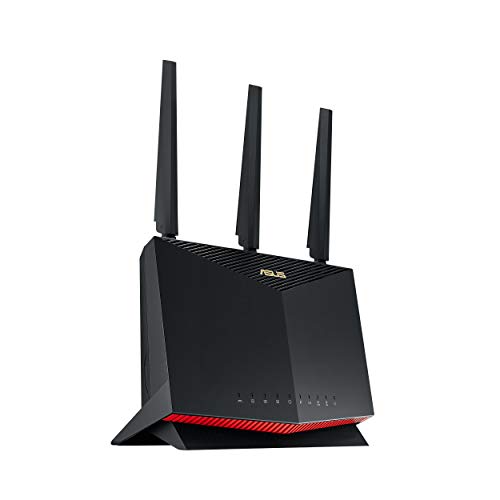
ASUS RT-AX86U Pro: the dependable all-rounder for most homes
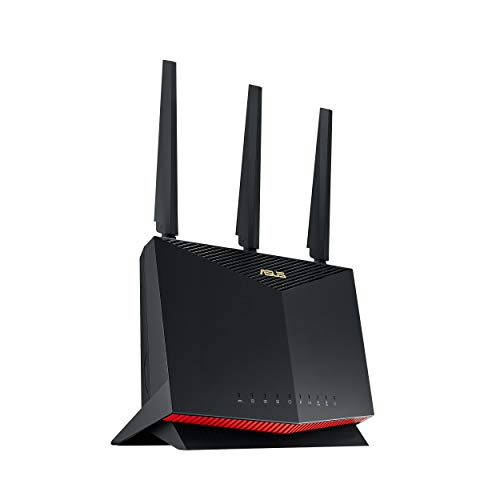
The RT-AX86U Pro is the router we would hand to a friend who asked for one box that simply works everywhere in a typical house and keeps working for years. It is a dual-band Wi-Fi 6 design, which sounds modest next to tri-band rivals, but ASUS tuned this platform over several generations, and it shows in the details: strong 5 GHz range for a single unit, stable firmware, a 2.5 Gbps port that can serve as either WAN or LAN, and a mature set of controls in both the app and the web interface. For households whose internet plan is a gigabit or less and whose devices are mostly Wi-Fi 5 and 6, this router removes Wi-Fi from the list of things to think about.
Strengths. Range is the headline: in wood-frame homes the AX86U Pro holds a usable 5 GHz signal farther than most dual-band rivals, which means fewer rooms fall back to the slower 2.4 GHz band. ASUS includes its AiProtection Pro network security and parental controls without a subscription, a genuine long-term value advantage over brands that paywall those features. The router also supports ASUS AiMesh, so if you later move to a bigger home you can add a second ASUS unit as a mesh node instead of replacing everything. Gamers get a dedicated gaming port with automatic prioritization, plus adaptive QoS that keeps video calls smooth while someone else downloads a game update.
Trade-offs. There is no 6 GHz band, so owners of Wi-Fi 6E and 7 phones and laptops will not see those devices’ fastest mode, and in dense apartment buildings the 5 GHz band is shared with every neighbor. The upright tower design with external antennas performs well but does not disappear into a living room the way a small mesh node does. And while the interface is powerful, its sheer number of options can intimidate anyone who just wants to change a password.
In daily use, what owners notice most is absence: no weekly reboots, no mysterious evening slowdowns, no devices silently dropping off the network. The AX86U Pro also handles the provider side gracefully, with a WAN port that can accept a multi-gig handoff if your plan grows, and its traffic analyzer gives a clear picture of which devices consume the month — genuinely useful when a household is bumping against a data cap. Firmware updates arrive regularly and install without drama, which sounds like faint praise until you have lived with a router whose updates were an annual event.
Who it suits. Single-router households in apartments and small-to-medium homes, especially anyone who values set-and-forget stability, free built-in security, and a clear upgrade path through AiMesh. If your devices are a generation or two old, this is very likely all the router you need. To see today’s pricing, check price on Amazon.
Availability note: the current listing for this pick is a renewed unit, professionally inspected and restored rather than factory-new.


TP-Link Archer AXE75: affordable Wi-Fi 6E with a real 6 GHz band
The Archer AXE75 answers a specific and increasingly common problem: your internet is fast, your router is not ancient, yet everything feels congested because you live in a building or neighborhood where dozens of networks fight over the same 5 GHz channels. As one of the most affordable tri-band Wi-Fi 6E routers from a major brand, it gives your newest devices a private express lane on 6 GHz while older gear keeps using 5 and 2.4 GHz. For apartment and condo dwellers, that clean band can feel like a bigger upgrade than any raw speed increase.
Strengths. The 6 GHz band is the whole story and it delivers: laptops and phones that support it connect at high rates with very little contention, which is ideal for the desk or sofa near the router where you actually use them. Setup through the Tether app is quick, the interface is friendly for non-technical owners, and TP-Link’s HomeShield suite adds network scanning and parental controls. Six antennas and a capable processor keep multi-device performance steady, and the AXE75 handles a gigabit internet plan without breaking a sweat.
Trade-offs. Physics still applies: 6 GHz range is shorter than 5 GHz, so the express lane mostly serves the same room and the next one over; distant rooms will live on 5 GHz like any other router. All the Ethernet ports are gigabit, which caps wired multi-gig ambitions. Some HomeShield Pro features sit behind a subscription, so read the feature list carefully if advanced parental controls or security reporting matter to you. The glossy design also shows dust and fingerprints more than matte rivals.
A practical note on expectations: the AXE75’s 6 GHz band will transform the experience of the laptop on your desk or the phone in your living room, and it will do almost nothing for the tablet in the far bedroom, which will ride 5 GHz exactly as before. That is not a flaw in this router; it is the nature of the band, and it is why we recommend the AXE75 most strongly for compact homes where most living happens within a room or two of the router. Within that footprint, the value is hard to argue with — this is flagship spectrum at a mid-market price, from a platform TP-Link has refined across several generations of Archer models.
Who it suits. Apartment, condo, and townhouse residents with at least a few Wi-Fi 6E or Wi-Fi 7 devices and congested surrounding airwaves, who want the 6 GHz benefit at a budget-friendly, mid-market price rather than a flagship one. To see today’s pricing, check price on Amazon.

Netgear Nighthawk RAXE300: premium 6E performance for crowded, busy homes
The Nighthawk RAXE300 is built for the household that has outgrown mid-range routers: multiple people streaming in high resolution, someone on video calls all day, a teenager gaming in the evening, and a growing swarm of cameras, speakers, and smart lights underneath it all. Its tri-band Wi-Fi 6E platform spreads that load intelligently, putting the newest laptops and phones on 6 GHz, keeping the 5 GHz band for the bulk of streaming devices, and leaving 2.4 GHz to the smart-home crowd. It is a premium router in both capability and positioning, aimed at homes that feel network congestion as a daily annoyance.
Strengths. Aggregate capacity is excellent, and the RAXE300 sustains high throughput to many simultaneous clients better than dual-band designs. The 6 GHz band supports wide channels that let compatible devices move large files and cloud backups quickly within range. Netgear’s app-guided setup is painless, the router offers a multi-gig-capable WAN configuration for faster fiber tiers, and the design hides antennas inside a compact tower that looks at home on a shelf. NETGEAR Armor adds network-level threat protection for owners who want it.
Trade-offs. Armor and the more advanced parental controls are subscription services after their trials, which adds running cost that rivals like ASUS do not charge. As with every 6 GHz router, the fastest band is a short-range tool, so a large home may still need mesh rather than one strong unit. The RAXE300’s feature depth in the web interface is good but a notch below ASUS for tinkerers who like granular manual control of every radio setting.
Where the RAXE300 earns its premium is the worst hour of the day: early evening, when the household’s demand peaks all at once. Lesser routers stay fast on a speed test yet feel sluggish because they juggle competing requests poorly; the RAXE300’s scheduling and headroom keep interactive traffic — calls, games, page loads — feeling immediate while background bulk transfers fill the gaps. It is also a good citizen on fast fiber, with WAN flexibility that avoids the embarrassment of a premium router bottlenecking a premium internet plan at the door.
Who it suits. Busy, device-dense households on fast cable or fiber plans, with several Wi-Fi 6E-capable phones and laptops, that want premium headroom from a single centrally placed router and are comfortable with optional subscription extras. To see today’s pricing, check price on Amazon.
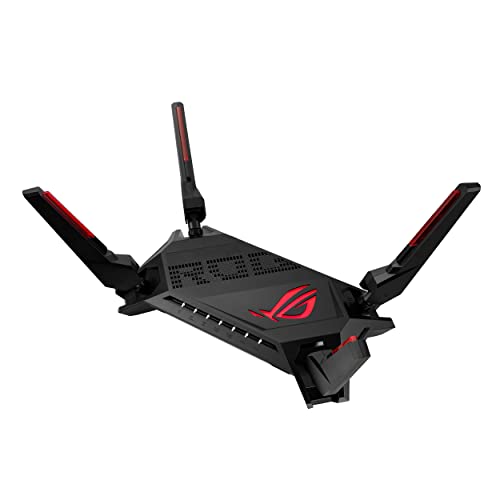
ASUS ROG Rapture GT-AX6000: the power user’s and gamer’s dual-band flagship
Not every performance household needs a new band; some need control. The ROG Rapture GT-AX6000 is a dual-band Wi-Fi 6 router built around a fast quad-core processor, dual 2.5 Gbps ports, and the deepest consumer feature set in this roundup. It prioritizes latency-sensitive traffic with genuine sophistication, offers extensive VPN options in both directions, and gives tinkerers manual control over channels, transmit behavior, and per-device rules that most routers hide. If your home includes a competitive gamer, a home server, or an owner who enjoys tuning a network the way others tune a car, this is the pick.
Strengths. The dual multi-gig ports are unusually flexible: use one for a multi-gig internet plan and the other for a NAS or a wired gaming PC, or aggregate them. ASUS’s game acceleration features, including a dedicated gaming port and adaptive QoS profiles, measurably smooth out the experience when the network is busy — not by making the internet faster, but by making sure game packets never wait behind a cloud backup. AiProtection Pro and full parental controls are included for the life of the product, VPN Fusion lets you route specific devices through a VPN while others stay local, and AiMesh support means the GT-AX6000 can anchor or join a larger ASUS mesh later.
Trade-offs. The aggressive ROG styling, complete with four large antennas and lighting accents, will not blend into every living room. There is no 6 GHz band, so Wi-Fi 6E and 7 devices top out at their 5 GHz rates. It is also priced at a premium level for a dual-band product; you are paying for processing power, ports, and software depth rather than spectrum, and households that will never open the advanced settings should spend less.
One underappreciated strength is how well the GT-AX6000 ages. Processing headroom that looks excessive on day one becomes the reason the router still feels quick in year four, when the household owns more devices and the firmware has grown richer. The dual multi-gig ports also make it a natural wired hub: a gaming PC and a NAS can both run at full wired speed while the radios handle everything else. Owners who enjoy measurement will appreciate the detailed real-time traffic and latency views, which turn “the internet feels slow” into a diagnosable fact about a specific device or application.
Who it suits. Gamers, streamers, and technically confident owners in small-to-medium homes who want maximum control, multi-gig wired flexibility, and lifetime security features from a single router. To see today’s pricing, check price on Amazon.


TP-Link Archer BE550: Wi-Fi 7 future-proofing at a mid-range price
Wi-Fi 7 routers launched at flagship prices, which made the Archer BE550 notable: it brings the new standard — including multi-link operation, the 320 MHz channel on 6 GHz, and a full set of 2.5 Gbps ports — down to a mid-range tier. The honest framing is that most homes will not feel Wi-Fi 7’s advantages today, because most devices do not support it yet. But routers tend to stay in service for five years or more, and the BE550 is for the buyer who would rather purchase tomorrow’s standard once than buy a Wi-Fi 6 router now and replace it when the household’s phones and laptops turn over.
Strengths. The port selection is the best in this guide at its tier: multiple 2.5 Gbps connections mean a multi-gig fiber plan, a fast NAS, and a wired desktop can all run without gigabit bottlenecks. Multi-link operation can lower latency and improve resilience for Wi-Fi 7 clients by using two bands simultaneously, and the wide 6 GHz channel gives compatible devices exceptional local throughput for tasks like wireless VR and large file transfers. TP-Link’s EasyMesh support lets you extend coverage with compatible units later, and setup through the Tether app remains beginner-friendly.
Trade-offs. Realizing the headline benefits requires Wi-Fi 7 devices and, for the fastest wired speeds, a multi-gig internet plan; without them, the BE550 performs like a good Wi-Fi 6E router, which may make the simpler AXE75 the smarter buy for some homes. As an early-generation product, its firmware has been evolving quickly, so keep it updated. The design is a plain internal-antenna tower that prioritizes function over flair.
Think of the BE550 as buying the wired and wireless ceiling your home will grow into. The household that installs fiber multi-gig next year, replaces phones on a normal cycle, and adds a Wi-Fi 7 laptop the year after will feel this router get better with time, which is a rare direction for tech purchases. Households whose plans and devices are static should be honest about that and save the difference. It also bears repeating that Wi-Fi 7’s multi-link benefits apply per device: one Wi-Fi 7 laptop enjoying MLO does nothing for the Wi-Fi 6 tablet beside it, which will perform exactly as it would on a good Wi-Fi 6E router.
Who it suits. Early adopters and long-cycle buyers: households planning a multi-gig fiber upgrade, expecting Wi-Fi 7 phones and laptops over the next few years, or wiring a fast home office and NAS today. To see today’s pricing, check price on Amazon.

Netgear Orbi RBK863S: a Wi-Fi 6E mesh system for large and multi-story homes
This pick is not a single router at all: the Orbi RBK863S is a mesh system, typically sold as a router plus two satellites, and it exists for the homes where every single-router recommendation fails — long floor plans, three-story houses, masonry walls, or a home office stranded at the far end of the property. Instead of one loud voice shouting from a corner, an Orbi system places three radios around the house and lets your devices connect to whichever node is closest, with a dedicated 5 GHz backhaul channel carrying traffic between nodes so your devices keep the fast bands for themselves. It is a premium system, and for the right house it is the difference between Wi-Fi that technically reaches a room and Wi-Fi you can hold a video call on.
Strengths. Whole-home consistency is the Orbi’s signature: coverage stays strong and even across floors and out to patios and garages, and roaming between nodes is seamless enough that calls survive a walk from kitchen to bedroom. The tri-band Wi-Fi 6E platform gives newer devices 6 GHz access at the node near them — which elegantly sidesteps 6 GHz’s short range, because a node is usually in the same room. Setup is genuinely simple, the satellites are discreet, and the system includes a multi-gig port on the router unit for fast fiber plans. Wired backhaul is supported if your home has Ethernet runs, which makes performance even better.
Trade-offs. The system costs substantially more than any single router here, and it is overkill for apartments and compact homes. Netgear’s Armor security and premium parental controls are subscription-based. Advanced users get fewer manual controls than ASUS offers, and the dedicated backhaul, while effective, means the system’s layout is less flexible than EasyMesh or AiMesh mixes of different models. Finally, a mesh system still cannot fix a bad internet connection or a router unit placed somewhere with no path to the satellites.
Living with the Orbi changes habits in small ways: nobody asks which network the printer is on, nobody schedules calls around the “good room,” and the patio becomes a legitimate place to work. The system’s satellites include Ethernet ports, so a node can wire a nearby TV, console, or desktop for rock-solid local connections without running cable across the house. For households that have spent years negotiating with dead zones, that quiet reliability is the product — the speeds and bands are simply how it is delivered.
Who it suits. Owners of large, multi-story, or stubbornly built homes — roughly 2,000 square feet and up, or any home with known dead zones — who want one managed system that blankets everything, and who value effortless coverage over manual tuning. To see today’s pricing, check price on Amazon.
Matching the picks to real households
The work-from-home apartment. One or two people, video calls all day, a laptop and phone that are both recent models, and thirty neighboring networks visible in the Wi-Fi list. Congestion, not distance, is the enemy here. The Archer AXE75’s clean 6 GHz band for the laptop, with 5 GHz left for everything else, solves the actual problem at a friendly price; if the apartment is large or the router must live far from the desk, the RT-AX86U Pro’s stronger 5 GHz reach is the safer single-box bet.
The family house with everything streaming. Four people, three TVs, two consoles, a doorbell, cameras, and homework happening on tablets at the kitchen table. This household needs airtime management more than exotic speed. The Nighthawk RAXE300 spreads the load across three bands and keeps the newest devices on 6 GHz, while the GT-AX6000 serves the same home if a parent or teen games competitively and wants traffic prioritization with real teeth. Either way, wire the main TV or console if it sits near the router; every device you move to Ethernet frees airtime for the rest.
The big or stubborn house. Multiple floors, a long footprint, maybe a converted garage or an office above it. Stop shopping for a stronger single router; the Orbi RBK863S exists precisely for this map. Place the satellites thoughtfully, consider wired backhaul if the house has Ethernet, and the dead-zone arguments end. Homes just past the single-router threshold can also start with an AiMesh or EasyMesh router and add one node later, which spreads the cost across two purchases.
The enthusiast’s home lab. A NAS full of media, a self-hosted service or two, a gaming PC, and an owner who reads changelogs. The GT-AX6000’s dual 2.5 Gbps ports, VPN flexibility, and deep settings were made for this household, with the Archer BE550 as the alternative for the enthusiast whose priority is multi-gig wired throughput and Wi-Fi 7 clients rather than gaming features. Both reward owners who will actually open the advanced pages; everyone else is paying for a menu they will never order from.
The set-it-and-forget-it household. The router lives in a closet of the mind: nobody wants an app notification, a subscription decision, or a settings page, ever. The RT-AX86U Pro is the closest thing here to an appliance — stable firmware, automatic updates, security included without a subscription, and enough range to forgive imperfect placement. Set it up properly once, turn on automatic updates and the guest network, and it will quietly outlast several generations of the household’s phones.
When to replace the router you already have
Routers rarely die dramatically; they fade. Replace yours when you recognize a pattern rather than a single bad evening: Wi-Fi 5 or older hardware struggling with a device fleet that has doubled, firmware that has not received a security update in over a year, a need for weekly reboots, coverage that no longer reaches rooms your household now actually uses, or an internet upgrade your router’s ports or radios cannot pass through. Security support alone justifies retiring very old units, because an unpatched router exposes every device behind it. Conversely, if your current Wi-Fi 6 router is stable, updated, and covers your home, the honest advice is to keep it and spend the money elsewhere; the picks in this guide will still be here, cheaper or succeeded by better models, when a real need appears.
Placement: the free upgrade most people skip
Before blaming any router, audit its location. Wi-Fi radiates outward and slightly downward from the antennas, so the ideal spot is near the center of the home, elevated on a shelf or table, in the open rather than inside a cabinet, and away from thick masonry, large metal appliances, mirrors, and aquariums. A router in a basement corner or a wiring closet is fighting your house with one hand tied. If your modem or fiber terminal fixes the connection point at an exterior wall, a longer Ethernet cable to a better spot is one of the cheapest performance purchases in all of home tech. For mesh systems, place satellites roughly halfway between the main unit and the area with weak signal — close enough to hold a strong backhaul link, far enough to extend coverage where you need it — and resist hiding them behind televisions or inside entertainment centers.
Channel selection matters most in dense neighborhoods. Modern routers handle this automatically with reasonable competence, but if evenings bring slowdowns while mornings are fine, your router may be sharing a congested channel with a neighbor streaming at the same hours. A free Wi-Fi analyzer app can show which channels are crowded, and manually choosing a cleaner one on the 5 GHz band is a legitimate fix. On 2.4 GHz, stick to channels 1, 6, or 11, which are the only three that do not overlap. Rebooting the router occasionally is harmless, but a router that needs weekly reboots to stay stable is telling you its firmware or hardware is struggling with your load — treat that as a replacement signal, not a routine.
how to place a wifi router for better coverage
Single router or mesh: deciding by home, not by hype
Start with construction and shape. A single router serves most apartments and compact single-story homes well, especially with sensible placement. Move to mesh when any of these are true: your home is larger than roughly 2,000 square feet, has more than one floor between the router and key rooms, contains brick, stone, or concrete interior walls, or has a long, L-shaped, or split layout. Also consider how you use the edges of your home. A detached garage office, a patio where you take calls, or a finished basement gym all argue for a node nearby rather than a stronger shout from the middle of the house.
Budget honestly for the whole system. One premium router is cheaper than a three-piece mesh kit, and if it covers your home, the savings are real. But a mid-range mesh system placed well will outperform a flagship single router placed badly in a large house, every time. If you are between the two, a router from a mesh-capable family — ASUS AiMesh or TP-Link EasyMesh models in this guide — is a sensible hedge: start with one unit, and add a node only if a dead zone proves itself in daily use.
Keeping your network healthy and secure
Whichever pick you choose, a few setup habits pay off for years. Change the default administrator password and keep firmware set to update automatically; routers are attacked precisely because owners never touch them after installation. Use WPA3 where your devices support it, or the WPA2/WPA3 mixed mode for older gear, and give the guest network to visitors and smart-home gadgets so your main password stays private and your laptops stay separated from bargain IoT devices. Turn off WPS and remote administration from the internet unless you specifically need them. Name your network something that does not identify your address or router model. Finally, write down where the router and any mesh nodes live and what the admin credentials are, and store that note somewhere the household’s other adults can find it — the most common home network emergency is a forgotten password, not a hacker.
Troubleshooting the problems people actually have
Fast near the router, slow in one room. That is a coverage problem, not a speed problem, and no settings page will fix physics. Move the router toward that room if you can, elevate it, and clear obstructions. If the room matters daily — an office, a gaming den — it deserves either a mesh node or an Ethernet run. Powerline adapters and MoCA adapters that reuse coax wiring are underrated middle options in houses where running new cable is impractical.
Everything slows down at the same hour. Evening congestion has two usual suspects: your neighbors’ networks crowding the same channels, and your own household’s peak overlap of streaming, gaming, and cloud backups. A Wi-Fi analyzer can confirm the first; a router with good QoS addresses the second by keeping interactive traffic responsive under load. Scheduling large backups and game downloads for overnight hours is a zero-cost fix that works on any router.
Video calls freeze while speed tests look great. Speed tests measure a single strong connection, usually to a nearby server, while calls expose jitter and brief dropouts. The usual culprits are a laptop clinging to a distant 2.4 GHz connection, interference from a microwave or a neighboring network, or a router CPU saturated by other traffic. Band steering, a 5 or 6 GHz connection for the work laptop, and wiring the work machine when possible resolve most call complaints. If calls freeze even when wired directly to the modem, the problem is your internet service, not your router.
Smart devices keep disconnecting. Cheap IoT gadgets often have weak radios and quirky Wi-Fi implementations. Give them a dedicated 2.4 GHz network or the guest network, disable overly aggressive band steering for that SSID if your router allows it, and make sure the router is not forcing WPA3-only mode, which some older devices cannot join. A surprising number of “broken” smart bulbs are simply too far from the router for their tiny antennas.
The router needs rebooting every week. Occasional reboots after firmware updates are normal; a weekly ritual is a symptom. Heat is a common hidden cause — routers stuffed into closed cabinets or stacked on other warm electronics throttle and crash — so ventilation is worth checking first. If the behavior persists with good airflow and current firmware, the hardware is telling you it has reached the end of its comfortable life with your household’s load.
A note on ISP gateways and modem-router combos
Many households start with the combined modem-router gateway their provider installed, and the honest assessment is that these boxes have improved: recent gateways often include Wi-Fi 6 and adequate coverage for small homes. The case for replacing or bypassing one rests on specifics — weak coverage in a larger home, no 6 GHz band, limited settings, or a rental fee that quietly adds up to a premium router every couple of years. If you keep the gateway, putting it in bridge mode and letting your own router run the network gives you the features and consistency of the picks above while avoiding the double-NAT quirks that two active routers create. Cable households can often replace the gateway entirely with a compatible modem they own; fiber households usually keep the provider’s optical terminal and simply attach their router behind it. Either way, the transition is an afternoon’s project, and the settings discipline in the security section above matters more than which box draws the network map.
One caution for households with provider TV or voice services bundled through the gateway: check what depends on that box before unplugging it. In most modern setups the answer is “nothing critical,” but confirming first turns a potential weekend of troubleshooting into a non-event.
Frequently asked questions
Will a better router make my internet faster?
It can make your Wi-Fi faster, which is not always the same thing. If your current router is old, unstable, or too weak to cover your home, a new one can unlock the full speed of the plan you already pay for and fix dropouts and dead zones. But no router can exceed the speed of your internet connection itself. If a wired computer already gets your plan’s full speed and your complaints are about range and reliability, a router upgrade is exactly the right fix; if even wired speeds fall short, call your provider first.
Do I need Wi-Fi 7 right now?
For most households, no. Wi-Fi 7’s benefits appear with Wi-Fi 7 devices, multi-gigabit internet plans, and demanding local traffic like fast NAS transfers. If you are buying a router to keep for many years and your next phones and laptops will be Wi-Fi 7 models, a reasonably priced Wi-Fi 7 router such as the Archer BE550 is a defensible future-proofing choice. Otherwise, a good Wi-Fi 6 or 6E router will serve you just as well today for less money.
Is the 6 GHz band worth it if it has shorter range?
Yes, in the right setting. The 6 GHz band shines for the devices near the router — a desk setup, a living-room laptop, a phone on the sofa — because it offers wide, uncongested channels that 5 GHz cannot match in dense neighborhoods. It is not meant to cover a whole house by itself. Mesh systems with 6 GHz radios solve the range issue neatly by putting a node in each main living area.
How many devices can these routers actually handle?
Far more than the average home owns. Modern Wi-Fi 6 and newer routers are designed for dozens of simultaneous connections, and the practical limit in most houses is airtime contention at peak moments rather than a hard device cap. Homes with very large smart-home fleets benefit from tri-band designs and from putting low-demand gadgets on the 2.4 GHz band or a guest network, which keeps the fast bands free for laptops, phones, and TVs.
Should I rent my provider’s router instead?
Renting is convenient and guarantees compatibility support, but the monthly fee typically exceeds the cost of a good owned router within a couple of years, and provider hardware is rarely as capable as the picks in this guide. Owning also means your home network, settings, and device names stay the same if you switch providers. Renting makes sense mainly for short stays, or when the provider’s gateway is required for your type of connection and cannot be bridged easily.
Choose the router that fits your floor plan and your devices rather than the biggest number on a box, place it with care, and your home network will quietly do its job for years — which is the highest praise any router can earn.