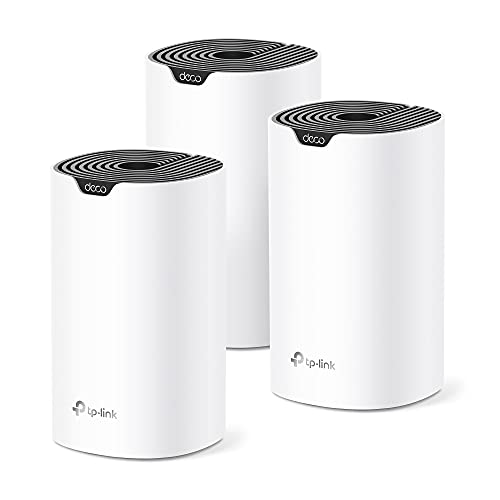
A WiFi 7 mesh system uses several small units, called nodes, to spread one network across your whole home. The newest standard adds wider channels, multi-link operation, and support for the 6 GHz band, which can help when many devices share a connection. Still, the box label only tells part of the story.
We have not used these products ourselves, so this guide leaves out rankings and personal results. It focuses on how to choose: which specifications matter, what the marketing terms really mean, and which checks help you avoid a mismatch between a system and your home. Treat it as a checklist to work through before you buy.
As an Amazon Associate we earn from qualifying purchases. Links on this site are affiliate links, and they do not change the information we give.

In this guide
Quick Picks
| Pick | Product | Best For |
|---|---|---|
| Best Overall | TP-Link Deco BE65 (3-Pack) | Tri-band WiFi 7 with 2.5G ports throughout |
| Best for Large Homes | NETGEAR Orbi 770 Series (RBE773) | Stated coverage up to 8,000 sq. ft. |
| Best for Power Users | ASUS ZenWiFi BQ16 Pro (1-Pack) | Quad-band WiFi 7 and dual 10G ports |
| Best for Simple Setup | Amazon eero 7 (3-Pack) | Guided app setup and automatic updates |
| Best for Multi-Gig Plans | TP-Link Deco BE68 (3-Pack) | BE14000 speeds with a 10G port |
Our Picks
1. TP-Link Deco BE65 (3-Pack) — Best Overall
The Deco BE65 is the balanced tri-band choice: WiFi 7 across 6 GHz, 5 GHz and 2.4 GHz bands for a combined BE11000 rating, with multi-link operation and 320 MHz channels on the 6 GHz band for devices that support them. Each of the three units carries four 2.5 Gbps Ethernet ports, which answers two of the guide’s key checks at once — a WAN port that will not bottleneck a multi-gig internet plan, and enough wired sockets per node for a console, desktop or storage drive without adding a switch everywhere. The system supports wired backhaul if you have Ethernet runs, and TP-Link’s HomeShield covers basic network security and parental controls, with extra features in its paid tier. Managed through the Deco app, it suits most family homes that want WiFi 7 headroom without paying flagship prices.
View TP-Link Deco BE65 (3-Pack) on Amazon
2. NETGEAR Orbi 770 Series (RBE773) — Best for Large Homes
The Orbi 770 three-pack — one router and two satellites — is rated by NETGEAR for coverage up to 8,000 sq. ft. and up to 100 devices, the largest stated footprint in this list. It is a tri-band BE11000 WiFi 7 system with an enhanced dedicated backhaul link between units, which helps remote nodes hold onto speed, the ceiling the guide says backhaul sets for rooms far from the router. The router offers a 2.5 Gig internet port plus three 2.5 Gig LAN ports, and the satellites carry 2.5 Gig LAN ports of their own for wired gear in other rooms. NETGEAR Armor security is included as a trial before it becomes a paid plan, so read the subscription terms the guide flags. Choose the Orbi 770 when square footage and device count, not budget, are your main constraints.
View NETGEAR Orbi 770 Series (RBE773) on Amazon

3. ASUS ZenWiFi BQ16 Pro (1-Pack) — Best for Power Users
The BQ16 Pro is the enthusiast option: a quad-band BE30000 design that adds a second 6 GHz radio, which ASUS can dedicate to backhaul, alongside 2.4 GHz and 5 GHz bands. A single unit is rated for up to 4,000 sq. ft., and because it uses AiMesh it can be expanded later with more BQ16 Pro units or other AiMesh routers — the mix-and-grow path the guide recommends checking before you buy. Each unit has two 10G ports plus gigabit ports, the strongest wired spec here, and its Smart Home Master feature lets you run separate SSIDs for IoT gear, kids and VPN traffic. AiProtection Pro security and parental controls are included without a subscription, which is rare at this level. This listing is the single pack, so budget for a second unit if your floor plan needs one.
View ASUS ZenWiFi BQ16 Pro (1-Pack) on Amazon

4. Amazon eero 7 (3-Pack) — Best for Simple Setup
The eero 7 three-pack is built for people who would rather not think about their network. Three units are rated for up to 6,000 sq. ft. of coverage and more than 120 connected devices, setup runs through a guided app flow, and eero’s TrueMesh software routes traffic and applies updates automatically. It supports internet plans up to 2.5 Gbps, with 2.5 Gbps Ethernet ports for the gateway and wired devices. The honest trade-off, against the guide’s band checks, is that this is a dual-band system: there is no 6 GHz radio, so nearby WiFi 7 devices cannot use the widest channels the tri-band picks offer, and advanced security and parental features sit in the optional eero Plus subscription. In return you get the simplest day-to-day management here, which is what many households actually need.
View Amazon eero 7 (3-Pack) on Amazon
5. TP-Link Deco BE68 (3-Pack) — Best for Multi-Gig Plans
Deco BE68 steps above the BE65 for homes with fast fibre and lots of wired equipment. It is a tri-band BE14000 WiFi 7 system rated for coverage up to 8,100 sq. ft. and more than 200 devices, and its multi-gig port mix — a 10 Gbps port alongside 2.5 Gbps ports — means the WAN side will not cap a multi-gigabit internet plan, the mismatch the guide warns about first. Multi-link operation and 320 MHz channels are supported for WiFi 7 clients, wired backhaul is available if your home has Ethernet runs, and the Deco app handles setup, guest network and HomeShield controls, with some features in the paid tier. Pick the BE68 three-pack if your plan is faster than gigabit, your home is large, and you want one system that leaves room to grow into both.
View TP-Link Deco BE68 (3-Pack) on Amazon
What to Look For
| Factor | Why it matters | What to check |
|---|---|---|
| Coverage area | Nodes must reach every room you use. | Maker’s stated coverage per node and your home’s size and wall material. |
| Backhaul type | The link between nodes sets the ceiling for remote speeds. | Dedicated wireless band, wired Ethernet backhaul, or shared radios. |
| Ethernet ports | Wired gear often works better with a cable. | Port count per node and the speed of each port. |
| Internet plan fit | A fast router cannot beat a slow connection. | Whether the WAN port speed matches your service tier. |
| Device support | Older gadgets still join the network. | Compatibility with earlier standards and 6 GHz client support. |
| App and controls | Daily management should feel simple. | Guest network, parental controls, and whether a login is required. |
| Expandability | Homes change over time. | Whether you can add nodes later and mix units. |
Setup and Care Tips
- Place the main node near your modem, ideally off the floor and away from metal objects.
- Space extra nodes so each one still sees a strong signal from its neighbor.
- Use Ethernet backhaul where a cable run is practical, since it frees the wireless bands.
- Keep firmware current by checking the app every few weeks.
- Label your network names clearly so devices connect to the band you intend.
Mistakes to Avoid
- Buying more nodes than the layout needs, which can cause overlapping signals.
- Assuming every device in your home can use the newest standard.
- Hiding a node in a cabinet or behind a television.
- Overlooking the port count when you plan to wire a console or desktop.
- Skipping a look at the app terms and account requirements before purchase.
Decoding Speed Labels and Marketing Terms
Mesh packaging often leads with a single large number, usually a combined figure across all radio bands. That figure adds up the theoretical maximums of each band and is not a speed any one device will see. Real throughput depends on the device, the distance, the walls in between and how many other devices are using the network. Treat the headline number as a rough tier label for comparing products in the same family rather than a promise.
Look for the details behind it. A listing should say how many bands the system has (two or three), which bands support the newest standard, the channel width the radios can use and how many spatial streams each band offers. Terms such as multi-link operation describe a device using more than one band at once, but they only help when both the node and your device support the feature. Wider channels offer higher peak speeds but are more likely to overlap with neighbors in crowded buildings, so they are not always the better choice in an apartment block.
Also look at what the maker says about the 6 GHz band. It is often less crowded, but its range through walls is generally shorter than lower bands. This is why a system with strong coverage at the lower bands and a fast 6 GHz option for nearby devices can make sense.
- Ignore a combined number unless you know how it is calculated.
- Compare band counts and per-band specifications instead.
- Check which features need support from your own devices.
- Read the maker’s definition of any term you do not recognize.
Matching Node Count and Placement to Your Floor Plan
Coverage claims are a starting point, not a guarantee. Begin by sketching your home: floors, thick walls, kitchens with metal appliances, brick or concrete, and any long runs where a signal must travel far. Each of these affects how far a node can reach. Wireless signals weaken as they pass through dense materials such as masonry, tile, metal and water-filled objects, so two homes of the same size can need different node counts.
A common approach is to place the main node near the modem, then add nodes at a distance where the signal from the previous one is still good, instead of at the very edge of coverage. A node placed at the limit of range will pass on a weak signal and drag down speeds for everything connected to it. Check the app’s signal indicator if the system has one, and move a node closer if it reports a poor link.
Multi-story homes often benefit from at least one node per floor, but this depends on the layout. Wired backhaul changes the calculation, because nodes connected by cable do not depend on a wireless link between them, giving you more freedom in placement.
- Place nodes in open, central spots, off the floor and away from metal.
- Avoid corners, cabinets and positions behind televisions.
- Start with fewer nodes and add more only if you find dead spots.
- Check whether the system supports adding units later.
Wired Backhaul, Ports and the Internet Connection
A mesh system is only as fast as its weakest link. Backhaul, the connection between nodes, can be wireless or wired. Wireless backhaul is convenient, but it can use some of the same radio capacity your devices need. Some systems dedicate a band to backhaul, which can help, while others share bands between backhaul and client traffic. A wired backhaul, using Ethernet cable between nodes, is typically more stable and leaves the wireless bands free for devices. If your home already has Ethernet runs, or you can add them, check that the system supports wired backhaul and which ports to use.
Ports are a practical detail. Count how many wired devices you have, such as a console, a desktop, a network storage drive or a smart-home hub, and compare that number with the ports on each node. Check the speed of each port, not only the number. If the WAN port, the one that connects to your modem, is slower than your internet plan, it will limit your service, so read the maker’s port specifications.
Finally, consider your modem. If your provider’s modem has its own router features, you may need to switch it to a bridge or passthrough mode to avoid two routers conflicting. The provider or the maker’s documentation can explain how.
- Match the WAN port speed to your plan.
- Count wired devices and check ports on each node.
- Consider whether a switch will be needed for extra devices.
Security, Privacy and App Requirements
Mesh systems are managed through an app, and that app can shape your day-to-day experience as much as the hardware. Before buying, check whether setup requires creating an account, whether the system works without an internet connection to the maker’s service and what happens to local control if the service is unavailable. Some makers offer a local web interface in addition to the app, which can be helpful for advanced settings.
Check what is included for free and what may be offered through a paid plan. Features such as parental controls, device filtering, security scanning and extended history are sometimes bundled, and sometimes sold separately. Read the maker’s description carefully, and look at how long the maker says it will provide firmware updates, since security patches matter for a device that sits between your home and the internet.
Privacy is worth a moment of thought. Read what data the app collects and whether you can opt out of optional collection. Use a strong, unique password for the network and the admin account, and enable automatic updates if available. Guest networks are a good way to keep visitors and smart devices separate from your computers, if the system supports them.
- Check whether you can manage the system without a cloud account.
- Look for guest network and device isolation options.
- Find out how updates are delivered and for how long.
- Change default passwords on first setup.
When Mesh Is Not the Answer, and When to Upgrade
Mesh is a solution to coverage, not a cure for every network problem. If your home is small and a single good router reaches every room, adding nodes may add cost and complexity without a benefit. Likewise, if your slow speeds come from your internet plan, an old modem or a congested connection from your provider, new nodes will not fix them. Test the connection near the modem first. If the speed there is already low, the problem lies upstream.
Other options may fit better in some homes. A single router with a strong signal can cover an apartment. A wired access point connected by cable can reach a distant room. Powerline or MoCA adapters use existing wiring where Ethernet is not practical, though results vary with the wiring and the device specifications. Compare these with a mesh kit on cost and fit.
Consider upgrading when your current setup shows dead spots, frequent dropouts, or struggles under many devices, and when you own devices that can take advantage of newer features. If most of your devices are older, a system built on an earlier standard may meet your needs, and you can upgrade later.
- Test speed near the modem before blaming the router.
- Move the router to a central spot before adding hardware.
- Replace old cables that may limit speed.
- Think about how long you plan to keep the system.
Home Network Planning Checklist
New hardware helps most when you understand what you need it to do. Spend a few minutes on this list before buying.
- List the devices in your home and which of them can use the newest wireless standard.
- Note the size of your home and the number of floors.
- Find where the modem or incoming line enters the house.
- Decide if you can run network cables between rooms.
- Check how many wired devices you need to connect, and the number of ports offered.
- Think about who is in charge of the network, and how much management you want.
Terms Worth Knowing
| Term | Plain meaning |
|---|---|
| Node | One unit in the mesh system |
| Backhaul | The link between nodes, wired or wireless |
| Band | A range of wireless frequencies used for connections |
| Roaming | A device switching from one node to another as you move |
| Guest network | A distinct network just for visitors |
Setup and Security Habits
- Update the firmware during setup, and check for updates from time to time.
- Change default names and passwords as the maker advises.
- Place nodes in open spots instead of inside cabinets.
- Keep nodes away from large metal objects and thick walls where possible.
- Use a guest network for visitors and smart home gadgets.
Speeds depend on your internet plan, your devices and your building, so treat listed figures as best-case numbers from the maker.
Walk through the house with a phone after setup and note any weak corners. Moving a node a few feet, or running a cable to it, often does more than adding hardware. Keep a note of the admin login in a safe place.
A Practical Decision Workflow Before You Buy
Most disappointing purchases in this category do not happen because the product itself is poor. They happen because the buyer skipped a short round of honest homework and ordered on a single headline feature. A Wi-Fi 7 mesh system has to fit a specific space, a specific routine and a specific set of habits, and those three things differ far more between households than any specification sheet suggests. The workflow below takes about fifteen minutes, needs nothing more than a tape measure, a notebook and your phone, and it will narrow the picks in this guide down to one or two clear candidates.
Start with the space, not the product. Measure the area where the mesh node will live or be used, and write down the fixed obstacles as well: doors that swing through the space, sockets that are already spoken for, furniture that cannot move, and anything that generates heat, moisture or dust nearby. Photograph the space from two angles. It sounds excessive, but a photograph taken now will answer questions later that memory will not, especially once you are comparing dimensions on a product page late in the evening.
Next, write down the job in one sentence. Not a wish list, just the main job: what should be different the week after this arrives? Keep that sentence visible while you shop. Every feature you consider after that has to earn its place by serving that sentence. Features that do not serve it are not bargains; they are future clutter, extra cleaning, or settings you will scroll past for years without touching.
Then list your constraints honestly. Budget is only one of them. Time is another: how many minutes a week will you genuinely give to cleaning, charging, adjusting or maintaining this purchase? Storage is a third: where does it, and everything that comes with it, go when it is not in use? Noise tolerance, the patience of other people in the household, and any physical limits such as lifting weight or reaching height all belong on the same short list.
Only now open the product pages, and read them in a fixed order. First the dimensions and requirements, because a mismatch there ends the discussion. Second the controls and the everyday operating steps, because those are what you will live with daily. Third the care requirements, because they decide whether the product still pleases you in month six. Marketing language comes last, if at all. When two picks look identical, the one whose everyday steps are simpler almost always wins in real life.
Finally, do a short reality check against the picks above. The option labelled as the best overall choice earns that label by balancing the most common needs, which makes it the sensible default if your written job sentence sounds ordinary. The more specialised picks earn their place when your constraints list contains something unusual: a very small space, a very heavy workload, a strict noise limit, or a user with specific physical needs. If none of your constraints are unusual, resist paying extra for specialisation you will never call on.
Use Cases in Detail: Matching the Pick to the Situation
Abstract advice only goes so far, so it helps to walk through the situations buyers describe most often and see how the decision changes in each one. Read the scenarios below and find the one closest to your own household; the right choice usually becomes obvious once the situation is stated plainly.
A multi-storey house with dead spots upstairs
In this situation the priority is reliability under daily repetition. The mesh node will be used when people are tired, rushed or distracted, so controls need to be forgiving and the basic setup needs to stay put without constant adjustment. Choose the pick whose everyday operation is described most simply in the reviews above, set it up once with care, and then leave the settings alone for the first week so you learn its normal behaviour before you start fine-tuning anything.
A home office that depends on video calls
Here the deciding factor is usually comfort over long stretches rather than peak performance in short bursts. Think about posture, reach, noise and heat over hours, not minutes. A Wi-Fi 7 mesh system that feels fine in a five-minute test can become irritating by the third hour, so weight the comments in this guide about sustained use more heavily than the headline features. It is also worth planning the surrounding details: lighting, seating, cable routes or storage within arm’s reach make as much difference as the product itself.
A household with several people streaming at once
When several people share the same mesh node, the purchase has to survive handovers. Settings get changed, parts get moved, and nobody reads instructions twice. Favour the pick with the clearest controls and the fewest fragile accessories, agree one house rule for how it is left after use, and keep any small parts together in one labelled container. Shared use also raises the value of easy cleaning, because a product that is simple to wipe down or empty actually gets cleaned, while a fiddly one quietly gets worse.
An apartment with thick walls between rooms
This last situation rewards planning for the awkward moments rather than the average day. Think about the hottest, coldest, busiest or most tiring version of the routine, and choose the pick that still works then. Capacity, reach and durability matter more than refinements. It is also the situation where buying once, properly, beats buying cheaply twice: a mesh node that struggles at the edges of its range tends to be replaced within a year, which costs more than starting with the stronger option would have done.
Comparing the Picks Head to Head
Comparison tables compress a lot of judgement into a few rows, which makes them useful starting points and poor finishing points. The paragraphs below slow the comparison down and look at each pick in this guide on its own terms, using only what the reviews above already establish. Work through them with your constraints list open, and cross picks off rather than ranking them: the right purchase is usually the last one standing, not the one with the longest feature list.
TP-Link Deco BE65 (3-Pack). Its role in this guide — best overall — tells you the job it was picked for, so judge it against that job rather than against every other pick at once. Re-read its section above with your written job sentence beside you, and note the one honest limitation mentioned there. If that limitation touches something you do every day, move on to the next pick; if it touches something you rarely do, it is a fair trade for the strengths the review describes.
NETGEAR Orbi 770 Series (RBE773). Its role in this guide — best for large homes — tells you the job it was picked for, so judge it against that job rather than against every other pick at once. Re-read its section above with your written job sentence beside you, and note the one honest limitation mentioned there. If that limitation touches something you do every day, move on to the next pick; if it touches something you rarely do, it is a fair trade for the strengths the review describes.
ASUS ZenWiFi BQ16 Pro (1-Pack). Its role in this guide — best for power users — tells you the job it was picked for, so judge it against that job rather than against every other pick at once. Re-read its section above with your written job sentence beside you, and note the one honest limitation mentioned there. If that limitation touches something you do every day, move on to the next pick; if it touches something you rarely do, it is a fair trade for the strengths the review describes.
Amazon eero 7 (3-Pack). Its role in this guide — best for simple setup — tells you the job it was picked for, so judge it against that job rather than against every other pick at once. Re-read its section above with your written job sentence beside you, and note the one honest limitation mentioned there. If that limitation touches something you do every day, move on to the next pick; if it touches something you rarely do, it is a fair trade for the strengths the review describes.
TP-Link Deco BE68 (3-Pack). Its role in this guide — best for multi-gig plans — tells you the job it was picked for, so judge it against that job rather than against every other pick at once. Re-read its section above with your written job sentence beside you, and note the one honest limitation mentioned there. If that limitation touches something you do every day, move on to the next pick; if it touches something you rarely do, it is a fair trade for the strengths the review describes.
Two patterns are worth watching for as you compare. First, the gap between the best overall pick and the specialised picks is rarely about quality; it is about fit. A specialised pick is not a lesser product, it is a narrower one, brilliant inside its niche and merely adequate outside it. Second, accessories and extras sway decisions out of proportion to their value. Ask of every extra whether you would use it weekly. If the honest answer is monthly or never, let it go, and let the core performance, the controls and the care routine decide instead.
If you finish this comparison with two picks still standing, break the tie with ownership questions rather than performance questions. Which one will be easier to clean in your actual space? Which one’s controls will the other people in the household understand without asking you? Which one stores more neatly when it is not in use? Those unglamorous questions predict satisfaction six months from now far better than any single specification does.
Day-to-Day Use, Cleaning and a Simple Care Routine
The first week with a new mesh node sets habits that tend to stick, so spend a little of that week deliberately. Run through the full operating cycle slowly once, from start to finish, while you are not in a hurry. Notice the order things have to happen in, where your hands naturally go, and which step feels awkward. Awkward steps are where mistakes and breakages concentrate later, so rearrange the surrounding space now, while changing it is still easy.
Build cleaning into the routine the product already has, rather than treating it as a separate chore. A quick wipe, shake, rinse or empty at the natural end of each use takes seconds and prevents the slow build-up that eventually needs a deep clean. Keep whatever you use for that quick job within arm’s reach of where the mesh node lives; supplies stored in another room might as well be stored in another house, because the quick job simply stops happening.
A workable care schedule
After each use: return everything to its resting state, clear away residue, moisture or loose debris, and leave the mesh node somewhere air can reach it if it needs to dry. Weekly: give the surfaces and contact points a proper clean with a soft cloth and mild cleaner suited to the material, check moving parts and connections for looseness, and deal with small issues while they are still small. Monthly: do the deeper job — the full wash, descaling, sharpening, re-tightening or inspection the manual describes — and look honestly at wear. Seasonally: review storage, replace anything consumable that has quietly expired or worn out, and reconsider placement if the household’s routine has changed.
Storage deserves the same thought as use. Keep the mesh node dry, out of direct extremes of heat and cold, and away from the crush zone at the back of a cupboard or the bottom of a pile. Small parts belong in one container, labelled, stored with the main item rather than near it. If the original packaging includes shaped inserts that protect fragile parts, consider keeping it; flat-pack storage boxes look tidier but protect less.
When something goes wrong, troubleshoot in order of likelihood before assuming failure. Check power, connections and settings first, then positioning, then cleanliness, then wear. Most problems reported with products in this category trace back to one of those four, and most are fixed in minutes without tools or spare parts. Keep the manual, or a photo of its troubleshooting page, somewhere you can find it on a bad evening rather than at the bottom of a drawer.
More Mistakes That Shorten a Product’s Life
Beyond the mistakes covered earlier in this guide, a few quieter habits do most of the long-term damage. The first is running the mesh node at its maximum setting as a default. Maximum settings exist for occasional peaks; used constantly, they raise noise, heat and wear while often delivering little extra benefit. Find the lowest setting that does the job properly and treat anything above it as a reserve.
The second is ignoring the environment. Dust, steam, direct sun, cramped airflow and unstable surfaces all age a Wi-Fi 7 mesh system faster than ordinary use does. You cannot always choose the environment, but you can usually improve it by a few centimetres: a small gap for air, a mat for stability, a move away from a heat source. Those tiny adjustments compound over years.
The third is postponing small maintenance until it becomes a repair. A loose fitting, a frayed edge, a filter or part that is past its best — each is cheap and quick to address when noticed, and expensive or impossible later. The weekly check in the care schedule above exists precisely to catch these while they are still trivial.
The fourth is buying replacement parts, refills or accessories on price alone without checking fit. Incompatible extras are a false economy: they perform poorly, can damage the main product, and usually cannot be returned once opened. Match the part to the model exactly as the manual specifies, and keep a note of the model details on your phone so the information is with you when you need it.
The last is letting the purchase drift away from its original job. Households change, and a mesh node bought for one routine gets pressed into another it was never suited to. When that happens, the honest options are to adapt the routine back, accept the compromise knowingly, or replace the product with one designed for the new job. Blaming the product for a job it never claimed to do helps nobody, and recognising the mismatch early saves both money and frustration.
One more practical note for Wi-Fi 7 mesh system buyers: revisit your original job sentence after the first month of ownership. Many households find the mesh node has quietly taken on a second job — a neighbouring task it handles well enough that the routine has shifted around it. That is fine, and often a pleasant surprise, but it is worth noticing, because the second job changes what matters when you clean, store and eventually replace it. Note the change in the same place you kept your measurements, set a reminder to review any consumables or accessories the new job depends on, and adjust the weekly care check to cover the parts the second job uses most. Buyers who do this short review tend to get noticeably more value from the same purchase, simply because the product’s real role in the household is understood rather than assumed, and small mismatches between the role and the setup get corrected before they turn into daily irritations.
FAQ
Do I need WiFi 7 if my devices are older?
Not necessarily. Older phones and laptops connect to newer systems through earlier standards, so you still gain from better coverage. The newest features only help devices that support them, so check what you own now and what you plan to buy.
How many nodes do I need?
It depends on floor area, wall construction, and layout. Many homes work well with a pair, while larger or multi-level homes often need three. Use the maker’s coverage figure as a loose guide, then adjust for thick walls.
Will a WiFi 7 mesh system make my internet faster?
It cannot exceed the speed of your internet plan. It can improve coverage and the speed between your devices and the network, but only devices that support the newer features gain from them.
Do I need Ethernet cables for a mesh system?
Not always. Many systems work wirelessly, but wired backhaul is often more stable. Check whether the system supports it and whether running cable is practical in your home.
Can I mix mesh units from different makers?
Generally no. Mesh units usually work only with units from the same maker and family. Check the maker's compatibility notes before adding to an existing system.
Is 6 GHz better than 5 GHz?
It is often less crowded and can offer high speeds nearby, but its range through walls is typically shorter. Both bands have uses, so look for a system that supports them well.
Should I replace my modem too?
Not necessarily. Check that your modem supports your plan's speed, and whether it needs to be set to bridge mode when you add a mesh system. Your provider can advise.
How often should I restart the system?
Routine restarts are not usually required. If you notice slowdowns or dropouts, a restart can be a first troubleshooting step. Also check for firmware updates in the app.
Where should I put the main node?
Near your modem, in an open spot, off the floor and away from metal and appliances. Additional nodes should sit where they still receive a strong signal from the main node.
How long should a Wi-Fi 7 mesh system realistically last?
Longevity depends far more on routine care and a suitable environment than on the badge on the front. A mesh node that is cleaned on the simple schedule described in this guide, stored dry and used within the job it was bought for will normally serve for years of regular household use. The earliest signs that replacement is approaching are usually a slow decline in performance, controls or fittings becoming loose or unreliable, and replacement parts getting hard to find. When two of those three appear together, start planning a replacement rather than spending on repairs.
Is it worth paying more for the top pick in this guide?
Only if the extra money buys something your own constraints list actually asks for. The top pick earns its place by balancing the needs most buyers share, which makes it the safest choice for an ordinary household. Paying more for a specialised model makes sense when your situation is genuinely specialised — an unusually large or small space, a much heavier workload than average, or a user with specific needs. If your written job sentence sounds like most people’s, the balanced pick will satisfy you, and the saving is better kept for the accessories or consumables you will genuinely use.
What should I check in the first week of ownership?
Check fit, controls and routine, in that order. Confirm the mesh node sits, fits or operates in your space exactly as you measured it, and that doors, sockets and neighbouring items still work as they should. Run every control once so nothing is a surprise later. Then watch your own routine: note anything you keep working around, because small rearrangements made in week one are easy, while workarounds left for a month become permanent habits. Keep packaging until the end of that first week in case an exchange is needed.
How do I know whether to repair or replace?
Compare three things: the cost of the repair against the remaining life you would get from it, the availability of the correct parts, and whether the fault is isolated or part of a general decline. A single failed part on an otherwise sound mesh node is usually worth repairing. Repeated faults, declining performance and worn fittings arriving together signal that the product is wearing out as a whole, and money spent on one repair tends to be followed by another. Safety always overrides the calculation: anything electrical, load-bearing or heat-related that behaves unpredictably should be taken out of use until it is checked.
Can I use a mesh node for jobs beyond what it was bought for?
Sometimes, cautiously, and only within the limits the manual describes. Products in this category are designed and tested around a particular job, load and environment. Occasional light use outside that pattern is unlikely to cause harm, but making an unsuitable job part of the regular routine accelerates wear and can create safety risks the design never anticipated. If a new job has become a regular part of your household’s life, that is a sign to look at a product designed for it, rather than asking the current one to stretch further every week.
What is the single most useful habit for getting value from this purchase?
The end-of-use reset. Returning the mesh node to a clean, dry, ready state every time you finish with it takes under a minute and does more for long-term satisfaction than any other habit. It prevents build-up, reveals small problems while they are still trivial, means the product is always ready when the next person reaches for it, and quietly extends its working life. Most products that disappoint early were not badly made; they were badly reset, day after day, until small neglects added up.
The Short Version
Pick a system that fits your home size, offers a clear backhaul option, and has enough Ethernet ports for your wired devices. Confirm your internet plan can use the speeds, then choose the app experience you find easiest to live with.