The best spot for a Wi-Fi router is usually a central, raised, open location, away from thick walls and large metal objects. A few small moves often make a noticeable difference, and none of them need special tools. This guide walks through a simple way to find a good position, then covers common home scenarios, mistakes and what to try when a room stays weak.

Why Location Matters
Wi-Fi signals spread outward from the router’s antennas, much like light from a lamp. Anything solid in the way weakens the signal, so a router tucked in a corner cabinet sends much of its strength toward the outside wall instead of toward your rooms.
Before you move anything, note where you use the internet most: the sofa, the desk, the bedroom. The goal is to place the router so those spots are close and have few obstacles between them and the device.
In this guide
Steps to Find a Good Spot
- Sketch a rough floor plan on paper and mark the rooms where you use the network most.
- Check how far the router can move. Its cable to the modem or wall socket limits your choices, so see whether a longer cable is practical.
- Choose a central location, ideally on the floor where most devices are used.
- Raise the router to about shelf height or higher. Floors and low furniture tend to absorb signal.
- Keep it in the open. Avoid placing it inside a cabinet, behind a television or under a pile of items.
- Check the maker’s guide for antenna direction. Many routers work best with antennas upright, but follow the instructions for your model.
- Walk to each marked room with a phone or laptop and note whether pages load smoothly.
- Adjust by a metre or so, then repeat the walk-through until the weakest room improves.
Common Obstacles to Keep in Mind
| Obstacle | Effect on signal | What to do |
|---|---|---|
| Thick masonry or concrete walls | Absorb a lot of signal | Place the router so fewer walls sit between it and busy rooms |
| Large metal items, mirrors, appliances | Reflect or block signal | Keep a gap of at least a short arm’s length |
| Fish tanks and water pipes | Water absorbs signal | Do not place the router right beside them |
| Other electronics | Can add interference | Move the router away from cordless handsets and similar devices |
Worked Example: A Two-Floor Home
Imagine a two-floor house where the internet line enters in a front hallway cupboard, the home office is at the back of the ground floor, and the bedrooms are upstairs. The router in the cupboard sends signal through a closed door, a stair wall and a floor. Here is how you might improve it.
- Draw both floors and mark the cupboard, the office, the living room and each bedroom.
- Find the point roughly in the middle of the house, in a room with open space. In many homes, that is a hallway or a landing near the stairs.
- Check whether a network cable can run from the line entry point to that spot along a skirting board or through a gap. Use flat cable designed for that purpose and follow the cable maker’s instructions. Do not drill through walls or ceilings where you are unsure what is inside them; ask a qualified professional.
- Place the router on a shelf or small table at roughly head height, not on the floor and not beside the television.
- Move through the house with a phone, opening a page in each room. Note which rooms load slowly.
- If one bedroom is still weak, move the router a short distance towards it and test again, or consider an extra access point or mesh system in that area.
The aim is a position that works acceptably in every room you care about, even if no single room becomes perfect.
Common Scenarios
Router stuck beside the modem in a corner
If the cable length limits you, a longer cable is often the simplest change. Some setups use an extension of the line through existing wiring; follow the provider’s current instructions on what you may change yourself.
Home office at the far end of a long house
For a device that stays put, such as a desktop computer, a network cable to the router is often more steady than wireless. Run it along walls and avoid tight bends.
Thick stone or brick walls
Walls like these can block most of the signal. Consider an additional access point in the far section, connected by cable where practical.
Garden or garage use
Outdoor use is a stretch for an indoor router. Place it near a window facing that area, or use a device made for outdoor use, installed to the maker’s instructions and local electrical rules.
Small Habits That Help
- Leave some airflow around the router so it does not get too warm.
- Avoid hiding it just because it looks untidy; a tidy shelf is better than a closed box.
- If one room still has a weak signal, consider a separate extender or mesh system rather than moving the router to a worse spot.
Mistakes to Avoid
- Placing it on the floor: signal travels outward and downward poorly through furniture and flooring.
- Hiding it in a metal cabinet: metal blocks signal, so the box acts as a shield.
- Stacking it on other electronics: heat builds up and other devices may add interference.
- Moving it many times in one session: change one thing at a time so you can tell what helped.
- Judging by a single quick look: signal can vary through the day as neighbours and household devices use the network, so check at the time you use it most.
Quick Troubleshooting
| Symptom | Likely cause | What to try |
|---|---|---|
| One room always slow | Too many walls or floors between it and the router | Move the router closer or add an extra access point |
| Signal drops at certain times | Busy nearby networks or household devices | Check the router’s settings guide for channel options |
| Weak signal near the router itself | Antennas folded flat or router in a cabinet | Follow the manual’s antenna advice and move it into the open |
| Router feels very warm | Poor airflow | Clear space around it and keep vents uncovered |
Glossary
- Router: the device that shares your internet connection with your home devices.
- Modem: the device that connects your home to the internet provider’s line, sometimes combined with the router.
- Access point: an extra device that adds wireless coverage and connects back to the router.
- Mesh system: a set of units that work together to cover a larger area.
- Interference: other signals or objects that disrupt the wireless signal.
Wi-Fi Bands and Why They Behave Differently
Most home routers broadcast on more than one radio band, and the bands trade range against speed. Understanding the difference helps you decide where to place the router and which devices should connect to which band.
- The 2.4 GHz band travels farther and passes through walls more easily, but it is slower and shared with many household gadgets such as baby monitors, microwaves and Bluetooth devices.
- The 5 GHz band offers higher speeds and less crowding, but its signal fades faster with distance and through walls.
- The newer 6 GHz band, found on routers that support Wi-Fi 6E or Wi-Fi 7, can offer high speeds with little interference, but its range is shorter still and your devices must support it.
In practice, place the router so that your most-used devices sit within reasonable distance and line of sight. Devices far from the router often do better on 2.4 GHz, while laptops and streaming boxes near the router benefit from 5 GHz. Many routers combine the bands under one network name and steer devices automatically. If a distant device behaves badly, you can try separate network names and connect it to the band that suits its position.
Measuring Before and After
Moving a router based on a hunch can waste an afternoon. A simple measuring routine makes the improvement visible and keeps you from changing too many things at once.
- Choose three or four spots where you actually use the internet, such as the sofa, the desk, the bedroom and the kitchen.
- At each spot, run a speed test on a phone or laptop and note the download speed and the signal bars or signal strength reading.
- Move the router to a candidate location and repeat the test in the same places, at a similar time of day.
- Keep a note of the results and choose the position that helps your weakest spots without hurting your strongest.
Test results vary with household traffic and your internet plan, so repeat each reading once or twice. A signal analyzer app can show signal strength in dBm, where a figure closer to zero is stronger. Readings around minus 50 to minus 60 are generally considered strong, while readings below about minus 70 tend to be unreliable. Treat these as rough guides rather than hard limits.
Everyday Items That Interfere
Besides walls, small household items can degrade signal. The effect varies, and you may not notice it until you move something.
- Large metal objects such as filing cabinets, refrigerators and metal shelving can block or reflect signal.
- Mirrors and metallic window film can reflect radio waves.
- Aquariums and large water containers absorb signal.
- Microwave ovens operate near 2.4 GHz and can disrupt that band while running.
- Cordless phones, wireless speakers and some baby monitors may share the same space.
- Dense bookshelves and concrete or plaster walls with metal mesh slow the signal.
You do not need to rearrange the house. A modest shift of a few feet, or raising the router off the floor, is often enough to avoid the worst offenders. If the router sits inside a cabinet, remove it or open the door. Closed spaces trap heat as well as signal, and routers generally run best with airflow around them.
Channels, Neighbors and Crowded Apartments
In apartments and dense neighborhoods, your router competes with dozens of others. Each band is divided into channels, and neighbors who use the same channel can slow each other down. Most modern routers choose a channel automatically, which is fine for many homes. If your speeds drop at certain times of day, open the router’s admin page, which is usually reached through an address printed on the label, and check the channel settings.
On 2.4 GHz, channels 1, 6 and 11 are commonly recommended because they do not overlap. On 5 GHz there are more channels and less overlap, so crowding is a smaller issue. Channel changes are a mild tweak, and the setting is optional. If you are not comfortable with the admin page, leave automatic selection on or ask your provider for help. Keep the admin password changed from the default and update the router firmware regularly to protect your network.
When Placement Is Not Enough
Sometimes the house is just hard to cover. Several options exist, and the right one depends on layout and budget.
Wi-Fi extenders
Extenders pick up a signal and rebroadcast it. They are inexpensive but can halve the speed of the extended connection, because they receive and transmit on the same band. Place an extender where the signal is still good, not where it is already weak.
Mesh systems
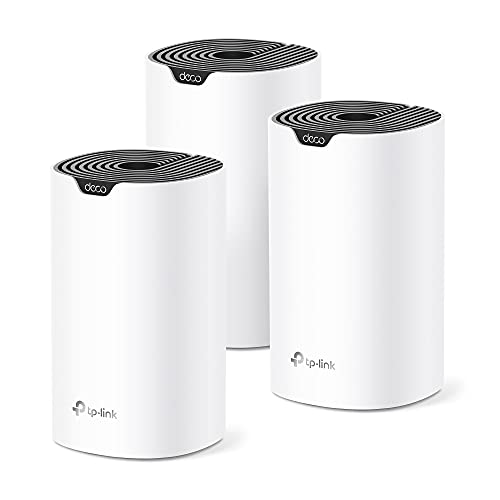
Mesh kits use a main router and one or more satellite units that work together under a single network name. They suit larger or multi-floor homes with awkward layouts. Wired connections between nodes, if available, improve performance. Compare features, and check whether your internet provider’s equipment can be switched to bridge mode.
Powerline adapters
These send network data through electrical wiring. Results depend heavily on the quality of the wiring and can be inconsistent. They are sometimes useful for reaching a garage or an upstairs room, but test one if returns are allowed.
Wired access points
If you can run an Ethernet cable, a wired access point gives the strongest result. Connecting stationary devices such as TVs, consoles and desktop computers by cable also frees wireless capacity for phones and tablets.
Any electrical work such as running cable through walls or ceilings should follow local codes. If you are unsure, hire a qualified installer.
Router Care and Upgrades
Routers are easy to forget until they fail. Every so often, restart yours to clear minor glitches, and install firmware updates when the manufacturer provides them. Dust gathers in vents, so wipe the case with a dry cloth. Place the router away from direct sunlight and heat sources, since high temperatures shorten electronics life.
If your router is more than five or six years old, it may lack newer standards and security updates. An upgrade can bring better range and handling of many devices, but a better placement often delivers a larger gain than a new router in the same bad spot. Try repositioning first, then decide whether to replace equipment. Check with your internet provider about leased equipment and whether you may use your own.
Planning for Smart Home Devices and Guests
Modern homes have many small connected devices such as cameras, plugs, speakers and doorbells. Most of them use 2.4 GHz and need only a modest signal, but they must stay connected all day. Placing the router where these devices can reach it reliably avoids the frustrating cycle of dropped connections. If a device cannot connect, check the signal at its location with a phone before blaming the device.
Guests add another layer. Most routers offer a guest network that isolates visitors from your main devices. It is a simple, sensible setting to enable, and it keeps your printers, computers and storage devices away from phones you do not control. Use a different password for the guest network and change it from time to time. Review the router admin page for this option, and follow the manufacturer’s guide.
Keeping a Record of What Worked
After you find a good spot, write down the position, any settings you changed and the speed test results. A short note saves effort if the router is reset, replaced or moved during renovations. Take a photo of the cable layout so you can reconnect everything correctly. If you contact your provider for support, these notes help them diagnose problems faster. Revisit your setup if you add new furniture, build a wall or move a large appliance, since small changes can alter coverage more than you expect.
Cables, Ports and the Wired Backbone
Wireless gets the attention, but the cables behind the router matter too. A damaged or very old Ethernet cable can limit speeds, so replace any that are kinked or visibly worn. Look for cables labeled Cat5e or better for typical home use. Check that the router port connected to the modem is the correct WAN port, and that the modem and router both have good power supplies. If your internet plan is faster than the router’s wired ports, you will not see the full speed, so compare the plan with the router specifications.
Antenna and Orientation Tips
If your router has external antennas, point them in different directions for mixed coverage. A common suggestion is one vertical and one angled, which helps devices held at various angles. Routers with internal antennas work best when placed upright or flat as the manual indicates. Do not bend antennas past their limit, and keep them clear of metal objects. Small adjustments can help, though location still matters most, so make placement your first step before you fine-tune angles.
Ready to Buy? Start Here
If this guide helped you decide what to look for, these products are a place to start.
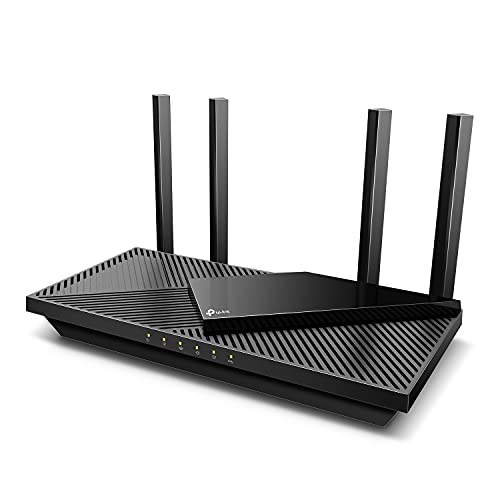
View TP-Link Archer AX55 on Amazon
As an Amazon Associate we earn from qualifying purchases. Prices and availability are shown on Amazon.
Reading Your Home Like a Signal Map
Before moving anything, walk your home slowly with a phone in hand and notice where the connection feels strong, weak or absent. You are drawing a mental map with three kinds of territory: rooms where video calls never stutter, rooms where pages hesitate, and dead corners where devices give up entirely. Placement decisions made from that map beat placement decisions made from guesswork, because the map shows you the shape of the problem you are actually solving.
Walls are not all equal
A signal passing through a stud wall loses a little strength; passing through brick, stone, concrete or a wall full of plumbing and metal loses much more. Count the hard walls between the router and the rooms that matter, not just the distance. A router ten paces away through two masonry walls can serve a room worse than a router twice as far through open space and one light partition. When you choose a spot, you are really choosing which walls the signal must cross.
Floors and the vertical dimension
In a multi-floor home, think of coverage as a rough sphere flattened by the building. A router on the middle floor usually serves the floors above and below more evenly than one in a corner of the lowest floor. Under-stairs cupboards and basement corners are popular hiding places and poor homes for a signal that must climb through floor structures, pipes and stored metal clutter.
A Methodical Placement Session
- List the rooms and activities that matter most: the desk where calls happen, the sofa where video streams, the bedroom where a phone scrolls at night. Placement serves activities, not floor plans.
- Pick two or three candidate spots that are central to those activities, raised off the floor, and reachable by the incoming line or a cable run you are willing to make.
- Test each candidate in turn. Put the router there, let it settle, then check the important rooms at the times of day you actually use them.
- Judge by behaviour, not by a single number: does the call hold, does the video start promptly, does the page load without a pause you can feel?
- Change one thing at a time. Moving the router and changing settings together leaves you unable to say what helped.
- When a candidate wins, make it permanent properly: route the cable neatly, keep vents clear, and write down where the router now lives and why.
- Revisit after a week of ordinary life. A spot that works during a quiet test may struggle when the whole household is online at once, and that is the result that counts.
Placement Patterns for Common Homes
The long flat or ranch home
Length is the enemy here: a router at one end abandons the other. The middle of the home, often a hallway or living room, is worth a longer cable run from wherever the line enters. If the far end still struggles, that is a structural problem to solve with an additional wired point or a mesh unit, not by hunting for a magical single spot.
The small apartment
In a small home almost any open, raised, central spot works, and the bigger risks are interference and crowding: neighbours’ networks on every side, and the router buried among other electronics. Favour openness over centrality, keep the router away from the television stack and the microwave’s wall, and let it breathe.
The home with a garden office
An outbuilding is a different problem wearing a placement costume. Distance plus exterior walls defeat most indoor arrangements. Treat the outbuilding as its own zone: a cable run if you can manage it, or a dedicated link, with the house router placed for the house. Expecting one corner router to serve both buildings well usually serves neither.
Placement and the Rest of the Household
The best technical spot sometimes fails a household test: it is ugly, it is in a toddler’s reach, its lights blink in a bedroom. Negotiate honestly. A slightly less central spot that stays put for years beats the perfect spot that gets unplugged, moved or hidden behind books by other people. If lights disturb sleep, many routers can dim or schedule them; check the settings before surrendering the location.
Guests and occasional devices matter too. A spare room that hosts visitors monthly deserves working coverage even if it sits empty most days, and placement that serves it prevents the familiar holiday ritual of everyone crowding into the one connected corner of the house.
When to Stop Moving and Start Extending
Placement has limits, and recognizing them saves weeks of furniture shuffling. If you have tested the sensible central spots and a whole wing, floor or outbuilding still fails, the building is telling you it needs more than one source of signal. At that point the honest options are a wired extension, a mesh setup, or a second access point, each discussed in the sections above. Placement remains the foundation: additional equipment works best when the main router starts from the strongest spot you found.
Working With the Line You Actually Have
Placement begins at the point where the connection enters the home, and that point was chosen by an installer for their convenience, not your coverage. Sometimes it can be moved or extended; a longer cable run along skirting or through a loft is unglamorous work that permanently improves every placement option downstream. Before spending on new equipment, ask whether the router is in the wrong place because the line ends in the wrong place. Extending the line to a central point is often the single highest-value change available, and it is a change you make once.
Testing Like You Mean It
Casual testing misleads: a page loading on your phone while you stand beside the router tells you nothing about the far bedroom at the hour everyone is home. Test deliberately. Use the same demanding activity in each important room, at a busy time, and give each candidate position the same trial. Take notes, because after three positions the impressions blur together and the loudest memory wins instead of the best result. And test the activities separately; a spot can stream video beautifully to the sofa while failing calls at the desk, and only you can say which failure matters more.
Placement for How Homes Are Used Now
The modern household asks more of coverage than the one these homes were built for: calls from a spare-room desk, a doorbell that needs the network at the very edge of the property, a television that streams rather than receives. Walk the perimeter of your expectations as well as your rooms. The front door, the garage, the garden seat where you take calls in summer: if these matter, they belong on the activity list that placement serves, and they may justify an outdoor-minded position or an extension that pure indoor thinking would never suggest.
The Conversation With Your Provider
If placement experiments reveal a connection that is weak everywhere, at every hour, in the room with the router itself, the problem is upstream of placement and it is time to talk to the provider. Arrive armed with your notes: what you tested, where, and when. Providers can check the line, spot faults at the cabinet or exchange, and sometimes improve things by moving you to a better port or replacing ageing equipment at their end. Placement skill cannot fix a sick line, and recognizing that boundary early is part of placing well.
A One-Afternoon Placement Project
Set aside one afternoon and do the whole job properly: map the home’s strong and weak areas, list the activities that matter, test two or three central candidates at a busy hour, choose the winner, route its cables neatly, and write down the result. Photograph the final arrangement for your records. An afternoon sounds like a lot for moving one small box, but that box mediates nearly everything the household does online, and the afternoon pays for itself the first time a call holds in the room where calls used to die.
Antenna Direction and the Shape of the Signal
Where a router has movable antennas, their position is a placement decision in miniature. The signal spreads out sideways from each antenna rather than pouring from its tip, so a vertical antenna serves the same floor broadly, while tilting one antenna can help a floor above or below. Treat antennas as the last adjustment, not the first: settle the router’s position with the activities test, then experiment with angles one change at a time, retesting the room that struggles. Keep notes as you go, because antenna experiments produce small differences that memory exaggerates in both directions, and the honest winner is sometimes the position you started with.
Neighbours, Seasons and Other Moving Targets
Coverage is not a fixed property of your home; it drifts. A neighbour’s new network, a house extension next door, even the leaves coming out on the tree between you and an outbuilding can shift what works. Seasonal change is a real effect for garden offices and long indoor paths that pass windows and foliage. This is why the record of what worked matters: when performance sags in spring, you can compare rather than guess, and the fix is often a small positional adjustment informed by your own notes rather than a purchase made in frustration.
Placement When the Household Works From Home
Two people on calls in different rooms change the placement equation from convenience to livelihood. Map the call locations first and weight them above everything else; a streamed film buffers, but a frozen call is a professional event. If the two call spots sit at opposite ends of the home, accept early that one central router may not serve both well, and plan the wired extension or second point as part of the office setup rather than as an admission of defeat. Test at the actual call hours, when the neighbourhood’s networks are busiest, because that is the air your calls must live in.
Explaining the New Spot to the Household
A moved router affects everyone, and unexplained improvements still generate complaints when a familiar corner changes. Tell the household what moved, why, and what to expect: which rooms should feel better, where the equipment now lives, and what not to unplug, cover or tidy away. Mark the router’s new home in the household’s mental map by simply naming it a few times in the first week. Placement work is finished not when the signal is strong but when the whole household has absorbed the change, and the router stays where your testing put it.
The Long View: Placement as Maintenance
Fit people revisit their arrangements; fit networks deserve the same courtesy. Once or twice a year, repeat the walking map: notice the rooms that have changed use, the new device that struggles, the corner that has slowly filled with obstacles around the router. Ten minutes of noticing, with your old notes in hand, keeps coverage matched to a household that never stops rearranging itself. Placement is not a problem solved once at installation. It is a small, recurring act of attention, and like most such acts, it is far cheaper than the frustration it prevents.
Placement Experiments That Cost Nothing
Before any purchase is contemplated, a weekend of free experiments will usually find most of the coverage your home can give. Try the router on a stack of books at different heights in the same spot, because height alone sometimes transforms a room. Try it turned, because the internal arrangement of many routers makes their coverage slightly directional in practice. Try moving the large metal object, the filing cabinet or the fridge-side clutter, rather than the router, because sometimes the obstacle is easier to move than the source. And try the spot you dismissed as too ordinary, the middle shelf of the middle room, which wins the activity test in a surprising number of homes precisely because it offends nobody and shadows nothing.
Coverage for the Rooms Nobody Thinks About
Walk the forgotten rooms with your phone: the bathroom where a radio streams, the kitchen where a recipe tablet lives, the hallway where the doorbell’s chime unit listens for the network, the landing where a printer sits. Modern homes scatter connected devices into corners that placement thinking, focused on desks and sofas, forgets entirely. A spot that serves the main rooms slightly less perfectly but rescues two forgotten ones can be the right trade, and only a complete map of where the household actually connects will reveal it. Update the activity list whenever a new device takes up residence in an unlikely room.
Placement and the Aging Household
Households change in ways floor plans do not capture: children become teenagers with gaming habits, a parent moves in and brings a television habit of their own, a partner’s new job moves the centre of the working day from one end of the house to the other. Each change quietly invalidates a placement that was perfect for the household that existed when it was chosen. This is the deepest reason for the periodic walking map recommended in this guide: not that the building changes, but that the life inside it does. Placement serves people, and people, fortunately, refuse to stay the same.
What to Tell the Next Occupant
If you ever leave this home, leave the network knowledge behind as you would wish to find it: where the line enters, where the router lived best and why, which rooms were always hard, and what you tried. A page of notes in a drawer has saved more weekends than any piece of equipment. Incoming occupants inherit every home’s quirks eventually; your notes simply let them skip the months of rediscovery. Placement wisdom is local knowledge, earned by experiment, and passing it on is the last improvement you can make to a home’s coverage.
The Router’s Neighbours: What Shares Its Shelf
Look at what keeps the router company in its new spot. Other electronics stacked against it add heat and clutter the air around it; metal objects crowd it; a fish tank, a mirror or a radiator each brings its own quiet interference with the work the router is trying to do. Give the router a small territory of its own: a shelf section, a clear margin on every side, and neighbours chosen for harmlessness, such as books kept loosely or nothing at all. When a well-placed router still underperforms, its neighbours are the cheapest suspects to clear, and clearing them costs an afternoon of rearrangement rather than a single purchase.
Placement Is a Promise You Keep Checking
Finish the job by making the next check effortless. In your notes, beside the winning position and the test results, write the date and one line about the household as it is now: who works where, which rooms matter, which devices struggle. That line is the baseline every future comparison needs, because coverage complaints are always relative to a life that has since changed. When the next dead spot complaint arrives, and it will, you will start from evidence instead of folklore, adjust the position or extend the network with intent, and update the note. A router placed once is furniture; a router placed with a record is infrastructure, and infrastructure is what lets a household forget the network exists, which was the point of moving it in the first place.
FAQ
Should the router sit on the floor?
Generally no. A higher position tends to reach more of the room, and the floor often has furniture and other items in the way.
Does the router have to be next to the modem?
Not always. A longer network cable can connect a router in a better position to the modem, though some setups combine both in one unit and are less flexible. Check the maker’s instructions.
Do I need to angle the antennas?
Follow the maker’s guide. Where antennas can move, some people point one upright and one sideways so devices at different heights each have a good path, but your model may differ.
Will moving the router change my internet speed?
Your plan from the provider sets the upper limit. Placement affects how much of it reaches each device, mainly over wireless. Results vary with your home and devices.
Should I switch the router off at night?
That is a personal choice. Some people do so to save energy, but check the provider’s current instructions, since certain services such as phone lines may depend on the equipment staying on.
What is the best height to mount a router?
Higher is generally better, because signal spreads outward and downward from the antennas. A shelf or wall mount at around chest height or above works well in many homes. Keep it clear of metal and thick furniture, and make sure the device has airflow around it.
Does a router in a closet or cabinet reduce coverage?
Often yes. Walls, doors and shelving block and weaken the signal, and enclosed spaces can trap heat. Moving the router into the open, ideally near the middle of the living areas, usually improves coverage. If cables force a location, try a short Ethernet run to a better spot.
Is 2.4 GHz or 5 GHz better for far rooms?
The 2.4 GHz band usually reaches farther and handles walls better, so it often suits distant rooms and simple devices. The 5 GHz band is faster at close range. Many routers manage both under one name, and you can test each band in the room that gives trouble.
How many devices can a home router handle?
Most modern routers can handle dozens of connected devices, but speed shares across active users. Smart home gadgets use little bandwidth, while streaming and gaming use much more. If many devices struggle at once, consider a newer router, a mesh system or wired connections for the heavy users.
Can I use two routers to improve coverage?
You can, but setup matters. A second router should usually be configured as an access point, connected by Ethernet, rather than as a second network behind the first. Follow the manufacturer’s guide, and consider a mesh kit if you want simpler setup and roaming between units.
Does putting the router on a bookshelf help?
Usually yes, provided the shelf is open and the router is not wedged between dense books or metal objects. Height helps the signal clear furniture and travel over obstacles, and a shelf keeps the device out of the way. Avoid enclosed cabinets and the very top of tall furniture where heat gathers.
Should the router be near a window?
Only if the rooms you care about are in that direction. A window sends part of the signal outside, which helps a garden or an outbuilding and wastes coverage for the rooms behind the router. Place for the indoor rooms first, unless outdoor use is a stated goal.
Can a mirror or aquarium affect coverage?
Large mirrors have a metal backing and big bodies of water absorb signal well, so both can shadow the area behind them. You do not need to rearrange your life around them, but if a dead spot sits directly behind a large mirror or tank, suspect them before blaming the router.
How close is too close to sit to a router?
Right beside the router is rarely the best seat in the house for a connection, and devices a little distance away often behave better. In practice, normal room distances are fine; if your desk must share a small space with the router, a shelf’s width of separation is a sensible minimum.
Does the router’s position affect wired devices?
Only through cable length and convenience. Wired devices get the same connection wherever the router sits, so when you move the router, plan the cable runs for the desk computer, television or console that stay plugged in, and keep those runs tidy and out of walkways.
How often should I reconsider placement?
Whenever the household changes shape: a new extension, a moved office, a teenager’s bedroom becoming a gaming den, or new neighbours filling the airwaves. Placement is a fit between a building, a household and a network, and any change to the three is a reason to test again.
The Short Version
Place the router in a central, raised, open spot and keep it away from thick walls, metal objects and water. Try a few positions by walking through the home and noting where pages load well. Move in small steps until the weakest room improves, and add an extra access point if one position cannot cover everything.