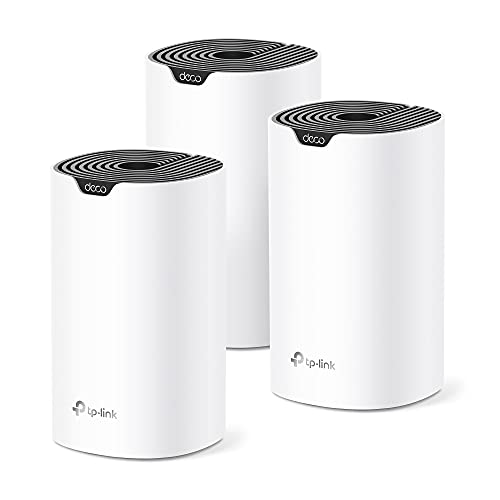
A Wi-Fi extender suits a small gap in coverage, while a mesh system suits larger or awkward homes where you want one smooth network. Both repeat or share the signal, but they work differently. Use the questions below to decide which fits your home, then follow the placement and setup steps so the equipment you choose actually does its job.

What Each One Does
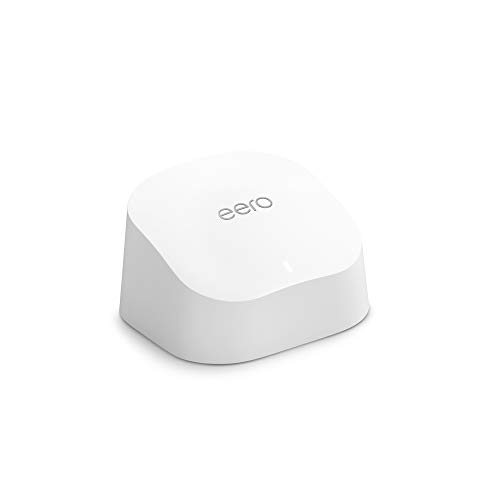
An extender connects to your existing router wirelessly and rebroadcasts the signal, usually under a second network name. A mesh system uses several units that work together as one network, so devices can move between them without you doing anything. Some mesh units can also link to each other by cable, which the maker’s guide will describe.
In this guide
Factors to Weigh
| Factor | Why it matters | What to check |
|---|---|---|
| Size of the home | Larger homes need more reach | Coverage the maker describes, and how many floors you have |
| Layout and walls | Thick walls reduce signal | Where the weak rooms are compared with the router |
| Number of devices | Busy networks need more capacity | How many devices are online at once |
| Cable option | A cable link is usually steadier than wireless | Whether the unit has a network port and whether you have wiring |
| Ease of setup | Simple setup saves frustration | The maker’s setup instructions |
| Compatibility | Parts should work together | Whether it works with your current router and wireless standard |
Why Walls and Bands Matter
Wireless signals weaken as they pass through walls, floors, mirrors, metal and water. Dense materials such as brick, concrete and tiled bathroom walls cut the signal more than plasterboard. Most routers offer two common bands. The lower band reaches farther and passes through walls better but is usually slower and more crowded, while the higher band is faster over short distances but loses strength faster through obstacles. A repeater unit that works on both bands can help, but the maker’s guide should say how the bands are used between the units and to your devices.
This is why a map of your home is more useful than a coverage number on a box. Note where the router sits, which rooms are weak, and what lies between them.
A Simple Way to Decide
- List the rooms with weak or no signal.
- Count how many there are and how far they sit from the router.
- If it is one or two nearby rooms, an extender placed about halfway may be enough.
- If many rooms are affected, or the home has several floors, a mesh system is worth considering.
- Check whether your router can be replaced by a mesh unit, which sometimes simplifies things.
- Read the maker’s setup guide before you commit, to confirm the steps are ones you are comfortable with.
Placement Matters Either Way
A repeater placed in the dead zone itself cannot help, because it needs a decent signal to repeat. Put it where the router signal is still good, between the router and the weak area. Mesh units follow the same idea: keep them within reach of each other. Place units off the floor, away from metal cabinets, microwave ovens and large mirrors, and avoid tucking them behind a television or inside a closed cupboard.
A Worked Walkthrough
The home below is invented for illustration. A two-floor house has the router in the downstairs hallway. The upstairs back bedroom and the garden office have weak signal.
- Try a better router position first, such as raising it onto a shelf in a more central room, and see whether the weak spots improve.
- Walk to the weak rooms with a phone and note where the signal indicator drops, to find the last spot that still has a good signal.
- Place the first extra unit at the stairwell or landing, which sits between the router and the bedroom and still receives a good signal.
- Follow the maker’s pairing steps, and give the unit time to connect before judging it.
- If the garden office is still weak, consider a second unit, ideally linked to the first with a cable if the maker allows it and the wiring exists.
- Move around the house with a phone and watch whether it holds one network name as you go.
Common Scenarios
- Small flat with one dead corner: a single extender placed halfway often covers the gap.
- Two-floor home: a pair of mesh units, one near the router and one upstairs, is a typical layout.
- Home with a detached office or garage: a wired link to a second unit usually behaves better than a wireless hop over a long distance.
- Home with a lot of smart devices: a system with spare capacity and an option for a wired link helps keep everything responsive.
Questions to Ask Before You Buy Anything
- Have I already tried moving the router to a better spot?
- Is the weak area one room or several?
- Can I run a cable to a second unit, or must it be wireless only?
- Does the maker describe how to set it up in plain steps?
- Will I want more units later, and does the system allow it?
Answering these honestly usually points to the right type. If you remain unsure, ask the maker or your provider what they suggest for a home like yours.
Quick Troubleshooting
| Symptom | Likely cause | What to try |
|---|---|---|
| Extender will not connect | Too far from the router or wrong password | Move it closer for setup and recheck the network details |
| Speed drops in the far room | Wireless hop shares airtime | Try a cable link or reposition the unit |
| Devices cling to the old network | Device keeps the first connection it found | Turn Wi-Fi off and on, or move closer to the nearer unit |
| Connection drops at times | Interference from other devices | Move the unit away from appliances and check the maker’s notes on channels |
| Setup stops after a router change | Network name or password changed | Set up the units again using the maker’s guide |
Glossary
- Extender: a unit that rebroadcasts an existing signal.
- Mesh: several units working together under one network name.
- Backhaul: the link between units, wireless or by cable.
- Band: a range of radio frequencies used by the network.
- Roaming: a device moving from one unit to another.
- Dead zone: a spot with little or no signal.
Reading the Spec Labels Without Getting Lost
Boxes for extenders and mesh kits are covered in numbers and codes, and many of them are less useful than they look. Understanding a few terms helps you compare products honestly.
- Wireless standard names, such as the generation numbers printed on the box, describe what the radio can do. A newer standard can offer better handling of many devices at once, but your phones and laptops must support it to benefit.
- Combined speed figures, often shown as a single large number, add up the maximum rates of several bands. No single device will reach that total, so treat it as a marketing figure rather than a promise.
- Coverage claims describe a best-case area, usually in open space. Walls, floors and neighbors reduce what you will see in a real home.
- Number of streams and antennas hint at capacity, but they are not directly comparable across products without reading the detailed specifications.
- Ports matter. Look for at least one network port on each unit if you want to connect a computer, a television box or a cable link between units.
The practical advice is to ignore the biggest number on the box and read the details on the maker’s page about bands, ports, supported devices and setup. Also check how the product receives updates, since security fixes matter for any device that sits on your network all day.
Backhaul: The Link Between the Units
The link that carries traffic from a remote unit back toward the router is called backhaul, and it is often the real limit on performance. If a unit shares one radio for both talking to your phone and talking to the router, each hop can cut the available speed substantially.
Wireless backhaul on a shared radio
This is the simplest and cheapest design. It works for light use in a small gap, but speed can fall noticeably at the far end, especially during streaming or video calls.
Dedicated wireless backhaul
Some systems reserve a separate radio band for talking between units, which leaves other bands free for your devices. This helps speed and stability, and it is a common feature of higher-priced mesh kits. Check the product description to see whether a dedicated link is offered and how it is used.
Wired backhaul
Connecting units with network cable generally gives the steadiest results, because it does not compete for air time and is not affected by walls. If your home already has network sockets in the walls, or you can safely run a cable along a baseboard, this is often the best upgrade. Powerline adapters are another way to carry data over electrical wiring, but their performance varies with the age and condition of the wiring, so read the maker’s notes and expect to test.
Whenever you run a cable, keep it away from sharp bends and tripping paths, and do not drill through walls or lift floorboards if there is any chance of hidden wiring or pipes. For anything involving house wiring, hire a qualified electrician and follow local codes.
Placing Units Step by Step
Placement can matter as much as the hardware. The goal is to put each unit where it still gets a good signal from the previous one and can cover the weak area.
- Start with the router in the best possible spot, preferably raised, central and in the open, rather than inside a cabinet or behind a television.
- Place the first extra unit about halfway between the router and the weak area, or in the room where the router signal is still reasonably good on your phone.
- Keep units away from metal appliances, mirrors, large fish tanks, microwave ovens and cordless phone bases, which can reflect or absorb the signal.
- Avoid hiding units behind furniture or in closets. Open shelves, tabletops and wall outlets in the open are better.
- Give each unit space for ventilation, since heat reduces the life of electronics.
- After each move, wait for the unit to reconnect and use the maker’s app or status light to check link quality before judging.
Do not chain too many units if you can avoid it. Every wireless hop adds delay and can reduce speed, so a few well-placed units usually beat many units placed close together.
Security and Maintenance
A network device that connects every gadget in your home deserves a little attention. These steps are widely recommended, but follow the maker’s own guidance for each product.
- Change the default administrator password during setup, and use a long, unique password for the Wi-Fi network itself.
- Choose the strongest security mode your devices support, and avoid older modes that the maker or authorities have flagged as weak.
- Turn on automatic updates if the product offers them, or check for updates a few times a year.
- Use a guest network for visitors and for smart-home gadgets you trust less, if your system supports it.
- Turn off remote administration unless you genuinely need it.
- Keep a note of the router and extender model names and the date of the last update, so you can tell when a product stops receiving fixes.
If the maker no longer provides updates for a device, consider replacing it, since an unsupported network device can be a weak point.
When a Different Fix Is Better
Sometimes the best answer is neither an extender nor a mesh kit. Think about the cause of the weak signal before you buy.
- An old router that supports only older wireless standards may be the bottleneck. Replacing the router with a newer model can fix both speed and coverage.
- A router provided by your internet company may be limited, in which case ask whether a better model is available or whether you may use your own.
- If the home is wired with network sockets, a second access point connected by cable can be a cleaner solution than a repeater. It needs setup knowledge, so read the manual.
- If the problem is a slow internet plan rather than weak signal, adding units will not help. Test a wired computer next to the router to see what the plan delivers.
- Interference from neighbors can be reduced by changing channels in the router settings, which costs nothing.
Run a simple before-and-after check by testing the speed in a weak room with a free speed test tool, then repeating after each change. Write down the results so you can judge whether a purchase actually helped.
Budget and Upgrade Path
Prices change often and differ by region, so compare current offers. In general, simple extenders sit at the low end, small mesh kits in the middle and larger kits with dedicated links and many ports at the higher end. Paying more does not guarantee a better result in your particular house, since layout and wiring drive most outcomes.
It can be sensible to buy a modest kit first and add units later if the system allows it. Check that additional units are sold separately and that they work with your existing set. If you plan to wire the units, make sure the model has the ports and the settings to do so.
A Worked Example: A Three-Story Townhouse
This invented scenario shows how to apply the steps. A narrow townhouse has the router on the ground floor at the front, a home office on the top floor at the back, and a stairwell in the middle. Phones show a weak signal on the top floor, and video calls drop.
Step one is to move the router off the floor onto a shelf and test again. The signal improves a little but not enough. Step two is to measure signal on the middle landing, where it is still fair. Step three is to compare an extender with a two-unit mesh kit. Because the weak area is far from the router and the house has several floors, the owner picks a two-unit mesh kit with a network port on each unit. Step four is to put the second unit on the top floor near the office. If a network socket exists there, the owner could connect it by cable to the router, which would remove the wireless hop. Afterward, the owner repeats the speed test in the office and finds the calls now hold. The details here are invented, but the sequence of simple checks first, then a targeted purchase, is a good habit for any home.
Diagnosing Your Home Before You Choose Anything
The most common reason an extender or a mesh system disappoints is that it was bought to fix a problem nobody had actually located. Slow video in one bedroom can come from a weak signal, from a busy evening network, from an old device, or from the internet connection itself, and each of those has a different cure. Twenty minutes of simple diagnosis, done before you spend anything, tells you which problem you have and therefore which of the two approaches in this guide, if either, is the right one.
Walk the home and map where things fail
Take a phone or laptop and visit every room where you actually use the internet, at the times you actually use it. In each spot, note three things: whether the connection works at all, whether it works but feels slow or unreliable, and whether it works for some things but not others, such as browsing happily while a call breaks up. Write the results down room by room rather than relying on memory, because the pattern is the diagnosis. Failures gathered at the far end of the home from the router suggest distance and walls; failures everywhere at the same hour of the evening suggest the connection or general congestion; failures on one device only, while others beside it work, point at that device rather than the network.
Test beside the router first
Before blaming distance, use the same device in the same room as the router, close to it, and repeat whatever was failing. If the problem is still there with a strong signal, an extender or mesh system will faithfully deliver that same problem to more rooms, only weaker. Problems that persist beside the router belong to the internet connection, the router itself, or the device, and they should be sorted out, or at least understood, before you extend anything. If, on the other hand, everything works well near the router and degrades as you move away, you have the classic coverage problem that this guide is about.
Notice the building, not just the floor plan
Two homes with identical layouts can behave completely differently. Thick masonry, foil-backed insulation, metal framing, underfloor heating mats, large mirrors and even a run of water pipes can all weaken a signal far more than an extra few metres of distance. Walk your map again with construction in mind: if the dead spot sits behind a chimney breast, an extension wall or a bathroom full of tile and pipework, the obstacle is probably the building, and the answer is usually a unit placed so its signal does not have to pass through that obstacle, rather than a more powerful unit shouting through it. This is also why advice from a neighbour in a different style of house transfers so poorly.
Thinking Through the Choice in Real Situations
With a map in hand, the extender-versus-mesh decision becomes a series of smaller, answerable questions. How many problem areas are there? One stubborn room is a different purchase from a whole floor that fades. Do the people in the home move around while connected, on calls or with laptops, so that smooth handover between units matters, or does everything connect from a fixed chair or desk? Is there any way to run a cable to the problem area, now or later, because a wired link to a second unit outperforms any wireless arrangement and some systems let you add that cable later without replacing what you bought?
Consider, too, how the home will change. An extender bought for one nursery or study can end up as a permanent fixture serving a whole family’s evening habits, and a household that starts with one mesh unit in a flat may move to a house where the same system grows by adding units. Neither path is wrong, but knowing which future you are more likely to live in helps you avoid buying twice. If you expect to move within a year or two, portability and simplicity count for more; if you expect to stay and add smart devices steadily, a system that manages itself and grows gracefully will repay its extra cost in evenings not spent troubleshooting.
The one-room problem
A single dead spot, with good service everywhere else, is the extender’s home ground, or even a placement problem that needs no purchase at all. Try moving the router first if its position was chosen by the installer rather than by you, because shifting it towards the centre of the home, up off the floor and out of a cupboard, sometimes cures the one-room problem outright. If a purchase is still needed, keep it modest and targeted, and place the extender where it still receives a healthy signal, not inside the dead spot itself.
The whole-home problem
When your map shows fading coverage in several directions, patching each spot separately tends to produce a tangle of network names and uneven handovers. That is the situation mesh was designed for: several cooperating units presenting one network and steering devices between them. The cost is higher and the setup involves more decisions about placement, but the result is a single system you manage in one place rather than a collection of individual fixes you must remember individually.
Setting Up Carefully, Then Testing Honestly
Whichever you choose, setup deserves the same patience as the diagnosis. Place one unit at a time. With an extender, start at a point roughly halfway between the router and the problem area, confirm it reports a good connection back to the router, and only then test in the problem room. With mesh, place the main unit with the router, then add each further unit one by one, testing as you go, so that if coverage in a room disappoints you know which unit’s placement to adjust. Resist placing all the units at once and judging the whole system at the end; when something is wrong, you will not know where.
Then test honestly, which means testing the things that failed before, in the rooms where they failed, at the time of day they failed. A quick test in the morning beside the new unit tells you almost nothing. Repeat your original walk with the same device and the same tasks, and compare against the notes you made earlier. Expect improvement in coverage and consistency rather than miracles in raw speed: these systems spread your existing connection more evenly, and a connection that was modest beside the router will still be modest at the far end of the house, just reliably so. If a particular room still fails, move the nearest unit a short distance and retest before concluding anything; small changes in position, away from a metal cabinet or out from behind a television, often matter more than large ones.
Naming, passwords and settings worth settling once
During setup you will make a handful of small decisions that are tedious to revisit. Use one network name across the system if it offers that choice, so devices can move between units without your intervention. Set a strong password you have recorded somewhere safe, and note the details of any administrator account for the system in the same place. Turn on automatic updates if offered, so security fixes arrive without relying on your memory, and check whether a guest network is available for visitors, which keeps their devices off the network your own equipment uses. Finally, write down where each unit is and when it was installed; a year later, that note is the difference between a five-minute fix and an afternoon of detective work.
Living With the System: Habits and Re-checks
A home network is not finished when the last unit lights up. Homes change around it: furniture moves, a large appliance arrives, a neighbour’s network appears on the same airwaves, children acquire devices. Build a light habit of re-checking rather than a heavy one of constant tinkering. If a room starts failing that used to work, ask first what changed in or near that room before touching any settings. Restart the system occasionally if the maker suggests it, keep units ventilated and off the floor where they can be kicked or soaked by a mop, and keep their cables and adapters with them if you ever move them, because a unit separated from its own power supply tends to stay separated.
Know, finally, when to stop extending. If you have placed units sensibly, tested honestly and still have a room that defeats wireless, the remaining options are a cable run, a different position for the router where the connection enters the home, or accepting that one room is served by a wired connection point instead. Each of those is a legitimate ending. The goal was never the largest possible network; it was a connection in the rooms you use that you can stop thinking about.
Special Cases Worth Thinking About Separately
A few common situations bend the general advice enough to deserve their own notes. A home where someone works with video calls all day has a stricter standard than a home used for evening browsing: for the working room, reliability during calls matters more than coverage in a spare bedroom, and if any room in the house justifies a wired connection point or the closest mesh unit, it is that one. Test that room at working hours, with a real call, before declaring the system finished, because a network that browses beautifully can still drop a voice at the moment a large appliance or a neighbour’s lunchtime streaming joins the airwaves.
Rented homes add a different constraint: you may not be able to run cables through walls or fix units where they would work best, and you may move before a large system repays its cost. That argues for freestanding units placed on furniture rather than mounted, for keeping every box and cable so the whole system can leave with you, and for favouring equipment you can take to a differently shaped next home. A system that grows or shrinks by adding or removing a unit suits renting life well, provided you buy it for the home you have rather than a hypothetical larger one.
Finally, consider the devices that are not yours to choose: a work laptop that must use a company network setup, a games console that lives in the room furthest from the router, an older relative’s tablet that struggles with newer wireless standards. Note which devices in your home are the least flexible, and judge any new system by whether it serves them, since the newest phone in the house will manage almost anywhere. A network is only as good as its most stubborn regular user, and planning around that user from the start avoids the familiar outcome of excellent coverage for everything except the one device the purchase was for.
Helping Someone Else Fix Their Coverage
Sooner or later, a relative or neighbour will describe exactly the dead-spot problem you have just solved and ask what you bought. Resist answering with a product name. Their building, their router position and their pattern of use differ from yours, and the honest help is to lend them your method rather than your conclusion: walk their home with them, test beside their router, find where their signal actually fails and what stands in its way. Half an hour of that will tell them whether they need a moved router, a single extender or a mesh system, and it will save them the classic purchase of equipment chosen for somebody else’s house.
If you do help with their setup, follow the same discipline as your own: one unit at a time, tested in the rooms that failed, with names and passwords written down and left with them, not stored in your memory or your phone. Show them the one or two checks they can do themselves when something falters, restarting the system and confirming a unit has not been unplugged for a vacuum cleaner being the two that cover most household incidents. And be honest about the boundary of your help: a connection problem that persists beside their router belongs to their provider, and an elderly router that fails under a modern household’s load belongs in a conversation about replacement, not in another layer of extension. Good advice, like good coverage, is mostly about putting the right thing in the right place.
What Good Coverage Actually Feels Like
It helps to know what you are aiming at, because good home coverage is unglamorous and easy to mistake for nothing having been achieved. It feels like this: a call taken walking from the kitchen to the far bedroom without a warning glance at the signal icon; a film started in the room furthest from the router that simply plays; a houseful of guests whose phones join the guest network without a committee meeting around the router. Nothing about it is spectacular, and that is the point. The systems in this guide are not bought to impress anyone with specifications; they are bought to remove a small daily friction so completely that the household forgets the friction existed.
Judge your own result by that standard a month after installing it, not by the numbers an app reports on the first evening. If the rooms you live in work, at the times you use them, for the devices you actually own, the system has succeeded, whether or not a measurement in a disused corner of the loft looks disappointing. Chasing the last corner is how modest, successful setups get tinkered into unreliable ones. Leave a working system alone, re-check it when the home changes around it, and spend the attention you saved on something the network was only ever there to support.
Ready to Buy? Start Here
If this guide helped you decide what to look for, these products are a place to start.

As an Amazon Associate we earn from qualifying purchases. Prices and availability are shown on Amazon.
FAQ
Will an extender halve my speed?
Some do lose speed because they use the same wireless link to receive and send. Models with a cable link or a dedicated connection avoid more of that. Check what the maker says.
Is moving the router a free alternative?
Often yes. Try a better position first, as described in a placement guide, before spending anything on new equipment. A central, raised, open position usually helps.
Do I need the same maker for every unit?
Mesh systems are normally sold as a matched set, and adding units usually means using the same system. Extenders are more flexible but should be compatible with your router, so check the maker’s notes.
Can I use a mesh system with my existing router?
Often yes, either by replacing the router or running the mesh in a mode that works behind it. The maker’s guide describes the options, and the second approach can create extra network layers that need care.
Should I use cable if I can?
A cable link between units is generally steadier than a wireless one. If your home has network wiring, ask the maker whether the system supports it.
Does a mesh system work with any internet provider?
Usually yes, since a mesh system connects to a modem or router by network cable and handles the Wi-Fi side. Some providers supply combined modem-router units that need settings changed, such as bridge mode. Check your provider’s guidance and the mesh maker’s setup steps before buying.
How many mesh units do I need?
It depends on home size, wall materials and how many floors you have. Maker coverage figures assume open space, so real results are lower. Many homes start with a two or three unit kit, then add units only if testing with a phone shows weak rooms remain.
Is it better to wire my Wi-Fi extenders with cable?
A cable link between units is generally steadier than wireless because it does not compete for air time or lose strength through walls. If your home has network sockets, or you can safely run cable, a wired link is often the best upgrade. Do not drill into walls without checking for hidden wiring.
Why is my extender slower than the main router?
Many extenders use one radio to receive and rebroadcast, which can cut speed considerably, and they may sit too far from the router to get a strong signal. Move the unit closer to the router, check for interference, or consider a model with a dedicated link or a wired connection.
How often should I update Wi-Fi equipment firmware?
Enable automatic updates if the maker offers them, or check a few times a year. Updates often include security fixes. If the maker no longer provides updates for your model, consider replacing it, since an unsupported device can be a weak point on a home network.
I have one dead room. Is mesh overkill for me?
Usually, yes. A single problem room with good coverage elsewhere is exactly the case a modest extender, or simply a better router position, is meant to solve. Mesh earns its extra cost when several areas fade, when you want one network name throughout, or when you expect to grow the system later. Start with your map of where things fail rather than with the product categories, and let the number of problem areas decide.
Can I try an extender first and switch to mesh later?
You can, and many households do. The extender will not usually become part of a later mesh system, so treat it as a smaller, separate purchase rather than the first instalment of the bigger one. If there is a fair chance you will end up wanting whole-home coverage within a short time, it may be cheaper overall to go straight to mesh; if the need is genuinely one room, the extender first is a sensible, low-commitment step.
Where should I never place an extender or a mesh unit?
Avoid placing one inside the dead spot itself, where it has only a weak signal to pass on, and avoid hiding units inside closed cupboards, behind large metal appliances or televisions, or on the floor where furniture blocks them and feet find them. A unit needs a reasonably clear path back towards the router or the next unit, some air around it, and a power socket it can keep. Halfway to the problem, in the open, at about the height of the devices using it, is the reliable starting point.
Will adding more units always improve things?
No. Beyond the number your home actually needs, extra units add cost and can crowd one another, competing for the same airwaves and confusing the devices choosing between them. Add one unit at a time, test the rooms that were failing, and stop when those rooms work acceptably. Coverage you cannot use is not an improvement, and a smaller system that covers your real living spaces well beats a larger one spread thinly over cupboards and spare rooms.
How do I tell whether a problem is my Wi-Fi or my internet connection?
Use the same device close to the router and repeat the failing task. If it still fails with a strong signal, the problem is likely the connection coming into the home, the router, or the device itself, and extending the Wi-Fi will not cure it. If it works well near the router and fades with distance and walls, that is a coverage problem, and that is the one an extender or mesh system is built to fix.
Should I keep my old router if I buy a mesh system?
It depends on how your internet arrives and what the mesh system expects. Some setups keep the existing router or modem and add mesh units to handle the wireless side; others replace the router’s role entirely. Follow the mesh maker’s guidance for your type of connection, keep the old equipment and its cables until the new system has run happily for a while, and write down which arrangement you ended up with so a future fault is easier to trace.
Should I replace my router before buying an extender or mesh?
Sometimes, yes. If your diagnosis showed problems even beside the router, or the router is old enough that its own maker no longer updates it, extending its signal spreads a weakness rather than curing a coverage gap. A newer router, or the router your provider supplies as a replacement, can lift the whole home before any extension is considered. Diagnose first, in the order this guide gives: beside the router, then room by room. Buy the cure for the problem you found, which is occasionally a router and only afterwards, if distance still defeats it, an extender or mesh.
Can an extender or mesh system help with a slow internet plan?
No, and expecting it to is a common disappointment. These systems distribute the connection you have; they do not enlarge it. If several people in the home compete for a modest connection in the evening, better coverage will make that competition fairer and more reliable in every room, but the total remains the total. Where diagnosis shows the incoming connection itself is the limit, the honest options are a different plan, fewer simultaneous heavy uses, or wiring the most demanding device so it stops contending for the airwaves. Spend on the bottleneck you actually found.
What should I do with the equipment boxes and cables afterwards?
Keep them, labelled, for as long as you own the system. The box proves what you bought, holds the spare cable and adapter that a future fault will want at short notice, and makes the equipment far easier to move, return or pass on. Store the details that matter with them: when the system was installed, where each unit is, and the administrator details you recorded during setup. Future troubleshooting in any home is mostly archaeology, and a labelled box in a known cupboard is the difference between a five-minute dig and a lost afternoon.
The Short Version
Choose an extender for a small, specific gap and a mesh system for larger homes or many weak rooms. Move the router first, place new units where the signal is still good, and follow the maker’s setup steps.