Where to buy
Check the latest price, availability and delivery on Amazon. Orders are placed on Amazon. We may earn a commission from qualifying purchases.
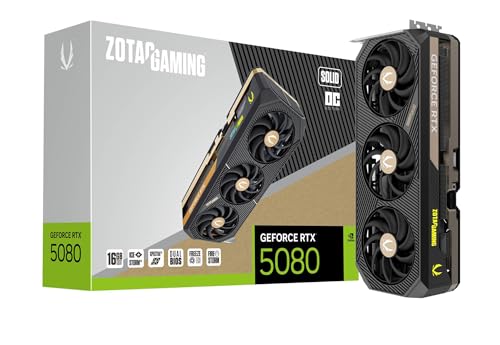
- Best first build for most beginners: ZOTAC Gaming GeForce RTX 5080 Solid OC, 16GB GDDR7 — Check on Amazon
- Best value parts build: MSI Gaming RTX 5070 Ti 16G Gaming Trio OC, 16GB GDDR7 — Check on Amazon
- Best build if you also make videos or render: AMD Ryzen 9 9950X, 16-Core, 32-Thread Desktop Processor — Check on Amazon
- Ready-built, if building sounds like a lot: CLX Set Gaming PC, Ryzen 7 9800X3D, RTX 5080, 32GB, 2TB — Check on Amazon
- Ready-built with every spec printed, including the power supply: Skytech King 95, Ryzen 7 9800X3D, RTX 5070 Ti, 32GB, 1TB — Check on Amazon
- Cheapest way into this performance tier: iBUYPOWER Y40 PRO, Ryzen 9 7900X, RTX 5070 Ti, 32GB, 2TB — Check on Amazon
Read the full guide ↓
Disclosure: As an Amazon Associate, reviewstook.com earns from qualifying purchases. Links to Amazon on this page are affiliate links; they cost you nothing extra. Listing details such as price and availability change often, so check the current Amazon listing before you buy.
If this is your first gaming PC, welcome — and take a breath, because $3,000 is serious money and the internet will try to make you feel you must spend all of it perfectly on the first try. You do not. A “build” guide is simply a shopping list plus a plan: three of the six paths below are parts lists you assemble yourself (or hand to a friend or a local shop), and three are complete computers that arrive in one box, included because right now, honestly, they can cost less than the same parts bought separately. Every path here is planned as a whole machine — processor, graphics card, memory, storage, power supply, case, cooling and a proper Windows license — because the most common beginner trap is a parts list that leaves half the computer out.
Two honest warnings before the shopping starts, because beginners deserve them up front rather than buried. First, component pricing is volatile: graphics cards and memory are currently positioned far above where they launched, and listings move often enough that any fixed total would mislead you. That is why this guide does not print static prices for individual products. For any pick with an Amazon link, check the current price on Amazon before you decide, then confirm the live total in your cart. Second, $3,000 does not buy the biggest graphics card NVIDIA makes. The RTX 5090 exists, it is wonderful, and the card alone sits in a flagship tier far above this entire budget, before you have bought a single other part. The FAQ below explains the 5090 honestly, so you can see why it is not here. What $3,000 does buy is the tier just below the flagship: fast enough for high-refresh 1440p and real 4K gaming, with nothing in these six paths that a beginner will outgrow in a year.
Words Worth Knowing Before You Spend Anything
PC building has a vocabulary problem: the words are never explained in the places that use them. Here are the twelve that matter, in plain English.
- Graphics card (GPU): The part that draws the game. It decides your resolution, your settings and most of your frame rate. Here the cards are the RTX 5080 and RTX 5070 Ti — the second and third fastest cards NVIDIA currently sells for gaming.
- Processor (CPU): The part that runs the game’s logic and everything else the computer does. Games care about it most in busy, crowded scenes; work like video editing cares about it all the time.
- Motherboard: The circuit board everything plugs into. It adds no speed of its own; it decides what fits and what you can upgrade later.
- Memory (RAM): The computer’s short-term workspace, measured in gigabytes (GB). 32GB is the right amount for gaming at this budget. It is not where your games are stored — that is the next word.
- SSD (storage): The drive your games and Windows live on, measured in terabytes (TB). 2TB is comfortable; 1TB fills up faster than new owners expect.
- Power supply (PSU): The box that feeds electricity to everything else, measured in watts. Invisible when it is right, catastrophic when it is wrong — and its wattage decides which future graphics cards you may install.
- Prebuilt: A complete computer that arrives assembled, with Windows installed and one warranty covering the whole machine. Picks 4, 5 and 6 in this guide are prebuilts.
- Barebone: A half-finished computer — usually a case with a board and processor, sold without memory, storage or Windows, which you must add yourself. None of the six paths here is a barebone; every one ends as a complete, working machine, and every build here accounts for the parts a barebone leaves out.
- Renewed (refurbished): A used machine that has been checked, cleaned and resold, usually with a shorter warranty. None of the six paths here is renewed — everything is new, worth knowing because renewed listings positioned lower are not the same product.
- Soldered vs socketed: Some small PCs have their processor or memory permanently soldered to the board, so they can never be upgraded. Nothing here is soldered: the builds use standard parts you can unplug and replace, and the processors sit in a socket (AMD’s AM5) that accepts newer chips later.
- DLSS and upscaling: A trick where the graphics card renders the game at a lower resolution and reconstructs it to fill your screen, so you get most of the picture quality for much less work. Honest numbers: with DLSS on Quality, a 1440p picture is actually rendered at about 1707×960 inside the card; at 4K output, Quality renders about 2560×1440 and the faster Performance setting about 1920×1080. It is a genuinely good feature — just know that “4K with DLSS” means the card drew a smaller picture and rebuilt it.
- Refresh rate (Hz): How many times per second your monitor redraws the picture. A basic office screen is 60Hz; gaming monitors run 144Hz and up. A powerful PC on a 60Hz screen is wasted money, because the screen cannot show the extra frames — this is why the monitor appears in the “what else you will spend” section below.
In this guide
Quick Picks
Short on time? Each row below names a first-time buyer type and the path that suits it, with a link to the anchor listing. Check the current price on Amazon for each pick before comparing totals.
| First-time buyer type | Pick | Why it stands out | Link |
|---|---|---|---|
| Best first build for most people | RTX 5080 + Ryzen 7 9800X3D parts build | The fastest card that fits this budget tier on the fastest gaming processor — positioned at the top of the tier, so check the current price on Amazon and confirm the full parts total still fits before you commit | Check on Amazon |
| Best value parts build | RTX 5070 Ti + Ryzen 7 9800X3D parts build | Same processor and platform, positioned more comfortably inside the tier than the 5080 build — check price on Amazon | Check on Amazon |
| Best if you also create | RTX 5080 + Ryzen 9 9950X parts build | Sixteen cores for editing and rendering; a declared stretch pick at the top of and beyond this tier in its 5080 form, while its 5070 Ti version sits more comfortably inside the tier — check price on Amazon | Check on Amazon |
| Best ready-built | CLX Set, 9800X3D + RTX 5080 | The exact specification of build 1, already assembled — its position against the parts route shifts over time, so check the current price on Amazon and compare it with building that week | Check on Amazon |
| Ready-built, nothing hidden | Skytech King 95, 9800X3D + RTX 5070 Ti | Its power supply is published (850W Gold) — rare honesty in a prebuilt; positioned in the middle of this prebuilt tier — check price on Amazon | Check on Amazon |
| Cheapest route to the tier | iBUYPOWER Y40 PRO, 7900X + RTX 5070 Ti | Positioned at the lower end of this performance tier, noticeably below the cost of building the equivalent — check price on Amazon | Check on Amazon |
How These Picks Were Chosen
The first filter was completeness, because beginners are the readers most often hurt by incomplete lists. Each parts build accounts for everything a working computer needs: processor, graphics card, motherboard, 32GB of DDR5-6000 memory, NVMe storage, an 850W Gold power supply, a case, a cooler and a retail Windows 11 license. If a build here looks more demanding than a forum list with the same headline parts, that is why — the forum list is usually missing a meaningful chunk of the computer. The prebuilts were held to the same standard: complete machines, Windows included.
The second filter was honesty about the current market. Pricing in this tier is volatile, and a printed figure can go stale quickly, so this guide describes each pick by its position in the tier instead of pinning it to a static number. Where a pick’s position swings — sometimes inside this budget, sometimes above it — the review says so plainly and tells you to check the current price on Amazon and re-total the whole machine before you buy. We did not assemble these machines ourselves; the judgments here are specification judgments, made from listings and manufacturer specification sheets, and the guide says so rather than dressing research up as hands-on testing.
The third filter was beginner-suitability, and it removed more than it kept. Nothing here is renewed, nothing is a barebone, and nothing has soldered parts. Every path sits on AMD’s AM5 platform with DDR5 memory, so a first machine can accept a newer processor years from now instead of becoming a dead end. And where a prebuilt matched a build’s specification while positioned more attractively in the tier — which happens often this season, because prebuilt makers bought parts earlier and in bulk — the prebuilt earned its place.
The 6 Best Gaming PC Builds Under $3,000 for Beginners
Build 1 — RTX 5080 + Ryzen 7 9800X3D: The Fastest First Build
Who it suits: The beginner whose machine is for games first and everything else second — high-refresh 1440p or 4K on one monitor — and who wants the strongest specification this budget can honestly hold, assembled from parts they chose themselves.
Here is the whole shopping list — the entire computer, nothing hidden. For the two anchor parts with Amazon links, check the current price on Amazon; the supporting parts are described by their place in their own ranges, because no single pinned listing defines them.
- Graphics card: ZOTAC Gaming GeForce RTX 5080 Solid OC, 16GB GDDR7 — the anchor card for this build; check the current price on Amazon. Other RTX 5080 models sit across a wide band on Amazon, so this single line decides whether the build fits its budget.
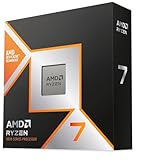
- Processor: AMD Ryzen 7 9800X3D — check the current price on Amazon via the processor link in this guide. The “X3D” means extra stacked cache memory — in plain terms, currently the fastest processor you can buy purely for games.
- Motherboard: MSI MAG B650 Tomahawk WiFi — a mid-range B650 board in its class; sellers position it quite differently, so compare the live listing carefully and buy from the better-positioned end of its range.
- Memory: 32GB (2×16GB) DDR5-6000 — buy the most attractively positioned kit from a maker you recognize at this speed. Yes, memory is unusually expensive right now relative to its recent history; the honest limitation below returns to this.
- Storage: WD Black SN850X 2TB — a high-end NVMe drive, positioned toward the upper part of the mainstream 2TB range depending on seller.
- Power supply: Corsair RM850e (2025), 850W Gold — a well-regarded mid-range Gold unit in its class. Remember this part — it is why the upgrades section can promise this build a card swap.
- Case: Lian Li Lancool 216 RGB — a mainstream airflow case in its class, with 392mm of room for a card this size.
- Cooler: Thermalright Phantom Spirit 120 SE — a simple, excellent air cooler positioned at the accessible end of its class; you do not need liquid cooling for this processor.
- Windows: Microsoft Windows 11 Home (USB retail) — a real license, included in the reckoning, because a computer without one is not finished.
Positioned honestly, this build sits at the very top of this budget tier and can move above it — treat it as a build that fits when the graphics card and memory are positioned favourably, and as a stretch when they are not. Before you shop, total the whole parts list at live prices, and if the total has moved above your ceiling, pick 4 below — the same specification, factory-assembled — may be the better-positioned buy that week, so check the current price on Amazon for both routes. What the money buys is real: the strongest gaming specification in the guide, the processor prebuilt makers choose for their own flagships, and a card with 16GB of memory that plays at 4K natively and makes 1440p high-refresh feel effortless.
Honest limitation: On an ordinary week this build can break the very budget it headlines: think of it as a top-of-tier machine that only settles comfortably inside the budget when the key parts are positioned favourably. The memory line is the worst of it — 32GB currently sits far above its earlier, calmer positioning, and no clever parts choice fixes that.
Choose it if gaming is the machine’s whole job and you can buy the card and memory when they are positioned favourably rather than all on one day. Skip it if your $3,000 is a hard ceiling today — take build 2 or pick 4 and keep the headroom.
Build 2 — RTX 5070 Ti + Ryzen 7 9800X3D: The Value Build
Who it suits: The beginner who wants the same flagship gaming processor and the same platform as build 1, a card that still drives high-refresh 1440p and credible 4K, and a path that fits the budget more comfortably without a week of price-watching.
This build shares build 1’s platform line for line — the same motherboard, memory, 2TB SN850X, Corsair RM850e power supply, Lancool 216 case, Phantom Spirit cooler and Windows 11 license — the shared foundation beneath the two parts that define the machine. The processor is once more the Ryzen 7 9800X3D; check the current price on Amazon. The one change is the graphics card: the MSI Gaming RTX 5070 Ti 16G Gaming Trio OC, 16GB; check price on Amazon. Its positioning inside the 5070 Ti band matters: a plainer MSI Shadow version of the same GPU sits lower in the same band as a prose-only alternative with no pinned link in this guide, while other 5070 Ti models sit higher in the band. The whole band now sits well above its original launch positioning.
So judge this build by position, not by a fixed total: with the Gaming Trio fitted it sits higher in the tier, and with a lower-positioned 5070 Ti variant it settles comfortably inside the budget with the 2TB drive fitted. The practical rule fits on a sticky note: total the full parts list at live prices before you buy, and favour this build when the 5070 Ti you choose is positioned in the lower part of its current band. What you give up against build 1 is the 5080’s step in raw rendering power — most noticeable at native 4K, least at 1440p where DLSS upscaling does its work — and what you keep is everything else: the same processor, the same 16GB of graphics memory, the same upgrade path, and more headroom left toward a better monitor.
Honest limitation: No line in this guide swings like the 5070 Ti’s positioning — it can shift substantially inside a short stretch — so treat this build’s fit as a range governed by where the card sits when you shop, not as a guarantee. Catch it on the wrong week and you pay build 1 money for a slower machine.
Choose it if your gaming lives at 1440p, or at 4K with upscaling doing the lifting, and you would rather hold headroom back for the desk around the machine. Skip it if native 4K at high settings is the whole point — that is build 1’s card, or nobody’s at this budget.
Build 3 — RTX 5080 + Ryzen 9 9950X: For Beginners Who Also Create
Who it suits: The first-time builder whose PC has two jobs — games in the evening, and video editing, rendering, compiling or heavy multitasking in the day — and who is choosing between two kinds of processor strength with real work on one side of the scale.
The processor decision is this build’s whole argument, in plain terms. The 9800X3D in builds 1 and 2 has 8 cores plus stacked cache, which makes it the fastest gaming processor in this guide; in games limited by the processor, it wins and it is not close. The Ryzen 9 9950X — check the current price on Amazon — has 16 cores, double the workforce for jobs that use every core at once: long renders, big compiles, timeline exports, a game running beside an encode. In games limited by the graphics card, which at 4K is most of them, the two chips finish in a near-tie and the card decides the frame rate. The beginner’s rule: if your non-gaming work is measured in hours per week, buy the 9950X; if in minutes, buy the 9800X3D and save the money. There is also a both-worlds chip, the 9950X3D, mentioned here in prose only with no pinned link: it sits above both chips in the range, and it is the correct answer for a wealthier guide, because at this budget its premium is exactly what pushes the total out of reach.
The rest of the list follows build 1: the ZOTAC RTX 5080 Solid OC — check the current price on Amazon — and the same motherboard, memory, 2TB storage, power supply, case, cooler and Windows lines. With 32GB of memory fitted, this build is positioned as a stretch pick above the comfortable heart of this tier, printed here rather than hidden. With the 64GB that serious creation work actually wants — a kit positioned far above the 32GB tier — it belongs to a different guide’s budget entirely. The version that fits this tier more comfortably swaps the graphics card to a lower-positioned 5070 Ti configuration: the 9950X, 32GB and the 2TB drive in a machine that creates at full speed and games one card-tier lower. Or hold the 5080 version for a moment when the card sits in the lower part of its band and pair it with a 1TB drive. We will not call the full 5080 version a comfortable fit for this budget; it is this guide’s stretch pick, labeled as one.
Honest limitation: With the 5080 and 32GB fitted, this build sits above the comfortable part of the budget in its standard form, and the 64GB version creators actually want overshoots by a wide margin. Getting it to fit means the 5070 Ti swap or waiting for a more favourable moment for the card — there is no third way.
Choose it if your work genuinely uses sixteen cores and you accept the stretch — or if the 5070 Ti configuration’s balance is the machine you actually wanted. Skip it if the creation work is more ambition than reality — a pure gamer pays the 9950X premium for cores that sit idle, while build 1 plays games faster for less.

Pick 4 — CLX Set Gaming PC (9800X3D + RTX 5080): The Prebuilt That Beats Building
Who it suits: The beginner who priced build 1, watched the total strain the budget, and would like the identical specification — same processor, same graphics card class, same memory — already assembled, covered by one warranty, and positioned more attractively.
The CLX Set (model TGMSETRTU5105BM — write that number down, it matters below) pairs the Ryzen 7 9800X3D with an RTX 5080 16GB, 32GB of DDR5, a 2TB NVMe SSD, a 360mm liquid cooler and an 850W Gold power supply confirmed from the manufacturer’s specification sheet for this model. Check the current price on Amazon before you judge it, because its position is the whole story: at its most attractive it has sat below the cost of assembling build 1’s parts for the same specification, with the assembly, the single warranty and the Windows license already included. Why can a company sell the finished machine for less than the parts? Because CLX bought its inventory earlier and in bulk. The condition matters as much as the recommendation: this same configuration has also sat far higher in the range, at which point building wins clearly. So treat this pick as a comparison — check price on Amazon, compare it with build 1’s live parts total, and buy the route that is better positioned the week you shop.
Honest limitation: No pick in this guide travels further inside its range — the gap between its most and least attractive positioning is wide — and CLX’s listings carry the usual note that component brands may vary, so which exact 5080 model sits inside is the maker’s call, not yours.
Choose it if its live position is attractive and you want build 1’s specification without spending a week hunting its parts. Skip it if the live price is sitting in its high band — up there, it is the priciest route in this guide to this exact specification.

Pick 5 — Skytech King 95 (9800X3D + RTX 5070 Ti): The Prebuilt With Nothing Hidden
Who it suits: The beginner who likes build 2’s specification, prefers a machine that arrives built, and wants every important number printed on the listing — including the one most prebuilt makers leave blank.
The King 95 (model ST-KING95-1671-W-AM) matches build 2’s heart — Ryzen 7 9800X3D, RTX 5070 Ti 16GB, 32GB of DDR5-5600 — and then does something rare: it publishes its power supply, an 850W Gold ATX 3 unit, alongside its 360mm liquid cooler. That printed number is why the upgrades section can promise this machine a future card swap while refusing pick 6 the same promise. Check the current price on Amazon: it is positioned in the middle of this prebuilt tier, generally below the cost of assembling build 2 at the card’s less favourable positioning and broadly comparable even when the card is positioned well — before counting your own assembly time and a single warranty. Against build 2 it trades away two things, both stated plainly: storage is 1TB where our parts list fits 2TB, and adding that second drive later is an extra cost on top of the machine; and the graphics card’s brand may vary within the 5070 Ti specification, as the listing itself discloses. Near-identical King 95 variants sit under other listings positioned higher in the range, so at checkout, match the model number ST-KING95-1671-W-AM rather than buying the name.
Honest limitation: Storage is where the compromise lives: 1TB disappears fast under a modern game library, and bolting on the second drive later costs more than fitting 2TB in a parts build would have. The brand-may-vary card also means its cooler design and clock profile are chosen for you.
Choose it if you want build 2’s performance with the assembly already done and the power supply printed on the record. Skip it if you know your library needs 2TB on day one and you enjoy the idea of building — pick 2 fits the bigger drive for broadly similar money when the card is positioned favourably.

Pick 6 — iBUYPOWER Y40 PRO (7900X + RTX 5070 Ti): The Cheapest Way In
Who it suits: The beginner who wants RTX 5070 Ti gaming — high-refresh 1440p, credible 4K with upscaling — and would rather the machine sit in the lower part of this tier than at its top, leaving real headroom for the monitor, desk and games that a bare tower budget forgets.
The Y40 PRO (model Y40BA9N57T01) pairs a Ryzen 9 7900X — a 12-core processor from the previous generation, no slouch at gaming and genuinely strong at work that uses many cores — with an RTX 5070 Ti 16GB, 32GB of DDR5 and a 2TB NVMe SSD, with a keyboard and mouse in the box and a 1-year warranty. Check the current price on Amazon: it is positioned as the most accessible route in this guide, at the lower end of the tier and noticeably below the cost of building a near-equivalent 5070 Ti machine from parts, and that headroom can fund a better monitor. The 7900X surrenders the 9800X3D’s cache advantage in processor-bound games, which is the honest performance cost; at 1440p and 4K on a 5070 Ti, the graphics card is the limit in most titles and the gap narrows to something most players will never see outside a benchmark chart. Two cautions. First, iBUYPOWER does not headline this listing’s power supply wattage in the material we verified, so confirm it on the live listing before ordering — and because it is unpublished, the upgrades section makes this machine no graphics-card promises. Second, the Y40 PRO name also covers a different 7800X3D configuration under a separate listing; this review is only the 7900X machine, model Y40BA9N57T01.
Honest limitation: Two honest debits: the unpublished power supply wattage is a real unknown you must resolve before buying, and the previous-generation processor trails the 9800X3D when games lean on the CPU. The compensation is its position at the accessible end of the tier — and that headroom is generous.
Choose it if the total cost of the whole setup matters more than the last increment of processor performance — it is the best value in this guide by a wide margin. Skip it if your games are processor-bound competitive or simulation titles at very high refresh rates — that is where the 9800X3D machines justify their premium.

Comparison Table
| Path | Key specification | Position in this budget tier | Link |
|---|---|---|---|
| Build 1 — RTX 5080 + 9800X3D | 5080 16GB, fastest gaming CPU, 32GB, 2TB | Top of the tier and can move above it — check the current price on Amazon and total the full parts list before you commit | Check on Amazon |
| Build 2 — RTX 5070 Ti + 9800X3D | 5070 Ti 16GB, fastest gaming CPU, 32GB, 2TB | More comfortably inside the tier, depending on where the card sits when you shop — check price on Amazon | Check on Amazon |
| Build 3 — RTX 5080 + 9950X | 5080 16GB, 16-core creator CPU, 32GB, 2TB | A declared stretch pick in 5080 form; the 5070 Ti configuration fits the tier more comfortably — check price on Amazon | Check on Amazon |
| CLX Set prebuilt | 5080 16GB, 9800X3D, 32GB, 2TB, 850W Gold | Position swings widely, from below the parts route to well above it — check the current price on Amazon and compare both routes | Check on Amazon |
| Skytech King 95 prebuilt | 5070 Ti 16GB, 9800X3D, 32GB, 1TB, published 850W Gold ATX 3 | Middle of this prebuilt tier — check price on Amazon | Check on Amazon |
| iBUYPOWER Y40 PRO prebuilt | 5070 Ti 16GB, Ryzen 9 7900X, 32GB, 2TB | Lower end of the tier, the most accessible route in the guide — check price on Amazon | Check on Amazon |
Your First Evening: From Boxes to Playing, Step by Step
Whether you built it or bought it built, the first evening follows the same script. Prebuilt buyers skip to step 2. Parts builders start at step 1, the only step that cannot be rushed.
- Assemble in this order (builds only). Work on a table, not a carpet, and keep the motherboard’s manual open — it outranks any guide, including this one. Seat the processor in the motherboard socket, then fit the cooler on top. Click the two memory sticks into the slots the manual names (on most boards, the second and fourth from the processor). Screw the SSD into its M.2 slot. Mount the motherboard in the case, fit the power supply, and connect its cables to the board. Install the graphics card last, in the top long slot, and plug the power supply’s graphics-card cable into it. Connect the case’s front-panel wires using the manual’s diagram. That is the whole build; everything else in this list is setup, and it applies to every path in the guide.
- Place it. Put the tower where air can reach it — on the desk or beside it, never sealed inside a closed cabinet while it runs. Leave a hand’s width of clearance behind it for the cables and the exhaust.
- Power it. Plug the power supply’s cable into the wall, flip the small switch on the back of the power supply itself to on — the single most common “my new PC is dead” panic is this switch being off — then press the case’s power button.
- Connect the monitor to the graphics card, not the motherboard. The back of the tower has two clusters of display sockets: one on the motherboard, one on the graphics card itself. Plug your monitor into the graphics card’s sockets. The trap specific to these machines: every processor in this guide has a small backup graphics chip built in, so the motherboard sockets will show you a perfectly normal picture — while quietly bypassing your expensive graphics card, so games run slowly and you may never realize why. If games feel wrong on a new machine, check this cable first. It is the cause embarrassingly often.
- Peripherals and wired internet. Plug in keyboard and mouse (the Y40 PRO includes both). Connect an Ethernet cable from your router if you possibly can; wired is faster and steadier than Wi-Fi for downloads and online play, and every path here can use one.
- Let Windows update, then update the graphics driver. On first start, Windows will restart several times for updates — let it finish before judging anything. Then install NVIDIA’s current driver from NVIDIA’s site or its app; the driver a machine ships with is rarely current, and the current one is free performance and stability.
- Set your monitor’s real refresh rate. A 144Hz monitor usually arrives set to 60Hz in Windows and stays there, silently, until you change it. Go to Settings, System, Display, Advanced display, and choose the highest refresh rate listed. This two-minute step is the difference between the monitor you bought and the one you think you bought.
- Verify the machine is the machine you paid for. Open Settings, System, About, and confirm the processor name and the 32GB of memory match your order. Open Task Manager’s Performance tab and confirm the graphics card’s name — RTX 5080 or RTX 5070 Ti — and the drive size. For a prebuilt, check the model number on the box against the listing (TGMSETRTU5105BM, ST-KING95-1671-W-AM or Y40BA9N57T01), because lookalike variants of all three names exist. Two minutes of checking on day one saves arguments later.
- Install a game store and one game. Install Steam (or whichever store your games live on), download one game you know well, and play it. You now own a working gaming PC.
What Else You Will Spend
The tower is not the whole purchase, and beginners are the readers most often ambushed by that fact. Nothing in this section is inside any pick above — those paths end at a complete, working computer. Treat this as a checklist, not a bill.
- A monitor, first and before anything else. Every path in this guide is built for a 1440p high-refresh monitor or a 4K screen. If your current display is an old 1080p 60Hz panel, it — not the tower — is now the weakest part of your setup, and it will hide most of what you just paid for. That is exactly why pick 6 exists: its accessible position in the tier leaves enough of the $3,000 unspent to buy the screen the tier deserves.
- Keyboard and mouse. Only the Y40 PRO includes them in the box. Builders and CLX and King 95 buyers need their own; the ones you already own are fine to start with.
- A desk that fits, and somewhere for the tower to breathe. These are full-size towers. Measure the space before the boxes arrive, and re-read step 2 of the walkthrough: a sealed cabinet is a slow cooker, not a storage solution.
- Games. The least surprising line on the list and the one every budget forgets. A new machine with an empty library is a very fast paperweight.
- The known catches, counted as machine plus fix. The King 95’s 1TB drive is the one specification here we would plan to change: adding a second drive later is the easiest upgrade in PC building — but it is a cost on top of the machine, so count the King 95 as machine plus a likely second drive when comparing it with the 2TB paths. Similarly, build 3’s creator configuration honestly wants 64GB of memory, and a kit in that capacity tier is a planned second purchase, not a rounding error.
Upgrades, in Plain Terms
A first PC should not be a dead end, and none of these six paths is one. But upgrade promises depend on the power supply — so here is what can be promised, and where we refuse to promise.
- Builds 1, 2 and 3: a future graphics card swap is a fair promise. All three use the same documented foundation — a Corsair RM850e, a named 850W Gold power supply, in a standard Lian Li Lancool 216 case with 392mm of card clearance. When a faster card generation tempts you years from now, this machine can take it: unplug the old card, plug in the new one, update the driver. The AM5 socket also means a future processor is a chip swap, not a rebuild.
- CLX Set: a swap is a fair promise. Its 850W Gold power supply is confirmed from the manufacturer’s specification sheet for this exact model — the fact the promise needs.
- Skytech King 95: a swap is a fair promise. Skytech publishes an 850W Gold ATX 3 power supply for this model — the same class of unit the builds use — so a future card is a plan, not a hope.
- iBUYPOWER Y40 PRO: no promise, on purpose. Its listing does not publish the power supply’s wattage in the material we verified, and an honest guide does not promise upgrades against an unknown. If you buy it, read the wattage printed on the power supply inside the case when it arrives; that number alone decides what its future graphics card can be. A small price for the cheapest machine in the guide — but a real one, paid knowingly.
How to Choose a Gaming PC Build Under $3,000
- Total the whole machine before you compare anything. A build list without Windows, a cooler or a case is not a total. Every path in this guide includes all three, which is why our builds look more demanding than forum lists with the same headline parts: they count more of the machine. Total yours at live prices in the cart before you compare it with any prebuilt.
- Decide the processor by workload, not by league table. For pure gaming, the 9800X3D’s stacked cache is the fastest gaming silicon here and the lower-positioned chip next to the 16-core 9950X, which sits higher in the processor range. Add hours of weekly rendering, compiling or exporting and the 9950X’s sixteen cores earn their premium — there, and only there. At 4K the graphics card limits most games and the two chips converge; at 1080p and 1440p high-refresh, the X3D’s edge is real. For either chip, check the current price on Amazon before you decide.
- Treat the graphics card’s position as a range, not a fixed figure. Both the RTX 5080 and the RTX 5070 Ti move across a wide band, and neither card holds a stable position in the current market. Fix your own ceiling inside this budget before you shop, check the current price on Amazon for the exact card you are considering, and let this guide’s prebuilt positions tell you when building has stopped making sense that week.
- Do not pay a speed premium on memory in this market. DDR5-6000 is the sweet spot; beyond capacity, the money is on fire. Buy the most attractively positioned kit from a maker you recognize at that speed and put the savings toward the graphics card. And buy two sticks, not four — two-module kits are the stable, better-value configuration on this platform.
- Size storage for the library you actually have. Stepping from 1TB to 2TB is one of the more modest lines in a build like this, making it the easiest line to trim when a build must fit — a second drive goes in later in minutes, an option a graphics card bought one tier too low never gives you.
- Specify the power supply like it matters, because it does. An 850W Gold unit with a modern connector standard — the Corsair RM850e class — is the correct floor for 5080 and 5070 Ti builds, and it is what makes future card swaps possible. On prebuilts, a published wattage (the King 95’s and CLX’s 850W Gold units) is worth real money; an unpublished one, as on the Y40 PRO listing, is a question to resolve before checkout, not after delivery.
- Compare against the whole desk, not the tower alone. A Y40 PRO positioned at the accessible end of the tier, plus a good 4K monitor, can still sit more comfortably inside the whole-desk budget than build 1’s tower on its own. If your current display is a 1080p panel, the best $3,000 setup in this guide may well be pick 6 and a screen — and that is no consolation prize.
Common Buying Mistakes
- Budgeting from launch positioning. Both graphics cards and memory now sit well above where they launched; plan a build for this tier around launch-era expectations and the cart will not match the plan.
- Setting a parts list that omits Windows, a cooler or a case beside a prebuilt’s complete price, and declaring building cheaper by exactly the lines left out.
- Plugging the monitor into the motherboard because it shows a picture. On these machines it will — the processors have backup graphics — and your games will run on that backup chip instead of the card you paid for. Graphics card sockets, always.
- Buying the 16-core processor for a pure gaming machine — or the gaming-cache processor for a workstation — because a league table crowned it “the best CPU.” Best is a workload, not a ranking.
- Chasing the RTX 5090 at this budget — or buying a “5090-ready” platform with a placeholder card in it now, on the theory that card prices will fall. Buy the machine that fits, complete, today.
- Buying a lookalike variant: the King 95 and Y40 PRO names each cover several configurations under different listings. Match the model number, never just the name.
- Ordering every part on the same day at whatever position that day offers. The two swing components — graphics card and memory — move substantially between weeks; a little patience on those two lines beats any coupon on the rest.
Final Recommendation
- Beginners who want to build, and can time the market: Build 1, the RTX 5080 and 9800X3D parts build.
- Beginners who want build 1’s machine without building: Pick 4, the CLX Set — the same specification, assembled; buy it when its live position beats the parts route.
- Value-first beginners: Build 2, the RTX 5070 Ti and 9800X3D build, bought when the card sits in the lower part of its current band.
- Beginners who also create: Build 3 — the 5070 Ti configuration to fit the budget today, the 5080 configuration as a declared stretch.
- Beginners whose $3,000 must cover the whole desk: Pick 6, the Y40 PRO, and a monitor with the headroom it leaves.
Our top two paths, build 1 and the CLX Set, are the same machine in two forms: a parts build positioned at the top of the tier, and the same specification already assembled, whose position swings around it. Which one is right depends on the week you are standing in and how you feel about a screwdriver — check the current price on Amazon for both and compare the live totals before committing to either. If the parts route appeals but the budget does not, Best Gaming PC Build Under $2500 is the tier where the parts math currently behaves better, and the base version of this guide, Best Gaming PC Build Under $3000, carries the same six paths without the beginner framing. Set your own ceiling inside the budget and check the live listings before ordering.
Frequently Asked Questions
I have never built a PC. Is this actually doable, or should I just buy the prebuilt?
It is genuinely doable — a modern build is nine parts, one screwdriver, and an evening of following the motherboard manual in the walkthrough’s order. But “doable” is not “obligatory.” Right now the honest comparison sometimes favors the prebuilts here: the CLX Set is build 1’s specification, assembled, and at its most attractive positioning it undercuts assembling the same parts yourself. Build if the building appeals to you or parts are positioned better the week you shop; buy the prebuilt if neither is true.
Why is there no RTX 5090 build in a $3,000 guide?
Because the card by itself sits in a flagship tier far above this entire budget — the whole budget gone before a processor, motherboard or power supply enters the cart — and the platform it demands belongs to a much higher tier of build altogether. Even on the most generous assumptions, a complete 5090 machine does not belong in this budget tier, and the complete 5090 systems on the market sit well above it. A $3,000 RTX 5090 build cannot be written honestly, so it is not written here.
9800X3D or 9950X — which processor should a beginner choose?
Ask what the machine does all day. For games, the 9800X3D is quicker — its stacked cache sees to that — and it is the lower-positioned chip of the two; check the current price on Amazon. The 9950X doubles the core count and wins big at rendering, compiling and exporting, while matching the X3D in most graphics-limited games; check price on Amazon. Pure gaming points to the X3D; gaming plus real weekly production work points to the 9950X. The 9950X3D, mentioned in prose only, does both jobs and prices itself out of this guide by sitting above both in the range.
What is the one setup mistake every new owner should avoid?
Plugging the monitor into the motherboard. Every processor in this guide has a small built-in backup graphics chip, so the wrong sockets still show a picture — a slow one, drawn by the backup chip while your RTX card sits idle. Plug the monitor into the graphics card’s sockets, then set the monitor’s full refresh rate in Windows display settings. Those two steps are the difference between the machine you bought and the one you think you bought.
What should I do if every total in this guide has moved by the time I read it?
Expect exactly that — pricing in this market is volatile, and the guide is structured to survive its movement. The platform lines drift slowly; the graphics card and memory lines carry the swings. Check the current price on Amazon for the anchor parts, re-total the whole machine at live prices, and hold your own ceiling inside the budget.
- Best Gaming PC Build Under $3000
- Best Gaming PC Build Under $2500
- Best Gaming PC Build Under $1500
- Best Gaming PC Under $3000
- Best Prebuilt Gaming PC Under $3000
- Best Gaming PC Build For 1440p Gaming Under $3000
- Best Gaming PC Build For Streaming Under $3000
- Best Gaming PC Build For Small Spaces Under $3000
- Best Workstation PC Under $3000
- Best High End Gaming PC Under $2000


