Where to buy
Check the latest price, availability and delivery on Amazon. Orders are placed on Amazon. We may earn a commission from qualifying purchases.
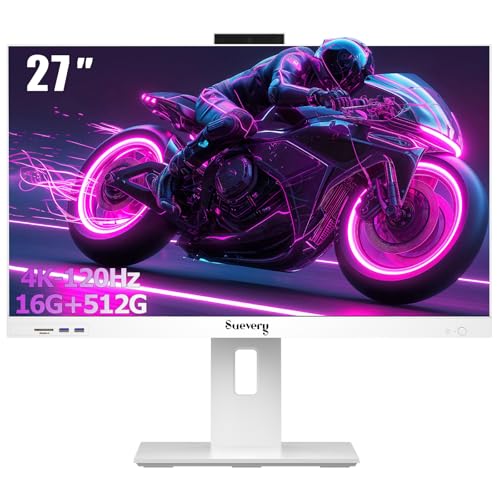
- Best first all-in-one for most beginners: suevery 27-Inch All-in-One Desktop Computer, Core i5, 16GB RAM, 512GB SSD — Check on Amazon
- Acer Aspire C24-1700-UA91 All-in-One, 23.8-Inch FHD IPS, Core i3-1215U — Check on Amazon
- HP 24-Inch All-in-One 24-cr0002, Ryzen 5 7520U, Pop-Up Privacy Camera — Check on Amazon
- HP OmniStudio 24 All-in-One, 16GB DDR5 Configuration, Keyboard & Mouse Included — Check on Amazon
See 2 more Amazon options
- Lenovo A100 All-in-One, 23.8-Inch IPS, 16GB RAM, Windows 11 Pro — Check on Amazon
- Lenovo IdeaCentre 24 All-in-One (V100), 8GB RAM, 512GB NVMe SSD — Check on Amazon
Read the full guide ↓
Disclosure: As an Amazon Associate, reviewstook.com earns from qualifying purchases. Links to Amazon on this page are affiliate links; they cost you nothing extra. Listing details such as price and availability change often, so check the current Amazon listing before you buy.
If this is your first computer — or the first one you have bought in a long time — an all-in-one is the kindest place to start, and this guide is written for you. There is no separate tower to plug a forest of cables into, no monitor to shop for separately, and no matching parts to get wrong. An all-in-one is a complete computer built into the back of its own screen: set it on a desk, plug in one power cable, connect the keyboard and mouse that usually come in the box, and you are looking at a working computer. Under $700, the six machines below are the ones we would hand to a beginner with a clear conscience. They cover the jobs a first computer is actually bought for: email and web browsing, school and office documents, video calls, streaming films and music, organizing photos, and light casual games.
Now the plain-words honesty part, because every beginner deserves it before any product names. None of the six computers in this guide — and no all-in-one under $700 anywhere — has a separate graphics card, the part a serious gaming PC uses to run modern games. These machines use the modest graphics built into their main processor: enough for everyday life and for older or simple games at gentle settings, not enough for the big new games you may have seen advertised, whatever a listing photograph of a racing car implies. If gaming is the main reason for the purchase, stop here and read Best Gaming PC Under $700 instead — a traditional tower at this same budget is the right tool for that job. If your real list is school, work, calls, browsing and streaming, read on: judged on those jobs, several of these six are genuinely good value, with every term explained as it comes up.
One more thing a beginner should know before the product names start: Amazon sells all-in-ones two ways. Some listings are factory listings — the machine exactly as HP, Lenovo or Acer built it, with that company’s warranty behind it. Others are seller configurations, where a marketplace seller takes a basic machine and adds memory or storage before shipping it. Seller configurations can be excellent value — two picks below are exactly that — but help and warranty claims run through the seller rather than the famous brand on the box. Every review below tells you plainly which kind you are looking at, because a first-time buyer should never discover it after something goes wrong.
In this guide
Quick Picks
Short on time, or comparing several options at once? Each row below names a buyer type and the machine that suits it, with a link to the listing.
| Buyer type | Pick | Why it stands out | Link |
|---|---|---|---|
| Best first all-in-one for most beginners | suevery 27-Inch All-in-One, Core i5, 16GB RAM | The biggest screen and strongest processor here — check price on Amazon | Check on Amazon |
| Easiest brand-name buy | Acer Aspire C24-1700-UA91 | A factory Acer machine with a slim design and Acer’s own warranty | Check on Amazon |
| Best for family video calls | HP 24-Inch All-in-One 24-cr0002 | A camera that pops up for calls and hides away afterwards | Check on Amazon |
| Best if you keep everything open at once | HP OmniStudio 24, 16GB DDR5 Configuration | 16GB of memory in a current HP design, keyboard and mouse included | Check on Amazon |
| Best for a first home office | Lenovo A100 All-in-One, 16GB RAM | 16GB of memory, honest internal storage and Windows 11 Pro — check price on Amazon | Check on Amazon |
| Best for a tight first budget | Lenovo IdeaCentre 24 (V100), 8GB RAM | Proper 512GB storage in a budget-friendly package — check price on Amazon | Check on Amazon |
How These Picks Were Chosen
Every machine below is a real Amazon.com listing that fits this guide’s under-$700 budget in the United States. Where a price moves around — and in this category prices move weekly — check the live Amazon listing for the current price rather than relying on a printed number. One pick, the HP 24-cr0002, earned its place on its specification and a discounted promotion seen on its listing rather than on a captured price; its review says so openly and gives you the rule: under $700, consider it; over $700, take the Acer instead. Anything that turned out to be a tower-and-monitor bundle wearing an all-in-one title, a second-hand unit that did not say so clearly, or a touchscreen model priced well above this budget was left out, because it does not answer the search a beginner actually made.
We did not use these machines ourselves. We read the manufacturers’ model information, the Amazon listings as reproduced in search-indexed crawls, and Amazon price-tracker records, and compared the things that decide whether a first computer feels friendly or frustrating: screen size and clarity, processor strength, memory, whether the storage figure is one honest internal drive or a small drive padded with an external box, whether a usable camera is documented, and who actually sells and supports the machine. Two extra filters mattered for a beginners’ guide: a storage filter, separating one honest internal drive from padded headline figures; and a support filter, admitting seller configurations only where the advantage was real — memory the factories do not sell at this price — and could be explained clearly enough for a first-time buyer to choose with open eyes.
One fact explains every specification that follows: an all-in-one is built from laptop parts mounted behind a screen. That is why these machines are thin, quiet and cool — and why their processors are laptop-class chips with built-in graphics. It makes the processor line in each listing the most important one, because it sets the ceiling for everything the machine will ever do — a ceiling the six picks span honestly, from a desktop-class processor in the first pick down to entry-level efficiency chips in the value picks.
New to Computers? Six Terms, in Plain English
Listings are written in shorthand. Here is every term used in this guide, translated once, so nothing below needs translating again.
- All-in-one (AIO). A computer and its screen in a single unit — no separate box under the desk. You plug in one power cable, and the keyboard and mouse connect by cable or wirelessly. The trade-off is that the parts inside are mostly fixed for life (see the upgrade section further down).
- Processor (CPU). The machine’s brain — the part that does the thinking. A stronger processor opens programs faster and copes better when several things happen at once. The pecking order in this guide, strongest first: the desktop-class Core i5 in the suevery, then the Ryzen 5 and Core i3 in the HP and Acer, then the entry-level Intel N100 and N150 chips in the remaining picks — fine for light everyday jobs and nothing heavier.
- RAM (memory). The machine’s short-term workspace — think of it as desk space. Everything you have open right now sits in RAM: browser tabs, documents, a video call. More RAM means more things open at once without the machine slowing down. In practical terms: 8GB is enough for one person’s focused work; 16GB is the comfortable figure if you keep many tabs and programs open, and the one that will still feel adequate in four or five years.
- Storage (the SSD). The machine’s filing cabinet — where Windows, your programs, photos and files live permanently, measured in gigabytes (GB). In practical terms: 256GB suits someone whose files mostly live online; 512GB is the comfortable figure for a family photo library and a normal set of programs. One warning: some listings add an internal drive and an included external drive into one headline number. Programs can only live on the internal drive, so that is the number to look at.
- Integrated graphics. The picture-making ability built into the processor itself, instead of a separate graphics card. Every machine in this guide has it. It handles video, calls, streaming and simple games perfectly well. What it cannot do is run big modern games at high quality — for that, a tower with a graphics card is the honest answer.
- Factory listing vs seller configuration. A factory listing is the machine exactly as the big brand built it, with the brand’s warranty. A seller configuration is a base machine an Amazon marketplace seller has upgraded — usually more memory or storage — before posting it to you. The specification can be better for the money, but if something goes wrong, you deal with the seller, and the warranty words on that listing count.
The 6 Best All-in-One PCs Under $700 for Beginners
suevery 27-Inch All-in-One Desktop Computer — Core i5, 16GB RAM, 512GB SSD
Who it suits: A beginner who wants the easiest possible start with the most growing room: the biggest screen in this guide, the strongest processor, and enough memory that the machine will not feel old quickly.
If you only read one review, read this one. Its screen is 27 inches — noticeably larger than the roughly 24-inch screens on everything else in this guide — and for a new user that size is a kindness: text is bigger, two windows sit side by side without squeezing, and a streamed film fills the desk like a small television. The surface is anti-glare, so lights and windows reflect less, and the stand tilts from -5 to 25 degrees. Behind the screen is the strongest processor in this guide, an Intel Core i5-12400F — a desktop-class chip rather than the laptop parts in the other five picks — with 16GB of memory and a proper 512GB internal SSD: in everyday language, the machine least likely to make a beginner wait. It is finished in white, keyboard and mouse are in the box — check price on Amazon for the current figure. It leads the guide despite two honest cautions.
The first caution is the name. suevery is a small brand that sells mainly through Amazon, not a household name like HP or Lenovo: if the machine ever needs repair, support will not match the big companies’ networks, and a beginner who wants a famous brand’s helpline should look at the Acer and HP below. The second caution is a genuine must-do: this processor is an “F” model, meaning it has no graphics ability of its own, so the machine depends on a separate graphics solution — and the listing description we could verify does not name one. Before ordering, open the live listing’s specification table and confirm what drives the picture. If that line is clearly answered, this is the most beginner-proof machine in the guide; if the listing cannot answer it, treat the silence as your answer and choose the Acer.
- 27-inch anti-glare screen — the largest here, and the easiest on new eyes; tilts from -5 to 25 degrees.
- Desktop-class Core i5 processor with 16GB of memory and a 512GB SSD — the most growing room in this guide.
- Keyboard and mouse included — check price on Amazon.
Honest limitation: A small brand whose support will not match HP or Lenovo — and you must confirm the graphics line on the live listing before ordering, because the processor has no graphics of its own and the description we verified does not name the solution.
Choose it if you want the biggest screen and the least waiting, and you are willing to do that one graphics check at checkout. Skip it if a famous brand’s warranty and helpline matter more to you than specification — that is the Acer or the HP below.

Acer Aspire C24-1700-UA91 All-in-One — 23.8-Inch FHD IPS, Core i3-1215U
Who it suits: A beginner who wants the calmest possible purchase: a machine built and backed by a well-known company, with no seller in the middle and nothing to verify beyond the price.
The Acer is the low-anxiety pick: Acer’s own factory listing, arriving exactly as Acer built it, with Acer’s warranty behind it and one obvious company to call if anything goes wrong. The design helps too: the 23.8-inch Full HD screen fills almost the whole front of the machine (a 91% screen-to-body ratio — in plain terms, the borders around the picture are very thin), so it looks like a floating screen rather than office equipment. The panel is the IPS kind, which keeps the picture looking right even when you are not sitting dead-centre, and Acer’s BlueLightShield reduces blue light, which some people find easier on the eyes in the evening. The stand tilts from -5 to 25 degrees. Inside is a 12th-generation Intel Core i3-1215U processor with Intel UHD integrated graphics: not the strongest chip here, but perfectly capable for documents, browsing, school platforms, streaming and calls. Storage is a genuine 512GB NVMe SSD — all internal, no tricks — alongside 8GB of memory, Wi-Fi 6 and Windows 11 Home.
Two honest notes. The memory is 8GB, the part of this specification that will feel its age first: fine for focused work — a document, some tabs, a call — and tighter if your habit is to keep everything open at once; if that sounds like you, the 16GB picks further down will suit you better. And the price lives right at the edge of the budget, so check price on Amazon before you buy. So the rule is simple: buy it only if the live listing fits the under-$700 budget, and walk away if the live price is above that, because above the ceiling you would be paying top-of-budget money for a specification other picks here beat on memory.
- A factory Acer machine: Acer’s warranty and support, with no marketplace seller involved.
- Slim 23.8-inch IPS screen with very thin borders and BlueLightShield, tilting -5 to 25 degrees.
- A proper internal 512GB NVMe SSD and Wi-Fi 6 — no storage tricks in the headline.
Honest limitation: 8GB of memory is the figure that will age first, and its price tends to sit close to the budget ceiling — check price on Amazon, and treat this as a buy-only-within-the-under-$700-budget machine, not an above-it one.
Choose it if brand support and a tidy, well-finished design matter more than memory headroom. Skip it if you keep dozens of tabs and programs open — the 16GB machines below will feel better for longer.

HP 24-Inch All-in-One 24-cr0002 — Ryzen 5 7520U, Pop-Up Privacy Camera
Who it suits: A beginner whose computer life will revolve around video calls — grandchildren, remote work, online classes — and who wants a proper manufacturer’s machine that handles those calls thoughtfully.
HP’s 24-cr0002 earns its place in a beginners’ guide with one feature you will understand in a second and appreciate every day: its camera pops up. When you join a call, the camera rises from the top of the screen; when the call ends, it sinks back out of sight — so it physically cannot watch the room while it is down. No software setting to trust, no little sliding cover to lose. For a computer in a bedroom, a kitchen or a shared family space, that is privacy a beginner does not have to think about, and it is the best-documented camera in this guide. The rest is a balanced factory package: a 23.8-inch Full HD screen, and an AMD Ryzen 5 7520U processor with Radeon integrated graphics — the strongest chip in any of the three big-brand listings here, with comfortable headroom for calls, documents, browsing, streaming and school or office platforms. This is HP’s own listing, with HP’s warranty, running Windows 11 Home.
The compromises are easy to grasp. Storage is 256GB — the smallest internal figure in this guide. That is fine if your photos and files mostly live online, as many people’s now do, but a growing family photo and video library will fill it; the fix is a small plug-in external drive — a normal, inexpensive purchase, but one to know about in advance. Memory is 8GB: adequate rather than generous. And this review owes you a straight pricing note: we verified this machine’s full specification, and we saw its Amazon listing running a promotion, but no exact price is printed here on purpose — check price on Amazon instead. The rule is simple: if the live listing shows it under $700 when you check, it is a strong buy and the call-quality pick of the guide; if it has drifted above $700, take the Acer above instead.
- Pop-up privacy camera: it rises for calls and physically hides away afterwards — privacy without settings.
- AMD Ryzen 5 7520U — the strongest processor in this guide’s big-brand listings, with Radeon graphics.
- HP’s own factory listing and warranty in a clean 23.8-inch Full HD design.
Honest limitation: 256GB is the smallest storage here and 8GB of memory is merely adequate — and because prices change, only buy it when the live listing fits the under-$700 budget — check price on Amazon first.
Choose it if your days run on video calls and you like the camera that disappears. Skip it if you keep a large photo and video library on the machine itself — choose one of the 512GB picks instead.

HP OmniStudio 24 All-in-One — 16GB DDR5 Configuration, Keyboard & Mouse Included
Who it suits: A beginner who keeps everything open at once — many browser tabs, a call, documents, music — and wants the memory to match, in a current, good-looking HP design.
This machine needs one idea explained first, and it is the glossary idea: this is a seller configuration. The computer underneath is HP’s current OmniStudio 24, a modern 24-inch Full HD all-in-one with Wi-Fi 6, Windows 11, and a keyboard and mouse in the box. The listing, though, comes from a marketplace seller who has configured it with 16GB of DDR5 memory — double the factory listings in this guide, in the newer, faster DDR5 kind. Why care? Because what makes an everyday computer feel slow is usually not the processor; it is running out of workspace. Sixteen gigabytes is the difference between a machine that quietly juggles thirty tabs, a call and a spreadsheet, and one that starts stalling. Check price on Amazon for this configuration; the 8GB version of the family is the lower-tier alternative, while the 16GB version here sits at the top end of this guide’s budget.
Now the two honest debits. First, storage: the headline capacity is two parts — a small 128GB internal drive and a 512GB external drive. Remember the glossary rule: Windows and your programs live on the internal drive, and 128GB fills faster than new buyers expect. Think of this as a 128GB computer that comes with a generous external drive for photos, media and backups — useful, but not the same as a big internal drive. Second, the processor is Intel’s N150, an entry-level efficiency chip: fine for browsing, documents, schoolwork, streaming and calls, and clearly weaker than the Ryzen 5 and Core i3 in the factory picks for anything heavier, like editing photos. The generous memory makes this chip feel better at multitasking, but it does not make it a stronger chip. Buy it for its memory and modern design, understanding its storage split and modest processor, and it is a sensible purchase; buy it for the headline numbers alone, and those two places are where it will disappoint you.
- 16GB of DDR5 memory — double the factory listings here, in the newer standard; the multitasker’s pick.
- Current HP OmniStudio design, Wi-Fi 6 and Windows 11, with keyboard and mouse in the box.
- Check price on Amazon for this configuration; the 8GB version of the family is the lower-tier alternative.
Honest limitation: The storage is split — a small 128GB internal drive plus a 512GB external one — and the entry-level N150 processor is the weakest class of chip in this guide, memory or no memory.
Choose it if your bottleneck is open tabs and programs, and the storage split genuinely fits how you work. Skip it if you install large programs or keep big libraries on the machine — the suevery and the factory HP are stronger, simpler machines.

Lenovo A100 All-in-One — 23.8-Inch IPS, 16GB RAM, Windows 11 Pro
Who it suits: A beginner setting up a first home office or small business desk, who wants generous memory, honest storage and Windows 11 Pro — and is comfortable that a seller, not Lenovo’s factory, put the configuration together.
Of the seller-configured picks in this guide, this Lenovo A100 listing is the easiest to explain and the easiest to live with. The screen is a 23.8-inch IPS Full HD panel; IPS is worth having at a shared desk because the picture stays clear and the colours stay true when the viewer is sitting off to one side, as family members and colleagues usually are. Inside are an Intel N100 processor, 16GB of memory and a 512GB SSD that is internal, full-size and honestly described — no external-drive arithmetic in the headline, which already puts this listing ahead of the one above. It runs Windows 11 Pro rather than Home — extra management and security features that matter to small businesses and cost home users nothing — and comes with a wired keyboard and mouse. Sold by marketplace seller WYL Tech — check price on Amazon; it sits comfortably under this guide’s ceiling as a mid-range option here. Put plainly: the factories will sell you a stronger processor or their own warranty in this range, but not 16GB of memory and 512GB of internal storage together under $700. This listing will.
The context to hold alongside that offer is what the A100 is in Lenovo’s own catalogue: an entry-level machine whose factory versions pair the same N100 chip with 8GB of memory and a 256GB drive. The 16GB and 512GB figures here are the seller’s upgrade, fitted before shipping — a common, legitimate practice that changes who stands behind the machine: questions about the upgraded parts run through the seller, and the warranty line on this listing, not Lenovo’s standard terms, is the document that protects you. Read it before ordering, and keep your invoice. The second point is shared across this end of the guide: the N100 is an efficiency chip, built for light work. For documents, browsing, school platforms, streaming, calls and reception-desk duties it is genuinely sufficient, and runs cool and quiet doing them. For editing video or playing modern games it is not the tool, and no amount of memory changes that.
- 16GB of memory and a proper internal 512GB SSD — the combination the factory listings do not sell under $700.
- 23.8-inch IPS Full HD screen and Windows 11 Pro, with a wired keyboard and mouse included.
- Check price on Amazon — comfortably under this guide’s ceiling.
Honest limitation: A seller-upgraded version of an entry-level machine: support for the upgraded specification runs through the seller, and the N100 processor is for light work only.
Choose it if you want memory, honest storage and Windows 11 Pro in one box for office or school duty. Skip it if a factory warranty matters more to you than specification — that is the Acer or the HP 24-cr0002.

Lenovo IdeaCentre 24 All-in-One (V100) — 8GB RAM, 512GB NVMe SSD
Who it suits: A beginner on a careful budget — a student, a family buying a first shared computer — who wants a tidy, quiet machine for everyday work as the value pick in this guide, without being cheated on storage to get it.
The IdeaCentre 24 is the value pick, and its specification is more honest than its price required. The processor is Intel’s N100 — four cores, up to 3.4GHz, the same entry-level chip as in the A100 above — paired with 8GB of memory and, crucially, a 512GB PCIe NVMe SSD. That storage line is why this machine belongs in a beginners’ guide: cheaper all-in-ones often hide 128GB or 256GB drives that a new user fills within a year, whereas 512GB lets a student or family install their real programs and keep their real files with room to spare. The 23.8-inch Full HD anti-glare IPS screen, Wi-Fi 6 and Bluetooth 5.2 complete a short list of exactly what a first-time buyer actually notices — screen, storage, wireless — each present and each adequate. Check price on Amazon — as the budget-friendly pick here, it can leave part of the budget unspent: headroom for extras such as a more comfortable keyboard or a better webcam — or simply money kept.
The limits are the familiar ones at this end of the guide, and at this tier they are fairly traded. Eight gigabytes of memory is enough for focused work — documents, a browser with a sensible number of tabs, a call, a stream — and not enough for the everything-open-at-once habit the 16GB picks absorb without blinking; a student who researches with dozens of tabs open should look at the A100 instead. The N100 sets the same ceiling as its sibling: light work done quietly and coolly, heavy work done slowly or not at all. One practical note, because it confuses beginners daily: Lenovo’s seller listings use untidy model names, and the same basic machine can appear under slightly different titles with different memory and storage figures. So before you pay, check the exact numbers on the specific version in your basket, on the day you order. Do that one check, and this is the budget-friendly route in the guide to a tidy desk, a decent screen and storage you will not outgrow in the first year.
- A genuine internal 512GB NVMe SSD in a budget-friendly package — no storage padding to decode.
- 23.8-inch Full HD anti-glare IPS screen with Wi-Fi 6 and Bluetooth 5.2.
- Check price on Amazon.
Honest limitation: 8GB of memory and the entry-level N100 processor limit this machine to light, focused work — and Lenovo’s seller-listing titles are untidy, so verify the exact configuration on the version you order.
Choose it if your work is documents, browsing, school and calls, and you would rather keep the savings. Skip it if you keep dozens of tabs open at once — step up to the 16GB A100 configuration above.
Comparison Table
| Product | Type | Best use | Link |
|---|---|---|---|
| suevery 27-Inch All-in-One, Core i5 | 27-inch, small-brand listing | Biggest screen and strongest processor under $700 | Check on Amazon |
| Acer Aspire C24-1700-UA91 | 23.8-inch, factory Acer | The calm buy: brand warranty, slim design, honest storage | Check on Amazon |
| HP 24-Inch All-in-One 24-cr0002 | 23.8-inch, factory HP | Video calls, Ryzen power, camera that hides away | Check on Amazon |
| HP OmniStudio 24, 16GB DDR5 Configuration | 24-inch, seller-configured HP | Most memory for people who keep everything open | Check on Amazon |
| Lenovo A100 All-in-One, 16GB RAM | 23.8-inch, seller-configured Lenovo | Memory, storage and Windows 11 Pro for a first office | Check on Amazon |
| Lenovo IdeaCentre 24 (V100) | 23.8-inch, value Lenovo listing | Everyday work with honest storage as the value option | Check on Amazon |
How to Choose Your First All-in-One: A Beginner’s Checklist
- Start with the screen, because it is also your computer. Screen and computer are one purchase: when the machine slows down years from now, the screen cannot move to its replacement. Buy the best your desk fits — 27 inches if there is room, roughly 24 for counters and smaller rooms. IPS panels keep the picture clear from an angle; anti-glare finishes help in bright rooms.
- Put the processor in the right order. Strongest first here: the desktop-class Core i5, then the Ryzen 5 and Core i3, then the entry-level N100 and N150 chips. All browse, stream and handle documents; only the top half should be asked to juggle heavy multitasking — and none turns an all-in-one into a gaming machine.
- Decide memory by your habits. One or two programs at a time: 8GB is fine and cheaper. Dozens of tabs alongside documents and a call: 16GB is the figure that will still feel comfortable in four or five years — and on many all-in-ones it cannot be added later.
- Read storage figures slowly. “512GB SSD” means one internal drive of 512GB — the comfortable family figure. “640GB” made of a small internal drive plus an external one is a different thing: programs live on the internal drive only.
- Know who you are buying from. Factory listings carry the brand’s warranty and helpline; seller configurations can offer memory and storage the factories do not sell at this budget, and route support through the seller instead. Either can be right — buying one while believing it is the other is the mistake to avoid.
- Check the camera if your life runs on calls. One pick here documents a proper pop-up privacy camera; several listings say very little about theirs. Confirm the camera line on the listing — and remember a modest external webcam is a normal, sensible extra.
- Do not buy an all-in-one for games. Worth repeating, because it is the most expensive misunderstanding in this category: integrated graphics means casual and older games at gentle settings. A household that games should spend the same money on a tower and a separate screen — and readers short on desk space rather than money have their own version of this list at Best All In One PC For Small Spaces Under $700.
- Measure the desk first. A 27-inch all-in-one is roughly two feet wide and needs space behind it to tilt; a 23.8-inch model fits the counters and small desks the big screen would dominate.
Your First Evening: Setting Up, Step by Step
Every machine in this guide arrives with Windows 11 already installed, so setup is a gentle sequence, not a project. Here is the whole first evening, in order.
- Step 1 — Unbox and place it. Lift the machine onto the desk by its stand, not by the screen edges. Leave a hand’s width behind it so the stand can tilt. Plug in the single power cable — the only cable the computer itself needs.
- Step 2 — Connect the keyboard and mouse. Most picks here include them in the box; if they are wireless, their small USB receiver is usually in the box or tucked into the mouse’s battery compartment. Wired ones plug into any USB socket.
- Step 3 — Turn it on and follow the screens. Windows walks you through language, region and connecting to your home Wi-Fi — have the password handy. You will be asked to sign in with a Microsoft account; a free one is fine, and it is what lets your settings and files back themselves up.
- Step 4 — Let it update, and be patient. A new machine almost always wants to download updates on its first evening, and may restart itself more than once. This is normal, not a fault. Start the updates and let them finish while you make tea — interrupting them helps nothing.
- Step 5 — Sign in to your things. Email, streaming services and school or office platforms live in the browser or in apps from the Microsoft Store. Games come from places like the Microsoft Store, Steam or the Xbox app — and on these machines the right expectations are casual games, older favourites and cloud gaming services, which stream the game over the internet and play happily on every pick here.
- Step 6 — Two small kindnesses to your future self. Check that Windows’ built-in backup (OneDrive) is turned on for your documents and pictures, and write the machine’s model name and order details on a card kept in a drawer. If you ever need help — from family or a helpline — that card starts the conversation.
What the Price Does Not Include: The Honest Total Cost
The price on each listing buys the computer, its screen, and whatever that specific review says is in the box — the suevery, the OmniStudio configuration and the Lenovo A100 include a keyboard and mouse; check the live listing for the others before assuming. A beginner’s real total is usually a little higher, and it is better to know the likely extras now than to meet them one by one. None of the following is included in any pick’s price in this guide.
- A better keyboard or mouse (optional). The included ones work. If you type all day, a keyboard you love is the cheapest comfort upgrade in computing — but it can wait a month.
- An external webcam (only if calls matter and the built-in camera disappoints). The HP 24-cr0002’s pop-up camera is properly documented; other listings say little about theirs. A modest plug-in webcam is the standard fix.
- An external drive (only for the small-storage picks). The HP 24-cr0002’s 256GB internal drive is the one figure here a family library will outgrow; a plug-in external drive is the normal, painless answer. Note the difference from the OmniStudio configuration, which already includes an external drive — but whose small internal drive is still the limit for programs.
None of this changes the ranking above — it simply means the honest budget is the listing price plus, for most households, between nothing and the cost of one or two small extras chosen deliberately.
Upgrades, in Plain Terms: What Can and Cannot Be Changed Later
Beginners often assume a computer can be improved later the way a car gets new tyres. An all-in-one mostly cannot, and it is kinder to know that before buying than after. The honest picture, part by part:
- The processor: fixed forever. In this class of machine it is attached permanently. The one you buy is the one the machine retires with — which is why this guide keeps pointing at the processor line in each listing.
- The graphics: fixed forever. Integrated graphics are part of the processor, so they leave when it does — which is to say never, separately. There is no slot waiting for a graphics card in any machine here. If games matter more later, the answer is a different computer, not an upgrade.
- The screen: fixed forever. It is the machine. A screen you find dim or cramped in year one is the screen of year five, so choose size and panel type for the machine’s whole life.
- Memory: it depends, and listings often do not say. On some models in this class the memory sits in slots a technician can open; on others it is fixed to the board. Because the listings here do not all state which arrangement you are getting, the safe rule is to buy the memory you will need — 16GB for a long-term purchase — and treat any later increase as a bonus, never a plan.
- Storage: the one part that can sometimes be rescued. The internal drive can be replaced on many designs, but it means opening a sealed screen assembly — a repair-shop job, not a kitchen-table one. The painless version is an external drive: plug it in, move photos and media onto it, done.
None of this is a reason to avoid an all-in-one. It is a reason to buy the fixed parts — screen, processor, memory — for the machine’s whole life, which is exactly how the picks in this guide were ranked. Buyers who expect to upgrade their way out of a weak processor in year two are the ones writing the angry reviews; buyers who understand the bargain are almost always happy.
Common Buying Mistakes
- Buying an all-in-one for gaming. No graphics card exists at this budget in this shape; integrated graphics means casual and older games, and modern titles belong on a tower.
- Reading a combined storage figure as one big internal drive. A small internal drive plus an external box is not the headline number, and Windows only cares about the internal one when it fills.
- Paying for a touchscreen that is not there. Famous-brand touchscreen all-in-one bundles sit well above this budget — if a listing under $700 hints at touch, verify it in the specification table, not the title’s adjectives.
- Assuming a seller-configured machine comes with the big brand’s warranty experience. The specification may be better; the support path is the seller’s, and the warranty words on that listing are the ones that protect you.
- Choosing 8GB of memory for a five-year machine to save a little today. Memory is the first specification that feels old, and on many of these machines it cannot be changed later.
- Being dazzled by a big memory figure behind a small processor. Sixteen gigabytes behind an entry-level N-series chip makes a good multitasking machine, not a powerful one — know which you are buying.
- Skipping the camera check on a machine bought for calls and classes. The least-documented part of this category is the one your family and colleagues will see you through.
- Forgetting the screen is permanent. A dim or cramped display cannot be swapped when the computer slows down — buy the screen for the machine’s whole life.
Final Recommendation
- Most beginners: suevery 27-Inch All-in-One — the biggest screen and strongest processor under the ceiling, after the one-minute graphics check.
- The calmest purchase: Acer Aspire C24-1700-UA91, at or under $700.
- Video-call households: HP 24-Inch All-in-One 24-cr0002, when its live price is under $700.
- Everything-open multitaskers: HP OmniStudio 24, 16GB DDR5 Configuration.
- First home offices: Lenovo A100 All-in-One, 16GB RAM.
- Tightest budgets: Lenovo IdeaCentre 24 (V100).
Our top two for a first all-in-one are the suevery 27-inch, because it is the most computer and the most screen this budget buys in one box — with the graphics detail verified at checkout and the small-brand support accepted with open eyes — and the Acer Aspire C24, for everyone who would rather have a famous brand’s warranty and the best-finished 24-inch design in the guide. If your days are calls, the HP 24-cr0002 is the specialist; if your browser is the bottleneck, the two 16GB configurations are the answer at two different points in this range; and if the budget itself is the point, the IdeaCentre 24 leaves headroom in the budget without cheating you on storage. Beginners working to a tighter ceiling should also see Best All In One PC Under $500, and those who can stretch should compare Best All In One PC Under $800 before deciding the extra headroom there is not worth it. To compare this guide against its parent list, the full field is at Best All In One PC Under $700. Check the live price, read the storage and warranty lines one last time, and then enjoy the quietest, tidiest first computer $700 has ever bought.
Frequently Asked Questions
I have never bought a computer. Is an all-in-one a good first one?
Yes — for everyday life it is arguably the best first computer there is. There is one box, one power cable, and usually a keyboard and mouse in the carton, so there is almost nothing to connect wrongly. The honest limits are the ones this guide repeats: it will not play big modern games, and its main parts cannot be upgraded later. If your list is browsing, documents, school, calls and streaming, an all-in-one removes every difficulty except choosing one.
Can any all-in-one under $700 play games?
Only in the modest sense, and every beginner should hear this plainly. None of these machines has a separate graphics card. The graphics built into their processors will run casual games, older titles and simple competitive games at gentle settings, and cloud gaming services — which stream the game over the internet — work happily on all of them. Big modern games at high quality are beyond every machine here, whatever a listing’s photographs imply. Households that game seriously should put the same budget into a tower; readers set on this format can see the streaming side at Best All In One PC For Streaming Under $700.
How much memory and storage do I actually need?
Less than listings want you to fear, but in the right places. Memory (RAM): 8GB is enough for focused everyday work — documents, a reasonable number of browser tabs, calls, streaming. Choose 16GB if you keep many things open at once or want the machine to feel comfortable for years, because on many all-in-ones it cannot be added later. Storage: 256GB suits someone whose files live mostly online; 512GB is the comfortable figure for a family photo library and normal programs. And always check whether a storage headline is one internal drive or a small drive plus an external one — programs only live on the internal drive.
Why do some listings show huge storage numbers at low prices?
Because the headline is a sum of two drives, not one drive. Some seller configurations add an external drive to a small internal one and advertise the total. External storage is genuinely useful for photos, films and backups, but Windows and your programs live on the internal drive, and a 128GB internal drive fills quickly no matter what the headline says. This guide separates the two figures in every review; do the same arithmetic on any listing you consider.
What is the difference between a factory listing and a seller configuration?
A factory listing ships exactly as the manufacturer built it, with the brand’s warranty and helpline behind it. A seller configuration starts from a base machine — often an entry-level one — and a marketplace seller upgrades parts such as memory or storage before posting it to you. The specification can be better for the money, as two picks in this guide show, but support runs through the seller and the listing’s warranty words count. Neither is automatically wrong; confusing one for the other is the mistake.
Can I upgrade an all-in-one later if it gets slow?
Mostly, no — so buy on that assumption. The processor, the graphics and the screen are fixed for the machine’s life. Memory can be changed on some models and is fixed on others, and listings do not always say which; storage can sometimes be replaced by a repair shop opening the screen assembly. The painless rescue is an external drive for files. The safe rule: choose the screen, processor and memory for the whole life of the machine, and treat anything upgradeable as a bonus.
Is a 24-inch or a 27-inch all-in-one better for a beginner?
Neither, universally — it depends on the desk and the eyes. The 27-inch screen in this guide makes text bigger, fits two documents side by side and turns streamed video into a small television, at the same Full HD sharpness spread a little thinner: space over fine detail. The roughly 24-inch machines are a touch sharper per inch, cheaper, and fit the counters and small desks a 27-inch panel would dominate. Measure the desk, think about eyesight honestly, and choose accordingly. Readers weighing the same question at a higher performance level will find it discussed again at Best All In One PC For 1440p Gaming Under $700.


