Where to buy
Check the latest price, availability and delivery on Amazon. Orders are placed on Amazon. We may earn a commission from qualifying purchases.
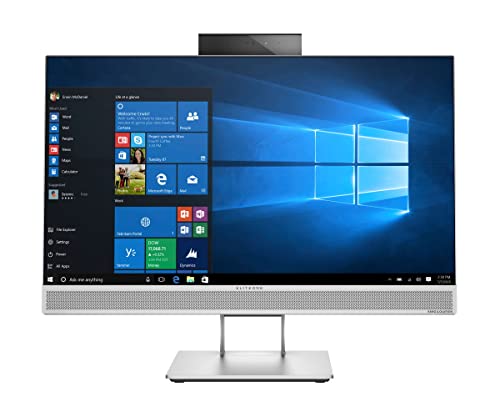
- Best overall: HP EliteOne 800 G4 All-in-One, 23.8″ FHD, Core i5-8500, 16GB RAM, 512GB SSD (Renewed) — Check on Amazon
- HP ProOne 600 G4 All-in-One, 21.5″, Core i5-8500T, 8GB RAM, 256GB SSD (Renewed) — Check on Amazon
- Dell OptiPlex 5260 All-in-One, 21.5″ FHD, Core i5-8400, 8GB RAM, 256GB SSD (Renewed) — Check on Amazon
- STGSivir All-in-One PC, 24″ FHD, 16GB RAM, 1TB SSD — Check on Amazon
See 2 more Amazon options
- MECHAZER All-in-One, 23.8″ Curved FHD, Core i7-7700HQ, 16GB RAM, 512GB SSD — Check on Amazon
- PINGDY All-in-One, 23.8″ FHD IPS, Ryzen 5 3500U, 8GB RAM, 512GB SSD — Check on Amazon
Read the full guide ↓
Disclosure: As an Amazon Associate, reviewstook.com earns from qualifying purchases. Links to Amazon on this page are affiliate links; they cost you nothing extra. Listing details such as price and availability change often, so check the current Amazon listing before you buy.
If this is your first computer purchase — or your first in a long while — an all-in-one is the friendliest kind of desktop there is. The screen and the computer are one single unit: unbox it, plug in one power cable, connect the keyboard and mouse that come with it, and you have a working desk. No separate tower, no bundle of cables. That simplicity is why the type is popular for a first family computer, a home-office desk or a machine for a parent or student — and this guide is written for that buyer, with every technical word explained in plain English.
One honest fact belongs at the very top, in words nobody can misread: no all-in-one under $400 is a gaming computer. Every machine in this guide uses what is called integrated graphics — a small graphics circuit built into the main processor — and none of them has a separate graphics card, the part serious games need — nor any way to add one later. So here is what $400 genuinely buys: a complete, tidy computer that is good at browsing, email, documents, video calls, films and shows, schoolwork and light photo tidying — plus older games, simple indie games and esports-style games on their gentlest settings. If playing the newest games well is the real goal, the same money goes much further in a tower-style PC with a graphics card, and our other guides cover those.
At this price you will meet two families of machine. The first family is renewed business computers: machines that spent their first years on office desks at big companies, were returned when the company upgraded, then cleaned, tested, fitted with fresh storage and resold with a short warranty. They look plain and their processors are a few years old, but they were expensive, well-built machines when new — the strongest computers in this guide. The second family is new budget-brand all-in-ones: shiny, modern-looking machines with big screens from smaller brands you may not have heard of. Some are perfectly decent for light use — but a few hide a surprisingly ancient processor behind impressive-sounding headline numbers, and this guide points at each one that does. Neither family is automatically right or wrong.
The Jargon, in Plain English
Computer listings are written in shorthand. You only need six ideas to read every listing in this guide with confidence.
All-in-one (AIO). The computer is built into the back of the screen. One unit on the desk, one power cable, and the keyboard and mouse in the same box. The trade-off for that tidiness is that almost nothing inside can be swapped later.
Processor (CPU). The brain of the computer — the part that does the actual thinking. Two things about it matter. Cores are how many tasks it can genuinely work on at the same moment: more cores means the machine stays calm when you have a video call, a browser and a document open together. Generation is its age group, and it matters more than the badge. An Intel name like “Core i5-8500” decodes simply: i5 is the family, the first digit after the hyphen — 8 — is the generation, so this is a 2018 chip with six cores. An “i5-3470T” is a 3rd-generation chip from the early 2010s with two cores. Same badge on the box, a decade apart in ability.
RAM (memory). The computer’s short-term workspace — the size of the desk everything is spread out on while you work. Too little, and the machine constantly tidies things away and fetches them back, which feels like slowness. For Windows 11, 8GB is the comfortable minimum and 16GB is the roomy choice.
Storage (the SSD). Where your files, photos and programs live permanently — the filing cabinet, as opposed to the desk. Every pick here uses an SSD, a fast, silent storage chip with no moving parts: it is the biggest single reason a cheap computer feels quick, and any machine still using an old spinning hard drive should be skipped. Size-wise, 256GB is a workable minimum, 512GB comfortable, 1TB generous.
Integrated graphics. The picture-making circuit built into the processor, instead of a separate graphics card. It handles documents, video and web pages perfectly well, and light games at low settings. It is not built for demanding modern games, and in an all-in-one it can never be upgraded.
Renewed (refurbished). A used machine that a seller has tested, cleaned and restored to working order, usually with a fresh SSD and a fresh Windows installation, then sold with a written grade and a short warranty. “Refurbished – Excellent” is a grading promise about condition. That is not the same as buying a stranger’s old PC — but the warranty is short (often 90 days), so the first week of ownership matters, as the setup section below explains.
In this guide
Quick Picks
Short on time, or comparing several options at once? Each row below names a buyer type and the all-in-one that suits it, with a link to the listing.
| Buyer type | Pick | Why it stands out | Link |
|---|---|---|---|
| Best overall | HP EliteOne 800 G4 All-in-One (Renewed) | The biggest good screen, the most memory and storage, and a camera included — the complete package | Check on Amazon |
| Best value under budget | HP ProOne 600 G4 All-in-One (Renewed) | A proper business machine in the budget tier — check price on Amazon — with camera and Wi-Fi in the box | Check on Amazon |
| Best for small desks | Dell OptiPlex 5260 All-in-One (Renewed) | Compact 21.5″ Dell with a strong six-core processor and a memory-card slot | Check on Amazon |
| Most storage, bought new | STGSivir All-in-One PC 24 | 1TB of storage and 16GB of memory in a brand-new machine — with one big processor warning | Check on Amazon |
| Best screen experience | MECHAZER All-in-One 23.8″ Curved | The only curved screen here, plus fingerprint sign-in — buy only at or under $400 | Check on Amazon |
| Newest processor platform | PINGDY All-in-One 23.8″ Ryzen 5 | The newest processor here, with the strongest built-in graphics in this guide | Check on Amazon |
How These Picks Were Chosen
We did not sit at these six computers ourselves — and beginners deserve to know how a guide like this is put together instead. We read the Amazon listings carefully — including the small-print specification tables most shoppers skip — checked the manufacturers’ own datasheets where they exist, and compared them against independent price-tracking and refurbisher information. Where a listing’s headline and its own small print disagreed, we believed the small print and the manufacturer — and the review flags the disagreement so you can check it yourself.
The $400 limit was applied to the complete machine, not to a starting configuration. Every pick is a real listing in this budget tier. Prices on renewed machines move around a lot, because each seller grades and prices its own stock, so check the live price on Amazon before you buy. Where a pick is only sometimes under the limit, the review says so plainly, and its review tells you to check the live listing against the cap instead.
The last test each machine had to pass matters most to a first-time buyer: the complete-desk test. An all-in-one only belongs here if the box contains your whole desk on day one — screen and computer, keyboard and mouse, Wi-Fi built in, and a camera if you are expected on video calls — or an honest warning where something is missing. A budget computer needing extra bits before its first video call is not as complete as it first looks.
The 6 Best All-in-One PCs Under $400 for Beginners
HP EliteOne 800 G4 All-in-One — Core i5-8500, 16GB RAM, 512GB SSD (Renewed)
Who it suits: A beginner who wants to buy once and stop thinking about it — the biggest good screen, the most memory and storage in this guide, a camera for family video calls, and the longest stated warranty of any renewed pick here.
If a friend asked which of these six to buy and refused to read anything else, this is the answer. The EliteOne 800 G4 was HP’s business-class all-in-one, and this renewed version combines a 23.8-inch Full HD IPS screen — the joint-largest here, with the wide viewing angles that make a shared family screen pleasant — with an Intel Core i5-8500 processor. In plain terms, that is a proper desktop brain from 2018 with six cores, so a video call, a browser full of tabs, a document and some music do not slow each other down. It comes with 16GB of memory, the roomy amount, and a 512GB SSD — double the cheaper picks’ storage, so years of photos and files fit before space becomes a thought.
Everything a first desk needs is in the box or built in: a webcam, Wi-Fi inside the machine, a keyboard, a mouse and even an Ethernet cable, plus seven USB ports and both HDMI and DisplayPort sockets should you ever want a second screen. The listing states a one-year manufacturer warranty — most renewed machines offer 90 days, so a year is a genuinely calming thing for a first purchase. Two honest notes. First, this pick sits at the top of the budget tier — check price on Amazon — and the same model with a smaller 256GB SSD is the sensible fallback if the 512GB listing shows over the cap on your day. Second, Amazon’s specification table for this listing claims the memory is “DDR5”, which is simply wrong — HP’s own datasheet for this model says DDR4, in two slots, expandable to 32GB. That error is actually good news — the memory can be doubled later with an inexpensive second-hand stick — and a first lesson in why this guide reads datasheets instead of headlines.
- 23.8-inch Full HD IPS screen — the joint-largest and best-quality display here.
- Six-core processor, 16GB of memory and a 512GB SSD: the most balanced specification in the guide.
- Webcam, built-in Wi-Fi, plenty of ports, and a stated one-year warranty.
- Memory can grow to 32GB later, according to HP’s datasheet — rare breathing room in this tier.
Honest limitation: It is a renewed ex-office machine from 2018, so light cosmetic marks are possible, its price hovers at the $400 cap rather than under it, and its built-in graphics limit it to everyday work and light games — like everything here.
Choose it if you want the most complete first computer this budget allows and you can catch it at $400 or below. Skip it if the idea of a renewed machine worries you more than a weaker new one would, or if games are the real purpose — no pick in this guide fixes that.

HP ProOne 600 G4 All-in-One — Core i5-8500T, 8GB RAM, 256GB SSD (Renewed)
Who it suits: A beginner whose needs are everyday ones — browsing, email, documents, calls, streaming — and who would rather keep some budget back than pay for capacity they may never use.
The ProOne 600 G4 is the EliteOne’s smaller office sibling, and it is a budget-tier pick — check price on Amazon — through an Amazon-fulfilled seller, graded Refurbished – Excellent. The processor is a Core i5-8500T: the same 2018 six-core family as the EliteOne, in a low-power “T” version that runs at a gentler base speed. In plain terms, it gives up a little peak speed in long, heavy jobs in exchange for running cooler, quieter and cheaper on electricity — a difference home desks rarely feel. Around it are 8GB of memory and a 256GB SSD: the comfortable minimum pairing, fine for everyday use, tighter if your photo collection is enormous.
What makes this pick beginner-friendly is completeness in the budget tier: keyboard and mouse in the box, Wi-Fi and Bluetooth built into the machine rather than arriving as plug-in extras, and a camera for video calls — three things the cheapest renewed listings often leave out, each costing money and an errand to fix afterwards. The compromises are the screen and the headroom. At 21.5 inches the display is the smaller class here, and the listing does not promise the IPS screen technology of the EliteOne, so colours may wash out a little when viewed from the side. And 8GB with 256GB is a floor, not a luxury: Windows, programs and a few years of files will fill the storage steadily. The fair way to see it is that the saving versus the EliteOne can sit in reserve for an external backup drive later — for a first machine bought with value in mind, those are the right compromises.
- Budget-tier value pick — check price on Amazon.
- Six-core 2018 processor in its cool, quiet, low-power form.
- Camera, Wi-Fi and Bluetooth all included, plus keyboard and mouse.
- Refurbished – Excellent grading and Windows 11 Pro installed.
Honest limitation: 8GB of memory and a 256GB SSD are the minimum comfortable pairing for Windows 11, and the 21.5-inch screen is the smallest class in the guide — heavy multitaskers and large photo libraries will feel both within a year or two.
Choose it if value comes first and your computing is browsing, documents, calls and streaming. Skip it if you already know you want 16GB of memory and 512GB of storage from day one — that is the EliteOne above.

Dell OptiPlex 5260 All-in-One — Core i5-8400, 8GB RAM, 256GB SSD (Renewed)
Who it suits: A beginner with a small desk — a kitchen worktop, a bedroom corner, a hallway nook — who wants a compact machine with a strong processor and proper office connections, and who rarely makes video calls.
The OptiPlex 5260 is Dell’s compact 21.5-inch business all-in-one, sold here renewed by BLUE DIMOND COMPUTER and graded Refurbished – Excellent. Its processor is a Core i5-8400, a full-strength desktop chip with six cores that can speed up to 4.0GHz when busy — jointly the strongest brain in this guide, in the smallest body. Do not be confused by the listing’s title, which calls it “Quad-Core”: its own description confirms six cores, and this processor has never had four. The rest of the specification matches the ProOne’s sensible minimum: 8GB of memory, a 256GB SSD and Windows 11 Pro. On price, check price on Amazon — renewed pricing varies by seller and configuration, and this is potentially a budget-friendly route to a six-core machine here, if the live listing sits within the cap on the day.
Its connections are the best in the guide: a DisplayPort socket for adding a second screen one day, five USB ports in total, wired Ethernet, and an SD card reader — the slot that reads camera memory cards, genuinely useful if you own a camera or a dashcam. A keyboard and mouse are included. Two things need a beginner’s attention. Wi-Fi arrives as a small USB dongle rather than being built in; it works fine, but it permanently occupies one of those USB ports. And there is no camera at all, so video calls need a basic USB webcam — an inexpensive addition that should still leave the pick comfortably within budget, but it must be counted, which the total-cost section below does. The warranty is the standard renewed 90 days rather than the EliteOne’s stated year, and that is the real trade-off of this value pick: use the setup section’s first-week checks and test everything while returning it would still be easy.
- Full-strength six-core processor — jointly the strongest here, in the smallest machine.
- Budget-tier renewed pick — check price on Amazon, as pricing varies by seller and configuration.
- Memory-card reader, second-screen socket and five USB ports — the best connections here.
- Keyboard and mouse included; Refurbished – Excellent grading.
Honest limitation: There is no webcam at all, Wi-Fi comes from a USB dongle that uses up a port, and the warranty is only 90 days — add a USB camera to the budget if you make video calls.
Choose it if desk space is tight, you like the idea of a card reader and a strong processor, and video calls are rare. Skip it if you video-call family every week and do not want the extra webcam errand, or if a 90-day warranty feels too short for a renewed machine.

STGSivir All-in-One PC 24 — 16GB RAM, 1TB SSD
Who it suits: A beginner who simply does not want a second-hand computer, likes a big screen with lots of memory and storage, bought new — and who reads the warning in the next paragraph before ordering.
Here is the warning, and it is the most important paragraph in this review. The headline sells a “Core i5” with 16GB of memory and a huge 1TB SSD, and all of that is true. What the headline does not say is which Core i5. The listing’s own specification table names the processor model: 3470T — a Core i5-3470T from the 3rd generation, a two-core laptop-class chip from the early 2010s, with the table even listing a 2011 model year. That is a processor roughly a decade older than the ones in the renewed HP and Dell picks above, with a third of their cores — and no amount of memory or storage changes that, because the processor is the part doing the thinking. In practice the machine still does what its buyers ask: the big SSD keeps Windows feeling responsive, 16GB of memory holds plenty of tabs, and browsing, email, documents, streaming and homework all run acceptably. But it has the least spare power in this guide and will feel old soonest. We include it because it is one of the very few genuinely new all-in-ones in this budget tier — check price on Amazon — and because for some buyers, new simply matters more.
The rest of the package is friendly and complete, with a built-in webcam and a colourful RGB keyboard and mouse set that looks more at home on a family desk than the plain office sets above. One check before ordering: the current listing title says Windows 11 Home, while an older version of the listing described Windows 10 Home, so confirm the operating-system line on the live page. And understand the deal: a machine built around a processor this old has no upgrade path worth the name, so the computer in the box is the computer for its whole life. Bought with open eyes, there is a real buyer for it — a household wanting a new, tidy, big-screen machine for light everyday jobs, with a normal retail returns process. Just know that the renewed EliteOne higher up this page is, brain for brain, about three generations younger in the same tier.
- New, not renewed — a full retail returns process and no previous owner’s wear.
- 1TB of storage and 16GB of memory: the most storage and joint-most memory in this guide.
- A 24-inch Full HD screen with a webcam, Wi-Fi and Bluetooth 5.0 built in, plus an RGB keyboard and mouse set.
- Sits at the top of this budget tier — check price on Amazon.
Honest limitation: The processor is a 3rd-generation two-core Core i5-3470T — by far the oldest and weakest brain in this guide — hidden behind a headline that never mentions it. Spare power is minimal and there is no meaningful way to improve it later.
Choose it if a brand-new machine matters more to you than a strong processor, and your jobs are light ones. Skip it if you keep computers for many years or want power in reserve — in the same tier, the renewed 2018 machines above are far stronger.

MECHAZER All-in-One 23.8″ Curved — Core i7-7700HQ, 16GB RAM, 512GB SSD
Who it suits: A beginner tempted by a curved screen and one-touch fingerprint sign-in in a new machine — and willing to spend two minutes checking the live listing first, because this pick carries the biggest “verify before you buy” warning in the guide.
The appeal is real. The NX5-23C wraps a 23.8-inch curved Full HD screen — the only curved display here, and a shape that does make films and long reads feel a little more absorbing at desk distance — around a Core i7-7700HQ processor. Despite the grand name, that is a laptop processor from Intel’s 7th generation: four cores that can each do two jobs at once, speeding up to 3.8GHz — a strong chip in its day, paired with 16GB of memory and a 512GB SSD. Around that sit dual-band Wi-Fi, Bluetooth 5.0, speakers, six USB ports, an HDMI socket for a second screen, a wired keyboard and mouse, and a fingerprint reader for one-touch sign-in — a small daily pleasure none of the business machines offer. A one-year warranty is stated.
Now the homework, in two parts. First, price: check price on Amazon for this exact listing. Its bigger 27-inch curved sibling and a white version of this same 23.8-inch specification sit in higher price tiers — so treat this strictly as a buy-only-when-it-sits-within-the-cap pick. At or under the cap it earns its place; above that, the EliteOne is the better spend. Second, and more serious: Amazon’s own data for this listing gives the operating system as “DOS” — which means no Windows at all — while the brand’s marketing elsewhere describes Windows 11 Pro as preinstalled. Both cannot be true, and the difference is between a computer that works when you plug it in and one that greets you with a text prompt and a project. Before ordering, read the operating-system line on the live listing and the most recent buyer reviews, and be genuinely willing to walk away if Windows is not clearly confirmed. At least one independent roundup of this model also reports no built-in webcam, so video-call buyers should confirm the camera on the live listing too. The memory is also of the older DDR3 type — one more sign of the older platform beneath the modern styling. The hardware is not the problem here; the listing is.
- The only curved 23.8-inch Full HD screen in this guide, plus fingerprint sign-in.
- Core i7-7700HQ (four cores, eight threads) with 16GB of memory and a 512GB SSD.
- Dual-band Wi-Fi, Bluetooth 5.0, speakers, six USB ports and a second-screen socket.
- Stated one-year warranty; wired keyboard and mouse included.
Honest limitation: Amazon’s own data lists the operating system as DOS while the brand’s marketing promises Windows 11 Pro — confirm Windows is actually installed before buying — and we could not verify a live price at or under $400, so this pick only qualifies when the listing dips to the cap.
Choose it if the curved screen and fingerprint sign-in appeal, the live listing clearly confirms Windows, and the price is at or under $400 on the day. Skip it if either check fails — an unclear operating system or a price above the cap both end the discussion.
PINGDY All-in-One 23.8″ — Ryzen 5 3500U, 8GB RAM, 512GB SSD
Who it suits: A beginner who wants a new machine on the newest platform in this guide, with the best built-in graphics available under $400 — for everyday work plus the lightest games, played gently.
Every other pick here runs an Intel processor from 2018 or earlier. The PINGDY runs an AMD Ryzen 5 3500U from 2019: four cores, each handling two jobs at once, speeding up to 3.7GHz. But the real story is its graphics. The 3500U carries Radeon Vega 8 integrated graphics, which are noticeably stronger than the Intel UHD 630 in the business picks — video plays more smoothly, light photo editing is happier, and older or esports-style games at low settings run here that the Intel machines would struggle with at all. Keep the framing honest, because the listing markets this machine “for Gaming”: Vega 8 is the best built-in graphics here, not a gaming card, and modern demanding games are beyond it, as they are beyond everything else on this page. The rest is sensible — a 23.8-inch Full HD IPS screen whose wide-angle colour matters on a shared family screen, 8GB of memory and a 512GB SSD.
Two listing quirks deserve the same calm scrutiny applied elsewhere in this guide. The specification table muddles the processor as a “3450U” in one place and labels the memory “DDR3” in another; the Ryzen 5 3500U is in fact a DDR4 platform, and the title and headline specification agree on the 3500U — so check the details on the live listing, and again when the box arrives, using Amazon’s returns process if what turns up differs. For price, check price on Amazon: the pick qualifies when the live listing sits at or under the cap — the budget tier this model is sold in — and not above it. Finally, set upgrade expectations to zero: nothing in the listing promises that memory or storage can be improved later, so the 8GB and 512GB you order are the specification you keep. For a beginner who wants new, wants AMD’s better graphics for gentle play, and checks the live price against the cap first, it is the most modern machine in this guide.
- Ryzen 5 3500U — the newest processor here, with four cores and eight threads.
- Radeon Vega 8 graphics: the strongest built-in graphics in this guide.
- 23.8-inch Full HD IPS display and a 512GB SSD — double the storage of the lower-storage picks.
- Wi-Fi, Bluetooth, built-in speaker, keyboard and mouse included.
Honest limitation: The listing’s specification table contains errors (a muddled processor name and a DDR3 memory label on a DDR4 platform), we could not verify a price for it — check the live listing against the $400 cap — and 8GB of memory with no promised upgrade path is the ceiling you live with.
Choose it if you want a new machine with the best light-gaming headroom here and the live price is within budget. Skip it if you need 16GB of memory, a camera confirmed in the listing, or a long warranty — the renewed business picks cover those better.

Comparison Table
All six picks side by side. Renewed stock is repriced by each seller, so check price on Amazon on the live listing before you buy.
| Model | Screen | Processor | RAM / Storage | Price | Link |
|---|---|---|---|---|---|
| HP EliteOne 800 G4 (Renewed) | 23.8″ FHD IPS | Core i5-8500 (8th gen, 6-core) | 16GB / 512GB SSD | Check price on Amazon | Check on Amazon |
| HP ProOne 600 G4 (Renewed) | 21.5″ | Core i5-8500T (8th gen, 6-core) | 8GB / 256GB SSD | Check price on Amazon | Check on Amazon |
| Dell OptiPlex 5260 (Renewed) | 21.5″ FHD | Core i5-8400 (8th gen, 6-core) | 8GB / 256GB SSD | Check price on Amazon | Check on Amazon |
| STGSivir All-in-One 24 | 24″ FHD | Core i5-3470T (3rd gen, 2-core) | 16GB / 1TB SSD | Check price on Amazon | Check on Amazon |
| MECHAZER 23.8″ Curved | 23.8″ FHD curved | Core i7-7700HQ (7th gen, 4-core) | 16GB / 512GB SSD | Check live price | Check on Amazon |
| PINGDY All-in-One 23.8″ | 23.8″ FHD IPS | Ryzen 5 3500U (2019, 4-core) | 8GB / 512GB SSD | Check live price | Check on Amazon |
Your First Evening: Setting Up, Step by Step
None of this requires experience. Allow an unhurried hour, most of it waiting, and do the steps in order — step 4 is the one beginners skip and later wish they had not.
Step 1 — Unbox and inspect. Lift the machine out, remove any protective film, and check the screen and body for damage before anything else. Confirm the box holds what the listing promised: the computer itself, a power cable, a keyboard and a mouse. If you bought the Dell, look for the small USB Wi-Fi dongle too — it may be in a separate little bag. Photograph anything that looks wrong now.
Step 2 — Plug in. One power cable into the wall, and connect the keyboard and mouse — wired ones plug into any USB port; wireless ones use a tiny receiver that also plugs into USB. Put that receiver in a rear port if you can, so the front ones stay free. Then press the power button.
Step 3 — Answer Windows’ questions, then let it update. Windows will walk you through choosing your language, connecting to your home Wi-Fi (you will need your router’s password) and signing in or creating a free Microsoft account. Afterwards, open Settings, find Windows Update, and let it download and install everything it offers, restarting when asked. On a renewed machine this can take a while — that is normal, not a fault. A machine that has sat in a warehouse needs to catch up; fully updated, it is safer and smoother.
Step 4 — Check you received the computer you ordered. In Settings, under System then About, Windows lists the processor, the memory and the storage. Compare those three lines with the listing you paid for. Then test: open the Camera app if your pick has a webcam, try every USB port with the mouse, play a video with sound, and check the screen against plain white and black backgrounds for dead spots. This matters most on renewed machines with a 90-day warranty, and on the picks whose listings contained errors — ten minutes that turns “I think something is wrong” into a returns conversation while returning is still easy.
Step 5 — Get your first programs and games. For programs, the Microsoft Store app on the machine is the beginner-safe place: everything in it is checked and installs with one click. Games live in stores too — the Xbox app is built into Windows, and Steam is a free program you download from its official site and sign into with a free account. Keep the expectations from the top of this guide: browse the older, indie and esports sections, and favour titles that say they run on modest hardware. Finally, turn on File History or OneDrive backup for your documents and photos — the best first-evening habit of all.
What the Total Really Comes To
The sticker price is not quite the whole price, and beginners are the buyers most often caught by that. The good news first: all six picks include a keyboard and mouse, so there is no surprise accessory bill for the basics, and Windows is installed on five of them — with the MECHAZER’s operating system the one documented exception to verify, because a machine that arrives without Windows turns into an installation project and potentially a licence to buy on top of the hardware. The one concrete gap in this guide is the Dell’s missing camera: a basic USB webcam is an inexpensive addition that should still leave that pick comfortably under budget, but it belongs in the comparison. A missing webcam or Wi-Fi adapter on any budget machine can add to the total before its first video call — the reason this guide’s complete-desk test exists. Software need not add anything on day one: browsing, email and video calling are free, free office suites handle documents, and games are bought one at a time from the stores above, only if you want them. The picture is simple: the renewed picks are complete as listed (plus the Dell’s webcam, if you need one), and no pick here requires a second purchase to be a working computer.
How to Choose an All-in-One PC Under $400
Read the processor’s full name, never just its badge. This is the single most useful skill in this guide. The first digit after the hyphen in an Intel name is the generation: an i5-8500 is a 2018 six-core, an i5-3470T is an early-2010s two-core, and the badge on both boxes just says “Core i5”. For this budget, an 8th-generation Intel chip or an AMD Ryzen 3000-series chip is the sweet spot. Anything older should cost noticeably less to make sense, and any listing that hides the full model number is telling you something by hiding it.
Decide how you feel about renewed — honestly, not nervously. Under $400, renewed business hardware is how you get a six-core processor, a solidly built body and Windows 11 Pro. In exchange you accept a previous corporate life, the possibility of light cosmetic marks, and a short warranty — 90 days is typical, a stated year is the exception. Buy graded stock from sellers with clear returns, and do the step-4 checks in your first week. If a used machine genuinely bothers you, the new picks here are the alternative — just know their processors are usually weaker for the same money.
Do not go below 8GB of memory or a 256GB SSD — and prefer more of both. Windows 11 with a browser and everyday programs is comfortable at 8GB and genuinely roomy at 16GB; below 8GB it is neither. For storage, insist on an SSD — any all-in-one still using an old spinning hard drive at this price should be skipped outright — and treat 256GB as a minimum that fills faster than people expect. That is why the 512GB and 1TB versions above stand out.
Judge the screen by inches and panel type, not adjectives. Every pick here is Full HD (1920×1080), the right sharpness at this size and price. The real choice is 21.5 inches versus 23.8–24 inches — take the larger size if your desk allows it — and whether the panel is IPS, which keeps colours true at an angle for shared screens and sofa viewing. A curved screen, like the MECHAZER’s, is a matter of taste, not performance.
Check three lines before you pay: camera, Wi-Fi, operating system. They sound like givens until a listing omits them. One pick here has no camera at all and takes its Wi-Fi from a USB dongle; one listing’s own data says its operating system is DOS while its marketing promises Windows. Two minutes reading those three lines is the difference between the computer you researched and the computer that arrives.
Count the warranty as part of the specification. A machine covered for a year and a machine covered for 90 days are not the same product at the same price, especially renewed. When two picks cost the same, the longer warranty is worth real money — and whatever you buy, test everything in the first week while the return window is wide open.
What You Can and Cannot Improve Later, in Plain Terms
Beginners often buy a cheaper computer planning to “upgrade it later”. With all-in-ones, plan differently: the graphics can never be improved. There is no graphics-card slot inside any machine in this guide, so the games it can play on day one are the games it can play forever. That single fact is why the honest-core warning sits at the top of this page.
Smaller improvements depend on which family you bought. The business machines are the honourable exception: HP’s datasheet for the EliteOne says its memory can be raised from 16GB to 32GB, and the SSDs inside corporate machines are usually replaceable if storage ever runs short — jobs a local repair shop can do cheaply if you do not fancy them yourself. The slim new machines should be treated as sealed boxes. Nothing in the PINGDY’s listing promises that its memory or storage can be changed, so its 8GB and 512GB are the specification for life, and the STGSivir’s ancient processor means no small upgrade would be money well spent anyway. What you can always add sits outside the machine: a second screen later, using the HDMI or DisplayPort sockets the EliteOne, Dell and MECHAZER provide; an external drive plugged into USB for photos and backups; a better keyboard, mouse or webcam whenever you like. The practical rule: buy the processor, memory and storage you will need in three years, not the ones you can excuse today — inside an all-in-one, those three are the computer.
Common Buying Mistakes
Buying an all-in-one for gaming. The most expensive mistake at this budget, so it comes first. No all-in-one under $400 has a separate graphics card, and the built-in graphics of 2018–2019 run everyday software beautifully and modern games badly. Older titles, indie games and esports games at low settings are the realistic ceiling — the PINGDY’s Vega 8 stretches it furthest — and anything more demanding needs a tower PC. If games are the reason for buying, that same $400 belongs in a tower instead.
Trusting the headline instead of the specification table. In this one guide, a “Core i5” badge covered both the joint-best and the weakest processor; a title called a six-core chip “Quad-Core”; and small print labelled DDR4 machines as DDR5 and DDR3. Sellers write titles to be clicked. The truth — the full processor model, the memory type, the screen resolution — lives in the specification table and the manufacturer’s datasheet, and two minutes there beats an hour of reading reviews.
Assuming the operating system. Most picks here include Windows 11 — the Pro edition on the business machines, Home on the consumer ones — but at least one listing’s own data says DOS against marketing that promises Windows. A computer without an operating system is not a bargain at any discount; it is an installation project, plus potentially a licence to buy. Confirm the operating-system line on the live listing, every time, on budget brands especially.
Forgetting the camera, Wi-Fi and warranty arithmetic. The sticker price stops being the price when a webcam or a Wi-Fi adapter has to be added — or when a 90-day renewed warranty runs out the week before something fails. Compare complete, working, covered setups: the machine plus the accessories your desk actually needs, with the warranty length counted as part of what you are buying.
Paying over the cap for yesterday’s price. Renewed and budget listings are repriced constantly, and a model can be priced noticeably higher today than recently with not one component changed. Every pick in this guide belongs in this budget tier; if the live price has drifted above the cap, wait, pick the machine that is in budget today, or step up deliberately to the next tier — see our guide to the Best All In One PC Under $500 — rather than quietly overpaying for the same hardware.
Final Recommendation
For most beginners, the HP EliteOne 800 G4 (Renewed) is the all-in-one to buy under $400: it is the only pick that combines a 23.8-inch IPS screen, a six-core processor, 16GB of memory, a 512GB SSD, a webcam and a stated one-year warranty in one box, at the very top of the budget rather than beyond it, with no second purchase or technical decision needed later. If it shows over the cap on the day you shop, the HP ProOne 600 G4 (Renewed) — check price on Amazon — is the value answer, and the Dell OptiPlex 5260 is the compact alternative with the best connections. Buy new only with open eyes: the STGSivir trades a far older processor for a new-machine purchase and a 1TB SSD, the MECHAZER’s curved screen is worth having only when its price dips to the cap and its Windows installation is confirmed, and the PINGDY offers the newest platform and best built-in graphics for buyers who check its live price first. The companion guide to the Best All In One PC Under $400 covers the same six machines with a more technical eye; for a small desk, see the Best All In One PC For Small Spaces Under $400; if you hope to stream from the machine, the Best All In One PC For Streaming Under $400 explains what these built-in graphics can and cannot do; and if your budget can stretch a little, the Best All In One PC For Beginners Under $500 guide is the natural next step.
Frequently Asked Questions
Can an all-in-one PC under $400 play games? Only light ones. Every machine here relies on integrated graphics — the Intel UHD 630 or AMD’s Radeon Vega 8 — and none has a graphics card, or any way to fit one. Expect older titles, indie games and esports games at low settings, the PINGDY’s Vega 8 handling them best, and modern demanding games to be out of reach. Buyers hoping for high settings or bigger screens should read our honest take in the Best All In One PC For 1440p Gaming Under $400 guide before spending anything — the short version is that a tower is the right $400 gaming purchase.
Is a renewed all-in-one a safe first computer? Yes, provided you buy the grading and the warranty, not just the price. Look for Refurbished – Excellent or similarly graded stock from established sellers, confirm the warranty in writing (90 days is common; the EliteOne in this guide states a year), and follow the first-evening checks above — screen, every port, Wi-Fi, camera — in the first week while returns are painless. The machines themselves are ex-corporate hardware built to a higher standard than most new consumer PCs at this price.
How much memory and storage do I actually need? For Windows 11, 8GB of memory and a 256GB SSD are the comfortable minimum for browsing, documents, email and video calls; 16GB and 512GB are the pairing to prefer if the budget stretches, because storage especially fills faster than expected. Below those floors — 4GB of memory, a mechanical hard drive, a 128GB drive — a cheap all-in-one stops being a bargain and starts being a frustration.
Can I upgrade an all-in-one later? Partly, and it depends on the family. The business models give you the most room: HP’s datasheet allows the EliteOne 800 G4’s memory to grow to 32GB, and the SSDs in corporate machines can usually be swapped. Slim consumer all-in-ones should be treated as sealed, with no promised upgrades. And no all-in-one in this guide can accept a graphics card, so its gaming ability is fixed forever at whatever the built-in graphics provide on day one.
What screen size should I choose? For a home desk, 23.8 to 24 inches is the size to aim for — room for two documents side by side, text that stays comfortable at Full HD, and a footprint most desks can take. The 21.5-inch picks suit kitchen worktops, small bedrooms and reception desks. Sharpness matters more than inches at this price — every pick here is 1920×1080, and a larger screen at a lower resolution would be a downgrade, not an upgrade.
Why do some listings show strange specifications, like DDR5 memory in a 2018 machine? Because marketplace specification tables are filled in by sellers and are frequently wrong. While researching this guide we found a DDR5 label attached to a machine HP’s datasheet specifies with DDR4, a six-core processor titled “Quad-Core”, and an operating-system field that read DOS while the brand’s marketing promised Windows. The defence is simple: trust the manufacturer’s datasheet for the model, read the full processor model number, and verify the operating system, memory and storage on the live listing before you pay — then check the same three things again in Settings when the machine arrives.


