Disclosure: As an Amazon Associate, reviewstook.com earns from qualifying purchases. Links to Amazon on this page are affiliate links; they cost you nothing extra.
DPI and in-game sensitivity together set your aim speed.
Last updated: October 31, 2026.
What DPI Means
DPI is how far the cursor moves per inch. See buying guide.
In this guide
Quick Picks
This article is about settings, not hardware for its own sake. The mice below are picked because they make the settings in this guide easy to apply: a wide, stable DPI range you can set once and leave alone, clean tracking with no added acceleration, a polling rate you can verify, and either on-board memory or a DPI button so your chosen value does not drift between games. Set one DPI from the starting range in this guide, lock it in, and then tune only the in-game slider.
| Pick | Product | Best For |
|---|---|---|
| 1 | Logitech G PRO X Superlight 2 (910-006628) | Low-sensitivity tactical play |
| 2 | Razer Viper V3 Pro (RZ01-05120100-R3U1) | Fine 1-DPI steps and 8K polling |
| 3 | Razer DeathAdder V3 Pro (RZ01-04630100-R3G1) | Ergonomic palm-grip comfort |
| 4 | Logitech G502 HERO (910-005469) | DPI Shift for scoped aiming |
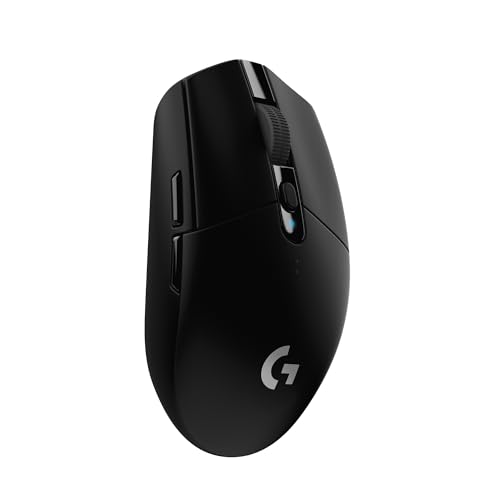
| 5 | Logitech G305 LIGHTSPEED (910-005280) | Budget wireless for a fixed DPI |
Our Picks

1. Logitech G PRO X Superlight 2 (910-006628) — Best for low-sensitivity tactical play
The Superlight 2 is built around exactly the workflow this guide recommends: pick one DPI, keep it, and move your arm. Its HERO 2 sensor tracks across a very wide DPI range — listed up to 44,000 DPI with up to 888 IPS — so the practical 400 to 1,600 DPI window most tactical players use sits well inside clean, native tracking with no need to use the maximum. At 60 grams the shell is easy to lift and re-centre on the pad during long low-sensitivity sweeps, which directly addresses the running-out-of-pad problem covered above. LIGHTSPEED wireless supports up to an 8 kHz report rate, LIGHTFORCE hybrid switches keep clicks consistent, and USB-C charging is rated for up to 95 hours of constant motion. The symmetrical shape suits claw and fingertip grips as well as a relaxed palm. Set your DPI in G HUB, save it, and then fine-tune only each game’s sensitivity slider and zoom multiplier.


2. Razer Viper V3 Pro (RZ01-05120100-R3U1) — Best for fine 1-DPI steps and 8K polling
If you tune sensitivity in small increments, the Viper V3 Pro gives you the finest control here. Razer’s Focus Pro 35K Optical Sensor Gen-2 is listed at up to 35,000 DPI and supports 1-DPI step adjustments, so moving from 800 to 850 DPI is a real hardware step rather than a software guess, and the sensor is specified to track on a wide variety of surfaces including glass. True 8,000 Hz HyperPolling is included via the wireless dongle in the box, matching the polling-rate section above without an extra purchase, and battery life is listed at up to 95 hours. At 54 grams in black, with a symmetrical shape and Gen-3 optical switches, it favours claw and fingertip grips and quick flicks in fast arena games where a slightly higher eDPI is common. Keep one base DPI across titles and use Razer Synapse profiles only to store that same value, not to keep changing it.


3. Razer DeathAdder V3 Pro (RZ01-04630100-R3G1) — Best for ergonomic palm-grip comfort
The DeathAdder V3 Pro is the ergonomic counterpart to the Viper: a right-handed shape shaped for palm and relaxed claw grips, which the grip section above links to moderate or lower sensitivity and arm movement. Its Focus Pro 30K optical sensor is listed at up to 30,000 DPI, so again your working range of 400 to 1,600 DPI is native and stable, and HyperSpeed wireless keeps the report rate at a clean 1 ms without a cable dragging during wide turns. The mouse weighs 63 grams in black, uses Gen-3 optical switches, and is listed for up to 90 hours of battery life. There is no clutter of extra buttons to knock while you are learning a new sensitivity, which helps when you are following the advice to change one setting at a time and give it several sessions. Choose this shape if hand fit and comfort over long sessions matter more to your consistency than chasing the lowest possible weight.

4. Logitech G502 HERO (910-005469) — Best for DPI Shift for scoped aiming
The G502 HERO illustrates two ideas in this guide better than any other wired mouse: on-board profiles and a dedicated DPI Shift button. Logitech lists the HERO 25K sensor at 200 to 25,600 DPI with zero smoothing, filtering or acceleration across the full range, and 11 programmable buttons include the thumb DPI Shift control described in the FAQ — hold it to drop temporarily to a slower, precise value for scoped shots, then release back to your normal sensitivity without changing your base DPI. On-board memory stores your settings on the mouse itself, so the value you verified in the mouse software is the value you actually play with on any PC. The right-handed ergonomic shell suits palm grip, and the adjustable weight system with five 3.6-gram weights lets you tune how much effort a low-sensitivity sweep takes. It is wired, so there is no battery or signal check to add to the troubleshooting list.
5. Logitech G305 LIGHTSPEED (910-005280) — Best for a budget wireless for a fixed DPI
The G305 proves you do not need a flagship sensor to follow this guide well. Its HERO sensor is listed at 200 to 12,000 DPI with 400 IPS tracking, which fully covers the recommended starting window and the eDPI ranges most players settle on, and LIGHTSPEED wireless delivers a 1 ms report rate comparable to wired in Logitech’s listing. On-board memory holds your chosen DPI, six buttons are programmable, and the compact shape works for palm, claw and fingertip grips depending on hand size. Battery life is a practical strength for consistency work: up to 250 hours of continuous gameplay from a single AA battery in performance mode, so your settings routine is not interrupted by charging, and the receiver stores inside the mouse for travel between setups. At 99 grams with the battery fitted it is heavier than the pro flagships above, which some lower-sensitivity players actually prefer for stopping power on a control pad.
Starting Points
Many players use 400 to 1600 DPI and adjust in-game sensitivity.
Polling Rate
Wireless mice often support 1000Hz or higher.
DPI Versus In-Game Sensitivity
Two settings control how fast your crosshair moves: the mouse’s DPI and the sensitivity slider inside the game. They multiply together. A high DPI with a low in-game setting can feel the same as a low DPI with a high in-game setting, but the two are not always identical in practice.
Many players choose a DPI in a moderate range and then fine-tune using the in-game slider. That approach keeps changes small and predictable, and it makes it easier to carry the same feel from one game to another. If you keep changing DPI, you lose the reference that your muscle memory depends on. Pick one DPI value, stick with it, and adjust only the sensitivity setting while you tune.
Finding Your Comfortable Range
A good test is to see how much mouse movement it takes to turn your character a full circle. Some players like to cross the mousepad with a full turn, while others prefer small wrist movements. Neither is wrong. The right choice depends on your playstyle, your desk space and the game.
- Lower sensitivity favors precise aim over long distances, such as in tactical shooters.
- Higher sensitivity favors quick turns and wide sweeps, and suits fast-moving games.
- Test in a practice range or training map, where you can try the same flicks repeatedly.
- Change one setting at a time, and give each change a few sessions before judging it.
If you often run out of mousepad while turning, raise sensitivity a little or use a larger pad. If your crosshair overshoots targets, lower it.
Mouse Surface, Pad and Sensor Factors
Your settings feel different on different surfaces. A pad with more glide lets small movements travel further, while a high-friction pad gives more control for slow aiming. Sensors can behave differently on glass, glossy desks or dark, uneven surfaces. If your cursor jumps or lags, try a clean cloth pad before changing DPI.
Check the mouse’s listing for how its sensor handles DPI steps. Some mice let you switch among preset DPI levels with a button, and many store profiles in software or on the mouse itself. Features that alter pointer movement, such as acceleration, can make aim less consistent. Many players turn off acceleration in the operating system and in game when the option exists, but check the game’s recommendations.
Grip Style and Comfort
How you hold the mouse affects which sensitivity feels natural. Palm grip uses the whole hand and often pairs with moderate or lower sensitivity and arm movement. Claw grip arches the fingers and gives quick small adjustments. Fingertip grip uses only the fingers and suits lighter mice and quick flicks.
Comfort matters as much as numbers. If your wrist, forearm or fingers hurt after play, look at your setup. Check desk height, chair position and wrist support, and take breaks. A mouse that fits your hand size and grip can reduce strain. Weight, shape and button placement should be considered along with settings. If pain continues, seek advice from a medical professional.
Troubleshooting Inconsistent Aim
If your aim feels unreliable, settings are only one possible cause. Check the basics before changing numbers.
- Confirm that the DPI in the mouse software matches what you think it is.
- Check that operating system pointer speed is set to a steady middle value and that acceleration is off.
- Clean the sensor window and the pad.
- For wireless mice, check the battery level and signal path, since interference can cause stutter.
- Close background programs that cause frame drops, as uneven frame rates affect aim.
Keep a note of the settings that work well. If you play several games, many have tools or community calculators to convert sensitivity between titles so the feel stays similar.
How Game Type Changes Your Settings
Different games reward different sensitivity choices. In games where precise aiming at distant targets is key, many players lower their sensitivity so small hand movements produce small crosshair changes. In fast action games with quick turns, a higher setting can help you look around quickly.
- Tactical shooters: often favor lower sensitivity and arm movement.
- Fast arena games: may suit higher sensitivity to turn and track quickly.
- Strategy and MOBA games: cursor speed matters for clicking accuracy and screen scrolling.
- Racing and flight games: may rely on a controller rather than a mouse.
Scoped weapons or zoomed views may have separate sensitivity settings. Check the game’s options for a zoom multiplier. If you switch between games often, note your preferred settings for each one so you can restore them quickly. Consider how your monitor resolution affects the feel, because higher resolution screens can make the cursor feel slower at the same settings.
Windows and Driver Settings That Affect Your Aim
Choosing a DPI number is only part of the picture. Your operating system and mouse software can quietly change how much the cursor moves, and a few checks make your settings consistent.
- Pointer speed: In Windows mouse settings, the pointer speed slider has a default middle position. Most players leave it there, since other positions can skip or multiply pixels and make movement feel uneven.
- Enhance pointer precision: This is Windows mouse acceleration. Many players switch it off so that the same hand movement always gives the same cursor movement. Games that read raw input often ignore it anyway, but desktop use is still affected.
- Raw input in games: If a game offers a raw input option, enabling it tells the game to read the mouse directly and ignore system pointer settings.
- Onboard profiles: Many gaming mice store DPI stages and lighting in memory on the mouse. This lets your settings follow you to another PC without installing software. Check the listing for onboard memory if you travel to events or use more than one computer.
- Software conflicts: Running two utilities that both control DPI can cause confusing results. If your sensitivity feels wrong after an update, check which program is applying the setting.
Write down your final configuration somewhere. When a driver update resets your options, you can restore them in a minute instead of guessing.
Monitor Resolution, Refresh Rate and Field of View
The same DPI can feel different when you change monitors. A higher resolution screen has more pixels to cross, so with an unchanged DPI the cursor appears to travel less distance relative to the screen. In a game that uses raw movement to rotate your view, resolution matters less, but in desktop use or in games with a cursor, you may notice the shift immediately.
Refresh rate affects how smooth the movement looks and how quickly your eye reads feedback. A higher refresh rate shows more frames of the same motion, which can make small corrections easier to follow. It does not change the sensitivity itself, but it can change how confident you feel when tracking a moving target.
Field of view in a first-person game also changes the perceived speed of turning. Widening the field makes objects look smaller and can make the same sensitivity feel slower. If you switch field of view, give yourself a short adjustment period before deciding the sensitivity is wrong.
Converting Sensitivity Between Games
If you play several shooters, you probably want your aim to feel familiar in each. The trick is to match the distance your hand travels for a full turn, often called centimeters per 360. Two ingredients decide it: your DPI and the game’s sensitivity value, along with a game-specific multiplier.
The easiest approach is to use an online sensitivity converter that lists supported games, enter your current DPI and sensitivity, and read the equivalent value for the new game. Because developers use different internal scales, a number like 1.0 means different things in different titles. Converting by distance per turn avoids that confusion.
Conversion gets you close, not perfect. Field of view settings, scoped zoom and aim-down-sights behavior may still feel different. Treat the converted value as a starting point, then adjust slightly for comfort over a few sessions.
A Simple Aim Practice Routine for Testing Changes
Changing sensitivity without a way to measure results turns into guesswork. A short, repeatable routine helps you tell whether a setting actually works for you.
If you consistently overshoot, lower the sensitivity a little. If you run out of mousepad before completing a turn, raise it. Make changes small, and only change one thing at a time. Tracking your scores in a notebook or spreadsheet takes a minute and keeps you honest about improvement.
Common Settings Mistakes
- Copying a pro player’s numbers: Their hand size, grip, desk and monitor all differ from yours. Use their settings as a reference, not a rule.
- Changing too often: A new sensitivity feels odd for several sessions. Switching again before you adapt resets the clock.
- Ignoring the surface: A dirty or worn mousepad makes tracking inconsistent, which can be mistaken for a bad setting.
- Mixing in-game and DPI changes: If you change both at once, you cannot tell which helped.
- Using a DPI the sensor handles poorly: Some sensors perform best at standard stages and can introduce small errors at extreme values. Check the listing for the recommended range.
Matching Each Pick in This Guide to a Sensitivity Style
The five mice above were chosen because each one teaches a different lesson about sensitivity. Reading them as a set, rather than as a ranking, helps you decide what your own settings need from a mouse, and what they do not. This section revisits each pick through the single question this guide is about: how does this mouse behave at the sensitivity you actually play?
The Superlight 2 and the low-sensitivity arm player
The Logitech G PRO X Superlight 2 suits the player this guide describes most often: someone who settles on one moderate or low value, moves from the arm, and lifts the mouse to re-centre several times a minute. At that style, the exact top of the sensor range is irrelevant, and what matters is clean tracking inside the ordinary working window, a shell light enough that repeated lifting never becomes the story of the session, and consistency from one evening to the next. If your practice notes show that you play best when nothing changes for weeks at a time, this is the philosophy to copy, whatever mouse you own: one value, kept, with your attention spent on positioning and timing instead of settings.
Its lesson cuts the other way as well. A player who constantly reaches for a sensitivity button mid-round, or who plays three titles with very different demands in one evening, may not need this kind of single-value purity. The pick rewards commitment. Borrow its discipline before you borrow its example, and test whether a fixed, moderate setting improves your own results across a full week.
The Viper V3 Pro and the fine tuner
The Razer Viper V3 Pro speaks to the opposite temperament: the player who tunes in small steps and can genuinely feel the difference between neighbouring values. Fine adjustment steps and high polling, as described in its section above, only pay off when the rest of the setup is stable enough to reveal them: a consistent pad, a settled grip, and a practice routine that changes one variable at a time. In that environment, small steps stop being superstition and become measurement. You can move a little, test honestly, and keep a written record of what each step did to your tracking and your stops.
Without that stability, fine steps become a trap. A player who changes sensitivity daily, on different pads, at different desk heights, is measuring their circumstances, not their mouse. If that sounds familiar, the most valuable upgrade is not a finer step but a fortnight of sameness, after which this pick’s strengths would finally have something solid to work on.
The DeathAdder V3 Pro and comfort at moderate sensitivity
The Razer DeathAdder V3 Pro reminds us that sensitivity is partly a posture decision. Its ergonomic shape supports palm and relaxed claw grips, and those grips naturally pair with moderate or lower sensitivity and larger movements, as the grip section of this guide explains. A comfortable hand makes fewer desperate corrections, holds a steadier line during long tracking, and tires more slowly across an evening, all of which look like better sensitivity from the outside. Players often chase that steadiness through settings when the real cause is a shape that fights their hand.
If your current mouse forces your fingers into a pinched or stretched position, test a borrowed ergonomic shape before you rebuild your settings again. You may find that the value you blamed was innocent, and that the same number feels calm and accurate the moment your hand is allowed to relax around the mouse.
The G502 HERO and the case for a temporary slowdown
The Logitech G502 HERO contributes a different tool: a dedicated shift control that drops sensitivity only while it is held, described in its section above. Used well, it solves a narrow problem elegantly. A player can keep a general sensitivity suited to movement and ordinary fights, then slow down for the few seconds that demand the finest control, such as a scoped shot or a careful long-range correction. The key word is temporary. The base setting still does almost all the work, and it should be chosen with the same care as any fixed value in this guide.
Used badly, a shift button becomes a crutch that hides a base setting which was never right. If you find yourself holding the shift through most engagements, your ordinary value is probably too fast for your current skill, and lowering it will help more than any button. Treat the feature as a specialist tool for rare moments, and it will earn its place on the mouse.
The G305 and proof that the method matters more than the flagship
The Logitech G305 LIGHTSPEED is the most encouraging pick in this guide, because it demonstrates that the whole method, choosing a sensible value, converting it carefully between games, practising it honestly, works on an accessible wireless mouse. Its sensor range, covered above, comfortably contains the window most players settle into, and its on-board memory means your chosen value travels with the mouse. For a student, a laptop player, or anyone building a first serious setup, that combination removes the usual excuse that good settings require expensive hardware.
Its limits are the honest limits of its class: fewer controls and a smaller shape than the flagships above. For sensitivity itself, though, it lacks nothing essential. A G305 owner who follows this guide will end with better settings than a flagship owner who changes values after every bad round, and that is the central argument of this entire page.
A Seven-Day Plan to Settle Your Settings
Finish with a simple plan that turns reading into results. On day one, record your current settings everywhere: the mouse value, each game’s sensitivity, your Windows pointer setting, and your pad and grip. On day two, choose one starting value inside the comfortable ranges discussed earlier, set it identically in spirit across your main title using the conversion method in this guide, and change nothing else. Days three and four are for ordinary play only, with three short notes after each session about tracking, turning, and stopping. On day five, make at most one small adjustment, and only if the same complaint appeared on both previous days. Days six and seven test that adjustment in your most familiar mode, not a new one.
At the end of the week, decide by your notes rather than by your best or worst round. Keep the setting that felt most predictable across all three movements, write it down somewhere you will not lose, and then leave it alone long enough for skill to grow on top of it. Sensitivity is a foundation, not a lever to pull after every defeat. Players who treat it that way improve steadily, and they also enjoy their games more, because the mouse finally stops being a question and becomes part of the answer.
A Settings Workshop for Common Player Profiles
Abstract ranges become useful when they are attached to recognisable players. This workshop walks through the profiles this guide hears from most often, and shows how each one should reason about a starting value, without pretending that any profile can be handed a magic number.
The returning player after a long break
Returning players often make the same mistake: they restore the exact settings of their best remembered season and expect their hands to agree. Hands change, mice change, and games themselves are patched. Treat your old value as a starting hint, not a contract. Begin a little slower than memory suggests, because control returns faster than speed, and spend the first week rebuilding stopping accuracy and calm tracking. Most returning players find, to their surprise, that their settled value lands close to the old one, but reached honestly through testing rather than nostalgia, and therefore trusted in a way the copied value never was.
The player moving from controller or from office work
New mouse players usually begin far too fast, because a fast cursor feels responsive in menus and punishing in fights. If you are arriving from a controller, give yourself a genuinely moderate starting value, a large pad, and permission to look clumsy for a fortnight. Your aim will not be built by settings but by hours, and a moderate value makes those hours instructive instead of chaotic. Office workers adapting to games face the mirror problem: years of small, precise wrist movements at desktop sensitivity can make game turning feel enormous. The conversion and practice sections of this guide exist precisely for that gap, and the bridge is crossed by arm movement learned gradually, in short sessions, before fatigue teaches your shoulder to object.
The competitive player stuck on a plateau
A plateau is rarely a sensitivity problem, and diagnosing it as one delays the real work. Before changing anything, record a week of honest notes: are you overshooting, undershooting, arriving late, or losing fights for reasons of position and timing that no setting touches? Only the first two belong to this guide. A consistent overshoot argues for a small step down; a consistent undershoot, for a small step up; inconsistency in both directions argues for leaving the value untouched and practising, because the variable that is changing is you, from round to round. The bravest and most competitive sentence in settings work is this one: my number is fine, and my attention belongs elsewhere.
The shared-computer and multi-game household
Households that share a gaming computer should treat profiles as a courtesy. Use the on-board memory and per-game settings discussed in this guide so that one player’s careful tuning is not silently overwritten by another’s experiment, and write the household values somewhere shared. Multi-game players in a solo setup face the same discipline in miniature: convert carefully, keep a master note of every title’s value and the reasoning behind it, and resist the temptation to retune a settled game because a new one feels different. Difference between games is normal; chaos is optional. A player with a written settings record can return to any title after months away and feel at home within one session, and that quiet continuity compounds into real skill over a year.
The Pad, Monitor, and Desk Beneath Your Settings
Settings do not float in the air; they rest on a pad, in front of a monitor, on a desk, and each of those can quietly rewrite what a good value feels like. Start with the pad, because it is the surface your sensitivity is actually measured against. A slow, high-friction cloth pad forgives a slightly fast setting by adding its own braking, while a fast, low-friction surface exposes the same setting as nervous and overshot. Changing pads without touching a single number can therefore feel exactly like changing sensitivity, and many players have retuned a healthy setup to compensate for a new pad, then retuned again when the pad wore in. The discipline from earlier in this guide applies with full force: when the surface changes, play for several days before judging the number, and keep a note of which pad each of your settled values was earned on.
Pad size is a sensitivity decision in disguise. A low value demands travel, and travel demands room; a player who adopts an arm-driven setting on a small pad will spend the session lifting and re-centring, and will blame their aim for what is really furniture. Measure your comfortable travel honestly, from the centre of your pad to the point where your hand still feels in control, and let that distance argue for or against the lower ranges discussed in this guide. A larger pad is often the cheapest genuine aim upgrade available to a low-sensitivity player, cheaper than any mouse in the picks above, and it asks nothing of your settings at all.
The monitor completes the picture. A larger screen, a higher resolution, or a wider field of view changes how fast the world appears to move at the same setting, as the display section of this guide explains, which is why a value that felt perfect on a laptop can feel hurried on a large desktop monitor even though nothing about the mouse has changed. Field of view deserves special care, because it alters the relationship between hand movement and apparent motion inside the game itself. When you change displays, expect a short recalibration period, change one thing at a time, and judge by tracking and stopping in familiar scenes rather than by the first hour’s strangeness. Desks, finally, set the geometry of the whole system: a desk that forces your arm upward or your pad to the very edge will make every sensitivity feel wrong in the same tired way, and no number in this guide can outvote your furniture. Arrange the desk first, then the pad, then the display, and only then ask the settings to do their smaller, honest share of the work.
Three Practice Drills That Reveal Your True Setting
Notes and impressions guide this guide’s method, but three simple drills sharpen them into evidence, and each takes only a few minutes inside a game or training space you already enjoy. The first is the tracking drill: follow a moving target, a teammate, a training bot, or even a patient friend, as smoothly as you can for a full minute without firing. A setting that suits you lets the crosshair rest on the target with small, calm corrections. Constant sawing back and forth suggests the value is fighting you in one direction or the other, and the direction of the error, always behind the target or always ahead of it, tells you which way a small step should go, if it should move at all.
The second is the stopping drill: make a series of deliberate turns toward fixed points, a doorway, a corner, a marker, and stop as exactly on each as you can, at a comfortable, unhurried pace. Count honestly how many stops land short, how many overshoot, and how many arrive. A settled setting produces a pattern dominated by arrivals, with errors scattered on both sides. A pattern dominated by one kind of error is the clearest signal this guide can give you that a small adjustment is justified. The third is the endurance drill: play your most ordinary session, at your most ordinary hour, and note when your hand, wrist, or shoulder first asks for attention. Settings are partly ergonomics, and a value that produces beautiful drills for five minutes and a tired arm by the second hour is the wrong value for your real life, whatever the drills said. Judge all three together, across several days, and the number that emerges will have something no copied professional setting can offer: it will have been measured on the only player it must serve.
Keep your settled settings somewhere more durable than memory: a note in your phone, a line in a document, a card in the mouse box. Settings are lost to new computers, fresh installs, borrowed hardware, and helpful updates far more often than they are lost to doubt, and the player who can restore a trusted setup in two minutes never has to repeat the honest week of testing that produced it. That small act of record-keeping is the quiet final step of this guide, and it turns a good week of tuning into years of consistency, which is where sensitivity stops being a topic and becomes simply the way your hand and your games understand each other.
One more scene deserves a place in your notes: the bad day. Every player has sessions where nothing lands, the room is noisy, sleep was short, and the hand feels like it belongs to someone else. Do not tune on a bad day. The settings that emerge from frustration are tuned to a player who does not usually exist, and they will greet your rested self tomorrow like a stranger’s shoes. Mark the day for what it was, keep the number that your good, ordinary weeks earned, and let the bad day pass without leaving fingerprints on your setup. Protecting a settled setting from a single rough evening is as much a skill as finding it was, and the players who learn both halves of that lesson are the ones whose aim quietly compounds, month after month, while everyone else is still shopping for a number.
Frequently Asked Questions
What DPI is best?
Whichever lets you aim consistently.
Should I use max DPI?
No.
Does polling matter?
A little.
Does higher DPI make my mouse more accurate?
Not by itself. DPI changes how far the cursor moves for a given hand movement, and a very high value can feel jumpy. Accuracy comes from sensor quality, a good surface and consistent settings.
What is eDPI?
It is a way to compare settings by multiplying DPI by the in-game sensitivity. It helps you compare your feel with another setup that uses a different DPI.
Should I use mouse acceleration for gaming?
Many players turn it off so that the same hand movement always gives the same result. This is a preference, so test what works for you.
Do I need a different DPI for each game?
Not necessarily. Many players keep one DPI and adjust the in-game slider for each game.
What is a DPI button on a mouse for?
It cycles between preset DPI levels. Some players use it to switch between normal play and slower, precise aiming like sniping.
Can a wireless mouse be as responsive as a wired one?
Many modern wireless mice are built for gaming. Check the listing for details and keep the receiver close to the mouse for a clean signal.
How long should I try a new setting?
Give it several sessions. Your hand needs time to adapt, and changing too often makes it hard to tell what helps.
Does monitor resolution change what DPI I should use?
It can. On a higher resolution screen there are more pixels to cross, so desktop cursor movement feels slower at the same DPI. In many first-person games the view rotates by a fixed amount, so you may notice less change.
What Windows pointer speed should I use for gaming?
Most players keep the default middle setting, because it maps hand movement to pixels in a one-to-one way. Other positions can skip pixels or multiply movement. Pair it with a raw input option in the game when available.
How do I convert my sensitivity from one game to another?
Use an online converter that matches the distance your mouse travels for a full 360-degree turn. Enter your DPI and current sensitivity, choose the new game, and use the result as a starting point, then fine-tune by feel.
Is 400 DPI better than 800 DPI?
Neither is inherently better. A lower DPI with higher in-game sensitivity can give the same feel as a higher DPI with lower sensitivity. Pick a value your sensor handles cleanly and that lets you set a comfortable in-game range.
Bottom Line
Start at 800 DPI and adjust sensitivity until aiming feels consistent.
More Gaming Gear Guides
- Best Gaming Mice
- Best Wireless Gaming Mice
- Best Lightweight Gaming Mice
- Best Gaming Mice Under 30 dollars
- Best Gaming Mice Under 50 dollars
- Best Razer Gaming Mice
- Best Logitech Gaming Mice
- Best MMO Gaming Mice
- Best White Gaming Mice
- Best Ergonomic and Vertical Mice
- All gaming gear guides
Related Guides
- 6 Best Gaming Mice: Logitech, Razer and Corsair Picks (2026)
- 7 Best Wireless Gaming Mice: G305, Basilisk V3 Pro, M75 (2026)
- 6 Best Lightweight Gaming Mice: 39g to 58g Picks (2026)
- 6 Best Gaming Mice Under 30 dollars: Cheap Wired and Wireless (2026)
- 6 Best Gaming Mice Under 50 dollars: G305, Cobra, Basilisk (2026)