Disclosure: As an Amazon Associate, reviewstook.com earns from qualifying purchases. Links to Amazon on this page are affiliate links; they cost you nothing extra.
Thin and light laptops are easy to carry and often have good battery life.
This guide is built from Amazon product listings, not our own testing, so confirm specs, configuration and current price on each product page. Laptop configurations change often.
For each pick, check price on Amazon before you buy.
Last updated: October 31, 2026.
In this guide
Quick Picks
| Product | Type | Best for |
|---|---|---|
| Acer Aspire 14 AI (Core Ultra 7 256V) | Copilot+ PC, 14-inch | Light everyday Copilot+ laptop |
| Microsoft Surface Laptop (2025), 13-inch | Copilot+ touchscreen laptop | Compact Windows ultraportable |
| Lenovo Slim 7i Aura Edition (2025) | Copilot+ OLED ultrabook | 14-inch WUXGA OLED |
| Lenovo ThinkPad X1 Carbon Gen 14 | OLED business ultrabook | Premium ThinkPad |
| Dell 14 Plus (DB14250) | 14-inch laptop with 32GB RAM | Plenty of memory |
| ASUS Vivobook 16 (Snapdragon X) | 16-inch Arm laptop | Large screen on a mid budget |
Our Picks
Top pickBest for light everyday Copilot+ laptop
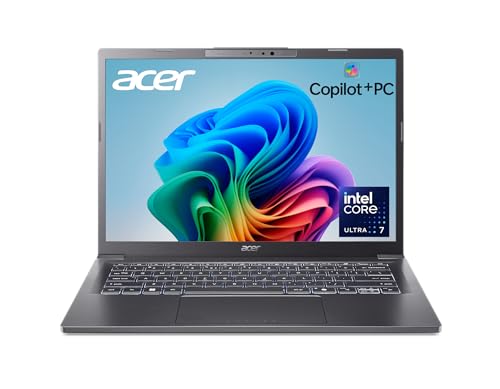
1. Acer Aspire 14 AI (Core Ultra 7 256V)
An Acer Aspire 14 AI Copilot+ PC with a 14-inch WUXGA display, Intel Core Ultra 7 256V and an NPU, per the listing. Check price on Amazon for the current configuration.
Listing details: 14-inch display, 1 TB storage, 1920 x 1200 resolution, Windows 11 Home (from the Amazon product details; confirm on the page).
Good for: Light everyday Copilot+ laptop. Watch out: check RAM and storage on the page.
Best for compact Windows ultraportable
2. Microsoft Surface Laptop (2025), 13-inch
A Microsoft Surface Laptop (2025) Copilot+ PC with a 13-inch touchscreen and Snapdragon X Plus, per the listing. Check price on Amazon for the current configuration.
Listing details: 13-inch display, 512 GB storage, 1920 x 1280 resolution, Windows 11 Home (from the Amazon product details; confirm on the page).
Good for: Compact Windows ultraportable. Watch out: Arm-based; check app compatibility.
Best for 14-inch WUXGA OLED
3. Lenovo Slim 7i Aura Edition (2025)
A Lenovo Slim 7i Aura Edition Copilot+ PC with Core Ultra 7 256V and a 14-inch WUXGA OLED display, per the listing. Check price on Amazon for the current configuration.
Listing details: 14-inch display, 1 TB storage, 1920 x 1200 resolution, Windows 11 Pro (from the Amazon product details; confirm on the page).
Good for: 14-inch WUXGA OLED. Watch out: higher price.
Best for premium ThinkPad
4. Lenovo ThinkPad X1 Carbon Gen 14
A 2026 Lenovo ThinkPad X1 Carbon Gen 14 with Core Ultra 5 335 and a non-touch OLED display, per the listing. Check price on Amazon for the current configuration.
Listing details: 14-inch display, 512 GB storage, Windows 11 Pro (from the Amazon product details; confirm on the page).
Good for: Premium ThinkPad. Watch out: premium price.
Best for plenty of memory
5. Dell 14 Plus (DB14250)
A Dell 14 Plus laptop DB14250 with Intel Core Ultra 7 258V and 32GB RAM, per the listing. Check price on Amazon for the current configuration.
Listing details: 14-inch display, 1 TB storage, 2560×1600 resolution, Windows 11 Home (from the Amazon product details; confirm on the page).
Good for: Plenty of memory. Watch out: high price.

Best for large screen on a mid budget
6. ASUS Vivobook 16 (Snapdragon X)
An ASUS Vivobook 16 with a 16-inch WUXGA 60Hz display, Qualcomm Snapdragon X and 16GB RAM, per the listing. Check price on Amazon for the current configuration.
Listing details: 16-inch display, 512 GB storage, 1920 x 1200 resolution, Windows 11 Home (from the Amazon product details; confirm on the page).
Good for: Large screen on a mid budget. Watch out: Arm-based; check app compatibility.
Best Picks by Category
These labels summarise the picks by category. They are a data summary, not hands-on test results.
- Highest listed rating (limited feedback): Lenovo ThinkPad X1 Carbon Gen 14 — a premium-tier option. This is not an independent product-quality award.
- Most reviewed: Microsoft Surface Laptop (2025), 13-inch — a mid-range option; check price on Amazon.
- Lowest price: Acer Aspire 14 AI (Core Ultra 7 256V) — a budget-tier option; check price on Amazon.
- Premium option: Lenovo ThinkPad X1 Carbon Gen 14 — a premium-tier option; check price on Amazon.
Price, Rating and Review Comparison
This table sorts the picks by price tier.
| Product | Price | Rating | Ratings | Price tier |
|---|---|---|---|---|
| Acer Aspire 14 AI (Core Ultra 7 256V) | Check price on Amazon | — | — | Budget |
| ASUS Vivobook 16 (Snapdragon X) | Check price on Amazon | — | — | Budget |
| Microsoft Surface Laptop (2025), 13-inch | Check price on Amazon | — | — | Mid-range |
| Lenovo Slim 7i Aura Edition (2025) | Check price on Amazon | — | — | Mid-range |
| Dell 14 Plus (DB14250) | Check price on Amazon | — | — | Mid-range |
| Lenovo ThinkPad X1 Carbon Gen 14 | Check price on Amazon | — | — | Premium |
What the Listings Say
Below are the concrete details each seller states on the Amazon listing. Check the live listing for the latest specs before you buy.
Acer Aspire 14 AI (Core Ultra 7 256V)
The listing states: This combo delivers the speed and responsiveness to handle any task with ease -along with all-day battery life of up to 22 hours and smooth multitasking performance.; Indulge Your Eyes – Immerse yourself in a world of vibrant detail with a breathtaking 14″ WUXGA 1920 x 1200 ultra high-resolution display..
Microsoft Surface Laptop (2025), 13-inch
The listing states: [Introducing Surface Laptop 13 ] Combines powerful performance with a razor-thin, lightweight design that s easy to carry and beautiful to use built for life on the go.; [Stay Unplugged All Day] Up to 23 hours of battery life[1] means you can work, stream, and create wherever the day takes you without reaching for a charger.; [Brilliant 13 Touchscreen Display] The PixelSense display delivers vibrant color and crisp detail in a sleek design perfect for work, entertainment, or both..
Lenovo Slim 7i Aura Edition (2025)
The listing states: CREATE LIMITLESSLY The Lenovo Slim 7i Aura Edition packs 17 hours of battery life in a lightweight chassis that starts at just 2.82 lbs.; Thin yet durable, the Lenovo Slim 7i Aura Edition is ready to streamline your adventures with Smart Experiences.; READY FOR ANYTHING Ultra-portable and perfect for creators on the move, the Lenovo Slim 7i Aura Edition is thinner, lighter, and tougher than ever.; Enjoy 17 hours of battery life with intuitive power switching between high-performance and efficiency cores..
Lenovo ThinkPad X1 Carbon Gen 14
The listing states: Add up to 5 years of Lenovo Premier Onsite Support Plus when you register your computer with Lenovo.; Tackle heavy workloads with 32GB of high-speed LPDDR5X memory, ensuring fluid, lag-free multitasking.; Paired with a fast 512GB SSD, you get rapid boot times and plenty of space for all your essential projects.; This X1 Carbon boasts WiFi 7, the fastest WiFi available with significant leaps in speed, capacity, and responsiveness over earlier versions..
Dell 14 Plus (DB14250)
The listing states: Service: 6 Months Dell Migrate is the simple do-it-yourself tool that moves your hard to replace data, personal records and important files to your latest Dell PC..
ASUS Vivobook 16 (Snapdragon X)
The listing states: ASUS Vivobook/BLUE/16.0 WUXGA(WU) non-Touch/X1 26 100/16GB/Qualcomm UMA/512GB/WIN11 HOME; Ultrafast Qualcomm Snapdragon X 8 Core SE Unleash performance with Qualcomm Hexagon NPU (up to 45 TOPS).; Designed for AI, this chipset evolves the way you create and communicate with unparalleled power efficiency, multi-day battery life3 and seamless connectivity; With extensive storage and advanced communication power, PCIe 4.0 SSDs excel in major gaming applications, multiple servers, daily backups, and more.
How to Choose
Weight
Check the stated weight on the page.
Ports
Thin laptops have fewer ports.
Battery
Check real-world reviews.
What makes a thin and light laptop worth buying?
A good thin and light laptop balances low weight, a screen you enjoy, enough memory and a battery that gets you through a work session. Thin is only useful if the trade-offs it brings suit how you work.
These laptops, often called ultrabooks, save weight with slim cases, efficient processors and fewer ports. That is a real benefit for commuting, flights and carrying a bag all day. It also means less room for cooling, fewer upgrade options and sometimes soldered memory.
Before comparing models, think about where the laptop will spend its time:
- Mostly in a bag: weight and screen size matter most, so a compact 13 or 14 inch model fits better.
- Mostly on a desk with an occasional trip: a larger screen may matter more than a few ounces.
- Mostly for browsing, documents and video calls: an efficient chip and a good display beat raw power.
- Mostly for heavier work: pay attention to memory and cooling, and read how the listing describes performance.
Weight and thickness figures can differ between the maker’s page and the retail listing, because configurations change. Confirm them on the page you buy from.
Which thin and light laptop should you buy?
The best choice depends on your budget, screen preference and software, so match your needs to the picks above. These matches use only what the listings and the guide already say.
- If you want the lowest entry point for a light everyday Copilot+ laptop, go for the Acer Aspire 14 AI (Core Ultra 7 256V).
- If you want a compact touchscreen for travel, choose the Microsoft Surface Laptop (2025), 13-inch, and check that your apps run on an Arm chip.
- If you care about a 14-inch OLED screen in a slim body, choose the Lenovo Slim 7i Aura Edition (2025).
- If you want a premium business ultrabook with a non-touch OLED display, choose the Lenovo ThinkPad X1 Carbon Gen 14.
- If you want plenty of memory and a sharper screen on a 14-inch body, choose the Dell 14 Plus (DB14250).
- If you want a big 16-inch screen at a more modest budget, choose the ASUS Vivobook 16 (Snapdragon X), again with an app compatibility check.
If you are torn, decide screen size first. It sets the weight and the bag you carry, and it narrows the list faster than any spec sheet.
Arm or Intel: which chip suits a thin and light laptop?
Intel-based models are the safer choice if you rely on older or specialist Windows software, while Arm models such as the Snapdragon laptops can offer strong battery efficiency for common apps. Compatibility is the deciding factor, not raw speed.
The Surface Laptop 13 and the ASUS Vivobook 16 use Qualcomm Snapdragon chips, per the listings. Windows on Arm runs many everyday programs well, and some software that is not built for Arm runs through an emulation layer. Certain tools, such as older drivers, niche utilities or some anti-cheat or hardware-linked programs, may not work at all.
The Acer Aspire 14 AI, the Lenovo Slim 7i Aura Edition, the Dell 14 Plus and the ThinkPad X1 Carbon use Intel Core Ultra processors, per the listings.
- Choose Arm if your work lives in a browser, Office apps and common programs, and battery life is a priority.
- Choose Intel if you depend on a particular program, a printer or scanner driver, or a work tool you cannot replace.
List the programs you use every day and check that each supports Windows on Arm before you order. That small step avoids the most frustrating kind of return.
How much memory and storage does a thin laptop need?
For most people, 16GB of memory is a comfortable target for a laptop you plan to keep for years, and storage should leave room for your files plus growth. Because thin laptops often cannot be upgraded later, buy the amount you need now.
Memory is frequently soldered to the board in slim designs. If the listing does not say it can be expanded, assume it cannot. The Dell 14 Plus is listed with 32GB, which suits multitasking, large files and long-lived use. Other picks leave you to check the memory on the page, as the guide notes for the Acer.
For storage, consider what you keep locally:
- Light use, with cloud storage: a smaller drive can work.
- Photos, video or many large documents: choose a larger drive or plan on external storage.
- Dual-purpose work and personal use: leave free space, since a nearly full drive can slow down.
Memory and storage amounts differ between listing variants of the same model name. Match the exact configuration on the page to the one you want before you buy.
Which screen, ports and battery details matter most on an ultrabook?
Check the display type and resolution, the ports you actually use and the battery claim, because those decide daily comfort. Thin laptops trade ports and size for portability.
On displays, OLED screens, like those on the Lenovo Slim 7i Aura Edition and the ThinkPad X1 Carbon, are known for rich color and deep contrast. A touchscreen, as on the Surface Laptop, helps if you tap, scroll or sketch. A larger 16-inch panel is easier on the eyes but adds bulk.
On ports, count what you plug in: a monitor, a drive, a mouse dongle or an SD card. If the laptop has only a couple of USB-C ports, a small hub or dock may be needed.
On battery, listings give long-hour claims under maker conditions. Real use varies with brightness, apps and wireless activity, so treat them as a rough guide and read buyer feedback for everyday experience. Also check the charger type, since many thin laptops charge over USB-C.
What to check before you buy a thin and light laptop
Before ordering any thin and light laptop, confirm the exact configuration, software compatibility and what is in the box. Laptop listings change often, so verify the details on the current page.
- Configuration: processor, memory, storage and display, matched to the variant you want.
- Operating system edition: Home or Pro, since the listings differ and Pro adds business features.
- Software: confirm your key programs run, especially on the Arm models.
- Ports and charging: make sure they suit your accessories and whether a charger is included.
- Weight and size: compare against your bag and how long you carry it.
- Warranty and support: read the terms on the listing. The ThinkPad listing mentions optional support plans, which you should read in detail.
- Returns: check the return window and condition rules with the seller.
- Seller: confirm it is sold and shipped by a seller you recognize, so warranty claims are simple.
A short written list of must-haves makes the final comparison quick and keeps you from paying for features you will not use.
How do thin and light laptops handle performance and heat?
Thin and light laptops handle everyday work comfortably, but their slim cooling limits how long they can hold peak speed under heavy load. They are tuned for efficiency, not for sustained rendering or gaming.
With less space for fans and heat pipes, a thin laptop may slow itself down during long demanding tasks to keep temperatures in check. Some models run quietly or without audible fans in light use, which is a plus in a library or meeting room. Others spin up under load.
A few habits help:
- Use the laptop on a hard, flat surface, since soft bedding can block air intake.
- Close apps you do not need so the chip is not working in the background.
- Use the power mode that fits the task, balanced for travel and a higher mode when plugged in.
- Keep vents free of dust, and check the manual before cleaning.
If you often edit video, work with large datasets or run virtual machines, read the listing for performance details and consider whether a thicker model with stronger cooling fits better.
How should you carry and protect a slim laptop?
Carry a slim laptop in a padded sleeve or a bag with a dedicated laptop compartment, and keep the lid free of pressure. Thin chassis and large screens flex more easily than thick ones.
Packing tips for travel:
- Do not stack heavy items on top of the laptop in a backpack.
- Keep the charger and cable in a separate pocket so they do not press against the screen.
- Close the lid fully, and avoid leaving pens or earbuds between the keyboard and the screen.
- Check the sleeve size against the screen size of your model.
At security, a laptop usually needs to come out of the bag, so a slim model with an easy-access pocket saves time. For daily commutes, pairing a light laptop with a light bag matters as much as the laptop weight itself. Accidental damage is often not covered by a basic warranty, so read what the listing says about coverage.
Is it worth paying more for a premium ultrabook, and who should skip these?
Paying more is worth it if you value a better screen, a sturdier build, business features or longer support, but it is not needed for basic tasks. A lower-priced model such as the Acer Aspire 14 AI already covers everyday work.
The higher tiers, such as the ThinkPad X1 Carbon, mainly add polish, business-oriented features and a premium display. The extra cost does not make documents or video calls faster in any dramatic way. Be honest about whether you will use what you pay for.
Downsides to weigh:
- Thin bodies mean fewer ports and little room to upgrade memory or storage later.
- Arm models may not run every program.
- The highest rating shown for one pick comes from very little feedback, so do not read it as proof of quality.
- Premium models cost more to replace if damaged, so consider a sleeve or case.
Who should skip these: people who need heavy gaming or demanding creative work, who want a lot of ports without adapters, or who plan to upgrade parts over time may prefer a thicker laptop.
Compare the picks above, check the current listing for the exact configuration and what is included, then choose the laptop that fits how you will carry and use it.
Going Deeper on Each Pick: Who Each Thin and Light Laptop Really Suits
The short reviews above tell you what each machine is. This section slows down and looks at how each pick behaves in the routines people actually buy a thin and light laptop for: commuting, flying, working from cafés and kitchen tables, studying, and light creative work. None of these machines is the best choice for everyone, and the honest differences between them matter more than the headline specifications.
Acer Aspire 14 AI: the value-first daily driver
The Acer Aspire 14 AI suits a buyer who wants a modern thin laptop for everyday work without paying a premium for the thinnest possible chassis or the most luxurious materials. In daily use, its strengths show up in ordinary tasks: documents, email, web research with many tabs open, video calls, and light photo sorting. It is the kind of machine a student, a home-office worker, or a small-business owner can buy, set up once, and then simply use.
Who should think twice? Someone who travels constantly and counts every gram will notice that value-focused thin laptops are usually a little heavier and a little thicker than flagship ultrabooks. Someone who wants the very best screen for colour-sensitive work should also compare the display options carefully on the listing before ordering, because panel quality varies a lot at this end of the market. The practical advice is simple: if your workload is mainstream and your budget is not, this is the pick to start from, and any money saved is better spent on a good sleeve, a backup drive, or a second charger than on a badge.
Microsoft Surface Laptop, 13-inch: the carry-everywhere option
The 13-inch Surface Laptop is aimed at people whose laptop lives in a bag rather than on a desk. Its appeal is the combination of a compact footprint, a tidy design, and a keyboard and trackpad that feel considered rather than cut down. For writers, consultants, teachers, and anyone who works in several places during the week, that portability is not a luxury; it is the feature that decides whether the laptop comes along or stays at home.
The trade-off to understand is expansion. Compact premium laptops tend to offer fewer ports and little or no scope for internal upgrades, so you should buy the memory and storage configuration you expect to need for the life of the machine, and plan on a small hub or dock for desk use. If you regularly connect multiple monitors, wired networking, and several accessories at a desk, factor that accessory into your decision rather than discovering the gap after delivery.
Lenovo Slim 7i Aura Edition: the balanced premium pick
The Slim 7i Aura Edition sits in the middle ground that many buyers actually want: slim and light enough to carry daily, but positioned as a well-rounded premium machine rather than an extreme one. It suits professionals who want a refined everyday laptop for office work, presentations, and travel, and who care about the overall experience — screen, keyboard feel, speakers, webcam — as much as raw specifications.
When you compare it with the ThinkPad below, the question is about priorities. The Slim line leans toward a sleek consumer-premium feel, while the ThinkPad leans toward business durability, keyboard reputation, and manageability. Neither is wrong; they are answers to different briefs. If the laptop is also your personal machine for media and light creative hobbies, the Slim’s balance is attractive. If it is a work tool first and everything else second, read the ThinkPad notes closely before deciding.
Lenovo ThinkPad X1 Carbon Gen 14: the business traveller’s tool
The X1 Carbon name carries weight with frequent travellers and IT departments for a reason: the line is built around low weight, a respected keyboard, and a design that tolerates being opened, closed, packed, and unpacked every day. It suits consultants, executives, and remote workers whose laptop is their office, and who value a machine that feels the same on day one and day seven hundred.
The honest limitation is value for money in the narrow sense. You pay for the engineering that makes a full-featured business laptop this light, and a home user who rarely travels may get more screen or storage for the same money elsewhere in this list. ThinkPad buyers should also check the exact configuration on the listing carefully, because business lines are sold in many variants and two machines with the same name can differ in screen, memory, and storage.
Dell 14 Plus: the mainstream all-rounder
The Dell 14 Plus is the pick for a buyer who wants a current, slim 14-inch laptop from a mainstream line with broad availability of configurations and accessories. It fits family and small-office use well: schoolwork, household admin, office applications, streaming, and video calls, with enough headroom for the occasional heavier task.
Its middle-of-the-road character is both the strength and the weakness. It does not chase the lowest weight, the brightest screen, or the longest feature list; it aims to be a sensible answer for most people. That makes it a good default choice, but buyers with a specific priority — the lightest carry, the best display, the longest unplugged day — should compare it directly against the specialist picks above and below rather than assuming the default is automatically right for them.
ASUS Vivobook 16 with Snapdragon X: the big-screen, long-day option
The Vivobook 16 is the outlier in this list in two useful ways: it gives you a larger 16-inch screen while staying in the thin and light spirit, and its Snapdragon X platform is built around efficiency. It suits people who work unplugged for long stretches, who want more room for side-by-side documents, and whose software is mainstream: browser, office apps, communication tools, and media.
The point to check carefully is software compatibility. Windows on Arm has improved steadily, and everyday applications generally run well, but niche professional software, older peripherals with specialist drivers, and some games can still be a problem. Before choosing any Snapdragon laptop, list the three or four applications and accessories you cannot work without and confirm each one is supported. If they are, the efficiency benefits are real; if one essential tool is not supported, an Intel-based pick from this list is the safer route.
Head-to-Head: The Comparisons Buyers Actually Make
13-inch versus 14-inch versus 16-inch
Screen size is the first fork in the road. A 13-inch machine like the Surface Laptop is the easiest to carry and the easiest to use in cramped spaces such as train tables and economy seats, but the smaller screen asks more of your eyes over a long day and shows less at once. Fourteen inches is the compromise most people settle on happily: noticeably more working room, still easy to carry. Sixteen inches, as with the Vivobook, is a desk-and-home size that travels occasionally; the extra space is wonderful for spreadsheets and split-screen work, but the bag gets bigger and the machine is more awkward in transit. Choose by where the laptop will spend most of its hours, not by which screen looks most impressive in a listing photo.
Intel versus Snapdragon in a thin laptop
The Intel-based picks in this list offer the broadest compatibility: if a Windows application or accessory exists, it is most likely to have been built and tested with these machines in mind. The Snapdragon pick counters with efficiency, quiet running, and long unplugged stretches for mainstream work. The deciding question is not which chip is faster in the abstract; it is whether your specific software, your printer, your dock, and any specialist USB devices are confirmed to work. Mainstream users gain the most from the efficient platform. Users with legacy or niche tools should stay with the familiar platform and not gamble their workflow on compatibility promises.
Premium build versus value build
Across this list, paying more buys thinner and lighter construction, better screens, nicer keyboards and trackpads, and often quieter cooling — not a different category of everyday performance. For office work, a value pick and a premium pick both open documents and join calls without drama. The premium difference is felt in the carrying, the typing, and the looking, every single day. If the laptop travels with you daily, that daily feel is worth paying for. If it mostly sits on one desk, the value pick plus a good external monitor and keyboard is often the smarter overall setup.
Setup, Care and Daily Use of a Slim Laptop
First-week setup that pays off
Start by running system updates fully before installing your working software, then set up a backup routine while the machine is still nearly empty — it is far easier to build the habit now than after the first scare. Create a recovery option, check that cloud sync for your documents folder is actually on, and test your most important peripheral, whether that is a printer, a dock, or a headset, while returns are still simple. Finally, charge the battery, use the laptop unplugged for a normal day, and note roughly how it fares; that baseline makes any later change easy to spot.
Protecting a thin chassis
Thin laptops trade structural bulk for portability, so treat the chassis accordingly. Carry the machine in a padded sleeve inside your bag rather than loose among chargers and bottles, and avoid picking it up by one corner of the screen, which twists the lid. Keep the vents clear: slim machines move air through small openings, and using one on a bed or sofa where fabric blocks the underside is a common cause of heat and fan noise. A hard, flat surface is a small habit with a real payoff.
Battery habits without the myths
Modern laptop batteries do not need elaborate rituals. For a machine that lives on a desk, check whether the maker offers a charge-limit setting that holds the battery below full during constant plugged-in use, and enable it if you rarely travel. For a machine that travels, simply use it and charge it when convenient. Heat is the bigger enemy than charging patterns, so avoid leaving a thin laptop in a hot car or in direct sun inside a bag. If battery life seems to fall suddenly, look first for a runaway background application or a recent update before assuming the battery itself is failing.
Cleaning and small maintenance
Wipe the screen with a soft microfibre cloth, slightly dampened with water if needed, and never spray liquid directly onto the display. Keep the keyboard free of crumbs by turning the machine off and gently shaking debris loose, and use short bursts of air around the ports and vents rather than pushing dust deeper in. Slim laptops have little internal room for dust build-up to be harmless, so a few minutes of care a few times a year keeps fans quieter and temperatures steadier.
Common Mistakes When Buying a Thin and Light Laptop
The most frequent mistake is buying the smallest configuration to save money and then living with too little storage for years, because most thin laptops cannot be upgraded later. The second is judging by weight alone: a slightly heavier machine with the ports you need can be lighter in practice than an ultra-slim machine plus the hub, adapters, and dongles it forces you to carry. The third is ignoring the screen’s brightness and finish; a dim or highly reflective screen is a daily annoyance in bright rooms and cafés, whatever the processor can do. Finally, many buyers skip the compatibility check for their one essential application or accessory. Five minutes of checking before ordering prevents the most expensive kind of disappointment: a beautiful laptop that cannot run the one tool your work depends on.
A related trap is assuming that thin and light means fragile or weak. These machines are designed for mobile work, and their everyday performance is more than enough for the tasks most people do. What they are not designed for is sustained heavy gaming or professional rendering workloads, where larger laptops with stronger cooling pull ahead. Match the machine to the workload you actually have, and a thin and light laptop will feel less like a compromise and more like the right tool chosen on purpose.
Long-Term Ownership: What Year Two and Three Look Like
Thin and light laptops are usually kept for years, and the ownership experience changes after the first few months. The battery that lasted a full travel day when new will gradually hold less; plan for that by keeping the habits described earlier rather than being surprised by them. The keyboard and hinge are the parts you will interact with most, so small changes there — a hinge that loosens, a key that starts to shine and feel slick — are normal wear, and they matter far less than whether the machine still starts quickly, connects reliably, and runs your software without complaint.
Software support is the quieter half of longevity. Keep the operating system and the maker’s own update tools current, because on modern thin laptops the maker delivers meaningful improvements to power management, fan behaviour, and security through those channels long after purchase. When a major system upgrade arrives, let other people go first for a week or two if your machine is your livelihood, then update with a backup in place. A thin laptop that is kept updated, backed up, and physically protected in a sleeve will usually outlast its owner’s patience rather than the other way round, and that is exactly the ownership pattern these six picks are designed for.
A short decision summary
If you are still torn between two picks, decide by the desk and the bag, not by the specification sheet. The machine that travels daily should be the one whose weight and size you will not resent in month six. The machine that lives at home should be the one whose screen and keyboard please you every evening. The value pick is the right answer when the workload is ordinary; the premium pick is the right answer when the carrying and the daily feel are the workload. Every laptop in this list was chosen because it does its particular job well — your task is only to name your job honestly, and the choice tends to make itself.
Frequently Asked Questions
What is an ultrabook?
A thin, light laptop.
Best for travel?
The Surface Laptop 13 is compact.
Cheapest?
The Acer Aspire 14 AI.
Are thin and light laptops good for everyday use?
Yes, they handle browsing, documents, streaming and video calls well. They are built for portability and battery life rather than sustained heavy workloads. Check memory and storage so the laptop stays comfortable for years.
Is a Snapdragon laptop as good as an Intel laptop?
It depends on your software. Snapdragon laptops such as the Surface Laptop 13 and ASUS Vivobook 16 are designed for efficiency and run many common apps well. Intel models are safer if you need older or specialist Windows programs.
How much RAM do I need in an ultrabook?
Sixteen gigabytes suits most people, while lighter use may get by with less. Because memory is often soldered in thin laptops, choose enough at purchase. Check the exact amount on the listing since variants differ.
What does Copilot+ PC mean?
Copilot+ PC is a Windows label for laptops with a built-in neural processing unit for AI features. Several picks here carry it per their listings. Whether those features matter depends on the software you use.
Can I upgrade a thin laptop later?
Often not. Many slim laptops solder the memory, and storage access varies by model. Check the manual or maker page, and buy the configuration you need now.
Is OLED better than a regular laptop screen?
OLED screens usually give richer color and deeper black levels. They may suit media and creative work well. Brightness and battery impact vary, so read the listing and buyer feedback for your model.
Do I need a hub for a thin laptop?
Possibly, if you use many accessories. Thin laptops often have a small number of ports, so a USB-C hub can add HDMI, USB-A or card slots. Count the devices you plug in before you decide.
Should I choose a 14-inch or 16-inch thin laptop?
A 14-inch laptop is easier to carry, while a 16-inch gives more screen space for multitasking. If you travel often, lean toward 13 or 14 inches. If it stays mostly on a desk, the larger screen can be more comfortable.
Bottom Line
For value, the Acer Aspire 14 AI. For compact premium, the Surface Laptop 13. For business, the X1 Carbon.
More Laptop Guides
- Best Laptops
- Best Gaming Laptops
- Best OLED Laptops
- Best Touchscreen Laptops
- Best 2-in-1 Laptops
- Best Chromebooks
- Best Laptops for Students
- Best Laptops Under $500
- Best Business Laptops
- Best Laptop Backpacks
- Best Laptop Cooling Pads
- Best USB-C Docking Stations
- All laptop guides
Related Guides
- 6 Best Laptops: Acer, Surface, Lenovo, Dell, ASUS (2026)
- 6 Best Gaming Laptops: HP Victus, MSI, ASUS TUF, Lenovo LOQ (2026)
- 6 Best OLED Laptops: ASUS, Lenovo ThinkPad and Slim 7i (2026)
- 6 Best Touchscreen Laptops: Surface, Acer, Dell, Lenovo (2026)
- 5 Best 2-in-1 Laptops: Convertible Windows and Chromebooks (2026)