Disclosure: As an Amazon Associate, reviewstook.com earns from qualifying purchases. Links to Amazon on this page are affiliate links; they cost you nothing extra.
A weak extender signal usually means a placement problem.
Last updated: November 1, 2026.
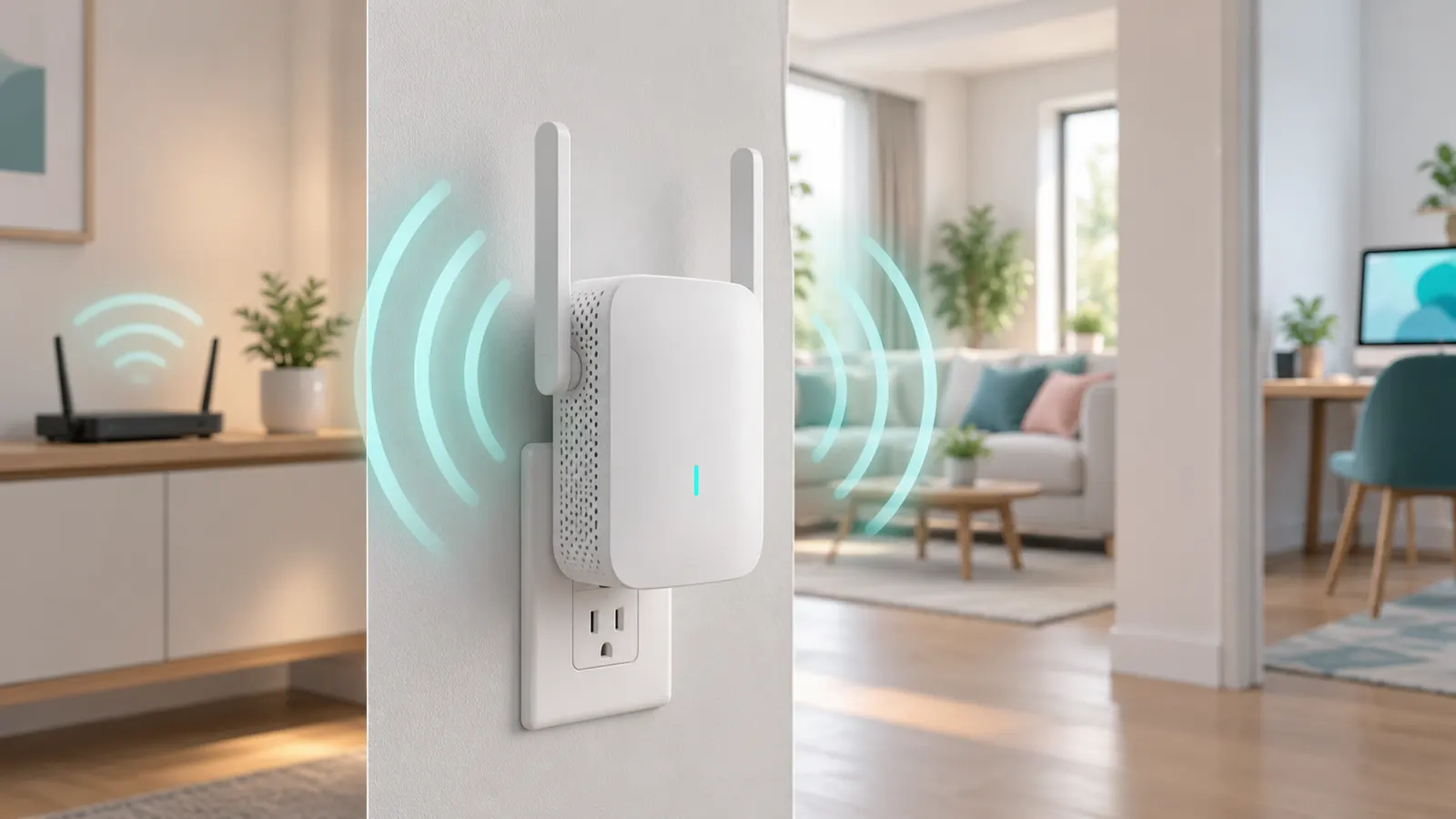
Find the sweet spot
Plug it in where the router signal is still good.
In this guide
Reduce interference
Keep away from microwaves and cordless phones.
When to upgrade
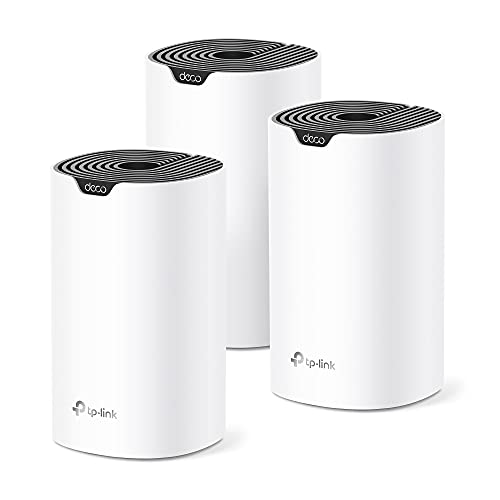
See mesh systems.
How an Extender Uses Your Router’s Signal
A WiFi extender picks up the signal from your router and rebroadcasts it. That means it can only be as good as the signal it receives. If you place it in a spot where the router signal is already weak, the extender passes on a weak connection, and you get slow speeds even if the extender shows full bars on its own network.
Many single-band extenders also use the same radio to talk to the router and to your devices, which can reduce throughput. Dual-band or tri-band models may dedicate a band to the link with the router. Check the listing to see how the model handles this. Understanding the idea explains why placement is so important.
A Room-by-Room Placement Method
Start by finding the dead zone, then work back toward the router. Use a phone or laptop to check signal strength and speed in the weak area. Then walk toward the router and note where the signal becomes consistently good. The extender belongs near that point, within reach of a power outlet.
- Plug it in at the edge of the good signal, not in the dead zone.
- Choose an outlet that is not behind furniture or inside a cabinet.
- Prefer a central, higher position when you can.
If the extender has a signal indicator light, use it as a guide. After plugging in, wait for it to connect, then test speed in the dead zone. Move it to another outlet if results are poor.
Walls, Floors and Materials That Weaken Signal
Different materials absorb signal differently. Dense materials like brick, concrete, stone and metal reduce it more than light walls. Mirrors, large appliances and water, such as fish tanks, can also interfere. Multiple floors add to the loss.
When you place the extender, count the obstacles between it and the router and between it and your device. Try to limit them. A line of sight is ideal, but not always possible. If thick walls divide the house, you might need to place the extender in a doorway or hallway, where the signal can reach both sides. Check whether the location puts it where the signal loses too much strength.
Bands, Channels and Network Names
Most extenders support the 2.4 GHz and 5 GHz bands, and the two behave differently. 2.4 GHz travels further and handles walls better but is usually slower and more crowded. 5 GHz is generally faster over shorter distances. Which is best depends on the distance and obstacles in your home.
Some extenders use a separate network name, and others copy your router’s. Using the same name is convenient but can make devices cling to the wrong signal. A separate name lets you choose which to join. If interference is a problem, check the router for a channel setting and try a different channel. Follow the manual for these steps.
Firmware, Power and Troubleshooting
If performance is poor, run through the basics. Restart the router and the extender. Check for firmware updates through the app or setup page. Make sure the extender is plugged firmly into a working outlet and not a loose power strip. Move it to a different outlet to see whether location is the issue.
If problems remain, reset the extender to factory settings and set it up again, following the manual. Keep a note of speed test results at each location so you can compare. If it still fails to improve the dead zone, the layout may need a different solution, such as a wired connection or a mesh system. Replace an extender that regularly disconnects or overheats.
Measure Before You Move Anything
Guessing at placement wastes time, so start by creating a small baseline. Pick the two or three rooms where WiFi matters most and run the same speed test in each from the spot where you actually use your device. Write down the results and the room names. Repeat the test at the same time of day, because evening network use can change results.
A WiFi analyzer app on a phone can help by showing signal strength in different parts of the house. Treat the readings as a guide for comparison rather than exact measurements, since phones differ. What you want to learn is where the signal drops from usable to poor, because that is the zone where the extender should sit, just inside the usable side.
- Test with the same device each time so the results are comparable.
- Stand where you normally sit or work, not in the middle of the room.
- Test the router itself near the router to confirm the connection is healthy to start with.
- Keep a short list of results to compare after the extender is installed.
If the connection is slow even next to the router, the issue is not coverage, and an extender will not fix it. Look at the internet plan, the router settings or the modem first. Only after the baseline looks sound does it make sense to add an extender.
Choosing Between Outlets and Heights
Most extenders plug directly into a wall outlet, which limits where they can go. Outlet position still matters, and small differences can change the result. An outlet close to the floor is common, but signals can be absorbed by furniture and floor level objects. If you have a choice between a high outlet and a low one, the higher one is often better, as long as nothing is blocking the extender.
Some practical points about the outlet:
- Avoid blocked outlets: do not tuck the extender behind a sofa, curtain or cabinet door.
- Mind the orientation: some units have antennas that can be tilted or rotated. Follow the manual for the best direction.
- Watch the size: a bulky extender may cover the second outlet or press against furniture. A plug-in extension lead can help, but check that it is a quality product and not overloaded.
- Use a stable position: a heavy extender in a loose outlet can slowly pull free and disconnect.
Desktop extenders with external antennas or an Ethernet port may offer more freedom. These can sit on a shelf in a better position, as long as a power outlet is close. Check the product listing for how the unit is powered and whether it can be placed on a surface.
If you try several outlets, move in steps and retest each time. One outlet that is a short distance from another can make a surprising difference because of walls, wiring and furniture in the path of the signal.
Two-Story Homes, Basements and Long Layouts
Different homes have different problems, so a single rule does not cover them. Here are some common layouts and how placement thinking changes.
- Two stories: signal passes through floors with more loss than through many walls. Place the extender on the stairway landing or near the floor where the dead zone is, but where the router signal is still good. Directly above or below the router is not always better than a diagonal position.
- Basements: concrete and the ground itself absorb signal. A basement may need the extender at the top of the stairs, with the door open, or a wired solution to reach the space.
- Long, narrow homes: the router may sit at one end. An extender at the midpoint can cover the far end, and a second extender is rarely helpful in a chain, because each extra hop can cut speed further.
- Apartments: neighboring networks can crowd the channels. Placement still matters, but channel changes on the router may help more than moving the extender.
- Garages and outbuildings: these may be too far for an indoor extender. Check the product type, as some are designed for outdoor use, and read the listing carefully.
If walls are thick or the house is large, a single extender may only improve one area. At that point, think about whether the layout really needs a different system rather than one more unit. See the mesh and wired options for comparison.
Using an Ethernet Cable With an Extender
Some extenders have an Ethernet port, which opens up useful options. The port can connect a wired device such as a TV, a console or a desktop PC, giving it a stable connection through the extender without relying on WiFi at the device. This is often better than a weak wireless link for devices that do not move.
Some models can also work in an access point mode when a cable runs from the router to the unit. In that mode, the extender no longer has to pick up the router signal over the air, so the weakness of wireless backhaul is avoided. Not every model supports this, so look in the product listing and manual for the features it lists, and follow the setup steps they describe.
- Use a good quality cable and confirm both ends click in.
- Check the port speed on the listing if you want to use faster internet through the wired port.
- Test speed on the wired device, as well as on a wireless device, after setup.
If you can run a cable, even a long one along a baseboard, the result is usually more stable than any placement trick. A cable also frees you to put the extender where coverage is best, not where the signal happens to be strong enough to receive.
Settings to Review After Installing
Once the extender is in place, a few quick checks help confirm that it works properly and that devices use it well.
- Confirm the connection: use the app or the indicator light to check the link to the router. If the light shows a weak link, move the extender closer.
- Change default passwords: the setup page often has a default login. Replace it with a strong one and keep it in a safe place.
- Update firmware: install any available update, then restart and test again.
- Name your networks sensibly: if you use separate names, use clear labels so family members know which one to join.
- Check connected devices: some devices stay on the router even when the extender is closer. Turn WiFi off and on on that device to prompt a new choice.
- Repeat your tests: compare with the baseline in each room, and make a note of the outcome.
Revisit placement when something changes in the home. New furniture, a large appliance or a router that moves can all affect the signal. A quick retest after any change saves guesswork later.
Privacy and Security Basics
An extender is a network device, so treat it like one. Because it sits between your router and your devices, it should be kept up to date and protected with a strong password. Avoid leaving it with default settings, and check the manual for how to disable features you do not need.
Some points to remember:
- Use the same type of security as your router or stronger, and avoid open networks.
- Do not share the extender admin login with guests.
- If you sell or give away an old extender, reset it to factory settings first.
- Replace units that no longer receive updates from the maker if the listing or manual says support has ended.
These steps take only a few minutes, and they keep the extender from becoming a weak point in an otherwise well-protected home network.
A One-Evening Plan to Settle a New Extender
Placement is easier when you follow a sequence instead of moving the device around at random. Set aside an evening, keep a notepad nearby, and work through these stages in order.
- Note the weak spots. Walk through the home with a phone and write down rooms where video buffers or calls drop.
- Mark the router’s reach. Find the last place where the signal still looks healthy on your phone. This is your target zone.
- Plug in near that zone. The extender needs a decent signal from the router to pass along, so choose an outlet at the edge of good coverage, not inside the dead area.
- Pair it using the maker’s instructions. Many units have a button method or an app, and the manual will show which one to follow.
- Test in the weak room. Run the same activity that failed before, such as a video call, and watch the result.
- Adjust by one outlet at a time. Small moves can change results, so keep notes on what you tried.
If the indicator light on the extender shows a poor link to the router, move it a little closer. If the light looks healthy but the weak room still struggles, the extender may be too close to the router to reach far enough, and a different spot between the two is worth a try.
Everyday Habits That Keep an Extended Network Healthy
After the first setup, a few routines keep the connection dependable. They cost nothing and avoid many mystery slowdowns later.
| Habit | Reason |
|---|---|
| Keep the extender out of closed cabinets | Walls and doors dull the signal and trap warmth |
| Avoid plugging it behind large furniture | Dense objects block radio waves |
| Use the same network name only when the manual advises it | Some units work best with a distinct name for the extended network |
| Update firmware as the maker describes | Fixes can improve stability |
| Power-cycle both router and extender after changes | Gives them a clean connection |
Watch for patterns in complaints. If trouble happens only in the evening, neighbors and busy devices may be competing for the airwaves. If it happens only when the microwave runs, the interference is local, and moving the extender away from the kitchen may calm it.
Consider where devices sit, too. A game console or TV that stays in one place may benefit from a wired link to the extender, if the extender has a network port, which leaves wireless capacity free for phones and laptops. Follow the product manual for wired connections.
If none of this helps, the home layout may simply ask for a different kind of system, and that is a fair reason to look at other options.
Products Worth a Look
As an Amazon Associate, Reviews Took earns from qualifying purchases. These picks come from our guide: 6 Best WiFi Range Extenders (2026).
-
TP-Link RE220 WiFi Extender with Ethernet Port
-
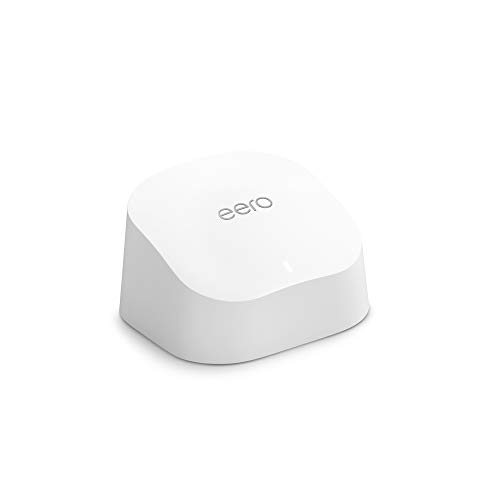
Amazon eero 6 Mesh Add-On Extender
 Amazon eero 6 mesh wifi add-on extender
-
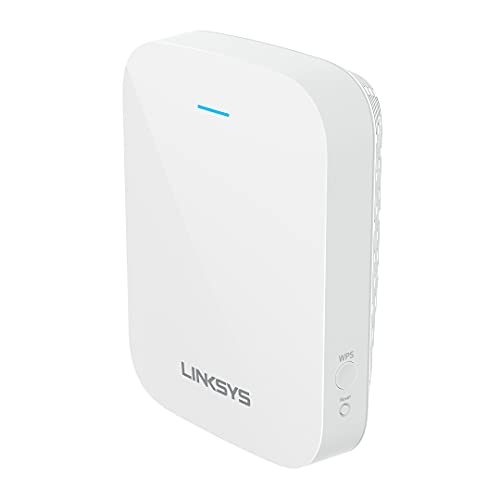
Linksys WiFi 6 Range Extender
 Linksys WiFi Extender
Frequently Asked Questions
How do I test?
Run speed tests in the dead zone.
Will it fix all dead spots?
Not always.
Wired backhaul?
Faster.
Why is my extender slow even with full signal bars?
The bars show strength of the extender's own signal, not the quality of its link to the router. If it is too far from the router, speeds will be slow.
Should the extender be closer to the router or to the dead zone?
Place it where the router signal is still good, between the router and the dead zone, not in the dead zone.
Does a single-band extender slow the connection?
It can, because one radio may handle both the router link and your devices. Dual-band models may avoid some of this. Check the listing.
Should I use the same network name as my router?
It is convenient, but devices may stay connected to a weaker signal. A separate name gives you control over which one to join.
What materials block WiFi the most?
Concrete, brick, stone and metal reduce signal more than light walls. Mirrors, large appliances and water can also cause problems.
How do I update my extender?
Use its app or setup page to check for firmware updates, and follow the manual. Updates can improve stability.
When should I replace an extender?
If it often disconnects, overheats or no longer improves the signal after you try other placements. A different type of setup may serve better.
How far from the router should I plug in an extender?
There is no single distance. Place it where your device still gets a good signal from the router, then test the dead zone. If speeds are poor, move it a step closer to the router and try again.
Can I put an extender in a hallway?
Yes, a hallway can work well because it often has a clear path to several rooms. Make sure the outlet is not blocked, and test the rooms on both sides.
Is it a problem to use two extenders at once?
It can be. Chaining extenders usually reduces speed with each hop. If one is not enough, consider a mesh system or a wired link instead of adding more units.
Do I need to restart the extender after moving it?
Often it reconnects on its own, but a restart can help it find the router link. After moving, wait for the indicator light to settle, then run your speed test again.
Will an extender work if my router is on the other floor?
It may, but floors absorb signal. Place the extender where the router signal is still decent, such as near the stairs, and test both floors. A wired option may suit large height differences better.
Why does my phone still connect to the router instead of the extender?
Devices choose based on their own rules, and they may cling to the stronger of two signals. Turn WiFi off and on, or use a separate network name for the extender so you can choose.
Should I put the extender near other electronics?
Try to avoid placing it near microwaves, cordless phone bases and other equipment that produces interference. Keep a little distance and retest if you see unexpected drops.
The Halfway Rule, Refined by Real Houses
The standard advice, place the extender halfway between the router and the dead zone, is a starting point that real houses bend. What the extender actually needs is a strong, steady signal from the router and a clear enough path onwards to the room you care about. In a long flat, halfway may indeed be right. In a house with a thick chimney breast, a foil-lined wall or a bathroom full of tile and pipework in the middle, the best socket may be well off the straight line, around the obstruction rather than through it. Treat the rule as a first guess, then let testing move the extender a socket at a time until the dead room, not the hallway, reports the improvement.
Height matters as much as distance. Sockets are near the floor, but signal travels better from up high, so an extender on a shelf or a landing table often beats the same extender at skirting level behind a sofa. If the only socket is low, even raising the unit to a clearer position can help, provided the arrangement is safe and tidy. Judge every candidate position by performance in the problem room, with the door in its normal state, because a position tested with doors open can disappoint the first evening everyone settles down.
A Testing Method That Tells the Truth
Test like a sceptic. Use the same device, the same task and the same spot in the problem room for every trial, and write the results down. A streaming test shows buffering plainly, a video call exposes dropouts that a speed figure hides, and a large download reveals steadiness over time. Run each test twice, once at a quiet time and once when the household is busy, because an extender that shines at noon and collapses in the evening has told you something important about airtime and congestion.
Also test the handover. Walk slowly from the router’s area into the extender’s area during a call or a stream and notice whether your device switches sensibly or clings to a fading signal. Many disappointments blamed on extenders are really devices refusing to let go of the router. If your equipment allows a separate network name for the extender, that manual control, choosing the extender’s network deliberately in the far room, can be more reliable than hoping a phone makes the decision well. Convenience argues for one name; control argues for two. Your household’s patience decides.
Room-by-Room Guidance
Home offices need steadiness above all, and they reward an extender placed with a clear path to the desk rather than one placed for the house in general. If the office is the main problem, optimise for it without apology and let other rooms take second place. Bedrooms streaming in the evening compete with everyone else, so expect to test at the real hour of use. Kitchens are hostile territory, full of metal, water and appliances that generate interference, and the best kitchen coverage often comes from an extender placed just outside the kitchen rather than within it.
Garden rooms, garages and workshops sit at the edge of what an extender can do. Each wall between the extender and the space trims the result, and an outbuilding may honestly need a different approach, such as a wired run or a powerline link. Children’s rooms and guest rooms matter at specific times, homework hour and visiting weekends, so test then. A house is not one problem but a timetable of small problems, and good placement is the art of serving the timetable rather than the floor plan.
Settings Worth Checking After Placement
Once the position is right, a few settings decide whether the setup stays right. Make sure the extender’s firmware is current, because makers fix roaming and stability behaviour over time. Check which band the extender uses to talk back to the router if it offers a choice, and prefer the arrangement that your tests show to be steadier rather than the one that promises the most on paper. If the extender offers a signal indicator or a setup app that reports the strength of its link to the router, use it during placement and re-check it after any change to the router’s position.
Restart behaviour matters more than people expect. After a power cut, some extenders rejoin slowly or attach to a weaker signal than they should. Test the whole system once by switching it off and on in the order you would after an outage: router first, let it settle, then the extender. If the result is poor, note the order that works and keep the note with the equipment. These small operational details are the difference between a setup that survives real life and one that needs its owner to be a technician.
When Placement Cannot Save an Extender
Honest testing sometimes delivers a clear verdict: the dead zone is too far, too shielded or too busy for a single extender. Signs include a link to the router that is weak in every socket you try, results that collapse whenever the household is active, and rooms that improve only while their doors stand open. Accepting that verdict early is a saving, not a failure, because it redirects the budget towards mesh equipment, a wired access point or a powerline link while the extender can still be returned.
Also reconsider the router before blaming the extender. A router in a corner, in a cupboard or behind the television handicaps everything downstream of it, and moving the router to a central, open position sometimes improves the whole house enough that the extender’s job becomes easy. Where the broadband socket allows it, that free experiment should always come first. Extenders extend what the router provides; they cannot compensate for a router that has been hidden away.
More Questions Worth Asking
Should I unplug the extender at night?
There is no need for the network’s sake, and leaving it running keeps it ready and updated. If you prefer to switch off for your own reasons, confirm the extender rejoins cleanly when power returns, and expect a short wait while it reconnects. A timer that cuts power nightly can cause more confusion than it saves if the extender misses updates or rejoins badly, so test the routine before adopting it.
Can an extender help in a rented home where I cannot drill or wire?
Yes, and this is one of its best uses, because it needs nothing but sockets. Place it on furniture rather than fixing anything, keep the setup simple enough to pack away at the end of the tenancy, and remember that the same extender can serve in the next home too. Renters often get better value from one well-placed extender than owners do, precisely because their alternatives are limited.
Why does my extender work for my phone but not my laptop?
Devices differ in their wireless hardware, their antennas and how eagerly they switch between sources. A laptop may cling to the router, use an older standard, or sit in a spot, such as a desk against an outside wall, that is genuinely weaker than where you tested with the phone. Test each important device in its real position, adjust placement for the device that matters most, and check the reluctant device’s own settings before moving the extender again.
Interference: Finding and Fighting the Invisible
Some dead zones are not distance problems at all but interference problems, and moving an extender without understanding that wastes an afternoon. Microwave ovens, older cordless devices, neighbouring networks in a block of flats, and even large mirrors and metal furniture can all degrade a signal in a specific spot. The diagnostic is simple: if the problem room’s connection collapses at predictable moments, such as when the kitchen is in full use, or in the evening when every neighbour is home, suspect interference. An extender placed to serve the room from a different direction, rather than a stronger push through the same troubled path, often succeeds where raw effort failed.
Channel and band choices belong to the same fight. Where your equipment lets you choose, test rather than theorise, because the cleanest channel in your building is an empirical fact about your neighbours, not a universal rule. After any change, re-run the same written tests in the problem room, at the problem hour. Interference work feels unrewarding because progress is invisible, but a methodical hour here can rescue a setup that placement alone could not.
A Placement Diary: One Evening, Done Properly
Give placement one structured evening and you will not need a second. Start by recording the problem room’s baseline with no extender at all. Then try the extender in the obvious halfway socket and record the same tests. Move it one socket closer to the router and record again; then one socket closer to the problem room; then, if the house suggests it, one position off the straight line, such as a landing or a side room with a clearer path. Four or five tested positions, written down, will show a clear winner or deliver the equally valuable verdict that no position works.
Finish the evening by testing the winner under real conditions: doors closed, household active, the actual devices in their actual places, a call and a stream running together. If the winner survives that, fix nothing more. Resist the temptation to keep hunting for a perfect position after a good one is proven, because each move restarts the settling and testing cycle. Good enough, measured and recorded, beats perfect, imagined and endlessly pursued, in every home network ever built.
After any change elsewhere in the house
Remember that placement is relative to the whole house, and the house changes. A new router position, a new metal bookcase, a converted room or a large new appliance can all shift the balance that made a position right. When performance sours months later, revisit the diary before buying anything: often one step back through the recorded positions restores the old result, because the extender was never the problem. The diary turns a mysterious decline into a short experiment, which is why the written record is worth the few minutes it takes.
Extenders in Flats and Shared Buildings
Flat dwellers face a version of the placement problem with extra neighbours. Dozens of nearby networks crowd the air, and the cleanest position for an extender may be the one furthest from the neighbour with the strongest equipment rather than the one closest to your own dead zone. Test at the hours when the building is fullest, because a position proven on a quiet weekday morning may fail every evening. In shared buildings it is also worth checking whether the dead zone is actually a construction feature, such as a bathroom core or a lift shaft wrapped in metal, around which signal must be routed rather than pushed.
Renters in flats have one more advantage to exploit: furniture moves freely even when walls cannot change. A bookcase relocated, a desk moved to the other wall, or the router raised onto a shelf can each do part of the extender’s work for free. Combine those free moves with one well-tested extender position and many flat networks become entirely respectable without any further spending. The principle generalises to every home: change the free things first, measure again, and let the extender solve only the problem that remains.
Keeping the Setup Right Over Time
An extender setup is not finished when it first works; it is finished when it keeps working without attention. Schedule nothing more burdensome than an occasional glance: confirm the unit’s indicator looks normal when you pass it, re-run your problem-room test after any router change or provider visit, and update firmware when you are already doing household tech maintenance. Keep the written test results and the winning position noted somewhere durable, because the person who needs them in two years may not remember this evening’s experiments.
When the day comes that the setup no longer serves, perhaps the household grows, a room changes use, or the equipment ages out of updates, you will replace it from a position of knowledge. You will know your home’s difficult walls, its busy hours and its real problem rooms, and that knowledge transfers to whatever comes next, mesh, wired access points or a future standard. Placement skill, once learned on an extender, is never wasted; it is the permanent part of an otherwise disposable purchase.
Two Extenders, One House: When It Works and When It Does Not
Owners of larger homes inevitably ask whether two extenders solve what one cannot. Sometimes they do: two distinct problem wings, each within honest reach of the router’s signal through its own relay position, can each be served. More often, the second extender is asked to extend the first extender’s already-shared signal, and the result disappoints in both rooms. The test is the same as always: each extender needs its own strong link back to the router, verified in writing, not a hopeful chain of relays.
If your testing shows one wing served and the other out of honest reach, believe it and change strategy for the far wing: a wired access point if any cable route exists, a powerline link if the wiring cooperates, or the first node of a mesh system that can grow. Mixed solutions are not untidy; they are how real houses, built in stages over decades, usually end up well covered. Purity of approach is a marketing virtue. Coverage is the household virtue.
Teaching the household the two-minute fix
Every extender household should know the two-minute fix, because most real-world failures are temporary muddles rather than breakdowns. The fix is an order, not a trick: switch off the extender, restart the router, wait until the router is fully back, then switch the extender on and give it a minute to rejoin. Write that order on a card kept with the equipment, in words a tired visitor or a teenager can follow at midnight. Households where only one person understands the network are households where that person gets telephone calls on holiday. Share the small knowledge, and the setup becomes the house’s equipment rather than one member’s fragile project.
The value of a boring network
The finest compliment an extender setup can earn is that the household forgets it exists. Achieving that boredom is a craft of small things done once and done properly: a position chosen by written tests rather than hope, a restart order the whole house knows, firmware kept current during ordinary maintenance, and a note of what was decided and why. None of it is glamorous, and all of it together is the difference between equipment that serves for years and equipment that generates a low level of household grumbling until it is replaced in frustration. Aim for boring. In home networking, boring is the sound of everything working.
Finally, a word about patience with other people’s devices. Guests will arrive with old laptops, children with hand-me-down tablets, and relatives with phones of every age, and some of them will connect poorly to a setup that serves your own devices beautifully. That is not your extender failing; it is the variety of wireless hardware in the world. Keep the network password somewhere guests can be given it gracefully, know which of your networks is the most compatible, and resist rebuilding a working setup around the weakest device that visits twice a year. Serve the household first, welcome the guests warmly, and let the occasional stubborn laptop sit a little closer to the extender.
Bottom Line
Place it midway, test, and move it if speeds are poor.
More Networking Guides
- Best WiFi Range Extenders
- Best WiFi 6 Range Extenders for Home Use
- Best WiFi 7 Range Extenders for Fast Networks
- Best Outdoor WiFi Range Extenders for Yards and Garages
- Best Budget WiFi Extenders for Small Homes
- Best Range Extenders for Gaming Consoles and PCs
- Best Range Extenders with Ethernet Ports for TVs and
- Best Whole-Home Mesh WiFi Systems for Large Homes