Disclosure: As an Amazon Associate, reviewstook.com earns from qualifying purchases. Links on this page are affiliate links; they cost you nothing extra. Prices and availability change often, so check the current Amazon listing before you buy.
Search for thinkpad x1 carbon gen 14 aura edition and you step into a small naming puzzle that this guide will untangle before anything else, because getting it wrong means buying the wrong generation. Here is the honest position, verified against the actual listings: the current Gen 14 machine is not sold under an Aura Edition title, while the listing that does carry the Aura Edition name belongs to the Gen 13. Both are real, both are in this guide with their exact listing identities, and the interesting question is not which name sounds better but which machine suits your work — the newest platform with a high-refresh OLED and Intel’s Series 3 vPro silicon, or the Aura-badged predecessor whose co-engineered software touches and proven configuration still make a formidable executive laptop. What follows is a full tour of the X1 Carbon idea, both generations examined as working tools, and a buying framework for the professionals this featherweight flagship has served for over a decade.
Key takeaways
- Naming honesty first: Gen 14 listings do not carry the Aura Edition title; the Aura Edition listing is the Gen 13 — buy the machine, not the badge.
- The Gen 14 configuration inventoried here pairs a Core Ultra 5 335 with a 14-inch 2.8K OLED running at a variable 30–120Hz, 32GB of fast LPDDR5X memory, and a 512GB SSD.
- The Gen 13 Aura Edition inventoried here pairs an Intel Ultra 7 255U with 32GB of memory, a 1TB SSD, and a WUXGA touchscreen, under the Aura name Lenovo developed with Intel.
- Both machines serve the same creed: the lightest serious business laptop, with a keyboard and build that justify a flagship price.
- Choose Gen 14 for the display and the newest platform; choose the Gen 13 Aura for storage headroom, touch, and a mature, well-understood configuration.
- Whichever generation you pick, the X1 Carbon decision is really about weight carried daily — its premium buys kilograms saved across years of travel.
In this guide
What does Aura Edition actually mean, and which laptop wears it?
Aura Edition is the name Lenovo and Intel developed for a co-engineered tier of premium laptops, built around Intel Core Ultra platforms and a layer of experience features: attention-aware behaviours that notice when you walk away, sharing and transfer conveniences between phone and laptop, wellness and posture nudges, and support and security services pitched at people whose laptop is their office. It is a programme and an experience layer as much as a hardware badge, which is precisely why the naming drifts confusingly across generations and retailers. Model years roll forward, listings are written by different hands, and a searcher can easily come away believing the newest Carbon carries a title its listing never claims.
So let the listings speak. The Gen 14 machine inventoried for this guide is titled by its configuration: a 2026 ThinkPad X1 Carbon Gen 14 with a Core Ultra 5 335 from Intel’s Series 3 vPro family, an OLED non-touch display, 32GB of memory, and a 512GB drive. No Aura in the name. The Gen 13 machine inventoried beside it is explicitly titled Aura Edition, with an Ultra 7 processor, 32GB of memory, a terabyte of storage, and a touchscreen. Neither fact diminishes either laptop. It does mean a careful buyer should shop by generation, processor, display, and storage — the things that will actually shape their working week — and treat the Aura name as a description of the Gen 13’s experience package rather than as a synonym for newest.
This distinction matters practically as well as honestly. Warranty conversations, driver and firmware pages, accessory compatibility, and resale listings all key off exact model identities. An owner who believes they bought an Aura-badged Gen 14 will confuse every support interaction they ever have. Getting the name right at purchase time is free; getting it wrong costs small frictions forever, which is why this guide returns to it whenever the two machines are compared.
The two listings, examined as working machines

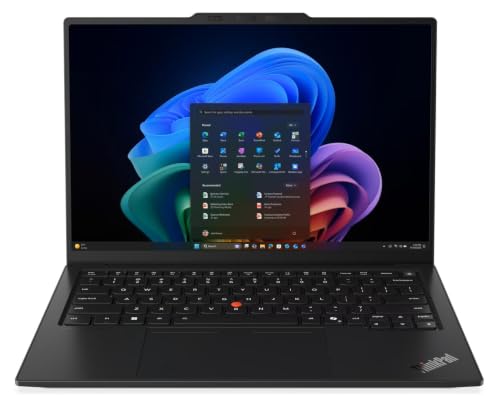
Lenovo ThinkPad X1 Carbon Gen 14 (Core Ultra 5 335, OLED) — the current generation
Badge: Best for buyers who want the newest platform and the finest display
- Processor: Intel Core Ultra 5 335, Series 3 vPro platform
- Display: 14-inch 2.8K OLED, non-touch, variable refresh 30–120Hz
- Memory: 32GB LPDDR5X at 8533MT/s
- Storage: 512GB SSD
- Ports: three Thunderbolt 4 connections headline the configuration
The Gen 14 represents the Carbon line’s current thinking, and its display is the headline argument. A 2.8K OLED at this size is text-crisp and colour-rich in a way that changes long document days: code, spreadsheets, and dense reports sit on true blacks, and the variable refresh rate is a quietly intelligent feature — racing to 120Hz when you scroll or present, sinking toward 30Hz on a static page to spare the battery. That adaptivity is the sort of engineering this price tier should deliver, because a flagship business laptop’s scarcest resource is not speed but hours away from a charger in airports and client offices. The Series 3 vPro platform underneath speaks to the machine’s real constituency: IT departments and independent professionals who need modern management, security, and AI-capable silicon in a chassis that still slips into a slim bag without a second thought.
Thirty-two gigabytes of memory is the configuration’s other mature decision. Business multitasking in this decade — a browser with forty tabs of research, a video call, a large model or document set, and a couple of heavyweight applications — eats sixteen gigabytes for breakfast, and a soldered-memory flagship cannot be upgraded later. Buying thirty-two now is buying the machine’s fifth year. The honest compromise in this configuration is the 512GB drive: adequate for cloud-centric workers whose files live in managed storage, tight for anyone carrying local media libraries, virtual machines, or large datasets. Know which worker you are before ordering, because like the memory, the storage decision is effectively permanent in a machine this thin.
Strengths
- The variable-refresh OLED is the finest display story the Carbon line has told.
- Newest vPro platform suits managed professional and IT-fleet life.
- 32GB of fast memory future-proofs the machine for a long service life.
Trade-offs
- 512GB of storage will pinch local-file workers and cannot be assumed upgradeable.
- Non-touch panel, so pen-and-finger workflows belong to the other listing.
- Not an Aura Edition titled listing — buyers seeking that badge should look at Gen 13.
Best for: executives and consultants who want the current platform and a superb screen for text-heavy travel work. / Not suited for: buyers needing a terabyte of local storage or touch input.

Lenovo ThinkPad X1 Carbon Gen 13 Aura Edition (Ultra 7, Touch) — the Aura-badged predecessor
Badge: Best for buyers who want the Aura experience, touch, and a terabyte
- Processor: Intel Core Ultra 7 255U
- Display: 14-inch WUXGA touchscreen, 100% sRGB coverage
- Memory: 32GB RAM
- Storage: 1TB SSD
- Camera and OS: FHD+ IR and RGB camera, Windows 11 Pro
The Gen 13 Aura Edition is the machine the keyword’s second half actually describes, and it remains a deeply considered configuration. The Ultra 7 processor sits a tier above the Gen 14 listing’s chip in its own generation’s hierarchy, the terabyte drive removes storage anxiety entirely, and the touchscreen adds a mode of interaction the newer listing lacks — scrolling a long contract with a thumb at a café table, signing and annotating in meetings, presenting with a fingertip rather than a pointer. Its WUXGA panel trades the OLED’s drama for the matte practicality and battery manners many road warriors prefer, with full sRGB coverage keeping colour work honest. The Aura experience layer — attention-aware locking and waking, easy sharing between devices, wellness prompts — is woven through this generation’s identity, pitched at exactly the always-on professional the Carbon has always served.
Buying a generation behind at flagship level is a strategy, not a compromise, when the configuration is this complete. The platform is mature, its behaviours and battery character are well documented by a year of real owners, and the specification sheet has no obvious hole: processor, memory, storage, camera, and professional operating system all present at the levels a demanding buyer would choose deliberately. For many readers this will quietly be the smarter purchase of the two, and this guide’s insistence on naming honesty should not be mistaken for a ranking — the Gen 14 is newer; the Gen 13 Aura is, in the ways its configuration counts, arguably fuller.
Strengths
- A terabyte of storage and 32GB of memory make a complete, no-asterisk configuration.
- Touchscreen versatility the Gen 14 listing does not offer.
- The genuine Aura Edition experience package, on the listing that actually carries the name.
Trade-offs
- Previous-generation platform, however mature and well understood.
- WUXGA LCD cannot match the OLED’s contrast and refresh theatre.
- Buyers wanting the newest silicon and display should choose the Gen 14 instead.
Best for: professionals who value storage, touch, and a proven flagship configuration. / Not suited for: buyers who prioritise the latest platform and an OLED display above all.
Why has the X1 Carbon formula endured for so many generations?
Because it identified a permanent truth early: for the travelling professional, weight is not a specification among others — it is the specification felt every single day, in every airport corridor and client staircase, long after benchmark differences are forgotten. The Carbon line built its identity around being the lightest full-strength business laptop that makes no embarrassing excuses: carbon-fibre and magnesium construction, a keyboard that became the class reference, durability testing pitched at military theatrics but genuinely reassuring, and a port selection that respects the reality of conference rooms. Rivals have chased it down in weight over the years, but the Carbon’s advantage was never only grams; it was the absence of compromise at those grams, and each generation, including both machines here, is best understood as another verse of that argument.
The keyboard deserves its own respect in any Carbon guide. ThinkPad keyboards earned their reputation over decades of travelling writers, engineers, and executives who type thousands of words daily and notice everything: sculpted keycaps that centre fingertips, a stroke with genuine travel and a defined bottom, a layout that respects muscle memory, and the famous pointing stick nestled in the home row for those who use it and ignored gracefully by those who do not. In an era when many thin laptops treat the keyboard as an apology, both generations here keep typing as a headline feature. For buyers whose work is fundamentally writing — reports, code, analysis, correspondence — that single trait can justify the flagship tier more honestly than any processor can.
Build and service thinking complete the formula. These are machines designed to be deployed, managed, and kept: professional security in the form of camera-based presence features and infrared face sign-in, vPro management on the Gen 14 configuration, and a design language that looks correct in a boardroom without shouting. A Carbon does not try to be a gaming laptop, a workstation, or a fashion object. Its narrowness of purpose is its luxury.
How do the displays compare for real working days?
The Gen 14’s OLED and the Gen 13’s WUXGA touch panel represent two legitimate philosophies of the professional screen. The OLED is the connoisseur’s choice: perfect blacks make text float, colour depth flatters design and media work, the 2.8K resolution renders type with print-like edges, and the variable refresh makes scrolling feel liquid while sipping power on static pages. Its cautions are the category’s usual ones — reflective finishes in some configurations can fight bright rooms, and OLED ownership carries a background awareness of static-element wear over years that matters most to those who park the same interface on screen all day.
The WUXGA touchscreen is the pragmatist’s answer: a resolution honestly matched to fourteen inches for all-day text, a matte-friendly character in bright offices, the battery manners of a mature LCD, and touch as a genuine second input for meetings and travel. Its colour coverage is fully sufficient for professional work that is not colour-critical print production. Neither display is the consolation prize. A consultant who presents from the screen and annotates live may extract more value from touch than from perfect blacks; a writer-analyst who lives in documents under varied light may find the OLED transformative. Choose by the texture of your actual days, and ignore any ranking that pretends one answer serves both workers.
What should a buyer check about performance, battery, and ports?
Performance expectations should be set by category. These are thin-and-light professional machines with efficient processors, built for the real executive workload — vast browser sessions, office suites at scale, video conferencing layered over everything, data analysis, light development, and media work — which both configurations handle with the headroom their 32GB of memory provides. They are not mobile workstations: sustained heavy rendering, large local AI workloads, and serious gaming belong to thicker machines with discrete graphics and the cooling to match, and a buyer whose week includes those should shop a different shelf honestly rather than asking a Carbon to be a furnace with a good keyboard.
Battery life in this class is a partnership between the machine and your settings. The Gen 14’s variable-refresh display is a genuine ally, as is disciplined brightness — the single largest lever any traveller controls. The Gen 13’s efficient panel and mature platform have a known, dependable character that road warriors plan around. In both cases, treat any single battery figure as a weather report rather than a promise: video calls, bright screens, and poor airport Wi-Fi all tax a machine, and the professional habit of carrying the compact charger and knowing where the lounge sockets are remains undefeated. Ports, finally, are a Carbon virtue worth verifying on your exact configuration: the Gen 14 listing headlines three Thunderbolt 4 connections, and buyers should confirm the full port layout — including any legacy connections for presentation rooms — on the listing for the precise configuration they order, because flagship lines vary by build.
Professionals speccing a wider mobile office may also find choosing a USB-C hub for a travelling desk and USB-C docks for a home office base useful companions to this guide, and the cable literacy in USB cable types explained in plain language will save at least one airport purchase.
How do you set up a new Carbon for professional life?
Begin with identity and security before applications: enrol your face and fingerprint sign-in, set the presence and locking behaviours the Aura and ThinkPad software offer, and confirm full-disk encryption is active, because a travelling laptop’s most important feature is what happens on the day it is left in a taxi. Update everything in the first sitting — operating system, Lenovo’s own firmware and driver channel, and your browser — while the machine is on your desk and your charger, not in a departure lounge. Then build the working environment in layers: communication tools, the office suite, your document and password systems, and only then the personal touches, so that if anything misbehaves you know which layer introduced it.
Calibrate the display and power behaviours to your travel pattern next. Set the refresh and brightness habits you intend to keep, configure what closing the lid does in each location you work, and decide your charging philosophy — many professionals limit charge levels while desk-bound for weeks to coddle the battery, then charge fully before travel weeks. Arrange the desk half of the machine’s life at the same sitting: a dock or hub, an external display at proper height, and the Carbon’s own screen as the second panel, because a flagship keyboard and screen deserve better than being the low, small rectangle you hunch over at home too. Finish with a backup and recovery routine you have actually tested; a Carbon carries a career’s working files, and the setup chapter that omits recovery is a story waiting for its sad ending.
Which buyers should choose which generation — and who should look elsewhere?
Choose the Gen 14 if your priorities are the newest platform, the OLED display’s quality for document and media work, vPro management, and a long service horizon starting now — and if your storage life is cloud-shaped enough that 512GB is a non-issue. Choose the Gen 13 Aura Edition if you want the complete configuration with no storage asterisk, value touch, prefer a mature platform whose character is fully known, and would like the genuine Aura experience the keyword describes. Both choices are defensible at the highest level, which is exactly why the naming honesty matters: the decision should be made on these real axes, not on a mistaken belief about which box the badge is printed on.
Look elsewhere if your work is workstation work — heavy rendering, large-scale local computation, discrete-graphics gaming — or if your budget is mid-range and your employer’s IT catalogue offers the Carbon’s virtues in a thicker, cheaper sibling. The X1 premium buys lightness, keyboard, build, and display; a buyer who does not travel weekly is paying for kilograms they will never carry, and the honest guide says so even at the cost of a sale. Value in this tier is personal arithmetic: cost divided by days carried, across years, by someone whose back keeps the ledger.
What mistakes do Carbon buyers repeat?
The first is the naming mistake this guide opened with: ordering by keyword rather than by listing, and discovering the generation or badge is not what the search bar implied. Read the exact title, processor, display, and storage on the listing you buy — a habit worth more than any single feature. The second is under-buying memory or storage on a sealed flagship to save a modest sum, then meeting the limit in year two with no upgrade path; in this class, configuration generosity at purchase is the cheapest longevity money can buy. The third is judging the machine by its first evening, when indexing, updates, and sync make any new laptop feel ordinary; a Carbon reveals itself across the first month of travel, not the first benchmark.
Fourth is neglecting the support and warranty decision at purchase time. Travelling professionals should weigh the accidental-damage and on-site service options with clear eyes, because a flagship’s repair economics differ from a budget machine’s and a cracked screen in a foreign city is the wrong moment to learn the terms. Fifth is treating the laptop as the whole purchase: the bag that actually protects it, the dock that makes its desk life ergonomic, and the charger strategy for home, office, and carry-on are part of the machine’s real cost and real value. Sixth, and most human, is buying the flagship as a status answer to a mid-range question — the Carbon rewards need, and quietly embarrasses vanity, because its virtues only appear in the carrying and the typing.
What does a real travel week feel like on each machine?
Imagine the itinerary both machines were born for. Monday begins in a departure lounge with the laptop balanced on a knee-table barely wider than the machine itself; the Carbon’s footprint and weight make that posture plausible rather than punishing, and the Gen 14’s OLED at modest brightness renders a dense contract readable even under terminal lighting that was designed for anything but reading. The variable refresh idles down while you study a static page, then spools up as you scroll the appendices — battery stewardship happening invisibly, which is the only kind busy travellers actually benefit from. On the Gen 13, the same morning leans on different virtues: the touchscreen lets you flick through the document one-handed while the other hand manages coffee and boarding pass, and the terabyte drive means the entire project archive, not a curated subset, is simply there.
Midweek is client-site work: presentation rooms with unknown projectors, borrowed desks, and Wi-Fi of character. This is where the family’s port discipline, camera quality, and microphone manners stop being specifications and become reputation. The FHD-class cameras and infrared sign-in on these configurations keep you looking prepared on calls from hotel rooms; the keyboards carry the long evening of follow-up notes without the fatigue that thinner rivals impose by the third page. Friday is the red-eye home, and the only specification that matters is the one in your shoulder as you cross the terminal. Both generations understand that Friday is the exam the whole product line sits, and both pass it the same way: by being the flagship you stopped noticing you were carrying somewhere around Tuesday.
How do security and manageability features serve the solo professional as well as the fleet?
Business laptops talk about security in fleet language — deployment, compliance, management consoles — but the solo consultant and the small-firm partner need the same protections in personal form. A stolen or borrowed-moment laptop is the realistic threat: the machine left on a café table during a refill, the bag taken from a train rack. Against that threat, the features that matter are the ones these machines foreground: biometric sign-in that makes a strong lock painless enough to actually use, presence awareness that locks the screen when you step away, full-disk encryption arranged during setup, and an operating system edition that supports the policies a careful owner should enable. The Aura experience layer on the Gen 13 leans into exactly this territory with its attention-aware behaviours, while the Gen 14’s vPro platform serves the managed end of the same spectrum.
Manageability, translated for individuals, means the machine can be found, locked, and if necessary wiped by its owner from another device, and that its firmware and drivers arrive through one coherent channel rather than a scavenger hunt. Set those services up on day one, while the laptop is a luxury and not yet a loss. The five minutes spent enrolling recovery options is the highest-value setup step in this entire guide, ahead of any display calibration, because it is the only step that cannot be done later — after the machine is gone, every unenrolled protection is a paragraph in a sad story you tell your insurer.
How should the Carbon be docked into a desk setup worthy of it?
A travelling flagship leads a double life, and its desk half deserves design rather than accumulation. The pattern that serves most professionals is a single-cable dock: one Thunderbolt connection that brings power, an external display or two, wired networking, and the desk’s peripherals, so arriving home is a ten-second ritual rather than a cable harvest. Raise the external monitor to eye level, place a proper keyboard and pointing device for desk hours if your posture demands them — the Carbon’s own keyboard is superb, but a laptop flat on a desk still puts its screen too low for a full working day — and let the laptop’s own display serve as the second screen for calls, references, and chat. Both generations here have the memory and platform to drive that arrangement without strain.
Cable and hub literacy pays for itself in this setup. Not every USB-C cable carries the same power, data, and display capabilities, and the bargain cable that charges slowly and negotiates a miserable display link is a recurring villain in docking stories — hence the companion reading linked earlier in this guide. Buy the dock and cables as deliberately as the laptop, label the travel charger so the desk charger stays home, and keep a small pouch — spare cable, compact charger, presentation adapter — permanently packed. The Carbon traveller’s real luxury is not any single component; it is a system so rehearsed that leaving for a month takes twenty minutes and nothing is forgotten.
How does the Carbon compare with the wider field of premium thin laptops?
Every premium thin laptop now claims lightness, so the Carbon’s case rests on the combination rather than any single figure. Consumer ultraportables often beat it on screen spectacle or undercut it on price, then concede the keyboard, the port pragmatism, or the service network. Aluminium fashion machines win admirers in cafés and lose them in the third year, when a business line’s parts, docks, and support infrastructure quietly outlast a lifestyle product’s. Convertible rivals offer pen and tablet modes the Carbon declines, in exchange for a hinge and chassis optimised for the one posture professionals use ninety percent of the time. The Carbon’s wager, unchanged across both generations in this guide, is that its buyer types enormously, travels constantly, keeps machines for years, and values a support ecosystem over a launch event — a wager that keeps winning because that buyer exists in large numbers and recognises themselves in the description instantly.
Within Lenovo’s own house, the distinctions are worth one careful paragraph. Thicker ThinkPad lines trade the Carbon’s lightness for ports, power, or price; workstation-class machines serve the rendering workloads this guide redirected earlier; the consumer premium lines chase display and design drama. The Carbon sits at the precise point where the business virtues peak before weight returns. A buyer cross-shopping inside the brand should therefore decide by carry frequency: daily travel crowns the Carbon, weekly travel makes it a pleasure rather than a necessity, and desk-bound work with monthly travel may be served as well by a sibling costing notably less. Honest self-knowledge about your calendar is, once again, the most valuable specification in the purchase.
What ownership habits keep a flagship feeling new for years?
Heat, batteries, and grime age laptops more than time does. Keep the vents unobstructed and the machine out of soft bedding that swallows its underside; a thin laptop’s cooling has no spare capacity to donate to a duvet. Treat the keyboard to occasional compressed air and clean hands, because the Carbon’s keyboard is a reason you bought it and deserves preservation like a good instrument. Manage the battery with the built-in health tools — charge limits during long desk-bound stretches, full charges for travel — and accept a battery service as normal mid-life maintenance rather than decline, the way you would tyres on a good car.
Software hygiene compounds quietly. Keep one coherent update channel, uninstall the trial clutter that accumulates, and resist stacking security and utility suites that duplicate each other into background warfare. Backups deserve a closing word because they are the habit owners praise only in retrospect: an automated, versioned backup to a separate location, tested by an actual restore once a year, converts every other disaster — theft, failure, ransomware, spilled coffee at altitude — from catastrophe into inconvenience. A flagship laptop protected by flagship habits is how a four-figure purchase becomes the cheapest computing a professional ever buys, measured across the years and the terminals it crosses without complaint.
What does the buying checklist look like on the day you actually order?
Reduce the decision to a single page and the purchase becomes calm. First, the identity check: generation, processor, display, memory, and storage read directly from the listing you are about to pay for — not from the search result that led you there, and not from a review of a different configuration. Second, the work check: your three heaviest daily applications, your storage’s real current size, and your honest touch usage, each compared against the configuration without optimism. Third, the carry check: how many days a month does this machine leave the building, because that number prices the Carbon’s lightness more accurately than any review can. Fourth, the ecosystem check: the dock, the bag, the charger strategy, and the warranty terms, priced as part of the purchase rather than discovered as sequels. Fifth, the exit check: backup arranged, old machine’s migration planned, and the new machine’s recovery enrolled on day one.
Run that checklist against both listings in this guide and a pattern usually declares itself within ten minutes. The Gen 14 wins the display and platform lines; the Gen 13 Aura wins storage and touch; the carry check blesses both equally; and the decider turns out to be a fact about your life — a local archive, a presenting habit, a cloud subscription — rather than a fact about the laptops. That is the signature of a mature product category: the machines are both excellent, so the buyer’s own biography becomes the specification sheet. Purchases made that way are rarely regretted, because they were never really about the badge in the search bar — Aura or otherwise — in the first place.
How do the two machines handle the unglamorous middle of a working day?
Flagship reviews live at the extremes — the keynote render, the battery marathon — but professional life is mostly middle: forty tabs and a spreadsheet the size of a village, a video call that runs over into the next one, a presentation assembled on a train with the trackpad because the table is too small for a mouse. Both configurations here were specced by their makers for exactly that middle, and it shows in the choices this guide has kept returning to: memory headroom that absorbs the forty tabs without swapping, cameras and microphones that keep you credible on the over-running call, keyboards that make the train-written presentation a pleasure rather than a penance, and wireless and port behaviour that treats strange networks and stranger projectors as routine rather than as incidents.
The differences surface at the middle’s edges. The Gen 14’s OLED and variable refresh make the long static middle — the document studied for an hour — easier on both eyes and battery, while its newer platform’s AI acceleration quietly speeds the transcription, summarisation, and search tasks that have crept into the professional middle over the last two years. The Gen 13 Aura counters with the touchscreen’s small mercies — the scrolled contract, the signed page, the annotated slide — and with storage that never once asks the middle of your day to pause for a cleanup. Neither machine will ever be the most exciting object on your desk. Both aim, with generations of refinement behind the aim, to be the least annoying — and for the professional reader of this guide, that is the higher compliment.
What does the Carbon ask of its owner in return?
Flagships are usually described by what they give, but the Carbon also has a small list of asks, and naming them completes the buyer’s picture. It asks for configuration honesty at purchase, because its sealed, soldered nature forgives no under-buying of memory or storage. It asks for a modest premium accepted without resentment — the machine’s price is its lightness, keyboard, and longevity stated in currency, and an owner who spends the ownership years feeling overcharged has bought the wrong laptop however good it is. It asks for the professional habits its security features deserve: enrolment, encryption, updates in calm hours, and a backup that has survived a rehearsal. And it asks, quietly, to be carried — a Carbon that lives docked for four years is a fine laptop and a wasted one, since half its engineering budget was spent on journeys it never took.
Meet those asks and the relationship becomes the one the line’s reputation describes: a machine that fades into the work. Consultants forget its weight in the bag and remember it only when a colleague’s heavier laptop thuds onto the same café table. Writers stop thinking about the keyboard entirely, which is the highest state a keyboard can achieve. Years pass in updates and terminals, and the Carbon’s final ask arrives at replacement time — that its owner judge the successor by the same biography-first checklist rather than by whatever badge the search bar is promoting that season. By then, if this guide has done its work, the reader will not need it to.
How should a team or firm standardise on one of these generations?
Organisations buying Carbons by the dozen face the same naming puzzle at scale, with procurement consequences: a purchase order written from a keyword rather than a configuration can fill a fleet with mixed generations and displays that IT must then support as separate species. The disciplined approach mirrors the individual checklist, written once and applied fleet-wide: exact configuration codes rather than marketing names, one display policy decided by the work the teams actually do, storage sized to the firm’s cloud reality rather than to habit, and warranty and accidental-damage terms negotiated as part of the fleet’s real cost. Standardising on the Gen 14 suits firms refreshing for the newest platform and display; standardising on remaining Gen 13 Aura stock suits firms whose users prize touch and storage and whose budgets appreciate a mature generation’s pricing — either is defensible, and the indefensible option is the accidental mixture.
Deployment day deserves the same discipline as purchase day. A standard image, the security enrolment completed before the machine leaves the IT desk, the dock and bag issued as part of the laptop rather than as accessories to be requested, and a one-page guide to the machine’s habits — charging, presence features, support channels — turn a flagship fleet into a flagship experience. The Carbon rewards organisations that treat it as a professional system rather than a perk, and the employees carrying it can feel the difference by the second airport.
What is the one-sentence case for each machine, for the reader in a hurry?
Busy buyers deserve the compression, with the caveat that the preceding pages are the decompression. The Gen 14: the current Carbon, with the line’s finest display and newest platform, for the professional whose files live in the cloud and whose eyes live in documents. The Gen 13 Aura Edition: the Aura-named flagship, complete with touch and a terabyte, for the professional who wants the fuller configuration and the proven platform. If those two sentences already name your machine, the rest of this guide has still earned its keep in the setup, security, and checklist chapters — because buying the right Carbon is the first day of ownership, and the four or five years that follow are the purchase. Readers still torn should return to the biography test: it is not indecision when both finalists are excellent, it is simply the moment to let your own working life, rather than a keyword, cast the deciding vote it was always going to cast.
How does it feel to open one of these machines in a room full of rivals?
There is a social physics to flagship laptops that specifications ignore and professionals understand instinctively. The Carbon’s design language — black, restrained, unmistakably serious — has become a kind of uniform in the rooms where consultants, executives, and engineers meet, and opening one signals membership in the tribe that values tools over theatre. That signal is not vanity, exactly; it is the same shorthand as a well-made watch or a quiet suit, and in client-facing work it does small, real work before a word is spoken. The Gen 14’s OLED adds a private pleasure to the public restraint: the screen’s quality is visible across a meeting table, and more than one Carbon has sold its successor to the person sitting opposite it. None of this should decide a purchase — the checklist chapters exist precisely to prevent theatre from doing so — but a guide that omitted the room’s verdict would be leaving out a factor its readers will encounter in their first week of ownership, usually as a compliment they pretend not to enjoy.
What is the final word on the naming question that opened this guide?
It is worth closing the loop the introduction opened, because the naming lesson outlives these two models. Laptop lines now move through generations, editions, and programme badges faster than retail listings can gracefully describe, and every flagship family has its version of this puzzle — a keyword that fuses two truths into one inaccuracy. The reader who learns to buy by configuration rather than by collage — generation here, badge there, a year from a third source — is vaccinated against the entire genre of disappointment. The Gen 14 needs no borrowed badge; the Gen 13 Aura needs no apology for its year. Each, read accurately, is exactly what its listing says, and a market in which buyers read accurately is a market that rewards makers for accuracy in return. That may be the most professional sentence in this professional laptop’s guide, and it is a fitting place to rest the case.
And one small, practical postscript for whichever machine arrives: photograph the box labels and record the exact configuration and serial details in the same document that holds your backup codes and warranty dates. Flagship ownership’s least glamorous hour is the support call, and the owner who can state their precise model identity — generation, configuration, the works — is the owner whose problem gets solved in one conversation. It is the naming discipline of this guide, applied to paperwork, and it takes ninety seconds on the day the machine arrives, when all the information is in your hands and none of it has yet been recycled.
A closing word on patience, since flagships reward it and the market discourages it: whichever generation you choose, give the machine a month before you judge it, because a professional laptop’s virtues — the keyboard under real deadlines, the weight across real terminals, the display across real documents — are cumulative evidence rather than first impressions. The Carbon line has kept its reputation for over a decade by winning months, not unboxings, and a buyer who grants it the month will understand the reputation from the inside.
Frequently asked questions about the X1 Carbon Gen 14 and the Aura Edition
Is the Gen 14 an Aura Edition laptop?
The Gen 14 listing verified for this guide is not titled Aura Edition — it is sold by its configuration: Core Ultra 5 335, 2.8K OLED, 32GB of memory, and 512GB of storage. The listing that carries the Aura Edition name is the Gen 13, configured with an Ultra 7 processor, a touchscreen, and a terabyte of storage. Lenovo’s Aura programme is real and the Gen 13 wears it explicitly; the Gen 14 should be bought for its own considerable merits, described accurately, rather than for a badge its listing does not claim.
Which generation is better value?
It depends which specification you would otherwise have to forgive. The Gen 14 gives you the newest platform and a markedly finer display, but asks cloud-shaped storage habits. The Gen 13 Aura gives you the fuller storage and touch configuration on a mature platform. Price the two against your actual working pattern — local files versus cloud, touch versus none, newest silicon versus proven — and the value answer usually names itself. Neither machine is the budget option in any honest sense; both are flagships priced like flagships.
Is 32GB of memory necessary for office work?
For the way professionals actually work now, it is the configuration this guide would choose. Modern executive multitasking — dozens of browser tabs, conferencing, large documents and models, security software, and a chat client that never sleeps — presses hard against sixteen gigabytes, and memory in machines this thin is not a later upgrade. Thirty-two gigabytes is less about today’s speed than about the machine still feeling composed in its fourth and fifth years, which is the service life a flagship purchase should assume.
Can an X1 Carbon handle gaming or heavy creative work?
Light and casual gaming within the limits of integrated graphics, yes; serious gaming, sustained rendering, and heavy local computation, no — and that is by design. The Carbon spends its thermal and weight budgets on thinness and quiet professional competence. Buyers whose weeks include those heavier loads should choose a mobile workstation or a gaming laptop and accept the extra carry, rather than asking a one-kilogram-class executive machine to perform outside the purpose engraved into every design decision it embodies.
What should I verify on the listing before ordering?
Five things, in the listing’s own words: the generation, the exact processor, the display type and whether it is touch, the memory capacity, and the storage capacity. Then confirm the port layout and operating system edition for that precise configuration. Listings in this family vary by build, and the difference between a perfect purchase and a return is usually one of those six lines read carelessly. This guide’s two configurations are recorded in its sources exactly as listed, which is the standard your own order check should meet.
How long should a Carbon serve?
Plan on flagship horizons: with 32GB of memory and a current platform, either machine here should serve a professional workload comfortably for four to five years, with the battery the most likely mid-life service item. Protect that horizon with the unglamorous habits — sensible charging, a real bag, updates in calm moments, and a tested backup — and the Carbon’s cost per carried day becomes the most persuasive figure in this entire guide.
So, which Carbon belongs in your bag?
Let the work decide. If your days are documents, decks, calls, and terminals — carried everywhere, typed on constantly, and judged by whether the machine ever makes itself a burden — then one of these two flagships is the correct shape of answer. Take the Gen 14 for the new platform and the OLED you will admire every single day, or the Gen 13 Aura Edition for the complete storage-and-touch configuration that actually carries the name in the keyword. Either way, buy it by its listing, configure it generously, set it up like the professional tool it is, and then enjoy the Carbon’s defining luxury: a flagship you forget you are carrying, right up until the moment you open it and the keyboard reminds you why you paid for it.