A USB-C hub turns one port into several, so choose by listing the ports you actually need, then check that your laptop supports the video, data and charging features the hub offers. Not every USB-C port on every computer does everything, so the maker’s guide for your laptop is the first thing to read. This guide covers port counting, compatibility checks, heat and placement, plus a worked example and the problems people meet most often.

Begin With Your Port List
Write down every device you plug in at your desk. Common needs include a display, a keyboard and mouse, a drive or card reader, a network cable and a charger. Count each connector type, then add a spare or two. A hub that matches your list is more useful than one with a huge number of ports you never use.
In this guide
Port Types and What They Are For
| Port | Used for | Check |
|---|---|---|
| USB-A | Keyboards, mice, drives | Stated data speed |
| USB-C data | Newer drives and devices | Speed and whether it carries video |
| HDMI or DisplayPort | External screen | Maximum resolution and refresh rate listed |
| Ethernet | Wired network | Speed figure listed by the maker |
| Card slots | Photos and storage cards | Card types supported |
| Power pass-through | Charging while connected | Wattage limit stated |
Compatibility Checks
- Look at your laptop’s USB-C port. Does the maker say it supports video output?
- Check whether the port supports charging through the same connector.
- Confirm the hub’s listed screen resolution matches what your display can show.
- Compare the hub’s pass-through wattage with your laptop’s charger.
- Read the notes on supported systems and any driver needs.
Shared Bandwidth: Why Ports Compete
A hub connects to the laptop through a single link, and everything plugged into the hub shares it. A display, a fast drive and a network adapter all running together draw on the same connection, so a drive may transfer more slowly while a screen is active. Some hubs list the total bandwidth, and the maker’s notes sometimes say which port combinations run at full speed together. If you rely on fast transfers, keep that drive on the port the maker marks for high speed and put slower devices such as a keyboard on the remaining ports.
Power is shared in a similar way. The charger supplies a fixed amount, the hub uses some of it, and the laptop receives the rest. A laptop with high power needs may charge slowly, or hold its level only, when many devices are running. Compare the hub’s stated pass-through figure with the laptop maker’s charger recommendation.
Build and Everyday Use
Hubs can warm up during heavy use, so look for a body with some surface area for heat to leave. A short built-in cable keeps the hub near the laptop, while a hub with a socket-style connection can be paired with a cable of your own length. Bulky hubs can strain a laptop’s port if they hang off the edge, so rest them on the desk.
- Spacing: wide devices can block neighbouring ports.
- Cable length: short cables cut clutter, long ones give placement freedom.
- Portability: a small hub fits in a bag pocket.
A Worked Example
The setup below is invented to show the method. A person has a slim laptop with two USB-C ports, and daily needs of one external screen, a wireless mouse receiver, a keyboard, a wired network cable and a charger.
- The list shows one video port, two USB-A ports, one network port and one power input, so five connections.
- The laptop maker’s guide says one of the two USB-C ports supports video and charging, and the other supports data only.
- The hub therefore goes on the video-capable port, and the charger plugs into the hub’s pass-through input.
- The hub’s listed screen resolution is compared with the display’s resolution, and they match.
- The pass-through wattage is compared with the original charger, which is within the hub’s limit.
- The second laptop port is left free for a drive that needs the full data speed.
Working through the list this way prevents the common outcome of owning a hub that cannot drive the screen it was bought for.
Common Scenarios
- Home desk with a big screen: prioritise a hub with the right video output and a charging input, and keep it plugged in permanently.
- Travel and hotel work: a small hub with a card slot and one video output covers photos and presentations, and a short cable keeps it tidy.
- Photographer offloading cards: look for the card types you use and a stated data speed that suits your cards.
- Shared meeting room: a hub that stays on the table with the screen cable attached saves each person from hunting for adapters.
Heat, Placement and Care
Think about heat and placement as well. If the hub sits under a pile of papers or a laptop, it has less chance to shed warmth. Leave room around it, and unplug it when you will be away for a long stretch. Treat bent plugs or a loose fit at the laptop port as a sign to stop using the hub, and look at the maker support pages for help. Keep the ports free of lint, and pull plugs straight out instead of wiggling them sideways.
Quick Troubleshooting
| Symptom | Likely cause | What to try |
|---|---|---|
| No picture on the screen | Laptop port does not output video, or wrong cable | Check the laptop maker’s guide and try the other USB-C port |
| Drive disconnects at times | Not enough power or shared bandwidth | Move it to a high-speed port or connect it directly to the laptop |
| Laptop charges slowly | Charger output shared with the hub | Compare charger and pass-through figures |
| Hub feels warm | Heavy use or poor airflow | Give it space, and stop use if it feels uncomfortably hot |
| Network does not connect | Driver or cable fault | Check the maker’s notes on drivers and try a different cable |
Glossary
- Pass-through charging: a hub input that sends power on to the laptop.
- Alternate mode: a way for a USB-C port to carry video as well as data.
- Bandwidth: the total amount of data a connection can carry at once.
- Refresh rate: how many times per second a screen updates its picture.
- Dock: a larger, usually desk-bound relative of a hub with its own power supply.
- Driver: software that lets the computer talk to a device.
Reading a Spec Sheet Without Getting Misled
Product listings for USB-C hubs are packed with numbers, and not all of them mean what they seem to. The first habit worth building is to separate the connector from the capability. A USB-C connector is only a shape. What flows through it depends on the standard the hub and your device actually support, and the hub can only be as capable as the weakest link in the chain.
Start with the data speed labels. You will see “5Gbps,” “10Gbps” or “40Gbps” next to the ports, and sometimes older names such as USB 3.0, USB 3.1 Gen 1 or USB 3.2 Gen 2. In rough terms, 5Gbps is common for basic hubs and fine for mice, keyboards, webcams and ordinary flash drives. 10Gbps helps with fast external SSDs. 40Gbps usually points to Thunderbolt-class hubs and docks, which tend to cost more and require a computer port that supports Thunderbolt. A hub that lists only “USB 3.0” without a clear speed is not necessarily bad, but you should check the product page or manual to confirm what you are buying.
Then look at the video line. “4K” by itself is incomplete. A listing might say “4K at 30Hz” or “4K at 60Hz,” and the difference is visible when you move a window or scroll a page. 30Hz is workable for documents but can feel choppy for general desktop use. If you want smooth 4K, look for explicit 60Hz support on the port you intend to use, and confirm that your laptop supports the video output mode the hub relies on.
Phrases That Deserve a Second Look
- “Up to” figures describe a maximum under ideal conditions, not what you will see every time.
- “Supports 100W” on a hub is not the same as delivering 100W to your laptop, since the hub uses some power itself.
- “Plug and play” is useful but does not guarantee every feature works on every operating system.
- Photos of several ports do not tell you how they share bandwidth.
Power Delivery Pass-Through, Explained Simply
Many hubs include a USB-C port that accepts a charger and passes power to the laptop while you use the other ports. This is often called power delivery pass-through, and it matters if your computer has only one or two USB-C ports. Without it, you must choose between charging and using accessories.
Several details decide whether pass-through works for you. First, the hub reserves a share of the incoming power for its own electronics and for anything plugged into it. So a 100W charger connected to a hub might leave noticeably less than 100W available for the laptop, especially when external drives are attached. Second, the charger itself must be strong enough for your laptop. A small phone charger can slowly top up a tablet but may fail to keep a power-hungry laptop running under load. Check the wattage your laptop’s original charger provides and aim to match or exceed it where possible.
Third, both the cable and the charger must support the wattage. A cable rated for lower power can limit the entire path. When in doubt, use the cable that came with your charger or a cable that states its wattage clearly. If your laptop reports “slow charging,” shows a low-power warning or drains while plugged in, the weak link is usually the charger, the cable or the pass-through limit of the hub, not the laptop itself.
Choosing by Device: Laptop, Tablet or Phone
The best hub for a thin laptop is not necessarily the best hub for a tablet. Think about what you plug in most often and what your device can drive.
Ultrabook and Work Laptop
Prioritize an HDMI or DisplayPort output, at least one USB-A port for older accessories, and pass-through charging. An Ethernet port is valuable if you join video calls often or work in a spot with unreliable wireless. An SD card slot is helpful if you handle photos, but it is not essential for everyone.
Tablet
Many tablets can drive an external display through USB-C, but the options vary by model. Check the tablet’s specifications before buying a hub for video. A compact hub with USB-A, HDMI and a card reader is often enough. Pay attention to how much power the tablet can accept, since some models charge slowly through hubs.
Phone
Some phones can output video and connect to keyboards, but support is inconsistent. Treat it as a feature to verify, not assume. Simple hubs with a card reader and one or two ports work for photo transfers, while video output depends on the phone’s capabilities.

Gaming Handheld or Mini PC
Prioritize power delivery with enough wattage and low-latency video output. Small hubs can get warm during long sessions, so look for a design that dissipates heat or leaves airflow around the metal body.
Cables, Chargers and Other Hidden Limits
A hub is only part of the system. Several hidden limits often explain why a perfectly good hub underperforms.
- A short, low-grade cable between the hub and the computer can reduce data speeds or video quality. If the hub has a permanent attached cable, its quality is fixed, so read reviews about flexibility and durability.
- Cheap HDMI cables can limit refresh rate or resolution. If your monitor shows a lower resolution than expected, try a cable labeled for the resolution and refresh rate you want.
- Some laptop USB-C ports are for data and charging only and cannot output video. Check the manual or the symbol next to the port.
- Older monitors may need an adapter or a specific input selected on the monitor itself.
- Operating system settings can also hide a working feature. Check display settings for extended or mirrored mode and look for any detected but unused screens.
When something does not work, simplify. Unplug everything except the monitor and the charger, confirm they work, then add accessories one at a time. This pinpoints which device is overloading the hub.
Matching Port Counts to a Typical Desk
A useful exercise is to list every device that will live on the hub and count what each one needs. A common home-office desk might include a monitor, a keyboard dongle, a mouse dongle, a webcam, a headset and an external drive. That is already four to six connections, so a three-port hub will feel tight within a week. Aim for one or two spare ports beyond what you use today.
It also helps to think about which items need speed and which do not. Keyboards, mice and headsets use very little bandwidth, so they can share a slow port without trouble. A webcam and an external SSD are more demanding, so place them on the fastest ports and avoid crowding them next to each other if the listing says ports share a single lane. If you move between desks, a compact hub that fits in a laptop bag may beat a larger one that stays home.
Price Tiers, Warranty and Realistic Expectations
Hubs range from small, inexpensive models with a few ports to larger, higher-priced units with multiple displays, fast Ethernet and card readers. Prices vary by brand and region, so compare current listings. In general, you are paying for three things: extra ports, better thermal design and stronger power or video capability.
Buy the simplest hub that covers your real needs. Someone who only needs one HDMI port and two USB-A ports does not need a Thunderbolt dock. On the other hand, someone running two monitors, a wired network and a fast external drive will be frustrated by a tiny budget hub. Look for a stated warranty period and a seller with a clear return policy, since compatibility problems sometimes only appear after a few days of real use. Keep your packaging and receipt until you are sure everything works.
Finally, remember that safety matters with power. Use certified chargers and cables from reputable sources, avoid hubs that get uncomfortably hot, and stop using any unit that smells of burning or shows damage. Counterfeit or poorly built accessories can fail in ways that harm your devices.
Products Worth a Look
As an Amazon Associate, reviewstook.com earns from qualifying purchases. These picks come from our guide: 6 Best USB Hubs: UGREEN, atolla, SABRENT, StarTech, Belkin (2026).
-
Belkin 4-Port USB 2.0 Hub
-
Tripp Lite 4-Port Rugged USB 2.0 Hub
-
SABRENT 4-Port USB 3.0 Hub
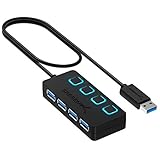 SABRENT 4-Port USB 3.0 Hub with Individual Power Switches (HB-UM43)
Count Your Devices Before You Buy
A hub exists to turn one port into several, so the first job is to list what you plan to plug in. Many buyers pick a hub by port count alone and later find a missing connector type.
- Write down every device you connect at once, such as a display, drive, keyboard and card reader.
- Note each connector type, since some devices still need the older rectangular plug.
- Decide whether you need a wired network port for stable connections.
- Check whether your laptop can send power through the hub, and whether you want that.
- Add one spare port for future gear.
Remember that all ports on a hub share the single connection to your computer, so heavy use of several at once can reduce what each one delivers. The maker’s notes on shared bandwidth are worth reading.
Bus-Powered or Externally Powered
| Kind | Advantage | Drawback |
|---|---|---|
| Bus-powered | Compact, one cable, easy to carry | Limited power for hungry devices |
| Externally powered | Steadier for drives and many devices | Extra adapter and cable on the desk |
Travelers usually favor the compact kind, while a fixed desk setup with several drives often suits the externally powered style better.
Troubleshooting a Hub That Misbehaves
If a device fails to show up through your hub, work through simple checks before blaming the hardware. Most issues turn out to be small ones.
- Try the device directly in the computer to rule out the device itself.
- Reseat the hub and check that the cable is fully pushed in.
- Move heavy devices such as drives to an externally powered setup if the maker allows it.
- Look for updates to drivers or system software on the maker’s support pages.
- Try a different port on the hub to see whether a single port is at fault.
Mapping Your Desk Before You Shop: A One-Week Audit
Most disappointing hub purchases are not caused by a bad hub. They are caused by a port list written from memory on the day of ordering, which quietly leaves out the device that only appears twice a week. A short audit fixes that. For one ordinary working week, keep a scrap of paper or a note on your phone beside the desk and jot down every device you plug in, borrow, charge or wish you could connect. Note the device, the plug it uses, and whether it stays connected all day or only visits. The card reader that appears only on Friday, the backup drive that connects on Sunday evening, and the phone that needs a charge during long calls all belong on the list, because a hub chosen only for the daily regulars will feel short of ports exactly when the week gets busy.
At the end of the week, sort the list into three groups. The first group is the permanent residents: the monitor, keyboard, mouse receiver, network lead or anything else that never moves. The second group is the regular visitors: drives, readers, phones and tablets that come and go. The third group is the rare guests: the printer you connect twice a month, the controller, the drawing tablet borrowed from another room. A good hub covers the first group completely, covers most of the second group at the same time, and can serve the third group by temporary swapping. Trying to cover every guest simultaneously is how buyers end up with a very large hub that mostly sits empty, costs more, takes more desk space and draws more power than their routine ever needed.
Count simultaneous use, not total ownership
The number that matters is not how many devices you own but how many are connected at the same moment on your busiest ordinary day. Two external drives that are never used together do not need two dedicated ports in practice, because one can wait its turn. A monitor and a drive, by contrast, usually are used together, so they do need simultaneous capacity. Walk through your busiest hour in your head: the call running, the file copying, the phone charging, the document open on the second screen. That scene, not the tidy drawer inventory, is the true size of the hub you need. Writing the scene down in two or three lines before shopping keeps the decision honest and makes product descriptions much easier to judge.
A Decision Checklist You Can Actually Finish
Once the audit exists, turn it into a short checklist with three columns: must have, nice to have, and skip. Must have means the day breaks without it: the monitor connection if you work on a second screen, the network port if your wireless connection is unreliable, enough data ports for the permanent residents. Nice to have means life is smoother with it: a card slot that saves finding a separate reader, an extra charging port, a tidier single-cable desk. Skip means features you would pay for and never touch: extra display outputs on a laptop that only drives one external screen, card formats you do not own, or a very high port count bought purely as insurance. The discipline of the skip column matters most, because hub marketing rewards feature counting, while daily satisfaction rewards fit.
- Write the must-have list from the audit, not from a product page.
- Confirm the laptop side first: what the computer’s own port can do limits everything downstream.
- Decide where the hub will live, on the desk or in the travel bag, because size and cable length follow from that.
- Decide how the laptop gets its power while the hub is connected, before choosing between hub models.
- Leave one ordinary data port free in your plan, because new small devices arrive more often than expected.
Finish the checklist before looking at any specific model. That order sounds fussy, but it reverses the usual failure mode, in which a shopper falls for a feature list and then invents uses for it afterwards. With a finished checklist, comparing two hubs becomes a calm exercise in matching columns rather than a debate about which specification sounds more impressive. It also makes it obvious when a simpler, smaller hub is genuinely the better buy, which is a conclusion the feature-count approach almost never reaches on its own.
Two Worked Examples: The Desk Hub and the Travel Hub
Example one: a home office that stays put
Consider a worker whose audit shows a monitor, a keyboard, a mouse receiver, a backup drive twice a week, a phone charged during calls, and a headset for meetings. The permanent group needs the display connection plus two modest data ports. The visitors need one more data port and a way to charge the phone. The right answer is a mid-sized desk hub that stays plugged in, with the laptop charger feeding it so that one cable connects the whole desk each morning. Port count is unremarkable, and that is fine: the win is the routine. Sit down, connect one cable, and everything wakes. The backup drive borrows the visitor port on its two evenings, and nothing in the setup pretends the printer in the other room needs a permanent seat.
Example two: a laptop that travels daily
Now consider a consultant who works at client sites, in trains and at a small home desk. The audit shows a phone, a presentation clicker receiver, a portable drive, and an occasional need to show slides on a room screen. Weight, a short sturdy cable and a modest port set matter more than a dozen sockets. The right answer is a compact hub that lives in the bag, chosen for the display connection and two or three data ports, with charging pass-through for hotel desks where sockets are scarce. At home, the same hub is enough because the home desk is simple. Notice how the same person, given a desk-bound audit, would have bought the first hub and carried unnecessary bulk for a year. The audit, not the catalogue, made the difference.
Testing a New Hub During the First Week
When the hub arrives, resist the urge to plug everything in at once and declare success. Test it the way you would want a fault found: one layer at a time, while returns are still easy. Start with the laptop alone and the hub empty, and confirm the computer recognises it without complaint. Add the display next and use it for a real stretch of work, watching for flicker, sleep problems or a picture that drops when other devices move. Then add the permanent data devices, then run the busiest-hour scene from your audit: a large file copy while the screen is on and the phone is charging. This is the moment when shared limits show themselves, and it is far better discovered on day two than during a deadline in month three.
Pay attention to ordinary behaviour as well as headline function. Does the setup wake cleanly after the laptop sleeps? Do drives reconnect in the same order, so your backup routine still finds them? Does the hub sit where you planned, with cables reaching without strain and the connector not levering in the laptop port? A hub that passes the busy test but annoys you every morning at wake-up time is still the wrong hub. Keep the packaging until the week of testing is done, note anything odd in the same notebook as the audit, and only then tidy the cables permanently. Testing in layers also gives you a known-good order to retrace later if something misbehaves after a system update.
When the Problem Is Not the Hub
Hubs get blamed for faults that belong to three other suspects: the cable, the laptop port and the power supply. Work through them in a calm order before concluding the hub is faulty. First, swap the cable between the laptop and the hub for a known good one, because that short lead carries everything and is the most flexed, most swapped and least suspected part of the chain. Second, try the hub in the laptop’s other port if it has one, since ports on the same machine can differ in what they support. Third, connect the charger the maker recommends and retest under load, because a setup that works while browsing can falter when the battery is low, the screen is bright and a drive is copying at the same time.
Only after those three checks should the hub itself move to the top of the suspect list, and even then, test it with fewer devices attached to see whether one particular peripheral is the troublemaker. A single failing drive, a damaged card or a misbehaving receiver can make a healthy hub look unreliable. This order of diagnosis saves money, because it prevents returning a good hub and buying a second one that inherits exactly the same cable, port or power problem. It also builds a small written record: which swap changed what. That record is gold if you ever contact support, and it turns a frustrating evening into a short, methodical one.
Sharing One Hub Between Two Computers
Households increasingly ask one good hub to serve two laptops: partners sharing a desk on different days, or a work machine and a personal machine taking turns with the same monitor and drives. This can work well, but it rewards a little ceremony. Agree on the handover state: drives ejected properly before the cable changes hands, the monitor’s input left on the shared setting, and the charger arrangement understood by both people, because a hub that receives different chargers on different days behaves differently in ways that look like faults. Keep the hub fixed to the desk rather than travelling with either laptop, so the shared infrastructure stays put and only the single connecting cable moves.
Expect small frictions and design them out in advance. Each computer will remember the desk in its own way, arranging windows and selecting devices by its own habits, so allow a minute of settling at each handover rather than judging the setup harshly. Files are the bigger risk: a shared backup drive that both machines write to needs a clear folder agreement, one side per person or per machine, and the standing rule that nobody tidies the other side. Households that write these tiny agreements down on a card kept at the desk report that a shared hub saves real money and space. Households that improvise the sharing usually end with one partner quietly buying a second hub, which is also a fine outcome, merely a more expensive way to learn the same lesson.
Knowing When to Replace, Upgrade or Simply Re-Cable
Hubs rarely die dramatically. More often they drift into inadequacy: a new laptop arrives with different needs, a second monitor joins the desk, a drive collection outgrows the port count, or one socket becomes loose after years of daily plugging. Before replacing the hub, separate the three possible stories. If the diagnosis routine in this guide shows the cable or charger was the fault, replace that part and keep the hub; it has years left. If the hub works perfectly but the desk has outgrown it, that is an upgrade, and the old hub retires honourably to the travel bag or the second room, where its smaller port count is suddenly exactly right. If a port has physically loosened, or the hub behaves erratically with known-good cables on two computers, replacement is the honest answer, and the fault history you noted during testing will make choosing its successor straightforward.
When you do upgrade, let the audit lead again rather than the frustration of the moment. The temptation after a hub feels too small is to buy the largest replacement available, which usually means paying for display outputs and card formats the new desk will never use either. The better move is one size up in the dimensions that actually grew: one or two more data ports, the second display connection if a second screen truly arrived, or a sturdier build if the old one’s travel life wore it out. Keep the retired hub labelled with its date and its known good state. A labelled spare hub in a drawer has rescued many households on the morning a main hub, a cable or a laptop port chose to fail before an important call.
A Note on Buying for the Next Laptop, Not Only This One
Laptops change more often than desks do, and a hub bought with the next machine in mind ages far better than one bought for this machine alone. When you replace a laptop, the desk around it, the monitor, drives, keyboard and network lead, mostly stays the same, and the hub is the translator between the old desk and the new computer. That argues for choosing a hub whose connections are mainstream rather than exotic, whose power arrangement follows the common pattern rather than a maker’s private scheme, and whose abilities are stated plainly enough that you can check them against a future machine’s port in a few minutes. It also argues for keeping the hub’s paperwork, or a photograph of its stated abilities, with the desk’s other documents, because the question of what the hub can do always arrives on the day a new laptop does, which is a day with quite enough other questions already.
There is a limit to this future-proofing, and honesty about it saves money. Do not pay today for a capability neither your current laptop nor any plausible next one can use, merely because it sounds advanced. The sensible horizon is one machine ahead: the port your next laptop will very likely have, the monitor you already own, the drives already in the drawer. Within that horizon, a little generosity is wise, a spare data port, a display connection with headroom for the screen you keep admiring. Beyond that horizon, generosity becomes speculation, and speculation in small electronics is a hobby with poor returns. Buy for this desk, this year, and the probable next laptop, and the hub will serve both machines without ever having pretended to serve the decade.
FAQ
Why does my screen not work through the hub?
Your laptop’s USB-C port may not support video output, or the cable or display may be limited. Check the maker’s guide for the port, and try the other port if the laptop has two.
Can I power the laptop and use all ports at once?
Often yes, but some of the charger’s power goes to the hub itself. Follow the stated limits in the maker’s instructions, and expect slower charging when many devices are active.
Do I need a hub with its own power supply?
Some devices, such as certain drives, draw more power than a bus-powered hub provides. The hub maker lists what it supports, so check there before connecting power-hungry devices.
Is a hub the same as a dock?
Not quite. A hub is usually small and takes its power from the laptop or a pass-through charger, while a dock is a larger unit that often has its own power supply and more ports.
Can I chain two hubs together?
It may work, but the bandwidth and power are divided further, and the maker may advise against it. Choose one hub that has the ports you need instead.
Will a USB-C hub slow down my external SSD?
It can if the hub shares bandwidth or only supports 5Gbps while your drive can go faster. For best speed, use a hub with a 10Gbps port, plug the drive in first, and avoid running other high-bandwidth devices on the same hub at the same time.
How do I know if my laptop USB-C port supports video?
Check your laptop manual or specifications for DisplayPort Alt Mode or Thunderbolt, or look for a small display or lightning symbol beside the port. Some USB-C ports only handle data and charging, and a hub cannot add video support that the port lacks.
Why does my hub get warm during use?
Hubs use small chips to convert signals and manage power, which produces heat, especially with video output and fast charging. Warm is normal. If it is too hot to hold comfortably, give it airflow, unplug unneeded devices, and stop using it if you notice a burning smell.
Does a USB-C hub work with a Chromebook, Mac or Windows laptop?
Most basic hubs work across systems because they use standard drivers. Ethernet adapters and some displays may need extra setup. Check the listing for compatibility with your operating system, and read reviews from people with a similar computer before you buy.
Can a USB-C hub charge my phone while connected to a laptop?
Often yes, if the hub has a USB-C or USB-A port that supplies power. Charging speed depends on the hub and what the laptop can provide. A dedicated wall charger will usually be faster than charging through a laptop-connected hub.
Can I leave a USB-C hub plugged into my laptop all the time?
For a desk setup, yes, that is how most people use one. Check occasionally that the connectors are not under strain and that the hub is not buried under papers where heat builds up. If the laptop travels daily, unplugging is part of the routine anyway. Leaving the hub connected is not a problem in itself; leaving it dangling from the port by its cable is, because the leverage stresses both connectors over time.
Does a USB-C hub need drivers or software?
Most ordinary hubs work as soon as they are connected, using support built into the computer’s system. Display features and network ports occasionally rely on system support that varies by machine, which is another reason to confirm compatibility with your exact laptop model before buying. If a maker offers an update utility, treat it as optional maintenance rather than a requirement, and only install software from the maker’s own support pages.
Why do my devices disconnect when the laptop sleeps?
Many laptops cut power to their ports during sleep to save battery, so drives and receivers drop and then reconnect on waking. That is usually normal behaviour rather than a fault. If a drive was copying when the machine slept, check the copy finished correctly afterwards. For long transfers, adjust the sleep settings for that session, and always eject drives properly rather than relying on sleep to tidy up.
Can I use the same hub with a desktop computer?
Often yes, if the desktop has a compatible port, though desktops usually have enough built-in ports that a hub adds less. Where it does help is bringing connections to the front of the desk: a hub on the desktop surface can be easier to reach than ports on the back of a tower under the desk. Check what the desktop port supports, just as you would with a laptop, especially if you expect the hub to carry a display.
Does the length of the hub’s built-in cable matter?
It matters for comfort more than for performance at the short lengths hubs use. A very short lead forces the hub to hang beside the laptop or sit awkwardly close, while a slightly longer one lets it rest flat on the desk with the connectors unstressed. Choose based on where the hub will live, and avoid arrangements where the hub dangles, because the weight pulls on the laptop port all day.
The Short Version
List what you plug in, match it to the hub’s ports, and confirm your laptop supports video and charging through its USB-C port. Read the maker’s notes on power limits, shared bandwidth and heat before relying on one for daily work.