An external hard drive is the simplest way to store and carry photos, while a NAS (network attached storage) is a small always-on server that gives you shared access and built-in redundancy. Choose an external drive for a small library and a single computer, and a NAS when your archive grows or several devices need access.
How Each One Works
An external drive plugs into one computer by USB or a similar port. You copy files to it, unplug it and take it elsewhere. It is low in effort, with no setup beyond formatting.
A NAS is a box that holds one or more drives and connects to your home or studio network. Computers, tablets and phones can reach it at the same time, and many models can keep a copy of your data across two drives.
In this guide
Comparing the Two
| Area | External drive | NAS |
|---|---|---|
| Setup | Plug in and go | Needs network and drive setup |
| Access | One computer at a time | Many devices, even remote |
| Redundancy | None unless you copy it yourself | Mirrored or parity drive options |
| Portability | Excellent | Fixed in one place |
| Growth | Buy another drive | Swap in larger drives or add bays |
| Speed | Depends on the port | Depends on your network |
Redundancy Is Not a Backup
This is the point many people miss. A NAS with two mirrored drives protects you if one drive fails, but it does not protect against deleted files, a power surge, theft or fire. A true backup plan keeps separate copies in separate places.
A common guideline is the 3-2-1 approach: three copies of your data, on two kinds of media, with one copy off site. Both a NAS and external drives can be part of that plan.
Which Should You Choose?
- Count your files. A few hundred gigabytes fits easily on one external drive. Multi-terabyte archives are better managed on a NAS.
- Think about who needs access. If a partner, assistant or editing computer also needs the files, a NAS saves constant copying.
- Consider your comfort with setup. A NAS asks for some network knowledge, though modern ones guide you through it.
- Plan for the off-site copy. A second external drive kept at another location, or an online backup service, completes the plan.
- Allow for growth. Choose a setup that can expand without moving everything again.
Whichever you use, check the maker’s page for the exact model you are considering. We have not used these devices ourselves, so this guide stays general.
Estimating Your Archive Size and Growth Rate
Before comparing hardware, work out how much you actually store and how fast it grows. Look at the size of your current photo folders, then check how much a typical shoot adds. Raw files from high-resolution cameras are large, and video clips are far larger still, so a photographer who mixes both can outgrow a drive much sooner than someone who shoots only JPEG.
A practical method is to track one full year. Note the total added across weddings, trips, personal projects and exports, then project that forward three to five years. Remember that edited exports, previews and catalog files add to the raw originals, and that you will want free space left over, because drives that are nearly full tend to slow down and become harder to manage.
- Plan for capacity well beyond today’s total, so you are not migrating everything again in a year.
- Count backups separately. Every copy you keep multiplies the space you need.
- Decide what is worth keeping long term. Culling rejected frames before archiving saves a surprising amount of space.
If your projection fits comfortably on one affordable drive, an external drive may serve you for years. If it points to many terabytes or to several drives, a NAS with expandable bays begins to make more sense. Check the maker’s page for the maximum drive size and number of bays any NAS supports before you commit.
Drive Types and Reliability for Long-Term Photo Storage
Both options rely on the same basic storage technologies, and the choice between them affects reliability. Spinning hard drives offer the most capacity for the money and suit archives that are read occasionally. Solid-state drives have no moving parts, tolerate bumps better and are quicker, which suits a working drive that travels with you, though they usually cost more for each unit of capacity.
For a NAS, many makers sell drives designed for continuous operation. These are intended to run for long hours in a box with other drives, which is a different job from sitting unplugged in a drawer. Read the drive listing to see what workload it is rated for, and follow the NAS maker’s list of supported drives where one is published.
Whatever you choose, treat every drive as something that will eventually fail. Warning signs include unusual clicking, files that take much longer to open, repeated error messages and health warnings from the operating system or NAS software. Do not wait for a failure to arrive. Many photographers retire drives on a schedule, replacing them after several years of service, and verify that copies open correctly rather than assuming the files are fine.
Buying drives of different ages for a mirrored pair is a sensible habit, since identical drives from the same batch can wear at similar rates. Label each drive with its purchase date so you know when it is time to replace it.
Network Speed and Working With Raw Files
An external drive is limited by its port and the drive itself, while a NAS is limited by your network, and that difference surprises many first-time buyers. A wired Ethernet connection is generally the most dependable way to reach a NAS, and Wi-Fi can be fine for browsing and light work but struggles with big batches of raw files or video.
Check each part of the chain: the NAS network port, the cable, your router or switch, and the port on your computer. The slowest link sets the pace. Some laptops have no built-in Ethernet port, so you may need an adapter, and you should confirm that it matches the speed you are paying for.
Think about how you actually edit. A common approach is to keep the active catalog and current projects on a fast local drive, then move finished work to the NAS or external archive. This keeps editing responsive while the slower, larger storage holds the library. Some editing software warns against keeping its catalog on a network location, so read the software’s guidance before you rely on that setup.
- Import to a local drive first, then copy to storage after culling.
- Use previews or smart previews so you can browse without loading full raw files.
- Test with a real folder of your own files before deciding the speed is acceptable.
Remote Access, Sharing and Security
One of the main reasons to choose a NAS is sharing. A client, partner or second editor can reach the same folders without you copying files around. Many NAS devices also let you reach your library from outside the home, which is handy when you travel, but it also opens a door that needs care.
Set a strong, unique password on the administrator account and on every user. Create separate accounts for people who need access, and give each one only the folders they need. Keep the NAS software updated, because makers release updates to fix security problems. Be cautious about exposing the device directly to the internet, and read the maker’s guidance on safer remote access options before enabling anything.
An external drive has a different risk profile. It has no network exposure, but it is easy to lose, drop or have stolen, and anyone who holds it can read the files unless you turn on encryption. Most operating systems include built-in drive encryption, which is worth enabling for a drive that leaves the house. Store the recovery key somewhere separate from the drive itself.
Finally, think about ransomware and accidents. A copy that stays connected can be damaged along with your main files. An offline or versioned copy, kept disconnected most of the time, gives you a way back when something goes wrong.
Setup and Maintenance Habits That Protect Your Photos
Good storage is partly habit. Start by choosing a folder structure and naming scheme you will keep using, such as year, then date, then shoot name. A consistent layout makes it easier to find images, copy folders to a second location and spot anything missing.
For a NAS, read the setup guide and choose how your drives are arranged before filling them with data, because changing the arrangement later can mean starting over. Keep a spare drive or know how you would replace a failed one, and check the maker’s page on how rebuilding works so you are not learning it during an emergency. Enable notifications so you hear about drive warnings by email or phone.
For external drives, always eject before unplugging, keep them away from heat, damp and strong shocks, and use a case when they travel. Spinning drives dislike being knocked while running.
- Run a restore test twice a year by opening a handful of old files from each copy.
- Schedule backups so they happen without you remembering.
- Keep a short written note of where each copy lives and which drive is which.
Signs it is time to replace a unit include repeated errors, slowing performance, age beyond what you are comfortable with and a full drive that no longer leaves breathing room.
A Plain Glossary for Photo Storage
Storage products come with a lot of acronyms, which can make a simple decision feel technical. These short definitions will help you follow the discussion.
- NAS: network attached storage, a small device with one or more drives that connects to your home or office network.
- RAID: a way of combining several drives so that data is spread or duplicated across them. Some levels allow a drive to fail without losing access.
- Bay: a slot in a NAS that holds one drive.
- HDD and SSD: a spinning hard disk drive and a solid-state drive without moving parts.
- Throughput: how fast data moves between devices.
- Cloud backup: a copy of files stored on a remote service over the internet.
- Offsite copy: any backup kept in a different physical location from your main data.
Understanding these terms prevents confusion later. In particular, remember that RAID is about keeping a system running when a drive fails, and it is separate from the idea of a backup. A deleted file or a corrupted folder is copied across the array just like any other change.
Mistakes That Put Photo Libraries at Risk
Photographers lose images in remarkably similar ways. Look at the list below and see whether any of these habits sounds familiar.
Keeping a single copy is the biggest of all. Any drive can fail without warning, so a lone copy of important work is never truly safe. Aim for several copies, at least one of them in a different place.
Treating a mirrored NAS as a full backup is a close second. It protects against one type of failure, but it will not save you from accidents, theft, fire, power surges or software errors.
Leaving drives unplugged for years and assuming they will still work is another. Drives need to be checked and refreshed from time to time, and old connectors and formats can become hard to use.
Ignoring warnings comes next. If a drive makes unusual noises, reports errors or runs slowly, back up at once and consider replacing it, following the maker’s guidance.
Moving files without checking them is the final trap. When you copy photos to a new drive, confirm that everything transferred correctly before you wipe the original card or old drive.
A Decision Guide by Situation
The right option depends on how you work. The table links common situations to the general leanings of each choice.
| Situation | External drive leaning | NAS leaning |
|---|---|---|
| One computer, a modest library | Simple and sufficient | Probably more than you need |
| Several computers or family members | Awkward to share | Designed for shared access |
| Frequent travel | Portable and easy to carry | Stays home, with remote access possible |
| A rapidly growing archive | Needs more drives over time | Can expand by adding or swapping drives |
| Little interest in setup tasks | Plug and play | Needs some configuration and upkeep |
Many photographers use both. A NAS holds the main archive at home, while portable drives carry active projects on the road and act as extra copies. Whichever path you take, add an offsite copy, whether on a drive kept elsewhere or on a cloud service.
How to Read a Storage Product Listing
Listings for drives and enclosures are full of numbers, and some of them matter far more than others. Begin with the capacity, then check whether the figure refers to a single drive or a combined total of several. For a NAS, note whether the listing includes drives or sells the enclosure on its own, since many units ship empty and you must choose compatible drives yourself.
Look at the connection type. For an external drive, the port and the cable determine the possible speed, and the drive itself may limit it further. For a NAS, check the network port and the number of bays, plus whether the maker publishes a list of approved or recommended drives. Consult the maker’s compatibility notes for any drive you plan to use.
Find the warranty terms, the supported file systems and the apps or software included. Read the maker’s guidance on safe setup and firmware updates, and treat any claim of speed as a best-case figure rather than a promise for real-world use.
Following the Maker, and Knowing When to Call an Expert
Storage devices are electrical equipment, and the maker’s instructions should guide how you set them up, power them and ventilate them. Follow the guidance for drive installation, which often asks you to power the device off first and to handle drives by their edges. Do not open sealed units that are not meant to be opened.
If a drive fails and holds irreplaceable photographs, stop using it immediately. Further use can reduce the chance of recovery. A professional data recovery service may be able to help, though results are never certain and the process can be costly, so prevention is far better.
For network setups that you plan to open to the internet, take security seriously. Follow the maker’s guidance, use strong unique passwords, keep firmware up to date and, if you are unsure, ask a qualified IT professional to check the configuration. A well-protected system lets you enjoy remote access without exposing your pictures to strangers.
A Simple Layered Plan You Can Adopt
Instead of choosing a single device, think in layers. The first layer is your working copy, kept on a fast internal or external drive so editing feels smooth. The second layer is a local backup, which could be a second external drive or a NAS that receives copies on a schedule. The third layer is an offsite copy, held on a drive stored at another address or on a cloud service.
This layered approach means that no single event can erase everything. A failed drive leaves you with the backup, a fire or theft at home leaves you with the offsite copy, and an accidental deletion can be rescued from a version that you kept. Set a regular day each month to check that every layer is up to date and that you can actually open files from each one.
Label drives clearly, note when each was last copied and replace aging equipment before it fails. A plan that you can maintain in a few minutes a month will protect your pictures far better than an elaborate system you abandon.


Products Worth a Look
As an Amazon Associate, Reviews Took earns from qualifying purchases. These picks come from our guide: 6 Best Photo Backup Drives for Photographers (2026).
-
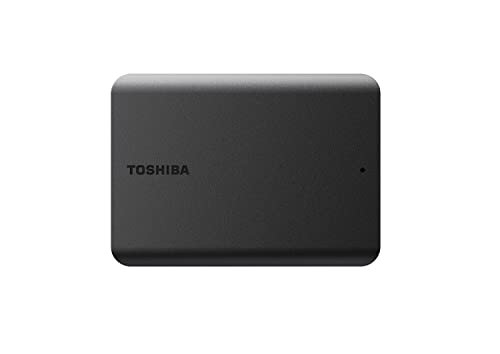
Toshiba Canvio Basics 4TB Portable Hard Drive
 Toshiba Canvio Basics 4TB Portable External Hard Drive USB 3.0
-
Seagate Portable 5TB External Hard Drive
 Seagate Portable 5TB External Hard Drive HDD – USB 3.0 for PC
-
LaCie Rugged USB-C 5TB
 LaCie Rugged USB-C
What Photographers Actually Store, and Why It Grows
Storage advice fails when it imagines a photographer’s archive as a pile of finished files. The real archive has layers, and each layer argues for a different home. The working layer — current shoots, the catalog, the edits in progress — wants speed and constant availability, because it is touched daily. The finished layer — delivered work, exported masters — is touched rarely but must never be lost, because clients return and portfolios are rebuilt. The raw layer, the original captures, is the insurance policy beneath everything: bulky, untouched for years, and irreplaceable on the one day a client, a court, or your own retrospective needs the original frame. A NAS and an external drive divide these layers differently. The NAS centralizes them, serves them to every machine you own, and can protect them against a drive failure without your attention. The external drive separates them physically, travels, and asks nothing of your network. Most storage disasters happen not because a photographer chose the wrong box, but because the layers were never separated in thought — the only copy of everything sat in one place, in one device, waiting for one bad day.
RAID, in the Plain Language Photographers Need
RAID is the most misunderstood word in this comparison, so let it be said plainly: RAID is a way of arranging several drives so that one drive’s failure does not stop the system or take the data with it. It is protection against a hardware failure, full stop. It is not protection against deletion, theft, fire, flood, ransomware, or your own tired mistake at midnight, because all of those happen to every copy in the box simultaneously and cheerfully. A photographer who understands that sentence is immune to the most expensive misconception in storage — the belief that a multi-bay NAS, by itself, is a backup. The NAS is where your archive lives and works; the backup is the other copy, in the other place, and a sound system has both, whichever devices provide them.
The Working Photographer’s Day, on Each System
Live with each option for a working week in your imagination. On the NAS, you return from a shoot, ingest to one place, and the catalog on your desktop and the files your laptop sees are the same truth; an assistant or a partner can open the same archive without a drive being ferried across the room; the evening’s ingest quietly gains a second copy inside the box as the drives mirror or parity-check in the background. The system’s demands are front-loaded: an afternoon of setup, a network that deserves a wired connection for the big transfers, and the discipline of occasional updates. On the external drive, the week is simpler and more manual: ingest to the drive, work from the drive or from a fast local copy, and carry the drive between machines like a physical notebook — which it is, with a notebook’s virtues and a notebook’s risks. Its demands are distributed: a backup routine you must actually perform, a labeling habit, and the small, constant awareness of where the drive is. Neither week is better in the abstract. The question is whether your working life is anchored to one desk and several machines, or mobile and singular — and honest answers to that question decide this comparison more reliably than any transfer speed.
The Backup Conversation Both Devices Must Pass
Whichever you choose, the device is only half the system; the other half is the backup discipline wrapped around it, and the honest framework is the old three-copy rule adapted to a photographer’s life. One copy is the working archive, on the NAS or the main drive. A second copy lives on a different device, ideally one that is not always connected — an external drive that visits for backups and otherwise rests in a drawer is protected from most of the accidents that take connected systems together. A third copy lives somewhere else entirely: a drive at a relative’s house, a studio locker, or a cloud tier for the finished work at minimum, because fire and theft do not respect how carefully a single room was organized. Judge the NAS and the external drive as citizens of this system rather than as rivals for its throne: the NAS makes an incomparable home base and working archive, the external drive makes an incomparable second and third copy, and the photographers with the calmest archives usually own both, each doing the job it is shaped for.
Speed, Honestly Assigned
Transfer speeds dominate storage marketing and matter less than the brochures insist — with two exceptions that matter daily. Ingesting a large shoot after a long day is the first: the difference between a card reader feeding a fast local drive and the same ingest crossing a busy network to a NAS is the difference between a shower before dinner and a progress bar with dinner. Editing responsiveness is the second: a catalog and its previews on fast storage make culling and developing feel instant, while the same work across a slow connection teaches patience you did not volunteer to learn. The mature arrangement respects both truths — fast local storage for the working layer, the NAS for the archive and its protections, external drives for the copies that leave the building — and it can be built in stages, which is how most photographers actually build it: the drive first, because it is simple; the NAS when the archive, the machines, or the household outgrows simplicity.
Failure Stories and What They Teach
Every experienced photographer carries a failure story, and the stories rhyme. The drive that was dropped — teaching that a working copy and its only backup should never travel in the same bag. The NAS whose two drives, bought together from the same batch, aged together and failed together — teaching that redundancy inside one box is a chapter, not the book. The archive that survived everything except its owner’s forgetting which drive held the only catalog — teaching that labels, a written map of the system, and boring consistency in naming are storage features as real as any specification. Collect these lessons before they are yours: the comparison between a NAS and an external drive is, at bottom, a comparison between two ways of organizing your defense against a day that is certainly coming, and the defense that wins is the one that was actually maintained.
Security: The Archive as a Target and a Treasure
A networked archive is a reachable archive, and reachability cuts both ways. A NAS offers genuine conveniences — access from anywhere, easy sharing with clients and collaborators — and each convenience is a door that deserves a lock you understand: strong, unique passwords, two-step verification where offered, prompt updates, and sharing links treated as publications rather than favors. An external drive’s security is physical and simpler — it can be stolen, but it cannot be reached from another continent, and a drive that spends its life disconnected is immune to the entire category of network mischief. Neither posture is paranoia; a photographer’s archive contains clients’ private moments and a career’s commercial value in one place. Match the precautions to the exposure you choose, encrypt what travels, and remember that the most common security failure in small studios is not a mastermind but a default password nobody changed.
Power, Noise, and Living Beside Your Storage
The unglamorous physics of ownership deserve a paragraph. A NAS is a small computer that runs around the clock: it sips power continuously, its drives and fans make the sound of a small computer, and it wants ventilation and a home away from the desk where you edit sound or the bedroom where you sleep. An external drive is silent and dark until summoned, and asks only for shelf space and a cable when needed. For a studio, the NAS’s hum is beneath notice; for a photographer whose office is a corner of a living space, it can be the deciding factor that specifications never mention. Visit your own tolerance honestly — equipment that annoys you daily gets unplugged, and an unplugged archive protects nothing.
Scaling: From First Drive to a System That Grows
Archives grow at the rate of your ambition multiplied by your camera’s file sizes, and both multipliers only move one way. Choose today’s device with tomorrow’s migration in mind: a NAS whose bays or expansion path can absorb the next few years, or a drive discipline whose labeling and folder structure will still make sense at ten times the size. The photographers who suffer storage crises are rarely the ones who bought too little; they are the ones whose system had no story about what happens next — no spare bay, no naming logic, no moment scheduled to review and prune. Build the story early, while the archive is small enough to forgive improvisation, and let each device in this comparison play the role the story assigns it. Storage, done well, disappears — and an archive that disappears into the background of a working life, quietly keeping every frame safe, is the real product both of these devices are selling.
Cost Thinking Across a Career
Compare these devices across the only horizon that matters — the years the archive must survive — and the arithmetic changes character. An external drive is inexpensive to start and asks to be replaced and multiplied as it fills and ages; its costs arrive in small, frequent installments of money and attention. A NAS asks for a larger beginning — the enclosure, several drives, the setup afternoon — and then amortizes itself across years of automated protection and shared access, with drive replacements as its maintenance. Neither curve is dishonest; they simply suit different cash flows and different temperaments. The false economy, in both worlds, is the copy that was never made: a single drive failure, unmirrored and unbacked-up, costs more in lost work and lost trust than a decade of storage hardware. Buy the protection first and the convenience second, whichever badge the box wears, and let that order of priorities be the real verdict of this comparison.
A Decision Framework in Four Questions
When the specifications blur, four questions sort most photographers honestly. How many machines must reach the archive — one, or every device you own? How much of your protection must be automatic, given the truth about your discipline at the end of long days? Where will the second and third copies live, and which device makes those copies easiest to keep? And how will this choice feel at five times the archive’s current size? A photographer whose answers point to many machines, automated protection, and growth belongs with the NAS as home base. A photographer whose answers describe one machine, honest routines, and portability belongs with the drive — probably with a second drive already labeled as its shadow. Most, in the end, will answer their way to both, staged across a year or two of building. That is not indecision; it is what a system looks like when it grows up.
The Catalog Question: Where the Index Lives
Every discussion of drives eventually meets the catalog, and the catalog has opinions. Your editing software’s catalog is the archive’s index and memory — its location, its backups, and its speed shape your daily life more than any drive specification. Keep the catalog on fast storage, back it up with the same religion as the images, and understand the difference between the catalog’s previews, which can be rebuilt, and the catalog itself, which cannot. A NAS serves the multi-machine photographer here with a caveat worth knowing: many catalog systems are designed for one machine at a time, so the shared archive and the personal catalog remain separate ideas even in a networked studio — the images live centrally, the catalog lives with its editor, and confusing the two is a classic first-year NAS mistake. External drives keep the relationship simple and portable: catalog and images travel together, with the discipline that only one machine opens them at a time. Plan the catalog’s home as deliberately as the images’, because losing the index to a well-preserved archive is like keeping every book and burning the library’s catalog — recoverable, at a price in weeks that nobody budgets.
Habits of Photographers Whose Archives Survive
End with the habits, because devices are only habits made of metal. Ingest once, into the system, never into scattered desktop folders awaiting someday. Verify before you format a card — look at the files, in the archive, at real size. Let no shoot exist in exactly one place overnight. Label everything as though a stranger — your future self, tired, in a hurry — must understand it, because that stranger is precisely who will read the labels. Review the system once a season: a drive’s health, a backup actually restored as a test, the off-site copy refreshed. Photographers who keep these five habits could lose almost any single device discussed in this comparison and lose nothing else. That, and not a transfer speed or a bay count, is the destination — choose the devices that make the habits easiest for you to keep, and keep them.
Two Photographers, Two Right Answers
Watch the decision land differently on two honest practices. The wedding photographer with a studio, an assistant, and a desktop-and-laptop workflow lives on the NAS: two shooters ingest to one archive, the week’s culling happens wherever a screen is free, the mirroring inside the box covers the drive failure, and the external drives rotate off-site as the second and third copies — the system matches a business with rooms, people, and volume. The traveling portrait photographer, one laptop and a life lived from a bag, lives on drives: the working drive in the bag, its shadow in the hotel safe or a companion’s luggage, a third copy mailed home or waiting there — the system matches a practice whose office is wherever the light was. Neither photographer is doing storage wrong, and swapping their systems would make both of them worse. That is the comparison’s real conclusion: the devices are not rivals for a crown but answers to different shapes of working life, and the photographer’s task is to recognize their own shape clearly enough to choose — then to build the backups, labels, and habits that turn a device into a kept promise.
Cloud Storage: The Third Voice in the Room
No honest version of this comparison can ignore the cloud, which increasingly plays the role neither device plays natively: the copy that lives somewhere else without a drive being driven there. As the archive’s off-site layer, cloud storage is close to ideal — automatic, distant, and immune to your building’s bad days — provided the upload reality is respected: a large photographic archive takes time and bandwidth to seed, restores at the speed of your connection, and rents its space by the month, forever. As the working archive itself, it serves the photographer whose files are modest and whose connectivity is excellent, and frustrates the one ingesting a wedding from a rural venue. The mature pattern uses each layer for its virtue: local devices for the working truth, the cloud or a rotated drive for the distant copy, and no layer asked to perform a job its physics forbids. Judge the NAS and the drive, finally, as the local foundation of that pattern — because whichever distant copy you choose, it will be copying from one of them.
Setting Up Either System This Weekend
End with action, because storage intentions decay faster than storage hardware. If you choose the drive path: dedicate the drive to the archive alone, give it a name and a label with the date it entered service, build the folder structure before the first ingest, and schedule its shadow copy before the weekend ends — a backup routine that begins next month begins, in practice, never. If you choose the NAS path: place it where it can breathe and be forgotten, connect it by wire, create the accounts and shares with the security steps done on day one rather than someday, and run your first full ingest as a rehearsal, watching where your own workflow snags. In both cases, finish with the same ceremony: restore one folder from your backup, with your own hands, and look at the photographs in it. A backup that has been restored once is a system; a backup that has never been tested is a hope wearing a system’s clothes.
The Archive Your Future Self Is Counting On
Somewhere ahead of you is a photographer with your name, older, with a career’s worth of frames behind them and a client, an editor, or a grandchild asking for one particular photograph. Everything in this comparison — the bays and the cables, the mirroring and the labels, the copies in other buildings — exists for the ten seconds in which that photographer searches, finds, and opens the file. Build the system that future colleague deserves: honest about its devices, disciplined about its copies, and boring in all the ways that let the work itself be the interesting part. They will thank you every time the search comes back with the photograph, which is to say, if you build it well, every time at all.
Choose, then, with your working life in view and your habits honestly assessed — and whichever device arrives, greet it with the only welcome that matters: a full ingest, a labeled shelf, a tested restore, and a second copy already on its way to somewhere else. The archive starts keeping its promise the day the system does, and not a day before.
And when the system has run quietly for a season — the ingests landing, the copies rotating, the restores tested — notice the feeling it buys you on a shoot: the small, complete confidence that the day’s work is already safe. Photographers call that feeling professionalism. It is, more precisely, what a well-chosen box and a well-kept habit feel like from the inside.
Keep that confidence in view when the specification sheets start their shouting. The archive does not care which device won an argument on the internet; it cares that its copies exist, in more than one place, under a system somebody maintains. Build that, and both halves of this comparison will have served you exactly as they should.
Start this weekend, keep the habits boring, and let the photographs be the drama. An archive quietly doing its job is the most underrated piece of equipment a photographer can own.
That is the standard to hold both devices to — not the speed of a benchmark, but the quiet of a kept promise, season after season, frame after frame.
Build it, test it, and then go make photographs — the archive’s whole purpose is to be forgotten about, gloriously, for years at a time, while the work it protects goes on being made.
That forgetting, earned by a system that never forgets, is the final answer to the comparison — whichever box, or boxes, you choose to earn it with.
FAQ
Can I edit photos directly from a NAS?
Yes, though speed depends on your network. A wired connection is far more dependable than Wi-Fi for large raw files, and many editors keep their working catalog on a local drive for better responsiveness.
Is one external drive enough?
One drive is a single point of failure. Keep at least a second copy somewhere else.
How much storage should I buy for a photo library?
Estimate what you add in a typical year, project it forward several years, and then add generous spare room. Remember that backup copies multiply the space you need. It is usually wiser to buy more capacity than your current total suggests.
Do I need special drives for a NAS?
Many makers sell drives rated for continuous operation inside a multi-drive box. These are intended for that workload, so check the NAS maker's list of supported drives and the drive's listing before you buy.
Is a NAS safe to access from outside my home?
It can be, but you need to take care. Use strong unique passwords, keep the software updated and follow the maker's guidance on safer remote access options instead of exposing the device directly to the internet.
Should I encrypt an external drive?
If the drive leaves your home or holds client work, encryption is a good idea. Most operating systems include a built-in option. Keep the recovery key somewhere other than the drive itself.
What is the difference between a mirrored NAS and a backup?
A mirrored setup keeps two live copies so one drive can fail without data loss, but deleting a file deletes it from both. A backup is a separate, ideally versioned or off-site copy that lets you recover from mistakes, theft or damage.
When should I replace an old drive?
Replace it when it shows errors, clicking sounds or slow performance, and consider retiring drives on a schedule after several years of use. Copy the data to a new drive before the old one fails, and check that the copy opens properly.
Can I mix SSDs and hard drives in my workflow?
Yes, many photographers do. A fast SSD holds current projects and the catalog, while larger hard drives or a NAS hold the long-term archive. This balances speed and capacity.
The Short Version
External drives are simple, portable and ideal for small libraries, while a NAS brings shared access and drive redundancy for growing archives. Neither replaces a real backup, so keep an off-site copy whichever you choose.