Disclosure: As an Amazon Associate, reviewstook.com earns from qualifying purchases. Links to Amazon on this page are affiliate links; they cost you nothing extra.
Both card types work the same, but the size and use differ.
Last updated: November 1, 2026.
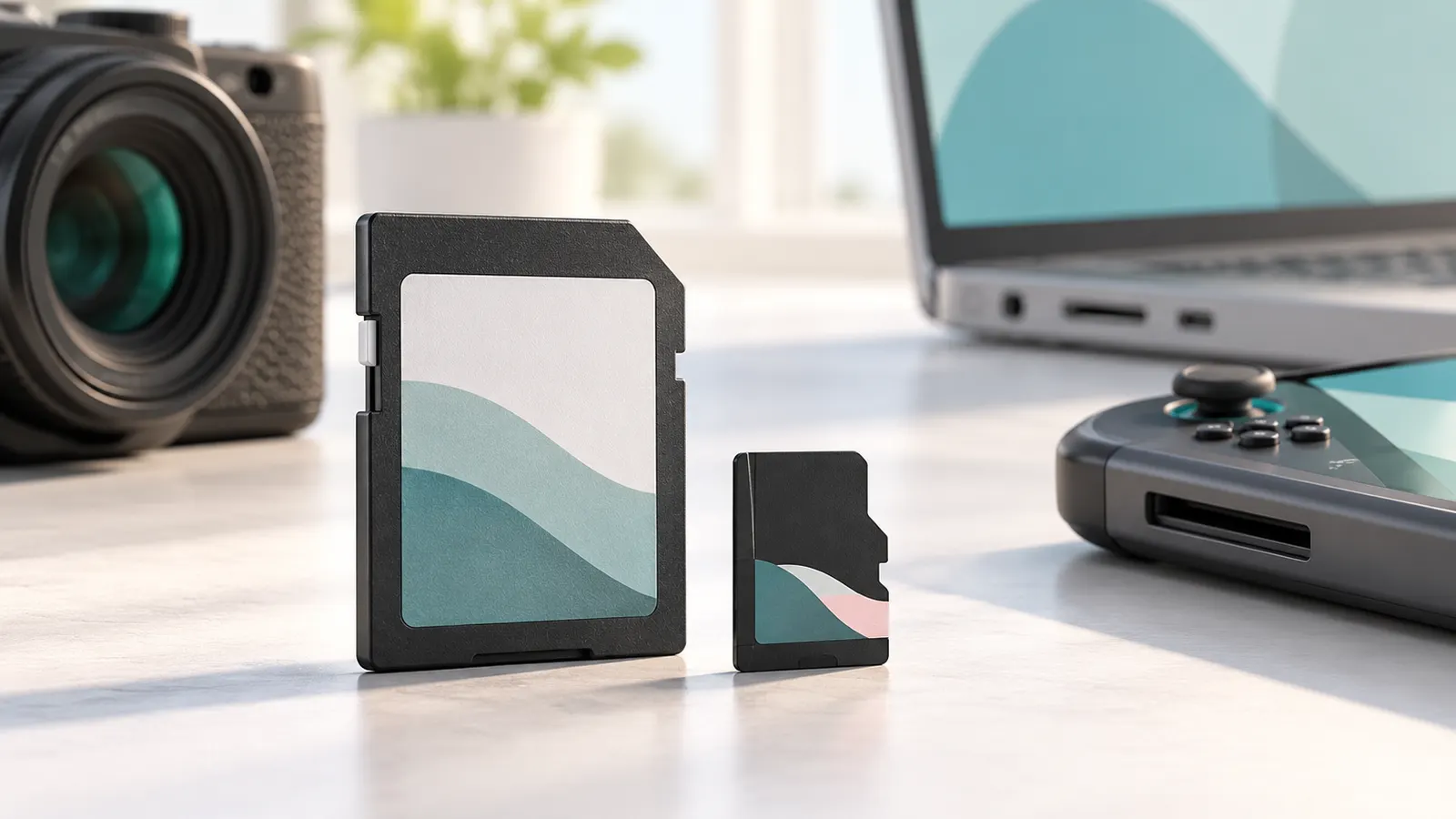
Size and use
microSD for phones and handhelds; SD for cameras.
In this guide
Format tips
Use exFAT for large cards and format in the device. Back up first.
Picks
See 256GB microSD and SD cards for photography.
Physical Size, Adapters and Compatibility
A microSD card is much smaller than a full-size SD card, but they share the same basic technology. Many microSD cards come with an adapter that lets them fit an SD slot, which is useful for cameras and laptops. The reverse is not possible, since a full-size card does not fit a microSD slot.
Before buying, check what your device takes. Phones, handheld consoles, drones and action cameras commonly use microSD, while many dedicated cameras use full-size SD. Also check the device manual for the maximum capacity it supports, because older devices may not read very large cards. Adapters work best when they are kept clean and fully seated, so avoid forcing them into the slot.
Capacity Classes and File Systems
Cards are grouped by capacity into standard classes, and the class is tied to the file system the card ships with. Smaller cards often use one file system, and larger cards use another, such as exFAT. Devices need to support that file system to read the card. If a card is not recognized, one cause may be a file system the device cannot read.
- Check the manual for supported capacities and formats.
- Do not assume a very large card will work in an older device.
- Look at the card label to confirm its capacity class.
Formatting in the device helps, but if the device does not support the class, formatting will not fix it.
How to Format Safely, Step by Step
Formatting erases everything on the card, so copy any files you want to keep first. For use in a camera or similar gadget, format the card inside that device rather than on a computer, since it sets up the folder structure the device expects. Use the menu option in the device’s settings.
If you must format on a computer, choose the file system recommended by the device maker. For large cards that is commonly exFAT, though you should confirm in the manual. Look for a “full” versus “quick” option: quick is fine for routine use, and a full format takes longer. Eject the card properly before removing it, and never pull it out while the device is writing.
Card Care and Signs of Failure
Memory cards are small and sturdy but not indestructible. Keep them in cases when not in use, avoid heat, moisture and static, and do not bend them. Remove them when the device is off, or follow the eject steps in the device’s menu.
Watch for warning signs: files that fail to open, errors on reading, a card that takes much longer than it used to, or sudden requests to format. If you see these, copy the files off at once, if possible, and replace the card. Cards do not last forever, so do not rely on one for the only copy of a precious photo. Download pictures regularly and keep backups.
Buying Carefully to Avoid Fakes and Mislabeled Cards
Mislabeled or counterfeit cards exist, and they sometimes show a capacity larger than they truly hold. Buying from the maker’s official store or a seller you trust lowers the risk. Be wary of listings that look unusually cheap for the capacity advertised.
After purchase, test the card. Free tools can write test data to the card and confirm the real capacity and speed. Do this before putting important files on it. Keep the packaging and receipt, so you can return it if it fails. If a card shows less capacity than advertised or fails the test, contact the seller.
How the Two Card Types Differ Inside
The headline difference between microSD and full-size SD is physical size, but a few other things are worth knowing. A microSD card is a smaller package that holds the same kind of memory and a controller. A full-size SD card has more room, so some of them include extras such as a small write-protect switch on the side. A microSD card has no such switch, so write protection, if you need it, has to come from the adapter or the device.
The key idea is that the memory and the standards are shared. A card’s capacity class, speed class and bus type are defined separately from its size. That is why a microSD card in an adapter can act like a full-size card, as long as the device supports its class and speed rating.
- Size: microSD fits phones, handhelds, drones and action cameras; full-size SD fits many dedicated cameras and some laptops.
- Handling: microSD is easy to drop or lose, so store it in a small case.
- Contacts: both rely on small metal contacts, so keep them clean and dry.
When you compare listings, do not assume one type is better just because it is bigger or smaller. Compare capacity, speed rating and what your device actually asks for. A good microSD card in a good adapter will often do the same job as a full-size card.
Choosing by Device and Use
The best card is the one that matches how you use it. Start with the device, since its manual usually says which type, capacity and speed rating it supports. Then think about the job: occasional photos, long video recording, game storage, or a backup for a camera on a trip.
- Phones and tablets: check the slot type and maximum supported capacity. Some phones have no card slot, so confirm first.
- Handheld game consoles: look for what the maker recommends for game storage, and consider reading speed as well as capacity.
- Action cameras and drones: video recording needs a card with a suitable video speed rating; check the manual for the minimum.
- Dedicated cameras: full-size SD is common, and burst photography or high-quality video places heavier demands on write speed.
- Security and dash cameras: these write constantly, so look for cards described as made for continuous recording.
Budget tiers are easier to reason about when you know the job. A basic card is enough for light use, such as a phone holding a few photos. A mid-range card suits regular video and general storage. A more demanding card suits professional shooting or constant recording. Spending more only makes sense when your device can use the extra performance.
Adapters and Card Readers in Practice
Adapters and readers are small accessories, but they cause a surprising share of problems. An adapter that fits loosely or has dirty contacts can lead to read errors or a card that disappears from the device. A reader with worn contacts or a poor connection can do the same.
If a card does not show up, try these steps in order before assuming it has failed:
- Remove the card and reseat it firmly, making sure it is facing the right way.
- Check that the adapter is fully closed and has no visible damage.
- Try another adapter, another reader or another USB port.
- Test the card in a second device to see if the problem follows the card or the accessory.
- Gently clean the contacts with a dry, lint-free cloth, never with liquid.
Also check the reader’s listing to see which card types and standards it supports. Some older readers do not handle large cards or newer formats. If you copy files regularly, a reader that fits your card type properly is often a better choice than relying on a laptop slot or a device’s own port. Keep the adapter that came with the card, label it, and store the two together so they do not get lost.
What Formatting Does and Does Not Do
Formatting is often described as cleaning a card, but it is more specific than that. A format sets up the file system and folder structure so a device can read and write files. A quick format clears the file index and sets up the structure without carefully overwriting every part of the card, so the old data may still be recoverable with the right software. A full format takes longer and can check the card more thoroughly.
That has two practical consequences. First, if you are giving a card to someone else or selling it, a quick format may not be enough to remove old files for good, so consider a full format or a tool designed for secure erasing. Second, formatting does not repair a failing card. If a card keeps throwing errors after formatting, the card is more likely worn or damaged than misconfigured.
- Format in the device you plan to use, after backing up any files.
- Do not format when the battery is low, since an interruption can corrupt the card.
- If the device offers a format option, prefer it to a computer’s tool.
- Run a format again if a card has been used in several different devices and starts behaving oddly.
Remember too that formatting a card erases data, so confirm the right card is selected before you confirm the action.
Backing Up and Organizing Your Photos and Files
A memory card is a convenient way to carry files, not a safe place to keep the only copy. Many small mistakes, such as pulling the card too early or dropping it, can make files unreadable. A simple routine reduces the risk.
- Copy first, delete later. After a shoot or a trip, copy files to a computer or storage drive, and check that they open before you clear the card.
- Keep two copies. One backup is good; a second in a different place, such as a separate drive or a cloud service, is better for important work.
- Use more than one card. Several smaller cards spread the risk compared with one very large card holding everything.
- Label your cards. Mark which card is empty, which is full and which holds files you have not backed up yet.
It also helps to keep a tidy folder structure on your computer, such as a folder per date or event. Do not rename or move the folders the camera creates on the card itself, because the device may not find them afterward. Finally, eject the card from the computer using the safe-removal option before you pull it out.
Common microSD and SD Mistakes
Most card problems come from a short list of habits. Avoiding them costs nothing and prevents most lost files.
- Removing the card while the device is writing. Switch the device off or use the eject option first.
- Buying on capacity alone. A large card with a slow rating may not keep up with video recording.
- Ignoring the device limits. If the manual states a maximum capacity or format, a bigger card may not work.
- Trusting a suspiciously cheap listing. Unusually low prices for a given capacity are a reason to be careful and to test the card.
- Using one card in many devices without reformatting. Leftover files and folders can cause confusion.
- Leaving cards in hot places. A car in summer or a bag in sun can shorten a card’s life.
- Keeping the only copy on the card. This is the mistake that costs people the most.
When something does go wrong, stop using the card right away. Continued writing can overwrite files that could otherwise have been recovered. Copy off what you can, test the card, and replace it if it shows repeated errors.

Ready to Buy? Start Here
If this guide helped you decide what to look for, these products are a place to start.

As an Amazon Associate we earn from qualifying purchases. Prices and availability are shown on Amazon.
Matching the Card to the Device Slot
The first question is not speed or capacity but physical fit. A full-size SD card slides into cameras, card readers and some laptops, while a microSD card is tiny and meant for phones, action cameras, drones, handheld consoles and tablets. Many microSD cards ship with a plastic adapter, which lets a small card sit inside a full-size slot, yet the reverse is impossible.
Before buying, open the manual for your device and note which format it expects and the maximum capacity it supports. Older equipment may stall on large cards because of how it reads the file system, and some devices only recognize cards formatted in a certain way. The maker’s specification page is the reliable source here, not a guess based on what a friend uses.
| Device type | Typical card | Check in the manual |
|---|---|---|
| Mirrorless or DSLR camera | Full-size SD | Speed class for video, capacity limit |
| Action camera or drone | microSD | Recommended speed figure and maximum size |
| Phone or tablet | microSD | Whether the slot exists and its capacity ceiling |
| Handheld game console | microSD | Supported card family |
Adapters are convenient but small contact points can wear, so keep one adapter per card and do not swap them constantly.
Formatting Mistakes That Cost People Their Photos
Formatting wipes the card’s file structure, so a rushed tap can erase pictures that have not been copied elsewhere. Make it a habit to copy files to a computer or other storage, confirm they open properly, and only then clear the card. When possible, format inside the device that will use the card, because it writes the layout that device prefers.
- Copy everything off the card and check the copies.
- Put the card in the camera or device it will serve.
- Use the device’s own format command from its menu.
- Take a sample shot or recording to confirm the card works.
- Eject safely when using a computer instead of pulling the card out mid-write.
Avoid removing a card while a camera is writing, since that is a common cause of corrupted files. If a card behaves strangely, try a fresh format first, then try another reader and cable. Persistent errors usually mean it is time to retire the card.
Label cards with a marker or keep them in a small case so used and fresh cards never get mixed up.
Finally, keep a note of each card’s capacity and the date you first used it. When a card begins giving errors, that history helps you decide whether it has simply reached the end of its useful life or whether the reader, cable or device is at fault. Replacing a worn card early is a sound safeguard for irreplaceable footage and family photos.
A Closer Look: Getting More From This Choice
The difference between microSD and full-size SD looks like a simple matter of size, and at the physical level it is, but the consequences ripple outward: adapters add a failure point, file systems change at certain capacities, and formatting, the topic owners most often meet only after something has gone wrong, decides whether a card and a device understand each other at all. The sections below extend the guide’s foundations into daily practice: choosing by device rather than by habit, handling adapters intelligently, what formatting really does to your data, and the backup and organisation habits that keep small cards from becoming small mysteries.
The linked pick in this guide serves as the reference example for the buying checks the article teaches: confirm the form factor your device takes natively, treat any adapter as a convenience rather than a permanent arrangement for critical work, and match the capacity family and file system to the device’s stated limits. Whichever side of the microSD-versus-SD question your devices fall on, the same discipline applies: buy from a trustworthy seller, test the card fully on arrival, format it in the device that will use it, and keep a second copy of anything the card holds that you would not want to lose.
Formatting Discipline: Small Habits That Prevent Big Losses
Format cards in the camera that will use them, every time, after the files are safely copied. Formatting in the camera lets the camera build the exact folder structure and file system it expects, which removes a whole category of compatibility surprises. Formatting on a computer is not dangerous in itself, but it introduces variables, a different file system choice here, a quick-format default there, that occasionally collide with a particular camera’s expectations. The in-camera habit costs nothing and keeps one more thing standard across all your cards and bodies.
Never delete images one by one in the camera to make room mid-shoot. Deleting scattered files fragments the card’s free space, and the camera then has to work harder to write new files into the gaps, which can slow writing and, in the worst cases on older gear, contribute to file errors. The safer pattern is simple: carry enough capacity that you never need to delete in the field, swap to a fresh card when one fills, and do all culling later at the computer where you can see the images properly and where a mistaken deletion is easier to catch and reverse.
Give each card a recovery window. After a shoot, the card should stay untouched until its contents exist in two places and you have opened a sample of the files to confirm they are readable. Only then does it return to the active rotation. Shooters who format the card the moment it enters the reader are one failed copy away from losing the day. A small labelled case with two sides, shot cards on one side and cleared cards on the other, makes the state of every card visible at a glance and removes the guesswork entirely.
Troubleshooting Card Problems in the Order That Finds Faults Fastest
When a camera reports a card error, resist the urge to format. Formatting destroys the evidence and often the files. Work through the simple causes first: power the camera off, remove and reseat the card, check the contacts for dust or fingerprints and clean them gently with a dry cloth, and try the card in a second device or reader. A card that reads perfectly in a reader but not in the camera points at the camera slot or a formatting mismatch; a card that fails everywhere points at the card itself. That one comparison splits the problem in half.
If files appear corrupted, stop writing to the card immediately. Continued use overwrites the very data recovery tools would look for. Set the card aside, work from a spare, and attempt recovery later from a computer using the card in a reader, copying recovered files to a drive rather than back onto the same card. Many apparent corruptions turn out to be a single damaged file among hundreds of healthy ones, and calm handling recovers nearly everything. Panic actions, repeated formatting, shooting over the card, checking it in device after device, do more damage than the original fault usually did.
Recurring errors with several different cards in one camera suggest the camera, not the cards: a worn slot, a bent contact or ageing firmware can all produce card complaints. Recurring errors with one card in several cameras confirm the card, and the answer is retirement, not another format. Keeping a short note of which card was in which camera when a problem occurred turns a confusing pattern into an obvious one within two or three incidents. Memory is unreliable for this; a dated note in your bag or phone is not.
A card that has been dropped in water or mud should be dried fully before it is powered, rinsed first with clean water if the contamination was salty or gritty, and then copied at the first opportunity and retired from critical work even if it seems fine. Corrosion can develop slowly on contacts after the card appears recovered. Treat any card that has survived an accident as a temporary rescue device: get the files off, thank it, and replace it. The cost of a replacement card is trivial compared with the shoot you would lose by trusting a compromised one once too often.
Capacity Planning With Real Numbers From Your Own Shooting
Capacity advice fails when it is generic, because file sizes vary enormously with camera, format and settings. The reliable method is to measure your own output: after a typical shoot, divide the space used by the number of images or minutes captured. That single figure, your real average file size, turns every capacity question into simple arithmetic. A card’s usable space is always a little less than the number on the label, so leave a margin rather than planning to fill any card to the last file, and remember that a card you dare not fill is effectively a smaller card.
For video, think in minutes per shoot rather than in abstract capacity. Record a test clip at the settings you actually use, note how much space a few minutes consumes, and scale it to your longest expected recording session with a generous margin for retakes and delays. Shooters who plan this way rarely run out mid-event, because the plan came from their own camera rather than a chart built around someone else’s bitrate. Write the resulting rule of thumb, minutes per card at your settings, on the card case where you will see it while packing.
There is a genuine trade-off between one large card and several smaller ones. One large card is convenient and reduces swapping, but concentrates a whole day, or a whole trip, in a single point of failure. Several smaller cards spread the risk and encourage a natural rotation, at the cost of more handling and more chances to misplace one. Neither answer is universally right. The deciding question is how quickly files leave the card: if you offload every evening, a large card’s concentration risk is brief; if you shoot a week-long trip with no laptop, spreading the trip across several cards is the calmer choice.
Storage, Handling and Care That Extend a Card’s Working Life
Memory cards are tougher than their size suggests, but their contacts and casing have real weaknesses. Store cards in individual cases rather than loose in a bag pocket, where grit scratches contacts and coins or keys can crack a casing edge. Keep the case in a consistent place so a missing card is noticed immediately. Heat is the slow enemy: a card left on a dashboard or in a car boot through a hot afternoon ages faster than one kept indoors, and repeated heat cycles are harder on the casing and contacts than steady room temperature ever is.
Handle cards by their edges and avoid touching the contact area. Skin oils attract dust and, over time, contribute to the intermittent contact problems that masquerade as card failure. If contacts do need cleaning, a dry, soft cloth and a gentle wipe along the contacts is enough; solvents and abrasives cause more harm than the dirt did. Insert and remove cards with the camera powered off unless the maker says otherwise, and never force a card that resists, because resistance usually means wrong orientation or debris, both of which get worse with pressure.
Retirement should be planned rather than discovered. Cards that have served through years of heavy use, that have survived drops or water, or that have produced even one unexplained error belong in light duty: casual snapshots, a spare in the glovebox, jobs you could reshoot without pain. Mark retired-from-critical-work cards clearly so they are not grabbed in a hurry for the one shoot that matters. A card’s price is small; its cargo is not. Rotating fresh cards into critical work on a schedule, rather than waiting for failures, is one of the cheapest reliability upgrades in all of photography.
Verifying a New Card Before It Earns Your Trust
Counterfeit cards rarely fail on day one. They usually report a large capacity they do not have, accept files happily until the real storage fills, and then begin overwriting or corrupting what came before. That is why a new card should be tested before it carries anything that matters. A full write-and-verify test, filling the card completely and reading everything back, exposes false capacity in one pass. Free utilities exist for every major operating system that do exactly this, and the test needs no skill beyond patience. Run it once, on the day the card arrives, while returning it is still easy.
Buy from the marketplace seller, not just on the marketplace. The same listing page can be fulfilled by different sellers with very different sourcing, and counterfeit risk follows the seller rather than the brand name on the card. Prefer listings sold and dispatched by the platform itself or by the card maker’s authorised store, keep the order confirmation, and be suspicious of a premium card offered far below its usual level by an unfamiliar seller. A genuine card bought once is cheaper than a fake bought twice, and the savings on a suspicious listing are small next to the value of a single important shoot.
Inspect the physical card and packaging when it arrives. Blurry printing, misspelled words, a capacity or class marking that does not match the listing, and packaging that differs from the maker’s current design are all reasons to test rigorously or return immediately. Then register the purchase details somewhere simple, even a note with the date, seller and order number, because warranty help later depends on proof of purchase. None of this takes long, and together these habits reduce the counterfeit problem from a gamble to a routine check you perform on every new card.
Reading a Card Label Like an Inspector: A Practical Walk-Through
Pick up any card and read it in a fixed order: capacity first, then the bus marking, then the speed classes, then the maker’s own series name. Capacity tells you the family, SDHC or SDXC, which decides file system and the oldest devices that can accept it. The bus marking, UHS-I or UHS-II, tells you the interface ceiling and whether the extra row of contacts is present on the back. The class symbols then tell you the guaranteed floors: the U number for stills-era write guarantees and the V number for video. Reading in this order stops the biggest number on the card from hijacking your attention before the guarantees are clear.
The maker’s series name matters more than newcomers expect. Within one brand, different series target different duties, and two cards with identical class symbols can differ in endurance design, casing toughness and the support behind them. When you find a series that suits your work, buying the same series again in other capacities keeps behaviour predictable across your kit, which simplifies everything from buffer timing to offload expectations. Predictability is an underrated virtue in tools you rely on under pressure, and it is a legitimate reason to stay with a known series rather than chase a marginally faster stranger.
Keep a photograph of each card’s label in a note on your phone, alongside when and where you bought it. Labels wear, printing fades, and the day you need to identify which of two identical-looking cards is the newer one is the day the note earns its keep. The same record settles warranty questions and helps you spot a substituted or counterfeit card if a purchase ever looks different from what you ordered. Thirty seconds of record-keeping per card buys certainty for the whole of its working life, which is the best exchange rate in this entire subject.
Costly Card Mistakes That Have Nothing to Do With Speed
The most expensive card mistake is buying on capacity alone from an unknown seller at a suspicious price, then discovering during a once-only event that the card’s real capacity is a fraction of its label. The second most expensive is the single-card strategy: one huge card holding an entire trip, formatted by accident or lost with the bag, taking everything with it. Both mistakes are buying and planning errors, not technology failures, and both are completely avoidable with the verification and rotation habits described in this guide. Speed, the thing most buyers obsess over, causes remarkably few losses by comparison.
Frequently Asked Questions
Can I use microSD in a camera?
With an adapter.
What if the card is slow?
Check ratings.
Why format?
To avoid errors.
Can I use a full-size SD card in a microSD slot?
No. A full-size card is too large. A microSD card can go into an SD slot with a suitable adapter.
Why does my device not recognize a large card?
It may not support that capacity or file system. Check the manual for supported sizes and formats.
Should I format a new card?
Formatting in the device you will use it in is a good habit. It sets up the structure the device expects. Back up anything first, because it erases data.
Which file system should I choose?
Follow the device maker's recommendation. Large cards commonly use exFAT, but confirm in the manual.
How do I know if a card is fake?
Buy from trusted sellers and test the card with a capacity-checking tool before storing important files. Be cautious of prices that seem too good.
Can a formatted card be recovered?
Sometimes recovery software can retrieve files, but it is not guaranteed. Back up first instead of relying on recovery.
When should I replace a memory card?
If you see errors, slowdowns, unreadable files or repeated format requests. Copy files off and replace it.
Is a microSD card slower than a full-size SD card?
Not by nature. Speed depends on the card's rating and the bus type, not on its size. Compare the speed class and read the listing for the figures that matter for your device.
Can I use the same card in my camera and my phone?
Usually yes, if both devices support the card type and capacity. Format it in the device that matters most, and keep in mind that moving it between devices can leave stray folders behind.
Does a quick format erase files permanently?
Not always. A quick format mainly resets the file structure, so recovery software may still find old files. If you are passing the card on, use a full format or a dedicated erase tool.
Why does my card say it is full when it looks empty?
Hidden system files, a wrong capacity reading or a damaged file system can cause this. Back up what you can, format the card in the device, and test it for its real capacity.
What does the write-protect switch on an SD card do?
Full-size SD cards often have a small slider that locks the card against changes. If a card cannot save files, check that the slider is not in the locked position. A microSD card has no such switch.
How long does a memory card last?
There is no fixed answer, since it depends on the card, how heavily it is written to and how it is stored. Replace a card that shows errors, and do not rely on one for your only copy.
Should I buy one big card or several smaller ones?
Several smaller cards spread the risk if one fails or is lost. One large card is more convenient, so decide based on how important the files are and how often you back them up.
Can I recover files after a card is corrupted?
Sometimes, with recovery software, but success is not guaranteed. Stop using the card immediately and avoid writing anything new to it until you have tried recovery.
Is data on a card safer in a full-size SD card than in a microSD card?
Neither format is inherently safer; both store data the same way, and both fail for the same reasons: wear, damage, counterfeiting and mishandling. The practical difference is handling. MicroSD cards are easier to lose and their adapters add a contact layer, while full-size cards are easier to label and store. Safety comes from your copying routine, not from the rectangle you choose, so build the routine and let devices dictate format.
Why does my computer offer several format options and which should I pick?
Let the device decide whenever possible by formatting in the device itself. When you must format on a computer, match the file system to the capacity family and the device’s manual: smaller cards use the older system, larger cards the newer one, and cross-platform sharing has its own compromise format. Choosing by guesswork is how a healthy card ends up unreadable in the one device it was bought for.
Can formatting fix a card that keeps showing errors?
Formatting fixes logical untidiness: leftover structures from other devices, a corrupted index, a file system the host dislikes. It does not fix physical wear, failing memory or a counterfeit card’s missing capacity, and repeated formatting that only postpones errors is a card asking to be retired. Format once as a test; if the errors return, believe them and replace the card while copying from it is still easy.
Should I keep one card per device or share cards between devices?
Dedicate where you can. A card that lives in one device keeps that device’s format and folders, builds a known history, and is never accidentally formatted while holding another device’s files. Sharing is sometimes unavoidable, in which case copy everything off, format in the new device, and accept the small ritual as the price of sharing. The price is small; skipping it is how cross-device mysteries begin.
What is the first thing to do when a card suddenly shows as empty?
Stop, and do not format or write anything, because the files are very often still present with a damaged index, and new writes overwrite them. Try the card in a reader on a computer, where recovery tools can scan it safely. If the files matter, work only on the card as little as possible and copy anything recovered straight to a drive. Calm first aid recovers most of these incidents; hurried formatting finishes them permanently.
Bottom Line
Format in the device and buy known brands.
More Storage Guides
- Best MicroSD Cards for Phones, Handhelds and Cameras
- Best MicroSD Cards for Android Phones and Tablets
- Best Steam Deck microSD Cards
- Best Action Camera microSD Cards for 4K Video
- Best High-Endurance microSD Cards for Dash Cams
- Best microSD Cards for Home Security Cameras
- Best microSD Cards for DJI and Other Drones
- Best microSD Cards for Raspberry Pi 4 and 5


