Disclosure: As an Amazon Associate, reviewstook.com earns from qualifying purchases. Links on this page are affiliate links at no extra cost to you; prices and availability change frequently, so check Amazon for the latest.
How to Choose a Fanless Mini PC: A Step-by-Step Method That Ends With the Right Box
Learning how to choose a fanless mini pc is less about memorising specifications and more about following an order of operations. Most buyers start with the processor, fall for a badge, and only later discover the machine lacks the display output, serial port or recovery feature their setup actually needed. This guide reverses that order. You will define the job first, the room second, the connections third, and only then compare processors and prices — because on a sealed, silent PC, the things you cannot change later deserve to be decided first. By the end you will have a shortlist of one or two machines and the confidence that comes from knowing exactly why.
A fanless mini pc cools itself through its case, with no fan and no moving parts, which is why the advice collected across reviewstook.com and in this walkthrough keeps returning to workload and placement. Silence is the reward; matching the machine’s thermal design to your real habits is the method. Whether the destination is a study, a surgery, a shop floor or a screen in a shop window, the steps below are the same — only your answers change.
Keep a notebook open as you read. Each step ends with a decision to write down, and those six or seven lines become your personal specification sheet. If you want the criteria-first companion to this method, the Fanless Mini PC Buying Guide covers the same ground from the product side; this page is the process side.
In this guide
Key Takeaways
Job before hardware. Write the machine’s actual weekly workload in one sentence before looking at a single listing.
Connections before processors. Displays, Ethernet, serial ports and power delivery are fixed for life on a sealed PC.
Generation before badge. A modern N150 outperforms an elderly Core badge in daily feel while using less power.
Placement is a specification. Where the case will live determines how much of its rated performance you will actually get.
Recovery features are features. Auto power on and Wake on LAN matter enormously for any machine you will not sit beside.
Every machine recommended in the worked shortlist below comes from the assignment pick sheet verified through the site’s Creators API on 2026-11-20, with specifications taken from the verified listings only.
Where to Buy
The worked shortlist used throughout this guide — check the latest price on Amazon for each before you order:
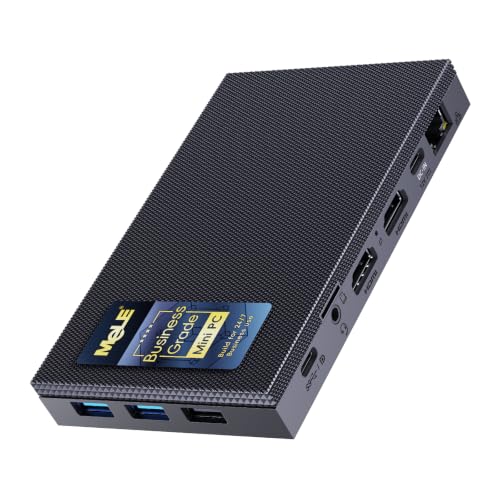
- Best First Fanless PC: MeLE Quieter 4C — Intel N150 up to 3.6GHz, 16GB RAM, 512GB SSD, USB-C PD 3.0, triple 4K@60Hz.
- Best Step-Up Choice: MINIX NEO Z300-0dB — Intel Core i3-N300, 16GB DDR4, 512GB PCIe SSD, dual 4K@60Hz display, 2.5G LAN, VESA mount.
- Best Stick for Signage: MeLE PCG02 Pro Stick — Intel Celeron N5100, 8GB RAM, 256GB storage, dual HDMI, Gigabit Ethernet.
- Best Budget Stick: HiGOLE Fanless Mini PC Stick — Intel Celeron J4105, 8GB RAM, 128GB eMMC, Windows 11 Pro, Gigabit Ethernet.
- Best for Serial-Heavy Setups: KINGDEL Powerful Mini Desktop (Core i5) — Intel Core i5 dual core, 8GB RAM, 256GB SSD, dual NICs, four COM ports, metal case.
- Best for Remote and Unattended Use: MeLE Cyber X1 — Intel N150, 16GB DDR4, 512GB SSD, Windows 11 Pro, triple 4K display.
Step 1: Write Down the Job in One Sentence
Every good choice in this category starts with a sentence like one of these: this PC runs our reception signage twelve hours a day; this PC is my silent desk for documents, calls and two screens; this PC controls the telescope and the camera all night; this PC talks to the scales and the label printer in the workshop. The sentence does real work. It tells you the hours of operation, the number of applications, the peripherals and the cost of failure — and each of those maps to a hardware requirement in the steps that follow.
Be honest about the heaviest regular moment, not the average one. A desk PC that cruises all week but joins a three-hour video call with screen sharing every Friday must be chosen for Friday. A signage stick that only ever plays one playlist can be chosen for its invisibility. If your sentence contains the words gaming, video editing or virtual machines in bulk, pause: fanless mini PCs serve light versions of the first and third and are the wrong tool for the second. The balanced verdict in Fanless Mini PC Pros And Cons will help you sanity-check the sentence before you spend.
Step 2: Audit the Room and the Mounting
Walk to the place the PC will live and look at it as a cooling engineer. Is there open air above and around the spot, or is it a closed cabinet, a drawer, or the hot pocket directly behind a large TV? Passive cases shed heat into the room; give them a room to shed into. A VESA mount behind a monitor is close to ideal — hidden, tidy and bathed in rising air. A shelf is fine. A sealed cupboard is a throttle with a door.
Note the ambient extremes too. A workshop that bakes in summer, a shop window in direct sun, an unheated outbuilding in winter — fanless industrial boxes with metal cases are built for the harsher end of that range, while sticks prefer the mild indoors. Write the location and mounting choice on your sheet; it will eliminate some formats immediately, which is the point of deciding it early.
Step 3: Count Displays, Then Add One
Count the screens the setup uses today, then ask whether a second or third is plausible within the machine’s life — because display outputs cannot be added later. One screen: every format here qualifies, including the sticks. Two screens: look for dual HDMI, or HDMI plus USB-C display output, as on the PCG02 Pro stick and the small boxes. Three screens: your shortlist narrows to the triple-display MeLE boxes, and that narrowing is a gift — it makes the rest of the decision small.
While counting, note resolutions. The verified listings in this guide’s shortlist support 4K output, with the boxes rated for 4K at 60Hz on their main outputs. A 4K television as the only screen is a different demand from three 4K monitors; match the claim to your actual glass, and prefer native ports over a pocketful of adapters you will curse monthly.
Step 4: List Every Cable That Must Plug In
Peripherals decide more fanless purchases than processors do. Walk your setup and list: displays, keyboard and mouse receivers, printers, storage, cameras — and then the specialists. Serial RS232 devices (scales, PLCs, older point-of-sale and lab gear) demand native COM ports: four on the larger KINGDEL in this shortlist, two on its i7 sibling. A second wired network demands dual NICs. A telescope mount, a weather station, a CNC controller — each writes a line on your sheet that a listing must match exactly.
Power is a cable too. If the installation is a monitor on a wall, USB-C Power Delivery models let the screen’s supply or a single PD adapter run the PC, halving the wiring. If the PC will live in a rack or a cabinet with conventional power, a standard supply is simpler. Write the power method down; signage installers have strong opinions here for good reason.
Step 5: Choose the Processor Generation, Not the Badge
Now, and only now, compare chips. The modern efficiency family — Intel N100, N150 and the Core i3-N300 — is the default choice for desks, media and services: quick in daily work, cool by design, and current in media and connectivity support. Choose the N300 tier when the job sentence includes heavy multitasking or a busier always-on workload. Choose N100 or N150 for the great majority of silent desks and deployments.
The older processors in this shortlist exist for specific reasons, and your sheet will tell you if those reasons are yours. The Celeron J4105 and N5100 sticks trade speed for format and tier: correct for signage, wrong for a primary desk. The desktop-class Core i5 in the larger KINGDEL trades generation for four serial ports, dual networking and a metal case: correct for industry, wrong for a bedroom. When a grand old badge tempts you, re-read your job sentence — it outranks nostalgia.
Step 6: Set Your Memory and Storage Floors
Translate habits into floors. A single-purpose machine — signage, kiosk, one service — runs happily on 8GB of memory and modest storage. A real Windows desk wants 16GB, full stop; browsers and office suites have grown into it. Storage follows the library: streamers and kiosk machines can live in 128GB, desks and media boxes should start at 512GB, and everyone should note the storage type. The SSDs in the small boxes feel markedly faster and age better than the eMMC in the smallest sticks, which is a fair trade only when the job is fixed and light.
Write both floors on your sheet as numbers. They convert a page of listings into a filter: anything below the floor is out, whatever its other charms. Most buyers find this step alone cuts the market to three or four machines.
Step 7: Decide the Recovery Behaviour
Ask one question: when the power blinks at 3 a.m., what should this PC do? If the answer is come back on by itself and resume work, you need auto power on, and for remote access you want Wake on LAN — features the Cyber X1 in this shortlist advertises plainly. If the PC sits at your desk, its recovery behaviour is your own finger on the button, and this step costs you nothing. If it lives in another building, this step outranks the processor entirely. Write the answer down; deployment history is written by people who skipped it.
The Worked Shortlist: Six Machines, Six Decision Paths
Each machine below is the answer to a different set of sheet answers. Find the path that matches your notes.

Best First Fanless PC — MeLE Quieter 4C, Intel N150 up to 3.6GHz, 16GB RAM, 512GB SSD, USB-C PD 3.0, triple 4K@60Hz
Strengths
- USB-C PD power makes tidy single-cable desk and travel setups possible
- Triple 4K output is generous for a silent business box
- Business-grade positioning with astrophotography and office use in mind
Trade-offs
- Shares the N150 ceiling: fine for office work, not for heavy creation
- No 2.5G Ethernet, unlike the MINIX in this roundup
- Silent does not mean cool under indefinite maximum load; placement matters
| Processor | Intel N150, up to 3.6GHz |
|---|---|
| Memory | 16GB RAM |
| Storage | 512GB SSD |
| Display | Triple 4K at 60Hz |
| Power | USB-C PD 3.0 |
| Networking | Dual-band Wi-Fi |
If your sheet says desk, two or three screens, USB-C power welcome, business software, silence on calls — the Quieter 4C is where the method lands. Its N150, 16GB and 512GB specification clears the floors a real desk sets, its triple 4K output covers the display count with room to grow, and USB-C PD 3.0 keeps the installation to a tidy minimum. It is the first fanless PC recommendation because most sheets, honestly filled in, describe exactly this machine.
The check before ordering is the ceiling check: nothing in your job sentence involves heavy creation or modern gaming. If the sentence passes, buy with confidence and spend your remaining effort on placement. Readers who want the single-model deep dive can continue to Fanless Mini PC Review for the long-form verdict on this class.
Best for: the decision path described above. / Not suited for: jobs outside that path — re-run the steps rather than stretching the machine.


Best Step-Up Choice — MINIX NEO Z300-0dB, Intel Core i3-N300, 16GB DDR4, 512GB PCIe SSD, dual 4K@60Hz display, 2.5G LAN, VESA mount
Strengths
- The i3-N300 is the strongest chip in this roundup for sustained office multitasking
- 2.5G Ethernet is rare at this size and ideal for NAS and fast file transfers
- Dual 4K displays plus VESA mounting make a clean dual-monitor desk
Trade-offs
- The N300 still relies on integrated graphics, so modern 3D gaming is off the table
- DDR4 rather than DDR5 reflects its efficiency-first design
- Premium positioning compared with N100 and N150 sticks and boxes
| Processor | Intel Core i3-N300 |
|---|---|
| Memory | 16GB DDR4 |
| Storage | 512GB PCIe SSD |
| Display | Dual display, 4K at 60Hz via HDMI and USB-C |
| Networking | 2.5G LAN |
| Mounting | VESA mount support |
Choose the MINIX when your sheet adds weight to the workload line: many applications at once, a busier home server role, or fast wired file movement. The Core i3-N300 is the step-up chip in this category, and its extra cores are the difference between a silent PC that copes and one that shrugs. The 2.5G LAN port rewards buyers whose networks can feed it — a modern NAS, a fast switch, a household that moves big files daily.
The decision question is whether you will use what you are paying the tier for. If the 2.5G port and the extra cores map to real lines on your sheet, this is the correct spend. If they map to someday, the Quieter models deliver the same silence for the everyday job, and the honest sheet wins again.
Best for: the decision path described above. / Not suited for: jobs outside that path — re-run the steps rather than stretching the machine.


Best Stick for Signage — MeLE PCG02 Pro Stick, Intel Celeron N5100, 8GB RAM, 256GB storage, dual HDMI, Gigabit Ethernet
Strengths
- 256GB doubles the storage of most rival sticks
- Dual HDMI plus Gigabit Ethernet is a strong signage combination
- USB PD power keeps installations to one tidy cable run
Trade-offs
- The N5100 is a generation behind the N100 and N150 sticks
- 8GB of RAM limits it to focused, single-purpose roles
- No path to the triple-display setups the small boxes offer
| Processor | Intel Celeron N5100 |
|---|---|
| Memory | 8GB RAM |
| Storage | 256GB |
| Display | Dual HDMI |
| Networking | Gigabit Ethernet, WiFi 5, Bluetooth 5.1 |
| Power | USB PD 3.0 |
A sheet that says wall screen, signage playlist, dual displays possible, one cable preferred leads here. The PCG02 Pro is the considered stick: 256GB of storage — double the usual stick allowance — dual HDMI for the main screen and a confidence monitor, Gigabit Ethernet for dependable content updates, and USB PD power so the whole installation runs from a single tidy supply run.
Its N5100 processor is a generation behind the newest sticks, and the method says that is fine: the job sentence for signage values stability and outputs over chip novelty. What the method forbids is promoting this stick to a general desk later; its 8GB ceiling is written on the sheet from day one. Buy it as the specialist it is.
Best for: the decision path described above. / Not suited for: jobs outside that path — re-run the steps rather than stretching the machine.

Best Budget Stick — HiGOLE Fanless Mini PC Stick, Intel Celeron J4105, 8GB RAM, 128GB eMMC, Windows 11 Pro, Gigabit Ethernet
Strengths
- Stick format hides completely behind a display for signage
- Wired Gigabit Ethernet on a stick is genuinely useful for media duty
- Windows 11 Pro at stick size for IoT and kiosk fleets
Trade-offs
- 128GB of eMMC is the slowest, smallest storage in this roundup
- The J4105 is the oldest, weakest processor listed here
- Thermals in a stick leave the least sustained-load headroom
| Processor | Intel Celeron J4105 |
|---|---|
| Memory | 8GB RAM |
| Storage | 128GB eMMC |
| Operating system | Windows 11 Pro |
| Display | 4K HDMI |
| Networking | RJ45 Gigabit Ethernet, WiFi 5 |
The HiGOLE stick is the answer when the sheet is ruthlessly simple: one 4K screen, one media or signage job, wired Ethernet available, minimum spend and minimum presence. Its J4105 processor and 128GB of eMMC storage are the oldest and smallest in this shortlist, and the method is comfortable with that precisely because the job sentence is narrow. It even carries Windows 11 Pro, which fleets appreciate.
The discipline is in what you refuse to ask of it. No multitasking desk duty, no growing local library, no second career as a family PC. Kept inside its sentence, it is a silent, invisible appliance. Asked to improvise, it will disappoint — not through any defect, but because the sheet said otherwise and the purchase ignored the sheet.
Best for: the decision path described above. / Not suited for: jobs outside that path — re-run the steps rather than stretching the machine.
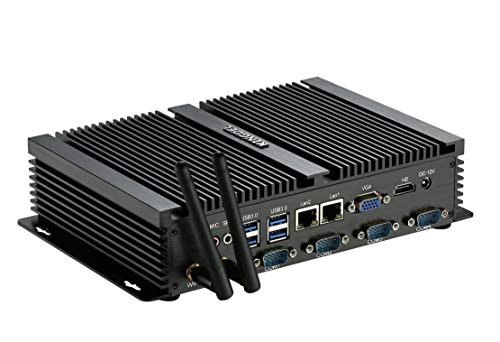
Best for Serial-Heavy Setups — KINGDEL Powerful Mini Desktop (Core i5), Intel Core i5 dual core, 8GB RAM, 256GB SSD, dual NICs, four COM ports, metal case
Strengths
- Four COM ports is the most legacy connectivity in this entire group
- Dual NICs suit firewall, gateway and segmented-network duties
- Metal fanless case built for continuous silent operation
Trade-offs
- 8GB of RAM and 256GB of storage are the tightest specs among the boxes here
- A dual-core i5 of its generation trails the N300 on modern efficiency
- No triple-display ambition; it is a workhorse, not a desk showpiece
| Processor | Intel Core i5, dual core |
|---|---|
| Memory | 8GB RAM |
| Storage | 256GB SSD |
| Networking | 2 x NICs |
| Ports | 4 x USB 3.0, 4 x COM RS232 |
| Case | Metal case, silent working design |
Some sheets are dominated by the cable list, and this is the machine those sheets choose. Four COM RS232 ports, dual NICs, four USB 3.0 ports and a metal fanless case: the KINGDEL i5 exists for workshops, labs, retail back offices and network corners where the PC is really a connectivity hub that also computes. Its dual-core i5, 8GB of memory and 256GB SSD are modest by desk standards and entirely sufficient for the control and gateway jobs on its sheet.
Choose it when at least two lines of your cable list cannot be served by the modern boxes. If your peripherals are all USB and your network is single and simple, this machine’s talents are wasted on you — the method sends you back to the N-series boxes without regret.
Best for: the decision path described above. / Not suited for: jobs outside that path — re-run the steps rather than stretching the machine.
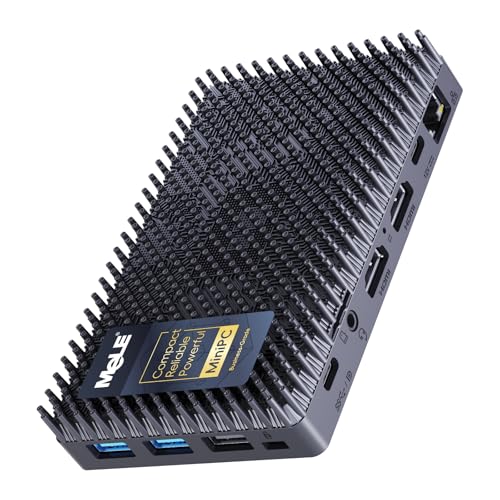
Best for Remote and Unattended Use — MeLE Cyber X1, Intel N150, 16GB DDR4, 512GB SSD, Windows 11 Pro, triple 4K display
Strengths
- Triple 4K display support from dual HDMI and USB-C
- Auto power on and Wake on LAN suit always-on and remote roles
- Windows 11 Pro included for business deployment
Trade-offs
- WiFi 5 rather than WiFi 6 on a current-generation box
- N150 is an efficiency chip, not a performance chip
- Plastic-era stick rivals undercut it for single-screen signage work
| Processor | Intel N150 |
|---|---|
| Memory | 16GB DDR4 |
| Storage | 512GB SSD |
| Operating system | Windows 11 Pro |
| Display | Dual HDMI plus USB-C, 4K triple display |
| Networking | WiFi 5, Bluetooth 5.1 |
The Cyber X1 is the sheet that begins with distance. If the PC will run where you are not — a remote office, an observatory, a display in another branch — its auto power on and Wake on LAN are the headline specification, and its triple 4K display support plus Windows 11 Pro make it a complete remote workstation or signage driver. The N150 with 16GB and 512GB clears the standard floors without drama.
Buy it after configuring your recovery plan, not before: know your network’s Wake on LAN behaviour, your router’s role, and who physically visits when software recovery is not enough. With that plan written, this is the most deployable machine in the shortlist. The value analysis in Is A Fanless Mini PC Worth It is worth reading before a multi-site rollout.
Best for: the decision path described above. / Not suited for: jobs outside that path — re-run the steps rather than stretching the machine.
Comparison Table: The Shortlist at a Glance
| Machine | Processor | Memory | Storage | Deciding feature |
|---|---|---|---|---|
| MeLE Quieter 4C | Intel N150, up to 3.6GHz | 16GB RAM | 512GB SSD | USB-C PD power, triple 4K |
| MINIX NEO Z300-0dB | Intel Core i3-N300 | 16GB DDR4 | 512GB PCIe SSD | i3-N300 cores, 2.5G LAN |
| MeLE PCG02 Pro Stick | Intel Celeron N5100 | 8GB RAM | 256GB | 256GB stick, dual HDMI |
| HiGOLE Fanless Mini PC Stick | Intel Celeron J4105 | 8GB RAM | 128GB eMMC | Smallest, simplest stick |
| KINGDEL Powerful Mini Desktop (Core i5) | Intel Core i5, dual core | 8GB RAM | 256GB SSD | 4 x COM, dual NIC |
| MeLE Cyber X1 | Intel N150 | 16GB DDR4 | 512GB SSD | Auto power on, Wake on LAN |
Problem: The Specs Look Identical on Paper — What Now?
This happens most between sibling models, and the tie-breakers are consistent. First, the deciding feature: the one line on your sheet that only one machine matches — a port, a power standard, a recovery behaviour. Second, the operating system story: a Windows-only desk and a Linux-curious homelab should choose differently between otherwise similar boxes. Third, the physical installation: mounting, cable exits and power supply size decide real-world tidiness. Only when all three tie should the tier decide, and by then either machine will serve you well — which is a good outcome, not a failed process.
Problem: my workload will grow. Fix: buy one tier of headroom in memory and storage, the two resources growth consumes first, and accept the processor you have. Growth in displays or peripherals cannot be fixed later, so if growth there is plausible, let it move you up a format — from stick to box — now.
Problem: I need it silent and fast. Fix: define fast by your job sentence. For office, media and services, the modern fanless boxes are fast. For gaming and heavy creation, no silent box qualifies, and the honest move is a fanned machine or a two-PC household, as the wider Fanless Mini PC Reviews coverage discusses.
Common Mistakes
Choosing by badge. An old Core i7 badge loses to a new N150 in daily feel. Generation first, always.
Forgetting the second screen. Desks grow monitors the way gardens grow weeds. Buy the output count for next year.
Planning to enclose the PC. A fanless case in a sealed cabinet is a slow PC with extra steps. Plan the air before the aesthetics.
Ignoring recovery. Remote and unattended machines without auto power on generate site visits. Decide recovery on paper first.
Under-buying storage on sticks. Windows updates alone will eat a small drive’s headroom. Keep sticks’ jobs fixed and their drives tidy.
Final Recommendation
Run the steps in order and trust the sheet you produce. Most desk buyers will land on the Quieter 4C or step up to the MINIX; most signage buyers on a stick or the Cyber X1; most operators on a KINGDEL. That spread is the method working as intended — six different correct answers for six different sets of honest answers. The wrong fanless mini pc is almost never a bad machine; it is a good machine bought for a job it was never chosen to do.
Worked Example: Choosing for a Dental Practice
Watch the method run on a real-shaped problem. A dental practice needs silent PCs at three surgeries and a reception desk. The job sentences: surgery machines run imaging and records on two screens, all day, in rooms where patients notice noise; reception runs bookings and phones on one screen, soon two. The room audit favours VESA mounts behind the monitors — tidy, wipeable, out of the splash zone. The cable list is USB-heavy with one serial device: an older X-ray sensor interface at surgery two. Displays: two per surgery today, two at reception within the year. Recovery: the practice has no IT staff on site, so machines must return after outages unaided.
The sheet now chooses almost by itself. Surgeries one and three: 16GB N150 boxes with dual-display output and VESA mounting — the Quieter class — configured for auto power recovery. Surgery two: the serial requirement promotes the KINGDEL i5, whose native COM ports serve the sensor interface without adapters, and whose metal case suits a equipment-dense room. Reception: a Quieter-class box again, its second display output bought a year before the second monitor arrives. Processors were the last thing compared, and by then they barely needed comparing — the connections and the rooms had already decided. That is the method working: the purchase meeting lasts twenty minutes, and three years later nobody has thought about the PCs at all.
Worked Example: Choosing for a Home Observatory and Media Room
A different sheet entirely. An amateur astronomer needs a PC at the telescope — outdoors-adjacent, running mount, camera and guiding software through the night, controlled from indoors — and a second machine for the media room. Job sentences first: the observatory PC is unattended, cold-tolerant in a sheltered pier housing, and must recover from a power dip without a midnight walk outside; the media PC plays a local 4K library and browses, in a room where silence is the luxury being purchased.
Room audit: the pier housing is ventilated but chilly and dusty; the media room is mild and open. Cable list: USB to mount and cameras, wired Ethernet available at both spots, one display at each. Recovery dominates the observatory sheet — auto power on and Wake on LAN move from nice to necessary — which points straight at the Cyber X1 class for the pier, in the Quieter SE’s Linux-friendly variant if the software stack prefers it. The media room’s sheet is gentler: a 16GB box for the local library, or a stick if streaming takes over. Two machines, two different answers, one twenty-minute process — and a note in the observatory log that the PC, like the mount, is now infrastructure rather than a project.
How to Verify a Listing Before You Buy
Listings in this category reward a sceptical five minutes. Confirm the machine is fanless by design — the words fanless or 0dB should describe its construction, not a quiet mode. Confirm the processor’s full name and generation; N150 and a years-old Celeron are both just model numbers until you check. Confirm memory and storage as fitted, and the storage type where it is stated. Confirm display outputs by counting the ports in the specification, not the headline. Confirm the operating system edition if your software cares. And confirm recovery features in the specification list if your deployment depends on them — never in the marketing banner alone.
Every machine in this guide’s shortlist passed that check against its Creators API-verified listing on 2026-11-20, which is why they are here and dozens of near-misses are not. Do the same five-minute audit on any machine you consider adding to the shortlist, and the category’s usual traps — the hidden fan, the ancient chip in a fresh case, the storage that turns out to be a smaller, slower type — lose their power over your purchase.
A Note on Buying Two Machines at Once
Many readers of this guide end up, correctly, with two fanless PCs: one for the desk and one for the quiet constant work — media, services, signage — elsewhere in the building. If that is you, standardise what you can. Two machines from the same family share power supplies, mounting habits and setup knowledge, and your future troubleshooting self will thank you. Where the jobs genuinely differ — the serial-driven workshop box beside the N-series desk box — let them differ completely rather than compromising both into one specification that serves neither room well.
Timing Your Purchase and Reading Seasonal Listings
Fanless mini PC listings change quietly through the year: a model gains a new processor stepping, a stick’s storage quietly doubles, a business line refreshes its wireless. When you have run the method and chosen a model, do one final freshness check on the day you order — confirm the exact processor, memory, storage and port list on the listing you are buying from, because sibling configurations often share a product page. Check the latest price on Amazon at the same moment; this category’s tiers shift with sales cycles, and the machine your sheet chose may sit in a friendlier tier this week than last.
If your chosen model shows a newer sibling — an N150 where last season had an N100, a 512GB configuration where 256GB was standard — re-run only the affected steps. Displays, cables and recovery rarely change between siblings; floors and deciding features sometimes do. Ten minutes of re-checking beats a year of almost-right.
The One-Page Worksheet, Filled In Twice
To make the method concrete, here are two completed worksheets in miniature. Worksheet one, a physiotherapy clinic’s treatment-room PC: job — records and exercise videos, two screens, ten hours a day, silence for patient comfort; room — wall-mounted behind the display, open air; cables — USB scanner and printer, no serial; displays — two now, never three; processor — modern efficiency class; floors — 16GB and 512GB for the records archive; recovery — auto power on, because the room is locked overnight and outages happen. Result: a Quieter-class box, VESA-mounted, and a setup note to enable recovery behaviour before the first patient.
Worksheet two, a maker’s workshop controller: job — run the CNC queue and the label printer, one screen, dusty room, long idle hours; room — metal cabinet with ventilation, warm in summer; cables — serial to the controller, USB to the printer, wired network; displays — one, fixed; processor — secondary to ports; floors — 8GB and 256GB suffice for the queue software; recovery — auto power on after cuts. Result: the KINGDEL i5, chosen by its four COM ports and metal case, with the processor almost an afterthought. Two worksheets, two opposite machines, zero buyer’s remorse — that is what the steps are for.
After the Choice: The First Evening Setup
Choosing well deserves a careful first evening. Mount or place the PC with its air path clear before plugging anything else in. Connect displays with native cables, wire the Ethernet if your plan includes it, and power on. Let the operating system take every update it wants, restart as asked, and resist judging performance until the machine settles — a new Windows installation is a construction site for its first hours. Then set the recovery behaviour you decided on paper: auto power on where offered, Wake on LAN where planned, and a power plan matched to the role. Install your core applications, copy a realistic working set of files, and use the machine for one genuine session of its intended job. If the session feels right — silent, responsive, invisible — you have finished choosing. File the worksheet with the receipt; when this PC eventually cascades to a lighter job, the sheet explains to its next owner exactly what it was bought to do.
How to Choose Between Two Finalists in Fifteen Minutes
Sometimes the worksheet leaves two machines standing, and analysis stops helping. Use this timed protocol instead. Minutes one to five: lay both port layouts against your cable list, physically, cable by cable — the machine that needs fewer adapters wins a point. Minutes six to ten: imagine the worst morning for each machine — a power cut before a busy day, a Windows update at the wrong moment, a peripheral swapped in a hurry — and score how each finalist’s recovery features and layout handle it. Minutes eleven to fifteen: picture the machine in its room at year three, dusty, surrounded by newer clutter, still doing its job; the finalist whose format and case you trust in that picture earns the final point. Two points or better decides it. A perfect tie means both are right, and you may let the day’s pricing break it with a clear conscience — check price on Amazon for both, choose, and do not look back. The method’s purpose was never to find the one objectively perfect fanless mini pc; it is to guarantee that whichever you buy was chosen for your job, your room and your cables, which is the only perfection this category offers.
Keep the losing finalist’s name on the worksheet. Needs change, second rooms appear, and the runner-up is usually the correct answer to the next worksheet you fill in — which is why experienced buyers in this category so often end up owning two different fanless machines, each smugly right for its own corner of the building.
One more habit separates satisfied owners from serial returners: they choose the support story along with the machine. Before ordering, spend two minutes confirming what documentation exists for your finalist — mounting guidance, BIOS and recovery setting instructions, and a clear specification page you can save. Business-grade lines like the Quieter family publish deployment-minded documentation because fleets demand it, and that paper trail is worth real money the first time you configure twelve units or hand a setup to a colleague. Save the documents with your worksheet and receipt, and your silent PC arrives with its own small manual, written by you, for the building it will quietly serve.
Finally, a word about choosing for someone else, because many readers are the household or office person who gets asked. Run their worksheet with them, out loud, and let their job sentence be theirs — the receptionist’s Friday peak and the astronomer’s midnight recovery are invisible until the person who lives them says them. Your role is the method, not the answer: ask the seven questions, write the seven answers, and let the shortlist fall out. The machine chosen that way gets defended by its owner, set up patiently, and placed with the care passive cooling deserves. A fanless mini pc chosen for someone, with them, tends to disappear into their routine — which, for a silent computer, is the whole idea.
Print the worksheet, whatever form it takes, and keep it with the machine’s paperwork. Months later, when a colleague asks why this box and not another, the sheet answers in your own handwriting: the job, the room, the cables, the screens, the floors and the recovery plan. Good choosing leaves evidence, and the evidence is what turns one good purchase into a repeatable household or company habit.
And if the worksheet ever produces no machine at all — the job needs gaming muscle, heavy rendering or a rack of virtual machines — treat that as the method succeeding, not failing. It has saved you from the category’s most expensive mistake, and it points you, worksheet in hand, toward the fanned machines that will actually serve the job.
Choose once, choose on paper, and then enjoy the silence.
Frequently Asked Questions
What is the single most important choice?
The job sentence. Every later decision — format, ports, processor, floors — is derived from it, and most returns trace back to skipping it.
N100, N150 or N300: how do I pick?
N100 and N150 for the standard silent desk and most deployments; N300 when multitasking or always-on workloads are genuinely heavier. All three are modern, efficient and fanless-friendly.
How much storage do I really need?
Fixed single-purpose machines can live in 128GB. Desks and media boxes should start at 512GB. When in doubt, storage is the floor buyers most regret setting low.
Can I add ports or displays later?
Assume no. Docks and adapters exist but are poor substitutes for native outputs on a sealed PC. Buy the connection layout you need.
Is WiFi 5 a problem on several of these machines?
For wired-first installations, no. For a wireless-only desk far from the router, it is a real consideration and one more reason to prefer Ethernet where the layout allows.
Should I choose a stick or a box?
Sticks for invisible, fixed, single-screen-plus jobs; boxes for everything else. The format decision follows the job sentence and the display count.
What if my needs change after buying?
Fanless boxes cascade gracefully into lighter duties — signage, services, a second room — so a machine that outgrows its first job usually finds a second one in the same building.