Disclosure: As an Amazon Associate, reviewstook.com earns from qualifying purchases. Links on this page are affiliate links at no extra cost to you; prices and availability change frequently, so check Amazon for the latest.
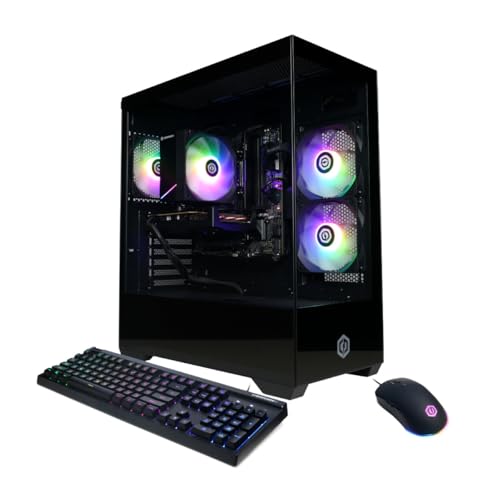
Gaming PC Build Buying Guide: Spend on the Parts That Decide Frame Rates
This gaming PC build buying guide is for the buyer standing between two honest options: assemble a machine part by part, or buy a well-chosen prebuilt that already embodies the same decisions. Either way, the questions are identical. Which graphics card class matches your monitor? How much memory is genuinely enough? Where do builders waste money, and where does saving money quietly cost you an upgrade path two years later? Answer those questions in the right order and the specific machine almost chooses itself.
The phrase “gaming PC build” covers everything from a compact tower under a desk to a liquid-cooled showcase, so this guide deliberately ignores aesthetics until the functional groundwork is laid. We start with the components in the order they affect your games, then walk through six real, currently sold machines that illustrate each sensible tier, from an affordable 1080p starter to a flagship that treats 4K as a starting point. Every machine named here was checked against Amazon’s own catalogue data before inclusion, so the specifications quoted are the specifications that ship.
One framing note before the details: a build is a system, not a shopping list of heroes. A powerful graphics card paired with a weak power supply, a single small SSD, or a case with no airflow will disappoint in ways a spec sheet hides. The buyers who regret their purchase rarely regret the headline component. They regret the imbalance nobody warned them about, and balance is the thread running through everything below.
In this guide
Key Takeaways
- Decide your monitor’s resolution and refresh rate first; the graphics card class follows from that decision, not the other way round.
- Sixteen gigabytes of DDR5 is the current floor for a new gaming machine, and 32GB is the comfortable choice for anyone who streams, mods, or keeps a browser alive behind the game.
- A 1TB NVMe SSD is the practical minimum now that major releases routinely pass 100GB installed.
- Power supply wattage and case airflow are the two specifications budget listings most often under-deliver on, and both decide whether your next upgrade is simple or a rebuild.
- Prebuilt machines on this page were verified against Amazon’s catalogue data; treat any listing whose specs cannot be confirmed the same way with suspicion.
- Register the machine, photograph its specification page, and stress-test it inside the first week, while returns and warranty claims are at their easiest.
Where to Buy
The six machines referenced throughout this guide are sold through Amazon, where configuration options and stock move quickly. Use the links below to check the current configuration of each model before comparing it with anything else, because the same model name can hide different memory or storage on different listings. Product links on reviewstook.com point to the exact configurations described here.
- Best Budget Starting Point — CyberPowerPC Gamer Xtreme, Intel Core i5-14400F, GeForce RTX 5060 8GB
- Best Value Step Up — CyberPowerPC Gamer Master, AMD Ryzen 7 8700F, GeForce RTX 5060 Ti 8GB
- Best Balanced Brand Build — MSI Codex Z2, AMD Ryzen 7-8700F, RTX 5060 Ti, 16GB DDR5, 1TB SSD
- Best for 1440p Headroom — MSI Codex Z2, AMD Ryzen 7-8700F, RTX 5070, 32GB DDR5, 2TB SSD
- Best AMD Alternative — KOTIN Gaming PC, Ryzen 7 9700X, RX 9070 XT 16GB, 32GB DDR5, 1TB SSD
- Best Premium Flagship — Alienware Aurora, RTX 5080, Intel Core Ultra 9 285, 32GB DDR5, 1TB SSD
How These Picks Were Chosen
Each machine in this guide earned its place by satisfying the same checklist we recommend you apply to any listing. The graphics card had to be a current-generation discrete GPU with enough video memory for its intended resolution. Memory had to be DDR5, storage had to be NVMe solid-state, and the processor had to be a modern desktop chip with at least six performance cores. Machines that paired a strong GPU with a spinning hard drive, a single stick of memory, or an unnamed power supply were excluded, however attractive the headline looked.
We also verified every specification against the manufacturer’s data as returned through Amazon’s catalogue before writing a word of the reviews below. That step matters more than it sounds: marketplace listings for gaming desktops are notorious for titles that mix two configurations, and the only defence is checking the exact model being sold. Where a specification could not be confirmed — a power supply wattage left unstated, for example — we say so in the review rather than guessing, and the machine’s verdict reflects that uncertainty.
Finally, the six were chosen to teach the tiers, not to fill a grid. Each one represents a decision point a real buyer faces: the cheapest sensible entry, the value step up, the brand-name balanced option, the 1440p-ready tier, the AMD graphics alternative, and the flagship. If your budget lands between two of them, the criteria sections below tell you which direction to stretch.
A note on what did not make the cut, because exclusions teach as much as inclusions. Several widely sold towers pair current processors with previous-generation graphics cards at prices that imply the opposite; others advertise enormous storage that turns out to be a slow hard drive beside a small boot SSD. Both patterns survive because titles are skimmed rather than read. Every machine below survived a full read of its verified specification, and any machine you add to your own shortlist should be held to the same standard before money moves.
Start With the Monitor: Resolution Decides the Graphics Card
Every build decision cascades from the screen. At 1080p, a card in the RTX 5060 class already delivers high frame rates in competitive titles and comfortable performance in demanding single-player games, especially with modern upscaling enabled. At 1440p, the pixel count rises by roughly three quarters, and the sensible centre of the market moves to the RTX 5060 Ti, RTX 5070, and RX 9070 XT class. At 4K, you are shopping in RTX 5070 territory at minimum and RTX 5080 territory if you want high settings without leaning hard on upscaling.
Refresh rate matters as much as resolution. A 144Hz or faster monitor rewards a build that can feed it, which shifts value toward stronger CPUs in esports titles where the graphics card finishes its work early and waits on the processor. Conversely, a 60Hz 4K television used from a couch asks almost everything of the GPU and comparatively little of the CPU. Neither buyer is wrong; they simply need different machines, and listings that promise one tower for every scenario are smoothing over that truth.
If a monitor upgrade is planned within the machine’s life, buy the graphics card for the screen you will own next year, not the one on your desk today. Graphics cards are the most expensive component to replace, while a monitor swap is painless. The reverse logic — buying a flagship GPU for a 1080p 60Hz panel “just in case” — wastes money that would serve you better as storage, memory, or savings toward the better display.
The Processor: Enough Cores, Current Platform, No Drama
Modern games are comfortably served by six to eight performance cores, and every processor in this guide meets that bar, from the Intel Core i5-14400F in the budget CyberPowerPC to the Core Ultra 9 285 in the Alienware flagship. What separates them is not raw gaming frame rate at high resolutions — the graphics card dominates there — but longevity, multitasking headroom, and how the machine feels when a game, a voice call, a recording, and a browser are all alive at once.
Platform matters quietly. The AMD machines here sit on the AM5 socket with DDR5 memory, which gives them a plausible in-socket CPU upgrade years from now. Intel’s LGA1700 machines, like the i5-14400F build, are mature and well understood but sit at the end of their socket’s life. The Alienware’s Core Ultra platform is current-generation Intel with modern connectivity including Wi-Fi 7. None of these is a disqualifier; they simply change what “upgrading later” will mean, and the honest version of that conversation appears in each review.
What you can safely ignore: chasing the flagship CPU for a gaming-only machine. The jump from a Ryzen 7 to a Ryzen 9 or Core Ultra 9 buys little in games at 1440p and above, because the GPU is the bottleneck. Spend that difference on the graphics card tier, where it converts directly into settings and frame rates you can see.
Memory and Storage: The Two Specs That Age Fastest
Sixteen gigabytes of DDR5 remains workable for pure gaming, and three of the six machines here ship with exactly that. But the trend line is clear: texture-heavy releases, modded games, and background applications have made 32GB the comfortable specification, and the three higher-tier picks include it as standard. If you buy a 16GB machine, confirm it uses a motherboard with free slots and a two-stick kit rather than a single stick, because single-channel memory measurably costs performance and a matched second stick is the cheapest upgrade in all of PC gaming.
Storage follows the same logic. One terabyte is the working minimum; the MSI RTX 5070 build’s 2TB drive is the specification we would choose for a personal machine, because a modern library of six or seven large games plus Windows, launchers, and capture files fills 1TB faster than new buyers expect. All six picks use NVMe SSDs, which is non-negotiable in a new build: loading times, texture streaming, and everyday responsiveness all assume solid-state speeds, and any listing still offering a hard drive as the primary disk belongs to an earlier era.
A practical note on expansion: check how many M.2 slots and drive bays a case offers before buying, not after your library outgrows the first drive. The standard ATX-based towers in this guide generally leave room to grow; compact or heavily styled cases sometimes do not, and adding storage should be a ten-minute job, not a research project.
Power, Cooling, and the Case You Will Live With
The power supply is the least glamorous component and the one most likely to limit a budget build’s future. A quality unit with headroom lets you drop in a stronger graphics card later; an anonymous unit at its limit turns that same upgrade into a power supply replacement as well. Where a listing states its PSU plainly — the KOTIN’s 850W Gold unit and the LXZ-style transparency some brands offer — treat that as a mark in the brand’s favour. Where it does not, as with several picks here, factor a possible PSU upgrade into your long-term cost thinking.
Cooling divides into air and liquid, and for the processors in this guide both work. The KOTIN’s 360mm liquid cooler and the Skytech-style AIO approach suit high-core-count chips under sustained loads and look the part in a glass case. A well-designed air tower is quieter than its reputation and never has a pump to fail. What actually matters is case airflow: mesh front panels and multiple intake fans keep both CPU and GPU temperatures — and therefore noise — under control, while sealed glass fronts prioritise the photograph over the thermals.
Finally, size. Measure your space before falling for a full tower. Most of these machines are mid-towers that fit under or beside a desk comfortably, but depth and the side you need the glass on are real constraints in real rooms, and returns for “bigger than expected” are a rite of passage we would rather you skipped.
Six Builds That Show Where the Money Should Go
The reviews below are ordered by capability rather than preference. Read them as a ladder: each rung adds something specific, and the buying-guide question is always whether that specific addition matches your monitor, your games, and your plans.

Best Budget Starting Point — CyberPowerPC Gamer Xtreme, Intel Core i5-14400F and RTX 5060 8GB
Strengths
- The RTX 5060 handles 1080p high settings and esports titles at high refresh without strain.
- The i5-14400F brings ten cores, so everyday multitasking alongside gaming feels unhurried.
- DDR5 memory and a PCIe 4.0 NVMe SSD mean no component is a generation behind.
Trade-offs
- 16GB of memory is the floor, not the comfort zone, for a machine bought to last years.
- 8GB of video memory asks for texture discipline in the heaviest 1440p releases.
- The LGA1700 platform offers no in-socket upgrade path beyond its own generation.
| Specification | Detail |
|---|---|
| Processor | Intel Core i5-14400F |
| Graphics | NVIDIA GeForce RTX 5060 8GB |
| Memory | 16GB DDR5 |
| Storage | 1TB PCIe 4.0 SSD |
| Operating system | Windows 11 Home |
| Connectivity | WiFi Ready |
This is the machine we point to when someone asks for the cheapest build that is still a real build. The pairing is honest: a current graphics card, a processor with cores to spare, fast storage, and nothing spent on decoration that should have gone to silicon. For a 1080p monitor, which remains the most common gaming display in the world, it covers the library — competitive shooters at high frame rates, and story-driven releases at high settings with upscaling doing its quiet work.
The limitations are equally honest. Eight gigabytes of video memory is the specification most likely to date first, and buyers planning a 1440p monitor within a year should read the next two reviews instead. The platform, meanwhile, is a finished chapter: excellent value today, but a future CPU upgrade means a motherboard as well. Neither point diminishes what it is — the correct first gaming PC for a huge number of people.
Best for: first-time buyers on 1080p monitors who want modern parts throughout / Not suited for: buyers planning a near-term jump to high-refresh 1440p

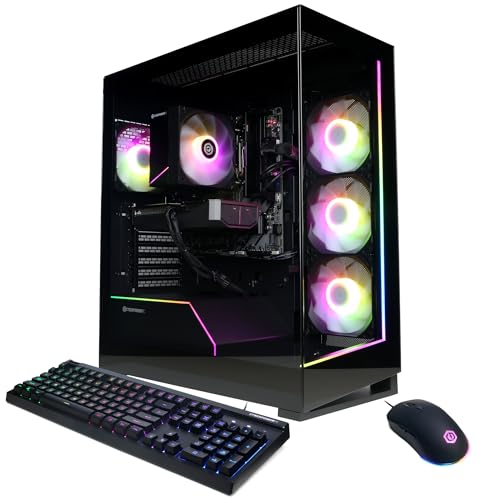
Best Value Step Up — CyberPowerPC Gamer Master, Ryzen 7 8700F and RTX 5060 Ti 8GB
Strengths
- The RTX 5060 Ti is the natural partner for 1440p gaming and very high-refresh 1080p.
- The Ryzen 7 8700F sits on the AM5 platform, keeping a future CPU upgrade on the table.
- Same fast storage and DDR5 foundation as the tier above and below it.
Trade-offs
- This configuration carries the 8GB variant of the 5060 Ti, so texture settings need watching at 1440p.
- 16GB of system memory again, where 32GB would future-proof the multitaskers.
- Power supply details are not stated in the catalogue data we verified.
| Specification | Detail |
|---|---|
| Processor | AMD Ryzen 7 8700F |
| Graphics | NVIDIA GeForce RTX 5060 Ti 8GB |
| Memory | 16GB DDR5 |
| Storage | 1TB PCIe 4.0 SSD |
| Operating system | Windows 11 Home |
| Connectivity | WiFi Ready |
One rung up buys the graphics card class that defines the current mainstream. The 5060 Ti’s extra compute over the base 5060 shows up exactly where buyers feel it: 1440p becomes a native-resolution conversation rather than an upscaling negotiation, and 1080p high-refresh play gains the headroom that keeps frame rates stable in busy scenes rather than merely high in quiet ones.
The Ryzen 7 8700F deserves a sentence of its own, because platform choice is this machine’s quiet advantage. AM5 motherboards and DDR5 memory mean that in three or four years, a processor swap alone can refresh the system. The verified listing does not state the power supply, which is common at this tier and worth knowing rather than fearing: the machine is warrantied as sold, and a PSU only becomes your problem on the day you plan a major GPU upgrade.
Best for: 1440p buyers who want the mainstream sweet spot on an upgradeable platform / Not suited for: buyers who refuse to manage texture settings in the heaviest releases
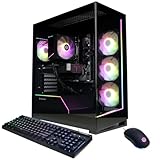

Best Balanced Brand Build — MSI Codex Z2, Ryzen 7-8700F, RTX 5060 Ti, 16GB DDR5, 1TB SSD
Strengths
- MSI’s retail channel support and documentation suit buyers who value a known brand behind the tower.
- USB Type-C and VR-Ready certification broaden what the machine connects to on day one.
- The same AM5 and DDR5 foundation as the Gamer Master keeps upgrades straightforward.
Trade-offs
- Specification-for-specification it mirrors the CyberPowerPC above, so the choice rests on brand and current pricing — check both.
- 16GB of memory and 1TB of storage are the standard, not generous, allocation.
- VR-Ready is a certification of capability, not a promise about any specific headset experience.
| Specification | Detail |
|---|---|
| Processor | AMD Ryzen 7-8700F |
| Graphics | NVIDIA GeForce RTX 5060 Ti |
| Memory | 16GB DDR5 |
| Storage | 1TB SSD |
| Operating system | Windows 11 Home |
| Model | Codex Z2 A8NVM-671US |
Why include two machines with near-identical headline specifications? Because this is what the real market looks like, and the guide would be dishonest to pretend otherwise. System integrators like CyberPowerPC compete on value and configuration flexibility; established component brands like MSI compete on support infrastructure, retail presence, and the comfort of a single badge to call. Both machines are legitimate answers, and the deciding factors — current price on the day you buy, warranty terms, and which case fits your desk — are exactly the factors a buying guide should teach you to weigh.
In use, expect the same performance envelope as the Gamer Master: strong 1440p, excellent high-refresh 1080p, and an upgrade path that starts with a second pair of memory sticks and a larger SSD rather than a new computer. Buyers who keep machines for five years tend to value the brand’s parts availability and BIOS support over that span, which is a rational reason to choose this tower even at specification parity.
Best for: buyers who prefer an established component brand and long-term support / Not suited for: buyers squeezing maximum specification from every unit of budget

Best for 1440p Headroom — MSI Codex Z2, Ryzen 7-8700F, RTX 5070, 32GB DDR5, 2TB SSD
Strengths
- The RTX 5070 moves 1440p high settings from managed to comfortable, with ray tracing in play.
- 32GB of DDR5 removes memory from the list of things to think about for years.
- 2TB of SSD storage is the capacity we would specify for our own machines.
Trade-offs
- The Ryzen 7-8700F is outpaced by newer X3D-class chips in CPU-limited esports scenarios.
- Buyers on 1080p 60Hz panels will not see what the extra GPU tier bought them.
- As with its smaller sibling, PSU specifics are not part of the verified catalogue data.
| Specification | Detail |
|---|---|
| Processor | AMD Ryzen 7-8700F |
| Graphics | NVIDIA GeForce RTX 5070 |
| Memory | 32GB DDR5 |
| Storage | 2TB SSD |
| Operating system | Windows 11 Home |
| Model | Codex Z2 A8NVP-436US |
If this guide has a centre of gravity, it is this configuration. The RTX 5070 is where 1440p stops being a compromise conversation: high settings, ray-traced lighting in the titles that use it well, and enough performance that upscaling becomes a quality choice rather than a necessity. Pairing it with 32GB of memory and a 2TB drive removes the two most common mid-life upgrades entirely, which is why we describe this tier as the one buyers keep longest.
It is also the tier where honesty about the CPU matters. The 8700F is a capable eight-core chip that will not hold this GPU back at 1440p in the overwhelming majority of games. The narrow exception is competitive play at very high refresh, where cache-heavy X3D processors earn their premium — and buyers in that world already know who they are, and should look at the Skytech-class machines built around those chips.
Best for: 1440p players who want a machine that needs nothing for years / Not suited for: esports specialists chasing maximum frames at 1080p


Best AMD Alternative — KOTIN Gaming PC, Ryzen 7 9700X and RX 9070 XT 16GB
Strengths
- 16GB of video memory is the most future-resistant VRAM allocation in this guide.
- The specification is unusually transparent: 850W Gold PSU and a 360mm liquid cooler are stated outright.
- The Ryzen 7 9700X is a newer-generation eight-core than the 8700F machines carry.
Trade-offs
- AMD’s upscaling and ray-tracing ecosystem, while much improved, still trails NVIDIA’s in some titles.
- The 11.3-inch smart display and heavy ARGB presentation will not suit minimalists.
- A smaller brand means support depends on the seller rather than a global retail network.
| Specification | Detail |
|---|---|
| Processor | AMD Ryzen 7 9700X |
| Graphics | AMD Radeon RX 9070 XT 16GB |
| Memory | 32GB DDR5 |
| Storage | 1TB SSD |
| Cooling | 360mm liquid cooler |
| Power supply | 850W Gold |
| Connectivity | WiFi 7 |
The KOTIN is the guide’s argument that the AMD route deserves more than a footnote. Sixteen gigabytes of VRAM directly answers the specification most likely to age out of the NVIDIA midrange, and the surrounding build reads like it was specified by someone who reads guides like this one: a named, generously rated power supply, serious cooling, current WiFi, and 32GB of memory. For rasterised performance at 1440p and credible 4K, it stands level with machines wearing better-known badges.
The compromises live in software ecosystems and presentation. If your favourite titles lean on NVIDIA-specific features, or your streaming setup assumes NVENC encoding, those are real considerations rather than brand loyalty. And the case, with its built-in display and lighting, is a statement piece; measure your tolerance for spectacle before it arrives, because it will be the most visible object in the room.
Best for: buyers who prioritise VRAM headroom and transparent specifications / Not suited for: buyers committed to NVIDIA-specific features or a quiet, plain case

Best Premium Flagship — Alienware Aurora, RTX 5080 and Intel Core Ultra 9 285
Strengths
- The RTX 5080 is a genuine 4K graphics card, and the rest of the machine is specified to match it.
- Wi-Fi 7, 2.5Gb Ethernet, and 32GB of DDR5 make the supporting cast flagship-grade too.
- Dell’s support network and warranty infrastructure are the strongest in this guide.
Trade-offs
- The Core Ultra 9’s extra cores serve creators and heavy multitaskers more than pure gaming.
- 1TB of storage is modest beside the 2TB offered a tier down — budget for a second drive.
- Alienware’s proprietary design language can complicate some self-service upgrades.
| Specification | Detail |
|---|---|
| Processor | Intel Core Ultra 9 285 |
| Graphics | NVIDIA GeForce RTX 5080 |
| Memory | 32GB DDR5 |
| Storage | 1TB SSD |
| Operating system | Windows 11 Home |
| Connectivity | Wi-Fi 7, 2.5Gb Ethernet |
| Model | Aurora ACT1250 |
The flagship tier exists for buyers whose monitor ambitions end at 4K high refresh, and the Aurora is its most polished expression here. The RTX 5080 does the headline work, but the machine’s appeal is that nothing around the card feels borrowed from a cheaper build: networking, memory, and processor are all current and generous, and the whole system arrives with the support structure of the largest PC maker in this guide standing behind it.
Two honest caveats keep this from being a blanket recommendation. First, the storage allocation is the one place the specification tightens, and a 4K library of large games will fill 1TB quickly; plan the second drive from the start. Second, pure gamers should recognise that a meaningful slice of the price buys processor cores their games will rarely touch — creators who game will use them daily, and for that dual-purpose buyer this machine is arguably the most rational in the guide.
Best for: 4K players and creator-gamers who value support as part of the product / Not suited for: value-focused buyers, who will find the tier below far better matched

Comparison Table
Side by side, the ladder logic becomes visible: the graphics tier climbs steadily, memory and storage jump at the middle, and the flagship changes the networking and processor class rather than merely adding more of the same. Use the table to find the row where the specification you care about most first appears — that row is usually your machine.
| Build | CPU | GPU | RAM | Storage | Best matched display |
|---|---|---|---|---|---|
| CyberPowerPC Gamer Xtreme | Core i5-14400F | RTX 5060 8GB | 16GB DDR5 | 1TB SSD | 1080p high refresh |
| CyberPowerPC Gamer Master | Ryzen 7 8700F | RTX 5060 Ti 8GB | 16GB DDR5 | 1TB SSD | 1440p / 1080p very high refresh |
| MSI Codex Z2 (5060 Ti) | Ryzen 7-8700F | RTX 5060 Ti | 16GB DDR5 | 1TB SSD | 1440p / 1080p very high refresh |
| MSI Codex Z2 (5070) | Ryzen 7-8700F | RTX 5070 | 32GB DDR5 | 2TB SSD | 1440p high refresh |
| KOTIN | Ryzen 7 9700X | RX 9070 XT 16GB | 32GB DDR5 | 1TB SSD | 1440p high refresh / 4K |
| Alienware Aurora | Core Ultra 9 285 | RTX 5080 | 32GB DDR5 | 1TB SSD | 4K high refresh |
How Do You Set Up a New Build in the First Hour?
Whether your build arrives assembled or you are finishing a self-assembly, the first hour decides whether the machine feels right for months. Work through these steps in order, and resist the urge to install games before step four.
Step one: inspect before power. Open the case (prebuilts included) and confirm that packing foam is removed, every cable is seated, and the graphics card is fully clicked into its slot with its power connectors firm. Shipping is the most violent event in a PC’s life, and a half-seated GPU power cable explains a large share of “dead on arrival” stories that end happily.
Step two: connect the monitor to the graphics card, not the motherboard. The display cable must go into the GPU’s ports, low on the back of the case. Plugging into the motherboard’s video output is the single most common setup mistake in PC gaming; the machine runs, but on integrated graphics, at a fraction of the performance you paid for.
Step three: update in the right order. Let Windows finish its updates, then install the latest graphics driver from NVIDIA or AMD directly, then your motherboard or system maker’s chipset and BIOS utilities if offered. Drivers first, games second — benchmarking a machine on its shipping driver tells you nothing true.
Step four: set the display to its real refresh rate. Windows frequently defaults a 144Hz or 165Hz monitor to 60Hz. Check the advanced display settings and select the panel’s full rate, then enable your monitor’s adaptive-sync feature and confirm it is active in the GPU control panel.
Step five: enable the memory profile. In the BIOS, confirm the DDR5 kit is running at its rated speed with its XMP or EXPO profile active. Machines occasionally ship with memory at a safe fallback speed, quietly leaving performance unused.
Problem: the machine powers on but the screen stays black. Fix: reseat the display cable into the graphics card, confirm the monitor is set to the correct input, and check the GPU power connectors before suspecting hardware failure.
Problem: games run far slower than reviews suggest. Fix: verify the display cable is not in the motherboard port, confirm the refresh rate setting, and check that the correct graphics driver — not a generic Windows driver — is installed.
Problem: the fans are loud at idle. Fix: update the BIOS and the maker’s control software, then check the fan curve settings; new machines sometimes ship with aggressive default curves that a balanced profile fixes in a minute. If you want the deeper decision framework behind these checks, our companion piece How To Choose A Gaming PC Build walks the selection process step by step.
How Do You Read a Gaming PC Listing Like a Reviewer?
Listings are written to sell, and the skill of reading them against the grain is worth more than any single recommendation in this guide. Start by translating the title into a configuration: exact processor model, exact graphics card including its memory size, memory capacity and generation, storage type and size. If any of those four cannot be extracted from the title and specification table, treat the omission itself as information — sellers do not hide their strongest components.
Next, hunt the second tier of facts: the power supply’s wattage and rating, the motherboard’s chipset, whether memory ships as one stick or two, and how many storage slots remain free. These rarely appear in titles and sometimes require the maker’s own product page, which is why this guide verified its picks against catalogue data rather than trusting listing copy. A seller whose specification resists verification after genuine effort is asking you to buy the photograph instead of the computer.
Finally, read the questions-and-answers section of any listing before the reviews. Owners answer the things marketing omits — how loud the fans are, whether the case’s front panel strangles airflow, whether the second M.2 slot is actually usable. Review scores compress all of that into a number we deliberately do not quote here, because a fixed figure ages badly; the words underneath it are where the durable truth lives.
What Changes If You Assemble the Same Build Yourself?
Every machine in this guide can be read as a parts list, and it is worth pausing on what self-assembly changes, because the components are only half of the decision. Building yourself buys three things: complete knowledge of every component including the power supply, freedom to allocate budget asymmetrically (a stronger GPU, a plainer case), and the satisfaction — real, if unquantifiable — of a machine that is yours in a way a purchased tower is not. It also buys responsibilities: compatibility checking, assembly time, and troubleshooting that begins with you rather than a support line.
The honest middle position, and the one most buyers in this guide’s audience actually take, is to treat the prebuilt market as a pricing check on your parts list. If a verified prebuilt matches your intended specification at a similar total, the warranty consolidation alone can justify it. If the parts list wins clearly, build — using the same order of operations this guide teaches: display, GPU, platform, memory, storage, power. The six machines above remain useful either way, as reference points for what a balanced configuration looks like at each tier.
One warning for first-time assemblers: budget for the unlisted costs. An operating system licence, a decent screwdriver kit you will keep for a decade, thermal paste if your cooler does not pre-apply it, and the monitor, keyboard, and mouse the tower assumes you own. Prebuilt listings that include a keyboard and mouse — the iBUYPOWER approach elsewhere in this category — are quietly accounting for a cost that parts lists often forget until checkout.
Warranty, Support, and the Second Year of Ownership
Year one of any of these machines will probably be uneventful, which is precisely why buyers underweight support at purchase time. The differences emerge later: how a maker handles a failing fan in month fourteen, whether BIOS updates keep arriving for your motherboard, and whether replacement parts for a proprietary case can be sourced at all. Dell’s infrastructure behind the Alienware is the benchmark here, with MSI’s retail and service network behind the Codex line as the other established option. Integrators like CyberPowerPC and smaller brands like KOTIN compete by being reachable and flexible rather than enormous, and many owners report excellent experiences — but the structure of the promise differs, and it is fair to price that difference consciously.
Whichever route you take, do three things in the first week. Register the product with the maker while the receipt is findable. Photograph the serial label and the specification page of your exact order, because listings change and your future self will want proof of what shipped. And run the machine hard once — a demanding game for an hour — while it is squarely inside the easiest return window, so any infant-mortality fault announces itself when solving it is simplest.
Common Mistakes
Buying the GPU for the games you admire instead of the monitor you own. A flagship card behind a 1080p 60Hz panel is money converted into heat. Match the card to the display, or upgrade the display in the same plan.
Treating 16GB of memory and 1TB of storage as “enough forever.” They are enough today. The builds in this guide that include 32GB and 2TB exist because the upgrade treadmill is real, and avoiding it once is cheaper than riding it twice.
Ignoring the power supply until upgrade day. The day you want a stronger graphics card is the wrong day to discover your PSU has no headroom and no spare connectors. Note the wattage of whatever you buy, even if you never use the information.
Comparing listings by title instead of by configuration. Model names repeat across configurations. Verify the exact CPU, GPU, memory, and storage on the specific listing — the habit this guide modelled by checking every pick against catalogue data before recommending it. Our Gaming PC Build Pros And Cons analysis covers the wider build-versus-buy trade-offs behind these choices.
Final Recommendation
If you want one answer: most buyers should land on the RTX 5070 tier represented here by the MSI Codex Z2 with 32GB of memory and 2TB of storage, because it is the first rung where nothing needs upgrading for years and 1440p is fully unlocked. Buyers on 1080p displays should save the difference and take the Gamer Xtreme or step to the Gamer Master for its upgradeable platform. Buyers who know they want 4K, or who edit video on the same desk, should skip the ladder-climbing and buy the Aurora once.
Whichever rung you choose, apply the guide’s order of operations: display first, graphics card second, memory and storage third, and the unglamorous components — power, cooling, case — always checked rather than assumed. Readers still weighing whether building the capability yourself beats buying it assembled will find the honest version of that argument in Gaming PC Build Review and the verdict-focused Is A Gaming PC Build Worth It. And once the tower is sorted, the mouse is the peripheral your hand actually lives on — Best Gaming Mouse For Fps and Gaming Mouse Buying Guide are the natural next reads.
Frequently Asked Questions
Is it cheaper to build a gaming PC myself or buy one of these prebuilts?
It depends on the week and the tier. Self-assembly usually wins on component choice and upgrade transparency, while prebuilts win on warranty simplicity and sale pricing at mainstream tiers. The machines in this guide were chosen because their configurations make sense as builds — the same parts logic we would apply at a parts list.
How much RAM does a gaming PC build actually need in 2026?
Sixteen gigabytes remains playable for gaming alone, but 32GB is the specification we recommend for a new purchase intended to last. Background applications, mods, streaming, and texture-heavy releases have all moved in one direction, and memory is far cheaper to buy once, correctly, than to upgrade early.
What graphics card should I choose for 1440p?
The RTX 5060 Ti class is the entry point, the RTX 5070 and RX 9070 XT are the comfortable centre, and anything above that is buying headroom for high-refresh panels or a later 4K move. Match the card to the monitor’s refresh rate as well as its resolution.
Does the power supply really matter if the PC works out of the box?
Yes, but on a delay. The PSU decides your upgrade ceiling, influences noise and stability under load, and is the component whose failure can take others with it. A stated, quality unit — like the 850W Gold supply in the KOTIN — is a genuine selling point, not a footnote.
Should I worry about buying a PC with an 8GB graphics card?
At 1080p, no — the RTX 5060 machines here are well matched to their displays. At 1440p, 8GB requires occasional texture compromises in the heaviest current releases, which is why the guide steers long-term 1440p buyers toward the 5070 tier or the 16GB RX 9070 XT.
How long will a build from this guide stay relevant?
The mainstream tiers typically deliver four to five years of high-setting play at their target resolution, with the graphics card as the first upgrade candidate. Machines bought with 32GB of memory, 2TB of storage, and platform headroom stretch that window because nothing else forces your hand.
What should I check first when my new PC underperforms?
The display cable’s location, the monitor’s refresh-rate setting, and the graphics driver version — in that order. Those three account for the overwhelming majority of “slow new PC” reports, and each takes under two minutes to verify. Our survey of owner experiences in Gaming PC Build Reviews covers the longer-term version of the same question.