Disclosure: As an Amazon Associate, reviewstook.com earns from qualifying purchases. Links on this page are affiliate links; they cost you nothing extra. Prices and availability change often, so check the current Amazon listing before you buy.
Getting your dota 2 options right is the cheapest performance upgrade in the game, because it costs nothing but an evening of honesty. The default settings were designed to introduce Dota, not to serve the player you have become: the camera moves at a compromise speed, the minimap is smaller than your attention needs, and the hotkey grid assumes you will never control a second unit. Every hour played on defaults is an hour spent training habits you will eventually have to unlearn, which is why this guide treats the options screen as equipment — something to fit deliberately, like a mouse — rather than as a menu you visited once in 2019.
The guide is organised the way a sensible setup session actually runs. First, the verdict up front for readers who want the answer before the reasoning. Then the four decisions that matter — camera, minimap, hotkeys, audio — each with the trade-offs the settings screen never explains. Then the small amount of hardware that genuinely interacts with those decisions: a mouse that tracks your camera work honestly, a headset that surfaces the audio cues your mix depends on, and a pad large enough that your camera habits never hit an edge. Settings first, gear in support — that ordering is the whole philosophy of this page.
One warning before the details: change settings in a deliberate order and live with each change for several games. The options screen tempts players into a single evening of total overhaul, after which nothing feels right and nothing can be diagnosed. The how-to section later in this guide sequences the changes so each one can be judged on its own evidence.
Key takeaways
Four settings decisions carry almost all of the benefit. Everything else in the options pages is preference, polish, or placebos — these four change what you can see, reach and hear in a match.
- Camera controls matched to your panning habit
- Minimap size and icon clarity
- Hotkey layout that separates pieces from abilities
- Audio mixes that surface Roshan and teleport cues
In this guide
The brief verdict on Dota 2 Options
If you change nothing else this month, do these three things: raise your minimap until wards and rotations are readable at a glance, move your camera in the way your hand already wants to move it instead of the way the default assumes, and separate your unit-control keys from your ability keys so a fight never asks one finger for two jobs. Those three changes, given a week to settle, are worth more than any peripheral you can buy.
Everything after this verdict exists to make those three changes stick: the criteria sections explain why each one works, the scenarios show what they look like for different kinds of players, and the step-by-step sequence spaces the work so your habits can keep up with your intentions. Readers in a hurry can stop after the buying guide and still leave with a better setup than they arrived with — but the players who finish the page are the ones whose changes survive the month.
Tools and models that genuinely aid
Settings do the heavy lifting, but three pieces of gear interact with them directly, and they are the only hardware this guide recommends: a precise wireless mouse for camera work, a clear headset for the audio mix, and a desk-sized pad that removes the edge your camera habits keep finding. The table is the shortlist; full reviews follow later in the guide.
| Item | Status | Page |
|---|---|---|
| Logitech G Pro X Superlight 2 | Checked listing | Check price on Amazon |
| HyperX Cloud III | Checked page | Verify cost on Amazon |
| SteelSeries QcK XXL | Verified listing | Verify cost on Amazon |
How the shortlist was chosen
Hardware earned a place here only if a setting depends on it. The mouse matters because camera panning and unit selection are mouse tasks whose quality is bounded by tracking consistency; the headset matters because the audio section of this guide asks you to hear specific cues — teleports, Roshan, a dagger in the next lane — and a muddy headset makes the mix theoretical; the pad matters because edge-pan and drag habits both consume desk space, and a small pad silently trains you to lift and reposition at the worst moments. Anything that failed to touch a setting — keyboards beyond their existence, chairs, monitors — was left out, however good it might be.
Each surviving product also had to be verifiable against its current listing, with an official image and a specification quoted from the maker rather than from community folklore. That discipline matters in a guide like this one, because settings advice ages slowly but product advice ages fast, and a reader following this page in a year should find the same products the text describes when they follow the links to check.
Detailed reviews

Logitech G Pro X Superlight 2
Best for players whose camera work demands a mouse that never adds noise
| Item | Logitech G Pro X Superlight 2 |
|---|---|
| Line | Gaming Guides |
| Functions named on its entry | wireless operation, USB-C connection |
| Entry cost | Check price on Amazon |
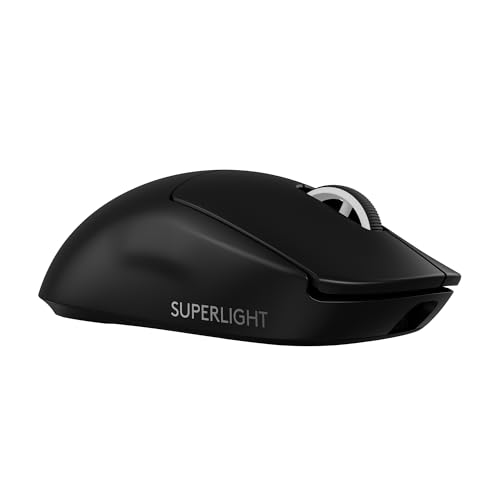
In a settings guide, the mouse’s job is to be invisible: your camera method — edge pan, drag, or a hybrid — should produce exactly the cursor movement you intended, at the sensitivity your options specify, with no smoothing or drift arguing in between. The Superlight 2’s HERO 2 sensor is the safe pair of hands for that job, tracking cleanly at the moderate DPI values most Dota players settle on, and its LIGHTFORCE hybrid switches give clicks a consistent mechanical confirmation that matters when you are issuing move and attack commands hundreds of times a match. Five programmable buttons cover the standard Dota assignments without crowding the grip.
The wireless connection matters to settings more than it first appears. Cable drag is an unlisted sensitivity modifier: it tugs hardest at the edges of the pad, which is precisely where edge-panning players live, and it makes the same hand movement produce different cursor results depending on direction. Removing the cable makes your configured sensitivity honest in every direction. USB-C charging and long battery life keep the arrangement low-maintenance, so the mouse stays a constant while you experiment with the variables this guide actually wants you to change.
Strengths
- Clean, consistent tracking that makes your chosen sensitivity behave identically in every direction
- Hybrid switches with a definite click feel for high-volume move and attack commands
- Neutral shape and wireless freedom that suit edge-pan, drag and hybrid camera styles alike
Trade-offs
- A premium price for a mouse whose virtue here is the absence of interference
- Two thumb buttons only, so elaborate mouse-side control schemes need to move to the keyboard
- Its neutrality means players with strong shape preferences should read a dedicated mouse guide before committing
Best for: any Dota player rebuilding their settings who wants the mouse to stop being a variable. Not suited for: players who bind many unit commands to the mouse, or who already own a modern flagship and would be buying the same performance twice. Check cost on Amazon
When it arrives, resist changing your DPI to celebrate. Keep your existing sensitivity for the first several games so the only difference you feel is the tracking consistency and the missing cable; then, if the screen-cross test in this guide suggests an adjustment, change it once, by a small step, and give it a week. Settings discipline is what turns good hardware into good habits.
HyperX Cloud III
Best for players rebuilding their audio mix around voice and cue clarity
| Unit | HyperX Cloud III |
|---|---|
| Range | Gaming Guides |
| Page highlights | USB-C connection |
| Price | Verify cost on Amazon |
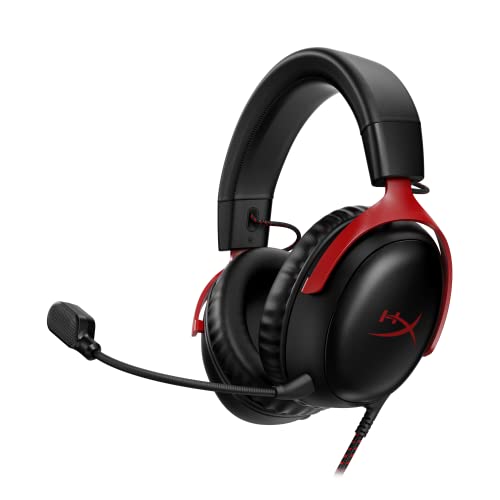
The audio settings later in this guide ask your headset for two things: voices that stay intelligible when the game gets loud, and effect cues — a teleport scroll, a Roshan roar, a Blink Dagger — that remain distinct at low volume. The Cloud III is the wired reference for both. Its 10mm microphone capsule keeps your own calls clear to teammates, and its presentation favours the midrange clarity those cues live in rather than the bass weight that buries them. Because it connects by USB-C, USB-A or 3.5mm, it also removes the wireless profile-switching gremlins that can quietly reroute your carefully built mix when a chat app and the game disagree about devices.
Memory foam cushions carry the second half of its case. Settings work is session work — you will spend an evening in bot matches and replays adjusting sliders — and a headset that aches by the second hour shortens every experiment. The Cloud III’s foam and durable frame are built for exactly that unglamorous endurance. It will not isolate you from a loud household the way a sealed competitive headset can, and it has no wireless option at all; its argument is that for the price of those features you get the two things the audio mix actually consumes: clarity and consistency.
Strengths
- Large microphone capsule and midrange-forward sound that suit a voice-and-cues audio mix
- Wired connections to everything, eliminating device-profile surprises mid-session
- Memory foam comfort for the long evenings that settings work and ranked sessions share
Trade-offs
- No wireless mode, so the cable needs routing once and managing forever
- Isolation is modest in a genuinely noisy home
- Fewer software tools than app-driven rivals for players who like to tune endlessly
Best for: the player whose audio settings keep being undermined by muddy sound or device confusion. Not suited for: multi-device players, or anyone whose home noise demands serious isolation. Check price on Amazon
Set your mix with this headset at factory sound first. Dota’s own audio sliders — master, effects, voice, music — are more powerful than any headset equaliser for this game, and they travel with your account rather than your hardware. Balance them in a replay of a chaotic teamfight, where every channel competes at once; a mix that survives that test will survive any ordinary match.

SteelSeries QcK XXL
Best for players whose camera habits keep running off the edge of a normal pad
| Spot | SteelSeries QcK XXL |
|---|---|
| Line | Gaming Guides |
| Extras named on its entry | its core function set |
| Expense | Verify expense on Amazon |
A desk-sized cloth pad sounds like the least technical purchase in this guide, and it quietly fixes a settings problem players misdiagnose for years. If you edge-pan, your cursor lives at the screen borders; if you use a moderate sensitivity, your mouse needs travel; when the pad ends mid-fight, you lift, reposition, and lose a half-second and your cursor’s location in the same motion. The QcK XXL covers the full desk — keyboard included — so the surface never ends inside a match, and its cloth weave gives the consistent, slightly controlled glide that camera work prefers over a hard pad’s speed. The listing’s emphasis on tracking stability and a non-slip base is exactly the unglamorous specification that matters here.
There are secondary dividends. A full-desk pad evens out the surface under your keyboard, muffles desk noise through your microphone, and gives your sensitivity a single consistent friction from edge to edge — which is, again, a settings issue: one surface means one honest sensitivity everywhere. The costs are housekeeping. An XXL pad collects dust across a large area and wants a proper wash every few months, it dominates a small desk visually, and it must be measured before ordering, because a pad that overhangs the desk edge curls and becomes worse than the small pad it replaced.
Strengths
- Full-desk coverage removes pad edges from camera work entirely
- Consistent cloth friction across the whole surface keeps one sensitivity honest
- Non-slip base and a weave tuned for tracking stability rather than raw speed
Trade-offs
- Needs a desk with the depth to hold it flat; measure before ordering
- A large surface collects dust and needs periodic washing to keep its glide
- Cloth control feel will disappoint a player who genuinely prefers a hard, fast pad
Best for: edge-panners, moderate-sensitivity players, and anyone whose lift-and-reposition habit shows up in their replays. Not suited for: small desks, or speed-pad devotees who have already solved their space problem. Check price on Amazon
When the pad arrives, give your sensitivity a fresh audit on it. A bigger, more consistent surface often reveals that your DPI crept upward over months to compensate for running out of room; with the room restored, many players settle a step lower and find their last-hitting steadier for it. Change it once, note the old value in case you revert, and let a week of games vote on the result.
Buying guide: what actually determines Dota 2 Options
Camera controls matched to your panning habit
Dota offers three honest ways to move the camera — edge pan, middle-mouse or key drag, and camera-grip keys — and the correct choice is the one your hand performs without thought. Edge pan is the default and the most common, but it parks your cursor at the screen edge, away from your hero, which costs a fraction of a second on every return. Drag keeps the cursor central and is kinder to precise players, at the price of a held button. The settings mistake is not choosing the “wrong” method; it is choosing a fashionable one and fighting it for a month. Audit yourself in a replay: if your cursor spends the game at the borders, you are an edge-panner whatever your settings claim, so tune edge-pan speed until a full-screen traverse feels brisk but stoppable, and bind a camera-centre key for emergencies.
Two smaller camera settings deserve deliberate answers. Camera acceleration should be off for almost everyone, because a consistent hand-to-screen ratio is what muscle memory is made of, and acceleration makes the ratio speed-dependent. And the camera’s return behaviour — whether selecting your hero recentres the view — should match your hero pool: micro-heavy players usually disable aggressive recentring so unit-hopping does not tear the view away from the fight they were watching. Change these one at a time, days apart, and judge each in real games rather than in the demo lobby, where nothing punishes a bad choice.
Minimap size and icon clarity
The minimap is your second screen and most players run it at a size designed for a smaller monitor era. Raise it until hero icons are identifiable at a glance — not by colour alone but by portrait — and until a ward’s vision edge is readable without leaning in. The cost is screen area, and the exchange is worth it: the minimap carries more decision-relevant information per square centimetre than any other part of the interface. Pair the size increase with the icon settings that draw hero portraits rather than arrows or dots, and consider the setting that makes enemy and ally colours unmistakable, because a glance that requires interpretation is a glance that arrives late.
Then train the glance itself. The settings only make the information available; a rhythm makes it used. Tie your minimap checks to events your hands already perform — every few last-hits, every camera return to your hero, every ability cooldown cycle — rather than to a vague intention to look more. Within two weeks the check becomes reflexive, and the larger map starts paying for its screen area in rotations spotted early and ganks that arrive to find you already leaving. Players who raise the map but never build the rhythm usually shrink it again within a month and conclude the size was the problem.
Hotkey layout that separates pieces from abilities
The hotkey principle that matters most is separation of concerns: abilities, items, and unit control should live in three neighbourhoods your hand can distinguish blind. The classic failure is a layout grown by accretion, where a control group shares a row with an item slot and a fight asks one finger to be in two places. Lay the keyboard out on paper — literally — and mark which finger owns each key in a fight: abilities under the strongest fingers, items where the hand can reach without leaving the ability row, control groups on keys that cannot be confused with either. Legacy keys versus the grid layout is a secondary question; consistency with your own history beats theoretical optimality.
Quick-cast deserves its own decision rather than a default. For most abilities it removes a click and measurably speeds combos, and most players should enable it broadly — with deliberate exceptions for self-cast-critical and ground-targeted abilities where the confirmation click is information, not delay. Set those exceptions individually, test them in demo mode against dummies until the exception feels as automatic as the rule, and revisit the list when your hero pool changes. A hotkey layout is a living document; the mistake is treating it as a one-time installation.
Audio mixes that surface Roshan and teleport cues
Dota broadcasts more information through sound than most players use: a teleport arriving in a lane, Roshan being contested, an invisibility rune taken, a Blink Dagger in the trees beside you. The mix that surfaces them is voice-forward and effects-clear, with music low or off — music is the channel with the least information and the most masking power, and it is the first slider to sacrifice. Set effects so that a dagger pop at the edge of hearing is still distinct, voice so a quiet callout never fights the game for your attention, and then test the result against a replay of a five-on-five fight, the loudest environment your mix will ever face.
Response and alert sounds deserve a separate pass. The ping and notification volumes decide whether a teammate’s warning registers while you are focused on last-hits; set them assertively, because a missed ping is a rotation you walk into. If your headset or operating system offers surround virtualisation, trial it honestly against plain stereo for a week each — many players find the processing smears the left-right distinction that teleport and dagger cues depend on. The mix is finished when you catch yourself reacting to a sound you did not consciously notice hearing; that is the system working as designed.
Dota 2 Options in concrete schedules
Scene: a new player overwhelmed by the default controls page
The new player’s problem is not any single setting; it is the wall of them. The way through is triage. This week, change only the minimap size and turn camera acceleration off — two changes, both immediately felt, neither requiring new muscle memory. Next week, set quick-cast for your three most-played heroes and leave everything else alone. The week after, arrange item keys into one neighbourhood. Sequenced this way, the options page stops being a wall and becomes a checklist, and each change arrives with its own evidence because the previous ones had time to settle. The gear in this guide can wait entirely; a new player’s settings debt is larger than their hardware debt by an order of magnitude.
One more piece of mercy for the overwhelmed: you are allowed to leave most of the options page untouched forever. Whole categories — spectator settings, advanced unit behaviour, cosmetic interface toggles — can stay at their defaults for an entire Dota career without costing a single game. The fear that you must master the whole page is itself a barrier. Master the four decisions in this guide, ignore the rest with a clear conscience, and revisit only when a specific annoyance gives you a reason.
Scene: a returning player where the muscle memory predates recent patches
The returning player’s hands remember a game that has been patched a dozen times since. Some of what they remember still exists under new names; some settings have moved; a few defaults have changed underneath the layout they restore from memory. The efficient path is not to recreate the old setup from nostalgia but to audit it: export or photograph the current defaults, play three bot games, and note every moment your hand reaches for something that is not there. That list — usually short, specific and surprising — is your real configuration agenda. Rebuild those bindings deliberately, accept the modern defaults for everything your hands did not miss, and you will be current in an evening instead of spending a month mourning a settings file.
Returning players also tend to underrate how much their own taste has changed. The sensitivity that suited you three years ago was fitted to a different monitor, a different desk and arguably a different person. Treat the return as a fresh fitting that happens to start from experienced instincts, and let yourself re-derive the numbers — you will often land near the old values, but now they will be chosen rather than inherited, and the difference shows the first time a patch moves something and you can rebuild your setup from principles instead of from memory.
Situation: a support player who wishes faster ward and courier controls
Support play is a logistics job performed under time pressure: wards bought and placed inside small windows, courier routes managed while the lane demands attention, a smoke assembled while the cores farm. The settings that serve it are specific — a dedicated, unmissable key for selecting the courier and another for its delivery command, quick-buy arranged so a full ward-and-smoke purchase is two actions rather than five, and the shop’s search bound somewhere your hand already rests. Add a control group habit for the courier alone if your hero has no other units. Supports who configure this way describe the change less as speed than as calm: the errands stop competing with the lane for the same fingers at the same seconds.
The support’s minimap deserves a role-specific note as well: ward timers and enemy movement are the support’s intelligence brief, so the larger end of the comfortable size range usually suits the role, and the setting that flashes the map on ally pings earns its place. Cores can borrow the support’s glance rhythm during their own downtime — the walk back to lane, the jungle camp respawn — and supports who teach their cores that rhythm raise the whole team’s map awareness without a word of complaint in chat.
Arrangement and initially-seven mornings how-to
Settings changes fail through impatience more than through poor choices. This sequence spreads a week of changes so each can be judged on its own results.
Step 1 for Dota 2 Options: re-verify comfort after an session of use
After your first full session on a new setting — a camera speed, a minimap size, a new headset from this guide — stop and audit honestly before changing anything else. Comfort here means cognitive as much as physical: does the new camera speed still overshoot in fights, does the larger map pull your eyes too often, does the headset ache in hour two? Write the answers down. A setting judged after one session gets a fair trial; a setting judged after ten minutes gets a coin flip, and coin flips are how players end up reverting good changes.
Step 2 for Dota 2 Options: schedule a two-spell review to catch annoyances that just repetition reveals
Put a review in your calendar two weeks from the day you change anything significant. Some flaws are invisible until they have annoyed you eleven times: the key your finger brushes accidentally once a game, the slider that is right in lane and wrong in fights. A scheduled review converts those accumulated irritations into a single deliberate adjustment session, instead of the constant mid-week tinkering that prevents any configuration from ever settling into habit. Bring your session notes; they are the agenda.
Step 3 for Dota 2 Options: write the return deadline on the box the morning it arrives
If your settings project includes new gear — the mouse, headset or pad from this guide — mark the return deadline on the box in pen the day it lands. Hardware interacts with settings slowly: a mouse’s true effect on your camera work emerges across a week of games, not an unboxing. The written date guarantees a conscious verdict before the window closes, and it pairs with the comfort audit above — by the deadline you will have session evidence rather than a hunch about whether the gear serves the setup.
Step 4 for Dota 2 Options: run one unremarkable sitting at default controls and write down what bothers you
Before changing a single slider, play one ordinary session on the untouched defaults and keep notes. Every irritation you record — the map too small to read, the camera drifting past its target, the item key your finger cannot find — becomes a change with a reason attached. This baseline list is the most valuable document in the whole project: it stops you fixing imaginary problems, and weeks later it proves how much of the original friction your changes actually removed.
Step 5 for Dota 2 Options: unbox slowly and retain each accessory until the configuration survives a full seven days
New gear arrives with spares, adapters and cables that look like packaging until the day they are the solution — the USB-A adapter for a second machine, the extension cable that puts a dongle in the right place. Keep everything together for the first week while the configuration proves itself, because a setup that survives seven days of real games has earned its permanence, and its accessories deserve a drawer rather than a bin. After the week, store the box and extras somewhere you can find them during the first hardware hiccup.
Common mistakes with Dota 2 Options
Copying a pro options file wholesale instead of adapting it
A professional’s configuration is the answer to their hand size, their monitor, their role and ten thousand hours of their habits. Imported whole, it gives you their solutions to problems you may not have, in a layout your fingers do not know, at a minimap size chosen for their eyes. The predictable result is a fortnight of playing worse and concluding that settings do not matter. Borrow principles instead of files: their separation of unit keys from abilities, their voice-forward mix, their quick-cast exceptions — then implement each principle inside your own layout, one change at a time, and keep only what your own games vote for.
There is also a hardware mismatch hiding inside most copied files. A layout built around a mouse with six thumb buttons, or a keyboard hand trained on legacy keys since childhood, does not transfer to your desk just because the file imports cleanly. Before borrowing any element, ask what equipment and history it assumes. If the answer is not yours, the element is a story about someone else’s setup — interesting, possibly instructive, and not a configuration.
Turning each one visual effect down and losing readability
The performance instinct to minimise every visual setting collides with a MOBA’s core demand: reading a fight. Effects carry information — the edge of an ultimate, the direction of a projectile, the shimmer of an invisible hero — and stripping them for frames trades the game’s language for smoothness. On modern hardware Dota runs well at settings that keep the fight legible, so raise clarity first and economise on the decorative channels: shadows and ambient detail can go before spell effects ever should. If a teamfight becomes hard to parse after a settings session, you turned the wrong dial, whatever the frame counter says.
A practical readability test settles arguments in this area: watch a replay of the most chaotic fight from your recent games at your current settings, and count how many ability effects you can name as they happen. Then adjust one visual setting and watch the same fight again. The version where you named more effects is the more competitive configuration, full stop — even if it costs frames you never needed. Players are often surprised to find their “performance” settings were charging them information for smoothness their hardware never required.
At no stage revisiting controls following a major patch
Patches move the ground under a configuration: a reworked ability changes what quick-cast should do, a new item wants a key, a changed default quietly resets something you set two years ago. Players who never audit after patches accumulate a setup that is part intention, part archaeology. Make it a ritual — after each major patch, one bot game spent purely on verification: cast everything, buy your usual items, move the camera through a fight replay. Fifteen minutes of checking beats discovering a reset binding in a ranked game, which is where undiscovered changes traditionally announce themselves.
Keep a dated backup before each patch as part of the same ritual. If a patch does scramble something, restoration is a minute’s work and the audit becomes a comparison rather than an interrogation. Players who maintain this habit describe patches the way they should be described — as content to explore — while everyone else spends patch week slightly afraid of their own settings page. The backup file costs nothing and buys that calm outright.
Head-to-head: separating the lineup
The three products here are not rivals, so the honest head-to-head is between the problems they solve. Ask which friction your own notes — from the baseline session this guide prescribes — actually recorded. If the list is full of camera complaints and cursor inconsistency, the mouse is the purchase, and the Superlight 2’s contribution is that your settings start meaning what they say in every direction. If the list is full of missed cues and muddy voice, the headset is the purchase, because no slider can surface a sound the hardware smears. If the list mentions lifting, repositioning and running out of room, the pad is the purchase, and it is the cheapest transformation of the three.
Buy in that order — diagnosed problem first — and buy one at a time, a week apart, so each change’s effect on your settings can be seen cleanly. The player who replaces all three in one evening has spent the most and learned the least, and usually ends up unsure which item earned its money. Sequenced properly, most players find the second and third purchases become optional: fix the loudest friction and the whole setup feels new.
It is worth naming the trap on the other side: using hardware as a substitute for the settings work itself. A new mouse does not raise your minimap, a new headset does not rebalance your mix, and a desk-sized pad does not separate your hotkeys. The players who get the most from the gear in this guide are the ones who did the free work first and arrived at the purchase with a specific, written complaint for it to answer. Everyone else owns excellent equipment wrapped around the same old friction.
Living with the pick: upkeep and longevity
A configuration needs maintenance like any other equipment. Export or back up your settings whenever you reach a state you are happy with, and again after every deliberate change you decide to keep; a corrupted config or a new PC should cost you minutes, not a reconstruction project. Keep a short changelog — a text file with dates and one-line reasons — because three months from now you will not remember why quick-cast is off for that one ability, and the changelog will prevent you from “fixing” a deliberate exception.
The gear asks for the same light discipline. Wash the QcK pad when its glide changes, because a dirty pad is an unlisted sensitivity change; wipe the Cloud III’s cushions so the seal your audio mix assumed stays the seal you have; keep the Superlight 2’s dongle parked in its extender so its connection stays the constant your camera settings were tuned around. Settings and hardware are one system, and it stays calibrated only if both halves are maintained as one.
Once a season, re-run the original baseline exercise: one ordinary session, notes open, attention on friction. A mature setup produces a short list — a binding that a new hero has made awkward, a slider that a patch has made obsolete — and a short list is the sign of health. If the list comes back long, something structural has drifted, and the season’s work is to find it. Treat the exercise as calibration, not criticism, and your configuration will age the way good equipment should: slowly, visibly, and on your terms.
Final recommendation
Work in the order this guide is written. This week: the baseline session and its notes, then the minimap, the camera method audit, and the hotkey separation — the free changes with the largest returns. Next: the audio mix, tested against a teamfight replay. Only then, if your notes point at hardware, choose the one product that answers your loudest recorded friction — the Superlight 2 for camera honesty, the Cloud III for voice and cues, the QcK XXL for space — and give it the same patient week you gave the sliders.
The destination is a setup you stop thinking about. When your configuration is right, your attention during a match belongs entirely to the game — the map glances happen by rhythm, the camera obeys without supervision, the calls land where your fingers expect. That invisibility, not any single setting, is what you are buying with the evenings this guide asks for.
Expect the improvement to feel undramatic, and do not let that fool you. Settings gains arrive as absences: the gank that did not surprise you, the fight where your fingers simply knew, the Roshan your mix announced before your eyes did. Players waiting for a transformation montage revert their settings in disappointment; players who keep a notebook watch the small absences accumulate into a trend. Keep the notebook. It is the difference between a setup that was fitted and a setup that merely happened.
Frequently asked prompts
What matters most when choosing for dota 2 options?
The match between settings and your existing habits matters more than any individual slider’s value. A camera method your hand performs unconsciously, a minimap your glance rhythm actually uses, hotkeys your fingers can separate blind — these fits are the substance. Players waste months optimising values inside a method that does not suit them. Choose the methods by self-observation first; the numbers inside each method settle quickly once the method is right.
If forced to rank the four decisions for a player who will only make one change this month, the minimap usually wins: it requires no new muscle memory, pays out in the very next game, and its benefit compounds with every glance rhythm you build afterwards. Camera changes pay more eventually but charge a clumsy week up front. Hotkeys and audio sit between. Start where the return is fastest and let the early win fund your patience for the slower ones.
How much should a beginner funds for dota 2 options?
Nothing, at first — and that is a genuine answer rather than a dodge. Every change in the first half of this guide is free, and a beginner’s gains live entirely there: minimap, camera, quick-cast, key separation. Hardware money becomes sensible only after the settings are settled and a specific friction has been diagnosed by name, at which point one targeted purchase — usually the pad or the mouse — outperforms a basket of speculative gear. Budget for one diagnosed fix, not for a new desk.
Which error do shoppers of dota 2 options regret most?
Changing everything at once and then being unable to tell what helped. The regret sounds technical but it is really about evidence: a total overhaul destroys your baseline, so a month later you own a setup you cannot evaluate and habits that never settled because the ground kept moving. The close second is importing a professional’s file wholesale. Both errors are cured by the same discipline — one change, several games, written notes — which is why this guide repeats it in every section.
How long does it take to get used to a new dota 2 options arrangement?
Roughly a week per significant change, if the changes are sequenced; indefinitely, if they are stacked. A camera method change is the slowest, because it rewires a reflex — expect three clumsy days and a fourth where it suddenly feels like yours. Minimap and mix changes settle faster, usually within a few games, because they feed awareness rather than movement. Judge each change at the end of its own week, and do not start the next change’s clock until the current one has stopped feeling new.
When is the premium option in dota 2 options actually worth it?
When it removes a friction you have diagnosed in writing. A flagship mouse is worth its premium to the player whose notes say the cursor behaves differently toward the pad’s edge than toward its centre; it is worth nothing to a player whose actual problem is a minimap they never glance at. Premium gear in a settings project is a targeted instrument, not a reward for finishing the guide. Buy it last, buy it singly, and make it answer a sentence in your notebook.
What should I confirm initially if my dota 2 options purchase disappoints?
Confirm that the disappointment is the product and not the adjustment period. Check the mundane layer first — dongle placement for the mouse, device selection for the headset, flat placement for the pad — then return to your baseline notes and compare like with like: is the recorded friction actually still present, or has it been replaced by the ordinary strangeness of a new habit forming? Give hardware the full week this guide prescribes before using the return window, but do use the window if the week’s evidence is honestly negative.
Linked guides
- Dota 2 Mousepad
- Dota 2 Headset
- Dota 2 Mouse
- Ducky One 2 Mini Review
- 2 4ghz vs Bluetooth Headset
- Anne Pro 2 vs Rk61 vs Gk61 Funds 60 Percent Compared
Companion reading for the rest of the Dota desk: the dedicated mouse and headset decisions, and the wider peripheral comparisons this settings guide deliberately left out.
One more angle: minimap size and icon clarity, revisited
Consider the minimap’s placement in your visual field, not just its size. Most players glance down-left by habit built over years, and a larger map rewards that habit — but if you run a second monitor or an ultrawide, check that the map has not drifted so far into your peripheral vision that glances become head turns. The goal is a map readable in the time between two last-hit animations, from the corner of your eye’s comfortable range. If reading it costs you a posture change, shrink it a step and raise the icon clarity instead; the exchange usually nets out in your favour.
One more angle: camera options matched to your panning habit, revisited
Your camera method has a hero-pool signature. Global and split-push heroes reward fast, long traversals and favour edge pan at a brisk speed; lane-locked carries reward small, precise adjustments and favour drag or grip control. If your hero pool spans both, the hybrid — edge pan for travel, a held drag key for fights — is not indecision but correct engineering, and it deserves to be configured deliberately rather than stumbled into. Set both methods’ speeds in the same session, testing each on the heroes that use it, so the two halves of your camera game are calibrated against each other.
One more angle: audio mixes that surface Roshan and teleport cues, revisited
Roshan deserves a specific rehearsal. Load a replay where the enemy takes Roshan while your team is elsewhere, and play the moment from your hero’s position at your match mix: the pit’s sounds, the ambient shift, any ward vision ping. If the event is audible as an event — not as background texture — your effects level is right. If it dissolves into the game’s general noise, raise effects relative to master rather than raising everything, because overall loudness fatigues without informing. Repeat the rehearsal after any headset or mix change; it takes two minutes and it is the most honest audio test Dota offers.
One more angle: hotkey layout that separates units from abilities, revisited
Test your layout with the fight you fear, not the fight you enjoy. In demo mode, spawn the chaotic case for your hero pool — the illusion army, the multi-unit dive, the buyback-and-teleport return — and run your fingers through the full sequence at speed. Wherever a finger hesitates or lands on a neighbour’s key, the layout has a defect that a real fight will find at a worse moment. Move the offending binding one key at a time and re-run the drill. Twenty minutes of this rehearsal is the closest thing settings work has to a guarantee.
One more angle: minimap habits and the glance rhythm, revisited
Once size and icons are set, the remaining minimap skill is timing your glances to the game’s safe moments: while a last-hit animation completes, while your hero walks a safe lane segment, while a spell’s cooldown ticks. Players who glance during danger — mid-fight, mid-retreat — train themselves to stop glancing, because the habit keeps punishing them. Attach the glance to safety and it survives; attach it to intention alone and it evaporates by the second week. This is the last settings change most players need, and the one that quietly converts all the others into results.