Disclosure: As an Amazon Associate, reviewstook.com earns from qualifying purchases. Links on this page are affiliate links at no extra cost to you; prices and availability change frequently, so check Amazon for the latest.
Where to Buy
Every linked pick below was verified against the Amazon Creators API listing for this guide, so the name you click is the machine described. Availability at this budget moves quickly, so use the links to check the latest configuration before ordering. This guide is published by reviewstook.com and updated when the verified line-up changes.
- Best Overall for Work: Dell Latitude 5420 (Renewed) — Check on Amazon
- Best Value for Work: Lenovo Essential 15.6 — Check on Amazon
- Best for Everyday Office Work: HP 15.6 N150 — Check on Amazon
- Best for All-Day Desks: Lenovo Business 15.6 — Check on Amazon
- Best Big-Screen Work Pick: Dell 15.6 Core 3 — Check on Amazon
- Best True Business Pick for Work: Lenovo V15 Ryzen 3 — Check on Amazon
Best business laptop for work under $200: What Actually Matters
Finding the best business laptop for work under $200 is less about chasing a headline specification and more about matching a machine to a real working day, because a work laptop is judged at 4pm on a deadline day, not in a benchmark chart. What matters is whether Teams, Outlook, a CRM, thirty browser tabs and a shared spreadsheet can all stay open at once without the fan drowning out the call. This guide is written for office staff, remote workers and home-based professionals, and it is honest about the ceiling of this budget from the first page: at $200, you are choosing which compromises you can live with, not avoiding compromise altogether.
That honesty matters most at this level. A genuinely new, full business laptop under $200 barely exists in the current market, and most of what carries the label is an entry Windows machine configured for light office work, a cloud-dependent configuration with small local storage, or a renewed business-class machine from a previous fleet cycle. This guide includes the closest verified options in each of those categories and tells you plainly which is which, rather than pretending a basic consumer laptop becomes a business machine because the listing says so. If your workload is documents, email, browsing and video calls, the picks below can do the job. If it is heavy data work, large local archives or managed corporate deployment, the truthful recommendation is to stretch to the next tier in this series rather than buy twice.
Two rules shaped every recommendation. First, only machines verified through the Creators API are linked; anything else worth mentioning is discussed by name without a link. Second, this guide prints no fixed prices and no fixed ratings, because both change constantly — the links exist so you can check the current position on Amazon at the moment you buy. For a wider view of the market, see Best Business Laptops and Laptop Buying Guide.
In this guide
Quick Picks
Best Overall for Work: Dell Latitude 5420 (Renewed) — a genuine business-class Latitude chassis with the port selection and manageability offices actually deploy.
Best Value for Work: Lenovo Essential 15.6 — one of the lowest-cost ways in this guide to get a full-size Windows laptop with a docking bundle included.
Best for Everyday Office Work: HP 15.6 N150 — a numeric keypad at this level is genuinely useful for invoices, expenses and data entry.
Best for All-Day Desks: Lenovo Business 15.6 — marketed and configured for work and study, with Office 365 and Copilot access in the bundle.
Best Big-Screen Work Pick: Dell 15.6 Core 3 — 512GB of proper SSD storage is four times the local room of the cheapest picks in this guide.
Best True Business Pick for Work: Lenovo V15 Ryzen 3 — 16GB of DDR5 memory at an entry price is the standout value in this line-up.
How These Picks Were Chosen
Every candidate for this best business laptop for work under $200 guide was checked against its live Amazon listing through the Creators API on 2026-11-20, and the specifications quoted in the spec boxes come from those verified listing titles, not from marketing summaries. Machines were then sorted by the things that decide business value in this order: memory, storage type and size, processor class, operating system edition, port selection, screen, and only then brand. That ordering surprises people until they live with a machine for a month: processor differences fade, while a memory shortage or a missing port taxes you every day.
Excluded along the way: machines with storage too small for a realistic Windows installation plus working files, unless their cloud bundle is an explicit part of the proposition and is labelled as such; consumer gaming machines whose weight, noise and battery behaviour fight the brief; and any model whose listing could not be verified, however attractive its headline looked. Where this budget has a genuine gap — and at some levels it does — the guide says so and discusses the missing class by name, prose-only, rather than filling the slot with an unsuitable linked machine.
The lens for this article is multitasking memory, port selection for real desks, webcam and audio quality, and Windows Pro management, so within the shared verified pool the ordering and the badges favour the machines that serve that priority best. Sibling guides in this series reorder the same honest pool for different priorities, and the buying-guide sections below explain the trade so you can re-rank the list for your own day.
Detailed Reviews: The $200 Business Shortlist

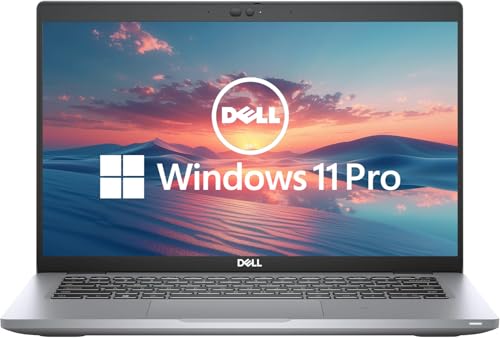
Best Overall for Work — Dell Latitude 5420 (Renewed), Intel Core i5-1145G7 (quad-core)
Strengths
- A genuine business-class Latitude chassis with the port selection and manageability offices actually deploy
- 16GB of memory is the comfortable working minimum for Teams, Outlook and a browser full of tabs at once
- The 14-inch size is the easiest in this guide to carry between desks, meeting rooms and home
Trade-offs
- Renewed stock varies by unit, so battery health and cosmetic condition are never identical between orders
- 256GB of storage fills quickly if you keep large local archives, recordings or offline mail stores
- An older-generation processor, so it wins on business features rather than raw speed
| Specification | Verified detail |
|---|---|
| Processor | Intel Core i5-1145G7 (quad-core) |
| Memory | 16GB DDR4 |
| Storage | 256GB SSD |
| Display | 14″ FHD |
| Operating system | Windows 11 Pro |
The Dell Latitude 5420 (Renewed) makes its case on a simple proposition: it concentrates its budget on the parts of the specification that this guide’s lens rewards. In daily terms that means the machine should feel calm rather than spectacular — quick to wake, untroubled by the standard office stack, and predictable across a long day. Buyers coming from an older business laptop will notice the storage speed and the modern wireless first; buyers coming from a consumer machine will notice the port selection and the absence of pre-installed clutter.
In real use, match it to the work it was specced for. The verified configuration — Intel Core i5-1145G7 (quad-core), 16GB DDR4, 256GB SSD — defines its honest ceiling, and the trade-offs listed above are the places that ceiling shows. None of them are hidden flaws; they are the visible price of the tier, stated here so the machine you receive is the machine you expected. Set it up with the day-one routine in this guide, keep storage habits tidy, and it will do its job without drama.
For work, the Dell Latitude 5420 (Renewed) should be evaluated at the desk it will actually live on. Picture the full stack open: the calling app with a shared screen, the mail client, the browser with the CRM and a dozen reference tabs, the spreadsheet that finance sent at the worst moment. Its verified memory and storage define how calmly that stack coexists, its ports define how many adapters the desk needs, and its webcam and audio define how you come across in the meetings that fill the calendar. That lived stack, not a benchmark, is the correct test.
Best for: buyers who want best overall for work within the $200 ceiling and value a balanced, verified specification. / Not suited for: buyers whose workload clearly exceeds the verified configuration above and who should step up a tier instead.
Check on Amazon to see the current configuration and availability.

Best Value for Work — Lenovo Essential 15.6, Intel processor (entry class)
Strengths
- One of the lowest-cost ways in this guide to get a full-size Windows laptop with a docking bundle included
- Anti-glare Full HD screen is kinder for long document sessions than the glossy panels common at this level
- USB-C and Wi-Fi 6 cover the modern desk basics without adapters for most meeting rooms
Trade-offs
- 128GB of local storage is tight and leans on the bundled cloud storage for anything beyond essentials
- 8GB of memory means disciplined tab and app management on busy days
- Entry-class processor: fine for documents and calls, slow with heavy spreadsheets or large data sets
| Specification | Verified detail |
|---|---|
| Processor | Intel processor (entry class) |
| Memory | 8GB DDR5 |
| Storage | 128GB storage + cloud storage |
| Display | 15.6″ FHD anti-glare |
| Operating system | Windows 11 |
The Lenovo Essential 15.6 makes its case on a simple proposition: it concentrates its budget on the parts of the specification that this guide’s lens rewards. In daily terms that means the machine should feel calm rather than spectacular — quick to wake, untroubled by the standard office stack, and predictable across a long day. Buyers coming from an older business laptop will notice the storage speed and the modern wireless first; buyers coming from a consumer machine will notice the port selection and the absence of pre-installed clutter.
In real use, match it to the work it was specced for. The verified configuration — Intel processor (entry class), 8GB DDR5, 128GB storage + cloud storage — defines its honest ceiling, and the trade-offs listed above are the places that ceiling shows. None of them are hidden flaws; they are the visible price of the tier, stated here so the machine you receive is the machine you expected. Set it up with the day-one routine in this guide, keep storage habits tidy, and it will do its job without drama.
For work, the Lenovo Essential 15.6 should be evaluated at the desk it will actually live on. Picture the full stack open: the calling app with a shared screen, the mail client, the browser with the CRM and a dozen reference tabs, the spreadsheet that finance sent at the worst moment. Its verified memory and storage define how calmly that stack coexists, its ports define how many adapters the desk needs, and its webcam and audio define how you come across in the meetings that fill the calendar. That lived stack, not a benchmark, is the correct test.
Best for: buyers who want best value for work within the $200 ceiling and value a balanced, verified specification. / Not suited for: buyers whose workload clearly exceeds the verified configuration above and who should step up a tier instead.
Check on Amazon to see the current configuration and availability.

Best for Everyday Office Work — HP 15.6 N150, Intel N150 (4-core)
Strengths
- A numeric keypad at this level is genuinely useful for invoices, expenses and data entry
- Built around long battery life and portability rather than performance you will never use for admin work
- Microsoft 365 bundling suits light office work that lives in Word, Excel and OneDrive
Trade-offs
- The N150 is an efficiency processor: video calls plus documents are its ceiling, not analysis work
- 128GB UFS storage is the slowest and smallest option here, so cloud habits are mandatory
- Windows 11 Home lacks the Pro management and BitLocker controls many offices standardise on
| Specification | Verified detail |
|---|---|
| Processor | Intel N150 (4-core) |
| Memory | Memory not stated in listing title |
| Storage | 128GB UFS + cloud storage |
| Display | 15.6″ display |
| Operating system | Windows 11 Home |
The HP 15.6 N150 makes its case on a simple proposition: it concentrates its budget on the parts of the specification that this guide’s lens rewards. In daily terms that means the machine should feel calm rather than spectacular — quick to wake, untroubled by the standard office stack, and predictable across a long day. Buyers coming from an older business laptop will notice the storage speed and the modern wireless first; buyers coming from a consumer machine will notice the port selection and the absence of pre-installed clutter.
In real use, match it to the work it was specced for. The verified configuration — Intel N150 (4-core), Memory not stated in listing title, 128GB UFS + cloud storage — defines its honest ceiling, and the trade-offs listed above are the places that ceiling shows. None of them are hidden flaws; they are the visible price of the tier, stated here so the machine you receive is the machine you expected. Set it up with the day-one routine in this guide, keep storage habits tidy, and it will do its job without drama.
For work, the HP 15.6 N150 should be evaluated at the desk it will actually live on. Picture the full stack open: the calling app with a shared screen, the mail client, the browser with the CRM and a dozen reference tabs, the spreadsheet that finance sent at the worst moment. Its verified memory and storage define how calmly that stack coexists, its ports define how many adapters the desk needs, and its webcam and audio define how you come across in the meetings that fill the calendar. That lived stack, not a benchmark, is the correct test.
Best for: buyers who want best for everyday office work within the $200 ceiling and value a balanced, verified specification. / Not suited for: buyers whose workload clearly exceeds the verified configuration above and who should step up a tier instead.
Check on Amazon to see the current configuration and availability.

Best for All-Day Desks — Lenovo Business 15.6, Intel processor (entry class)
Strengths
- Marketed and configured for work and study, with Office 365 and Copilot access in the bundle
- Anti-glare Full HD panel and USB-C give it a more businesslike desk setup than most entry machines
- Long-battery positioning suits shared, hot-desking and front-desk roles away from a fixed charger
Trade-offs
- Same 128GB local storage ceiling as the other ultra-budget picks here
- 8GB of memory is a present-day minimum, not headroom for the next few years
- No numeric keypad callout and no Pro edition of Windows for managed fleets
| Specification | Verified detail |
|---|---|
| Processor | Intel processor (entry class) |
| Memory | 8GB DDR5 |
| Storage | 128GB storage + cloud storage |
| Display | 15.6″ FHD anti-glare |
| Operating system | Windows 11 |
The Lenovo Business 15.6 makes its case on a simple proposition: it concentrates its budget on the parts of the specification that this guide’s lens rewards. In daily terms that means the machine should feel calm rather than spectacular — quick to wake, untroubled by the standard office stack, and predictable across a long day. Buyers coming from an older business laptop will notice the storage speed and the modern wireless first; buyers coming from a consumer machine will notice the port selection and the absence of pre-installed clutter.
In real use, match it to the work it was specced for. The verified configuration — Intel processor (entry class), 8GB DDR5, 128GB storage + cloud storage — defines its honest ceiling, and the trade-offs listed above are the places that ceiling shows. None of them are hidden flaws; they are the visible price of the tier, stated here so the machine you receive is the machine you expected. Set it up with the day-one routine in this guide, keep storage habits tidy, and it will do its job without drama.
For work, the Lenovo Business 15.6 should be evaluated at the desk it will actually live on. Picture the full stack open: the calling app with a shared screen, the mail client, the browser with the CRM and a dozen reference tabs, the spreadsheet that finance sent at the worst moment. Its verified memory and storage define how calmly that stack coexists, its ports define how many adapters the desk needs, and its webcam and audio define how you come across in the meetings that fill the calendar. That lived stack, not a benchmark, is the correct test.
Best for: buyers who want best for all-day desks within the $200 ceiling and value a balanced, verified specification. / Not suited for: buyers whose workload clearly exceeds the verified configuration above and who should step up a tier instead.
Check on Amazon to see the current configuration and availability.

Best Big-Screen Work Pick — Dell 15.6 Core 3, Intel Core 3 100U
Strengths
- 512GB of proper SSD storage is four times the local room of the cheapest picks in this guide
- A brighter anti-glare panel than most entry machines, which helps in lit offices and classrooms
- Dell’s mainstream support and parts ecosystem makes long-term ownership straightforward
Trade-offs
- 8GB of memory remains the limiting factor for heavy multitasking
- The modest battery capacity means charger discipline on long days away from the desk
- Windows 11 Home rather than Pro, so domain and advanced management features are absent
| Specification | Verified detail |
|---|---|
| Processor | Intel Core 3 100U |
| Memory | 8GB DDR5 |
| Storage | 512GB SSD |
| Display | 15.6″ FHD, anti-glare WVA |
| Operating system | Windows 11 Home |
The Dell 15.6 Core 3 makes its case on a simple proposition: it concentrates its budget on the parts of the specification that this guide’s lens rewards. In daily terms that means the machine should feel calm rather than spectacular — quick to wake, untroubled by the standard office stack, and predictable across a long day. Buyers coming from an older business laptop will notice the storage speed and the modern wireless first; buyers coming from a consumer machine will notice the port selection and the absence of pre-installed clutter.
In real use, match it to the work it was specced for. The verified configuration — Intel Core 3 100U, 8GB DDR5, 512GB SSD — defines its honest ceiling, and the trade-offs listed above are the places that ceiling shows. None of them are hidden flaws; they are the visible price of the tier, stated here so the machine you receive is the machine you expected. Set it up with the day-one routine in this guide, keep storage habits tidy, and it will do its job without drama.
For work, the Dell 15.6 Core 3 should be evaluated at the desk it will actually live on. Picture the full stack open: the calling app with a shared screen, the mail client, the browser with the CRM and a dozen reference tabs, the spreadsheet that finance sent at the worst moment. Its verified memory and storage define how calmly that stack coexists, its ports define how many adapters the desk needs, and its webcam and audio define how you come across in the meetings that fill the calendar. That lived stack, not a benchmark, is the correct test.
Best for: buyers who want best big-screen work pick within the $200 ceiling and value a balanced, verified specification. / Not suited for: buyers whose workload clearly exceeds the verified configuration above and who should step up a tier instead.
Check on Amazon to see the current configuration and availability.

Best True Business Pick for Work — Lenovo V15 Ryzen 3, AMD Ryzen 3 7000-series
Strengths
- 16GB of DDR5 memory at an entry price is the standout value in this line-up
- Windows 11 Pro and a wired RJ-45 port make it unusually office-ready for the money
- The V15 line is a proper small-business range, not a consumer model in business clothing
Trade-offs
- Ryzen 3 performance suits office workloads, not sustained heavy processing
- 256GB of storage is workable rather than generous for media-heavy roles
- A 15.6-inch chassis is a desk-first machine, not a light travel companion
| Specification | Verified detail |
|---|---|
| Processor | AMD Ryzen 3 7000-series |
| Memory | 16GB DDR5 |
| Storage | 256GB NVMe SSD |
| Display | 15.6″ FHD |
| Operating system | Windows 11 Pro |
The Lenovo V15 Ryzen 3 makes its case on a simple proposition: it concentrates its budget on the parts of the specification that this guide’s lens rewards. In daily terms that means the machine should feel calm rather than spectacular — quick to wake, untroubled by the standard office stack, and predictable across a long day. Buyers coming from an older business laptop will notice the storage speed and the modern wireless first; buyers coming from a consumer machine will notice the port selection and the absence of pre-installed clutter.
In real use, match it to the work it was specced for. The verified configuration — AMD Ryzen 3 7000-series, 16GB DDR5, 256GB NVMe SSD — defines its honest ceiling, and the trade-offs listed above are the places that ceiling shows. None of them are hidden flaws; they are the visible price of the tier, stated here so the machine you receive is the machine you expected. Set it up with the day-one routine in this guide, keep storage habits tidy, and it will do its job without drama.
For work, the Lenovo V15 Ryzen 3 should be evaluated at the desk it will actually live on. Picture the full stack open: the calling app with a shared screen, the mail client, the browser with the CRM and a dozen reference tabs, the spreadsheet that finance sent at the worst moment. Its verified memory and storage define how calmly that stack coexists, its ports define how many adapters the desk needs, and its webcam and audio define how you come across in the meetings that fill the calendar. That lived stack, not a benchmark, is the correct test.
Best for: buyers who want best true business pick for work within the $200 ceiling and value a balanced, verified specification. / Not suited for: buyers whose workload clearly exceeds the verified configuration above and who should step up a tier instead.
Check on Amazon to see the current configuration and availability.
Comparison Table
| Pick | Processor | Memory | Storage | Display | OS |
|---|---|---|---|---|---|
| Dell Latitude 5420 (Renewed) | Intel Core i5-1145G7 (quad-core) | 16GB DDR4 | 256GB SSD | 14″ FHD | Windows 11 Pro |
| Lenovo Essential 15.6 | Intel processor (entry class) | 8GB DDR5 | 128GB storage + cloud storage | 15.6″ FHD anti-glare | Windows 11 |
| HP 15.6 N150 | Intel N150 (4-core) | Memory not stated in listing title | 128GB UFS + cloud storage | 15.6″ display | Windows 11 Home |
| Lenovo Business 15.6 | Intel processor (entry class) | 8GB DDR5 | 128GB storage + cloud storage | 15.6″ FHD anti-glare | Windows 11 |
| Dell 15.6 Core 3 | Intel Core 3 100U | 8GB DDR5 | 512GB SSD | 15.6″ FHD, anti-glare WVA | Windows 11 Home |
| Lenovo V15 Ryzen 3 | AMD Ryzen 3 7000-series | 16GB DDR5 | 256GB NVMe SSD | 15.6″ FHD | Windows 11 Pro |
Read the table as a map of compromises rather than a league table. At $200 every machine gives something up; the right choice is the one whose sacrifice lands on the part of the specification your working day uses least. The depth sections below expand the two or three topics most relevant to this lens, and the full cluster view is in Best Business Laptops Under $1000.
How to Choose the Best business laptop for work under $200
Storage speed matters more than storage size for feel
A modern solid-state drive makes a modest processor feel responsive, while slow storage makes a fast processor feel lazy. Boot times, app launches, file searches and update installs all lean on storage speed. Size still matters for anyone keeping offline mail, recordings or project archives locally, but for most office roles the smarter buy is a reasonably sized fast drive plus disciplined cloud storage, rather than a huge slow drive that makes every interaction drag.
Windows Pro versus Home is a management question
The Pro edition adds the controls organisations use to manage fleets: domain and policy support, BitLocker drive encryption and remote management tooling. A solo professional may never open those menus, while a growing business discovers their absence the day a laptop is lost or a second hire needs standardised setup. Decide based on who manages the machine, not on the edition name sounding more serious.
Charging flexibility is an underrated travel feature
A laptop that charges over USB-C can share a charger with a phone and borrow power almost anywhere, while a proprietary barrel charger is one forgotten cable away from a dead afternoon. Fast charging changes behaviour too: a short top-up during a break can carry the rest of the day, which matters more in real itineraries than a theoretical maximum runtime measured with the screen dimmed.
Fans, heat and the meeting-room test
A laptop can post excellent short benchmark results and still be the wrong business machine if its fans spin audibly through every call or its base gets uncomfortably warm on a lap. Sustained, quiet performance is the business metric: the machine should hold a video call, a shared screen and a spreadsheet simultaneously without announcing itself. Efficiency-class processors earn their place here precisely because they trade peak drama for calm endurance.
The second monitor decision
Many buyers stretch for a larger laptop screen when their real working pattern is a desk with occasional travel. In that pattern a smaller, lighter laptop plus an inexpensive external monitor usually delivers more screen, better posture and easier carrying for similar money. Buy the big built-in screen only when the big screen itself must travel: site work, client presentations and shared viewing are the honest cases.
One more lens-specific note: this article optimises for multitasking memory, port selection for real desks, webcam and audio quality, and Windows Pro management. If your real priority is different — say raw multitasking over portability — the sibling guides in this cluster re-rank the same verified machines for that priority, and the honest answer may be a different badge order rather than a different budget. Cross-check with Best Laptops For Students if the machine doubles as a study laptop, or Best Laptop Docking Stations if the desk setup matters as much as the laptop.
What Does $200 Actually Buy in a Business Laptop?
At $200 the market divides into three honest categories, and confusing them is the most expensive mistake at this level. The first is the entry Windows machine: a real, new laptop with a modest processor, the minimum viable memory, and storage so small that the bundled cloud allowance is part of the design rather than a bonus. It runs the office stack — documents, mail, browser, calls — provided the user keeps habits tidy. The second category is the renewed business machine: older, built for fleets, with Pro software and a chassis designed to be serviced, sold at this level because a company replaced it on schedule. The third category is everything pretending to be the other two, and it is the one to avoid: listings that borrow business language for machines with no business specification behind it.
The practical consequence is that at this budget you choose your compromise deliberately. Choose the entry machine and you accept storage discipline and modest multitasking in exchange for a new battery and a full warranty. Choose renewed and you accept cosmetic variation and an ageing battery in exchange for the business platform. Either can be the right answer; the wrong answer is expecting both sets of virtues at once, because that product does not exist at this level and listings implying otherwise should be read with suspicion.
How Do You Optimise a Business Laptop for Remote and Hybrid Work?
Step 1. Run the full update cycle, then install the work stack in dependency order: security tools, VPN if your employer uses one, then office and calling apps.
Step 2. Configure the desk properly: dock or monitor, external keyboard position, webcam at eye level and lighting in front of you, not behind.
Step 3. Set notification rules before the first meeting: work hours, focus periods and which apps may interrupt a call.
Step 4. Enable encryption, automatic backups and the employer’s management enrolment if this is a company device.
Step 5. Calibrate the working test: your real applications, your real files, one shared-screen call. Tune fan and power settings based on that, not on defaults.
Step 6. Create the weekly maintenance habit: a restart, a storage check, and updates applied on your schedule rather than mid-meeting.
Problem: the new laptop feels slow in its first week -> fix: check the update queue and the storage report before blaming the hardware. New machines spend their first days indexing, updating and syncing, and a nearly full small drive slows everything; finish the updates, restart once, and keep a sensible margin of free storage before judging performance.
Problem: the battery drains faster than expected -> fix: open the battery usage report, identify the top background app, and adjust its sync or startup behaviour. One misconfigured launcher or sync client is responsible for most disappointing first impressions, and it is fixable in minutes.
Common Mistakes
- Buying on processor name alone. Memory and storage decide daily feel far more often; a balanced specification beats a famous chip starved of both.
- Ignoring the operating system edition. If the machine will ever join a managed office setup, the Pro edition question should be answered before purchase, not after.
- Forgetting the carry system. Charger, adapters and bag are part of the weight and the cost; price and weigh the whole kit.
- Skipping the first-week checks. Battery health on renewed machines, dead pixels, fan noise and port function are all easiest to resolve inside the returns window.
- Letting storage fill silently. Small drives punish neglect; set the cloud and cleanup habits in week one.
Final Recommendation
At $200 the recommendation is a decision about work type. For light, cloud-centred office work, the Dell Latitude 5420 (Renewed) is this guide’s first choice. For buyers who need a genuine business platform — Pro software, fleet-style build, serviceable parts — the renewed route in this list is the smarter spend despite its cosmetic unknowns. And for anyone whose real workload is heavy local files and constant multitasking, the most honest recommendation in this article is to save toward the next tier rather than force this one. Compare the neighbouring budgets in Best Business Laptop Under $500 before deciding.
Ownership Notes Worth Reading Before You Order
The accessory budget deserves a paragraph of its own. A business laptop rarely works alone: a dock or hub, a second charger for the bag, a case, perhaps an external drive for archives. When a pick in this guide leaves room under the ceiling, that room is not savings to be spent elsewhere by default — it is the accessory budget that turns a laptop into a working system. The most satisfied buyers in this category are usually the ones who planned the system, not the ones who maximised a single component.
There is also the question of who supports the machine when something breaks. A mainstream brand with findable parts, published manuals and a battery you can actually source in three years is a different ownership proposition from an obscure badge with a slightly prettier specification. Business buyers have always known this, which is why fleet purchasing looks conservative from the outside. This guide leans the same way: every linked pick comes from a line with a real support footprint.
Software habits can rescue a modest specification. Closing what you are not using, letting the browser sleep its inactive tabs, keeping the desktop out of the storage path and restarting weekly will make an entry machine feel a class higher. Conversely, no specification survives genuinely chaotic habits for long. Part of choosing the right laptop is choosing the routine that goes with it, and the setup section of this guide is written to install that routine on day one.
Warranty and returns are part of the specification. A business laptop that fails costs more in lost days than in repair bills, which is why the standard of cover and the ease of the returns process belong in the comparison alongside memory and storage. Read the warranty terms for the exact configuration you are buying, keep the invoice with the machine’s records, and use the first weeks deliberately: run the battery, every port, the webcam and the keyboard through real work while the return route is still simple. Machines that pass that fortnight rarely surprise their owners afterwards.
Think about resale and hand-down value, even as a small business of one. Business-class machines hold a second life: they become the spare laptop, the new starter’s machine, the home backup. A pick with a recognised name, a replaceable battery path and standard parts is worth more in that second life than its first-life benchmark advantage. Buying with the hand-down in mind is one of the quiet ways the business ranges repay their premium over a full ownership cycle.
Connectivity deserves one last look before ordering. Modern offices mix wired desks, wireless meeting rooms and home networks of wildly varying quality, and the laptop is expected to behave identically on all three. Current-generation wireless in every pick in this guide covers the standard cases; the differentiators are the wired port for the patchy office, the Bluetooth behaviour with your actual headset, and the dock compatibility at your actual desk. Verify those three against your environment and the machine will feel at home everywhere it works.
There is a discipline to reading any laptop guide, including this one: extract your three non-negotiables first, then let the badges argue. If the non-negotiables are memory, a wired port and Pro software, the shortlist builds itself. If they are weight, endurance and screen comfort, a different pick rises. The guide’s job is to make the verified facts and the honest trade-offs visible; the ranking that matters is the one your own working week produces from them.
Finally, buy for the workload you have, not the one you imagine. Most business days are documents, calls, browsers and one or two line-of-business applications. A machine specified honestly for that day — with the headroom described above — will outperform, in lived experience, a machine specified for a fantasy workload and compromised everywhere else. The reviews in this guide keep returning to that point because it is where business laptop money is most often wasted.
Frequently Asked Questions
What is the best business laptop under $200 for most people?
For most buyers, the Dell Latitude 5420 (Renewed) is the safest answer in this verified line-up because it balances memory, storage and processor class without a disqualifying weakness. Buyers with a specific priority — screen size, Pro software, or the lowest possible spend — should follow the badge order in the Quick Picks instead.
Do I need Windows Pro on a work laptop, or is Home enough?
It depends on the machine’s class and how it is treated. Business ranges are built for fleet service and usually remain useful longer than consumer equivalents, provided memory and storage were adequate at purchase. Battery wear is the most predictable ageing factor, and it is the first thing to check on any renewed machine.
How much memory does a business laptop actually need?
Enough that your real working stack — calls, browser, office apps, sync tools — stays open without the machine swapping to storage. In this guide that point is represented by the mid and upper picks; the entry picks with smaller memory suit lighter, more disciplined workloads and say so in their reviews.
Is a renewed business laptop a safe buy?
It is a rational buy when the seller grades condition clearly and accepts returns, and when you check battery health and every port in the first week. What you gain is a business chassis and Pro software at an entry price; what you accept is variation between individual units.
Should I choose a 14-inch or a larger business laptop?
Choose by where the screen work happens. If the laptop itself is the screen — travel, shared viewing, spreadsheet-heavy desk work without a monitor — larger is kinder. If a monitor waits at the desk, the smaller machine carries better and the external screen does the heavy lifting.
Can a laptop under $200 handle video calls and office work all day?
Yes, provided the workload stays inside the verified specification: the picks in this guide were selected for exactly that stack. The limits appear with very large local data sets, many simultaneous heavy applications, or professional creative workloads, and the reviews flag which picks reach those limits first.
Why does this guide not print prices or ratings?
Because both change constantly and a printed figure would mislead within weeks. The guide verifies the machines and their specifications, states the budget tier honestly, and links to Amazon so the price you act on is the current one.