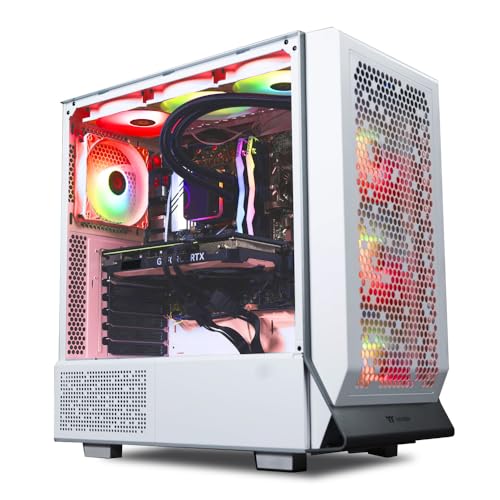
Where to buy
Check the latest price, availability and delivery on Amazon. Orders are placed on Amazon. We may earn a commission from qualifying purchases.
- Best value per dollar: Skytech Omega Gaming Desktop, Ryzen 7 7700X, RTX 4070 Super, 32GB, 1TB — Check on Amazon
- MSI Codex Z2 Gaming Desktop, Ryzen 7 8700F, RTX 5070, 32GB, 2TB — Check on Amazon
- Skytech Omega Gaming Desktop, Ryzen 7 7800X3D, RTX 4070 Super, 32GB, 1TB — Check on Amazon
- iBUYPOWER Slate 8 MESH Gaming Desktop, Core i7-14700F, RTX 4070 Super, 2TB — Check on Amazon
- Thermaltake LCGS View Gaming Desktop, Core i7-14700KF, RTX 4070, 32GB, 1TB — Check on Amazon
See 1 more Amazon option
- Acer Nitro 70 Gaming Desktop, Ryzen 9 7900, RTX 4070, 32GB, 1TB — Check on Amazon
Read the full guide ↓
Disclosure: As an Amazon Associate, reviewstook.com earns from qualifying purchases. Links to Amazon on this page are affiliate links; they cost you nothing extra. Listing details such as price and availability change often, so check the current Amazon listing before you buy.
If this is your first gaming desktop, $1,500 is a reassuring place to start: it is the budget where the compromises mostly disappear. Every machine in this guide carries a graphics card from the RTX 4070 Super / RTX 5070 class, the hardware that plays modern games at 1440p — the sharp resolution most gaming monitors now use — at high settings, without tricks. Most also include 32GB of memory and a modern processor with room to spare. You are not buying a starter machine you will outgrow by spring; bought at the right price, you are buying the machine experienced players point at when they say “just get this class and stop worrying.”
What you do need as a beginner is not more performance — it is protection from this tier’s three traps, and this guide is built around them. First, prices at this level swing wildly: several desktops below carry everyday prices far above this budget and only come down to it during sales, so each review makes clear whether its recommendation holds at everyday pricing or only on deal days. Second, builders sell different computers under the same product name, so the exact model number matters more than the headline — one pick below has a famous name-twin problem, and we will show you the number to check. Third, one otherwise excellent machine quietly includes half the memory it should, and fixing it costs more than first-time buyers expect. None of this is a reason to be nervous. It is a reason to read six short reviews before you spend anything. Below: the quick picks, a plain-English glossary, the reviews, a first-evening setup walkthrough, what else you will spend on, upgrades in plain terms, and the mistakes beginners make at this price.
In this guide
Quick Picks
Short on time, or comparing several options at once? Each row below names a buyer type and the desktop that suits it, with a link to the listing.
| Buyer type | Pick | Why it stands out | Link |
|---|---|---|---|
| Best value per dollar | Skytech Omega, Ryzen 7 7700X, RTX 4070 Super | Strong value for the top graphics class, with 32GB of memory and a published 750W Gold power supply — check the current price on Amazon | Check on Amazon |
| Best newest-generation graphics | MSI Codex Z2, Ryzen 7 8700F, RTX 5070 | The current-generation graphics card and the joint-biggest storage here — check the current price on Amazon | Check on Amazon |
| Best for fast-paced and competitive games | Skytech Omega, Ryzen 7 7800X3D, RTX 4070 Super | The strongest gaming processor in the guide behind the same top graphics class | Check on Amazon |
| Best storage, with one catch | iBUYPOWER Slate 8 MESH, Core i7-14700F, RTX 4070 Super | 2TB of storage — but only 16GB of memory, arranged so upgrading it costs extra | Check on Amazon |
| Best when it is the one on sale | Thermaltake LCGS View, Core i7-14700KF, RTX 4070 | Liquid-cooled showpiece build — a deal-only pick, so check the current price on Amazon before judging it | Check on Amazon |
| Cheapest way into this class | Acer Nitro 70, Ryzen 9 7900, RTX 4070 | A deal-only pick whose usual price sits well above this budget — check the current price on Amazon | Check on Amazon |
How These Picks Were Chosen
The rule for getting in was a real price, not a hopeful one: a desktop belongs here only if the exact model genuinely sells at or under the $1,500 budget — on the listing itself or through Amazon’s other sellers. Where a machine’s everyday price lives above the budget, the review says so plainly and labels it a deal-only pick: one to buy when it drops into budget, and to walk away from when it does not. Prices on these listings change often, so check the current price on Amazon before you buy.
The performance bar was set at the graphics card, because that is the part that decides how your games look and feel. Everything here carries an RTX 4070, RTX 4070 Super or RTX 5070 with 12GB of VRAM (video memory — see the glossary), which is the class that treats 1440p as its home resolution. Desktops built around the RTX 4060 Ti were left out on value grounds: they are good machines, but they belong to the $1,200 tier, and paying $1,500-tier money for one is the easiest way to overspend in this market. One more ceiling is worth naming before you shop anywhere else: the RTX 4070 Ti Super, the next card up, does not come down to this budget in any verified prebuilt we could find — read any listing that seems to offer one at this money very carefully before believing it.
We did not use these desktops ourselves. We read the makers’ listings and specification pages and compared processors, memory, storage, cooling and — where published — power supply wattage, favouring listings that publish their numbers in full. Where a listing does not publish a figure, this guide does not invent one: two picks below have no stated power supply wattage in their verified sources, and their reviews tell you to confirm it on the live listing, because on a machine you may upgrade one day, that number matters. Two further filters sat on top: standard parts were favoured over model-specific ones, because a desktop is a machine you will eventually open; and headroom counted, because you are buying a platform for years, not just a spec sheet.
The Words on the Box, in Plain English
Desktop listings are written in shorthand. Here is every term used in this guide, translated — starting with the honest labels that apply to this guide’s own picks.
- New, renewed, and barebone — the honest labels for this guide. A prebuilt is a complete computer, assembled by a company with Windows already installed: you unbox it, plug it in, and set it up. All six desktops here are sold new and complete prebuilts; none is a renewed (refurbished) machine, and none is a barebone kit that expects you to add parts before it works. Nothing in them is soldered down the way laptop memory often is — desktop memory sits in slots and can be changed, which is why the iBUYPOWER’s filled-slots arrangement is worth knowing about rather than fearing.
- CPU (processor). The machine’s general-purpose brain — it runs the game itself, Windows, and everything else. More and faster cores help most in fast-paced competitive games and in work like video editing. Every processor here is comfortably strong enough for its graphics card.
- GPU (graphics card). The part that draws the game on your screen, and the single most important spec in a gaming desktop. The model names in this guide — RTX 4070, RTX 4070 Super, RTX 5070 — are all from the same strong class; the Super is a faster version of the 4070, and the 5070 is the newer generation’s equivalent.
- VRAM. The graphics card’s own memory, used to hold the game’s images. All six cards here have 12GB, the right amount for 1440p.
- RAM (memory). The computer’s short-term workspace, shared by the game, Windows and anything else you leave open. 32GB is the comfortable standard at this price. Watch the arrangement, not just the total: the iBUYPOWER below ships 16GB as two small 8GB sticks filling both slots, so upgrading later means replacing both sticks instead of just adding more — its review explains that fix honestly.
- SSD (storage). Where your games live permanently. Modern games routinely take 70–150GB each, so count storage in games, not gigabytes: 1TB holds a working library with some tidying, 2TB holds one without thinking.
- Resolution (1080p, 1440p, 4K). How many dots make up the picture. 1440p is noticeably sharper than 1080p and is what these graphics cards are built for; 4K is sharper again but much harder work, beyond what this class does natively in demanding games.
- Refresh rate (Hz). How many times per second the monitor can show a new picture. A 144Hz monitor can display far smoother motion than a 60Hz one — but only if you switch it on in Windows, because monitors often arrive set to 60Hz.
- DLSS (upscaling). A clever shortcut built into these NVIDIA cards: the game renders at a lower resolution and the card rebuilds a sharp higher-resolution picture from it. At a 1440p screen, DLSS Quality renders about 1707×960 internally; Performance renders about 1280×720 and looks softer. On a 4K screen, Quality renders about 2560×1440 and Performance about 1920×1080. The good news at this budget: these cards are strong enough at 1440p that DLSS is a bonus for the heaviest games, not a crutch.
- PSU (power supply). The box inside the computer that feeds electricity to everything else, measured in watts. It never appears in game performance — but it decides whether a future graphics card upgrade is a simple swap or an expensive project. Only trust an upgrade promise when a builder names the wattage: the two Skytechs below publish a 750W Gold unit, and they are the only picks here where we promise a card swap.
- The letter “F” in a processor name. Processors like the Ryzen 7 8700F, Core i7-14700F and Core i7-14700KF have no built-in graphics of their own — the “F” means the chip cannot produce a picture by itself at all. On those machines the monitor cable must go into the graphics card, full stop: plug it into the motherboard instead and you get a black screen, not a slow one.
- Standard vs proprietary parts. “Standard” means the insides follow the same patterns as home-built PCs, so any shop can service the machine and future parts drop in. Big-brand desktops sometimes use parts shaped only for that model, which makes some upgrades brand-only errands. Both kinds appear here, labelled as what they are.
The 6 Best Gaming Desktops for Beginners Under $1,500
Skytech Omega Gaming Desktop — Ryzen 7 7700X, RTX 4070 Super, 32GB DDR5, 1TB NVMe
Who it suits: The first-time buyer who wants the strongest graphics class this budget honestly buys, in a standard-parts tower that stays upgradeable for years — and who can time the purchase to a sale rather than buying on a random day.
Start with why this machine tops the guide: of the desktops in this graphics class, it is the one that most often makes the strongest value case — check the current price on Amazon. For the money you get the RTX 4070 Super — the card that plays modern games at 1440p high settings as its normal mode — a fast eight-core Ryzen 7 7700X processor that will not hold it back, the full 32GB of memory this price should include, and a 1TB solid-state drive. Skytech also does something beginner-friendly that many builders skip: it publishes the power supply, a 750W Gold unit. That number is your future-proofing — it leaves room for a stronger graphics card years from now without replacing the power supply too, which is why the upgrades section below promises this machine a simple card swap.
Skytech builds in conventional cases from conventional parts, so adding a second drive, changing memory or swapping the graphics card later is ordinary work with ordinary parts, and any repair shop can look after the machine. Two cautions, both about shopping rather than the computer. Its keenest pricing comes on sale days — this listing’s typical price is much higher — so the recommendation is to buy when it is priced well within this budget and to treat pricing drifting far above the budget as a cue to look at the MSI below instead. And like most builders of this kind, Skytech notes the graphics card’s brand may vary between builds — you are buying the card model and its specification, not one manufacturer’s version of it.
- RTX 4070 Super with 12GB VRAM — the strongest graphics class honestly available under $1,500.
- The strongest value positioning in this graphics class — check price on Amazon.
- Published 750W Gold power supply — the headroom a future graphics card upgrade needs.
- The full 32GB of memory, and standard parts throughout for easy servicing.
Honest limitation: The value case depends on sale pricing; at its typical price this same machine is unremarkable, and the specific graphics card brand varies by build.
Choose it if you can catch it on a good sale and want the most performance per dollar in a tower you can keep upgrading. Skip it if the listing is priced well above this budget when you shop — at that level, the MSI below is the smarter purchase.

MSI Codex Z2 Gaming Desktop — Ryzen 7 8700F, RTX 5070, 32GB DDR5, 2TB SSD
Who it suits: Beginners who plan to keep a desktop for a long time and want the newest graphics generation — newer upscaling and frame-generation features, the longest support runway — plus the joint-biggest storage in the guide.
The Codex Z2 is the only machine here built around NVIDIA’s current-generation RTX 5070, a card that trades blows with the 4070 Super in raw speed and adds the newer generation’s feature set on top. Around it, the supporting specification is the most generous in the guide at this price: a Ryzen 7 8700F eight-core processor, 32GB of memory, and a 2TB drive — double the storage of most picks here, enough to install what you like without deleting things to make room. When it is priced inside this budget — check the current price on Amazon — it earns its spot: the newest graphics card and the biggest drive in the guide, under the ceiling.
Now the two things a beginner must know before ordering. First, the name trap: MSI sells several different Codex Z2 configurations, and the one verified for this guide is model A8NVP-436US. Check that exact model number on the listing, and confirm the RTX 5070, because a same-named machine with different insides is a different computer. Second, the price moves a lot: this listing has spent long stretches priced far above this budget, so treat it like the top pick — buy when it is in budget, walk away when it is not. One smaller note: MSI does not publish this configuration’s power supply wattage in the sources we verified, and we will not guess at it. Check the live listing, because that number decides how simple a future graphics card upgrade will be.
- RTX 5070 — the only current-generation graphics card in this guide, with the longest support runway.
- 2TB of storage, double most rivals here — a library you do not have to manage.
- 32GB of memory and a fast eight-core Ryzen 7 8700F processor.
- Drops inside this budget on its deal days — check price on Amazon.
Honest limitation: Pricing is volatile, with long stretches well above this budget; the power supply wattage is not published in the verified sources, and the shared model name makes checking A8NVP-436US essential.
Choose it if you want the newest graphics generation and 2TB of storage, and you can catch it on a good sale. Skip it if it is priced well above this budget when you shop, or if the listing will not clarify the power supply and that uncertainty bothers you.

Skytech Omega Gaming Desktop — Ryzen 7 7800X3D, RTX 4070 Super, 32GB DDR5, 1TB NVMe
Who it suits: Beginners whose favourite games are fast-paced and competitive — shooters, racing, simulation and strategy titles — or who own a high-refresh monitor and want the processor that feeds it best.
This second Omega is the first pick’s sibling with one change that matters to a specific kind of player: the processor. The Ryzen 7 7800X3D uses a stacked-cache design that made it the benchmark gaming processor of its generation, and where it earns its keep is in the dips — the busy moments in CPU-heavy games where lesser processors let the frame rate sag and a fast monitor starts to feel stuttery. Everything else matches the top pick: the same RTX 4070 Super graphics card, 32GB of memory, 1TB of fast storage, and the same published 750W Gold power supply, so the upgrade promise in this guide applies to it equally. It typically takes a sale to bring it inside this budget — check the current price on Amazon — so it earns its place at its sale pricing only.
So why is the strongest gaming processor ranked third? Because most beginners play the other way. In modern single-player games at 1440p, the graphics card does the heavy lifting and the processor mostly watches — and in that world this machine performs like the 7700X version above, which is usually the cheaper of the two. You are paying for headroom that only shows up in competitive and CPU-bound games. If that is your library, this is not the expensive version of the top pick; it is the correct one, and the ranking flips. If it is not, take the first pick and put the savings toward a better monitor. The family notes from the first review apply here too: card brand may vary, and the sale price is the one that justifies it.
- Ryzen 7 7800X3D — the strongest gaming processor in this guide, especially at keeping frame rates steady in busy scenes.
- Same RTX 4070 Super, 32GB of memory and published 750W Gold power supply as the top pick.
- Sale pricing brings it inside this guide’s budget — check price on Amazon.
Honest limitation: In graphics-led 1440p games it performs like the cheaper 7700X version — the premium buys processor headroom only some players will ever see — and it only qualifies at its sale price.
Choose it if you play competitively, run a high-refresh monitor, or live in processor-hungry genres. Skip it if your gaming is story-driven 1440p play — the first pick gives you the same experience for less.
iBUYPOWER Slate 8 MESH Gaming Desktop — Core i7-14700F, RTX 4070 Super, 16GB DDR5, 2TB NVMe
Who it suits: Beginners who want one of the biggest builders’ machines with top-class graphics and storage — and who read the one catch below before ordering, not after.
The Core i7-14700F is a twenty-core processor that is genuinely strong at mixed work — gaming on one screen while streaming, editing or running a desk full of applications on the other — the RTX 4070 Super matches the top graphics class in this guide, the 2TB drive matches the MSI for the best storage here, and a keyboard and mouse are included in the box. iBUYPOWER builds from standard parts in a mesh-fronted case designed for airflow, so servicing and upgrading follow the friendly pattern. Check the current price on Amazon before you order. For a beginner whose desktop doubles as a work machine, this is a rational first choice.
Then, the catch — stated at full size, because discovering it after delivery is exactly what this guide exists to prevent. This desktop ships with 16GB of memory where every rival here includes 32GB, and it arrives as two 8GB sticks filling both memory slots. Sixteen gigabytes still plays games today, but it is the first part of this machine that will feel old, and the layout makes the fix pricier than it should be: upgrading means replacing both sticks with a full 32GB kit rather than adding two more. So do the honest arithmetic before you compare prices: the true cost of this machine, finished to the standard its rivals meet out of the box, is the machine plus that replacement kit — the machine plus the fix. Judged that way it can still win, on processor and storage. Judged by the sticker alone, it flatters itself.
- RTX 4070 Super and 2TB of storage — top-tier on both counts.
- The twenty-core i7-14700F outworks every other processor here at mixed gaming-and-work duty.
- Standard parts in a mesh airflow case, keyboard and mouse in the box.
Honest limitation: Only 16GB of memory, in a two-stick layout that makes the 32GB upgrade a full replacement — that extra cost belongs in any comparison you make.
Choose it if the processor and storage matter most to you and you accept the memory trade, or you plan the 32GB upgrade from day one and have factored it in. Skip it if you want the complete specification out of the box — that is the two Skytechs and the MSI above.

Thermaltake LCGS View Gaming Desktop — Core i7-14700KF, RTX 4070, 32GB DDR5-5600, 1TB NVMe
Who it suits: The patient beginner who wants a liquid-cooled, glass-sided showpiece from a case-and-cooling specialist — and will wait for the days it is actually cheap.
Thermaltake approaches desktops from the component side, and it shows in the best way: this is a liquid-cooled build in a display case, the kind of machine that looks like the ones in setup photos. The specification backs the presentation — an unlocked Core i7-14700KF processor, 32GB of the fastest memory specified in this guide (DDR5-5600), a 1TB drive, and an RTX 4070 graphics card. On its deal days this machine comes down inside this budget — check the current price on Amazon — and at that level the cooling and the case are a legitimate reason to choose it. One step of honesty about the graphics card: the RTX 4070 is a half-step behind the Super class in the picks above. It is still a strong card that plays at 1440p natively with the same 12GB of VRAM — the gap is real but modest, and it is precisely why this machine needs its sale price to make sense.
Because the sale price is the entire story. Its everyday pricing sits well above this budget, and at that level it is straightforwardly a worse buy than every machine above it — a slightly slower graphics card for more money. So the recommendation comes with a condition the others do not: when it drops into this budget, buy it if the liquid cooling and the showpiece case are worth half a step of graphics power to you; above that, walk away without regret, because the deal has a habit of coming back. One beginner-friendly note on liquid cooling itself: it is quiet and it looks superb, and it is also the one cooling method here with a pump inside — a moving part that can age — where every other pick uses simple, long-lived air cooling. Not a reason to avoid it. A reason to buy it deliberately, when the price is right.
- Liquid-cooled showcase build from a case-and-cooling specialist.
- An unlocked i7-14700KF paired with DDR5-5600 — the quickest memory specified in this guide.
- Drops inside this budget on its deal days — check price on Amazon.
Honest limitation: The RTX 4070 is a half-step below the Super class, its everyday pricing above this budget makes it poor value most of the year, and liquid cooling adds a pump as a part that can wear.
Choose it if you catch it inside this budget and the cooling and presentation are worth more to you than the last step of graphics speed. Skip it if it is anywhere near its usual above-budget pricing — that money buys a faster Super-class card elsewhere in this guide.

Acer Nitro 70 Gaming Desktop — Ryzen 9 7900, RTX 4070, 32GB DDR5, 1TB SSD
Who it suits: The disciplined bargain-hunter — including the beginner who prefers a big brand’s support network — who understands that this pick only exists inside a price window that is closed most of the year.
Begin with what is genuinely good, because on its cheap days this is a lot of computer. The Nitro 70 (model N70-130-UR13 — the number to check) pairs a Ryzen 9 7900 processor with twelve cores, the most in this guide and excellent for creating and heavy multitasking alongside gaming, with an RTX 4070, 32GB of memory, a 1TB drive and modern Wi-Fi 6E. On its cheapest days it is among the most affordable entries into this entire class, and it has also appeared inside this budget through Amazon’s other-sellers section on days when the headline price sat far higher — a useful beginner lesson: on this listing, the other-sellers list is worth the extra click. Check the current price on Amazon.
Now the part that decides everything about this pick: its price window. Its everyday pricing sits well above this budget, which means that on most days this is a much more expensive desktop with a non-Super graphics card — not a pick for this budget at all. The rule is absolute: when it is priced at or under the budget, consider it; above that, the Skytechs give you a faster graphics card for less money. Two smaller honest notes. Its memory is DDR5-4800, the slowest specified here — a small, real difference you are unlikely to feel but should know exists. And Acer is a big-brand desktop: the single support organisation is a genuine advantage, but big brands build more of the machine around model-specific parts, and the verified sources for this model do not publish its power supply or expansion details. Confirm those on the live listing before buying if future upgrades matter to you — because they are unpublished, this guide makes no upgrade promise for this machine. Bought inside its window, it is the class’s best bargain. Bought outside it, it is the class’s most common overpay.
- Ryzen 9 7900 — twelve cores, the strongest multitasking and creation processor here.
- Among the cheapest entries into this class on its deal days, including via Amazon’s other sellers — check price on Amazon.
- 32GB of memory, 1TB of fast storage, Wi-Fi 6E, and big-brand support.
Honest limitation: Everyday pricing well above this budget makes this a deal-only pick in the strictest sense; its memory is the slowest specified here, and power supply and expansion details are not published in the verified sources.
Choose it if you find it at or under this budget — check the other-sellers section, not just the headline price — and value the twelve-core processor and brand support. Skip it if it is sitting at its usual above-budget price; at that level everything above it outclasses it.

Comparison Table
| Desktop | CPU / GPU | Memory / Storage | Best use | Link |
|---|---|---|---|---|
| Skytech Omega (7700X) | Ryzen 7 7700X / RTX 4070 Super 12GB | 32GB DDR5 / 1TB Gen4 | Best value per dollar at 1440p | Check on Amazon |
| MSI Codex Z2 | Ryzen 7 8700F / RTX 5070 12GB | 32GB DDR5 / 2TB | Newest graphics generation, most storage | Check on Amazon |
| Skytech Omega (7800X3D) | Ryzen 7 7800X3D / RTX 4070 Super 12GB | 32GB DDR5 / 1TB Gen4 | Competitive and processor-bound gaming | Check on Amazon |
| iBUYPOWER Slate 8 MESH | Core i7-14700F / RTX 4070 Super 12GB | 16GB DDR5-5200 / 2TB | Mixed gaming and work — mind the memory | Check on Amazon |
| Thermaltake LCGS View | Core i7-14700KF / RTX 4070 12GB | 32GB DDR5-5600 / 1TB | Liquid-cooled showcase, at its sale price only | Check on Amazon |
| Acer Nitro 70 | Ryzen 9 7900 / RTX 4070 12GB | 32GB DDR5-4800 / 1TB Gen4 | Twelve-core bargain — inside its price window only | Check on Amazon |
How to Choose a Gaming Desktop Under $1,500
- Rank by graphics card first, processor second. At 1440p the graphics card decides your settings and smoothness; every pick here carries a 4070-class card or better for that reason. Processors only start to differentiate in fast, competitive games — which is the entire reason the 7800X3D version of the Omega exists in this guide.
- Buy the deal, not the listing. Prices at this level rotate with sales. Learn from the reviews above which machines are everyday-value picks and which are deal-only, and let a bad price mean “wait a sale cycle,” not “stretch the budget.” Two picks in this guide are only picks at all when they drop inside this budget.
- Expect 32GB of memory at this price — it is the going standard. A desktop offering 16GB at this budget is handing you the bill for finishing it. If its memory fills both slots with small sticks, the upgrade replaces both — factor a full 32GB kit into the comparison before deciding it is cheaper.
- Read the power supply line before you buy. A published 750W Gold unit (both Skytechs) leaves room for a future graphics card a class up. Where a listing does not publish the wattage, confirm it before buying; an undersized or model-specific power supply turns a future upgrade into a much bigger job.
- Verify the exact model number. Builders reuse names across different computers — the Codex Z2 is the famous case here. The model number in each review is the configuration that was verified; a listing with the same name and different insides is a different machine.
- Count storage in games, not gigabytes. At 70–150GB per modern title, 1TB is a working library with occasional tidying and 2TB is freedom from tidying. If you keep many large games installed at once, the MSI and iBUYPOWER’s 2TB drives are worth real money in the comparison.
Your First Evening: Setup, Step by Step
Every desktop in this guide arrives as a complete, working computer with Windows installed. Setup is an unhurried hour, and the order below is the order that avoids the classic first-night problems.
- Choose the spot first. Put the tower where air can move around it — on or under the desk with open space at the vents, never sealed inside a closed cabinet. These machines cool themselves with room air, and suffocating one inside furniture is a beginner’s most avoidable mistake. Remove any internal packing foam (check through the side panel; the builder’s quick-start sheet will say if there is any) before you power on.
- Connect power. Plug the power cable into the back of the tower and a wall socket or surge protector, and flip the small rocker switch beside the socket on the tower itself to on — that switch ships in the off position and causes many a “dead on arrival” panic. It is not dead. It is switched off.
- Plug the monitor into the graphics card — this is the step that matters. On the back of the tower there are two clusters of screen sockets: a vertical group on the motherboard, near the USB ports, and a horizontal row lower down, on the graphics card itself. Your cable goes in the graphics card’s row, always. On three of this guide’s picks — the MSI (Ryzen 7 8700F), the iBUYPOWER (Core i7-14700F) and the Thermaltake (Core i7-14700KF) — the processor has no built-in graphics at all (that is what the “F” means), so the motherboard sockets produce no picture whatsoever: wrong cluster, black screen. On the two Skytechs and the Acer the processor has a basic backup graphics chip, so the wrong socket gives you a picture — a slow one drawn by the backup instead of your card. Either way: graphics card row, every time.
- Add peripherals and, if you can, a wired connection. Keyboard and mouse into any USB sockets (the iBUYPOWER includes a set in the box; for the other picks, check the listing for what is included). All of these machines have Wi-Fi, but for setup night an Ethernet cable to your router is worth running temporarily: the first round of downloads is large, and wired is faster and cannot drop mid-update.
- Let Windows finish, then update everything. Follow the on-screen Windows setup, then run Windows Update repeatedly until it reports nothing left — new machines ship with months of updates queued. After that, install the latest graphics driver from NVIDIA’s app or website; the driver the card ships with is rarely current, and the newest one is free performance and stability.
- Set your monitor’s real refresh rate. In Windows, go to Settings → System → Display → Advanced display and choose the highest refresh rate your monitor offers. Gaming monitors routinely arrive set to 60Hz and stay there until someone changes this — owners play for months on half the smoothness they paid for.
- Verify you received the configuration you ordered. Open Settings → System → About and Task Manager’s Performance tab, and check the processor name, memory total and graphics card model against your order. This step exists because of the traps named above: MSI sells other Codex Z2 configurations, so confirm model A8NVP-436US and the RTX 5070; on the iBUYPOWER, confirm the memory reads 16GB — the specification you knowingly bought. If anything differs from the listing, you are inside the return window and it is the seller’s problem to fix.
- Install a game store and one game. Steam is the usual first stop; the Epic Games Store and the Xbox app are the other big libraries. Sign in, install one game you know well, and set its resolution to match your monitor (1440p if that is your screen) in the game’s own settings menu.
What Else You Will Spend
The desktops above are complete computers, but a first gaming setup has a short list of extras, and honest budgeting means naming them. Nothing in this section is hidden inside any pick above — and the one catch that is part of a pick’s true cost is counted as machine-plus-fix, openly.
- A monitor comes first — before anything else on this list. These graphics cards exist to feed a 1440p screen, ideally a fast one. Attached to an old 1080p 60Hz display, a 4070 Super is headroom you paid for and cannot see: the picture is limited by the screen, not the computer. If your budget must choose, a $1,200-tier setup with a good monitor beats a $1,500 tower behind a tired screen — see Best Gaming Desktop Under $1200. Just do not let the screen be an afterthought.
- The iBUYPOWER’s memory fix. If you choose the Slate 8 MESH, its true finished cost is the machine plus a full 32GB memory kit, because both of its slots are filled with 8GB sticks that must be replaced together. It is an easy upgrade, and the only one in this guide that belongs in a pick’s real cost — do that arithmetic before comparing it against the 32GB machines.
- The small ordinary things. A headset or speakers if you do not own any, a surge protector worth trusting, and the games themselves. They are the items first-time buyers most often forget are separate purchases.
Upgrades, in Plain Terms
A desktop’s great advantage over a laptop or console is that it can grow. Here is what growing looks like for each kind of pick in this guide, promised only where the evidence supports it.
- Graphics card swaps: promised for the two Skytechs only. Both Omegas publish a 750W Gold power supply and are built in standard cases from standard parts — the two facts a future card swap needs. When a stronger card tempts you years from now, it is a one-part job: out with the old card, in with the new, update the driver. That promise is made for these two machines and no others in this guide.
- The MSI, iBUYPOWER and Thermaltake: probably upgradable, deliberately unpromised. All three are standard-parts builds in ordinary cases — encouraging, but their listings do not publish the power supply wattage in the sources we verified, and wattage decides whether a stronger card can be fed. Confirm the number on the live listing (or on the unit after delivery); a confirmed 750W-class supply is the green light. Until then, no swap is promised.
- The Acer: buy it as a finished machine. Big-brand desktops use more model-specific parts, and this model’s power supply and expansion details are not published in the verified sources. Buy it for what it is on delivery day, at its deal price, and treat anything beyond memory and storage as a question to answer on the live listing first.
- The easy upgrades everyone gets. Adding a second SSD for more game storage is straightforward on the standard-parts machines here, and memory upgrades are simple where slots are free — the exception being the iBUYPOWER, whose filled slots make its memory upgrade a replacement. None of these six machines has soldered memory; that is a laptop problem, and one of the quiet reasons to buy a desktop.
Common Buying Mistakes
- Handing over $1,500-tier money for a desktop built on an RTX 4060 Ti. That card class belongs to the $1,200 tier; at this budget it is the single most common overpay, and it hides behind the same “gaming desktop” label as everything here.
- Believing an RTX 4070 Ti Super can be had for this money. No verified prebuilt reaches $1,500 with that card; a listing that seems to is usually a configuration selector that raises the price the moment you choose the real specification.
- Buying a deal-only pick at its everyday price. The Thermaltake and Acer here usually sit well above this budget — at those prices they are worse buys than the machines ranked above them, full stop.
- Comparing headline prices without comparing memory. A desktop at this budget with 16GB in two filled slots costs a full 32GB kit more than its sticker to match a rival that includes 32GB.
- Plugging the monitor into the motherboard. On the three F-processor picks that means a black screen; on the others it means playing on the backup graphics chip. Graphics card sockets, always.
- Leaving the monitor at 60Hz. It is the default on most gaming monitors and the easiest performance you will ever gain is the refresh-rate setting in the walkthrough.
- Ordering by name instead of model number. Builders sell multiple computers under one name; the verified configuration is the one with the model number stated in its review — A8NVP-436US for the MSI above all.
- Blowing the entire budget on the tower and leaving the screen an afterthought. A 4070 Super feeding a 1080p 60Hz monitor is capability you bought and cannot see.
Final Recommendation
- Most beginners: Skytech Omega (Ryzen 7 7700X, RTX 4070 Super) — the most performance per dollar, the full specification, and a published power supply.
- Newest generation and most storage: MSI Codex Z2 (RTX 5070) — check model A8NVP-436US, and buy it near its low.
- Competitive and fast-paced play: Skytech Omega (Ryzen 7 7800X3D).
- Mixed gaming and work: iBUYPOWER Slate 8 MESH — with the memory fix factored into the comparison.
- Showpiece build, strictly at its sale price: Thermaltake LCGS View.
- The bargain, strictly inside its window: Acer Nitro 70.
If you are buying your first gaming desktop and simply want the answer: it is the Skytech Omega with the 7700X, bought when its price is keen — check the current price on Amazon — the strongest graphics class in the guide with the strongest value case of the class, with the full 32GB of memory and a published power supply that keeps future upgrades simple. The MSI Codex Z2 is the equally defensible alternative for buyers who value the newest graphics generation and double storage, provided the model number checks out and it is priced inside this budget. Whichever you choose, shop by deal timing rather than headline prices, then work through the first-evening walkthrough above in order. Readers still deciding on the angle can compare the same budget for streaming at Best Gaming Desktop For Streaming Under $1500, for smaller rooms at Best Gaming Desktop For Small Spaces Under $1500, and with a 1440p-first lens at Best Gaming Desktop For 1440p Gaming Under $1500; the step up is covered in Best Gaming Desktop Under $2500, and the wider category in Best Gaming Desktop Under $1500, Best Budget Gaming PC Under $1500 and Best Gaming PC Under $1500.
Frequently Asked Questions
Is $1,500 a sensible budget for a first gaming desktop?
Yes — it is the market’s sweet spot. On sale days it buys the RTX 4070 Super / RTX 5070 class with 12GB of VRAM, 32GB of memory in most machines, and processors with years of headroom: native 1440p at high settings, very fast 1080p, and no near-term need to upgrade. The class above — RTX 4070 Ti Super territory — stays out of reach at this money, whatever a listing implies.
Do I have to build or assemble anything?
No. All six desktops here are prebuilts: complete, new machines with Windows installed, not kits and not refurbished units. Your first evening is plugging in, connecting the monitor to the right sockets, and running updates — the walkthrough above covers it step by step.
Which socket does the monitor cable go into?
The graphics card’s — the horizontal row of sockets low on the back of the tower. The motherboard’s sockets, in the vertical cluster near the USB ports, are the classic beginner trap: on the MSI, iBUYPOWER and Thermaltake in this guide their processors have no built-in graphics, so those sockets show nothing at all; on the Skytechs and the Acer they show a picture drawn by the weak backup chip instead of the card you paid for.
RTX 4070 Super or RTX 5070 — which should a beginner choose?
They are close in raw performance, and both appear here at similar price levels, so choose by the whole machine rather than the badge. The 4070 Super desktops (the Skytechs) add published 750W Gold power supplies and, on their deal days, often slightly keener prices. The 5070 desktop (the MSI) brings the newer feature set, a longer support runway and 2TB of storage. Neither choice is wrong; buying either at a bad price is the only real error available.
Is 16GB of memory enough in a $1,500 desktop?
It plays games today, but it is below the standard this price should buy, and in the iBUYPOWER’s two-stick layout the upgrade means replacing both sticks with a full 32GB kit. If that machine otherwise wins your comparison — on processor and storage it can — factor the kit into its true cost before deciding, the way its review does.
Prices on these listings change constantly. What should I actually pay?
Check the current price on Amazon for any pick before you buy, and judge it against this budget rather than against any number printed elsewhere. The Skytechs and the MSI are this guide’s value picks when they are priced inside the budget; the two deal-only picks — the Thermaltake and the Acer — are only worth buying when they drop inside the budget too, since their everyday pricing sits well above it. If a listing sits far above the budget when you shop, the correct move is to wait for the sale rotation or choose a different pick — not to stretch.
Can I upgrade one of these later, or am I locked in?
You are not locked in — that is the point of a desktop, and none of these machines has soldered-down memory. A graphics card swap is promised in this guide only for the two Skytechs, because they alone publish the 750W Gold power supply that makes it a one-part job; for the other standard-parts machines, confirm the power supply wattage and the same upgrade becomes reasonable. Storage additions are straightforward across the standard-parts picks, and the Acer is best bought as a finished machine, as its review explains.


