Disclosure: As an Amazon Associate, reviewstook.com earns from qualifying purchases. Links on this page are affiliate links; they cost you nothing extra. Prices and availability change often, so check the current Amazon listing before you buy.
This macropads standalone numpads guide exists because the modern keyboard market quietly split in two. Compact boards — 75 percent, 65 percent, even smaller — took over gaming desks and minimalist setups, and in doing so they orphaned two groups of users: the number-enterers whose work never stopped needing a pad, and the shortcut-builders who discovered that a small cluster of programmable keys can run an entire workflow. A standalone numpad or macropad is the reunion of those needs with the compact board, and it comes with an unexpected freedom: a pad you buy separately can sit on either side of the keyboard, at any angle, or in a drawer on the days it is not needed. This guide explains the categories, compares five verified pads you can buy today, and teaches the setup habits that turn a small grid of keys into the hardest-working corner of a desk.
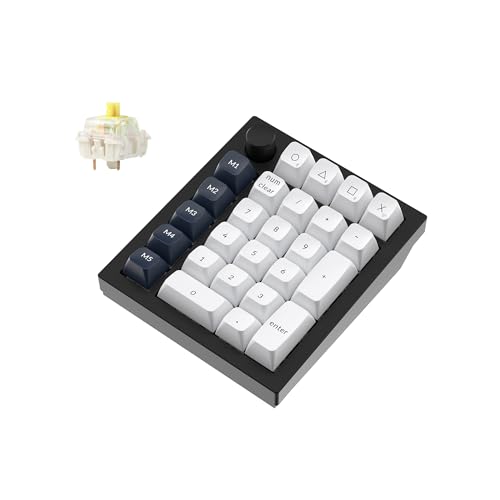
First, a vocabulary lesson, because the listings blur it deliberately. A numpad is a pad shaped around numbers — the classic seventeen-to-twenty-one-key block with digits, operators and enter. A macropad is a pad shaped around intention: a smaller grid of keys whose jobs you assign yourself, from application shortcuts to entire scripted sequences. The products below mostly live at the overlap, mechanical numpads with programmable layers and knobs, which is the most useful form the category currently takes: numbers when the spreadsheet is open, macros when it is closed.
Key takeaways from this Macropads Standalone Numpads Guide
- Buy the pad for the hand and the hour that needs it: data entry wants a classic layout and a confident enter key; shortcut work wants programmability and layers.
- Programmability is the dividing line in this category — QMK-class pads can be reconfigured for years, while fixed pads are only ever what they were on day one.
- Wireless pads earn their premium when the pad moves between positions or leaves the desk between sessions; wired is fine for a pad with a permanent home.
- A knob is not a gimmick on a pad: volume, zoom, timeline scrubbing and brush size all become one-handed, eyes-free operations.
- The five pads below were each confirmed with official listings and imagery, and they span mechanical, Hall effect, screened and minimalist approaches to the same small idea.
In this guide
Quick picks: five verified pads for five kinds of desk
| Pad | Character | Connection | Suits |
|---|---|---|---|
| Keychron Q0 Max | Aluminium mechanical pad with knob | 2.4 GHz, Bluetooth, USB-C | The long-term, programmable choice |
| Keychron Q0 HE | Hall effect pad with rapid trigger | 2.4 GHz, Bluetooth, wired | Gamers adding a pad for play and work |
| YUNZII AL21 | Aluminium pad with personality | Wired, Bluetooth, 2.4G | Colourful desks that still do sums |
| BOYI TD31Pro | Screen-and-knob gasket pad | Bluetooth, 2.4G, Type-C | Shortcut builders who love feedback |
| Womier SK30 | Screen-and-knob pad with macro software | Bluetooth, 2.4G, USB-C | Macro tinkerers on mixed systems |

Keychron Q0 Max — the pad that behaves like a flagship keyboard in miniature
Badge: Best for programmability and long ownership
- Body: aluminium, black finish
- Programming: QMK, with a programmable knob
- Connection: 2.4 GHz wireless, Bluetooth and USB-C wired
- Keys: hot-swappable mechanical, PBT keycaps, RGB backlight
- Compatibility: laptop, Mac, Windows and Linux
The Q0 Max treats a numpad as a serious instrument rather than an accessory afterthought. The aluminium body gives it the planted, immovable feel that data entry secretly depends on — a pad that skates across the desk under a busy hand teaches its owner to type numbers apologetically — and the QMK programmability means every key, layer and the knob itself can be assigned with the same depth that flagship keyboards offer. Accountants and analysts get their classic block; the same hardware, switched to another layer, becomes a panel of application commands for the design suite or the editor.
Its wireless trio matters more on a pad than on a keyboard, because pads migrate: left of the keyboard for a left-handed data session, right for the classic arrangement, centre-front during a gaming evening, drawer during a clear-desk week. The Q0 Max follows that life without cable negotiation, and its hot-swappable sockets mean the switches can evolve with your taste rather than expiring with your patience.
Strengths
- Deep, durable programmability that keeps the pad useful as your software and habits change.
- Aluminium construction that stays where the hand puts it during fast entry.
- Tri-mode connection and cross-platform manners suited to mixed households of computers.
Trade-offs
- The premium tier of this category; a fixed membrane pad costs a fraction as much.
- QMK’s depth rewards an afternoon of learning that casual buyers may never spend.
- Its weight, a virtue on the desk, makes it the least bag-friendly pad in this guide.
Best for: professionals whose numbers and shortcuts both matter, buying once for years. Not suited for: anyone who needs a pad twice a year and would rather it cost as little as possible.

Keychron Q0 HE — the Hall effect pad for players who also do sums
Badge: Best for gaming-adjacent desks
- Switches: magnetic Hall effect, with rapid trigger behaviour
- Programming: QMK wireless configuration
- Connection: 2.4 GHz, Bluetooth and wired
- Body: aluminium, black
- Keys: hot-swappable within the magnetic ecosystem, RGB backlight
The Q0 HE answers a question the gaming generation created: what if the pad beside a rapid-trigger keyboard should speak the same language? Magnetic switches sense position rather than a fixed contact, which enables the rapid trigger behaviour competitive players value — keys that reset the instant they begin to rise, ready for the next press — and adjustable actuation that lets the same pad feel deliberate for spreadsheet work and hair-trigger for play. As a numpad it remains fully itself, digits and operators in their expected places; as a macro cluster for a game or a streaming setup, it becomes something a traditional pad cannot imitate.
Choose it when the pad’s second job is in games or performance software and when your main board is already a Hall effect model, because shared configuration habits make the pair feel like one instrument. Choose the Q0 Max instead when the pad’s life is purely professional, where magnetic behaviour buys little and mechanical switch variety buys more.
Strengths
- Rapid trigger and adjustable actuation bring gaming-grade key behaviour to a pad.
- The same aluminium seriousness and tri-mode freedom as its sibling.
- A natural partner for Hall effect main keyboards and the players who use them.
Trade-offs
- Magnetic features are wasted on pure data entry, where the Max is the straighter purchase.
- Switch swapping is confined to compatible magnetic switches rather than the whole mechanical market.
- Configuration depth in two domains — pad and gaming — asks more of the owner’s setup time.
Best for: players and streamers whose pad works both sides of the desk’s life. Not suited for: offices buying pads in bulk for identical data-entry stations.

YUNZII AL21 — aluminium, colour and a knob, for desks with personality
Badge: Best for expressive setups that still do real entry work
- Body: CNC aluminium, pink finish listed
- Switches: Cocoa Cream V2, hot-swappable
- Connection: wired, Bluetooth and 2.4G wireless
- Extras: control knob, RGB backlight, programmable
- Compatibility: Windows and Mac
The AL21 is the pad for the desk that refuses to look like an office. Its CNC aluminium case arrives in colours the serious brands rarely risk, and underneath the personality sits a properly specified pad: tri-mode connection, a knob for volume and zoom, programmability for the shortcut-minded, and hot-swap sockets for the day the stock switches stop being the point. It suits the hybrid worker whose spreadsheet hours and streaming hours share one colourful desk, and who sees no reason the tool for quarterly accounts should look like it was issued by a bank.
Practical notes accompany the charm. Coloured anodised finishes reward owners who keep a desk mat beneath the pad, and the lighter, brighter aesthetic shows dust and desk grime sooner than black aluminium does. Neither point diminishes the pad; they simply belong in an honest review of an object bought partly to be looked at.
Strengths
- Genuine aluminium build and full tri-mode connection beneath an expressive design.
- Knob and programmability cover the shortcut duties most owners actually use.
- Hot-swappable switches keep the pad current with changing taste.
Trade-offs
- The colour range, while delightful, will not suit every workplace’s idea of professional.
- Its software ecosystem is younger than Keychron’s, with a smaller community to answer odd questions.
- Buyers wanting a sober black pad should look at the Keychron pair first.
Best for: hybrid workers and streamers who want the pad to be part of the desk’s character. Not suited for: formal offices standardising equipment across a floor.

BOYI TD31Pro — the screen-and-knob pad for shortcut maximalists
Badge: Best for layered shortcuts with visual feedback
- Extras: built-in screen and control knob
- Mounting: gasket structure, hot-swap sockets
- Connection: Bluetooth 5.0, 2.4G and Type-C wired
- Keys: PBT keycaps, RGB backlight, rechargeable battery
- Finish: black-grey as listed
A small screen changes what a pad can be. Where ordinary macropads ask you to memorise which layer you are in and what each key currently means, the TD31Pro can show you — layer names, function reminders, the state of the little machine — turning a grid of identical keys into a labelled control surface. For editors, streamers and anyone whose shortcut system has outgrown their memory, that feedback is the difference between a pad that gets used daily and one that gets admired. The gasket mounting softens the typing feel beyond what its price class usually offers, and the knob rounds out a package clearly designed by people who use pads as instruments rather than as digit grids.
The honest costs are complexity and appetite: a screen and wireless radios drink battery faster than a plain pad, and the configuration software becomes another application to learn. Owners who want numbers, full stop, should buy numbers. Owners who want a small command centre will find this the most interesting object in the guide.
Strengths
- The display solves the macropad memory problem that limits every rival here.
- Gasket mounting and PBT caps give it a typing feel above its station.
- Tri-mode connection and rechargeable power suit a pad that roams the desk.
Trade-offs
- Battery life is the price of the screen; expect to charge it as a routine, not a rarity.
- More features mean more setup, and casual users will leave half of them unconfigured.
- As a pure numpad for an accountant’s sprint, its talents point in other directions.
Best for: creators and shortcut-builders who run layered command sets daily. Not suited for: buyers who want to unbox a pad, plug it in and never configure anything.

Womier SK30 — screen, knob and macro software in a compact command pad
Badge: Best for macro tinkerers across Mac and Windows
- Extras: built-in screen and control knob
- Software: dedicated macro configuration
- Connection: Bluetooth, 2.4G and USB-C wired
- Keys: hot-swappable, RGB backlight, rechargeable battery
- Compatibility: Mac and Windows as listed
The SK30 approaches the same idea as the BOYI from the software side: a pad whose macro system is the headline, with a screen to keep the layers legible and a knob for the analogue jobs. Womier’s design language leans playful, yet the specification is businesslike — tri-mode wireless for the roaming pad, hot-swap sockets for the evolving one, and compatibility across the two desktop systems most mixed households run. It is a sensible second opinion for buyers drawn to the screen-and-knob concept who want to compare software philosophies before committing, because in this subcategory the configuration experience, lived with weekly, matters as much as the hardware under it.
Strengths
- Macro software plus display makes complex, layered setups genuinely manageable.
- Tri-mode connection and cross-platform support suit one pad serving several machines.
- Hot-swappable design keeps the hardware open to future switch preferences.
Trade-offs
- Shares the screen-pad class cost: charging becomes part of the routine.
- Software depth varies by operating system in this category generally; verify your main system’s support before relying on advanced macros.
- Design styling will not blend into a conservative office without comment.
Best for: tinkerers building a personal command layer across multiple computers. Not suited for: shared office pools where equipment must be identical, plain and instantly understood.
Buying guide: choosing the right pad for your hand and your software
Decide the pad’s primary job in one sentence
Write the sentence before browsing further: “This pad exists mainly to ___.” If the blank fills with entering figures, buy layout purity and stability — the Keychron Q0 Max or any honest classic pad. If it fills with running my editor, my stream or my trading screen, buy programmability and feedback — the screened pads or the Q0 HE for gaming-flavoured work. If it fills with finishing my desk’s look while handling occasional sums, the YUNZII has your name on it. Every disappointment in this category comes from a pad bought for one sentence and used for another.
Position is a feature: left, right, or roaming
Right-handed mouse users who enter data with the right hand create a small traffic jam on the desk’s right side, which is why so many data professionals move the pad to the left and learn to enter figures left-handed — a skill acquired in about a fortnight and repaid in shoulder comfort for years. A standalone pad is the only numpad that permits the experiment, since a full-size keyboard’s pad is welded to the right. Gamers often run the pad on the left permanently as a macro cluster within thumb’s reach of the movement keys. Decide your intended position before choosing wired or wireless: a pad with a fixed home tolerates a cable gracefully, while a pad that migrates between positions earns wireless money honestly.
Programmability depth, translated
Three levels exist in the wild. Fixed pads send what their legends say, forever. Driver-programmable pads let software reassign keys and record macros, usually while that software remains supported. QMK-class pads hold their configuration in the device itself, travel between computers with their brains intact, and are maintained by a community that outlives product cycles. For a pad expected to serve five years across two or three computers, the third level is worth real money. For a pad serving one computer and one task, the first level’s simplicity is a feature, and the middle level’s software is a reasonable compromise. Match the level to the pad’s expected biography, not to the size of your enthusiasm on ordering day.
The keyboard it will live beside
A pad is a companion purchase, and companions should match. Beside a compact board like those in the Luminkey75 by Createkeebs profile or a 65-percent magnetic board such as the one in our MelGeek Made68 Ultra review, a pad restores what the layout omitted and can echo its materials — aluminium beside aluminium looks intentional rather than accumulated. Beside a full-size keyboard, a pad’s job narrows to macros alone, and the screened models make the strongest case. Height matters too: a pad noticeably taller or shorter than the main board makes the hand’s journey between them a small daily negotiation, so compare profile heights where listings provide them.
How to set up a pad so it actually gets used
Step 1: Place it, then leave it there for two weeks
Muscle memory is the entire product. Choose the pad’s home — left, right or front — and resist rearranging for a fortnight while your hand learns the geography. Most abandoned pads were not bad products; they were furniture that never stopped moving, so the hand never trusted them and the keyboard’s own keys kept winning by familiarity.
Step 2: Programme three macros, not thirty
Start with the three sequences you perform most: perhaps your email sign-off block, the editor’s export routine, or the spreadsheet’s formatting chain. Live with three until they are reflexes, then add the next three. Owners who programme thirty macros on day one remember four by Friday and quietly stop using the rest; owners who grow the set by need end up with twenty they genuinely fire daily. The pads with screens forgive ambition better, since the labels are visible, but the discipline still pays.
Step 3: Give the knob one job per application
A knob that means volume everywhere is useful; a knob that means volume in the browser, timeline zoom in the editor, brush size in the photo tool and scroll in the document is transformative. Configure it per application where the software allows, and write the mapping on a card until it becomes instinct — usually about a week. This single control, properly assigned, is the feature former sceptics cite most when explaining why the pad earned its desk space.
Step 4: Review at one month and prune
After a month, look honestly at which keys and macros fired and which gathered dust. Reassign the dust to the next needs on your list. A pad is a living layout, and the monthly prune is what separates a command surface that evolves with your work from a fossil of the week you bought it.
Mistakes pad buyers reliably make
Buying a fixed pad for shortcut work is the classic: the legends promise numbers, the owner wanted commands, and no software can fully reconcile them. The reverse — a deep programmable pad bought for pure data entry — wastes money and adds configuration chores to a task that wanted simplicity. Underestimating size is common too: pads vary in footprint more than photographs suggest, so measure the intended home, especially on tray-style keyboard drawers. Finally, buyers forget the cable and charging geometry of a roaming pad; a wireless pad that must be plugged in nightly at an awkward angle will be found, within a month, living permanently wherever its cable reaches, which may not be where the hand wanted it.
Frequently asked questions
Can a standalone numpad really replace the one on a full-size keyboard?
Yes, and for many owners it improves on it, because the pad can sit under the hand that prefers the work — including the left hand, which frees the mouse side of the desk entirely. The adjustment is a week or two of slower entry while the new geography becomes habit.
What is the difference between a macropad and a numpad in practice?
A numpad is defined by its legends — digits and operators in the classic arrangement — while a macropad is defined by its assignments, which can be anything from single keys to scripted sequences. The strongest current products are numpads with macropad brains: classic layout on the surface, programmable layers underneath.
Is QMK worth learning for a small pad?
If the pad will carry shortcuts across several applications or computers, yes: the configuration lives on the device and survives software changes elsewhere. If the pad will only ever enter numbers on one machine, QMK is capability you will never open, and a simpler pad serves you better.
Do I need a knob on a numpad?
Need is strong, but the knob is the feature owners most often upgrade for. Any work involving zoom, scrubbing, volume or brush-style continuous controls becomes one-handed and eyes-free, and most people who live with one for a month decline to return to pad life without it.
Will a wireless pad keep up with fast data entry?
Modern 2.4 GHz connections handle entry speeds far beyond human typing, and Bluetooth serves ordinary entry comfortably as well. Competitive gaming is the only common scenario where this guide suggests plugging in, and that is about eliminating variables rather than observed failures.
Which of these pads suits a Mac-first desk?
All five list Mac compatibility, but check the legend and software details for your exact system before ordering, since macro software depth can differ by platform. The Keychron pair have the longest cross-platform track record in this guide; the full keyboard context for Mac-leaning setups also appears in the MacBook Pro 14 configuration guide.
The final recommendation
Let the pad’s primary sentence choose the product. Pure entry with professional longevity points to the Keychron Q0 Max; gaming-flavoured versatility to the Q0 HE; a colourful hybrid desk to the YUNZII AL21; layered command work with visual feedback to the BOYI TD31Pro or the Womier SK30, separated by software taste. Then honour the setup discipline — fixed position, three macros first, a knob with real jobs, a one-month prune — because in this category the owner’s first month matters more than the manufacturer’s specification sheet. A small grid of keys, placed well and taught well, becomes the part of the desk your hand visits with the most trust. That is a remarkable return on twenty-one keys, and it is available at every tier in this guide. Readers building the wider setup may also enjoy the Machenike K500F-B81 review and its audit method and our guide to typing speed practice.
Use cases in depth: the pad at work in five professions
Bookkeeping and accounting remain the pad’s ancestral homeland, and the details matter there: a confident enter key struck thousands of times, an operator cluster the thumb and forefinger can run without eyes, and stability under a fast hand. Professionals in that world should weight the Q0 Max’s planted aluminium feel heavily and consider the left-side placement experiment seriously, since it separates the entry hand from the mouse hand and lets both work in parallel during reconciliation tasks — figures on the pad, navigation on the mouse, no hand ever waiting for the other.
Video and audio editors use the pad as a transport and marking panel: jog and shuttle on the knob, in and out points, ripple deletes and favourite transitions on the keys, arranged in the same geography as the timeline’s own logic. The screened pads shine here because a layer labelled for the editing suite can sit beside a layer labelled for the colour suite, each announcing itself. Streamers run a sibling arrangement — scene changes, mute toggles, clip markers — with the pad placed where a glance and a hand can find it mid-sentence. In both professions the pad’s real contribution is keeping the eyes on the programme monitor while the hands execute, which is the same ergonomic argument as the knob’s, extended across twenty keys.
Programmers adopt pads more quietly: build, test, deploy and debug-step commands on a layer; window management on another; a block of boilerplate text expansions for the phrases their codebase repeats. Placed left of the keyboard, the pad becomes the IDE’s physical extension, and developers who customise it rarely return to chorded shortcuts for the operations it absorbs. Writers and researchers, finally, use pads for the unglamorous machinery of long documents — footnote and citation commands, style applications, word-count and navigation macros — and for entering the figures that even humanities work accumulates. The pad does not care what profession feeds it; it cares only that the assignments repeat often enough to deserve keys, which is why the one-month prune in the setup section matters across all five of these worlds.
Ergonomics of the extra block
A standalone pad can improve a desk’s ergonomics in ways a fixed pad cannot. Positioned left, it centres the main keyboard in front of the body — compact boards plus a left pad is the arrangement many shoulder complaints quietly resolve into. Angled slightly, it matches the hand’s natural rotation better than the strict grid of a built-in block. Raised or tilted on a small stand, it can meet a hand that works standing. None of this is medical treatment, and persistent pain deserves professional advice rather than accessories, but the freedom to place twenty-one keys exactly where a particular body wants them is a genuine property of the category — arguably its most undermarketed one. Buyers assembling a comfort-led desk should read this guide alongside the Logitech M575 trackball review, since pads and trackballs solve neighbouring problems for the same hands.
Battery, cables and the physics of a roaming pad
Wireless pads live or die by charging geometry. A pad whose port faces the wall, charged by a cable that lives in the right drawer, will be charged without thought; a pad that must be fetched, flipped and tethered across the desk will be found flat on the morning of the quarterly close. When you unbox yours, decide the charging ritual immediately: which cable, which port, which evening of the week. Battery capacities in this category comfortably cover working weeks for plain pads and shorter spans for the screened models, whose displays are their glory and their appetite. Owners of screened pads should treat the weekly charge as the price of the labels, in the same spirit as charging a watch that tells more than the time.
The second-hand and hand-me-down life of pads
Pads are unusually good used purchases and gifts within a household or studio, because their wear is visible, their function is testable in a minute, and programmable models can be reset to a blank slate for their next owner. An aluminium pad that has served an accountant for three years has decades of mechanical life left in its switches, and hot-swappable models let the next owner refresh the feel entirely. If you are equipping several desks on a budget, a rotation of quality pads bought once and reassigned as roles change will out-serve a set of disposable pads bought repeatedly — the same fleet logic this site has applied to keyboards generally, in miniature and at miniature prices.
Building a macro library worth having
The difference between a pad that transforms work and a pad that decorates it is the library of assignments it carries, and libraries are built by observation rather than inspiration. For one week before programming anything beyond the first three macros, keep a scrap of paper by the keyboard and tally every repeated sequence you perform by hand: the paste-special variant you invoke forty times a day, the window arrangement you rebuild each morning, the export path you click through in the same order every time. The tally is your library’s catalogue, ranked by the only metric that matters — frequency multiplied by annoyance. Programme from the top of that list and the pad will pay for itself in the currency of small irritations abolished, which compound across a year into hours and, less measurably but more importantly, into unbroken attention during the work that actually deserves it.
Text expansions deserve a special mention because they are the macro newcomers most often overlook. Addresses, sign-offs, standard replies, code scaffolding, citation formats — any string you type identically more than twice a day is a candidate for a single key. Owners frequently discover that three text expansions deliver more daily value than twenty command macros, because typing is universal while commands are application-specific. Let the tally decide, and let the screened pads’ labels keep the growing library honest as it expands past what memory alone would trust.
Sharing, security and pads in workplaces
Two cautions belong in any honest guide to programmable input devices at work. First, macros that type credentials or sensitive strings are a security risk on any device that leaves your control, and workplaces are right to forbid them; keep passwords in a password manager where they belong, and let the pad carry workflow rather than secrets. Second, shared desks need shared conventions: a pad whose keys have been privately reassigned is a trap for the next user, so in pooled environments either standardise the layout across the team — one of the screened models, labelled, is ideal — or keep pads personal. Neither caution diminishes the category; both are the ordinary governance of powerful little tools, and teams that adopt them early get the productivity without the incidents.
The category’s direction, and a closing judgement
Standalone pads are converging on a recognisable ideal: a solid little block, programmable to the bone, connected every way a desk requires, with a knob for the analogue world and, increasingly, a screen for the labelled one. The five products in this guide are waypoints on that road rather than rivals in a war — the Keychrons from the keyboard establishment’s side, the screened pair from the control-surface side, the YUNZII from the design side. Which waypoint suits you depends, as this guide has insisted from its first page, on the sentence you wrote about the pad’s job and the discipline you bring to its first month. Get those two things right and the smallest purchase on your desk may become, key for key, the most productive one you own.
Troubleshooting the pad problems owners actually meet
A pad that stops appearing to one computer while working on another is usually a pairing story rather than a death: wireless devices remember several hosts, and the switching command — a key combination or a physical toggle, depending on the model — is the first thing to check in the manual you kept. A pad whose macros fire in one application and not another is often meeting that application’s own shortcut capture, which swallows the keystrokes first; assigning the pad’s keys to unused combinations, ideally involving a distinctive modifier pattern, resolves most such collisions. A knob that controls volume when you wanted zoom is a per-application mapping that was never saved, which is why the setup section advised writing mappings down until they are reflexes. And a pad that feels slower on Bluetooth than on its dongle is behaving as the protocols do; move performance-critical duties to the 2.4 GHz connection or the cable, and let Bluetooth serve the couch and the meeting room, where its convenience is the entire point.
What a pad teaches you about your own workflow
There is a reflective dividend to owning one of these small machines that no listing mentions. Programming a pad forces an inventory of your repetitions, and most knowledge workers who complete that inventory discover their day contains more mechanical ritual than they believed — sequences performed hundreds of times that had never been examined because each instance was too small to resent. The pad absorbs the worst of them, but the inventory itself is the larger prize: it shows where templates should exist, where software settings were never adjusted, where a process is being carried by a person’s patience rather than by a system. Owners regularly report that the month they set up a pad was the month they finally organised the rest of their digital workbench as well. Twenty-one keys is a modest purchase with an immodest side effect, and it is one more reason this guide recommends the category to any desk where the same sequences recur, unexamined, from one week to the next.
Sound and feel: the pad as a typing instrument
Because a pad concentrates its work into bursts — a column of figures, a run of transport commands — its typing feel registers differently from a keyboard’s. The hand strikes harder and faster in bursts, which is why stability and case acoustics dominate pad satisfaction: a pad that rocks, slides or rings under a sprint of entry will be cursed daily, while a slightly ordinary switch in a planted aluminium case will be praised. Gasket mounting, as in the BOYI entry, softens the burst’s impact; foam and case density quiet it; a desk mat beneath any pad in this guide is the cheapest acoustic upgrade in the category and should be considered part of the purchase. Owners sensitive to sound should also consider switch choice at the next hot-swap: the pad format makes experimentation cheap, since twenty-one switches cost a fraction of a full board’s set, and many enthusiasts use a pad as their testing ground for switches the main keyboard may later adopt.
Gaming with a pad: the left-hand command cluster
Competitive and simulation players discovered the standalone pad from the opposite direction to accountants: not for its numbers but for its grid. Twenty-one programmable keys at the left hand cover the bindings that overflow a compact keyboard — simulation controls, MMO ability rows, streaming-adjacent game commands, push-to-talk and recording toggles — without forcing the main board up a size. The Q0 HE’s rapid-trigger behaviour belongs to this world, and the screened pads help where bindings differ per game, since the layer can announce which title it serves. Players building this arrangement should mirror the setup discipline from the how-to section — fixed position, few bindings first, a monthly prune — because a game cluster that changes weekly never becomes reflex, and reflex is the entire competitive point. Settings inside the games themselves deserve the same methodical treatment, as our League of Legends options guide demonstrates for that title’s menus.
Pads for accessibility and alternative input
A programmable pad is also, quietly, an accessibility device. Users who find chorded shortcuts painful can collapse them onto single keys; users with limited reach can gather a workflow’s essential commands into one small, positionable block; users who alternate hands can move the pad to whichever side the day allows. Because the assignments live in the pad on QMK-class models, the accommodation travels between computers without renegotiating software at each desk. This is not a medical claim and particular needs deserve particular advice, but buyers shopping for comfort or for a family member’s easier computing should know the category serves this purpose well — often better than the expensive specialist devices, because it grows from ordinary, customisable parts.
Choosing between the screened pads and the Keychrons: a head-to-head habit check
Readers torn between the two families should interrogate their own history with configurable gadgets. If your phone’s home screen is arranged in folders you maintain, your editor is customised, and you enjoy the evening spent teaching a device your habits, the screened pads will reward you weekly — their labels turn that enjoyment into a system. If your history is a trail of clever devices returned to factory settings by neglect, buy the Keychron that fits your work and let its simpler surface forgive you; a Q0 Max with three well-chosen macros outperforms, in lived value, a screened marvel carrying thirty forgotten ones. Neither answer is a judgement of character. Both are predictions, and the category is unforgiving of predictions made from aspiration rather than evidence — the same lesson the laptop guides in this cluster teach about processors, applied to twenty-one keys.
A word on prices, tiers and buying once
This guide quotes no prices, by design and by house rule, but the tier logic can still be stated plainly. The category’s floor is occupied by fixed membrane pads that serve occasional sums adequately; the middle by mechanical pads with real programmability; the top by aluminium, screened and magnetic models like the five gathered here. The step from floor to middle is the one that changes what the object is — from a digit grid to an instrument — while the step from middle to top buys materials, feedback and refinement. Buyers who use a pad daily should skip the floor without guilt, because a daily tool amortises quickly, and buyers who use one monthly should skip the top without regret, because refinement unexercised is decoration. Between those poles, the five verified listings in this guide mark the territory honestly, and the check-price links beside each pick carry the current figures this page deliberately leaves to the marketplace.
One closing scene, offered as the category’s best advertisement. A bookkeeper at the end of a long reconciliation day pushes the compact keyboard aside, pulls the pad to the centre of the desk, and finishes the last column of figures with the pad alone — left hand entering, right hand resting, the knob nudging the view as the rows scroll. Beside her, in a different home, an editor lands a sequence of cuts without once looking down, the little screen glowing with the layer’s name. Neither of them would describe the pad as an accessory. It is the part of the computer that was finally shaped around the work instead of the other way round, and that — more than any switch, screen or knob in this guide — is what you are shopping for.
Finally, a note for the reader equipping a whole small team rather than a single desk. Standardise on one pad model, publish the team’s macro layout where everyone can find it, and let new joiners inherit a configured instrument instead of inventing their own from a blank grid. The savings are not the hardware — pads are inexpensive — but the accumulated, shared fluency: any member can sit at any desk and the twenty-one keys mean the same thing. That is the moment a gadget becomes infrastructure, and it is the fitting end of the road this guide has walked, from a single orphaned number pad to a small, deliberate system for getting repeated work out of human memory and into the furniture, where it belongs.
And if, after all of this, you remain unsure whether a pad belongs on your desk at all, borrow the decision from the tally method: spend one ordinary week counting how often your hand wishes for a cluster of keys that your keyboard does not have — for figures, for commands, for the same sequence ground out yet again. If the tally stays in single figures, close this guide with our blessing and spend the money elsewhere. If it climbs the way it climbs for most people who bother to count, you will not need persuading, and the only question left will be the pleasant one this article opened with: which of the five, in which position, taught which three macros first.
Whichever way the tally falls, keep the habit it taught you. A desk audited once a season — repetitions counted, tools questioned, positions reconsidered — stays fitted to its owner as the work changes, and the pad, if you buy one, will be the audit’s smallest and most satisfying result: twenty-one keys that exist because your own hands asked for them, in the place your own hands chose, doing the jobs your own week nominated. Few purchases in computing can say as much, and none of them say it at this size.
The guide will end where a good setup begins: unbox the pad you chose, set it down in its one place, resist the urge to programme it completely, and go back to work. The work itself will tell you, over the following days, exactly what the little grid should learn — and a pad taught by the work, slowly and honestly, is the one still earning its corner of the desk when the next keyboard, the next computer and the next job have all arrived to keep it company.
That patience — three macros, one position, a month of honest use before judgement — is this guide’s final specification, and unlike the ones printed on listings, it cannot be bought, only practised. Practise it, and the pad will take care of the rest.
Small tools, honestly chosen and patiently taught, have a way of outlasting the grand purchases around them. May yours be one of them.
A brief note on gifts and first desks
Pads make unusually good gifts for the computer-heavy people in your life, precisely because they are personal without being presumptuous: you are not replacing their keyboard or judging their mouse, only adding a small instrument they can shape themselves. For a student starting a course heavy in figures, the classic programmable pad is the thoughtful tier; for a creator, the screened models invite play that becomes workflow. If you are equipping your own first serious desk, resist buying the pad in the same order as everything else. Live with the keyboard alone for a month, run the tally this guide described, and then buy the pad your actual repetitions nominated — with its first three macros already chosen by evidence rather than by the optimism of a full shopping basket. Sequenced that way, the pad arrives as a solution to named problems, and solutions, unlike gadgets, tend to stay on the desk.
A last idea: the pad as a teaching tool
One use for these small machines rarely appears in buying guides, and it deserves the closing place here. A programmable pad is a gentle way to teach — a child learning what computers can be told to do, a colleague new to your team’s workflow, a parent whose computing would simplify if five big, labelled keys carried their five daily tasks. Because the pad is physical, the lesson is physical: press this, and the machine does that; now let us change what it does, together, and watch your intention become the computer’s behaviour. Several owners in this category’s community began exactly there, configuring a pad for someone else and discovering, in the teaching, the repetitions in their own work that deserved keys. If your purchase ends up serving two desks — yours, tuned for speed, and someone else’s, tuned for kindness — it will have justified itself in a currency no specification sheet measures. Buy the pad your tally nominated, teach it your three macros, and then consider who else in your life is one small grid of keys away from an easier day at the machine. The category began as an accessory for compact keyboards; it ends, in the best households, as something closer to a favour you can hold in one hand.