Disclosure: As an Amazon Associate, reviewstook.com earns from qualifying purchases. Links on this page are affiliate links; they cost you nothing extra. Prices and availability change often, so check the current Amazon listing before you buy.
Choosing a macbook pro 14 in the current generation comes down to one honest question: how much chip do you actually feed with work every week? The 14.2-inch chassis, the Liquid Retina XDR display, the ports and the keyboard are shared across the line, so the machine you carry feels identical whichever configuration you pick. What changes is the silicon under the keyboard deck, the unified memory ceiling that comes with it, and how long heavy jobs take when the fans finally spin up. This guide walks through the two verified configurations listed on Amazon right now, explains who each one genuinely suits, and then slows down for the slower decisions — memory, storage, desk setup and migration — that owners live with for five or six years.
There is a temptation to treat the smaller MacBook Pro as the compromise model, the one you accept because the 16-inch will not fit your bag. That framing is out of date. The 14-inch is the size most people can carry daily without thinking about it, it drives external displays properly, and in this generation it is offered with both the standard M5 and the M5 Pro. If your work is writing, browsing, light photo edits and the occasional video call marathon, the base chip is already generous. If your week includes compiling large projects, exporting long timelines or running local models, the Pro chip earns its place in the same small frame.
Key takeaways for the Macbook Pro 14 decision
- The chassis, screen and port selection do not change between the two configurations covered here, so buy the chip and memory first and stop worrying about the shell.
- Unified memory cannot be upgraded after purchase, which makes the memory tier the most consequential tick box on the whole order page.
- The M5 Pro configuration listed below pairs a 15-core CPU and 16-core GPU with 24GB of unified memory and a 1TB SSD, aimed at sustained creative and development workloads.
- The standard M5 configuration pairs a 10-core CPU and 10-core GPU with 16GB of unified memory and 1TB of storage, which covers the great majority of professional desk work.
- External storage is cheap and fast over Thunderbolt, while internal memory is fixed forever, so budget should flow toward memory before internal capacity.
In this guide
Quick picks: the two verified configurations
Both listings below were confirmed through the marketplace data available to this guide, with exact titles and official imagery. Configurations on marketplace pages can be changed by sellers over time, so read the specification block on the listing itself before paying, and confirm the chip name, memory figure and storage figure all match what you intended to order.
| Configuration | Chip | Memory | Storage | Suits |
|---|---|---|---|---|
| MacBook Pro 14 with M5 Pro | 15-core CPU, 16-core GPU | 24GB unified | 1TB SSD | Developers, video editors, 3D and local AI work |
| MacBook Pro 14 with M5 | 10-core CPU, 10-core GPU | 16GB unified | 1TB SSD | Office work, writing, photo editing, light video |
Notice what the table does not contain: a storage difference. Both verified listings carry a 1TB drive, which removes one variable from the comparison and leaves the decision where it belongs — processor headroom and memory. A buyer torn between them is really deciding how their heaviest hour of the week should feel, not how the average Tuesday afternoon goes, because on ordinary tasks the two machines are effectively indistinguishable.

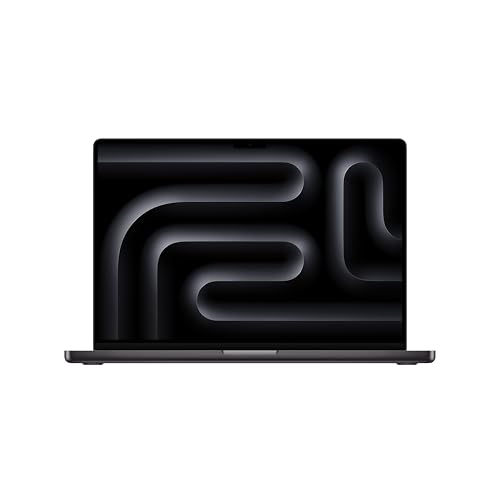
Apple MacBook Pro 14 with M5 Pro, 24GB and 1TB — the heavy-lifting configuration
Badge: Best for sustained professional workloads in the 14-inch frame
- Chip: Apple M5 Pro, 15-core CPU and 16-core GPU
- Memory: 24GB unified memory
- Storage: 1TB SSD
- Display: 14.2-inch Liquid Retina XDR
- Wireless: Wi-Fi 7
- Finish: Space Black
The M5 Pro version exists for the hours when a laptop stops being a typewriter and becomes a render node. Video editors scrubbing multicam timelines, developers waiting on full project builds, photographers batch-processing a wedding shoot and analysts running local models all share the same experience on lesser hardware: the progress bar becomes the work. Extra CPU and GPU cores attack exactly that waiting, and the 24GB memory tier gives those cores room to hold larger scenes, bigger datasets and more simultaneous applications without swapping to disk.
What makes this configuration interesting is the packaging rather than the raw specification. A few generations ago, this class of performance required the larger chassis, with its extra weight carried through every airport and up every flight of stairs. Here it sits in a machine that slips into a slim backpack sleeve. Owners who travel for shoots or site visits get workstation behaviour at the destination without paying the carrying penalty on the journey, and that combination — not any single benchmark — is the real product being sold.
Strengths
- Sustained multi-core performance for exports, compiles and renders that would stall the standard chip.
- The 24GB memory tier comfortably holds large creative projects alongside a browser full of research tabs.
- Identical portability to the base model, so the performance upgrade costs nothing in daily carrying comfort.
Trade-offs
- You pay for cores that sit idle during email, documents and browsing, which is most of many owners’ weeks.
- Under prolonged full load the smaller chassis has less thermal mass than the 16-inch, so fans become audible sooner.
- The premium over the standard M5 could instead fund a good external display, backup drives and software for the base model.
Best for: professionals whose billable time is regularly spent waiting on exports, builds or renders. Not suited for: buyers whose heaviest regular task is a large spreadsheet, because the standard chip handles that without drama.

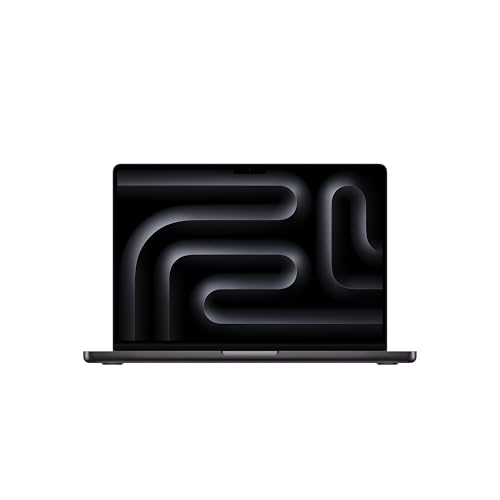
Apple MacBook Pro 14 with M5, 16GB and 1TB — the configuration most people should buy
Badge: Best for everyday professional work and long ownership
- Chip: Apple M5, 10-core CPU and 10-core GPU
- Memory: 16GB unified memory
- Storage: 1TB SSD
- Display: 14.2-inch Liquid Retina XDR
- Finish: Space Black
The standard M5 machine is not a cut-down apology; it is the configuration that matches how most professionals actually spend their days. Documents, email, messaging, web applications, presentations, photo organisation and even respectable video editing all run with headroom to spare. The 16GB of unified memory is the figure to interrogate hardest: it is comfortable for the workload described above, yet it is also the ceiling you will live under in year four, when applications have grown heavier and your own projects have grown more ambitious.
Think about your worst realistic week rather than your average one. If that week includes a 4K timeline with colour work and noise reduction, or a virtual machine running alongside your development environment, the honest answer may be the Pro configuration above. If the worst week is a conference presentation, a giant spreadsheet model and forty browser tabs, this machine will feel fast for years. Buyers frequently over-purchase processor and under-purchase memory; with this pair of listings the memory steps up alongside the chip, which at least keeps the balance sensible.
Strengths
- All the display, keyboard, speaker and port quality of the Pro configuration at a lower tier of spend.
- Cooler and quieter in ordinary use because everyday tasks barely wake the chip.
- The 1TB drive removes the storage anxiety that haunts smaller configurations from the first month.
Trade-offs
- The 16GB memory ceiling is the first limit ambitious owners will meet as their work grows.
- Long exports and renders take noticeably longer than on the M5 Pro when deadlines compress.
- There is no cheaper storage tier in this verified listing, so light users pay for capacity they may never fill.
Best for: the majority of professional buyers who want one machine for everything except sustained heavy production. Not suited for: full-time video editors or developers running large local models daily.
Buying guide: how to choose between the two configurations
Start with memory, because memory is forever
Every other component in a laptop purchase can be supplemented later. Storage can spill onto a fast external SSD, screen space can grow with a desk monitor, and even processing can be offloaded to a cloud machine for an occasional monster job. Unified memory is the exception: it is soldered into the package, shared between CPU and GPU, and fixed at the moment you order. That is why the 16GB versus 24GB question deserves more of your thinking time than the core counts printed in larger type.
A practical way to judge is to inventory the applications you keep open simultaneously on your busiest day. A browser with dozens of tabs, a chat client, an email client, a music app and a document suite is a light load that 16GB absorbs easily. Add a photo editor holding a large library, a design tool with several canvases, or a development environment indexing a big codebase and the pressure climbs. Add a local AI model or a virtual machine and memory becomes the binding constraint, because those guests reserve large blocks and do not share politely. If two of those heavy categories overlap in your routine, the 24GB tier is not indulgence; it is the difference between a machine that ages gracefully and one that starts swapping in its second year.
Processor cores buy time, not capability
Both chips run the same software, open the same files and support the same features. The M5 Pro does not unlock applications that refuse to launch on the M5; it finishes shared tasks sooner and sustains heavy throughput for longer. Frame the upgrade as purchasing minutes: minutes per export, per build, per batch process, multiplied by how often those jobs occur each week. A hobbyist editing one video a month buys very few minutes. A professional delivering client work daily buys back hours, and hours have a wage attached. That arithmetic, done honestly, settles most configuration arguments without any benchmark charts.
Storage: why the shared 1TB figure simplifies life
Because both verified listings carry 1TB, storage drops out of this particular comparison, but it still deserves a plan. A terabyte holds a large photo library, several active video projects or a substantial local music and document archive, yet it fills quietly through caches, downloads and old project versions. Adopt a simple rule from day one: the internal drive holds work in progress, and an external drive plus a cloud copy hold everything finished. That habit keeps the internal drive below the point where free space scarcity slows the system and makes any future machine migration a calmer afternoon.
The display and desk question
The 14.2-inch Liquid Retina XDR panel is the same on both configurations, and it is the part of the machine you will appreciate most often — bright, colour-accurate and comfortable for long reading sessions. The question is how much of your week happens away from a desk. If the laptop is your only screen, consider whether a 14-inch canvas suits your main applications; video timelines and large spreadsheets reward width. Many owners solve this with a single-cable USB-C or Thunderbolt monitor at their main desk, keeping the laptop panel as a second screen for chat, notes or preview windows. Budget for that monitor before budgeting for processor cores you may not need, because screen space changes every working hour rather than the occasional export.
If the larger screen tempts you toward the bigger chassis entirely, read our companion pieces before deciding: the 16-inch class guide and the M5 generation decision for the 16-inch approach the same silicon from the size-first and chip-first directions respectively.
Ports, charging and the dongle audit
Before ordering, walk your desk and list everything that plugs in: card readers from cameras, an audio interface, a wired network adapter in a studio, a favourite external keyboard. The Pro line’s built-in ports cover the common cases — HDMI for projectors and televisions, an SD card slot for photographers, Thunderbolt for docks and drives — but older peripherals may still need adapters. Buying one good dock for a fixed desk and keeping a small adapter in the laptop bag prevents the classic first-week scramble. Also decide your charging habit early: a charger left at the desk and a second, lighter one in the bag costs less than the frustration of a flat battery at a client site.
How to set up your new machine in the first afternoon
Step 1: Migrate deliberately, not automatically
Migration tools will happily copy a decade of clutter onto a clean machine. Resist the full clone unless your current setup is genuinely tidy. Move documents, photos and project folders across, then reinstall applications fresh from their sources; you will rediscover how few of the old utilities you still use, and the new machine will feel new rather than inherited. Keep the old laptop untouched for a fortnight as an insurance policy while you confirm nothing essential stayed behind.
Step 2: Set up backup before the first real work
Connect an external drive and start a full backup on the first day, before the machine accumulates work that exists nowhere else. Then add a second copy somewhere off-site, whether that is a cloud service or a drive stored at another address. Laptops are stolen, dropped and spilled on in proportion to how much irreplaceable work they hold, and the owners who recover gracefully are the ones who automated the boring part while the machine was still a novelty.
Step 3: Calibrate your working environment
Spend twenty minutes on the unglamorous settings: trackpad speed, scroll direction, function key behaviour, notification schedules and which applications launch at login. Turn on the battery health features, set a sensible sleep timer, and arrange your most-used applications in the dock in the order your hands expect them. These small calibrations compound across thousands of interactions, and doing them once, deliberately, beats discovering them one annoyance at a time over six months.
Step 4: Test your heaviest real job in the return window
Whatever your most demanding regular task is — the biggest timeline, the full build, the largest dataset — run it during the first week while changing your mind is still easy. Time it, watch memory pressure in Activity Monitor, and note whether the fans or the wait change how you work. Buying the wrong configuration is only a disaster if you discover it after the return window closes; discovering it in week one is simply good shopping.
Common mistakes buyers make with this model
The most frequent error is purchasing for an imagined future job rather than the work in front of you. A machine bought for a hypothetical video career sits overpowered through years of documents, while the money that could have funded a monitor, backup drives and a comfortable chair went into idle cores. The opposite error also exists: a working professional buys the base configuration to hit a budget number, then pays for the shortfall in waiting time every single week. Both errors come from skipping the honest inventory of your busiest real day.
A second mistake is treating storage as the upgrade that matters because the numbers are easy to compare. Capacity feels tangible, so buyers stretch for it while leaving memory at the floor, then wonder why a machine with empty disk space still stumbles when everything is open. A third is ignoring the physical side of ownership: no case, no backup drive, no second charger, and a desk setup that leaves the beautiful internal display as the only screen for timeline work. Finally, many buyers never check the exact configuration on a marketplace listing, assuming the headline chip matches the specification block; sellers offer several variants under similar titles, so verify chip, memory and storage line by line before paying.
Frequently asked questions
Is 16GB of unified memory enough for professional work?
For documents, communication, web applications, presentations and moderate photo editing, yes, comfortably. It becomes the limiting factor when large creative projects, virtual machines or local AI workloads run alongside everything else, which is exactly the pattern the 24GB M5 Pro configuration exists to serve.
Does the M5 Pro model feel heavier or larger than the standard M5?
No. Both verified listings describe the same 14.2-inch chassis in Space Black, so the carrying experience, sleeve size and desk footprint are identical; the difference is entirely in the silicon and memory inside.
Should photographers choose the Pro chip for Lightroom work?
Browsing, culling and ordinary adjustments run well on the standard M5. Photographers who batch-export thousands of files, apply heavy noise reduction across whole shoots or merge large panoramas regularly will feel the Pro chip’s extra cores as saved evenings rather than saved seconds.
Can this laptop replace a desktop for video editing?
For many editors it already does, particularly when paired with fast external storage and a larger desk monitor. The honest caveats are sustained rendering noise in a quiet room and the fixed memory ceiling, both of which matter more to full-time production schedules than to weekly publishing rhythms.
What should I check on the Amazon listing before ordering?
Confirm the chip name and core counts, the unified memory figure, the storage capacity, the display size and the finish in the listing’s own specification area, because marketplace pages group several configurations under near-identical headlines and the variant selector decides what actually ships.
Is the 14-inch or a larger laptop better for travel?
The 14-inch is the easier travel companion for most people: it fits smaller bags, works on aeroplane tray tables and still drives a proper monitor at the destination. Travellers whose work is primarily the laptop screen itself, in hotel rooms for weeks at a time, are the ones who should weigh the bigger panel seriously — the comparison in our 16-inch size and class guide works through that trade in detail.
The final recommendation
Buy the standard M5 configuration unless your week contains recurring jobs that make you wait. That sentence, applied honestly, sends most readers to the second listing and a specific minority — editors, developers, 3D artists, data workers running local models — to the first. Neither group is buying a better or worse laptop in any general sense; they are buying time in different quantities. Decide how much waiting your work actually contains, let memory outrank storage in your thinking, set the machine up with backups running from day one, and the 14-inch will repay the decision quietly for years. Readers comparing across categories may also find the Legion Pro 7i Gen 10 as a Windows gaming alternative, Lumix S5 IIX for hybrid photo and video work and the Lamzu Maya X esports mouse useful context for a wider desk refresh.
Living with the 14.2-inch XDR display day after day
A specification sheet reduces the screen to brightness and resolution figures, but ownership is about smaller moments: reading a long contract without leaning in, judging a photograph’s shadow detail in a bright kitchen, or working opposite a window without the whole panel turning into a mirror. The Liquid Retina XDR panel earns its reputation in those moments. Text stays crisp at arm’s length, photographs hold their gradations, and video mastered with high dynamic range shows the highlight detail that ordinary laptop panels clip into white. If your work involves approving visuals that other people will see on unknown screens, a trustworthy built-in panel is not a luxury; it is the reference you carry everywhere.
There is also a posture argument for the 14-inch size that rarely appears in buying advice. On trains, in cafés and on the shallow desks of rented apartments, the smaller footprint lets you sit closer to the screen without the machine crowding your elbows off the surface. Owners who split time between a proper desk and improvised workspaces often find the 14-inch the only size that behaves well in both. At the main desk, the panel becomes a genuinely useful second display beside a large monitor — messages, reference documents and playback previews live there — rather than a dark slab folded away.
Keyboard, trackpad and the sound of the thing
Nobody upgrades a laptop because of its trackpad, yet the trackpad is the surface your hands touch most. The large glass pad on this model remains the benchmark other manufacturers chase: precise at slow speeds for pixel-level selections, quick across the whole desktop with a flick, and happy to ignore your palm while you type. The keyboard’s backlit keys have the travel and stability that long writing days demand, and the function row being full-height physical keys — rather than a touch strip — means volume, brightness and media controls stay findable without looking down.
Speakers deserve a mention because laptop audio is usually an afterthought paragraph. The sound system in this chassis fills a hotel room credibly, keeps voices intelligible on calls without headphones, and gives edited video a fair hearing before you check it on proper monitors. Microphones are equally considered; for the many professionals whose recorded voice now travels through podcasts, client calls and internal videos, being understood clearly without a desk microphone is a working feature, not a party trick.
Battery behaviour and the geography of a working day
Battery claims are best translated into geography. A light working day — writing, browsing, calls, documents — can plausibly happen entirely away from a socket with this class of machine, which changes where you can work: the garden table, the quiet corner of a library, the train seat without the working outlet lottery. Heavy work rewrites the map. Rendering, compiling and local model work draw power at a different rate, and the sensible professional treats a wall socket as part of the venue for those jobs rather than a failure of the machine.
Charging habits shape battery lifespan more than any single specification. Keeping the machine plugged in at a desk for months is common and generally fine with modern battery management enabled, while repeatedly draining to empty for no reason is the pattern to avoid. If your routine is desk-bound, turn on the optimised charging features and forget about it. If your routine is mobile, carry the charger in the bag permanently; the one day you leave it behind will be the day with the delayed train.
Which professions land on which configuration
Software developers split cleanly by project size. Web and app developers working in a single repository with containerised services will find the standard M5 responsive all day. Developers monorepo-deep in a large codebase, running test suites continuously and keeping an emulator or virtual machine alive beside the editor, are the natural M5 Pro audience, because their waiting is structural — it happens dozens of times a day, not once at export.
Photographers and designers mostly live comfortably on the standard chip until volume enters the picture: a wedding photographer’s Sunday batch, an agency designer’s multi-gigabyte print files. Writers, researchers, consultants, analysts and managers should be suspicious of any advice steering them to the Pro chip; their bottleneck is thinking time and meeting schedules, and the money is better spent on the external display and backup routine described earlier. Video professionals are the clearest Pro-chip constituency in the 14-inch line, with motion designers and 3D artists close behind.
Ownership costs beyond the purchase
The listing price is the beginning of the invoice, not the whole of it. A realistic first-year budget for a professional machine includes a protective case or sleeve, an external backup drive of at least twice the internal capacity, a second charger if you work in two places, and possibly a dock and monitor for the main desk. None of these is optional decoration for someone whose income depends on the machine; the backup drive in particular is the cheapest insurance in the entire setup. Software subscriptions your work requires will likely exceed the accessories bill across the machine’s life, which is another reason to resist over-buying hardware tiers: recurring costs deserve room in the same budget.
Resale value quietly rewards the mainstream configuration. Base and mid-tier Apple laptops tend to find second owners easily because the second-hand market understands them, while heavily upgraded machines rarely recover their upgrade premiums in full. That is not an argument against the M5 Pro for people who will use it — their return comes as saved working hours — but it is a reason for light users to let the standard configuration’s easier resale be one more point in its favour.
When to skip both and look elsewhere
Honesty requires naming the buyers this guide should lose. Dedicated gamers should look at Windows machines with discrete graphics, because the games library and GPU upgrade path live there; our look at Lenovo’s Legion Pro 7i Gen 10 gaming laptop shows what that ecosystem offers at the high end. Buyers whose work is entirely browser-based and light might be served by a thinner, cheaper laptop and a larger savings account. And anyone whose current machine is only a generation or two old, still fast and still supported, should ask whether the upgrade buys capability or merely novelty — the greenest and cheapest laptop is usually the one already on your desk, kept in service another year with a fresh backup routine and a battery service if it needs one.
Thermals, noise and what sustained load really feels like
Short bursts of speed are easy for modern chips; the interesting question is minute forty of a heavy job. In the 14-inch chassis, a long export or build will bring the fans to audibility — not the alarming whine of older thin laptops, but a clear presence in a quiet room. Podcasters recording in the same room as an exporting machine will schedule around it. Video editors working on headphones will never notice. This is the honest physics of putting Pro silicon in a compact body, and it is the one place where the larger 16-inch chassis, with its bigger cooling capacity, holds a genuine advantage that has nothing to do with its screen.
For the standard M5 configuration, sustained load is a rarer event simply because its owners’ workloads spike less often and finish sooner at lower absolute throughput. If your heavy jobs are measured in seconds — a photo batch, a spreadsheet recalculation, a short compile — neither machine will ever trouble you acoustically. If your heavy jobs are measured in tens of minutes and happen daily, weigh the noise and heat behaviour as a real selection criterion, and read the size-first treatment in the MacBook Pro 16 class guide before committing to the smaller frame.
Security, privacy and working in public
A professional laptop accumulates a life: client files, financial records, photographs, messages and the keys to every account you use. The platform’s built-in encryption, biometric unlock and find-my-device tooling cover the fundamentals, but the owner still supplies the judgement. Use a strong account password rather than relying on the fingerprint alone, keep the operating system updated promptly because updates carry security fixes, and be deliberate about which folders synchronise to cloud services when working with client material under agreement. A privacy screen is worth considering for frequent work in cafés and on trains; it costs a little brightness and buys genuine confidentiality from the seat beside you.
Public Wi-Fi deserves a sentence of its own. Prefer your phone’s hotspot for sensitive work, treat open networks as untrusted, and keep a reputable VPN for the times a hotspot is impossible. None of this is specific to this model, but buying a premium machine and then being careless with the data on it is a mismatch this guide would rather prevent than review afterwards.
The upgrade question: coming from an older machine
Owners of Intel-era machines will experience this generation as a different species: silent under ordinary loads, cool on the lap, waking instantly and lasting through journeys that used to be planned around sockets. For them, either configuration is a transformation, and the standard M5 is the rational landing point unless their work has grown heavier in the intervening years. Owners of the first Apple silicon generation face a subtler calculation — their machines remain capable, and the gains are concentrated in sustained throughput, display quality and memory headroom. For them the M5 Pro configuration is the upgrade that feels like an upgrade, because it changes the heavy hours rather than the light ones they already enjoy.
Whichever camp you are in, time the purchase around your work calendar rather than around rumours of the next generation. A machine bought at the start of a busy quarter pays for itself in delivered work; a machine deferred for a hypothetical successor costs a quarter of friction with the old one. There is always a next generation, and the one in these listings is complete, verified and available now.
A short checklist before you click buy
- Write down the three applications you keep open all day and the single heaviest job you run weekly; let that list, not advertising, choose the chip.
- Confirm the memory figure in the listing matches your decision, because it cannot be changed later by any amount of money.
- Photograph or save the listing’s specification block at purchase time so the delivered machine can be checked against it on arrival.
- Order the backup drive in the same week, and run the first full backup before migrating your working life across.
- Plan the desk: one cable to a monitor and dock turns the portable machine into a comfortable workstation in seconds.
- Keep the packaging until the return window closes and you have run your heaviest real job at least once.
Work through that list and the purchase becomes almost boring, which is what a good tool purchase should be. The excitement belongs in the work the machine enables — the delivered edit, the shipped build, the finished manuscript — not in the ordering process itself.
Working methods that make either configuration feel faster
Hardware is only half of perceived speed; the other half is how the machine is organised. Owners who feel their laptop slowing down are often suffering from accumulation rather than silicon: forty login items, a desktop carpeted with files the system must preview, cloud folders synchronising entire archives on every change, and browser extensions of forgotten origin taxing every page. A quarterly tidy — pruning startup items, archiving old downloads, reviewing which folders sync — restores the responsiveness people mistakenly chase with a new purchase. On a new machine, starting with that discipline already in place is the cheapest performance upgrade available at any price.
Project organisation matters just as much for creative work. Keep active projects on the fast internal drive and finished ones on external storage, name versions with dates rather than a trail of “final” files, and let your editing applications use the internal disk for cache while pointing archives elsewhere. Developers can apply the same logic to build artefacts and container images, which grow silently and explain many mysteriously full drives. These habits are unglamorous, but across a five-year ownership they separate the machines that still feel new from the ones that feel tired at half their age.
Displays, colour work and trusting what you see
Because the XDR panel is shared across both configurations, colour-critical buyers should spend their decision energy on workflow rather than hardware tier. Work in a consistent lighting environment when judging colour, because a panel cannot compensate for a room that changes from daylight to tungsten between morning and evening. If you deliver print work, soft-proof with the destination profile and accept that the screen is a prediction, not the press. If you deliver video, check the final export on an ordinary television and a phone as well as the mastering display, since your audience’s screens are the true destination. The built-in panel’s accuracy makes it a trustworthy starting point for all of that, which is precisely why the 14-inch Pro line is popular with travelling photographers and editors who must approve work far from their calibrated desk monitors.
External monitor pairing deserves one more practical note. A single high-quality 4K or 5K class display over one cable is the sweet spot for this machine: crisp text, one plug at the desk, and the laptop screen left free as a secondary surface. Ultrawide panels suit timeline and spreadsheet work particularly well. Whatever you choose, buy the cable the monitor maker recommends rather than the cheapest available, because a surprising share of flicker and wake-from-sleep complaints trace back to bargain cables rather than to either the laptop or the display.
Travel kit and working away from base
The 14-inch earns its keep most visibly away from home, so assemble the travel kit deliberately. A padded sleeve that fits the machine exactly, the charger and a cable long enough for awkward hotel sockets, a compact hub for the one presentation or drive you did not predict, and a pair of headphones you can wear for a whole flight: that is the entire kit, and it should live in the bag rather than being reassembled before every trip. Photographers add a card reader and a portable SSD for nightly backups of the day’s shooting — two copies in two bags before the memory cards are formatted. Presenters add their own clicker and an HDMI adapter, because venue equipment fails in proportion to the importance of the meeting.
Weight discipline is the quiet skill underneath all of this. Every accessory should justify itself against the reason you chose the smaller laptop in the first place. The owners who love the 14-inch after a year of travel are the ones who protected its portability rather than surrounding it with a kilo of just-in-case hardware.
Longevity: planning for year four on the day you buy
A realistic ownership plan for this machine runs four to six years. Software support from the manufacturer extends well beyond that for recent generations, batteries are serviceable items rather than death sentences, and the performance headroom of either chip in this guide leaves room for applications to grow. What shortens real-world life is usually accident and neglect rather than obsolescence: liquid near the keyboard, a drive kept permanently full, a battery baked by permanent heat. A stand that lifts the machine at the desk, a habit of keeping drinks on the other side of the desk, and the backup routine described earlier will do more for longevity than any specification choice still available to you.
When year four arrives and the machine feels less magical, run the honest diagnostic before replacing it: check storage headroom, memory pressure during your busiest hour, battery health in settings, and the startup-item list. Frequently the cure is an external drive, a tidy, or a battery service — a small bill that buys another two years. Replacement is the right answer when the workload itself has outgrown the fixed memory or the chip’s sustained throughput, which loops the decision back to the same questions this guide opened with. Buyers who chose memory generously at the start are the ones who reach that point latest, which is the final argument for letting the memory tier lead your configuration choice today.
How the two configurations handle real projects, scenario by scenario
Consider a freelance editor cutting a twelve-minute client film with two camera angles, colour correction and a handful of titles. On the standard M5 the edit itself is fluid, scrubbing is responsive and the machine feels entirely adequate until the final export and the inevitable revision exports that follow client feedback. On the M5 Pro those exports compress meaningfully, and across a month of similar jobs the saved time becomes an extra project’s worth of capacity. The editor who charges by the project should buy the Pro; the editor cutting one personal film a month should not, because the same money buys the monitor that improves every minute of the edit rather than the minutes at its end.
Consider instead a consultant whose laptop carries presentations, models in spreadsheets, video calls and a wall of browser research. Nothing in that week stresses either chip, and the lived difference between the configurations is zero. What this buyer will notice is the screen during a long flight, the keyboard during a proposal written in a hotel room, and the battery during a conference day — all identical across the line. Their correct purchase is the standard configuration, a good sleeve, and perhaps the extended warranty coverage that protects an income-earning tool, bought with the money the Pro chip would have consumed.
A third scenario belongs to the developer maintaining a large service with local containers, integration tests and a database snapshot measured in gigabytes. Here memory pressure is the daily texture of work, and the 24GB tier paired with the stronger chip changes the feel of the whole day: tests run while the editor stays responsive, the emulator stops competing with the browser, and the machine disappears as a topic of thought. That disappearance is the true luxury good in professional computing, and it is what the first listing in this guide is really selling.
Warranty, service and the professional safety net
For a machine that carries your livelihood, the service question belongs in the buying decision rather than after the first accident. Extended coverage that includes accidental damage converts a cracked screen from a financial event into a scheduling inconvenience, and business owners should weigh it with the same seriousness as the backup drive. Know, before you need it, where your nearest authorised service point is and how long typical repairs take; if the answer is days you cannot afford, the professional solution is a spare machine strategy — even an older laptop kept updated — rather than hope. Register the purchase, keep the invoice with your business records, and record the serial number somewhere that is not only on the machine itself.
None of this is exciting, and all of it is the difference between a bad afternoon and a bad month when hardware fails, as hardware eventually does. The buyers who plan for failure calmly are free to choose configurations purely on the work, which is where this guide began: an honest inventory of your busiest day, memory before storage, cores priced as purchased minutes, and a machine set up with backups from its first evening. Follow that thread and either of the two verified configurations above will serve you well — the right one will simply serve you without ever making you wait for it.
One last comparison: this machine against your current one
The most useful benchmark is not a chart on the internet; it is the stopwatch on your own desk. Before ordering, time the three jobs that annoy you most on your current laptop: the longest export, the cold start of your main application with a real project loaded, and the backup or sync that always seems to run when you are in a hurry. Write the numbers down. When the new machine arrives, repeat the same jobs with the same files and compare honestly. This little ritual does two things: it confirms the upgrade was worth making in the currency that matters to you, and it creates the baseline that will tell you, in three or four years, whether the machine is genuinely slowing or your work is simply growing.
It also protects you from a subtle disappointment that afflicts many upgraders. New machines feel fast partly because they are empty; six months of accumulated work restores a sense of normality that can be mistaken for the machine ageing. Your recorded timings separate that feeling from fact. If the export still takes the same improved time, the machine is fine and the novelty has merely worn off, which is not a defect anyone can sell you a cure for. Keep the numbers with the invoice, next to the serial number and the backup schedule, and your future self will thank you for running a tidy ship from the very first week of ownership.
A note on buying through marketplace listings
Marketplace pages for popular laptops attract multiple configurations under one roof, and occasionally third-party sellers whose titles promise chips that do not exist in the manufacturer’s own catalogue. Protect yourself with three habits. First, let the manufacturer’s naming lead: if a headline chip name cannot be found in the maker’s own product pages, treat the listing as suspect no matter how attractive the specification looks beside it. Second, use the variant selector deliberately and re-read the summary it produces, because clicking a colour or capacity option can silently change the processor or memory attached to your order. Third, on delivery day, open the system information panel before installing anything and confirm the chip, memory and storage against your order while returning the machine is still a simple process. The two configurations in this guide were selected precisely because their titles describe real, current models in plain terms — that clarity is worth more than a suspiciously generous specification from an unclear source, every single time.
One final thought for buyers hesitating between configurations while a sale clock ticks somewhere on the page: urgency is a poor counsellor for a five-year purchase. The configuration decision will be with you through thousands of working hours, long after the promotion that rushed it has been forgotten. Take the evening, run the inventory of your busiest day, check the listing details once more with fresh eyes, and then buy with the calm of someone who has already done the thinking. That calm, more than any core count, is what a well-bought laptop feels like from the inside.