Disclosure: As an Amazon Associate, reviewstook.com earns from qualifying purchases. Links on this page are affiliate links; they cost you nothing extra. Prices and availability change often, so check the current Amazon listing before you buy.
Ask a room of gamers how many frames per second is enough and you will start an argument that outlives the evening. The fps frame rate debate survives because the number at its centre is both perfectly precise and deeply misleading: frames per second tells you how many images your system produces each second, and almost nothing — by itself — about how smooth the game will feel, how responsive it will be, or where your money should go next. This explainer takes the term apart properly: what a frame is, why frame time matters more than the headline rate, how your monitor’s refresh rate decides how much of your frame rate you ever see, and why the right target is different for a tactical shooter, a racing game and a strategy title.
Start with the definition, because everything else is built on it. A frame is one complete still image of the game world. Your graphics card renders those images one after another, and the rate at which it finishes them is your frame rate, measured in frames per second — fps. At 60 fps, a new image is completed every 16.7 milliseconds on average; at 144 fps, every 6.9 milliseconds; at 240 fps, every 4.2 milliseconds. That reciprocal figure, the milliseconds per frame, is called frame time, and this article will argue — with reasons — that frame time and its consistency are what your eyes and hands actually experience, while fps is merely the convenient shorthand the industry settled on.
The second character in the story is the monitor. A screen does not show frames continuously; it refreshes — redraws — at its own fixed rate, measured in hertz. A 60 Hz monitor can show at most 60 distinct images per second no matter how many your graphics card renders, and the meeting point between the card’s output rhythm and the screen’s refresh rhythm is where tearing, stutter and input delay are born. That is why this explainer ends with three monitors: a frame rate is only ever as real as the display asked to present it, and the BenQ, ASUS and LG panels reviewed below represent the current summit of that presentation at three different philosophies.
A third character deserves an introduction before the argument begins: latency, the total delay between your hand moving and the world answering. Frame rate is one ingredient of latency — a higher rate means the newest image of your input is never more than a few milliseconds old — alongside the mouse’s polling, the engine’s rendering queue and the display’s processing. Players who say a high frame rate feels responsive are reporting this whole chain, and players who raise their frame rate without feeling the expected change usually have a slow link elsewhere in it. Keep the chain in mind whenever a single number is asked to explain a feeling; it rarely acts alone, and it never acts in secret.
Key takeaways
- Frame rate counts completed images per second; frame time — 1000 divided by fps — is the interval your eyes and hands actually live in.
- Consistency beats height: a locked 90 fps with even frame times feels smoother than a rate swinging between 140 and 70.
- Your monitor’s refresh rate caps what you can see; frames rendered beyond it still help input responsiveness, but with diminishing returns.
- Minimum frame rates — the 1% and 0.1% lows — describe the hitches you actually remember, while averages describe the moments you forget.
- The right target depends on genre: competitive shooters profit most from very high rates, cinematic single-player games from consistency and image quality.
- The three monitors reviewed below — 400 Hz TN, 360 Hz QD-OLED and 300 Hz IPS, all at esports sizes — are the display end of the frame-rate question, each with a different theory of motion clarity.
In this guide
The short verdict on FPS Frame Rate
Here is the whole article in one paragraph, for readers who will go no further. Aim for a frame rate your system can hold almost constantly rather than a peak it visits occasionally; match it, where you can, to a monitor whose refresh rate can display it; use adaptive sync — G-Sync or FreeSync — to let the display follow the game instead of forcing the game to follow the display; and judge every upgrade by whether it raises your minimum frame times in the scenes that currently stutter, not by whether it raises your average in the scenes that already fly. Players who internalise those four rules understand frame rate better than most marketing departments do.
Tools and units that genuinely help
| Variant | Status | Listing |
|---|---|---|
| BenQ Zowie XL2566X+ | Confirmed entry | Check price on Amazon |
| ASUS ROG Strix XG27ACDNG | Verified page | Check price on Amazon |
| LG UltraGear 27G640A-B | Checked listing | Check price on Amazon |
The measuring tools matter as much as the hardware. Every major graphics platform now offers an in-game performance overlay that reports frame rate live; use it, but read it the way this article teaches — watching the dips during busy scenes rather than the number in an empty corridor. Frame-time graphs, available in several overlay and benchmarking tools, are the honest instrument: a flat line is smoothness, whatever the average says, and a spiking line is stutter, whatever the average promises. Learn to read that one graph and you will never be misled by a frame-rate claim again.
Units deserve the same discipline. Hertz and fps are the same kind of measurement — cycles or frames per second — applied to different machines: hertz to the display’s refreshes, fps to the renderer’s output. Milliseconds are the unit of frame time and of input latency, the delay between your mouse moving and the result appearing. Keep the three separate in your mind and most forum arguments about frame rate dissolve, because most of them are two people using one word for two of these units and a third for the other.
How the shortlist was chosen
An explainer about frame rate could recommend graphics cards, but that advice expires with every product cycle and driver release. Displays age more gracefully and decide more of the experience than they are credited with, so this article’s purchasable shortlist is three monitors — each verified through the site’s product data with its full listing title, so every panel type, refresh rate and feature quoted below is the manufacturer’s own claim.
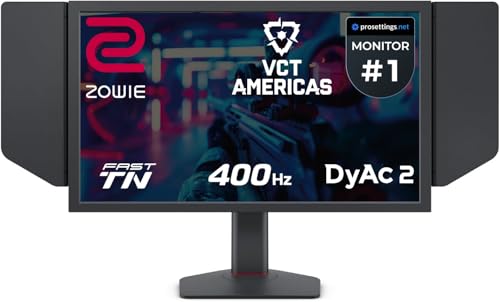
The three were chosen to disagree instructively. The BenQ Zowie XL2566X+ is the esports specialist: a 24.1-inch Fast TN panel at 400 Hz with DyAc 2 motion-blur reduction, built for one job. The ASUS ROG Strix XG27ACDNG is the image-quality maximalist: a 26.5-inch QD-OLED at 1440p and 360 Hz, arguing that motion and beauty need not trade against each other. The LG UltraGear 27G640A-B is the balanced modern panel: 27-inch 1440p IPS at 300 Hz with both sync ecosystems supported and a full ergonomic stand. Between them they cover the three panel technologies a high-refresh buyer will meet, at the two resolutions competitive players actually use.
What the shortlist deliberately omits is any claim that a monitor raises your frame rate. It cannot — rendering happens in the PC or console. What a monitor does is decide how much of your existing frame rate becomes visible motion, and how cleanly. That distinction is the article in miniature, and the reviews below are written inside it.
Detailed reviews

BenQ Zowie XL2566X+
Best for extended sessions
| Model | BenQ Zowie XL2566X+ |
|---|---|
| Range | Gaming monitors |
| Panel | 24.1-inch Fast TN |
| Refresh rate | 400Hz |
| Motion feature | DyAc 2 technology |
| Image tools | Black eQualizer, Color Vibrance, XL Setting to Share, S Switch, shielding hood |
| Listing | Check price on Amazon |
Zowie’s XL line is the monitor family competitive FPS built its habits around, and the XL2566X+ is its current flagship argument: take a Fast TN panel — the technology with the fastest practical pixel response and the least interest in viewing angles or cinematic colour — and push it to 400 Hz, a refresh rate at which the screen redraws every 2.5 milliseconds. At that cadence, a game rendering at matching frame rates presents motion with a granularity that slower displays physically cannot show, and fast mouse movements stop smearing into suggestions of themselves.
DyAc 2 is the feature that separates this monitor from a merely fast one. DyAc is BenQ’s backlight-strobing technology: by flashing the backlight in sync with the refresh and blanking it while pixels transition, it hides the sample-and-hold blur that makes even high-refresh LCD motion look smeared to a tracking eye. The effect, for players who tolerate strobing, is moving objects that read as sharply as stationary ones — a strafing opponent’s outline stays an outline. The trade-offs are real: strobing typically costs brightness and is a matter of taste, with some players finding it fatiguing. But as a statement of priorities — clarity of motion above all — nothing else in this article goes as far.
The supporting cast is pure tournament practicality. Black eQualizer lifts dark areas so opponents in shadowed corners become visible without washing out the whole image; Color Vibrance lets players push saturation until enemy models separate from backgrounds; XL Setting to Share lets a player export and import exact monitor settings, so a professional’s configuration can be copied rather than approximated; the S Switch is a physical puck for flipping between saved profiles without menu-diving; and the shielding hood blocks ambient glare at LAN venues. The 24.1-inch size is itself a competitive choice — the whole screen sits within a player’s central vision, with no head movement between minimap and crosshair.
Who should not buy it follows from the same list. A speed-first TN panel at this size is a scalpel, not a cinema: players who want their single-player worlds lush, their films rich and their screen large will find its talents pointed entirely elsewhere. It exists so that a specific kind of player can see motion more clearly than their opponents do, and it makes no apology for the narrowness of that mission.
Strengths
- 400 Hz refresh with DyAc 2 strobing delivers the clearest motion presentation in this lineup.
- Esports-specific tools — Black eQualizer, Color Vibrance, shareable settings, S Switch — serve competitive play directly.
- 24.1-inch size keeps the entire frame in central vision for FPS players.
- Shielding hood and Fast TN response suit bright, chaotic tournament environments.
Trade-offs
- TN panel and modest size prioritise speed over colour, contrast and immersion.
- Strobing is a taste some players cannot settle with, and it typically reduces brightness.
- Its resolution class asks little of a powerful GPU — owners of flagship cards may feel the panel wastes them elsewhere.
Best for: competitive FPS players for whom motion clarity is the entire purchase, and who play at the frame rates this panel can display. / Not suited for: cinematic single-player players, film lovers, or anyone wanting one large screen for everything.

ASUS ROG Strix XG27ACDNG
Top pick
| Item | ASUS ROG Strix XG27ACDNG |
|---|---|
| Class | Gaming monitors |
| Panel | 26.5-inch QD-OLED, QHD 2560×1440 |
| Refresh rate | 360Hz |
| Response | 0.03ms (listing) |
| Sync and colour | G-SYNC compatible; 99% DCI-P3 |
| Care features | Custom heatsink, OLED Care+ |
| Listing | Check price on Amazon |
The ASUS entry argues that the old exchange — motion clarity or image beauty, choose one — is over. Its QD-OLED panel pairs a 360 Hz refresh rate with the near-instant pixel response OLED is famous for, listed here at 0.03ms, which means its pixels finish changing colour almost as soon as they are told to. On an LCD, a high refresh rate can outrun the pixels’ ability to keep up, leaving ghost trails behind moving objects; on this panel the refresh and the response are matched, so 360 Hz looks like 360 Hz rather than like a fast slideshow of smears.
The image side of the argument is just as strong. QD-OLED delivers per-pixel light control — true blacks beside bright highlights in the same scene — and the listing’s 99% DCI-P3 figure places its colour coverage in wide-gamut territory, so the same monitor that tracks a flick shot beautifully also renders a night scene in a story game with the depth a TN panel cannot approach. At 26.5 inches and 1440p, it also hits the resolution competitive players increasingly prefer: sharper than 1080p for spotting distant detail, light enough on the GPU to sustain very high frame rates in the titles where those rates decide rounds, and dense enough that individual pixels stop announcing themselves at a normal desk viewing distance.
OLED ownership carries known homework, and ASUS’s listing shows the maker addressing it directly: a custom heatsink to manage panel temperature, and OLED Care+ — the suite of pixel-refresh and image-shifting routines that mitigate burn-in risk from static interface elements. A three-year warranty is listed alongside, which matters because OLED buyers are buying a panel chemistry as well as a product. Sensible habits still apply — vary content, let the care routines run, do not park a static desktop on it for days — but the engineering intent is plainly to make OLED a monitor you live with rather than a jewel you protect.
G-SYNC compatibility ties the panel to the adaptive-sync ecosystem discussed throughout this article, letting the display’s refresh follow the game’s output instead of forcing the staircase of fixed refresh. For the player whose library spans esports titles and cinematic releases alike, this is the monitor that refuses to make them choose which half of the library gets the good screen.
Strengths
- 360 Hz with OLED-class pixel response, so high frame rates arrive without ghosting.
- QD-OLED contrast and wide colour make story games and films look as good as esports titles play.
- 1440p at 26.5 inches is the current sweet spot for detail versus frame-rate cost.
- Heatsink, OLED Care+ and a listed three-year warranty show the burn-in question taken seriously.
Trade-offs
- OLED care routines and content habits are a real, permanent ownership consideration.
- No strobing system, so its motion clarity rests on refresh and response rather than DyAc-style blanking.
- 1440p at very high frame rates demands a strong GPU to feed it in modern titles.
Best for: players who split time between competitive titles and cinematic games and want one screen that honours both at very high frame rates. / Not suited for: players who leave static screens on all day, or whose GPU cannot drive 1440p at the rates this panel displays.

LG UltraGear 27G640A-B
Best value route
| Model | LG UltraGear 27G640A-B |
|---|---|
| Part | Gaming monitors |
| Panel | 27-inch QHD IPS, 2560×1440 |
| Refresh rate | 300Hz, 1ms (listing) |
| Sync | NVIDIA G-Sync and AMD FreeSync Premium |
| Extras | VESA DisplayHDR 400, HDMI 2.1, USB Type-C |
| Stand | Tilt, height, swivel and pivot adjustment |
| Listing | Check price on Amazon |
The LG is the diplomat of the three: an IPS panel, which means the best viewing angles and colour consistency of the traditional LCD family, running at 300 Hz — a refresh rate that would have been science fiction for IPS not long ago — with a listed 1ms response. IPS cannot match OLED’s per-pixel contrast or TN’s absolute motion single-mindedness, but it asks for no care routines, fears no static content, and looks correct from the off-angles a shared desk or a leaning-back film posture actually involves.
Its sync support is the broadest here: both NVIDIA G-Sync and AMD FreeSync Premium appear on its listing, so whichever graphics ecosystem a buyer inhabits — or migrates to next — the monitor’s adaptive sync comes along. That neutrality has long-term value in a component that typically outlives two or three graphics cards. A monitor bought for one GPU brand that refuses to sync with the next is a quiet trap, and this LG declines to set it.
The practical extras round out the all-rounder case. HDMI 2.1 gives current consoles a full-bandwidth path to the panel, USB Type-C offers a single-cable route for laptops, DisplayHDR 400 provides a baseline HDR presentation for games and video that support it, and the stand adjusts in every direction the category offers — tilt, height, swivel and pivot — which matters more to daily comfort than any single specification in this review. A monitor you cannot position correctly is a posture problem with a refresh rate.
Pivot, the least-used of those adjustments, deserves a defence: a 27-inch panel rotated vertical is a superb second document and code display, and a gaming monitor that moonlights in portrait extends its working life into the hours when no game is running. The LG’s willingness to serve as both a 300 Hz gaming screen and a productivity panel is exactly the versatility its pragmatist positioning promises, and for desk-space-poor players it can be the deciding argument.
Position it as the frame-rate upgrade for the player who wants almost everything: 1440p sharpness, a 300 Hz ceiling high enough for any realistic render rate, both sync families, console friendliness, and no panel-care homework. It is not the motion champion and not the contrast champion; it is the monitor least likely to be the wrong answer for anyone.
Strengths
- 300 Hz IPS at 1440p balances speed, sharpness and viewing comfort in one panel.
- Both G-Sync and FreeSync Premium support keeps it neutral across GPU ecosystems.
- HDMI 2.1 and USB-C make it genuinely multi-device, consoles and laptops included.
- Full ergonomic stand and no panel-care routines — the easiest of the three to live with.
Trade-offs
- IPS contrast and black depth trail the OLED’s by a visible margin in dark scenes.
- Motion clarity at its ceiling sits a step behind the BenQ’s strobed TN presentation.
- DisplayHDR 400 is an entry-level HDR tier — present, but not the transformative kind.
Best for: players wanting one high-refresh 1440p screen for PC, console and laptop life with no ecosystem lock-in and no care homework. / Not suited for: motion-clarity absolutists or contrast-first cinematic players, each of whom has a better-matched pick above.
Buying guide: what genuinely settles FPS Frame Rate
Frame rate versus frame time explained plainly
The conversion is one division: frame time in milliseconds equals 1000 divided by frames per second. Sixty fps is 16.7 ms; 120 fps is 8.3 ms; 240 fps is 4.2 ms. Read the table in that direction and the shape of progress changes character. Doubling from 30 to 60 fps halves the interval between images, a transformation anyone can see. Doubling from 120 to 240 fps saves the same proportion but only 4.1 milliseconds of absolute time — real, perceptible to trained players in fast motion, and plainly a smaller step than the first. Frame rate’s returns diminish not because eyes stop improving, but because each doubling buys half the milliseconds the previous one did.
Frame time is also the unit in which problems announce themselves. A game averaging 100 fps whose frames alternate between 5 ms and 15 ms is delivering a juddering experience that its average conceals, because your visual system reads rhythm, not arithmetic. This is why serious performance analysis plots frame times as a graph and why this article keeps returning to the same advice: chase evenness first and height second. An even 90 will beat a ragged 140 in every blind comparison you care to run, and the ragged 140’s owner will describe the even 90 as feeling more responsive without knowing why.
Refresh rate syncing and tearing
When a graphics card finishes a frame mid-refresh, a fixed-refresh monitor shows the top of one frame and the bottom of the next in the same redraw — the visible seam is screen tearing. The classical cure, VSync, forces the card to wait for the refresh boundary, which removes tearing by adding delay and, when the card cannot hold the refresh rate, by dropping the output to a fraction of it in visible steps. For decades players chose their poison: tearing with low delay, or smoothness with lag.
Adaptive sync — NVIDIA’s G-Sync and AMD’s FreeSync — dissolves the dilemma by reversing the relationship: the monitor refreshes when the frame is ready, within its supported range, so frames are shown whole, promptly, and at whatever rhythm the game can sustain. All three monitors in this article support at least one of these ecosystems, and the LG supports both. If you take one purchasing rule from this section, take this: a high-refresh monitor without adaptive sync engaged is a sports car with the handbrake half on — enable it in the driver, confirm it in the monitor’s own menu, and check that your cable and port support the full specification.
Why minimum frames matter more than averages
Benchmarks report percentiles because players learned, the hard way, that averages lie politely. The 1% low is the frame rate that the slowest one percent of frames effectively deliver; the 0.1% low looks at the worst moments of all — the explosion in the crowded firefight, the first entry into a dense city, the shader compiling mid-game. Those moments are precisely the ones players remember and describe as lag, and a system can post a heroic average while its 0.1% lows make it feel broken exactly when the game matters most.
Practical consequences follow. When comparing two systems or two settings pages, compare their lows before their averages; a configuration with a slightly lower average and much higher lows is the better gaming machine by the only metric your hands keep. When upgrading, spend on the component that raises your lows in your games — often the CPU, whose per-frame work sets the floor in busy scenes — rather than the one that inflates averages in empty ones. And when a review quotes only averages, read it the way you would read a weather forecast that reports only the year’s mean temperature.
Settings that buy frames cheapest
Not all settings cost equally, and the art of tuning is knowing the exchange rates. Resolution is the most expensive dial of all — each pixel is work the GPU must repeat every frame — which is why resolution scaling and upscaling technologies buy more frames per unit of visible sacrifice than any other tool. Shadows, volumetric effects and reflections follow, typically costing far more performance than the eye credits them with during motion. Texture quality, by contrast, is often nearly free on cards with ample memory, because it taxes storage bandwidth more than per-frame computation.
The disciplined method is sequential: set a target frame time from your monitor and genre, lower the expensive trio first — resolution scale, shadows, volumetrics — and test in the game’s busiest repeatable scene rather than its menu or its emptiest field. Change one setting at a time and note the frame-time graph, not the average. Most players find a configuration that holds their target with the game’s visual identity intact, because modern games are usually tuned so their beauty lives in art direction and lighting design rather than in the three settings that eat the budget.
FPS Frame Rate in real routines
Scene: a new PC owner wondering why 60 feels different per game
The confusion is reasonable and has three separate causes. First, frame pacing differs: one game’s 60 fps arrives as sixty evenly spaced frames, another’s as bursts and gaps that average to the same number and feel like stutter. Second, input latency differs: engines queue different numbers of frames between your mouse and the screen, so two games at identical rates can feel like steering through different thicknesses of syrup. Third, motion itself differs — a slow strategy camera pan at 60 fps is perfectly smooth, while a fast first-person turn at 60 fps smears, because the distance each frame moves across the screen is what your eye judges, not the count alone.
The owner’s takeaway is liberating: stop treating 60 as a verdict. Ask instead whether the frames are even, whether the input feels direct, and whether the game’s camera speeds suit the rate. A well-paced, low-latency 60 in a cinematic game is a finished experience; a ragged, queued 60 in a shooter is a problem with specific fixes, most of which this article’s buying guide has already named.
Scenario: a console player comparing performance modes
Modern consoles routinely offer a choice the box never explains well: a quality mode that targets prettier images at a lower frame rate, and a performance mode that trades resolution and effects for a higher, steadier rate — commonly 60 over 30, with some titles and displays extending beyond. The right choice is genre literacy. In a racing game, a fighting game or any title built on timing and camera speed, performance mode is not a preference but the game as designed; the extra frames carry information your hands use. In a slow, cinematic adventure, quality mode’s richer image at a locked lower rate can be the more faithful experience — provided the rate is genuinely locked, because an unsteady quality mode is the worst of both worlds.
Display support decides what the modes can even offer. Higher-rate console modes need a television or monitor whose refresh and inputs support them — HDMI 2.1, as on the LG in this article, is the usual gate — and variable refresh rate support, where present, smooths exactly the mid-range rates console games inhabit. The console player’s homework is therefore a settings audit: enable the display’s full rate, enable VRR where offered, and then choose modes per game with the genre rule above.
Scene: an upgrader deciding between monitor and graphics card
The classic dilemma, and frame-rate literacy resolves it with one diagnostic question: which side of the meeting point is failing you? If your games already render faster than your monitor can refresh — a strong card feeding a 60 Hz screen — the monitor is the upgrade, because frames you never see are the purest waste in a system; a 240 Hz or 300 Hz display will feel like a new computer. If your games render below your current monitor’s refresh in the scenes that matter, the card — or the CPU behind it — is the upgrade, and a faster display would only show your stutter at higher fidelity.
Run the diagnostic honestly with an overlay in your three most-played games. Note where the rate sits against your refresh in busy scenes, and spend on the side that is losing. The upgrader who follows the evidence rarely regrets the purchase, because they bought the bottleneck rather than the advertisement — and in frame rate, as in most of computing, the bottleneck is the only honest address for money.
Setup and first-week how-to
Step 1 for FPS Frame Rate: set the monitor to its full refresh rate before measuring anything
The most common frame-rate tragedy in gaming is a high-refresh monitor still running at its default lower rate because nobody told the operating system otherwise. Before any measurement or judgement, open your display settings and confirm the panel is set to its advertised refresh — 400, 360 or 300 Hz for the monitors here — then confirm the same figure inside the game. Every conclusion drawn before this check is a conclusion about a different, slower system than the one you paid for.
Step 2 for FPS Frame Rate: enable adaptive sync in both the driver and the monitor
Adaptive sync has two doors and both must be open: the graphics driver’s control panel, where G-Sync or FreeSync is enabled, and the monitor’s own menu, where the feature is often a separate toggle. Miss either door and the system silently falls back to fixed-refresh behaviour, tearing and all. Verify with the monitor’s on-screen refresh readout while a game runs — on a working adaptive-sync setup the displayed rate moves with the game’s output, and that moving number is the signature of the technology doing its job.
Step 3 for FPS Frame Rate: benchmark in the busiest scene, not the emptiest
Choose a repeatable, demanding moment — a crowded hub, a heavy firefight, a fast drive through a dense city — and use it as your laboratory for every settings decision. Averages gathered in empty areas will approve configurations that collapse under load, which is precisely when you will be playing hardest. Three runs of the same busy scene, noting the frame-time graph and the lows, give you data you can trust; an evening of wandering gives you weather.
Step 4 for FPS Frame Rate: save or photograph the configuration that finally works
When a game’s settings, your driver’s profile and the monitor’s mode finally agree into smoothness, record them — screenshots of each menu, or a note with the key figures. Driver updates reset profiles, games patch their defaults, and monitors get their inputs rearranged; a saved configuration converts each of those small disasters from an evening of re-diagnosis into a five-minute restoration. Treat the record as part of the setup, not as an afterthought.
Step 5 for FPS Frame Rate: re-test after every major driver or game update
Performance is a moving target because software is one. A driver revision can raise or lower a game’s frame times; a game patch can add a feature that costs frames in your test scene. After any major update, spend ten minutes in your laboratory scene before assuming your configuration survived. Catching a regression the week it arrives — while forums are full of the same report and rollbacks are easy — is the difference between maintaining a system and slowly losing one.
Common mistakes with FPS Frame Rate
Chasing average FPS while ignoring stutter
The player who tunes for the highest average is optimising for the number they will quote, not the game they will play. Stutter lives in the lows and in frame-time variance, and it is entirely possible — common, even — to raise an average while making stutter worse, by choosing settings that fly in light scenes and collapse in heavy ones. Tune against the frame-time graph in busy scenes, accept a lower average when it buys evenness, and your games will feel faster at smaller numbers, which is the closest thing this hobby has to a free lunch.
Leaving the monitor at 60 hertz after upgrading
It happens to a humbling number of buyers: the 300 Hz monitor is unboxed, cabled with an old lead or a limited port, never switched up in the operating system, and used at 60 or 144 Hz for months while its owner praises the placebo. The defences are procedural — use the cable in the box, use the port the manual specifies for full rate, verify the refresh in two places, and re-verify after any desk rearrangement that involves unplugging anything. A five-minute audit protects the entire purchase.
Turning every setting to ultra before measuring
Ultra presets are marketing configurations as much as engineering ones: they exist so that screenshots and launch trailers look definitive, and they routinely spend enormous frame budgets on effects whose contribution vanishes in motion. The player who starts at ultra and suffers has learned nothing except that the ceiling is expensive. Start from a sensible high preset, measure, and then promote individual settings while the frame-time graph watches — you will usually end with a game that looks indistinguishable in play and runs in a different league.
Head-to-head: separating the shortlist
The three monitors divide the high-refresh world by panel philosophy. The BenQ Zowie XL2566X+ is the extremist: the highest refresh here at 400 Hz, the only strobing system, the smallest screen, and a TN panel chosen for speed with open eyes about its compromises. The ASUS ROG Strix XG27ACDNG is the synthesiser: 360 Hz on QD-OLED at 1440p, matching the BenQ’s motion ambitions closely while adding contrast and colour the BenQ never attempts. The LG UltraGear 27G640A-B is the pragmatist: 300 Hz IPS at 1440p, both sync ecosystems, every input and adjustment, and no panel chemistry to manage.
Choose by the frame rates you actually render. A player whose esports titles run at 400 fps and beyond, on a system built for it, is the only buyer who can cash the BenQ’s full cheque — and for that player its strobed clarity is a genuine competitive instrument. A player rendering in the 200–360 range across a mixed library gets more total joy from the ASUS, whose OLED response makes every rate look its best and whose image quality rewards the slower games too. A player rendering anywhere from 100 to 300, across PC and console and laptop, will extract the most from the LG’s versatility — and will never once think about burn-in while doing it.
Notice what the comparison does not contain: a bad monitor, or a frame-rate claim any of them fails to honour. At this tier the differences are philosophical, and the correct purchase is the philosophy that matches your library, your GPU and your tolerance for homework. That is a more useful conclusion than a crown, because it survives the next product cycle.
Living with the choice: care and longevity
High-refresh monitors age along two paths: the panel’s and the ecosystem’s. Panel care is technology-specific. The OLED asks for its care routines to run, varied content, and protection from static images parked for days; the TN and IPS panels ask for almost nothing beyond a soft cloth and freedom from pressure marks. All three appreciate the same basics — clean with a microfibre cloth barely dampened with water, never spray liquid directly at the screen, and keep the vents that cool their electronics unblocked, because a high-refresh panel driven hard is a warm panel.
The ecosystem path is about standards. A monitor’s useful life is set by its ports and sync support as much as by its panel: HDMI 2.1 and current DisplayPort versions, plus adaptive sync for both GPU families where offered, are what let a display survive three graphics cards and a console generation without becoming the bottleneck it was bought to remove. When you configure yours, label the cable that carries the full specification — the next rearrangement of your desk will thank you, because the wrong cable is the most common way a fast monitor quietly becomes a slow one.
Firmware is the last maintenance item. Monitor makers occasionally update firmware to fix sync behaviour, add features or correct brightness quirks; check the maker’s support page for your model a few times a year, and update by the documented method with the screen’s power secured. A monitor is the longest-lived component in a gaming setup, and ten minutes of attention annually is a fair rent for a decade of service.
Final recommendation
If this article leaves you with one habit, let it be measurement before money. Learn your current frame times in your busiest scenes, learn what your monitor is actually set to, and learn which side of the render-versus-refresh meeting point is failing you. Most frame-rate misery is configuration, not hardware, and the fixes — full refresh enabled, adaptive sync open at both doors, settings tuned against a graph — cost an evening rather than an income.
When hardware is genuinely the answer, buy the philosophy that matches your library. The BenQ for the competitive specialist who renders at extreme rates and wants motion presented with strobed clarity; the ASUS for the player who refuses to choose between motion and beauty; the LG for the multi-device realist who wants 300 Hz, both sync families and no homework. And whichever you choose, hold its headline number to this article’s standard: a frame rate is a promise about time, and the only part of the promise you will ever feel is the evenness with which it is kept.
Frequently asked questions
What matters most when choosing for fps frame rate?
Frame-time consistency in the scenes you actually play, ahead of any peak figure. After consistency comes the match between your render rate and your display’s refresh, and after that the sync technology that marries them. A buyer who ranks those three correctly will make a better decision with a mid-range budget than a buyer who chases the highest number with an unlimited one.
How much should a beginner budget for fps frame rate?
Budget first for the free fixes — configuration, cables, settings — and then for the bottleneck your measurements identify, checking current listings before committing since monitor prices move with seasons. For most beginners the honest sequence is a competent high-refresh monitor before a flagship graphics card, because the display makes existing frames visible while the card only makes more of them; the exception is a system that cannot hold playable lows, where rendering comes first.
Which mistake do shoppers of fps frame rate regret most?
Buying a spectacular monitor and running it at a fraction of its refresh for months — through an old cable, the wrong port, or a display setting nobody changed — is the regret with the highest combined score of frequency and avoidability. The runner-up is its mirror image: buying a flagship graphics card to feed a 60 Hz screen and wondering why the games feel identical.
How long does it take to get used to a new fps frame rate setup?
The pleasant direction is instant and the return is impossible: a player stepping from 60 Hz to a high-refresh display typically sees the difference within seconds of moving the mouse, and adapts fully within a session or two. What takes longer — about a week of play — is recalibrating aim and camera habits to the reduced latency, after which the old rate feels, permanently, like playing through gauze.
When is the premium alternative in fps frame rate actually worth it?
When your rendering already lives at the rates the premium display can show, in the genres that reward them. A 400 Hz strobed panel earns its price in the hands of a competitive player whose system sustains those rates nightly; the same panel under a system rendering at 120 fps is an expensive way to display 120 fps. Premium frame-rate hardware is a multiplier, and multipliers need something to multiply.
What should I confirm first if my fps frame rate purchase disappoints?
Confirm the chain, link by link: the monitor’s set refresh in the operating system, the cable and port carrying the signal, adaptive sync enabled in driver and monitor alike, and the game’s own frame-rate in a busy scene rather than a menu. Disappointment in this category is a broken link far more often than a bad product, and the chain takes ten minutes to audit — considerably less time than a return takes to arrange.
Related guides
Frame rate wears two hats in this guide library, and the other one belongs to cameras: readers shooting video should compare this explainer with Action Camera Unhurried Motion Tips And What Frame Rate to Select, How to Shoot Slow Motion Video And What Frame Rate to Employ and What Frame Rate Should You Shoot Video in And Why It Counts, where the same unit governs slow-motion rather than responsiveness. On the gaming side, the input half of the latency story lives in Best 8khz Polling Rate Mice, while Best Full Frame Mirrorless Cameras covers the sensors that capture frames rather than render them, and Best Gaming Mouse for FPS covers the mice built for the genre that gave frame rate its fame.
One more angle: frame rate versus frame time explained plainly, revisited
One last refinement of the core idea: your peripheral vision and your fovea judge frame rates differently. The centre of your gaze, reading a crosshair’s target, is satisfied sooner; the periphery, which catches motion during fast turns, keeps noticing improvements to higher rates — which is why racing and flight players, whose worlds stream past the edges of the screen, report benefits from rates that a strategy player, watching a still centre, honestly cannot see. Genre is not snobbery in this debate; it is optics.
One more angle: refresh rate syncing and tearing, revisited
Adaptive sync has a floor as well as a ceiling, and knowing yours completes the picture. Below a panel’s minimum sync range, features like low-framerate compensation take over by repeating frames — effective, but a reason to keep your settings tuned so the game lives inside the native range during busy scenes. The sync range is printed in every serious monitor’s specifications; read it before buying, and you will know exactly the territory in which your display can follow your game.
One more angle: why minimum frames matter more than averages, revisited
Minimums also explain a common multiplayer grievance: the player whose game stutters only in team fights is not imagining a conspiracy — fights are where entity counts, effects and network updates peak together, and where frame times go to suffer. If your lows trouble you, reproduce them in the busiest repeatable fight you can arrange, and tune there. A configuration that survives the fight will find the rest of the match easy, which is more than can be said for the player.
One more angle: settings that buy frames cheapest, revisited
Finally, revisit your tuned settings after major game patches with fresh eyes. Developers optimise, add effects and occasionally move cost between settings; the shadows slider you tamed at launch may not be the same animal a year later. A ten-minute return to your laboratory scene after each big patch keeps your configuration honest — and keeps your frame times, the only numbers your hands believe, exactly where you set them.