Disclosure: As an Amazon Associate, reviewstook.com earns from qualifying purchases. Links on this page are affiliate links at no extra cost to you; prices and availability change frequently, so check Amazon for the latest.
Where to Buy
Each model referenced in this walkthrough of how to choose an all in one pc is a live Amazon listing verified through the Creators API on 2026-11-20, so the specifications used in the worked examples below are real configurations you can actually order.
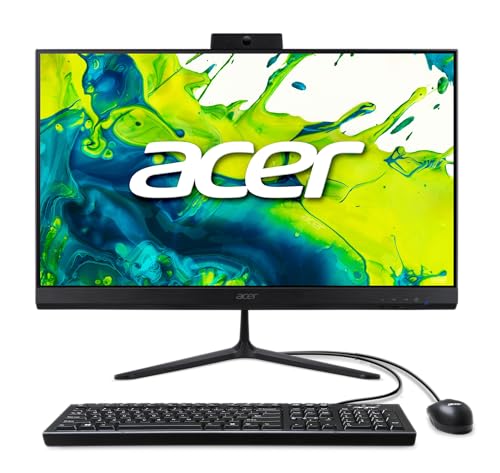
- Best All-Round Choice: Acer Aspire C27 (Ryzen 5 / 16GB / 512GB) — Check on Amazon
- Best for Bright Rooms and Media: Dell 23.8 AIO (Core 3 100U / 512GB) — Check on Amazon
- Best Memory Value: HP OmniStudio 24 (16GB DDR5 / 128GB UFS) — Check on Amazon
- Best for Business Desks: Qehi AIO 24 Core i5 (16GB / 256GB) — Check on Amazon
- Best Compact Budget Choice: HP 21.5 AIO (N100 / 384GB with dock set) — Check on Amazon
- Best Big Screen: HP OmniStudio 27 (Ryzen 5 / 16GB / 512GB) — Check on Amazon
All of the models above are sold through Amazon, and reviewstook.com (reviewstook.com) links each pick to its Amazon listing so you can confirm the exact configuration before ordering — all-in-one listings often offer several memory and storage variants under one page, and the variant, not the headline, is what arrives in the box.
How to Choose an All in One PC: A Step-by-Step Method That Takes Ten Minutes
Learning how to choose an all in one pc is less about memorising specifications than about following an order. Most buyers start with the screen, fall for a photograph, and only afterwards discover the memory is too small or the storage is already half full. This guide reverses that sequence. You will define the workload first, translate it into five specification decisions, check the physical fit of the machine in your room, and only then look at named models — the same models our All In One PC Buying Guide recommends, used here as worked examples so every step ends in a real, purchasable answer.
Why does order matter so much in this category? Because an all-in-one is the least forgiving computer purchase there is. A tower PC forgives a mistake — you open the case and fix it. A laptop mistake can be softened with a dock, a monitor and an external drive. An all-in-one keeps its secrets behind the screen: what arrives is what you own, for years. The good news is that the decision is genuinely simple once it is structured. Six steps, ten honest minutes, and the risk of the category mostly evaporates.
Key Takeaways
- Write down your three heaviest daily tasks before looking at any product page.
- Target 16GB of memory and 512GB of solid-state storage for a machine you will keep.
- Match screen size to desk depth: 24 inches for shallow desks, 27 for deep ones.
- Entry processors are fine for one-task-at-a-time use; multitaskers need Core i5 or Ryzen 5 class.
- Confirm the exact variant at checkout — listings host several configurations under one headline.
- Decide your cloud-versus-local storage habit before choosing the drive size, not after.
Step 1: What Will This Computer Actually Do All Day?
Write the answer down, because vague intentions produce vague purchases. Be specific: not “work”, but “forty browser tabs, two spreadsheets, a video call at ten, and the family photo library”. Not “school”, but “documents, research, video lessons and Minecraft at weekends”. The heaviest three things on your list set the specification; everything else is noise. If gaming appears on the list, be honest about which games — browser and older titles are all-in-one territory, while current demanding releases are not, and pretending otherwise is the most expensive mistake in this category. Readers whose lists are gaming-first should compare against compact gaming machines such as those in Best High End Gaming PC For Small Spaces Under $1500 before continuing.
Step 2: How Much Memory and Storage Does That Workload Need?
Memory first, because it is the least upgradeable and the most commonly under-bought. Eight gigabytes runs Windows and a light workload adequately; it does not run a modern browser habit gracefully. If your Step 1 list contains the words “tabs”, “calls” and “spreadsheets” in the same morning, choose 16GB and do not negotiate with yourself. Storage second: add up what you already own — photos, documents, downloads — then double it for the machine’s lifetime. Under roughly 100GB of personal data and a cloud habit, 256GB works. A growing local library points to 512GB. Video, games or several family accounts point to 1TB. And whatever the size, it must be solid-state; a hard drive in a new machine is a reason to walk away, full stop.
Step 3: Which Processor Class Matches Your Patience?
Processors in this category fall into three honest bands. Entry chips — Intel’s N-series and basic four-core parts — are quiet, cool and adequate for a one-thing-at-a-time routine. Mainstream chips — Core i5, Ryzen 5 and their Core 3 and Core 7 mobile-class cousins — are the default for anyone who multitasks for a living; the difference is not speed in a single task so much as composure when everything is open at once. Performance chips, the H-series parts, buy genuine muscle for editing, compiling and heavy data work, at the cost of fan noise under load. Match the band to Step 1 and resist both temptations: the bargain chip that will irritate you daily, and the flagship chip whose power you will never switch on.
Step 4: What Screen Size Does Your Desk — Not Your Eyes — Demand?
Measure the desk before admiring the display. You will sit roughly an arm’s length from the screen. On a shallow desk of 60cm or less, a 24-inch panel sits at a comfortable distance and a 27-inch panel looms. On a deep desk, 27 inches comes into its own: two full documents side by side, spreadsheets without constant zooming, films that fill your evening. Resolution interacts with size: Full HD looks crisp at 21.5 to 24 inches and merely adequate at 27, which is why the 27-inch Acer in our worked examples pairs its size with a 120Hz refresh rate — smoothness compensating where pixel density cannot. Bright room? Prioritise an anti-glare panel. Shared screen? Prioritise IPS viewing angles. The panel is the part you will look at for ten thousand hours; choose it like it matters, because it does.
Step 5: Which Extras Are Hardware You Will Use Weekly?
Run down the physical checklist. Webcam: built into nearly every model here, but if calls are your profession, prefer a model that calls out its camera, as the Qehi does. Touch: genuinely useful for families, counters and the instinctive, pointless on a desk where a mouse lives. Speakers: the difference between functional and Dolby Atmos is the difference between buying desk speakers and not. Ports: count what you plug in — printer, external drive, second screen — and check the machine has them or that a hub is included, as with the compact HP below. Wireless: Wi-Fi 6 or 6E in a machine bought today; anything older is yesterday’s standard on tomorrow’s desk.
Step 6: How Do You Verify the Exact Variant Before Ordering?
The last step is the one that saves the most regret. All-in-one listings routinely host several configurations under a single product page — different memory, different storage, occasionally different processors — and the headline photograph does not change between them. Before ordering, read the variant selector and confirm the four numbers that decide your machine’s life: processor, memory, storage and screen. Then confirm what is in the box: keyboard and mouse included, wired or wireless, and whether the stand adjusts. This takes ninety seconds and prevents the single most common all-in-one disappointment, which is unboxing the cheaper variant of the machine you researched. Our verdicts in All In One PC Review were all checked this way, variant by variant.
In this guide
Quick Picks
- Best All-Round Choice: Acer Aspire C27 (Ryzen 5 / 16GB / 512GB) — the balanced benchmark: six cores, 16GB, 512GB and a smooth 120Hz screen
- Best for Bright Rooms and Media: Dell 23.8 AIO (Core 3 100U / 512GB) — Dolby Atmos speakers and Wi-Fi 6E under a mainstream Dell badge
- Best Memory Value: HP OmniStudio 24 (16GB DDR5 / 128GB UFS) — 16GB of DDR5 memory for buyers whose files live in the cloud
- Best for Business Desks: Qehi AIO 24 Core i5 (16GB / 256GB) — Core i5 and 16GB in a white business-ready design with an HD webcam
- Best Compact Budget Choice: HP 21.5 AIO (N100 / 384GB with dock set) — the smallest sensible footprint here, with a docking hub in the box
- Best Big Screen: HP OmniStudio 27 (Ryzen 5 / 16GB / 512GB) — a large, calm 27-inch HP with a balanced Ryzen specification
How These Worked Examples Were Chosen
The six machines below were selected from Amazon’s current all-in-one range and verified through the Creators API on 2026-11-20, with every specification in their reviews taken from the API-returned listing titles. They were chosen to span the decision space of this guide — one benchmark all-rounder, one media-strong mainstream model, one memory-rich cloud-centric machine, one business desk option, one compact budget answer and one big-screen calm — so that whatever your Step 1 to Step 5 answers were, a worked example below matches them. Renewed units were left out of the examples deliberately: the choosing method is identical, but the condition judgement deserves its own conversation, which our roundup in All In One PC Reviews handles.
The Worked Examples: Six Machines, Six Sets of Answers

Best All-Round Choice — Acer Aspire C27 (Ryzen 5 / 16GB / 512GB)
Strengths
- 120Hz refresh rate makes scrolling and motion noticeably smoother than typical 60Hz AIO panels
- Six-core Ryzen processor with 16GB of memory handles busy multitasking confidently
- Wi-Fi 6E future-proofs the wireless side for newer routers
Trade-offs
- Keyboard and mouse connect by USB rather than wireless, so some cable remains
- Full HD on a 27-inch panel looks less sharp up close than it does at 24 inches
- Mobile-class processor prioritises efficiency over sustained heavy workloads
| Display | 27-inch Full HD IPS, 120Hz |
|---|---|
| Processor | AMD Ryzen 5 7430U, hexa-core |
| Memory | 16GB DDR4 |
| Storage | 512GB PCIe SSD |
| Graphics | AMD Radeon Graphics |
| Wireless | Wi-Fi 6E |
| In the box | USB keyboard and mouse |
Work through the choosing process with this machine and it answers a clear question: it is the right pick for home-office workers who spend all day in documents, spreadsheets and browser tabs and want a big, smooth screen. The way to judge it is not against every computer on sale but against your own list of daily tasks. Put the Acer Aspire C27 (Ryzen 5 / 16GB / 512GB) next to your actual routine — the applications you open every morning, the calls you take, the files you keep — and the specification starts to read like a checklist: 27-inch Full HD IPS, 120Hz for the hours you will spend looking at it, AMD Ryzen 5 7430U, hexa-core for the work itself, and 16GB DDR4 for how much of that work can stay open at the same time.
The second step in choosing well is checking the fit in the room, not just on paper. An all-in-one lives or dies by its footprint and its cabling, and this class of machine reduces the desk to the screen, a keyboard, a mouse and a single power lead. The 512GB PCIe SSD then decides your storage habits for years: enough for documents and a sensible photo library with room to spare, or tight enough that choosing this model is also choosing a cloud subscription or an external drive as part of the real purchase. Price those habits in before you decide, not after the low-storage warning appears.
Finally, choose against the failure mode, not the brochure: the Full HD resolution stretched across 27 inches will bother anyone who sits close and notices pixel structure in fine text. If that sentence describes a problem you will never meet, the Acer Aspire C27 (Ryzen 5 / 16GB / 512GB) passes the only test that matters. If it describes your actual future — a growing media library, a side project in video, a teenager discovering PC games — then the correct decision is to step up the range now, while stepping up is still a choice rather than a replacement. Choosing an all-in-one is mostly an exercise in being honest about the next three years, and this model rewards buyers who are.
Best for: home-office workers who spend all day in documents, spreadsheets and browser tabs and want a big, smooth screen. / Not suited for: buyers for whom the Full HD resolution stretched across 27 inches will bother anyone who sits close and notices pixel structure in fine text.


Best for Bright Rooms and Media — Dell 23.8 AIO (Core 3 100U / 512GB)
Strengths
- Dolby Atmos speakers are a real differentiator for calls, films and music
- Wi-Fi 6E and a roomy 512GB SSD keep the platform current
- Dell’s support and documentation are among the easiest to live with
Trade-offs
- 8GB of memory is modest alongside the otherwise modern spec sheet
- Core 3 is an efficiency-leaning processor for everyday rather than heavy work
- Integrated Intel graphics only
| Display | 23.8-inch FHD |
|---|---|
| Processor | Intel Core 3 100U |
| Memory | 8GB |
| Storage | 512GB SSD |
| Audio | Dolby Atmos speakers |
| Wireless | Wi-Fi 6E, Bluetooth |
| In the box | Keyboard and mouse |
Work through the choosing process with this machine and it answers a clear question: it is the right pick for everyday users who watch and listen as much as they type, and who value painless support. The way to judge it is not against every computer on sale but against your own list of daily tasks. Put the Dell 23.8 AIO (Core 3 100U / 512GB) next to your actual routine — the applications you open every morning, the calls you take, the files you keep — and the specification starts to read like a checklist: 23.8-inch FHD for the hours you will spend looking at it, Intel Core 3 100U for the work itself, and 8GB for how much of that work can stay open at the same time.
The second step in choosing well is checking the fit in the room, not just on paper. An all-in-one lives or dies by its footprint and its cabling, and this class of machine reduces the desk to the screen, a keyboard, a mouse and a single power lead. The 512GB SSD then decides your storage habits for years: enough for documents and a sensible photo library with room to spare, or tight enough that choosing this model is also choosing a cloud subscription or an external drive as part of the real purchase. Price those habits in before you decide, not after the low-storage warning appears.
Finally, choose against the failure mode, not the brochure: the memory is the one specification that lags the rest of the machine, and it is the one you will notice first with many tabs open. If that sentence describes a problem you will never meet, the Dell 23.8 AIO (Core 3 100U / 512GB) passes the only test that matters. If it describes your actual future — a growing media library, a side project in video, a teenager discovering PC games — then the correct decision is to step up the range now, while stepping up is still a choice rather than a replacement. Choosing an all-in-one is mostly an exercise in being honest about the next three years, and this model rewards buyers who are.
Best for: everyday users who watch and listen as much as they type, and who value painless support. / Not suited for: buyers for whom the memory is the one specification that lags the rest of the machine, and it is the one you will notice first with many tabs open.


Best Memory Value — HP OmniStudio 24 (16GB DDR5 / 128GB UFS)
Strengths
- 16GB of DDR5 memory is generous for a home-focused model
- Trusted-brand support, documentation and warranty network
- Sensible 24-inch size fits smaller desks and secondary rooms
Trade-offs
- 128GB of UFS storage is the tightest on this list and fills fast
- UFS storage is slower than a proper NVMe SSD under sustained transfers
- You will almost certainly need cloud storage or an external drive
| Display | 24-inch FHD |
|---|---|
| Processor | Intel quad-core |
| Memory | 16GB DDR5 RAM |
| Storage | 128GB UFS |
| Wireless | Wi-Fi 6 |
| Operating system | Windows 11 |
| In the box | Keyboard and mouse |
Work through the choosing process with this machine and it answers a clear question: it is the right pick for home users whose files already live in the cloud and who value memory headroom over local storage. The way to judge it is not against every computer on sale but against your own list of daily tasks. Put the HP OmniStudio 24 (16GB DDR5 / 128GB UFS) next to your actual routine — the applications you open every morning, the calls you take, the files you keep — and the specification starts to read like a checklist: 24-inch FHD for the hours you will spend looking at it, Intel quad-core for the work itself, and 16GB DDR5 RAM for how much of that work can stay open at the same time.
The second step in choosing well is checking the fit in the room, not just on paper. An all-in-one lives or dies by its footprint and its cabling, and this class of machine reduces the desk to the screen, a keyboard, a mouse and a single power lead. The 128GB UFS then decides your storage habits for years: enough for documents and a sensible photo library with room to spare, or tight enough that choosing this model is also choosing a cloud subscription or an external drive as part of the real purchase. Price those habits in before you decide, not after the low-storage warning appears.
Finally, choose against the failure mode, not the brochure: the small, slower storage is a genuine daily constraint — Windows updates plus a few large apps can squeeze it uncomfortably. If that sentence describes a problem you will never meet, the HP OmniStudio 24 (16GB DDR5 / 128GB UFS) passes the only test that matters. If it describes your actual future — a growing media library, a side project in video, a teenager discovering PC games — then the correct decision is to step up the range now, while stepping up is still a choice rather than a replacement. Choosing an all-in-one is mostly an exercise in being honest about the next three years, and this model rewards buyers who are.
Best for: home users whose files already live in the cloud and who value memory headroom over local storage. / Not suited for: buyers for whom the small, slower storage is a genuine daily constraint — Windows updates plus a few large apps can squeeze it uncomfortably.


Best for Business Desks — Qehi AIO 24 Core i5 (16GB / 256GB)
Strengths
- Core i5 processor with 16GB of memory is a strong spec pairing for office work
- HD webcam is called out for clear video calls
- White business styling suits reception desks and shared offices
Trade-offs
- Smaller brand means a thinner support and documentation ecosystem than HP, Dell or Lenovo
- 256GB storage is adequate rather than generous
- Panel and stand details are sparsely documented compared with big-brand rivals
| Display | 23.8-inch FHD 1080p |
|---|---|
| Processor | Intel Core i5 |
| Memory | 16GB RAM |
| Storage | 256GB SSD |
| Camera | HD webcam |
| Wireless | Wi-Fi 6 |
| In the box | Keyboard and mouse |
Work through the choosing process with this machine and it answers a clear question: it is the right pick for small businesses and home offices that prioritise processor and memory per pound of budget over brand infrastructure. The way to judge it is not against every computer on sale but against your own list of daily tasks. Put the Qehi AIO 24 Core i5 (16GB / 256GB) next to your actual routine — the applications you open every morning, the calls you take, the files you keep — and the specification starts to read like a checklist: 23.8-inch FHD 1080p for the hours you will spend looking at it, Intel Core i5 for the work itself, and 16GB RAM for how much of that work can stay open at the same time.
The second step in choosing well is checking the fit in the room, not just on paper. An all-in-one lives or dies by its footprint and its cabling, and this class of machine reduces the desk to the screen, a keyboard, a mouse and a single power lead. The 256GB SSD then decides your storage habits for years: enough for documents and a sensible photo library with room to spare, or tight enough that choosing this model is also choosing a cloud subscription or an external drive as part of the real purchase. Price those habits in before you decide, not after the low-storage warning appears.
Finally, choose against the failure mode, not the brochure: if after-sales support matters more than raw specifications, the smaller brand’s service network is the honest compromise here. If that sentence describes a problem you will never meet, the Qehi AIO 24 Core i5 (16GB / 256GB) passes the only test that matters. If it describes your actual future — a growing media library, a side project in video, a teenager discovering PC games — then the correct decision is to step up the range now, while stepping up is still a choice rather than a replacement. Choosing an all-in-one is mostly an exercise in being honest about the next three years, and this model rewards buyers who are.
Best for: small businesses and home offices that prioritise processor and memory per pound of budget over brand infrastructure. / Not suited for: buyers for whom if after-sales support matters more than raw specifications, the smaller brand’s service network is the honest compromise here.

Best Compact Budget Choice — HP 21.5 AIO (N100 / 384GB with dock set)
Strengths
- Compact 21.5-inch footprint fits kitchens, dorms and tight desks
- Bundled docking hub adds ports and extra storage flexibility
- Efficient N100 processor keeps the machine quiet and cool for light duties
Trade-offs
- N100 is an entry-level processor — fine for browsing, slow under heavy multitasking
- Split storage arrangement is less straightforward than a single larger SSD
- Small screen limits split-screen productivity
| Display | 21.5-inch FHD |
|---|---|
| Processor | Intel N100, quad-core |
| Memory | 8GB DDR5 RAM |
| Storage | 384GB total (128GB SSD + 256GB docking station set) |
| Extras | 8-in-1 docking hub |
| Operating system | Windows 11 |
| In the box | Keyboard and mouse |
Work through the choosing process with this machine and it answers a clear question: it is the right pick for light-duty users in small spaces who mainly browse, stream, bank and video-call. The way to judge it is not against every computer on sale but against your own list of daily tasks. Put the HP 21.5 AIO (N100 / 384GB with dock set) next to your actual routine — the applications you open every morning, the calls you take, the files you keep — and the specification starts to read like a checklist: 21.5-inch FHD for the hours you will spend looking at it, Intel N100, quad-core for the work itself, and 8GB DDR5 RAM for how much of that work can stay open at the same time.
The second step in choosing well is checking the fit in the room, not just on paper. An all-in-one lives or dies by its footprint and its cabling, and this class of machine reduces the desk to the screen, a keyboard, a mouse and a single power lead. The 384GB total (128GB SSD + 256GB docking station set) then decides your storage habits for years: enough for documents and a sensible photo library with room to spare, or tight enough that choosing this model is also choosing a cloud subscription or an external drive as part of the real purchase. Price those habits in before you decide, not after the low-storage warning appears.
Finally, choose against the failure mode, not the brochure: the entry-level processor defines this machine: ask it to do one thing at a time and it is pleasant, ask for five and it will push back. If that sentence describes a problem you will never meet, the HP 21.5 AIO (N100 / 384GB with dock set) passes the only test that matters. If it describes your actual future — a growing media library, a side project in video, a teenager discovering PC games — then the correct decision is to step up the range now, while stepping up is still a choice rather than a replacement. Choosing an all-in-one is mostly an exercise in being honest about the next three years, and this model rewards buyers who are.
Best for: light-duty users in small spaces who mainly browse, stream, bank and video-call. / Not suited for: buyers for whom the entry-level processor defines this machine: ask it to do one thing at a time and it is pleasant, ask for five and it will push back.

Best Big Screen — HP OmniStudio 27 (Ryzen 5 / 16GB / 512GB)
Strengths
- Balanced mainstream specification with no obvious weak point
- Radeon 740M graphics handle light gaming and photo work respectably
- Cotton White finish suits bright, shared living spaces
Trade-offs
- Sits below the AI model in HP’s own line-up, so fewer forward-looking features
- Full HD at 27 inches is adequate rather than crisp
- Integrated graphics still rule out demanding modern games at native settings
| Display | 27-inch FHD |
|---|---|
| Processor | AMD Ryzen 5 220 |
| Memory | 16GB RAM |
| Storage | 512GB SSD |
| Graphics | AMD Radeon 740M |
| Operating system | Windows 11 Home |
| Colour | Cotton White |
Work through the choosing process with this machine and it answers a clear question: it is the right pick for mainstream buyers who want a large-screen HP with a balanced spec and no drama. The way to judge it is not against every computer on sale but against your own list of daily tasks. Put the HP OmniStudio 27 (Ryzen 5 / 16GB / 512GB) next to your actual routine — the applications you open every morning, the calls you take, the files you keep — and the specification starts to read like a checklist: 27-inch FHD for the hours you will spend looking at it, AMD Ryzen 5 220 for the work itself, and 16GB RAM for how much of that work can stay open at the same time.
The second step in choosing well is checking the fit in the room, not just on paper. An all-in-one lives or dies by its footprint and its cabling, and this class of machine reduces the desk to the screen, a keyboard, a mouse and a single power lead. The 512GB SSD then decides your storage habits for years: enough for documents and a sensible photo library with room to spare, or tight enough that choosing this model is also choosing a cloud subscription or an external drive as part of the real purchase. Price those habits in before you decide, not after the low-storage warning appears.
Finally, choose against the failure mode, not the brochure: it is the sensible middle of the range rather than the exciting end — buyers chasing the newest platform should look at the AI model instead. If that sentence describes a problem you will never meet, the HP OmniStudio 27 (Ryzen 5 / 16GB / 512GB) passes the only test that matters. If it describes your actual future — a growing media library, a side project in video, a teenager discovering PC games — then the correct decision is to step up the range now, while stepping up is still a choice rather than a replacement. Choosing an all-in-one is mostly an exercise in being honest about the next three years, and this model rewards buyers who are.
Best for: mainstream buyers who want a large-screen HP with a balanced spec and no drama. / Not suited for: buyers for whom it is the sensible middle of the range rather than the exciting end — buyers chasing the newest platform should look at the AI model instead.
Comparison Table
Use this table at Step 6: find the row matching your Step 2 and Step 3 answers, then verify that exact variant on the listing before ordering.
| Model | Display | Processor | Memory | Storage | Link |
|---|---|---|---|---|---|
| Acer Aspire C27 (Ryzen 5 / 16GB / 512GB) | 27-inch Full HD IPS, 120Hz | AMD Ryzen 5 7430U, hexa-core | 16GB DDR4 | 512GB PCIe SSD | Check on Amazon |
| Dell 23.8 AIO (Core 3 100U / 512GB) | 23.8-inch FHD | Intel Core 3 100U | 8GB | 512GB SSD | Check on Amazon |
| HP OmniStudio 24 (16GB DDR5 / 128GB UFS) | 24-inch FHD | Intel quad-core | 16GB DDR5 RAM | 128GB UFS | Check on Amazon |
| Qehi AIO 24 Core i5 (16GB / 256GB) | 23.8-inch FHD 1080p | Intel Core i5 | 16GB RAM | 256GB SSD | Check on Amazon |
| HP 21.5 AIO (N100 / 384GB with dock set) | 21.5-inch FHD | Intel N100, quad-core | 8GB DDR5 RAM | 384GB total (128GB SSD + 256GB docking station set) | Check on Amazon |
| HP OmniStudio 27 (Ryzen 5 / 16GB / 512GB) | 27-inch FHD | AMD Ryzen 5 220 | 16GB RAM | 512GB SSD | Check on Amazon |
Problem: The Machine Felt Fast in Reviews but Slow at Home — What Went Wrong?
Problem: everything stutters when the video call starts. Cause: memory pressure — the call, the browser and the documents together exceed 8GB, and Windows starts swapping to storage. Fix for next time: this is the Step 2 decision; choose 16GB. Fix for now: close unused tabs before calls and stop chat applications auto-starting.
Problem: the storage warning arrived within a year. Cause: a 256GB drive met a local photo library that was always going to outgrow it. Fix for next time: Step 2’s doubling rule. Fix for now: move the library to cloud or external storage and point new imports there permanently.
Problem: text looks soft on the big new screen. Cause: Full HD stretched across 27 inches, viewed too closely. Fix for next time: Step 4 — match size to desk depth or choose a high-refresh panel. Fix for now: increase Windows display scaling and push the screen to a full arm’s length.
Problem: the desk is still full of cables. Cause: wired peripherals and an external wireless adapter on a budget model. Fix: a wireless keyboard and mouse set, and route the single power cable before placing anything else — cable discipline is a placement decision, not a purchase.
Common Mistakes
Skipping Step 1 is the root mistake from which the others grow: buyers who never wrote down the workload buy the photograph instead. Then come the classics — under-buying memory because 8GB demoed fine, choosing storage for the library you have rather than the one you are building, letting screen size be decided by desire instead of desk depth, paying for a touchscreen that will be used twice, and forgetting the variant check at checkout. A subtler mistake is ignoring the ownership questions altogether: if you have not weighed the format’s upgrade limits against its tidiness, read All In One PC Pros And Cons before ordering, and if the question is really whether the premium over a tower is justified at all, Is An All In One PC Worth It does that maths in full.
Final Recommendation
If you follow the six steps and land where most readers land — mainstream multitasking on a normal desk — the Acer Aspire C27 is the answer the method produces: six cores, 16GB, 512GB and a screen that stays smooth all day. Smaller desks should take the same method to the Dell 23.8 or the HP OmniStudio 24, and the truly space-poor to the compact HP 21.5. Whatever you choose, choose it by the steps, verify the variant, and the all-in-one’s one real risk — being stuck with the wrong specification — is a risk you have already retired.
Three Worked Examples: The Method Applied to Real Buyers
Buyer one: the home-office professional. Her Step 1 list reads: video calls daily, two spreadsheets, forty tabs, a shared family photo library on the same machine. Step 2 answers itself — 16GB, and 512GB because the library is local and growing. Step 3 puts her in the mainstream processor band. Step 4: her desk is 70cm deep, so 27 inches is comfortable, and because she stares at motion and scrolling all day, the Acer’s 120Hz panel earns its place. Step 5 flags the webcam as professional equipment, not a detail. Her method-produced answer is the Acer Aspire C27, with the HP OmniStudio 27 from our sibling coverage as the alternative if she prefers the newer platform. Notice what the method did: it never asked what was “best”, only what her list required, and the shortlist built itself.
Buyer two: the student in a small room. His list: documents, research, video lessons, streaming, light gaming at weekends, video calls home. Step 2 says 16GB if the budget stretches — his multitasking is real even if his income is not — and 512GB because coursework and media accumulate over a degree. Step 4 is his binding constraint: a narrow desk in a rented room makes 21.5 to 24 inches the honest size, and Step 5 adds a decent webcam for calls home. The method lands on the compact end of our examples — the HP 21.5 if space rules everything, the Qehi if the desk can take 24 inches and the coursework load is heavy. The lesson generalises: in small rooms, the desk decides first and the specification spends what is left.
Buyer three: the family kitchen computer. The list is several people’s lists added together: homework, banking, recipes at the counter, video calls with grandparents, a shared photo library, and children whose homework will grow teeth over the machine’s life. Step 2 therefore buys for the family’s future, not its present: 16GB and 512GB as the floor, 1TB if the photo library is serious. Step 4 favours the larger screen at standing-and-sitting distance, and Step 5 raises the touchscreen from gimmick to genuine feature, because counter use is touch use. The method’s answer is a big-screen mainstream machine — or the ASUS touchscreen from our buying guide if the counter habit is real. Three buyers, three different machines, one method: that is what choosing well looks like, and it is why the steps come before the shopping.
Frequently Asked Questions
What is the first thing to decide when choosing an all-in-one PC?
The workload, written down. Your three heaviest daily tasks determine the processor class, the memory and the storage, and every later decision is just arithmetic on that list. Buyers who start with screen size or appearance end up with a machine specified for someone else’s life.
Is 8GB of memory enough for an all-in-one PC?
For a genuinely light routine — browsing, email, streaming, school documents, one task at a time — yes, today. For multitasking, family accounts or a machine you intend to keep beyond a couple of years, no: choose 16GB. Memory is the specification you can least easily change later in this category, so it deserves the benefit of the doubt.
Which is better for a home office, a 24-inch or 27-inch screen?
Desk depth decides. Under about 60cm of depth, a 24-inch screen sits at the comfortable arm’s-length distance; deeper desks let a 27-inch screen breathe, and there its extra width earns its keep in split-screen work. If you go 27 inches at Full HD, a high refresh rate like the Acer’s 120Hz noticeably improves how the screen feels in motion.
Does the processor brand matter — Intel or AMD?
Far less than the processor class. A mainstream Ryzen 5 and a mainstream Core i5 will both run a home office without complaint; an entry chip from either brand will feel slow under multitasking, and a performance chip from either will feel strong. Shop the band that matches your workload, then let price, screen and extras choose between brands.
Can I add a second monitor to an all-in-one later?
Usually yes, provided the model has an HDMI or USB-C video output — check the port list for the exact model, as a few compact designs are limited. One model in our wider coverage, Lenovo’s 27-inch IdeaCentre, even accepts HDMI input, letting its screen serve another computer. If a second screen is a firm plan, make the port a Step 5 checklist item rather than an assumption.
Should I buy a touchscreen all-in-one?
Only if someone will actually touch it weekly: families with younger children, counter and reception use, shared kitchen machines, and anyone whose habits were formed on tablets. On a conventional desk with a mouse, touch is a feature you pay for, clean fingerprints off, and rarely use — the money serves better as memory or storage.
What should I check in the first week after it arrives?
Three things. Confirm the variant: open Windows settings and verify the processor, memory and storage match what you ordered. Run every update, including the manufacturer’s own driver tool. Then watch your storage behaviour for a week — if the drive is filling faster than your Step 2 estimate, change where photos and downloads land now, while changing is free.