Disclosure: As an Amazon Associate, reviewstook.com earns from qualifying purchases. Links on this page are affiliate links at no extra cost to you; prices and availability change frequently, so check Amazon for the latest.
How to Choose a Workstation PC: A Step-by-Step Decision Guide
Learning how to choose a workstation PC is mostly learning how to ask the right questions in the right order. Most buyers start with specifications — cores, gigahertz, gigabytes — and end up comparing numbers that have no fixed relationship to the work they actually do. This guide reverses the process. You will start from your software and your working day, turn those into a short list of hard requirements, and only then look at machines. By the end, the specifications will read themselves, because you will know exactly which ones your work depends on and which ones are decoration.
The method below is the same one used in our broader Workstation PC Buying Guide, compressed here into a decision sequence you can work through in one sitting, with a worksheet mindset: each step produces a concrete answer you carry into the next. Along the way we will point to real, verified machines that illustrate each decision — including renewed entry points like the ones in Best Workstation PC Under $400, balanced new towers, and compact machines for space-limited desks such as those in Best Workstation PC For Small Spaces Under $1200. You do not need to buy any of them. You need the reasoning that sorts them.
In this guide
Key Takeaways
- Start from software, not specifications: list your three heaviest applications and what they stress — CPU, GPU, memory or storage.
- Decide the certification question early. If your CAD or engineering suite certifies professional graphics drivers, that single answer eliminates half the market.
- Set a memory floor and refuse to go below it: 32GB for professional work, 64GB for serious 3D, editing, data or virtual machines, 128GB for large assemblies and local AI.
- Choose the form factor by your upgrade honesty: towers if you will really upgrade, minis if the as-shipped configuration already covers three years.
- On renewed machines, the listing is the product: verify memory, storage, graphics and return terms for the exact unit class you are ordering.
- Finish with a first-week verification and load test; a workstation is only chosen once it has survived your worst normal working day.
Step 1: What Work Will This Machine Actually Do All Day?
Write down, on paper or in a note you will keep open, the applications you use for real work — not the ones you might try someday — and beside each, what it punishes. CAD modelling punishes single-core speed. Rendering and encoding punish core count and GPU throughput. Large spreadsheets, datasets and compiles punish memory capacity and storage speed. Video editing punishes all of them in rotation, plus storage throughput when footage is heavy. Local AI work punishes graphics memory and system memory above everything else. This little table is the single most valuable artefact in the whole buying process, because every later decision is just reading from it.
Add two honest annotations. First, mark which applications your income depends on; those get veto power over later compromises. Second, note your worst normal day — the biggest project, the deadline render, the compile that takes an hour — because a workstation is specified for the worst normal day, not the average one. Average days run fine on almost anything. It is the worst day that decides whether the machine feels like a tool or an obstacle.
If you work across several disciplines, rank them by hours per week and let the ranking arbitrate. A machine that is perfect for your daily work and merely adequate for your monthly work is correctly specified. The reverse — perfect for the monthly render, compromised every day — is the most common and most expensive misjudgement in workstation buying.
Step 2: Does Your Software Demand Certified Professional Graphics?
This is the fork in the road, and it comes before budget, because it decides which market you are shopping in. Engineering and CAD publishers — Autodesk, Dassault Systèmes, Siemens, PTC — maintain certified hardware lists for professional graphics drivers. If your livelihood runs on one of those suites, a workstation with a professional GPU (the RTX Ada or RTX PRO families, or older Quadro cards in renewed machines) is not an indulgence; it is how you get a supported configuration and a vendor who will help when a driver misbehaves mid-project.
If your tools are Blender, DaVinci Resolve, the Adobe creative applications, game engines, development environments or AI frameworks, certification is largely irrelevant, and consumer graphics or the strong integrated GPUs in modern AI processors will give you more usable performance for the same money. Be brutally clear about which side of this line you are on, because buyers routinely pay the professional-graphics premium out of vague prudence and then never invoke a single benefit of it — or skip it to save money and discover their CAD suite’s support boundary at the worst possible moment.
A useful tiebreaker: check your software publisher’s certified list for the exact applications and versions you run. It takes ten minutes and converts this step from opinion into fact. Our category analysis in Workstation PC Pros And Cons works through what certification does and does not protect you from, if you want the longer argument before deciding.
Step 3: How Many Cores Do You Need — and How Fast Must Each One Be?
With the workload table from Step 1 in hand, the processor choice becomes mechanical. Mostly single-threaded work — CAD modelling, general professional applications, much everyday development — wants the highest per-core performance you can afford, with core count secondary; modern Core Ultra 7 and 9 or Ryzen 7 and 9 chips are the natural hunting ground. Mostly parallel work — rendering, simulation, encoding, big parallel compiles, virtualisation — wants cores first, and that is where high-core-count mainstream chips, Threadripper-class machines and renewed dual-socket towers earn their existence.
Mixed workloads, which describes most professionals, want balance: a modern mainstream chip with strong clocks and a solid core count, which is why balanced towers dominate sensible shortlists. Resist the two seductions at the extremes. Very high core counts on older platforms look spectacular in a listing and feel ordinary in single-threaded daily work. Very high boost clocks in a thin chassis look spectacular in a benchmark and throttle in a four-hour render. Sustained behaviour under your load is the metric; everything else is a proxy.
Where do the verified examples in this guide land? The renewed Precision 3620 and OptiPlex-class machines illustrate the older mainstream: adequate per-core speed for 2D and light work, bought for price. The Lenovo ThinkStation P2 class illustrates the modern balanced answer. The Adamant Threadripper build illustrates the parallel-work answer in a new machine, and dual-socket renewed towers illustrate it at renewed prices. Same question, four legitimate answers — the workload table decides which one is yours.
Step 4: How Much Memory Should You Refuse to Go Below?
Set your memory floor from the heaviest simultaneous load you actually run: your main application at its worst, plus everything you realistically keep open beside it. Then round up, because memory is the cheapest future-proofing in the entire machine and the most annoying deficiency to live with. The working floors: 32GB for professional office, 2D CAD, development and light media work; 64GB for serious 3D scenes, 4K timelines, large datasets, multiple virtual machines; 128GB for big assemblies, heavy simulation, large local AI models and anyone whose worst normal day involves several of those at once.
Then ask the platform question: can this machine grow? A tower with free memory slots forgives an optimistic purchase; a mini with soldered memory does not. If you choose a soldered machine — and there are excellent reasons to, including speed and size — buy the capacity for year three, not month one. Several compact workstations now ship in 64GB and 128GB variants of the same model precisely because the manufacturer knows the decision is permanent.
Decide about ECC at this step too. If your work runs long, unattended and correctness-critical — overnight renders, scientific or financial computation — prefer a platform with ECC memory, which corrects the random bit errors large memory arrays accumulate. If your work is interactive and frequently saved, standard memory is a reasonable economy. What is not reasonable is never having considered the question until after the machine arrives.
Step 5: Tower, Small Form Factor or Mini — Which Shape Fits Your Desk and Your Plans?
Form factor is a decision about the next five years, disguised as a decision about size. A tower buys you options: graphics upgrades, extra drives, capture or networking cards, generous cooling and easy servicing. If there is any realistic chance you will open the machine and improve it, the tower is the honest choice, and its desk footprint is the price of that honesty. Buyers planning a staged purchase — solid machine now, professional GPU next year — should be looking at towers with power supplies sized for that plan.
Small-form-factor and mini workstations buy you space, quiet and tidiness, and the newest generation has closed most of the performance gap for CPU- and memory-led work. The MS-02 Ultra class of mini even answers the expansion question partially, with a PCIe slot and very fast networking in a compact chassis. What minis cannot do is grow internally: memory is typically soldered, graphics are integrated or fixed, and storage expansion leans on external USB4 drives and docks. Choose the mini when its shipped configuration is already your three-year configuration.
There is no virtue in either direction. There is only the match between the shape and your actual behaviour. The buyer who has never upgraded a computer in their life should not pay the tower premium for theoretical options; the buyer with a shelf of past upgrade parts should not pretend a sealed mini will satisfy them. Our space-focused shortlist, Best Workstation PC For Small Spaces Under $700, shows how far the compact end of the market now reaches when the match is right.
Step 6: New or Renewed — How to Make the Renewed Call Safely
Renewed enterprise workstations are the workstation market’s open secret: machines built for corporate fleets, retired on a schedule rather than for failure, refurbished and sold at a fraction of their original cost. For many buyers — first workstations, home labs, small studios, parallel-work specialists — they are simply the correct purchase. The Z4 G4 class brings a Xeon platform and 64GB of memory to entry budgets; dual-socket towers bring core and memory counts that new machines reserve for the flagship tier.
The safety procedure is verification, and it is not optional. Read the exact listing for the configuration you will receive: processor model, memory capacity, storage type and size, graphics card, operating system edition. Renewed listings for the same model name differ between sellers and sometimes between options on the same page. Confirm the seller’s testing and cosmetic grading standards, and confirm the return window in writing before ordering. Then, when the machine arrives, verify the delivered configuration against the listing on day one — this is part of Step 8 below, and it is where renewed buying succeeds or fails.
Choose new instead when you need current-platform performance, the full length of a manufacturer warranty, the newest connectivity, or a configuration the renewed market does not currently offer — certified current-generation graphics being the common example. And choose renewed without apology when the platform’s age does not touch your workload: a developer’s compile server, an editor’s second machine, a student’s first CAD seat. The value is real; only the verification is on you.
Where to Buy
The machines referenced throughout this guide are sold through Amazon, where the reviewstook.com listings linked in the next section are the exact configurations verified against Amazon’s product data for this guide. Renewed listings in particular reward a careful read of the configuration and return terms on the listing itself before you order.
The Machines These Steps Point To
Six verified machines, one for each of the main outcomes the steps above produce. Treat them as worked examples of the method — the right purchase is the one your own answers select.

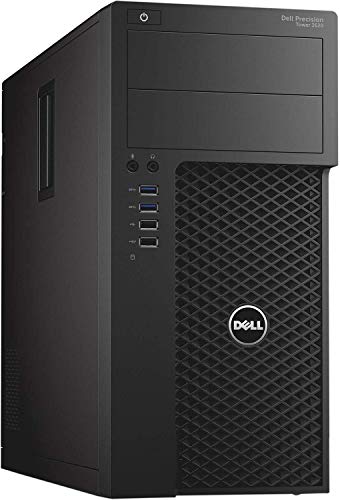
Entry Renewed Seat — Dell Precision 3620 (Renewed)
Strengths
- A genuine Precision workstation chassis with 32GB of memory and both SSD and HDD storage fitted
- Core i7 processor with up to 4.0GHz clocks keeps 2D CAD, office and light media work responsive
- Windows 11 Pro included, so it deploys into a professional setup without an OS detour
Trade-offs
- An older platform: fine for its intended work, outclassed by modern machines on heavy or parallel loads
- Integrated HD graphics only — any real 3D or GPU work needs a different machine
- Renewed verification rules apply: confirm the exact configuration and return terms on the listing
| Processor | Intel Core i7-6700, up to 4.0GHz |
|---|---|
| Memory | 32GB DDR4 |
| Storage | 512GB SSD + 2TB HDD |
| Graphics | Intel HD Graphics 530 |
| Ports | HDMI, USB 3.0 |
| Operating system | Windows 11 Pro |
| Condition | Renewed |
The Precision 3620 is what Step 6 looks like at its most accessible: a real workstation line, a sensible memory and storage specification, and an entry cost that makes it a rational first seat for 2D CAD, music and media production, development and professional office work. Buyers following the steps will recognise it as the answer when the workload table is light and the budget is the binding constraint.
Its limits are the platform’s age and its integrated graphics, and both are knowable in advance — which is the entire point of the method. If your Step 1 table stays in 2D and light media, this class of machine is not a compromise. It is the correct specification, bought at the correct price.
Best for: first-time buyers, students and light professional workloads on a tight budget / Not suited for: 3D, rendering or GPU-led work of any seriousness

Renewed Xeon Value — HP Z4 G4 Workstation (Renewed)
Strengths
- Xeon W platform with 64GB of memory — double the floor this guide sets for professional work
- Quadro professional graphics suit older certified software and multi-monitor professional desks
- NVMe SSD plus 2TB HDD already implements the two-tier storage layout the steps recommend
Trade-offs
- Previous-generation platform: per-core speed trails modern towers noticeably
- The Quadro P400 is for displays and light 3D, not rendering or AI
- Seller-dependent configuration and condition make day-one verification essential
| Processor | Intel Xeon W-2133, 6-core, up to 3.9GHz |
|---|---|
| Memory | 64GB DDR4 |
| Storage | 512GB NVMe SSD + 2TB HDD |
| Graphics | NVIDIA Quadro P400 2GB |
| Operating system | Windows 11 Pro |
| Condition | Renewed |
The Z4 G4 is the renewed answer for buyers whose Step 4 answer is 64GB and whose Step 2 answer involves professional graphics on established software. It delivers a real Xeon workstation platform — the memory, the build quality, the professional graphics lineage — at the part of the market where new machines are ordinary office PCs.
Run it through the steps honestly: if your workload is current-generation 3D or GPU compute, it fails Step 1 and you should walk away. If your workload is professional, memory-hungry and not clock-obsessed, it passes every step at a price that leaves budget for monitors, backup and software — which is what a well-chosen workstation is supposed to do.
Best for: memory-hungry professional work, small studios and home labs on a budget / Not suited for: current-generation speed or serious GPU compute
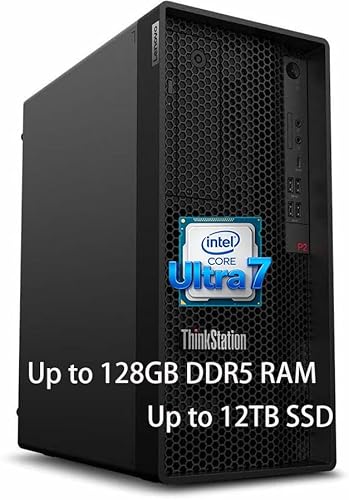
The Balanced New Tower — Lenovo ThinkStation P2 Gen 2
Strengths
- Core Ultra 7 265K delivers the balanced clocks-and-cores profile Step 3 recommends for mixed work
- 128GB of DDR5 memory answers Step 4 for years, not months
- SSD plus HDD storage, Windows 11 Pro and Wi-Fi 7 complete a no-weak-link specification
Trade-offs
- No discrete professional GPU in this configuration, so Step 2’s certification answer may send you elsewhere
- A full tower’s footprint is the standing price of its upgrade room
- Buyers with purely parallel workloads may prefer more cores over this balance
| Processor | Intel Core Ultra 7 265K |
|---|---|
| Memory | 128GB DDR5 RAM |
| Storage | 2TB SSD + 1TB HDD |
| Networking | Ethernet, Wi-Fi 7, Bluetooth |
| Operating system | Windows 11 Pro |
When the steps produce the most common professional profile — mixed CAD, development, creation and analysis, no certified-graphics requirement, a 128GB memory answer — they produce this machine. The ThinkStation P2 Gen 2 is the balanced tower against which the rest of this shortlist is defined, and for the majority of readers working through this guide it is where the process will land.
That is not a sales pitch; it is what balanced means. The P2’s specification has no hero component and no neglected one, which is precisely the shape of a workstation bought by method rather than by marketing. If your steps land here, buy with confidence and spend your remaining attention on monitors, backup and setup.
Best for: the broad centre of professional buyers with mixed workloads / Not suited for: certified-graphics requirements or purely parallel workloads
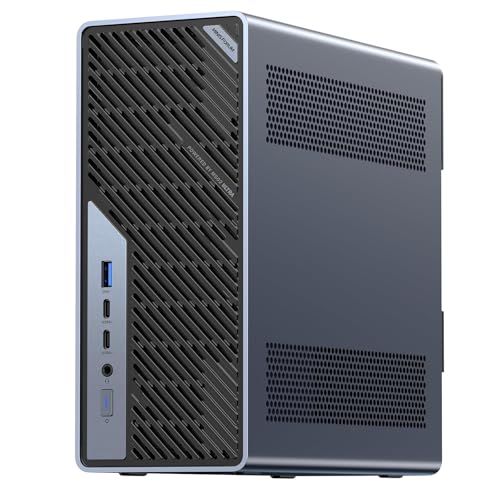
The Compact Professional — MINISFORUM MS-02 Ultra
Strengths
- Core Ultra 9 285HX with 24 cores brings flagship-class CPU performance to a mini chassis
- A PCIe 5.0 x16 slot and dual 25GbE plus 10GbE networking answer expansion questions most minis cannot
- USB4 v2 at 80Gbps makes fast external storage and docks a genuine working option
Trade-offs
- 32GB of memory is this configuration’s ceiling in practice for memory-led buyers — check it against your Step 4 floor
- No discrete professional GPU; certified-CAD buyers should stay with towers
- Mini cooling under sustained all-core load is audible in quiet rooms
| Processor | Intel Core Ultra 9 285HX, 24 cores, up to 5.5GHz |
|---|---|
| Expansion | PCIe 5.0 x16 slot |
| Memory | 32GB RAM |
| Storage | 1TB SSD |
| Networking | Dual 25GbE + 10GbE + 2.5GbE, Wi-Fi 7 |
| Ports | USB4 v2 80Gbps |
| Power supply | 350W |
The MS-02 Ultra is the machine Step 5 produces when the desk is small but the work is not. Its processor is a flagship mobile-class chip with 24 cores, its networking is faster than most towers at any size, and its PCIe slot keeps a future graphics or accelerator card possible — an unusual concession in a mini, and a valuable one.
The step it will fail for some buyers is Step 4: at 32GB of memory, memory-led workloads should look at its larger-memory rivals or at a tower. That is the method working as intended. For CPU-led professional work in minimal space — development, analysis, network-heavy and service workloads — it is one of the most capable compact machines we verified for this guide.
Best for: CPU-led professional work in a small footprint, fast-networking environments / Not suited for: memory-floor answers above 32GB or certified graphics needs


The Sensible Second Machine — Dell OptiPlex 7060 SFF (Renewed)
Strengths
- Six-core i7 with 32GB of memory and NVMe storage covers office, 2D and light development work properly
- Small form factor fits anywhere, including the desks and shelves a second machine usually ends up on
- Windows 11 Pro and included wireless keyboard and mouse make it deployable out of the box
Trade-offs
- An 8th-generation platform: capable for its class, not a match for modern machines under load
- Integrated graphics limit it to light visual work
- Renewed checks apply: configuration, condition and return terms, verified on arrival
| Processor | Intel Core i7-8700, 6 cores (8th gen) |
|---|---|
| Memory | 32GB DDR4 |
| Storage | 512GB NVMe M.2 SSD |
| Networking | Built-in Wi-Fi and Bluetooth |
| Operating system | Windows 11 Pro |
| Included | Wireless keyboard and mouse |
| Condition | Renewed |
Not every workstation purchase is a flagship decision. The OptiPlex 7060 class — renewed, small, sensibly specified — is what the steps produce for the second seat, the admin and office-plus machine, the home-office spare, the machine that runs the boring essential work while the flagship renders. Its 32GB of memory and NVMe storage mean it passes the floors this guide sets, which is more than many new budget machines can say.
Buy it for the role and it will not disappoint; ask it to be a 3D or AI machine and it will. The steps exist to make that distinction before money moves, and this is the shortlist’s clearest example of a modest machine that is, for its intended buyer, exactly right.
Best for: second seats, office-plus work, home offices and light development / Not suited for: primary 3D, rendering or AI duty
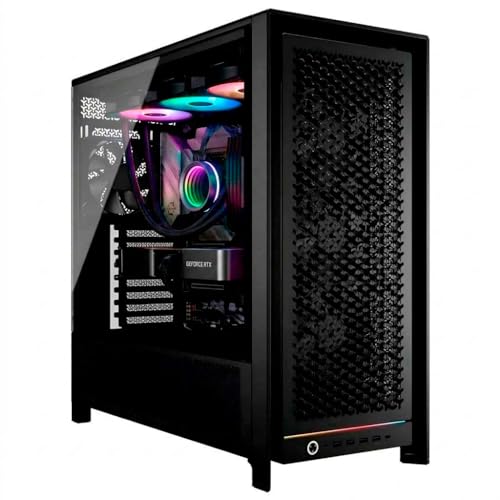
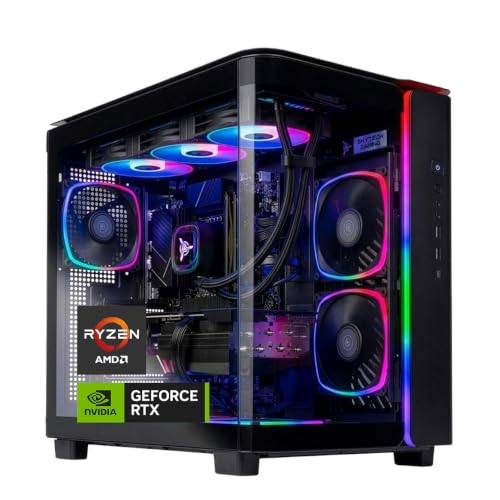
The New Parallel-Work Tower — Adamant Custom Liquid-Cooled Workstation
Strengths
- Threadripper 9960X with 24 cores on the TRX50 platform is a genuine parallel-work engine
- 64GB of ECC DDR5 memory answers both the capacity and the correctness questions in Step 4
- RTX 5070 graphics, liquid cooling, a 1200W power supply and a listed 3-year warranty complete a serious build
Trade-offs
- A specialist’s machine: buyers with light workloads will never use what they are paying for
- Physical size, power draw and cost of ownership are all in the enthusiast-workstation class
- Custom-builder support is a different experience from a global vendor’s — check the warranty terms as listed
| Processor | AMD Ryzen Threadripper 9960X, 24 cores |
|---|---|
| Motherboard | TRX50 platform |
| Memory | 64GB DDR5 ECC |
| Storage | 2TB NVMe Gen4 SSD + 10TB HDD |
| Graphics | NVIDIA GeForce RTX 5070 12GB |
| Cooling | Liquid cooled |
| Power supply | 1200W |
| Warranty | 3-year (per listing) |
The Adamant build is what Step 3 produces when the workload table is dominated by parallel work and Step 4 adds an ECC requirement: a Threadripper platform, error-correcting memory, storage in both fast and bulk tiers, and cooling and power headroom sized for sustained loads rather than benchmark bursts. The RTX 5070 gives it real GPU capability for rendering and AI experimentation alongside the CPU throughput.
It is also the shortlist’s clearest illustration that the method cuts both ways. Run a light workload table through the steps and they will never select this machine — and that restraint, applied honestly, is what funds the buyers for whom it is the only correct answer on the page.
Best for: rendering, simulation and parallel-compute professionals who want new hardware / Not suited for: light workloads, small desks or tight budgets
Step 7: What Should You Check in the Listing Before You Pay?
Before ordering any workstation, run the listing itself through a final audit. Confirm the processor’s exact model, not just its family. Confirm memory capacity and, where stated, type. Confirm storage devices individually — a listing that says 3TB of space may mean a fast SSD plus a slow hard drive, which is fine, or a single slow drive, which is not. Confirm the graphics card by full model name. Confirm the operating system edition. On renewed machines, confirm the seller, the grading standard and the return window. Every one of these has burned a real buyer who read the headline and skipped the detail.
Then check the two numbers listings love to blur: the power supply wattage, if you plan any graphics upgrade, and the physical dimensions, if the machine has a specific home. Both take thirty seconds to verify and are miserable to discover after delivery. If a configuration option selector changes memory or storage, re-read the summary after selecting — option pages are where careful buyers most often order the machine they did not intend to.
Step 8: How Do You Verify the Machine When It Arrives?
The choice is not finished at checkout; it is finished when the delivered machine survives verification. On day one, before migrating anything, confirm the installed configuration against the listing — memory, storage, graphics, operating system edition — using the system’s own information tools. Run the manufacturer’s hardware diagnostics end to end. Update firmware and drivers from the vendor’s support channel. Any discrepancy is a same-week conversation with the seller, while returns are painless and before the machine holds your only copy of anything.
Then load-test with your own work, not a synthetic benchmark: your largest project, your longest typical build or render, your heaviest multitasking hour. Watch memory pressure, temperatures and noise. A machine that completes your worst normal day without swapping, throttling or distress is verified. A machine that struggles has told you something important while you can still act on it — adjust the configuration, add memory, or return it and re-run the steps with better information. Problem: the machine swaps to disk during your biggest project -> fix: you under-bought memory; add capacity now if the platform allows it, or return and re-choose at the next memory tier. Problem: the machine is fast for ten minutes then slows -> fix: you are seeing thermal throttling; check airflow and placement before blaming the specification. Problem: your CAD suite reports an unsupported graphics configuration -> fix: you mis-answered Step 2; the remedy is a certified-graphics machine, not a driver hunt.
How to Read a Workstation Spec Sheet Without Being Fooled
Listings are written to sell, and the spec sheet is where selling and informing part company. Learn to translate. A headline that leads with total storage — ‘3TB of space’ — is telling you capacity while hiding composition; the detail lines reveal whether that is a fast SSD plus bulk drive (good) or a single slow drive (not good). A processor named without its generation is hiding its age: the family name stays the same for years while performance moves on, so always pin the exact model and look up its generation before comparing two machines. Memory stated without type or speed matters less than memory stated without capacity — capacity is the number your work feels — but on soldered machines, check whether the figure in the headline matches the configuration option you actually selected.
Graphics lines deserve the closest reading of all. ‘Professional graphics’ can mean a current RTX Ada card or a display-class Quadro from several generations ago; both statements are true and the machines are not comparable. Integrated graphics described with gaming language are still integrated graphics. And a workstation advertised around a powerful GPU may pair it with a modest processor or 16GB of memory, because the listing was built around the one component with the recognisable name. Read the whole sheet, every time, and let your Step 1 workload table — not the headline — tell you which lines matter.
Two examples make the habit concrete. The Lenovo ThinkStation P3 Tower Gen 2 (RTX 4000 Ada) listing leads with its processor and professional graphics and then states 256GB of memory and Gen 5 storage — a sheet with no weak line, which is exactly what a flagship should look like. A renewed listing, by contrast, may lead with a famous model name and bury a small SSD or a display-only graphics card in the options. Neither listing is lying. The difference is whether the reader does the work — and now you know how the work goes.
What If the Budget Will Not Stretch to the Machine the Steps Select?
It happens constantly: the steps produce a specification, the market prices it, and the number is larger than the budget. Compromise intelligently, in the right order. The worst cuts are the ones that cannot be undone — memory capacity in a soldered machine, a chassis with no graphics path, a platform with no expansion. Protect those first. The best cuts are the ones time can reverse: storage capacity you can extend externally, a graphics card you can add next year in a tower with the power supply for it, the second monitor deferred a quarter. A well-chosen compromise is a staged purchase, not a smaller machine.
The renewed market is the other release valve, and Step 6 exists precisely for this moment: the same specification class — Xeon platform, 64GB of memory, professional graphics lineage — exists renewed at entry prices, and for many workloads the platform’s age costs less performance than the budget gap would suggest. What you must not do is cut the memory floor or the certification requirement to fit a new machine’s price. Those are the two compromises that announce themselves later, at deadline, in the middle of the work the machine was bought to do.
Finally, re-run Step 1 before re-running the budget. Sometimes the honest discovery is that the workload table was aspirational — the 3D suite you might learn, the AI project you might start — and the machine your actual week requires is a tier lower and entirely affordable. Buy for the work you do. Ambition can be upgraded later; an over-bought workstation just depreciates with better specifications.
Three Worked Examples: The Steps Applied
Example one: a freelance CAD designer on a certified suite, 2D and moderate 3D, worst day a large assembly. Step 2 fires immediately — certified graphics — and Step 4 sets 64GB. The answer is a professional-graphics tower: the class of the Lenovo ThinkStation P3 Tower Gen 2 (RTX 4000 Ada) if the budget reaches the current generation, or a renewed Xeon with a Quadro card if it does not. Example two: a developer and local-AI experimenter in a small apartment office. Step 2 does not fire; Step 4 sets 128GB because the models are large; Step 5 says the desk is small and upgrades are unlikely. The answer is a big-memory compact — the class of the GEEKOM A9 Mega AI Workstation PC — bought at full memory capacity on day one, because there is no later.
Example three: a small video studio equipping a primary edit seat and an ingest-and-office seat. The primary seat’s steps produce a balanced new tower with strong storage; the second seat’s steps produce a renewed small-form-factor machine with 32GB and NVMe storage, because its workload table is light and its budget should stay that way. Two different machines, one method — and a studio that spent its money where the work actually happens. If your own answers produce something similar, machines like the Dell Tower Desktop (RTX 5060) show how the mainstream new-tower class now blends workstation duty with a capable discrete GPU for the edit seat.
How to Choose Between Two Finalists
The steps usually narrow the field to two machines, and the final choice stalls because both are defensible. Break the tie with ownership questions rather than specification questions. Which machine will still suit you if your biggest project grows by half? Which has the better warranty story, and who honours it? Which will be quieter in the room it will actually sit in, and cheaper to run under your daily load? Which seller’s listing was clearer and whose return terms are stronger? Specifications got both machines to the final; the machine you will live with is chosen on the answers to these.
One more tiebreaker, underused and decisive: price the whole system, not the tower. Add the monitor upgrade one machine’s graphics can drive and the other’s cannot; the external storage one machine’s ports make fast and the other’s make slow; the memory addition one platform allows and the other forbids. Finalists that look evenly priced as towers are rarely evenly priced as working systems, and the system price is the one you will actually pay over the machine’s life. Choose on that number, verify on arrival as Step 8 describes, and stop second-guessing — a workstation chosen by method and verified in use has earned your confidence.
Common Mistakes When Choosing a Workstation PC
- Starting from specifications instead of software, and buying impressive numbers the workload never uses.
- Skipping the certification question until the machine is deployed and support asks what GPU you are running.
- Setting the memory floor from today’s project instead of next year’s, especially on soldered-memory machines.
- Comparing renewed flagships with new towers on launch price or headline cores instead of on your workload.
- Reading the listing headline and never auditing the exact configuration, edition and return terms.
- Declaring the purchase finished at delivery instead of after a day-one verification and a real load test.
Final Recommendation
Choosing a workstation PC well is a sequence, not a talent: workload first, certification second, processor balance third, memory floor fourth, shape fifth, new-versus-renewed sixth, listing audit seventh, arrival verification last. Worked honestly, the sequence almost chooses the machine for you — and protects you from the two failures that account for nearly every bad workstation purchase: paying for power your work never touches, and starving the one resource your work touches every day.
If your answers describe the common professional profile, the balanced ThinkStation P2 class is where the sequence lands; if they describe parallel work, the Threadripper class; if they describe value, the renewed Xeon class; if they describe a small desk, the new compact class. For the value question behind all of it, read Is A Workstation PC Worth It; for hands-on impressions of the category, Workstation PC Reviews surveys what living with these machines is actually like. And if your budget is already fixed, the tiered shortlists — Best Workstation PC Under $1200 among them — apply this same sequence at a set price.
Frequently Asked Questions
What is the first thing to decide when choosing a workstation PC?
The workload. List your heaviest applications and what each one stresses — single-core speed, core count, GPU, memory or storage. Every later decision, from processor balance to graphics class, is just reading from that table. Buyers who start from specifications buy numbers; buyers who start from work buy the right machine.
How do I know if I need a professional GPU?
Check your software publisher’s certified hardware list for your exact applications. If your income depends on a suite that certifies professional drivers — the major CAD and engineering packages — buy professional graphics. If your tools are GPU-agnostic, consumer or strong integrated graphics give more performance for the money.
Is 32GB of RAM enough for a workstation?
For professional office work, 2D CAD, development and light media work, yes — it is the sensible floor. Serious 3D, 4K editing, large datasets and virtual machines want 64GB, and large assemblies, simulation and local AI want 128GB. Set the floor from your heaviest simultaneous load, then round up.
Are renewed workstations a safe choice?
They are a sound choice with a verification discipline: confirm the exact configuration in the listing, the seller’s testing and grading standards and the return terms, then verify the delivered machine on day one. The value is genuine — professional platforms at entry prices — and the risk lives entirely in skipping those checks.
Should I buy a tower or a mini workstation?
Buy the tower if you will realistically upgrade internals or need a discrete GPU path. Buy the mini if its as-shipped configuration — above all its fixed memory capacity — already covers your next three years. The mistake is paying for upgrade options you will never use, or sealing yourself into a configuration you will outgrow.
What should I check first when the workstation arrives?
That the delivered configuration matches the listing: memory, storage, graphics and operating system edition. Then run the vendor’s diagnostics, update firmware and drivers, and load-test with your largest real project. Discrepancies are painless in week one and expensive in month six.
Can I just buy a gaming PC instead of choosing a workstation?
Sometimes, yes — the steps will tell you. If your workload table is GPU-led, your software does not certify professional drivers, and you do not need ECC memory or business support, a gaming PC and a workstation converge on similar hardware, and either can be the right purchase. The steps matter because they reveal whether your work needs the things that make a workstation distinct; if it does not, you have lost nothing by checking, and if it does, you have saved yourself an expensive discovery.
How long should I expect a well-chosen workstation to last?
Four to six years is a reasonable expectation for a machine specified with memory headroom and a balanced processor. The workstations replaced early are usually the ones under-bought on memory or graphics memory — the two resources that are hardest or impossible to retrofit.