Disclosure: As an Amazon Associate, reviewstook.com earns from qualifying purchases. Links on this page are affiliate links at no extra cost to you; prices and availability change frequently, so check Amazon for the latest.
Where to Buy
Every model in this all in one pc buying guide is an Amazon listing we verified against the manufacturer’s specification through the Creators API on 2026-11-20, so the configurations described below are the configurations actually on sale.
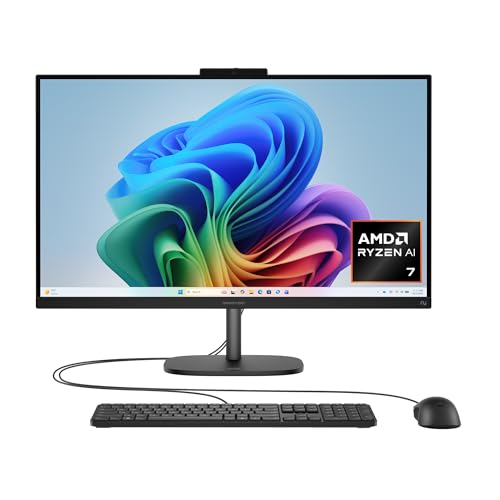
- Best Overall: HP OmniStudio 27 AI (Ryzen AI 7 / 16GB) — Check on Amazon
- Best for Home Office: Acer Aspire C27 (Ryzen 5 / 16GB / 512GB) — Check on Amazon
- Best Touchscreen: ASUS P440VA Touch (Core i5 / 16GB / 1TB) — Check on Amazon
- Best Big-Screen All-Rounder: Dell 27 AIO (Core 7 150U / 16GB / 1TB) — Check on Amazon
- Best Compact Everyday Pick: Lenovo IdeaCentre AIO 24 (DDR5 / 512GB) — Check on Amazon
- Best Budget: Lenovo All-in-One 23.8 (8GB / 256GB) — Check on Amazon
All of the models above are sold through Amazon, and reviewstook.com (reviewstook.com) links each pick to its Amazon listing so you can confirm the exact configuration before ordering — all-in-one listings often offer several memory and storage variants under one page, and the variant, not the headline, is what arrives in the box.
All in One PC Buying Guide: How to Buy the Right One First Time
An all in one pc buying guide has one job: to stop you buying a beautiful screen wrapped around the wrong computer. That is the central risk of this category. An all-in-one looks like a monitor, is sold like a monitor and is photographed like a monitor, so buyers naturally shop for the display — and then live for five years with the processor, memory and storage they barely glanced at. This guide works the other way round. It starts with the computer you actually need, checks it against the screen sizes that dominate the market, and only then names the specific models worth your money, every one of them verified against its live Amazon listing.
The appeal of the format is real and worth stating before the warnings. One box arrives. Inside it are the screen, the computer, a keyboard and a mouse. You plug in a single power cable, sign in to Windows, and the desk is finished — no tower humming by your ankle, no cable spaghetti, no separate monitor purchase, no webcam balanced on top of anything. For home offices, family kitchens, reception desks, student rooms and anyone whose workspace is also a living space, that simplicity is not a luxury. It is the entire point, and it is why the category keeps growing even though a separate tower and monitor can be cheaper part for part.
Who should not buy one? Two groups, and this guide will keep returning to them. The first is committed gamers: with a handful of exceptions, all-in-ones use integrated graphics, which means casual and older games at sensible settings, not modern titles at high detail — if gaming is the priority, our small-space gaming coverage such as Best High End Gaming PC For Small Spaces Under $1000 is the more honest starting point. The second group is habitual upgraders. In an all-in-one, the machine you buy is essentially the machine you keep, so the specification has to be right on day one. Everything below is organised around making sure it is.
In this guide
Quick Picks
- Best Overall: HP OmniStudio 27 AI (Ryzen AI 7 / 16GB) — the newest AI-ready platform here, with the strongest integrated graphics in the line-up
- Best for Home Office: Acer Aspire C27 (Ryzen 5 / 16GB / 512GB) — a 120Hz 27-inch screen and a six-core Ryzen make all-day desk work feel effortless
- Best Touchscreen: ASUS P440VA Touch (Core i5 / 16GB / 1TB) — the only touchscreen in the group, plus the roomiest storage on the list
- Best Big-Screen All-Rounder: Dell 27 AIO (Core 7 150U / 16GB / 1TB) — Core 7 power, 16GB of memory and a 1TB NVMe SSD in a big-screen Dell
- Best Compact Everyday Pick: Lenovo IdeaCentre AIO 24 (DDR5 / 512GB) — anti-glare screen, current DDR5 platform and generous storage in a 24-inch frame
- Best Budget: Lenovo All-in-One 23.8 (8GB / 256GB) — a clean, simple family computer with wireless peripherals included
How These Picks Were Chosen
We shortlisted all-in-one desktops currently sold on Amazon, then verified every candidate’s processor, memory, storage, display and included peripherals against the Amazon Creators API on 2026-11-20, using the API-returned product titles as the source of truth for each specification in this guide. Models whose listings could not confirm a coherent specification were dropped rather than guessed at, and renewed or refurbished units were excluded from the main picks — they can be excellent value, and one appears in our companion coverage, but a buying guide’s main list should be machines any reader can buy new with a full warranty.
Three filters did most of the work. First, storage: every pick uses solid-state storage, because a spinning hard drive is the single fastest way to make a new computer feel old. Second, memory: we treated 16GB as the comfortable target and 8GB as the acceptable floor for genuinely light use, and we say so plainly where a pick sits at that floor. Third, balance: a strong processor strangled by tiny storage, or a huge screen fed by an entry-level chip, failed the test. What survived is a list of six machines that each answer a recognisable brief — overall excellence, home-office endurance, touch interaction, big-screen completeness, compact everyday use and honest budget value.
A note on prices, because readers always ask: all-in-one pricing moves constantly with promotions, and the same listing often hosts several configurations. Rather than print figures that would be wrong within weeks, this guide positions each pick by tier — budget, mainstream or premium — and links to the live listing so you can check the latest price on Amazon for the exact configuration described. Judge value by the specification per tier, not by a number captured on one afternoon.
The Six Picks, Reviewed in Detail

Best Overall — HP OmniStudio 27 AI (Ryzen AI 7 / 16GB)
Strengths
- Ryzen AI processor brings a modern neural engine for AI-assisted Windows features
- Radeon 840M integrated graphics are a clear step above basic integrated graphics
- Large 27-inch screen suits split-screen work and media alike
Trade-offs
- Full HD resolution is the ceiling — no higher-resolution panel option in this configuration
- AI features depend on software support that is still maturing
- Premium positioning means you pay for the newest platform, not for a discrete GPU
| Display | 27-inch FHD |
|---|---|
| Processor | AMD Ryzen AI 7 445 |
| Memory | 16GB RAM |
| Storage | 512GB SSD |
| Graphics | AMD Radeon 840M |
| Operating system | Windows 11 Home |
| Colour | Jet Black |
Start with the buyer this machine is actually built for: buyers who want the most modern AIO platform on this list, with stronger integrated graphics for light creative work and casual gaming. In buying-guide terms, the HP OmniStudio 27 AI (Ryzen AI 7 / 16GB) earns its place because its specification hangs together as a coherent answer to that brief rather than as a random pile of parts. The 27-inch FHD sets the tone — it is the part of the computer you look at for every minute of its working life, and pairing it with AMD Ryzen AI 7 445 and 16GB RAM means the screen is backed by enough day-to-day responsiveness that the machine feels calm rather than strained when the usual mix of browser tabs, documents, email and a video call are all open at once.
In real-world use, the detail that matters most is how the 512GB SSD and the processor behave together. Windows boots quickly from solid-state storage, applications open without the long pauses older hard-drive machines taught everyone to hate, and the memory figure decides how gracefully the machine copes when you stop closing things. Treat the headline specification as a floor for your workload, not a ceiling: if your routine already fills a machine like this on paper, it will fill it in practice too, only faster, because software and browser habits grow into whatever room they are given over the years you will own it.
The honest limitation deserves plain language: there is still no discrete graphics card, so demanding games and heavy 3D work remain out of reach despite the up-to-date processor. None of that makes the HP OmniStudio 27 AI (Ryzen AI 7 / 16GB) a bad buy — it makes it a specific buy. A buying guide exists to match machines to people, and this one matches when your workload looks like the workload described above and mismatches when you are quietly hoping it will stretch into heavy gaming, serious video editing or a decade of service without ever feeling its age. Buy it for the job it describes and it will do that job well; buy it hoping the description is modest and you will be shopping again sooner than you planned.
Best for: buyers who want the most modern AIO platform on this list, with stronger integrated graphics for light creative work and casual gaming. / Not suited for: buyers for whom there is still no discrete graphics card, so demanding games and heavy 3D work remain out of reach despite the up-to-date processor.


Best for Home Office — Acer Aspire C27 (Ryzen 5 / 16GB / 512GB)
Strengths
- 120Hz refresh rate makes scrolling and motion noticeably smoother than typical 60Hz AIO panels
- Six-core Ryzen processor with 16GB of memory handles busy multitasking confidently
- Wi-Fi 6E future-proofs the wireless side for newer routers
Trade-offs
- Keyboard and mouse connect by USB rather than wireless, so some cable remains
- Full HD on a 27-inch panel looks less sharp up close than it does at 24 inches
- Mobile-class processor prioritises efficiency over sustained heavy workloads
| Display | 27-inch Full HD IPS, 120Hz |
|---|---|
| Processor | AMD Ryzen 5 7430U, hexa-core |
| Memory | 16GB DDR4 |
| Storage | 512GB PCIe SSD |
| Graphics | AMD Radeon Graphics |
| Wireless | Wi-Fi 6E |
| In the box | USB keyboard and mouse |
Start with the buyer this machine is actually built for: home-office workers who spend all day in documents, spreadsheets and browser tabs and want a big, smooth screen. In buying-guide terms, the Acer Aspire C27 (Ryzen 5 / 16GB / 512GB) earns its place because its specification hangs together as a coherent answer to that brief rather than as a random pile of parts. The 27-inch Full HD IPS, 120Hz sets the tone — it is the part of the computer you look at for every minute of its working life, and pairing it with AMD Ryzen 5 7430U, hexa-core and 16GB DDR4 means the screen is backed by enough day-to-day responsiveness that the machine feels calm rather than strained when the usual mix of browser tabs, documents, email and a video call are all open at once.
In real-world use, the detail that matters most is how the 512GB PCIe SSD and the processor behave together. Windows boots quickly from solid-state storage, applications open without the long pauses older hard-drive machines taught everyone to hate, and the memory figure decides how gracefully the machine copes when you stop closing things. Treat the headline specification as a floor for your workload, not a ceiling: if your routine already fills a machine like this on paper, it will fill it in practice too, only faster, because software and browser habits grow into whatever room they are given over the years you will own it.
The honest limitation deserves plain language: the Full HD resolution stretched across 27 inches will bother anyone who sits close and notices pixel structure in fine text. None of that makes the Acer Aspire C27 (Ryzen 5 / 16GB / 512GB) a bad buy — it makes it a specific buy. A buying guide exists to match machines to people, and this one matches when your workload looks like the workload described above and mismatches when you are quietly hoping it will stretch into heavy gaming, serious video editing or a decade of service without ever feeling its age. Buy it for the job it describes and it will do that job well; buy it hoping the description is modest and you will be shopping again sooner than you planned.
Best for: home-office workers who spend all day in documents, spreadsheets and browser tabs and want a big, smooth screen. / Not suited for: buyers for whom the Full HD resolution stretched across 27 inches will bother anyone who sits close and notices pixel structure in fine text.

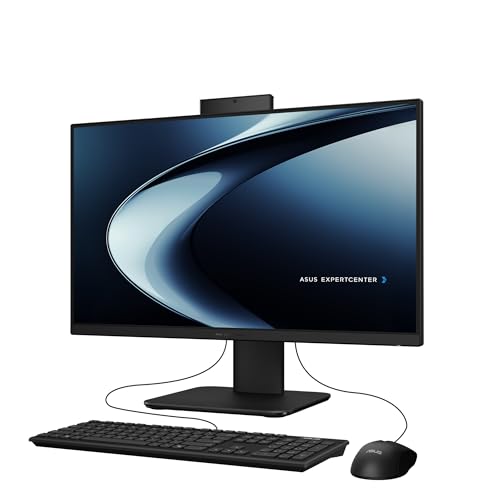
Best Touchscreen — ASUS P440VA Touch (Core i5 / 16GB / 1TB)
Strengths
- Touch display adds direct interaction that most AIOs on this list lack
- 1TB SSD is the roomiest storage in this roundup
- Core i5-13420H is a genuinely capable performance-class processor
Trade-offs
- Wired keyboard and mouse undercut the clean-desk promise slightly
- Touch encourages fingerprints on an anti-glare panel you will clean often
- Performance-class processor in a slim chassis means fans will be audible under load
| Display | 23.8-inch FHD anti-glare touch |
|---|---|
| Processor | Intel Core i5-13420H |
| Memory | 16GB DDR5 RAM |
| Storage | 1TB SSD |
| Operating system | Windows 11 Home |
| In the box | Wired keyboard and mouse |
Start with the buyer this machine is actually built for: families and professionals who want touch interaction plus the strongest all-round specification here. In buying-guide terms, the ASUS P440VA Touch (Core i5 / 16GB / 1TB) earns its place because its specification hangs together as a coherent answer to that brief rather than as a random pile of parts. The 23.8-inch FHD anti-glare touch sets the tone — it is the part of the computer you look at for every minute of its working life, and pairing it with Intel Core i5-13420H and 16GB DDR5 RAM means the screen is backed by enough day-to-day responsiveness that the machine feels calm rather than strained when the usual mix of browser tabs, documents, email and a video call are all open at once.
In real-world use, the detail that matters most is how the 1TB SSD and the processor behave together. Windows boots quickly from solid-state storage, applications open without the long pauses older hard-drive machines taught everyone to hate, and the memory figure decides how gracefully the machine copes when you stop closing things. Treat the headline specification as a floor for your workload, not a ceiling: if your routine already fills a machine like this on paper, it will fill it in practice too, only faster, because software and browser habits grow into whatever room they are given over the years you will own it.
The honest limitation deserves plain language: the wired peripherals feel like a small own-goal on a machine whose entire appeal is a clean, minimal desk. None of that makes the ASUS P440VA Touch (Core i5 / 16GB / 1TB) a bad buy — it makes it a specific buy. A buying guide exists to match machines to people, and this one matches when your workload looks like the workload described above and mismatches when you are quietly hoping it will stretch into heavy gaming, serious video editing or a decade of service without ever feeling its age. Buy it for the job it describes and it will do that job well; buy it hoping the description is modest and you will be shopping again sooner than you planned.
Best for: families and professionals who want touch interaction plus the strongest all-round specification here. / Not suited for: buyers for whom the wired peripherals feel like a small own-goal on a machine whose entire appeal is a clean, minimal desk.
Best Big-Screen All-Rounder — Dell 27 AIO (Core 7 150U / 16GB / 1TB)
Strengths
- Core 7 processor with 16GB and a 1TB NVMe SSD is a complete, no-compromise mainstream spec
- Wi-Fi 6E keeps networking current for years
- Dell’s service network and the included mail-in service term add peace of mind
Trade-offs
- Full HD on 27 inches is the one specification that does not match the rest
- Integrated graphics only, despite the strong processor
- Large panel needs a genuinely deep desk for comfortable viewing distance
| Display | 27-inch FHD |
|---|---|
| Processor | Intel Core 7 150U |
| Memory | 16GB |
| Storage | 1TB PCIe NVMe SSD |
| Wireless | Wi-Fi 6E, Bluetooth |
| Operating system | Windows 11 Home |
| In the box | Keyboard and mouse |
Start with the buyer this machine is actually built for: buyers who want a big-screen Dell that simply has everything mainstream users need, in depth. In buying-guide terms, the Dell 27 AIO (Core 7 150U / 16GB / 1TB) earns its place because its specification hangs together as a coherent answer to that brief rather than as a random pile of parts. The 27-inch FHD sets the tone — it is the part of the computer you look at for every minute of its working life, and pairing it with Intel Core 7 150U and 16GB means the screen is backed by enough day-to-day responsiveness that the machine feels calm rather than strained when the usual mix of browser tabs, documents, email and a video call are all open at once.
In real-world use, the detail that matters most is how the 1TB PCIe NVMe SSD and the processor behave together. Windows boots quickly from solid-state storage, applications open without the long pauses older hard-drive machines taught everyone to hate, and the memory figure decides how gracefully the machine copes when you stop closing things. Treat the headline specification as a floor for your workload, not a ceiling: if your routine already fills a machine like this on paper, it will fill it in practice too, only faster, because software and browser habits grow into whatever room they are given over the years you will own it.
The honest limitation deserves plain language: the only real question is the panel resolution — everything else on the spec sheet is a tick, so sit at a natural distance and it stops mattering. None of that makes the Dell 27 AIO (Core 7 150U / 16GB / 1TB) a bad buy — it makes it a specific buy. A buying guide exists to match machines to people, and this one matches when your workload looks like the workload described above and mismatches when you are quietly hoping it will stretch into heavy gaming, serious video editing or a decade of service without ever feeling its age. Buy it for the job it describes and it will do that job well; buy it hoping the description is modest and you will be shopping again sooner than you planned.
Best for: buyers who want a big-screen Dell that simply has everything mainstream users need, in depth. / Not suited for: buyers for whom the only real question is the panel resolution — everything else on the spec sheet is a tick, so sit at a natural distance and it stops mattering.

Best Compact Everyday Pick — Lenovo IdeaCentre AIO 24 (DDR5 / 512GB)
Strengths
- Anti-glare IPS panel is easy on the eyes in bright rooms and near windows
- Generous 512GB SSD at this tier means room for documents, photos and apps
- DDR5 memory and Wi-Fi 6 keep the platform current
Trade-offs
- 8GB of memory still caps serious multitasking despite the newer DDR5 standard
- Four-core processor is aimed at everyday work, not content creation
- No touchscreen, which some family and kitchen-counter users prefer
| Display | 24-inch FHD anti-glare IPS |
|---|---|
| Memory | 8GB DDR5 RAM |
| Storage | 512GB SSD |
| Processor | Intel 4-core |
| Wireless | Wi-Fi 6, Bluetooth 5.2 |
| Operating system | Windows 11 |
Start with the buyer this machine is actually built for: students and home users who want a current, well-balanced everyday machine with roomy storage. In buying-guide terms, the Lenovo IdeaCentre AIO 24 (DDR5 / 512GB) earns its place because its specification hangs together as a coherent answer to that brief rather than as a random pile of parts. The 24-inch FHD anti-glare IPS sets the tone — it is the part of the computer you look at for every minute of its working life, and pairing it with Intel 4-core and 8GB DDR5 RAM means the screen is backed by enough day-to-day responsiveness that the machine feels calm rather than strained when the usual mix of browser tabs, documents, email and a video call are all open at once.
In real-world use, the detail that matters most is how the 512GB SSD and the processor behave together. Windows boots quickly from solid-state storage, applications open without the long pauses older hard-drive machines taught everyone to hate, and the memory figure decides how gracefully the machine copes when you stop closing things. Treat the headline specification as a floor for your workload, not a ceiling: if your routine already fills a machine like this on paper, it will fill it in practice too, only faster, because software and browser habits grow into whatever room they are given over the years you will own it.
The honest limitation deserves plain language: the combination of ample storage and modest memory is slightly mismatched — the memory, not the drive, is what you will outgrow first. None of that makes the Lenovo IdeaCentre AIO 24 (DDR5 / 512GB) a bad buy — it makes it a specific buy. A buying guide exists to match machines to people, and this one matches when your workload looks like the workload described above and mismatches when you are quietly hoping it will stretch into heavy gaming, serious video editing or a decade of service without ever feeling its age. Buy it for the job it describes and it will do that job well; buy it hoping the description is modest and you will be shopping again sooner than you planned.
Best for: students and home users who want a current, well-balanced everyday machine with roomy storage. / Not suited for: buyers for whom the combination of ample storage and modest memory is slightly mismatched — the memory, not the drive, is what you will outgrow first.

Best Budget — Lenovo All-in-One 23.8 (8GB / 256GB)
Strengths
- Clean white design with a tidy wireless keyboard and mouse included
- IPS panel gives wide viewing angles for shared family use
- SSD storage keeps boot and app launches responsive for everyday tasks
Trade-offs
- 8GB of memory is the practical floor for modern Windows multitasking
- 256GB fills quickly if you store large photo or video libraries locally
- Integrated graphics only — fine for browsing and office work, not demanding games
| Display | 23.8-inch IPS Full HD |
|---|---|
| Memory | 8GB RAM |
| Storage | 256GB SSD |
| Processor | Intel 4-core |
| Graphics | Intel UHD Graphics |
| Operating system | Windows 11 Home |
| In the box | Wireless keyboard and mouse |
Start with the buyer this machine is actually built for: households that want a simple, good-looking family computer for browsing, schoolwork, email and video calls. In buying-guide terms, the Lenovo All-in-One 23.8 (8GB / 256GB) earns its place because its specification hangs together as a coherent answer to that brief rather than as a random pile of parts. The 23.8-inch IPS Full HD sets the tone — it is the part of the computer you look at for every minute of its working life, and pairing it with Intel 4-core and 8GB RAM means the screen is backed by enough day-to-day responsiveness that the machine feels calm rather than strained when the usual mix of browser tabs, documents, email and a video call are all open at once.
In real-world use, the detail that matters most is how the 256GB SSD and the processor behave together. Windows boots quickly from solid-state storage, applications open without the long pauses older hard-drive machines taught everyone to hate, and the memory figure decides how gracefully the machine copes when you stop closing things. Treat the headline specification as a floor for your workload, not a ceiling: if your routine already fills a machine like this on paper, it will fill it in practice too, only faster, because software and browser habits grow into whatever room they are given over the years you will own it.
The honest limitation deserves plain language: the modest memory and storage leave little headroom, so heavy multitaskers and local-media hoarders will feel the ceiling within the first year. None of that makes the Lenovo All-in-One 23.8 (8GB / 256GB) a bad buy — it makes it a specific buy. A buying guide exists to match machines to people, and this one matches when your workload looks like the workload described above and mismatches when you are quietly hoping it will stretch into heavy gaming, serious video editing or a decade of service without ever feeling its age. Buy it for the job it describes and it will do that job well; buy it hoping the description is modest and you will be shopping again sooner than you planned.
Best for: households that want a simple, good-looking family computer for browsing, schoolwork, email and video calls. / Not suited for: buyers for whom the modest memory and storage leave little headroom, so heavy multitaskers and local-media hoarders will feel the ceiling within the first year.
Comparison Table
Specifications below are taken from the API-verified listing titles. Where a field is not stated in the listing title it is marked from the verified specification notes in each review above; when in doubt, the Amazon listing for the exact variant is the final word.
| Model | Display | Processor | Memory | Storage | Link |
|---|---|---|---|---|---|
| HP OmniStudio 27 AI (Ryzen AI 7 / 16GB) | 27-inch FHD | AMD Ryzen AI 7 445 | 16GB RAM | 512GB SSD | Check on Amazon |
| Acer Aspire C27 (Ryzen 5 / 16GB / 512GB) | 27-inch Full HD IPS, 120Hz | AMD Ryzen 5 7430U, hexa-core | 16GB DDR4 | 512GB PCIe SSD | Check on Amazon |
| ASUS P440VA Touch (Core i5 / 16GB / 1TB) | 23.8-inch FHD anti-glare touch | Intel Core i5-13420H | 16GB DDR5 RAM | 1TB SSD | Check on Amazon |
| Dell 27 AIO (Core 7 150U / 16GB / 1TB) | 27-inch FHD | Intel Core 7 150U | 16GB | 1TB PCIe NVMe SSD | Check on Amazon |
| Lenovo IdeaCentre AIO 24 (DDR5 / 512GB) | 24-inch FHD anti-glare IPS | Intel 4-core | 8GB DDR5 RAM | 512GB SSD | Check on Amazon |
| Lenovo All-in-One 23.8 (8GB / 256GB) | 23.8-inch IPS Full HD | Intel 4-core | 8GB RAM | 256GB SSD | Check on Amazon |
How to Choose an All in One PC: The Five Decisions That Matter
Decision one: screen size. The market has settled on three sizes. At 21.5 to 24 inches you get the sweet spot for a single desk: big enough for two documents side by side, small enough for shallow desks and spare rooms. At 27 inches the machine becomes the room’s main screen — better for spreadsheets, media and ageing eyes, provided your desk is deep enough to sit at a comfortable distance. Below 21.5 inches you are buying for space above all else, and you should expect panel and performance compromises to match. If you want the fuller step-by-step method, our dedicated walkthrough at How To Choose An All In One PC turns these decisions into a checklist you can complete in ten minutes.
Decision two: processor class. Ignore brand tribalism and shop by workload. Entry chips — Intel N-series and basic four-core parts — browse, stream and handle documents happily, one task at a time. Mainstream parts — Core i5, Ryzen 5, Core 3 and Core 7 mobile-class chips — are the correct default for a home office: they multitask without complaint and will still feel adequate in four years. Performance-class parts such as a Core i7 H-series are worth it only if you genuinely edit video, compile code, work with large datasets or keep dozens of heavy tabs and applications open as a way of life.
Decision three: memory. This is the specification buyers under-buy most often, because 8GB works fine in the shop-demo sense and struggles in the forty-tabs-and-a-video-call sense. Treat 16GB as the target for any machine you intend to keep beyond two years, and 8GB as acceptable only for a clearly light workload: browsing, email, streaming, school documents. Memory is also the specification least likely to be upgradeable later in this category, which doubles the cost of getting it wrong.
Decision four: storage size and type. Solid-state storage is non-negotiable. Size is the judgement call: 256GB suits cloud-centric users whose photos and files live online; 512GB is the comfortable mainstream choice; 1TB earns its place for local photo and video libraries, games, or several user accounts on one family machine. Beware configurations that reach a big total by adding slow secondary storage — what matters day to day is the size and speed of the drive Windows lives on.
Decision five: the extras that are actually hardware. A webcam is built into most of these machines, which matters if you video-call. Touchscreens are a genuine feature on a minority of models — wonderful for family use, shared spaces and anyone who instinctively reaches for the screen — and an unnecessary cost otherwise. Speakers are the most underrated extra: a machine with properly engineered audio, such as the Dell in our detailed reviews, removes the need for desk speakers entirely. Finally, check the wireless standard: Wi-Fi 6 or 6E is what you want in a machine bought today.
What Your Budget Tier Actually Buys
At the budget tier, expect a 21.5 to 24-inch Full HD screen, an entry or older-generation processor, 8GB of memory and 256GB of storage. That is a legitimate computer for browsing, schoolwork, banking, streaming and calls — the Lenovo budget pick in this guide is exactly that machine, honestly specified. What the budget tier does not buy is headroom: it buys today’s workload done adequately, and the correct expectation is a shorter comfortable life.
The mainstream tier is where this category makes the most sense. Screens grow to 24 or 27 inches, processors become proper Core i5 or Ryzen 5 parts, memory reaches 16GB and storage 512GB. A mainstream all-in-one should feel unremarkable in the best way for four to six years — nothing stutters, nothing fills up, nothing needs explaining. Most readers of this guide should buy here, including everyone equipping a home office they depend on for income.
At the premium tier you are paying for three things: performance-class processors, platform features such as AI acceleration or touch, and the largest, best-finished screens. The HP OmniStudio AI model and the ASUS touchscreen in our picks live here. Premium buys longevity and pleasure rather than basic capability, and it is money well spent only when the machine is a daily, hours-long tool — which, for a home worker, it honestly can be.
Setting Up Your All in One: The First Hour Done Right
Setup is the all-in-one’s party trick, but the first hour still rewards a little method. Position the screen first: top of the display near eye level, roughly an arm’s length away, and not directly facing a window unless the panel is anti-glare. Connect power, switch on, and let Windows complete its updates before you install anything — interrupting the first update cycle is the most common cause of a sluggish first week. Connect the keyboard and mouse, then check for a second round of updates from the manufacturer’s own support tool, which often carries display and audio drivers Windows Update misses.
Next, make three decisions while they are still free. Set up the machine’s sign-in properly — a PIN or fingerprint where offered beats a typed password you will fumble daily. Choose your storage behaviour: if you bought a 256GB model, point photos and documents at your cloud storage now, while the drive is empty, rather than during a crisis later. Finally, uninstall the trial software you will never use; every pre-installed extra is a small tax on boot time and notifications. Our pros-and-cons analysis at All In One PC Pros And Cons explains which of these ownership realities matter most over the machine’s life.
Common Mistakes
The classic mistake is buying the screen and ignoring the computer: a gorgeous 27-inch panel wrapped around 8GB of memory and a tiny drive is a disappointment with good posture. The second mistake is the opposite — over-buying a performance processor for a workload of email and browsing, money that would have served better as more storage or a larger screen. Third, buyers forget the desk: a 27-inch all-in-one on a shallow desk sits too close, and no specification fixes geometry. Fourth, assuming upgradeability. Some models allow memory or storage upgrades and many do not; if upgrading matters to you, confirm it for the exact model before ordering, not after. Fifth, skipping the variant check at checkout: listings host multiple configurations, and the cheapest variant under a headline is rarely the configuration reviewed. Sixth, treating the included keyboard and mouse as permanent — they are serviceable starters, and heavy typists should budget for better, perhaps starting with the ergonomic options in Best Mice For Small Hands if smaller hands will use the machine.
Final Recommendation
For most readers, the HP OmniStudio 27 AI is the all-in-one to buy: the newest platform, the strongest integrated graphics in this group and a balanced 16GB and 512GB foundation under a big, friendly screen. Home-office workers who prize smoothness should take the Acer Aspire C27 and its 120Hz panel seriously, while families who will actually touch the screen should go straight to the ASUS P440VA. On a strict budget, the Lenovo 23.8-inch model is the honest minimum — and if your deliberations are really about whether the format itself deserves your money, read Is An All In One PC Worth It before you order, then come back and pick with confidence. Round out the desk with a supportive seat from Best Big And Tall Gaming Chairs if long sessions are planned, and you have a workspace that asks nothing of you except the work itself.
Frequently Asked Questions
What is an all-in-one PC, exactly?
It is a complete desktop computer built into the back of its own monitor. The processor, memory, storage, speakers and usually a webcam all live inside the display housing, so the desk holds only the screen, a keyboard and a mouse. Everything in this guide is a Windows all-in-one; Apple’s iMac follows the same idea in a different ecosystem.
How much memory does an all-in-one PC need?
For light use — browsing, email, streaming, schoolwork — 8GB is workable today. For a home office, a family machine with several accounts, or anything you want to keep for four or more years, 16GB is the sensible target. Memory is difficult or impossible to upgrade in many all-in-ones, so buy for the workload you expect in three years, not the one you have this month.
Can an all-in-one PC play games?
Casual, older and less demanding games, yes — the stronger integrated graphics in models like the HP OmniStudio AI handle them at sensible settings. Modern, graphically demanding titles at high settings, no: that needs a discrete graphics card, which this format almost never includes. Keen gamers should look at a small tower instead; our roundup of compact cases at Best Small Form Factor PC Cases is a good place to start that build.
Is a 24-inch or 27-inch all-in-one better?
Neither is universally better; the desk decides. A 24-inch screen suits shallower desks, closer seating and single-document work, and at Full HD it actually looks sharper because the same pixels are packed tighter. A 27-inch screen suits deeper desks, split-screen work, spreadsheets and media, and is kinder to eyes that prefer larger text — ideally paired with a higher refresh rate, as on the Acer in this guide.
Can you upgrade an all-in-one PC later?
Sometimes memory or storage, often neither, and almost never the processor or graphics. Policies differ by model and are rarely headline features, so if future upgrades matter to you, verify them for the exact model before buying. The safer strategy in this category is to buy the specification you will need in three years, which is why this guide keeps pushing buyers toward 16GB of memory and 512GB of storage.
Do all-in-one PCs include a webcam and speakers?
Almost all include both, which is part of their value against a tower-plus-monitor bundle where each is a separate purchase. Quality varies: webcams range from adequate-for-calls to genuinely good, and speakers from functional to properly engineered audio. If calls are your job, check the camera specification in the detailed reviews; if media matters, look for named audio technology such as the Dell’s Dolby Atmos speakers.
How long should an all-in-one PC last?
A mainstream model with 16GB of memory and 512GB of solid-state storage should stay pleasant for four to six years of ordinary use. Budget models with 8GB and 256GB usually feel their age in two to four years, not because they break but because software grows. Longevity is the main reason this guide recommends buying one tier above the minimum you can get away with. For a second opinion on the category as a whole, see our hands-on verdicts in All In One PC Review.