Disclosure: As an Amazon Associate, reviewstook.com earns from qualifying purchases. Links on this page are affiliate links; they cost you nothing extra. Prices and availability change often, so check the current Amazon listing before you buy.
Consider this the corsair k70 how to guide for owners who suspect their keyboard can do far more than the first evening revealed. A modern K70 is not merely a board that lights up and types. Depending on the variant in front of you, it carries adjustable magnetic switches, per-key actuation you can tune in tenths of a millimetre, rapid trigger behaviour that resets a key the instant it starts rising, onboard memory for profiles you build on one machine and carry to another, a tournament switch that silences distractions, and a software suite deep enough that many owners use perhaps a fifth of it. This guide walks the whole ownership arc in order: choosing the right K70 variant, connecting it correctly, setting actuation for different games and for typing, building lighting and macros that survive without software, cleaning the board without harming switches, and fixing the handful of faults that account for nearly every frustrated forum post about this keyboard family.
Key takeaways
- Start in Corsair iCUE with firmware and a single clean profile; layering experiments onto a cluttered profile is the root of most K70 confusion.
- On the PRO TKL, actuation is a per-key dial: shallow for movement keys in shooters, deeper for abilities you must never fire accidentally.
- Rapid trigger rewards small, deliberate key travel; pairing it with a very deep actuation point quietly cancels much of its benefit.
- Save finished profiles to onboard memory so your settings travel to a laptop, a second PC, or a tournament machine without iCUE.
- The CORE TKL trades magnetic switches for pre-lubed mechanical ones, which makes its how-to story about sound, feel, and SOCD rather than actuation tuning.
- Most perceived switch failures are crumbs, a shifted actuation setting, or a profile conflict — diagnose in that order before assuming hardware damage.
In this guide
Which K70 do you actually own, and why does it change the instructions?
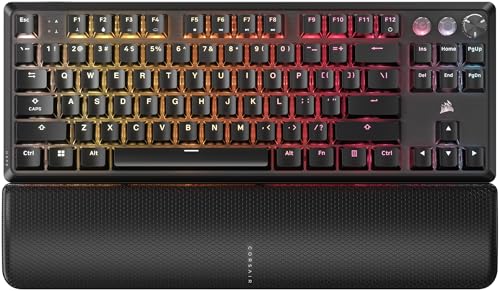
The K70 name spans a long lineage, and instructions written for one generation can mislead owners of another. Full-size K70 boards from earlier years centre on mechanical Cherry or Corsair OPX switches, a volume roller, and dedicated media keys. The current tenkeyless generation splits into two distinct philosophies. The K70 PRO TKL is the esports instrument: Hall effect MGX Hyperdrive switches whose actuation point is set in software, rapid trigger, simultaneous opposing cardinal directions handling, and an 8,000Hz-class polling ambition aimed at competitive play. The K70 CORE TKL is the enthusiast all-rounder: pre-lubed MLX Red v2 linear mechanical switches, sound dampening inside the case, and a friendlier price of entry, aimed at players who want a refined typing feel alongside gaming. Before following any step below, flip your board over and read the exact model on the label, because actuation and rapid trigger sections apply only to magnetic-switch models, while switch-swap and lube discussions belong to mechanical ones.
Layout matters just as much. Tenkeyless removes the number pad, which pulls your mouse hand closer to your typing hand and frees a wide lane for low-sensitivity mouse movement. If you enter figures into spreadsheets daily, that absence is a workflow decision, not a detail, and pairing a TKL board with a separate numpad is a legitimate arrangement many accountants who game actually prefer. Both boards covered here use a QWERTY US layout with ABS double-shot keycaps, so legends should resist the shine-through wear that printed caps suffer, though the ABS material itself will eventually polish under fingertip oils — a cosmetic inevitability you can slow with clean hands and regular wiping, and reverse later with a replacement cap set since the stems follow the common cross standard.
The two K70 boards this guide is built around
Two verified listings anchor the practical sections, because their differences illustrate nearly every decision a K70 buyer faces. Read their reviews as ownership briefings: what each board asks of you, what it returns, and which settings chapters matter for it.

CORSAIR K70 PRO TKL — the tunable competition board
Badge: Best for competitive players who will actually tune actuation
- Format: tenkeyless, wired, QWERTY US layout
- Switches: pre-lubed Hall effect MGX Hyperdrive, adjustable actuation
- Features: rapid trigger, SOCD handling, simultaneous opposing inputs
- Keycaps: ABS double-shot
- Software: Corsair iCUE for profiles, lighting, and key assignments
The PRO TKL exists for players who treat keyboard settings the way they treat mouse sensitivity: as variables to be measured, adjusted, and occasionally argued about. Its magnetic switches sense key position continuously rather than at one fixed contact, which is what makes the headline tricks possible. You can order a key to register after a whisper of travel for strafing, demand a nearly full press for an ultimate ability, and have each key reset the moment it begins rising so repeated inputs chain faster than a fixed reset point allows. None of this makes a poor player good, but for someone whose movement technique already involves counter-strafing and rapid direction changes, the board removes hardware as an excuse.
Ownership begins with restraint. Out of the box, resist remapping half the board. Play a week at sensible defaults while reading the actuation chapter below, then tune movement keys first, abilities second, and leave typing-critical keys alone until your fingers have learned the new reset behaviour. The wired connection suits its mission: no battery anxiety mid-match, no wireless interference variables, and a cable you should route with enough slack that the board can sit angled — many competitive players rotate a TKL board noticeably, and a taut cable will slowly drag it back straight at the worst moments.
Strengths
- Per-key actuation turns one keyboard into different instruments for different genres.
- Rapid trigger genuinely changes repeated-input rhythm in movement-heavy shooters.
- Tenkeyless footprint leaves a generous, unobstructed mousing surface beside it.
Trade-offs
- Wired only, so desk-hopping and couch play need a different solution.
- The tuning depth can become a hobby that eats the practice time it was meant to support.
- ABS caps will shine with heavy use sooner than PBT alternatives would.
Best for: ranked shooter and movement-game players who enjoy settings craft. / Not suited for: buyers wanting wireless freedom or a number pad for daily data entry.

CORSAIR K70 CORE TKL — the refined everyday mechanical
Badge: Best for mixed work and play on one desk
- Format: tenkeyless, wired, QWERTY US layout
- Switches: pre-lubed MLX Red v2 linear mechanical
- Features: SOCD handling, sound dampening layers, 1,000Hz polling
- Keycaps: ABS double-shot
- Character: smooth linear feel tuned for a softer bottom-out sound
The CORE TKL answers a different question: what if the keyboard must serve a working day of writing and meetings, then an evening of games, without sounding like a workshop through a shared wall? Its linear switches arrive pre-lubed, which smooths the stroke and removes the scratchiness that sends new mechanical owners shopping for lube and tiny brushes. Internal dampening takes the edge off bottom-out clack, so the board reads as composed rather than loud. You give up magnetic adjustability — actuation is where the switch designer put it — and in exchange you get a board that needs almost no tuning chapter at all: plug in, set lighting you can live with, assign a macro or two, and get on with using it.
That simplicity is a genuine feature for households and offices. There is no actuation profile for a partner or colleague to accidentally wreck, no rapid trigger behaviour for a typist to find baffling, just a consistent linear stroke. Gamers still get SOCD resolution for opposing movement keys, which handles the moment you press left and right together more gracefully than older boards that simply cancelled or prioritised unpredictably. If your gaming is varied — some shooters, some RPGs, some strategy — and your typing volume is high, this is the K70 whose compromises point your way.
Strengths
- Pre-lubed linear switches feel finished immediately, with no modding weekend required.
- Dampened acoustics suit shared rooms, calls, and late-night sessions.
- Lower complexity means fewer settings to break and a calmer learning curve.
Trade-offs
- No adjustable actuation or rapid trigger for competitive movement tuning.
- Linear switches give typists no tactile landmark, which some writers dislike.
- Also wired, so the same cable-management homework applies.
Best for: hybrid workers and varied-genre players wanting one polished board. / Not suited for: actuation tinkerers or tactile-switch devotees.
Whichever board you choose, readers comparing wider keyboard categories may find wireless gaming keyboards built for FPS play useful context, while office-first buyers should glance at keyboard and mouse combinations for desk work before committing to a gaming-first layout.
How do you set a K70 up properly on day one?
Unbox onto a clear desk and keep the cable, the board, and any included extras separate from packaging until the board is confirmed working; returns are painless with everything present and miserable without. Connect the USB cable directly to a rear motherboard port on a desktop, or a primary port on a laptop, rather than through an unpowered hub — high-polling gaming boards and sleepy hub ports are a classic source of intermittent dropouts that owners misdiagnose as switch failure. Power up, let the operating system recognise the board, and type a full sentence in a plain text editor before installing anything. Every key you rely on should register cleanly at default settings; establishing that baseline means later weirdness can be blamed on changes you made, not on the hardware.
Next, install Corsair iCUE from Corsair directly, connect, and accept firmware updates before building profiles, because firmware revisions on magnetic boards can change actuation behaviour and occasionally reset tuning values. Updating halfway through a careful tuning session is how settings mysteriously change character overnight. Once firmware is current, create one fresh profile and name it plainly with the date. Build everything inside that profile for the first fortnight. Veteran owners accumulate a sediment of half-finished experimental profiles, and the single most common K70 support answer amounts to: you were not editing the profile you thought you were. A clean, dated, single profile removes that entire category of confusion.
Set your typing baseline before gaming exotica. Choose a lighting scheme your eyes tolerate for hours — a static, dim colour teaches you the board’s geography better than a travelling rainbow — and set the Windows key behaviour you prefer. Then back the profile up by exporting it, and save it to onboard memory once you are happy, following the onboard chapter below. Only now start actuation experiments, changing one variable at a time and playing real matches between changes. Settings folklore copied wholesale from a professional player’s profile ignores that their values suit their fingers, their game, and thousands of hours of habit; borrow their reasoning, not their numbers.
How should actuation and rapid trigger be tuned on the PRO TKL?
Actuation is the travel distance at which a press registers. Magnetic switches let you place that point shallow or deep, per key, and the right answer differs by job. Movement keys in a shooter want shallow actuation — around the lightest third of travel — because strafing is a conversation of tiny corrections and every fraction of a second of earlier registration tightens counter-strafing. Jump and crouch sit nearby in philosophy: frequent, reflexive, and rarely catastrophic when fired early. Ability keys, grenades, and anything bound to a long cooldown want the opposite: a deep actuation point makes an accidental brush harmless, because a fingertip resting or sliding across the cap will not reach the trigger depth. Typing-heavy keys deserve moderation; an ultra-shallow spacebar or enter key will double-fire in prose long before it wins you a duel.
Rapid trigger changes the reset side of the stroke. Instead of waiting for the key to rise past a fixed reset point, the switch re-arms as soon as upward movement begins, and can fire again on the next downward motion. In practice it rewards players who tap in rhythm — repeated peeks, bunny-hop attempts, rapid single shots — because the key is ready again earlier in its travel. It pairs naturally with shallow-to-mid actuation; set actuation extremely deep and the key spends its travel just reaching the first press, squandering the quick reset you enabled. Experiment in a practice range rather than ranked matches: ten minutes of deliberate strafing drills at two different settings teaches your fingers more than a week of ordinary games where you cannot isolate the variable.
SOCD handling deserves a plain explanation because its name explains nothing. When you hold left and press right, games must decide what two opposite orders mean. Older keyboards left that to each game, with inconsistent results. SOCD cleaning resolves the pair by a rule — commonly last-input priority, so the newest direction wins — which makes direction changes feel decisive and enables movement techniques that depend on crisp reversals. Some competitive titles restrict certain SOCD behaviours, so check your game’s current rules before building technique around a specific resolution mode; hardware capability and tournament legality are separate questions, and the honest guide says so.
What can iCUE do beyond lighting, and what should you avoid in it?
Treat iCUE as three tools sharing one window. The first is assignments: remapping keys, building macros, and placing media or application shortcuts where your hand already rests. Start with assignments that remove genuine friction — a push-to-talk key under a spare finger, a screenshot key you can hit without looking, a mute that does not require a function-layer hunt mid-call. Macros that record long timed sequences are powerful for repetitive work tasks like renaming batches of files or filling test data, but keep them out of competitive multiplayer, where automation rules vary and a recorded sequence can cross a game’s line even when a simple rebind would not.
The second tool is lighting, where taste and function meet. Per-key lighting earns its keep as information: colour-code movement, abilities, and number-row utilities in a game profile, and your peripheral vision learns the map faster than your conscious mind does. Keep work profiles calm and uniform so the board can sit in a video call without performing. The third tool is performance: polling, actuation, rapid trigger, and the tournament or game-mode behaviours that disable interruptions. Change performance settings in small, dated steps and note what you changed inside the profile name; future you, troubleshooting at midnight, will be grateful for the breadcrumb.
Avoid stacking software layers. Running a second remapping utility, a macro program, and iCUE simultaneously invites conflicts where two tools interpret the same keystroke differently across reboots. Pick iCUE as the single authority for the K70, disable overlapping features elsewhere, and most phantom behaviour disappears. Similarly, avoid syncing lighting across every device in a large ecosystem until your keyboard profiles are stable; ecosystem sync is a finishing flourish, not a foundation.
How do onboard profiles and the tournament switch actually help?
Onboard memory stores profiles inside the keyboard itself. The practical payoff appears the first time you plug into a machine without iCUE: a work laptop, a friend’s PC, a competition setup where installing personal software is not an option. Your actuation, key assignments, and lighting arrive with the board. The discipline is to treat onboard slots as published versions, not drafts. Finish a profile in software, play it for several sessions, and only then write it to a slot with a clear name. Owners who push every half-tested experiment onboard end up cycling through mystery profiles at exactly the moment they can least afford confusion.
The tournament-style game mode — the switch or profile behaviour that locks the Windows key, freezes lighting to a static scheme, and disables macros — exists to remove categories of accident. In a match, an operating-system menu opening over your game or a macro firing from a stray press is not a small annoyance; it is the round. Build the habit of engaging it as part of your pre-match routine, alongside checking your mouse charge and your headset volume, so the routine itself becomes a focus ritual. At home the same mode serves writers on deadlines surprisingly well: no Windows key ambushes, no lighting theatre, just the document.
Readers setting up a broader competitive desk may also want Black Friday gaming keyboard deals worth watching for timing purchases, and the maintenance companion how to clean a keyboard without damaging it for the deep-clean method referenced below.
How do you clean a K70 and keep its switches honest?
Weekly care takes three minutes and prevents most grime problems: board unplugged or the machine asleep, a soft brush across the rows to lift loose debris, then a barely damp microfibre cloth across the caps. Monthly, or after any snack-related incident at the desk, go further. Photograph the layout first — tenkeyless boards are standard enough, but a photo makes cap replacement a matching game instead of a memory test. Pull caps with a wire puller, straight up, supporting wide keys like spacebar and shift at both ends so stabilisers are not torqued. Wash caps in warm water with a drop of mild soap, rinse thoroughly, and let them dry completely overnight; a cap that feels dry can still hold water inside its stem well, and refitting damp caps invites corrosion conversations nobody wants.
With caps off, tip the board and tap gently to evict crumbs, then use short bursts of compressed air at an angle, sweeping debris out rather than driving it deeper. Never vacuum a keyboard with a household machine; static and suction both have opinions about electronics and loose stabiliser parts. Wipe the plate with a cloth slightly dampened with water, and reserve isopropyl alcohol for stubborn residue on the plate only, kept away from switch internals. Magnetic switches have no contact leaves to clean in the mechanical sense, which is one of their quiet virtues, but grit around a stem can still make travel feel rough, so the crumb discipline above matters for the PRO exactly as much as for the CORE.
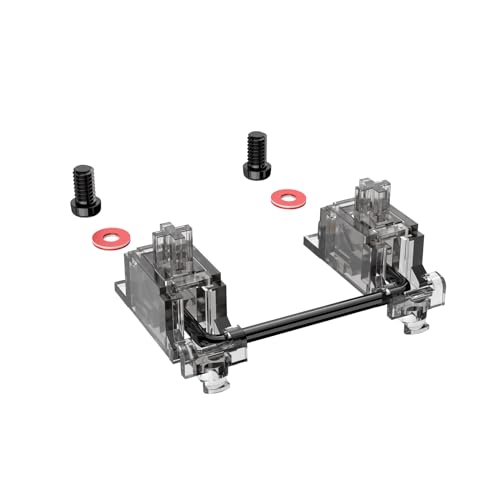
Stabilisers — the wire-and-housing assemblies under spacebar, shift, enter, and backspace — are where rattle lives. A spacebar that ticks on one side usually has a dry or slightly unseated stabiliser rather than a failing switch. If you are comfortable opening the topic, a small amount of appropriate dielectric grease on the wire ends is the classic remedy, applied sparingly with a fine brush. If you are not comfortable, live with a mild tick or have a keyboard-savvy friend do the five-minute job; forcing stabiliser housings apart without knowing their clips is how a sound fix becomes a parts order.
What buying questions should a first-time K70 shopper settle first?
Decide the switch philosophy before the badge. If you know you will tune actuation and chase movement tech, the PRO TKL is the honest purchase and the CORE will feel like a compromise within a month. If your week is mostly prose, calls, and varied games, the CORE’s finished-out-of-box feel is worth more than adjustability you will set once and forget. Decide layout second: tenkeyless suits mouse-driven gaming and compact desks, while number-pad devotees should either look at full-size siblings or budget desk space for a separate pad. Decide connection third, and be truthful about it — both boards here are wired, which suits fixed desks and competitive consistency, but a reader who games from a sofa or rotates between rooms should not pretend a cable will stop mattering.
Then weigh the quieter factors. Keycap material affects long-term appearance. Software tolerance affects daily happiness: iCUE is capable but substantial, and a buyer who loathes background utilities should factor that honestly. Desk acoustics matter more than most first-time buyers expect; a board that delights in a carpeted study can irritate in a hard-floored flat, which is why the CORE’s dampening is a headline rather than a footnote. Finally, buy for the games and work you actually have this year, not the aspirational ranked grind you may never start — the best keyboard purchase is the one whose strengths meet your calendar, not your intentions.
Which mistakes do new K70 owners repeat most often?
The champion mistake is tuning everything at once: actuation, rapid trigger, remaps, and macros in a single evening, followed by a miserable match and no idea which change caused it. One variable, real play, notes, repeat. Second is copying a professional’s actuation values as scripture; their numbers encode their hands and habits, and your fingers will vote differently within a week. Third is editing the wrong profile — the sediment problem from the setup chapter — which is why a single dated profile beats five clever ones. Fourth is hub roulette: blaming switches for dropouts caused by an unpowered hub or a sleeping USB port, when moving the cable to a primary port cures it instantly.
Fifth, owners neglect the humble stuff: caps never cleaned until legends vanish under grime, cables routed so tightly the board migrates, firmware ignored for a year then updated the night before an important match. Sixth is expecting settings to substitute for practice. Rapid trigger sharpens a counter-strafe you already own; it does not install one. Treat the board as an instrument that rewards rehearsal and the purchase makes sense; treat it as a shortcut and disappointment is scheduled. Readers choosing a board mainly for office comfort might cross-check choosing a keyboard for office work before deciding a gaming board is the right tool at all.
How do you fix the faults that send owners to forums?
Work faults in a fixed order, cheapest cause first. A single key misbehaving: remove its cap, clear debris, reseat the cap squarely, and test in a plain editor. On the PRO, check that key’s actuation value — an accidental ultra-shallow setting explains ghost presses, while an accidentally deep one explains a key that seems dead to light touches. A whole board dropping out: change the port, then the cable route, then test on a second machine before touching software. Lighting frozen or wrong: confirm the active profile, because a hardware lighting mode stored onboard can override what you expect iCUE to show. Macros firing oddly: look for a second utility interpreting the same keys. Double letters while typing on the PRO usually mean actuation set heroically shallow for prose; give your work profile deeper values and keep the hair-trigger settings inside the game profile where they belong. This order — physical, settings, software, second machine — resolves the overwhelming majority of K70 complaints without a support ticket.
One last habit separates satisfied owners from the rest, and it costs nothing: revisit this guide’s setup order whenever anything changes — a new game, a new desk, a firmware note that catches your eye — because the order, not any individual setting, is the durable knowledge. Firmware, one clean profile, one variable at a time, onboard once proven: a keyboard configured by that rhythm stays configured, through seasons of games and years of work, while a keyboard configured by impulse stays a project. The K70 was built to be finished. Finish yours, and then go and use it for the things it was finished for.
Frequently asked questions about living with a K70
Can the K70 PRO TKL really change how a single key behaves?
Yes, within the limits of its magnetic switches. Actuation depth and rapid trigger are set per key in iCUE, so movement keys can be eager while a grenade key demands commitment. The change is electrical behaviour, not magic: the switch senses position continuously, and the firmware decides where in that travel a press counts. Give each experiment real play time before judging it, because fingers adapt over days, and a setting that feels twitchy on Monday can feel natural by Friday once your touch lightens to match it.
Do I need iCUE running all the time?
No, once profiles are saved onboard, the board carries its core behaviour to machines without the software. You need iCUE to build and edit profiles, update firmware, and use its deeper assignment and sync features. Many owners run it during a setup phase, save finished profiles to the board, and then leave it closed during play. That pattern also simplifies troubleshooting, since a board behaving identically with software closed tells you the settings truly live where you think they do.
Is tenkeyless a problem for work?
Only for work that leans on the number pad. Writers, programmers, and most analysts rarely miss it and gain mouse room and a more centred typing posture. Spreadsheet-heavy roles, data entry, and some accounting workflows genuinely suffer, and those users should choose a full-size board or add a standalone pad rather than suffer nobly. Be honest about your actual week: count how often your right hand travels to a numpad today, and let that number, not gaming fashion, decide.
How often should firmware be updated?
When iCUE offers an update and you are not on the eve of something important. Read the prompt, update during a calm moment, and expect to re-check actuation values afterwards on magnetic models, since firmware can refine how settings map to behaviour. Never update mid-tournament or as a desperate response to an unrelated fault; firmware is maintenance, not a diagnostic shortcut, and the fixed troubleshooting order above should come first.
Can I replace the keycaps later?
Generally yes, since the switches use the common cross-stem pattern and tenkeyless layouts follow standard row spacing. Confirm any specific set’s compatibility with the board’s stabilised keys and bottom row before ordering, photograph your current layout before removal, and keep the original caps stored together. Replacement is also the honest cure for polished ABS shine: no cleaning routine reverses fingertip polishing, so a fresh set after heavy use is upkeep, not failure.
What is the single best first setting to change?
On the PRO TKL, set your ability keys deeper before touching anything else. It prevents the most rage-inducing accident in gaming — the wasted ultimate from a brushed key — while asking nothing of your muscle memory. On the CORE TKL, assign a convenient mute and a push-to-talk key; a mixed work-and-play board earns its keep through small daily mercies. In both cases, save the result onboard once it survives a week of real use.
How do the two boards compare side by side for a deciding buyer?
Put plainly, the PRO TKL and CORE TKL share a surname, a silhouette, and a software home, then diverge on almost everything that determines daily feel. The PRO’s magnetic switches make behaviour a variable; the CORE’s mechanical switches make behaviour a promise. The PRO polls faster and speaks the language of esports settings panels; the CORE answers with dampening foam and a stroke that sounds composed in a quiet flat. The PRO rewards owners who keep notes on their settings; the CORE rewards owners who would rather never think about settings again. Neither is the better keyboard in the abstract — each is the better keyboard for a recognisable person, and misbuying usually means a tuner bought the simple board or a pragmatist bought the laboratory.
- Choose the PRO TKL if: movement technique is a serious hobby, you play ranked shooters weekly, and per-key actuation sounds like fun rather than homework.
- Choose the CORE TKL if: your board must behave in meetings, you type thousands of words daily, and you want the polished result without a tuning project.
- Choose neither if: you need wireless, a number pad, or tactile switches — the wider K70 family and rival line-ups cover those needs more honestly than either TKL here.
Budget framing helps without naming product prices: the magnetic, competition-focused board sits in the premium tier of wired tenkeyless keyboards, while the CORE sits a clear tier below it, and the gap buys adjustability and polling ambition rather than build quality. Both feel like serious objects on the desk. A buyer stretching for the PRO should be sure the stretch purchases features they will exercise; a buyer settling for the CORE is not settling on feel, only on tuning depth.
What do worked profile examples look like for real games and real work?
Abstract actuation advice becomes useful when it is pinned to actual hands. Consider a tactical-shooter profile on the PRO. Movement keys sit shallow so direction changes register early, crouch and jump match them, and the walk key goes slightly deeper so a resting finger does not slow you accidentally. Ultimate and grenade keys go deep — nearly full travel — because their cost when misfired dwarfs any benefit of speed. The scoreboard key, pressed constantly and harmlessly, can stay shallow. Rapid trigger lives on movement only; applying it everywhere makes typing in post-game chat a stutter of doubled letters, which is why this profile is for matches, not for the desktop.
A MOBA or action-RPG profile looks different. Ability keys want moderate actuation — fast, but not brush-sensitive — because abilities chain in planned sequences rather than reflex duels, and item keys on the number row benefit from a firmer press that prevents panic-firing a consumable you meant to save. Rapid trigger matters less here; precise, repeatable full presses matter more. A typing profile, meanwhile, deepens everything toward the bottom of travel, calms lighting to a static wash, and restores any keys you remapped for games, because prose punishes hair triggers mercilessly and rewards a board that feels deliberate. Naming these three profiles honestly — by game and purpose, with the date — turns iCUE from a junk drawer into a small, legible wardrobe.
Work profiles deserve the same craft. A writer might place em-dash, section breaks, and a word-count shortcut within reach, dim the board to a warm static colour that disappears under concentration, and deepen the delete key just enough that a wandering finger cannot erase a paragraph during a thoughtful pause. A support agent might map greeting, closing, and escalation phrases as text-expansion macros — legitimate, transparent workplace automation — while keeping them out of any game profile. The principle across all examples is identical: a profile should encode the rules of one activity so completely that switching profiles feels like walking into a different, purpose-arranged room.
How should the board sit on your desk for comfort over long sessions?
Keyboard settings get the glory, but posture decides whether a long session ends in flow or in a sore wrist you blame on switches. Place the board so your forearms float roughly level, elbows bent near a right angle, with the spacebar centred on your body rather than on the desk — tenkeyless boards tempt owners to centre the whole unit, which pushes the letter keys off-axis and twists the shoulders subtly for hours. Many gamers angle the board, left side closer, which suits a hand parked on movement keys and a mouse arm extended; typists should keep it straighter, because two-handed prose across an angled board loads one wrist unevenly. Experiment across a week, not a match.
Feet and tilt are personal, not moral. The flip-out feet that raise the rear of the board suit some hands and strain others; the old rule that a keyboard must tilt away like a piano is folklore, and a flat or gently raised board with relaxed, floating wrists beats any prescribed angle endured uncomfortably. Keep a little space between the board’s front edge and your body so forearms are not resting hard on the desk edge while fingers reach the top row. Route the cable with a gentle service loop — enough slack for your preferred angle, not so much that it puddles into your mouse lane — and consider a simple cable anchor if the board migrates during play. Small physical kindnesses compound across a year of sessions in a way no firmware feature can match.
Why did magnetic switches change what a guide like this has to cover?
For decades a keyboard switch was a small mechanical argument: two metal leaves met at a fixed point, and that was the press. Guides covered springs, stems, and lubrication because the hardware’s behaviour was baked in at the factory and could only be nudged by physically modifying parts. A Hall effect switch replaces the argument with a measurement. A magnet in the stem moves relative to a sensor on the circuit board, the sensor reports position continuously, and software decides what counts as a press, what counts as a release, and how quickly the key may speak again. That single shift is why this guide spends pages on settings your father never had: actuation curves, rapid reset behaviour, and opposing-direction logic are all consequences of a switch that reports a journey instead of a destination.
It also changes failure thinking. A mechanical key that chatters often has a tired contact; a magnetic key that misbehaves more often has a confused configuration, grit around the stem, or firmware worth refreshing — hence the troubleshooting order used earlier, which reaches for settings before it reaches for despair. Magnetic boards ask a new literacy of their owners, and the honest trade is clear: you accept a settings panel in exchange for behaviour no fixed-contact board can imitate. Owners who embrace that literacy find the PRO TKL endlessly adaptable; owners who resent it are not wrong, merely mismatched, and the CORE exists precisely for them.
How do you build lighting that helps rather than distracts?
Begin with darkness. Turn board lighting off for one working day and notice which keys you actually look at — for most owners it is a small cast: modifiers hunted by the pinky, the function row, media controls in a dark room. Light those deliberately and leave the alphabet unlit or uniformly dim, and the board becomes a quiet map instead of a carnival. In a game profile, colour families carry meaning faster than brightness: one hue for movement, another for abilities, a third for utilities, kept consistent across every game profile you build so the language compounds instead of resetting. Reserve animation — waves, ripples, reactive flashes — for a showcase profile you load when friends visit, not for the ranked profile where a ripple after every keypress taxes the corner of your eye during a clutch.
Brightness discipline matters for eye comfort across an evening. A board at full blaze in a dim room forces your pupils to negotiate between screen and desk; matching the board’s glow roughly to your monitor’s backlight level removes that negotiation. If your board supports per-profile brightness, store the calmer value inside the work profile itself rather than relying on remembering a keyboard shortcut at midnight. Lighting, done this way, stops being decoration you apologise for and becomes the cheapest information display on your desk.
What does a sensible first month with the board look like, week by week?
Week one is baseline and housekeeping: firmware current, one dated profile, default actuation, a lighting scheme you can live beside, and honest notes on how the board feels for your two main activities. Week two is the actuation laboratory, confined to your main game: movement keys shallower in small steps, ability keys deeper, rapid trigger trialled on movement alone, each change given real matches before judgement. Week three is assignments and comfort: the mute and push-to-talk keys placed, one or two work macros built, desk angle and cable slack settled, caps checked for any early rattle worth addressing while the board is new. Week four is publishing: the profiles that survived are renamed clearly, exported as backup, and written to onboard memory, and the experimental clutter is deleted without sentimentality.
That unhurried month feels slow beside the internet’s habit of reviewing gear within a day, but it matches how ownership actually works. Fingers learn in weeks, preferences reveal themselves across varied days, and a board configured in a month of evidence will still suit you in a year. The K70 rewards that patience disproportionately, because so much of its value lives in settings that only reveal their worth once they have been lived with, adjusted against real frustration, and kept only when they earned their place.
What should you check in the first week before the return window closes?
Use the return window as a structured trial rather than a vague vibe. Type a long document and note whether the switch character suits your prose rhythm — linear smoothness delights some writers and leaves others hunting for a tactile landmark that is not coming. Play your main game across several sessions, including one where you deliberately test your deepest and shallowest actuation settings back to back. Sit in a quiet room at night and listen to the board at your real typing force; recordings and reviews cannot tell you how it sounds against your walls. Test every stabilised key for rattle, every keycap for wobble beyond the ordinary, and the cable connection for any looseness when the board is nudged. Save a profile onboard and plug into a second machine to confirm the board behaves as promised away from home. A board that passes that week with no accumulating annoyance is a keeper; a small irritation noticed on day three becomes the only thing you hear by month three, so honour early evidence.
How does the K70 fit a shared desk, a family PC, or a second machine?
Shared machines expose every lazy profile habit. If a partner, housemate, or child also uses the desk, give the board a plainly named household profile with moderate actuation, standard key behaviour, and calm lighting, and make it the profile the board wakes in. Nothing corrodes goodwill toward a gaming keyboard faster than a family member trying to write an email on hair-trigger movement settings while a rainbow strobes beneath their fingers. On the PRO, the household profile is also your safety net: whatever experiments go wrong in a game profile, one switch restores a sane board for everyone else. On the CORE, consistency is the selling point — the board simply feels the same for every user, every time, which is why it so often wins the family-PC argument despite the PRO’s fancier ceiling.
For a second machine — a laptop docked at weekends, a small streaming PC, a work computer you are permitted to personalise — onboard memory is the bridge, but test the crossing before you depend on it. Some corporate machines restrict background software yet accept a keyboard’s stored behaviour happily, which makes the K70 an unusually portable piece of personal setup. Others reassign keys through their own policies, and discovering that on a presentation morning is avoidable with one rehearsal plug-in the evening before. Keep the exported profile files backed up alongside the rest of your documents rather than in a downloads folder destined for a cleanup, and your entire keyboard personality — actuation philosophy, lighting language, macros, and all — becomes a small file you can restore in minutes after any machine change, drive failure, or enthusiastic spring-clean of your settings.
How do you travel with a K70 to a LAN, a friend’s desk, or a second home?
A wired tenkeyless board travels better than its size suggests, provided the journey is treated as part of the setup rather than an afterthought. Coil the cable loosely — tight coils around the board stress the connector over time — and give the board a padded sleeve or its original box for car journeys, because keycaps knocked loose in a boot are the classic LAN-weekend injury. Before leaving, confirm your essential profiles are genuinely saved onboard and test that claim the honest way: plug into a second machine with no Corsair software and play your game for five minutes. Profiles that exist only in iCUE on your home PC are not travelling companions; they are pen pals. Pack a spare cable if your model uses a detachable one, since a forgotten or failed cable at a venue is a tournament-ending problem with a five-minute solution you either brought or did not.
At the venue, recreate your home geometry before you recreate your settings. Board angle, distance from the screen, and chair height shape your aim and typing more than any actuation value, and players who chase their home feel by fiddling with software while sitting in a borrowed posture are correcting the wrong variable. Set the physical arrangement first, load the profile you published onboard, engage the game mode as part of your settling ritual, and only then judge whether anything feels off. On the return journey, resist the urge to keep venue-born tweaks without retesting them at home; settings tuned for a strange desk at 2 a.m. have a way of reading as mistakes by daylight, and your exported backups exist precisely so that experimentation in the field costs nothing at home.
What should you do when a friend asks which K70 to buy?
Ownership ends, as it always does, in recommendation duty, and the honest owner’s answer is a question returned: what will the board do all week? For the friend whose evenings are ranked shooters and whose messages already contain the phrase actuation unprompted, send them to the PRO TKL and lend them your tuning notes as a starting map rather than a destination. For the friend who works from home, types like a novelist, and games across five genres, the CORE TKL is the recommendation that will still look wise at Christmas. For the friend who needs wireless, a number pad, or a tactile bump, say the sentence this guide has practised throughout: this family, excellent as it is, is not the whole keyboard world, and the right board is the one matched to a life rather than to a logo. That honesty is why people ask owners instead of reading advertisements, and a K70 set up with the patience these chapters describe makes its owner exactly the kind of recommender worth asking.
So, how should you approach K70 ownership from here?
Choose the variant whose philosophy matches your week — the PRO TKL for tuners and competitive movement players, the CORE TKL for a polished, quiet, do-everything board — then set it up slowly: firmware first, one clean profile, baseline typing, actuation experiments in isolation, onboard saves once settings prove themselves. Clean it briefly and often, troubleshoot in the cheap-cause order, and let practice, not settings folklore, drive improvement. Do that, and a K70 stops being a box of features you half-remember and becomes what it was designed to be: an instrument set up so personally that using anyone else’s keyboard feels faintly wrong.