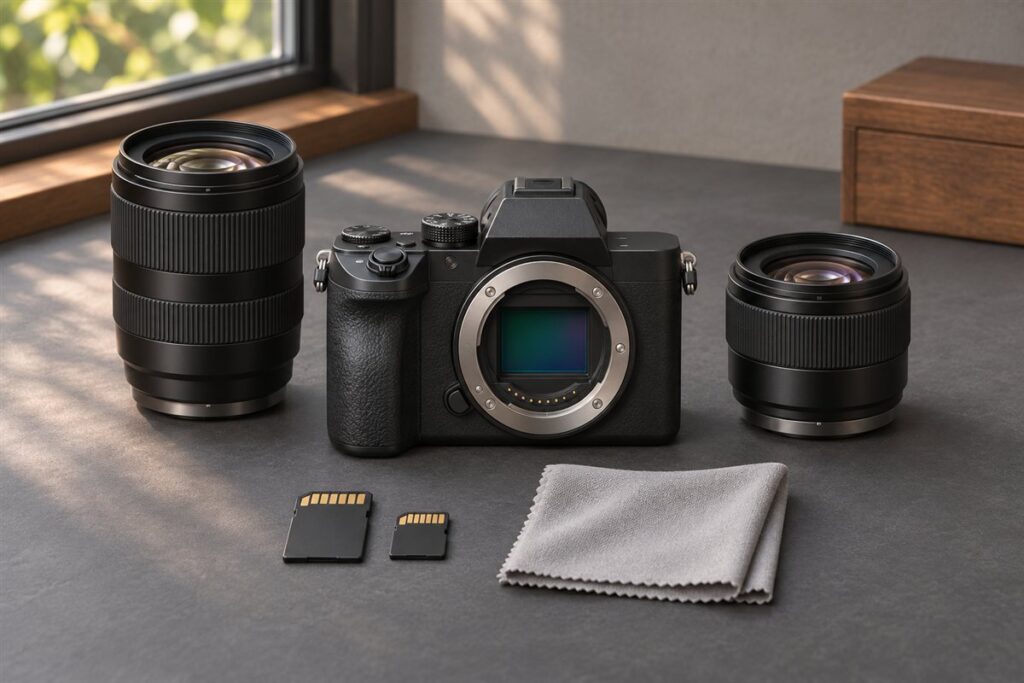
Memory card speed classes tell you the minimum sustained write speed a card is designed to hold, and the right one depends mostly on whether you shoot stills in bursts or record high-bitrate video. The labels look confusing, but a few symbols cover almost everything you will see on an SD card.
The Main Symbols
SD cards carry several overlapping markings. Each one covers a different idea, so check which ones your camera needs.
- Speed Class (C2, C4, C6, C10): The number is the minimum sustained write speed in megabytes per second. Class 10 means 10 MB/s.
- UHS Speed Class (U1, U3): U1 means at least 10 MB/s and U3 means at least 30 MB/s.
- Video Speed Class (V6, V10, V30, V60, V90): The number again is the minimum sustained write speed, so V30 means 30 MB/s and V90 means 90 MB/s.
- UHS bus (UHS-I, UHS-II): This describes the interface. UHS-II cards have an extra row of pins and can transfer faster when the camera supports it.
Do not confuse the minimum sustained speed with the maximum read speed printed in large type on the front. The big number is a best case for transferring files to a computer, not a promise for recording.
Quick Reference
| Label | Minimum sustained write | General use |
|---|---|---|
| Class 10 / U1 / V10 | 10 MB/s | Basic stills, standard HD video |
| U3 / V30 | 30 MB/s | 4K video, burst stills |
| V60 | 60 MB/s | Higher bitrate 4K |
| V90 | 90 MB/s | Very high bitrate video, 8K |
How to Match a Card to Your Camera
- Check your camera’s manual for the card type, bus support and any recommended video class.
- Look at the highest video bitrate you plan to record, and choose a class with a comfortable margin.
- For fast burst shooting in RAW, favor a card with a higher sustained write speed so the buffer clears sooner.
- Confirm the card format your camera uses, since some bodies use CFexpress or XQD instead of SD.
- Buy from authorized sellers, since counterfeit cards do exist.
Practical Tips
Format the card in the camera, not on a computer, to keep the file system clean. Carry more than one smaller card rather than putting everything on a single large one. Use a quality reader for transfers, and avoid pulling a card while the camera is writing.
Card Formats Beyond SD
Speed class labels apply mainly to SD cards, but many cameras use other formats, and buying the wrong type is an expensive mistake. SD cards come in three physical sizes: full-size, miniSD and microSD. Most cameras use full-size SD, while microSD is common in action cameras, drones and phones, and is sometimes used with an adapter. An adapter does not change the card’s speed, but it can affect reliability if the contacts are poor.
Other formats exist for high-end cameras. CFexpress and XQD cards are used in some professional bodies for very fast burst shooting and high-bitrate video. CompactFlash is an older format that remains in use in some cameras. These cards use different physical shapes and interfaces, and they are not interchangeable with SD cards. Always check your camera’s manual for the supported card types and slots.
- Confirm the physical size and the format before buying.
- Check whether your camera has two slots of different types.
- Note that capacity categories also exist within SD, and older devices may not support the largest.
Capacity labels are separate from speed. A larger card does not mean a faster one, and a fast small card can outperform a slow large one for video. Check the card’s speed markings as well as its size before you decide.
Burst Shooting and Buffer Behavior
For sports, wildlife and action, the speed of your card affects how long you can keep shooting at a high frame rate. The camera stores images in a temporary memory called a buffer, then writes them to the card. When the buffer fills, the camera slows down while it waits for the card to catch up. A faster card clears the buffer sooner and lets you shoot longer bursts.
The effect depends on file type and size. Raw files are larger than JPEG files, so they fill the buffer faster. High-resolution cameras produce bigger files, which makes card speed more important. The camera itself also limits how fast it can write, so a card faster than the camera can use brings no additional benefit. The maker’s manual or product page often describes buffer capacity under specific conditions, so check them rather than assuming.
- Decide whether you shoot raw, JPEG or both.
- Estimate how long a burst you need during action.
- Choose a card with a sustained write speed comfortably above what your camera requires.
- Test by shooting a long burst and noting when the camera slows.
Remember that read speed matters for download time, while write speed matters for shooting. A card that advertises very high read speed may have more modest write speed, so look for the sustained write figure.
Video Bitrates and Recording Limits
Video recording places steady demands on a card, because data must be written continuously without gaps. The camera’s bitrate, which is how much data it records per second, determines the minimum sustained write speed you need. Higher resolution, higher frame rates and less compressed formats all raise the bitrate. Your camera’s manual usually lists the recording modes and the card class recommended for each.
Margins matter. A card that exactly meets the minimum may stop recording if its speed dips, so choose one with some headroom. Heat can also affect performance, as cards can slow when they get hot during long recordings. If you record for long periods, keep the camera in the shade and consider cards designed for video use.
- Check which recording modes require a particular video class.
- Check whether the camera needs a UHS-II or other fast interface for its top modes.
- Understand that file size limits and recording time limits may exist in the camera.
- Calculate storage by bitrate and duration to know how much capacity you need.
For example, to estimate storage, multiply the bitrate by the time you plan to record and convert units. Many makers provide tables of recording time per card size. Use them, and add a buffer, because you rarely want to run a card to the limit.
Spotting Fake Cards and Buying Safely
Counterfeit and mislabeled memory cards are a known problem. They may show a large capacity but fail when filled, or run much slower than the label says. The best protection is to buy from authorized sellers and well-known retailers, and avoid deals that look too good to be true. Check packaging for signs of poor printing, spelling errors or damaged seals, and compare with the maker’s images.
Once you have a card, test it before trusting it with important work. Free utilities can write test data across the whole card and read it back, which reveals fake capacity. Speed-testing tools can estimate sustained write speed, though results depend on the reader and computer. A card that fails these tests should be returned.
- Buy from reputable sellers with clear return policies.
- Keep the receipt and packaging until you have tested the card.
- Run a capacity test on a new card, and a speed check if you can.
- Take a few test photos and videos in your camera and review them.
Be careful with unusually cheap listings and unknown brands. If a card behaves strangely, such as corrupting files or disappearing from the camera, stop using it for important work. Recovering lost files is not always possible, so prevention matters.
Workflow Habits, Backups and Card Care
Good habits protect your work more than any specification. Use more than one card on important shoots, and swap before one fills completely. This limits loss if a card fails. If your camera has two slots, consider recording to both for backup, if the manual allows it.
Copy images to a computer or drive as soon as you can, and verify the copy before you erase the card. Many photographers keep the card untouched until the files are safely stored in two places. Format the card in the camera when you are ready to reuse it, rather than deleting files individually, which keeps the file system clean.
Handle cards carefully. Keep them in a case, avoid touching the contacts and keep them away from heat, moisture and strong magnets. Do not remove a card while the camera is writing, and turn the camera off before swapping. If a card shows errors, retire it. Cards wear out with use, and replacing them periodically is cheaper than losing a shoot.
- Label cards or use a case that separates full and empty ones.
- Keep a spare card in your bag at all times.
- Use a reliable card reader, and eject properly.
- Check the camera firmware, as updates may affect card compatibility.
A Plain-Language Map of the Symbols on a Card
A memory card carries a small crowd of symbols, and each one answers a different question. Some describe a minimum sustained write speed, which matters when you record video. Others describe the interface, which sets an upper limit for data transfer. Others still describe the capacity and the card family. When you can read the symbols, the card label becomes a short specification sheet instead of a puzzle.
Think of the symbols as separate dials on a dashboard. One dial tells you the promised minimum speed for video, another tells you the bus type, and another tells you the card size. You need to read all of them, because a card that is strong in one area can still be a poor match for your camera in another.
Reading the Label: Question and Answer Table
| Question | Where to look | What it tells you |
|---|---|---|
| How fast can it record video steadily? | Video class symbol | A minimum sustained write speed |
| Which interface does it use? | Roman numeral symbol | The bus type that limits maximum speed |
| How much can it hold? | Capacity marking | Total storage |
| Is it a standard or compact card? | Card family and size | Physical compatibility |
| What are the claimed read speeds? | Printed megabytes per second | Transfer speed to your computer, in ideal conditions |
Printed speed numbers are often maximums under ideal conditions. For sustained recording, look at the minimum speed classes instead.
Matching Cards to the Cameras You Own
The camera is the first gatekeeper. Some cameras use only one card type, some use two, and some use different types in different slots. Check the manual to learn which card families, interface types and speeds your camera supports. A fast card in a camera that cannot use its speed is wasted money, and a slow card in a demanding camera can cause recording to stop or burst shooting to stall.
- Read the card section of your camera manual.
- Note the highest video class mentioned for your recording modes.
- Check the interface support for faster transfers.
- Buy cards that meet that need without paying for more than you can use.
Choosing Capacity and Splitting the Risk
A very large card is convenient, but it puts all your pictures in one place. If it fails, you lose everything on it. Many photographers choose medium capacity cards and swap them during the day, which spreads risk. Others prefer dual slots in the camera, recording to two cards at once for automatic backup. Choose a capacity that fits the length of your shoots, and keep a spare card in your bag.
Estimate how much space you need. A day of raw photos from a high resolution camera can fill a card quickly, and video fills it even faster. Check the file size per photo in your camera’s menu, or note how much space a short test used, then multiply by the number of shots you expect to take.
- Estimate how many photos or minutes of video you will record.
- Check the file size per photo or per minute of video.
- Add a generous margin.
- Choose one or two cards that cover your need.
- Carry a spare.
Buying Safely and Spotting Fakes
Counterfeit cards exist, and they can claim capacity and speed that they do not have. Protect yourself by buying from reputable sellers, comparing the packaging with the maker’s official images and being skeptical of deals that seem far too low. When a card arrives, test it. Copy a large set of files to the card, copy them back, and compare. Several free tools can check capacity and speed. If the card fails, return it right away.
- Buy from the maker or authorized sellers.
- Check the packaging and printing quality.
- Test the full capacity soon after purchase.
- Keep receipts and packaging until you are confident.
Card Care and Handling
Treat cards as small, delicate tools. Keep them in a case, away from heat, water and static. Do not remove a card while the camera is writing to it. Format cards in the camera, which sets up the correct file system. Avoid bending the card or touching the contacts. If a card shows errors, copy the files off immediately, and stop using it for important work.
Worked Example: Choosing Cards for a Wedding Season
Consider a photographer named Harriet preparing for a busy wedding season. Her camera has two card slots, and she records raw photos in bursts and occasional video clips. She reads the manual and learns which card types and speeds the camera supports. She decides on two medium capacity cards that satisfy the highest requirements of her recording modes, plus two spares for the day.
At each wedding, she records to both slots at once for backup. During breaks, she checks that both cards show the same number of images. After the event, she copies files to her computer, checks that they open, and copies them to a second drive before reformatting the cards. She labels cards by number and rotates them to spread wear. Her system is simple, repeatable and safe.
The story shows that good card choices are about matching, backup and routine, not simply buying the fastest label.
Common Mistakes
- Buying the fastest card without checking whether the camera can use it.
- Choosing a speed class that is too low for video.
- Trusting unknown sellers with large purchases.
- Using one huge card for an important event without backup.
- Deleting photos on the camera instead of formatting regularly.
- Pulling out the card while the camera is still writing.
Glossary
- Sustained write speed: the steady speed at which a card can record data.
- Interface: the electrical standard that controls how data travels.
- Buffer: temporary memory in the camera that holds images before they are written.
- Bitrate: the amount of data per second used to record video.
- Formatting: preparing a card for use by the camera.
Reader Speeds and Your Computer Workflow
The card is only one part of the transfer chain. A fast card in a slow reader gives slow results. Use a reader that supports the interface of your card, and connect it to a fast port on your computer. If you transfer large amounts of data, a fast reader saves a lot of time. Check the computer’s ports and the reader’s specifications. Keep a spare reader in your kit in case of failure.
- Match the reader to the card type and interface.
- Use a direct port on your computer, not a slow hub.
- Copy files before opening them in editing software.
- Verify that the copy finished before formatting the card.
A Short Decision Guide
For casual photos, a mid-range card from a trusted maker is usually enough. For bursts and action, look for higher speed and a camera with a deep buffer. For video, read your camera’s recording requirements and choose a card that meets or exceeds them. For paid work, add dual cards and backup. Always buy from a reliable source, and test cards on arrival.
Quick Pre-Shoot Card Checklist
- Format the card in the camera.
- Check free space against the plan for the shoot.
- Confirm the camera is set to the right card slot behavior.
- Carry a spare card in a labeled case.
- Keep a card reader in your bag for emergencies.
- Back up files as soon as possible after the shoot.
Repeat this checklist before every important shoot, and card problems will become rare.
FAQ
Will a faster card improve my image quality?
No. Speed affects how quickly data is written, not how the picture looks. A faster card helps with burst length and video bitrate limits.
Can I use a UHS-II card in a UHS-I camera?
Usually yes, because the cards are backward compatible, but you will only get UHS-I speeds.
Is a bigger card always better?
No. Capacity and speed are separate. A large slow card may struggle with burst shooting or video, so check the speed markings as well as the size.
What does the number in the box mean on a V-class card?
It is the minimum sustained write speed in megabytes per second, so V30 means 30 MB/s. This is the figure to compare with your camera's video needs.
Do I need a UHS-II card?
Only if your camera supports that interface and you need its faster speeds for bursts or demanding video. Otherwise a UHS-I card usually works at the same speed.
Can a microSD card with an adapter work in my camera?
Often yes, but reliability depends on the adapter and card. Check the manual and use a good-quality adapter.
How often should I replace memory cards?
Replace them when they show errors or after heavy use, as flash memory wears. Retire any card that corrupts files.
Why does my camera slow down even with a fast card?
The camera may be limited by its own buffer or write speed, or the file size may be large. Check the manual for the camera's maximum supported speed.
Should I format or delete files to clear a card?
Format in the camera after backing up your images, since it resets the file system. Deleting files one by one can leave the card less tidy.
Is it safe to use one big card for a whole trip?
It carries risk, because a single failure loses everything. Several smaller cards and regular backups are safer.
The Short Version
Read the minimum sustained write number, not the big read speed. U3 and V30 handle most 4K and burst needs, and V60 or V90 suit demanding video. Confirm your camera’s requirements in its manual.