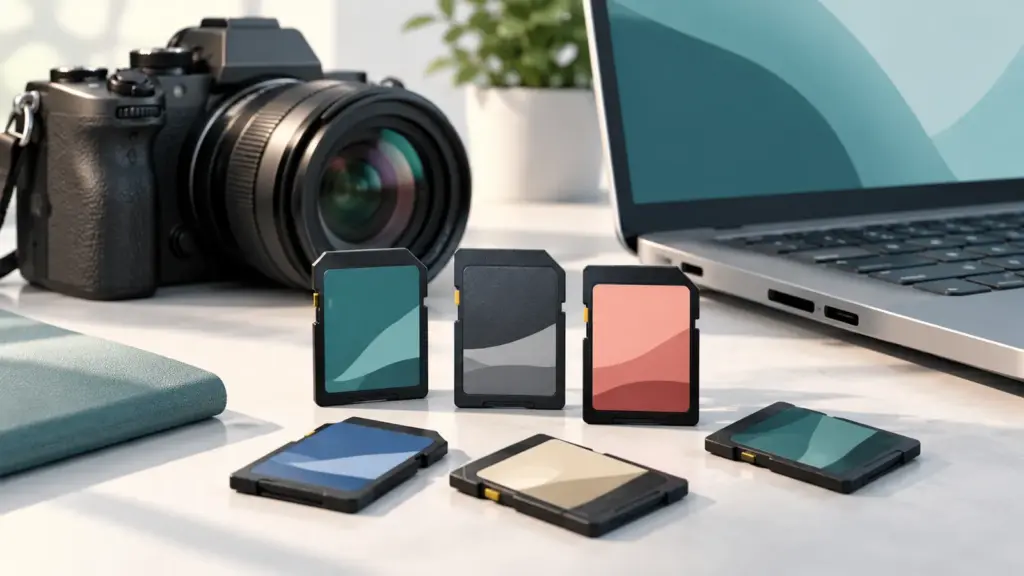
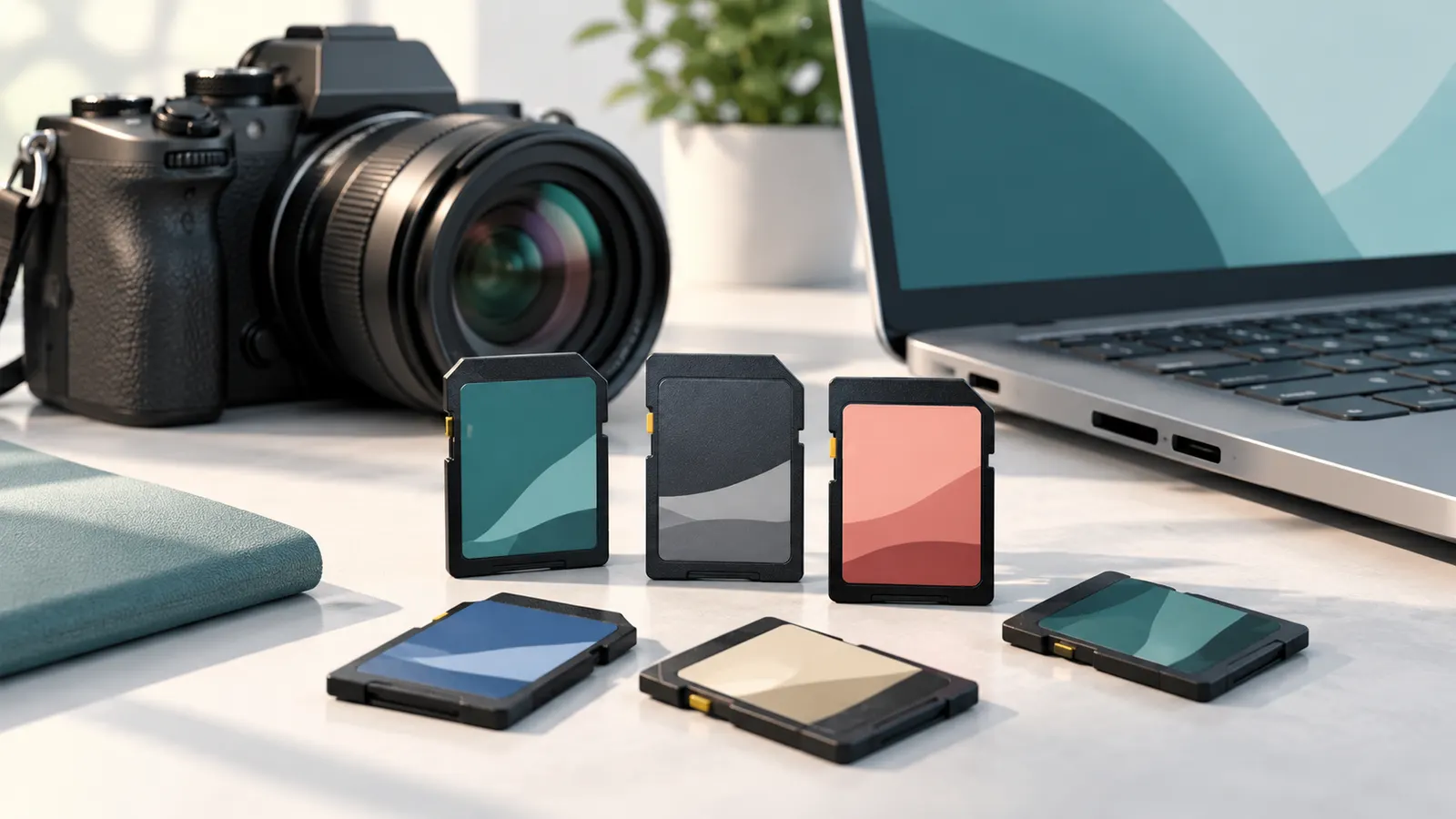
The right memory card is one your camera supports, with enough capacity for your shoot and enough speed for the files you record. Check your camera maker’s guide first, because card type and speed needs are listed there. This guide walks through formats, labels, a worked example of matching a card to a camera, and the habits that keep your files safe.
Card Formats
Cameras use different formats, and a card that does not fit the slot will not work. Common types include SD cards, in several sizes and generations, as well as CFexpress and others on some professional bodies. Many cameras have two slots, sometimes of different types.
- SD, SDHC and SDXC describe capacity ranges, from small to very large.
- UHS-I and UHS-II describe interface generations; a camera must support the generation to benefit.
- Higher-end formats are used for very fast burst and high-resolution video.
Capacity class matters for compatibility too. An older camera built for SDHC may not read an SDXC card at all, because the two use different file systems. That is why the maker’s guide is the first stop, before any other comparison.
In this guide
Reading the Speed Labels
Cards show several markings, which can seem confusing. Speed class symbols describe minimum sustained write speeds, which matter for video. Maker-stated read and write speeds are maximums under ideal conditions.
Real speed depends on the camera as well. A fast card in a slow body will not make the body faster.
The symbols you will see
- A number inside a letter C is the older speed class, such as class 10.
- U1 and U3 are UHS speed classes for minimum sustained writing.
- V-numbers, such as V30, V60 and V90, are video speed classes, and the number is the minimum sustained write speed in megabytes per second.
- A large MB/s figure on the label is usually the maximum read speed, which helps when copying files to a computer but says less about recording.
What to Match
| Factor | Why it matters | What to check |
|---|---|---|
| Format | Must fit the slot | Slot type in the maker’s guide |
| Capacity | How many files you can hold | File size and shooting length |
| Write speed | Burst shooting and video | Speed class and recording mode needs |
| Reliability | Protects your work | Reputable maker, genuine product |
Worked Example: Matching a Card Step by Step
Suppose you shoot a full day of sport in raw plus high-quality video. Here is a sensible order of decisions.
- Open the camera guide and note the slot types, the supported interface generation and any maximum capacity.
- Find the video recording modes you use and the data rate each needs. The guide often lists a minimum speed class per mode.
- Choose a speed class equal to or above the highest requirement you will use, not the average one.
- Estimate your file volume. Take the size of a typical raw file, multiply by the frames you expect, and add the video minutes at the mode’s data rate.
- Decide how many cards that makes. Splitting the day across several mid-size cards is safer than relying on one.
- Check that a card reader you own handles the same generation, or copying will be slower than it needs to be.
Match the Card to What You Shoot
Raw files and high-resolution images are large, and burst shooting fills a camera buffer quickly, so a faster card helps clear it. High-resolution video can need much higher sustained write speeds than ordinary photography. If you only shoot casual pictures in good light, a mid-level card in a common format is usually plenty. If you shoot weddings, sport or video, give speed and dependability more weight, and carry spares.
Also read your camera’s guide for any limits on card size, since some older bodies cannot read the largest capacities.
Common Scenarios
- Family snapshots: a mid-level card in the standard format, and a spare in the bag. Speed is rarely the limit.
- Travel with limited chances to back up: several moderate cards, so one failure costs a fraction of the trip. Keep full cards in a different pocket from empty ones.
- Wedding or event work: a dual-slot camera set to write to both cards at once, with cards of matching speed so neither slows the other.
- Long video takes: a card whose video class meets the highest bit rate, with enough capacity for the whole take plus a margin.
Good Habits
- Format the card in the camera, not on a computer.
- Copy files off the card soon after shooting.
- Use several smaller cards instead of one huge card for important events.
- Switch the camera off before taking the card out.
- Store cards in a case, away from damp and heat.
Formatting in the camera matters because the camera writes the folder layout and file system it expects. Formatting also erases the card, so confirm your copies are complete and readable before you do it.
Quick Troubleshooting
| Symptom | Likely cause | What to try |
|---|---|---|
| Card not recognised | Dirty contacts, wrong format or unsupported capacity | Wipe contacts gently with a dry cloth, reseat it, then check the guide for limits |
| Camera says card is locked | Write-protect switch slid down | Slide the small switch on the side of the card back up |
| Video recording stops by itself | Card too slow for the mode, or full | Use a faster class, lower the recording mode or free space |
| Files will not open | Card removed mid-write or damaged | Stop using it, copy what you can, then format in the camera |
| Slow copy to computer | Reader or port is an older generation | Use a reader that matches the card’s interface |
If a card ever shows errors, stop using it for important work, copy off what you can and format it again in the camera. If errors return, retire the card.
Terms Worth Knowing
- Sustained write speed: the speed a card can hold while recording continuously, as opposed to a brief burst.
- Buffer: the camera’s short-term memory that holds burst frames until the card catches up.
- Bit rate: the amount of video data recorded each second.
- File system: the structure that lets a device store and find files on a card.
- Write protect: a switch that stops the card from being changed.
- Dual-slot recording: writing the same shot to two cards for backup.
Which Camera Type Needs Which Kind of Card
Before comparing brands or speeds, it helps to know what kind of camera you are buying for, because the camera sets the ceiling. A card cannot make a body faster than its own electronics allow, so the smartest purchase is the one that matches the body rather than the one with the biggest numbers on the label.
Entry-level and older bodies
Basic compact cameras and older entry-level bodies were designed around slower cards and smaller capacities. Many of them do not benefit from a premium card at all, and some will not read the largest sizes. If you own an older camera, look up the maximum capacity in the guide before ordering. Buying a very large card for a body that cannot read it is a common and avoidable waste.
Mid-range mirrorless and DSLR bodies
Most mid-range bodies use a standard SD slot and write quickly enough that a mid-tier card handles photos comfortably. The pressure point is usually video. High-resolution recording modes can demand a sustained write speed that cheaper cards cannot hold, and the camera will stop recording or show a warning when the card falls behind.
Professional and high-resolution bodies
Bodies built for rapid bursts, very large files or high-bitrate video often use faster formats or support the fastest generation of SD. The maker’s guide will state which formats are supported and which speed classes are needed for each recording mode. At this level, a slow card is a real bottleneck, and a fast one is part of the system rather than an extra.
Action cameras, drones and phones with a slot
Small devices often use the microSD format and record continuous video, which stresses sustained write speed more than burst shooting does. They also run hot and get bumped around, so durability matters. Check the manufacturer’s list of recommended cards, because some devices are fussy about which cards they accept for their highest video modes.
| Device type | What usually limits you | What to prioritize |
|---|---|---|
| Older compact or entry body | Maximum capacity and file system support | Compatibility from the guide |
| Mid-range stills camera | Burst clearing and video modes | A solid mid-tier card with a spare |
| High-resolution or video body | Sustained write speed | Video class that meets the top mode |
| Action camera or drone | Continuous recording and durability | Maker-recommended small-format card |
Working Out How Much Capacity You Actually Need
Capacity is the easiest number to understand and the easiest to get wrong, because people either buy too little and run out mid-event or buy one huge card and put all their work in one place. A short calculation removes the guesswork.
A simple estimate for stills
Look at the size of a typical file from your camera. Many cameras show the approximate file size in the menu or give an estimate of how many shots fit on a card of a given size. Multiply that figure by the number of pictures you expect to take, then add a margin of at least a quarter for the unexpected. Raw files are far larger than compressed ones, so the same card holds many fewer raw shots.
A simple estimate for video
Video is measured by data rate. Find your recording mode in the guide, note how many megabits per second it records, and convert that into a rough amount per minute. Then multiply by the length of the longest take or the total footage you expect. Higher resolution and higher frame rates raise the data rate quickly, so a mode that looks only slightly better can fill a card far sooner.
Why one very large card is a risk
If a single large card fails or is lost, everything on it goes with it. Several cards of moderate size spread that risk and also give you natural break points to copy files off. For a trip, an event or any shoot you cannot repeat, plan for several cards rather than one, and treat the largest capacity as a convenience for easy jobs rather than a rule.
- Casual outings: one mid-size card and a spare in the bag.
- Travel: several moderate cards so a failure costs a fraction of the trip.
- Long video days: enough capacity for the whole schedule, plus a margin, and a plan to offload at lunch.
- Irreplaceable events: two slots recording together where the camera allows it.
Warning Signs of a Fake or Failing Card
Memory cards are small, cheap to copy and easy to counterfeit, so it pays to know what trouble looks like. The goal is to catch a bad card before you trust it with something you cannot reshoot.
Counterfeit cards
A fake card often reports a large capacity but quietly overwrites old data once the real, much smaller capacity is exceeded. The usual warning signs are a price far below the going rate for the stated size, packaging with spelling mistakes or blurry printing, and a seller with no clear history. Buy from reputable sellers and the maker’s own authorized channels, and test any new card before relying on it.
A simple test before real use
Format the new card in the camera, then fill it with a set of files, copy them to your computer and open several from the start, middle and end. If files near the end are damaged or missing, the card is not what it claims to be. Do this before an important shoot rather than during it.
Signs that a good card is wearing out
Even genuine cards have a limited life. Warning signs include files that will not open, sudden slowdowns, the camera reporting card errors, or recording stopping on a mode that used to work. Do not keep nursing a card that has shown errors. Copy off what you can, format it in the camera once, and if the problems return, retire it. A replacement costs far less than a lost event.
- Never rely on a card that has already shown errors for important work.
- Keep a note of which cards were used for which shoot until files are backed up.
- Replace cards that are old, scratched or have damaged contacts.
Card Readers, Transfer Speed and Your Workflow
A fast card is only half of the speed story. The other half is how quickly the files reach your computer, and a mismatch there can turn a quick offload into a long wait.
Match the reader to the card
A reader that supports an older generation will move data at the older, slower rate even with a fast card inserted. If you buy a card from a newer interface generation, check that your reader and the computer port can use it. Many people find that the built-in slot on a laptop is slower than a dedicated reader, so check the specifications of both.
Copy first, check second, format last
A safe offload routine follows the same order every time. Copy the files to your computer, copy them again to a second drive or backup, open a few files from different points to make sure they are readable, and only then format the card in the camera. Skipping the second copy is how people lose a wedding or a holiday to one bad drive.
Cards as temporary storage, not an archive
A memory card is a working tool, not a long-term home for your pictures. Cards can be lost, corrupted or reformatted by accident. Treat the files on them as unprotected until they exist in at least two other places, and avoid shuffling cards between devices without copying the contents first.
A Second Worked Example: A Weekend Trip With Photos and Video
Imagine a three-day trip where you plan to take around four hundred photos a day in a compressed format, plus a few short video clips each afternoon. Here is how to plan the cards with a clear head.
- Check the camera guide for slot type, the highest supported interface generation and any capacity limit.
- Find the video mode you will use and note the speed class recommended for it.
- Estimate photos: look up the average file size, multiply by twelve hundred shots, add a quarter for extra frames.
- Estimate video: use the mode’s data rate and multiply by the total minutes you might record.
- Add the two totals and divide across several cards, so no single card holds more than one day of shooting.
- Buy a speed class that meets the video mode requirement, since that is the highest demand on the card.
- Pack the cards in a small case, label them by day, and keep used cards separate from empty ones.
- Each evening, copy files to a laptop or a portable drive, then leave the used card untouched until you are home.
With this plan, you carry no more risk than one day of pictures at any moment, and you are never forced to delete files to make space at an awkward time.
Buying Checklist and When to Spend More
Once you know the format, the capacity and the speed class, the last decision is how much to spend. More money does not always mean a better result, so use these questions to decide.
Spend more when
You record high-resolution video, shoot long bursts of fast action, or work on assignments where a failure costs you money or reputation. In these cases the extra speed and a reputable brand are worth it, and a dual-slot body deserves two cards of matching class.
Spend less when
You shoot occasional family pictures in good light with a modest body. A mid-level card from a known maker is plenty, and putting the savings toward a second card is usually the better use of the money.
Before you order
- Confirm the card format and generation in the camera guide.
- Check the maximum capacity the camera can read.
- Match the video speed class to your highest recording mode.
- Choose a seller you trust and keep the order record.
- Plan to test the card with a full copy-and-read check on arrival.
- Make sure your reader can use the same interface generation.
Treat the card as part of a small system that includes the camera, a reader, a backup drive and a routine. When each piece matches the others, you stop thinking about the card and simply shoot.
Ready to Buy? Start Here
If this guide helped you decide what to look for, these links take you to the next step.
Compare specific products
- 6 Best SD Cards for Cameras and Laptops (2026)
- 3 Best SD Cards for Mirrorless Cameras: V60 and UHS-II (2026)
- 6 Best Memory Card Readers (October 2026)
Gear for this guide
- Memory card readers on Amazon
- Memory card cases on Amazon
- MicroSD cards on Amazon
- CFexpress cards on Amazon
As an Amazon Associate we earn from qualifying purchases. Prices and availability are shown on Amazon.
Speed Classes and Bus Speeds, Translated Into Plain Language
Memory card markings mix together several different rating systems, and untangling them is most of choosing well. The oldest marking is the speed class, shown as a number inside a C, which guarantees a minimum sustained write speed in megabytes per second. The UHS speed class, shown as a number inside a U, does the same job for newer cards and matters most for video. The video speed class, marked with a V, was created because video recording writes continuously and predictably, and it states the sustained speed a card can hold without dropping frames. For stills photography, burst depth depends on how fast the card clears the camera’s buffer, so the card’s maximum write figure matters; for video, the sustained minimum matters more than any peak number.
Then there is the bus: UHS-I and UHS-II describe how the card talks to the device, and a UHS-II card has an extra row of contacts. A UHS-II card in a UHS-I camera still works, but only at UHS-I speeds, so the premium buys you nothing unless your camera — and your card reader — support the faster bus. CFexpress and XQD cards use a different connection again and are not interchangeable despite similar shapes in some systems. The practical rule is simple: match the card family to your camera’s slot, then choose the speed class your shooting actually needs, then check that your reader supports the same standard so downloads are not the bottleneck.
Why headline speeds mislead
The big number printed on the front of a card is almost always a read speed under ideal conditions, and often a maximum rather than a typical figure. Write speeds — the ones your camera depends on — are usually lower and sometimes much lower. Manufacturers publish write figures in their detailed specifications, so compare those when you compare cards. A card that reads quickly but writes slowly feels fine when copying files to a computer and disappointing in the camera during a long burst, which is the opposite of what most photographers want.
Capacity Planning: How Much Card Do You Actually Need?
Capacity questions are really questions about your shooting habits and your tolerance for risk. A photographer shooting compressed raw files on a moderate-resolution camera may fill only a few gigabytes on a family day out, while a sports photographer shooting uncompressed raw bursts can fill a large card before half time. Video multiplies everything: high-bitrate recording consumes space at a steady, predictable rate, and the card must hold a full session because you cannot swap mid-clip during an unrepeatable moment.
There is a genuine debate about card size strategy. One school prefers a single very large card so nothing is ever swapped or lost. The other prefers several smaller cards, swapped at natural breaks, so that a card failure or a lost card costs one part of a day rather than all of it. Professional event photographers often follow the second approach and treat each card like a roll of film: filled cards go into a separate case, upside down or facing the other way, so their state is obvious at a glance. Whichever approach you choose, build the habit before an important shoot, not during it.
Formatting and file habits that prevent disasters
Format cards in the camera that will use them, not on a computer, because the camera writes the exact file structure it expects. Format rather than deleting images one by one; deletion leaves the file system fragmented and can confuse older cameras. Never remove a card while the camera’s activity light is lit, and give the camera a moment after a burst before switching it off. Keep cards in a case rather than loose in a pocket, where lint, coins and bending forces do quiet damage. When you get home, copy the files, verify the copy opened, and only then format the card for reuse — the card is not your archive, and treating it as one is how images vanish.
Looking After Cards and Spotting a Card That Is About to Fail
Memory cards are consumables with a long but finite life. The memory cells wear a little with every write cycle, and controllers spread writes across the card to even out the wear, which is why quality cards from established makers genuinely last longer. Warning signs of a card nearing the end include occasional corrupted frames, write speeds that have noticeably slowed, a camera that intermittently reports a card error, and files that copy with errors. Any one of these on an important shoot means retiring the card from critical work. Cards are cheap compared with unrepeatable photographs.
Counterfeit cards are a real hazard in this market: they are printed with familiar branding and capacities they do not have, and they often work just well enough to pass a casual test before corrupting data once filled past their true, smaller capacity. Buy from reputable sellers, be suspicious of prices far below the going rate, and test any new card by filling it completely and reading the files back before trusting it with real work. A card that fails that test goes straight back to the seller.
One card slot or two?
Cameras with two slots let you write every image to two cards at once, record raw to one and JPEG to the other, or overflow from the first card to the second. For paid or unrepeatable work, mirrored recording is the strongest argument for a dual-slot body. For everyday photography, a single good card plus a prompt download habit at home gives most of the same protection. What matters is not the hardware arrangement but having any deliberate system at all, rather than hoping a single card in a single camera will never have a bad day.
Matching the Card to the Kind of Shooting You Do
Different kinds of photography stress a card in different ways, and matching the card to the work saves both money and frustration. Landscape and travel photography, with single frames and time to compose, place modest demands on write speed; reliability and capacity matter more, since a travel day may produce hundreds of considered frames and nowhere convenient to download them. Portrait and studio work sits in the middle: bursts are short, but tethered review means slow buffer clearing interrupts the rhythm of a session and breaks rapport with the sitter.
Wildlife and sports photography are the demanding cases. Long bursts at full frame rate fill the buffer quickly, and the camera is only as fast as the card once the buffer is full. Here the write speed in the detailed specification — not the headline read speed — decides how many frames you can take before the camera slows, and how long you wait before the next sequence. Video work is different again: the demand is a guaranteed sustained write rate for minutes at a time, which is exactly what the video speed class certifies. A card can be excellent for stills bursts and still drop frames in high-bitrate video if its sustained rate is not certified for the task, so choose by the class your recording format names, not by general reputation.
A worked example: a wedding day
Consider a wedding photographed on a dual-slot body. The photographer fits two matched cards of generous capacity, sets the camera to mirror every file to both, and carries a second matched pair in a case. The ceremony and speeches are unrepeatable, so mirroring is non-negotiable; capacity is sized so no swap is needed during those stretches. At the reception, the first pair is nearly full and is retired to the case — treated as exposed film — and the fresh pair goes in. At home, one set is copied and verified before anything is formatted. Notice what the plan does not depend on: extreme card speed. The day rewards capacity, discipline and duplication far more than headline performance figures.
When a Card Errors Mid-Shoot: A Calm Recovery Routine
A card error message during an important shoot feels catastrophic, but the correct response is methodical. Stop shooting on that card immediately. Do not format it, do not keep trying to write to it, and do not delete anything. Power the camera down, remove the card, and put it somewhere safe and separate from your working cards so it cannot be grabbed by mistake later. Continue the shoot on a fresh card. Most data on a card that has merely developed a file-system fault is recoverable, because the image data itself usually survives; what destroys it is writing new data over the top, which is why the card must be retired from use the moment it misbehaves.
At home, work on a copy of the card’s contents rather than the card itself where possible, and use the card maker’s or a reputable recovery tool to scan for images. Recovered files should be checked individually, since recovery can produce partial images. Once everything recoverable is safely copied, the card’s career in critical work is over regardless of whether it formats cleanly afterwards — a card that has failed once has told you something about its health. Finally, let the incident improve your system: if losing that card’s images would have been disastrous, that is the argument for mirrored recording or smaller cards swapped more often, made by experience rather than theory.
A Simple Pre-Shoot Card Checklist
Most card problems are prevented in the five minutes before a shoot rather than solved during it. Run through the same short routine every time: cards formatted in the camera they will be used in; enough total capacity for the day with a sensible margin; a spare card in the bag even for casual outings; filled and fresh cards stored in different places or marked so their state is unmistakable; and contacts wiped clean if a card has been carried loose. Photographers who shoot for a living treat this as unremarkable routine, like charging batteries. Photographers who skip it eventually star in a story about the day the card failed. The checklist costs almost no time, and it converts card choice from a purchase you made once into a system that quietly protects every shoot that follows.
FAQ
Does a bigger card mean better quality?
No. Capacity only decides how much fits. Quality depends on your camera settings, such as file type and resolution.
How do I avoid fake cards?
Buy from reputable sellers, and check the capacity by copying a full set of files and reading them back. A fake card often reports a large size but loses data once real capacity is passed.
Can I use one card in several cameras?
Yes, if each supports the format. Format it in the camera you are about to use, so the folder layout is right, and copy off earlier files first.
Is a faster card always worth it?
Only if your camera and shooting mode can use it. A body that cannot write quickly will not benefit, so match the card to the demand rather than buying the top class by habit.
Should I delete photos on the camera to free space?
It works, but a full format in the camera after copying is cleaner and reduces the chance of file errors over time.
How many cards should I carry?
Enough for the whole shoot with a spare, ideally in smaller sizes. For irreplaceable events, more cards and a habit of copying at breaks are the best protection.
What speed class do I need for 4K video?
It depends on the recording mode and data rate your camera uses. Many cameras list a minimum class such as U3 or V30 for 4K, and higher modes can call for V60 or V90. Check the maker’s guide for your exact mode, and choose a class that meets the highest one you plan to use.
Why does my camera stop recording video with a new card?
The most common causes are a card too slow for the recording mode, a full card, or a camera that overheats. Check the guide’s recommended speed class, free space on the card, and whether the camera shows a temperature warning. Format the card in the camera and try a lower mode to test.
Is it safe to use a microSD card with an adapter in my camera?
It usually works if the camera supports the card’s format and capacity, but adapters add one more contact point that can fail. For important work, a full-size card is more dependable. If you use an adapter, keep it clean and check the camera’s guide first.
How often should I replace memory cards?
There is no fixed schedule, since cards vary in build quality and use. Replace any card that has shown errors, unreadable files or slowdowns, and consider retiring cards that are heavily worn or damaged. Many photographers rotate cards and replace them after years of regular use rather than waiting for failure.
Should I format a new memory card before using it?
Yes. Format it in the camera you will use so the camera writes the folder layout and file system it expects. Do this before the first shoot, and test the card by filling it and reading the files back so you know it is genuine and works as expected.
Can I use a faster card than my camera requires?
Yes. Cards are backward compatible within their family, so a faster card simply runs at the speed the camera supports. The benefit appears when you move the card to a faster camera or reader later. There is no harm in it, only the question of whether the extra cost earns anything today.
Why does my card show less capacity than the label says?
Card makers measure capacity in decimal gigabytes while computers and cameras often report binary units, so the same card shows a smaller number on screen. Formatting also reserves a little space for the file system. A modest difference is normal and expected; a card that shows dramatically less than expected should be treated as suspect and tested.
Is it safe to delete photos on the card to make room?
Deleting a few frames in camera is fine, but repeatedly deleting many files and continuing to shoot can fragment the card and, on some older cameras, cause odd behaviour. The safer routine is to swap to a fresh card and deal with sorting at home. If you must make room, delete in small batches rather than reformatting mid-event, which erases everything including shots you meant to keep.
How long do photos survive on an unused card?
Flash memory holds data for years under normal storage conditions, but it is not archival storage. Charge in the cells slowly fades, and a card left in a hot car or damp drawer ages faster. Copy anything you care about to at least two proper storage locations and treat the card as transport, not a vault.
Do I need a special reader for fast cards?
To get the full download speed from a high-speed card, yes — the reader must support the same bus standard as the card. A fast card in a slow reader still works; it just copies at the reader’s pace. If you regularly download large volumes of photos or video, a matched reader saves real time every single week.
Should I buy one big card or several smaller ones?
Both strategies work; the deciding factor is how you manage risk. Several smaller cards limit what a single failure or loss can take, and suit photographers who swap at natural breaks in the day. One large card suits long continuous recording and photographers with a strict download routine. Many experienced photographers compromise: cards large enough for a full session, bought in matched pairs, with filled cards stored separately from fresh ones.
Does a card reader’s speed really matter?
It matters in proportion to how much you shoot. Copying a handful of frames takes moments either way, but a full card of raw files or a long video session can take many minutes longer through a slow reader. If downloading is a daily chore, a reader matched to your card’s bus standard is one of the cheapest time-savers in the whole workflow.
Can I mix card brands or speeds in a two-slot camera?
You can, but mirrored recording runs at the pace of the slower card, and mixing capacities means the smaller card decides when the pair is full. Matched pairs keep behaviour predictable, which is what you want during an unrepeatable event. Keep the older or slower cards for casual use where a pause costs nothing.
How should I store cards between shoots?
Keep them in a hard or padded card case, away from heat, moisture and loose metal objects. A case also makes the fresh-versus-filled system work: many photographers store fresh cards face up and filled cards face down, so a glance answers the question without handling each card.
The Short Version
Choose the format your camera uses, a capacity that suits how much you shoot, and a speed that meets its video and burst demands. Reliable makers and good habits protect your files. Use several moderate cards rather than one large one, format in the camera, and copy files off soon.