Disclosure: As an Amazon Associate, reviewstook.com earns from qualifying purchases. Links to Amazon on this page are affiliate links; they cost you nothing extra.
Most gamers spend more hours at a desk than they realize, and the desk is rarely set up for it. A monitor too low, a keyboard too far away, a chair that does not fit and a mouse arm held in the air all add up to aches in the neck, shoulders, wrists and back. The good news is that a handful of adjustments, most of them free, make a desk much more comfortable, and a few well-chosen accessories finish the job.
This guide explains how to set up a gaming or work desk for comfort: the desk and chair, monitor position, keyboard and mouse, feet and legs, standing and sitting, laptop setups, breaks and movement, and a final checklist. It is general ergonomic guidance, not medical advice. If you have pain, numbness or tingling that persists, speak with a health professional rather than relying on setup changes alone.
By the Reviewstook Editorial Team. Last updated: November 1, 2026.
The Principle: Neutral Posture
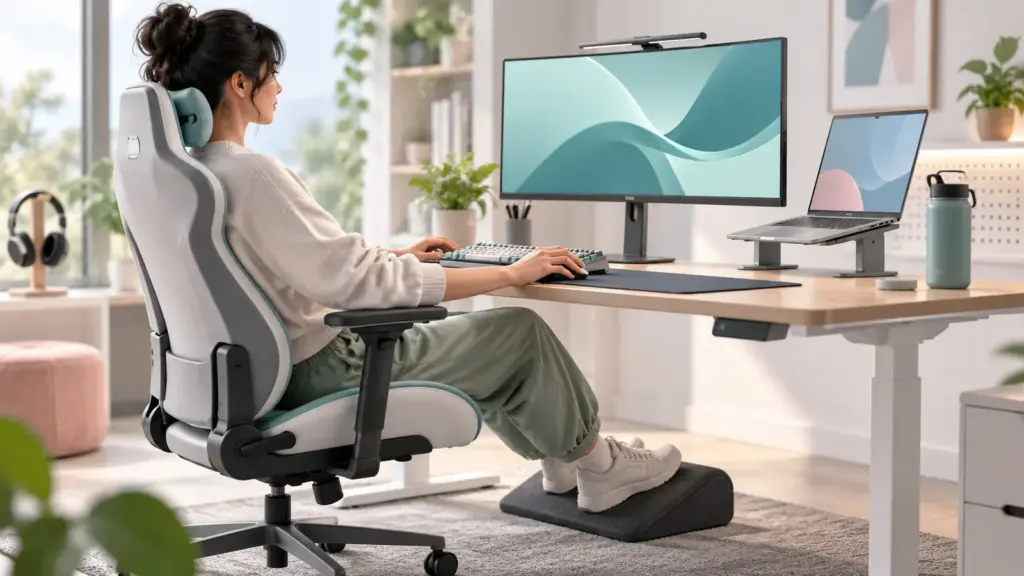
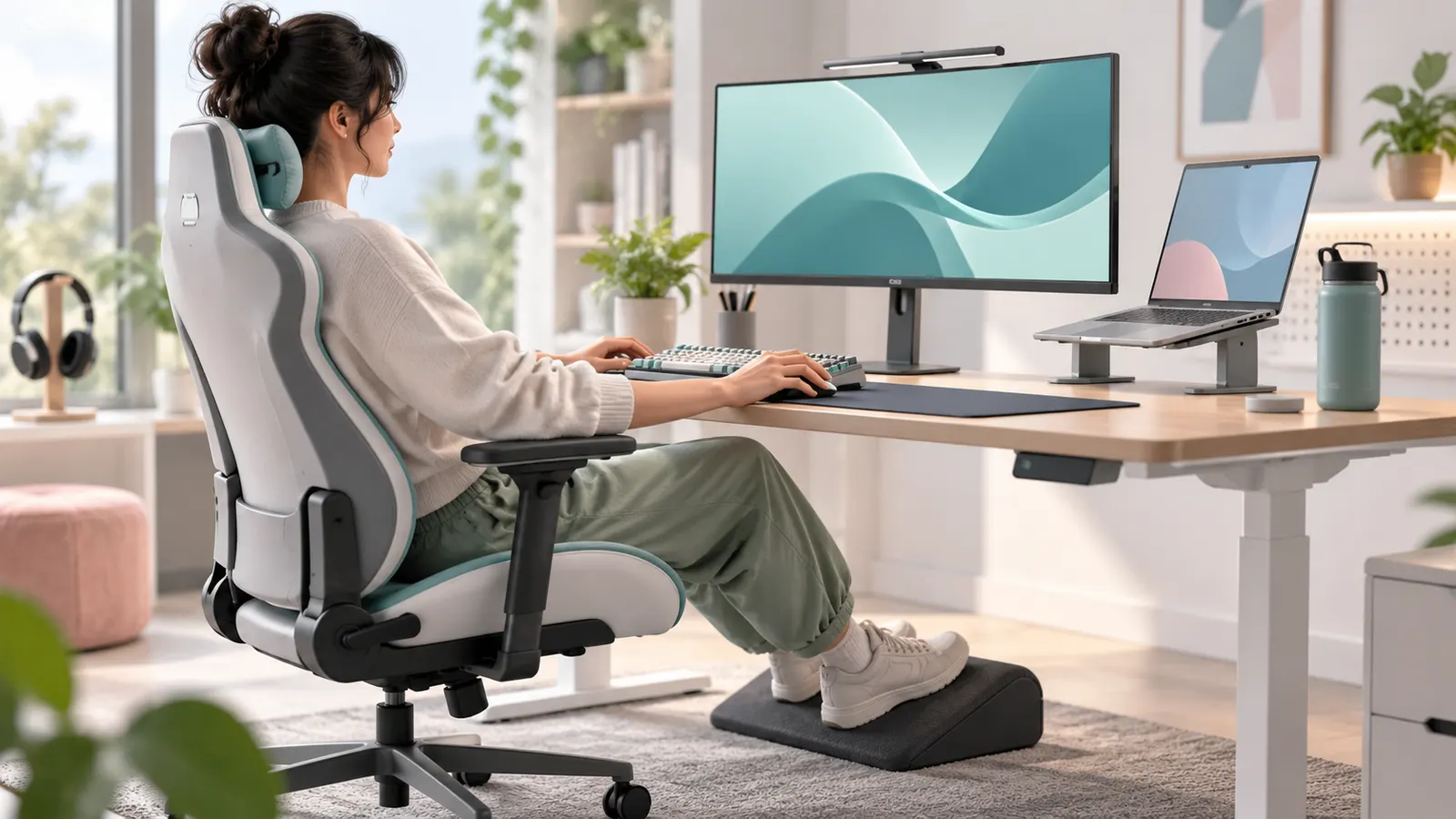
Ergonomic setup comes down to one idea: let your body rest in a neutral posture where joints are not twisted or strained. That means:
- Head level, with the neck relaxed, not poking forward.
- Shoulders relaxed and down, not hunched toward your ears.
- Elbows close to your sides at roughly a right angle or slightly more open.
- Wrists straight, not bent up, down or sideways.
- Lower back supported, hips and knees at roughly right angles.
- Feet flat on the floor or on a footrest.
No posture is perfect for hours, so movement matters as much as position. The aim is to set up so that your natural position is a good one, and to change positions often.
In this guide
Step 1: The Chair
Start with the chair because everything else depends on your seated height.
- Seat height. Adjust so your feet rest flat and your knees are about level with or slightly below your hips.
- Seat depth. Leave a gap of about two to three fingers between the seat edge and the back of your knees.
- Lumbar support. Position the support at the curve of your lower back. Add a cushion if the chair lacks support.
- Backrest. Sit all the way back so your back is supported. A slight recline of the backrest can be comfortable.
- Armrests. Set them so your shoulders stay relaxed and your forearms rest lightly without lifting your shoulders. If they hit the desk, lower or remove them.
Our gaming chair buying guide explains how to choose a chair that fits, including size and weight ratings.
Step 2: Desk Height and Layout
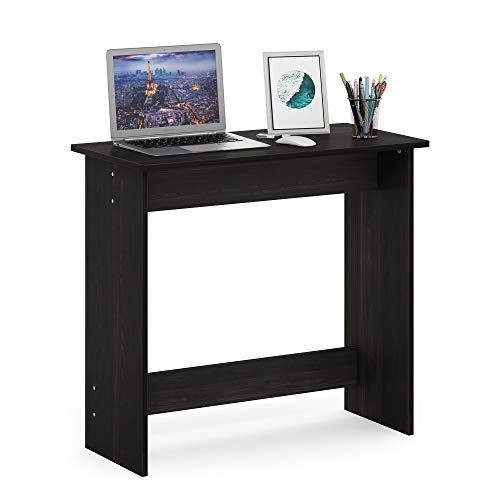
The right desk height lets your forearms rest level when your elbows are near a right angle. As a rough guide, many people find a desk height of about 28 to 30 inches (roughly 71 to 76 cm) comfortable, but it depends on your height.
- If the desk is too high, raise your chair and use a footrest, or lower the desk if it is adjustable.
- If it is too low, raise it with risers or choose an adjustable desk.
- Leave space under the desk for your legs and knees.
- Keep frequently used items within easy reach to avoid stretching.
An adjustable-height desk lets you alternate sitting and standing. Our standing desk list compares options.
Step 3: The Monitor
Monitor placement has the biggest effect on neck comfort.
- Height. The top of the screen should be at or slightly below eye level, so you look slightly down at the center of the screen.
- Distance. About an arm’s length for most sizes. Move closer or farther until text is comfortable without leaning.
- Angle. Tilt the screen back a little, and keep it directly in front of you.
- Glare. Avoid windows behind or in front of the screen.
- Size and resolution. Set text to a readable size. Our gaming monitor guide helps choose a size that suits your distance.
If your monitor stand is too low, a riser or monitor arm solves it. See our monitor riser list and monitor arm list. With two monitors, put the main screen directly in front of you and the second screen to the side, angled toward you.
Step 4: Keyboard and Mouse
Keyboard
- Place the keyboard directly in front of you, close enough that your elbows stay near your sides.
- Keep wrists straight. Avoid resting wrists on the edge of the desk while typing.
- Use a flat or slightly sloped angle. Extending the rear feet tilts the keyboard up, which can bend wrists back. Many people do better with it flat or tilted slightly away.
- A compact keyboard without a number pad brings the mouse closer, which reduces reach.
Mouse
- Keep the mouse close to the keyboard, at the same height.
- Use a large mouse pad so you can move your arm from the elbow and shoulder rather than only flicking your wrist at low sensitivity.
- Choose a mouse that fits your hand; see our gaming mouse buying guide.
- Rest your forearm on the desk or armrest when possible.
Our mouse pad list includes extended pads that give room for the keyboard and mouse.
Step 5: Feet, Legs and Floor
- Keep both feet flat on the floor or on a footrest.
- Avoid crossing your legs for long periods.
- Do not tuck your feet under the chair for hours.
- Clear the space under the desk so that your knees and legs can move.
- If you use pedals for racing games, keep them in a different area from your desk legroom.
Standing and Sitting: Alternate
Standing all day is not better than sitting all day. Alternating works well for many people.
- When using a standing desk, set the standing height so your elbows are about a right angle at the keyboard, and the monitor top is at eye level.
- Use an anti-fatigue mat if you stand for a long time.
- Switch position roughly every 30 to 60 minutes, or whenever you feel stiff.
- Walk around between sessions.
A standing desk is only helpful if you use it. If you rarely raise the desk, a good chair and regular breaks are better value.
Laptop Setups
Laptops are hard to use ergonomically, because the screen and keyboard are attached. If you use a laptop at a desk for long periods:
- Raise the laptop on a stand so the screen is at eye level. See our laptop stand list.
- Use an external keyboard and mouse.
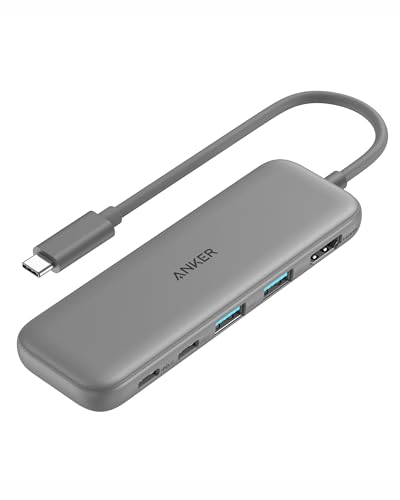
- Connect to an external monitor if you can, with a dock for easy connection; see our docking station list and USB hub list.
- Avoid working on a couch or bed for long periods.
Console and Couch Gaming
- Sit with your back supported, not slouched.
- Place the TV at eye level or slightly below, at a comfortable distance.
- Hold the controller with relaxed arms. Support your elbows on armrests or cushions.
- Take breaks, and do not game with the controller resting on a pillow in a way that bends your wrists.
Movement and Breaks
Even perfect posture becomes uncomfortable if you hold it for hours.
- Take a short break every 30 to 60 minutes: stand up, walk, stretch.
- Look away from the screen regularly. A common guideline is to look at something far away for about 20 seconds every 20 minutes.
- Roll your shoulders, stretch your neck gently and open and close your hands.
- Drink water and move between matches or loading screens.
- Do not ignore pain. Pain is a signal to change something.
Common Problems and Fixes
| Problem | Likely cause | Fix |
|---|---|---|
| Neck pain | Monitor too low or too far | Raise the monitor, move it closer, check head position |
| Shoulder tension | Armrests or desk too high | Lower armrests or desk; relax shoulders |
| Wrist discomfort | Wrists bent up or resting on edges | Flatten the keyboard, lower the mouse, use a larger pad |
| Lower back ache | No lumbar support or poor posture | Adjust or add lumbar support; sit back in the chair |
| Tired eyes | Glare, brightness, distance | Reduce glare, adjust brightness, take breaks |
| Numb legs | Seat too deep or high | Adjust seat; use a footrest |
| Hunching forward | Screen too far or text too small | Move the screen closer, increase text size |
Accessories That Help (and Ones You Can Skip)
Worth considering
- A monitor riser or arm to get the height right.
- A laptop stand and external keyboard for laptops.
- A footrest if your feet do not reach the floor.
- A large mouse pad.
- A lumbar cushion if your chair lacks support.
- A standing desk or desk converter if you will use it.
Often not needed
- Expensive gadgets that claim to fix posture on their own.
- Too many accessories that clutter the desk.
Start by adjusting what you have. Buy only where a specific problem remains.
A Setup Checklist
- Sit with your back against the chair and feet flat.
- Adjust the seat height so your knees are at or slightly below hip level.
- Set the lumbar support to your lower back.
- Adjust the armrests to support your forearms, shoulders relaxed.
- Bring the keyboard and mouse close, at elbow height.
- Place the monitor at arm’s length with the top at eye level.
- Remove glare.
- Plan breaks and posture changes.
Common Mistakes
- Setting the monitor too low, for example on a laptop with no riser.
- Using a chair that does not fit and relying on a pillow.
- Placing the keyboard and mouse too far away.
- Resting wrists on a hard desk edge.
- Crossing legs for hours.
- Believing a standing desk fixes posture without use.
- Skipping breaks.
- Ignoring pain.
Setting Up in Order: A Walkthrough From the Floor Up
Adjusting everything at once makes it hard to tell what helped, so work from the base upward. Begin with your seat: sit back fully, feet supported, and set the height so your thighs are roughly level and your knees are near a right angle. Next, bring the desk or keyboard tray to elbow height. Let your upper arms hang naturally, bend your elbows to roughly 90 degrees or slightly more open, and set the work surface so your forearms rest in a neutral line. If the desk is fixed and too high, raise the chair and use a footrest. If it is too low, consider desk risers or a taller desk.
Then place the keyboard and mouse so your shoulders can relax. Position the monitor last, since its ideal height and distance depend on where your eyes end up. Sit as you normally do while playing, close your eyes, take a breath, and open them: the center of your gaze should land near the upper third of the screen. Finally, adjust lighting, and reassess after a week, since you will notice small changes once your body adapts.
Write down the settings that work, such as chair height, desk height and monitor distance. Having numbers or marks lets you recover your setup after cleaning, moving or visits from friends who change everything.
Fitting the Setup to Your Body
General rules assume an average body, but real people vary. Taller users often need a higher desk and a monitor raised on a stand, with more legroom under the desk. Shorter users may find standard desks too tall and may need a footrest and a chair with a shallow seat depth so the back of the knees is not pressed against the seat edge. People with long torsos or short legs, or the reverse, will find that the same chair setting does not suit everyone, so adjust based on how your body feels rather than copying a photo online.
Left-handed users should place the mouse on the left and consider keyboard layouts that keep the number pad out of the way. Players who use a large mouse pad and sweep wide, low-sensitivity motions need more space and should check that the arm and shoulder stay relaxed and not reaching. Those with wide shoulders may prefer a compact keyboard to keep the mouse closer to the body. Anyone with an existing injury or persistent pain should talk to a health professional rather than rely on general guides.
Lighting, Glare and Eye Comfort
Eye strain often comes from the room as much as the screen. Place the monitor so windows are to the side rather than behind it or directly behind you, since both produce glare and reflections. If you cannot move the desk, blinds or curtains help. Avoid a very dark room with a bright screen; a soft background light behind or beside the monitor reduces the contrast between screen and surroundings. Set screen brightness close to the room’s level, and adjust it through the day.
Take regular visual breaks. A commonly shared habit is to look at something far away for a short time at intervals; it is not a medical prescription, but many people find it helpful. Blink deliberately if your eyes feel dry, and consider asking an eye-care professional about screen-related discomfort that persists, because an outdated prescription can cause headaches that look like ergonomic problems.
Noise and temperature matter as well. A room that is too hot or too cold, or fans blowing directly on your hands, can lead you to tense up. Small adjustments, such as redirecting a fan or adding a layer, often improve long sessions more than you would expect.
Cable Management and Desk Layout for Comfort
Clutter creates awkward reaching. Keep the items you use constantly, the keyboard, mouse and headset, within a comfortable arm’s reach, and push occasional items such as a controller or notebook to the sides. Route cables along the back or underside of the desk so they do not drag on the mouse or catch on your arms. A headset stand or hook keeps the cord from tugging when you move.
Check clearance under the desk too. Leave space for legs to move and avoid storing boxes or a computer case where your feet need to be. If the tower sits on the floor, make sure vents are not blocked. Wrist and forearm contact points, such as sharp desk edges, can cause discomfort, and a smooth edge or padded mat can help.
Building a Routine That Protects You
Hardware helps, but habits do more over time. Set a reminder to stand, stretch and walk after a block of play, shorter blocks if you notice stiffness. Vary posture through the session, because any position held rigidly becomes tiring. Gentle stretches for the neck, shoulders, wrists and hips are common, but stop if something causes pain.
Warning signs deserve attention: numbness or tingling in the fingers, pain that persists at rest, or discomfort that wakes you at night. These are reasons to see a healthcare professional, not to buy another accessory. A well-set desk reduces strain, yet it cannot replace medical advice for ongoing symptoms.
Adjusting a Setup for Different Kinds of Play
How you play changes what the desk needs to do. Long strategy or role-playing sessions with relaxed mouse use call for a comfortable chair, good back support and forearm contact points, since you will sit for hours. Fast shooters or rhythm games ask more of your hands and shoulders, so the priority is a stable surface, a mouse path that does not force wrist bending, and enough room to sweep without hitting a keyboard. Racing and flight games using wheels, pedals or sticks need a separate mounting solution: the wheel at a comfortable height and the pedals where your legs can reach without stretching or locking your knees.
Players who stream or record need to think about camera placement, microphone arms and secondary monitors. Put the second screen close to the main one and at a similar height so you are not turning your neck constantly; use the main screen for the content you watch most. Keep the microphone arm out of the path of your mouse hand. If you share the room with others, avoid placing the desk where you must twist to talk to someone.
Finally, set the setup for the person who actually uses it. Households where several people share a desk benefit from easy adjustments, such as a chair with simple height levers and a monitor stand that moves without tools. Mark preferred positions with tape or a note so each person can return the setup to their own settings quickly.
Ready to Buy? Start Here
If this guide helped you decide what to look for, these links take you to the next step.
Compare specific products
- 6 Best Ergonomic Gaming Chairs for Back Pain and Lumbar (2026)
- 5 Best Ergonomic Keyboards (October 2026)
Gear for this guide
- Monitor stands and risers on Amazon
- Keyboard wrist rests on Amazon
- Under desk footrests on Amazon
- Monitor arms on Amazon
As an Amazon Associate we earn from qualifying purchases. Prices and availability are shown on Amazon.
Going Deeper: Ergonomics Is a System, Not a Chair
People shop for a single magic product, usually a chair, and then wonder why their shoulders still ache. Comfort at a desk comes from how the chair, desk height, monitor position, keyboard, mouse, lighting and your own habits fit together as one system. Changing one piece can shift the problem elsewhere: a taller monitor stand may fix your neck while pushing the keyboard too far away, and a new chair at the wrong height can make a previously fine desk feel wrong. Adjust in a sensible order, starting with how you sit, then the screen, then the input devices, and give your body a few days to judge each change before making the next one.
The foundation is simple to describe. Feet rest flat, knees sit at a comfortable angle, the chair supports your lower back without forcing a rigid pose, and your forearms rest roughly level when your hands are on the keyboard. The top of the screen sits near eye level so your gaze falls slightly downward onto the main area of the display, and the screen sits far enough away that you are not leaning in to read. None of this needs expensive equipment: books can raise a monitor, a cushion can support a back, and a small box can serve as a footrest while you learn what your body actually wants.
Movement Beats the Perfect Posture
Modern ergonomic advice has shifted from one ideal posture to a simpler truth: the best posture is the next one. Even a well-arranged desk becomes uncomfortable if you freeze in it for three hours. Build small movements into your gaming and working rhythm, standing between matches, refilling water, rolling your shoulders, and looking at something far away to rest your eyes. A timer or the natural breaks in a game can prompt this without breaking immersion. Players who move regularly usually report less stiffness than players who buy premium furniture and then sit perfectly still in it all evening.
Lighting, Eyes and the Room Around the Desk
Eye strain at a desk is often a lighting problem wearing a disguise. A bright screen in a dark room forces your eyes to adapt constantly between the display and its surroundings, while glare from a window or a bare bulb reflected in the screen makes you squint and lean. Aim for gentle, even room light, position the desk so windows are to the side rather than behind you or behind the screen, and consider soft bias light behind the monitor for evening sessions. Match screen brightness to the room instead of leaving it at maximum, and increase text size without embarrassment if you find yourself creeping toward the display.
Cable management is ergonomics too, in a practical sense. Cables that pull a monitor slightly crooked, tether a mouse, or force a PC into a footwell you kick daily all create small irritations that shape how you sit and move. Route cables with enough slack for the adjustments you actually make, keep the floor area where your feet live clear, and leave frequently used ports reachable so you are not crawling under the desk and twisting to plug in a headset or a drive.
Wrists, Hands and Input Habits
Hand and wrist comfort depends on angles and pressure. Your wrists should float or rest lightly in a neutral line rather than bending sharply up or pressing hard into a desk edge, and your grip on the mouse should stay relaxed, with sensitivity set so that normal play does not demand constant large arm movements or, at the other extreme, tense micro-corrections. Take clicking-heavy games and long strategy sessions as cues for short hand breaks: open and close your fingers, rotate your wrists gently, and shake out tension. Persistent pain, numbness or tingling is not a shopping problem, though; it is a reason to talk to a medical professional, and no product in this guide should be treated as a treatment.
A Realistic Upgrade Path
Spend in the order that removes daily friction. First fix heights and distances with whatever you already own. Then address the surface you touch most, which for many people is the chair or the mouse. Add monitor positioning next, since neck strain is so often a screen-height issue, and treat extras such as standing desks as later refinements rather than starting points. Keep notes for a week on when discomfort appears and what you were doing, because that diary points at the real cause far more reliably than product marketing does, and it stops you buying a beautiful solution to a problem you do not have.
Shared Desks, Small Rooms and Laptops
Not every setup gets a dedicated room. If the desk is shared, favor adjustments that reset quickly, such as a monitor arm with marked positions or a cushion that moves with its owner. In small rooms, a slightly smaller desk surface with good layout beats a huge surface that traps the chair against a wall. Laptop users gaming at a desk should raise the machine on a stand and use a separate keyboard and mouse for anything beyond a quick session, because the built-in compromise, screen low and keyboard attached, forces exactly the hunched posture this guide exists to prevent.
Decision Workshop: Reading Your Own Discomfort Like Data
Before buying anything, keep a three-day comfort diary. Note where discomfort appears, when in a session it starts, and what you were doing, because patterns in that diary are diagnostic. Pain that arrives in the neck after an hour of a story game but not during short competitive sessions points at screen height and a fixed gaze. Aching shoulders by evening on workdays point at arm support and desk height. Tingling or numbness in fingers is a different class of signal entirely and deserves prompt professional advice rather than furniture experiments. The diary turns a vague sense that your setup is bad into a specific, fixable list, and it costs nothing but attention.
Work the list in order of frequency, not severity of marketing. The adjustment you benefit from fifty times a day, chair height, foot support, screen position, beats the exotic accessory used twice a week. Make one change, live with it for several days, and update the diary, because bodies adapt slowly and first impressions of ergonomic changes are notoriously unreliable. A setup that feels strange on Monday can feel inevitable by Friday, and the reverse is also true, which is why returning perfectly good equipment after a single evening is a common and expensive mistake.
More Questions Readers Ask
Is a gaming chair better than an office chair? The label matters far less than the fit and the adjustments. A good chair of either kind supports your lower back, lets your feet rest flat with your knees comfortable, has armrests that meet your arms without lifting your shoulders, and is sized for your body. Racing-style seats suit some bodies and games; well-designed office chairs suit others, and the second-hand market for quality office chairs is often the best value in this entire guide. Sit in candidates if you possibly can, because chair comfort is the least reviewable property in all of gaming gear.
How often should I replace my setup? Replace on evidence, not age. A chair whose foam has collapsed so you feel its frame, a desk surface damaged where your arms rest, or a monitor position you can no longer achieve because a stand has worn, are evidence. A setup that still fits your body and your habits is not obsolete because a newer style exists. Bodies change too, with fitness, injury or age, and a periodic refit of heights and distances, once or twice a year, keeps an old setup serving a changing person.
Do wrist rests help? Used correctly, a rest supports the heel of the hand during pauses, not while actively typing or aiming, and it should be soft, at the same height as the keyboard, and never a hard edge that presses into the wrist itself. Resting weight on the wrist during active movement can increase pressure exactly where nerves and tendons run, which is the opposite of the goal. Many players do better with no rest and a habit of floating the hands lightly, so treat a rest as an experiment judged by your diary, not a default accessory.
What is the single best cheap fix? Raising the screen to the correct height with books or a box solves the most common problem, a low laptop or monitor forcing a hunched neck, for no money at all. The second cheapest is a footrest improvised from a sturdy box when feet dangle, and the third is rearranging the desk so the mouse and keyboard sit close, at elbow height, rather than at the far edge of a deep desk. Do these three before any purchase and your diary will tell you what, if anything, money still needs to solve.
Should I get a standing desk? If you will actually alternate positions through the day, a height-adjustable desk is a legitimate comfort tool, and the alternation, not the standing itself, is the benefit. If it will be set once and never moved, it is an expensive fixed desk. Be honest about your habits, consider a converter that sits on an existing desk as a trial, and remember that standing still for hours is its own strain: the movement principle in this guide applies standing exactly as it does sitting.
Ownership Notes: The Seasonal Refit
Bodies and rooms change, so give your setup a seasonal refit. When the clocks change or the season turns, sit down and re-run the basic measurements: chair height against the desk, screen height and distance, feet supported, light sources still sensible for the new angle of the sun. A window that was harmless in winter can pour glare across a screen in summer, and a chair gas lift can sink a centimeter a year without announcing itself, slowly rewriting your posture while you blame your age. The refit takes fifteen minutes and catches the drift that a one-time perfect setup cannot prevent.
Use the same appointment to move what can be moved. Swap the mouse to a slightly different position, adjust the monitor angle a touch, relocate the footrest, and notice what your body says over the following week. Ergonomics is often presented as a destination, a single correct arrangement, but in practice it is a maintained range, and people who nudge their setup regularly report fewer of the slow-building aches than people who set it once with great precision and then never touched it again for five years.
When to Stop Adjusting and Seek Help
Know the boundary of this guide. Discomfort that fades with breaks and better arrangement is the normal friction of desk life, and the methods here address it well. Pain that persists for weeks despite sensible changes, numbness or tingling in the hands or arms, weakness, or pain that wakes you at night are not shopping problems and should not be treated with products. See a medical professional, describe your work and play habits honestly, and let furniture follow their advice rather than the other way around. A setup exists to serve a body, and listening to that body early is the most ergonomic decision in this entire article.
A Practical First Week of Fixing Your Setup
Day one, change nothing and write the diary honestly: where it hurts, when, during what. Day two, fix heights with household objects, chair, feet, screen, and play your normal session. Day three, fix distances, screen away or closer, keyboard and mouse pulled to where your elbows are happy, and notice whether the diary entries move. Day four is for light: kill the glare, calm the screen brightness, add the lamp where the room wants it. Day five, review the diary as a whole and name the single remaining problem in one sentence. Only now does shopping enter the conversation, aimed at that sentence, and most people who run this week honestly discover the sentence is much smaller, and cheaper, than the one they would have shopped for on day one.
The week also teaches the skill underneath every ergonomic claim: paying attention to your own body as data rather than as background noise. That attention transfers to everything, the gym, the car seat, the sofa with a handheld console, because the principles never change, only the furniture does. Support what bends, keep joints near neutral, move before stiffness sets in, and treat persistent pain as a medical signal rather than a comfort preference. A reader who finishes this guide with that habit owns something no product in it can sell them.
Setting Up for Two: Shared Desks and Partners
When two people share one setup, ergonomics becomes negotiation, and the winning tools are the adjustable ones: a chair that resets in seconds, a monitor arm or a marked riser position for each person, and a small written note of where each person settings live written on a card by the desk. Marking positions sounds fussy and ends arguments, because nobody has to guess where the screen was before their partner session. If heights differ greatly, favor the person with the longer sessions for the fixed elements and give the other the adjustable ones, and revisit the arrangement when either diary starts complaining.
The Commute Test: What Your Body Does After the Desk
Pay attention to how you feel an hour after a long session, not just during it, because the delayed report is often the honest one. Shoulders that stay raised on the drive home, a headache that reliably blooms after gaming but not after reading, hands that need shaking out while the kettle boils, these are your setup leaving fingerprints outside the room it lives in. Track them in the diary for a week and match them against the desk variables: the after-hours headache points back at light and screen position, the raised shoulders at arm support, the hands at grip and session length without breaks. The body files its reports late; the wise setup owner reads the late reports too.
Then make the smallest change that addresses the pattern and give it the same week to answer. Ergonomics rewards this patience disproportionately, because each correct small change removes a daily tax you had stopped noticing you were paying, and the cumulative effect of three such changes is routinely described by people as feeling years younger at their desk, when in fact they are simply no longer being charged. Your setup should disappear under your attention the way a good chair disappears under a good conversation, and the commute test is how you know when it has.
Frequently Asked Questions
How high should my monitor be?
The top of the screen should be at or slightly below eye level, about an arm’s length away.
What is the best desk height?
One that lets your forearms rest level with your elbows near a right angle. It depends on your height, so adjustable setups are useful.
Do I need a standing desk?
No, but it helps you alternate positions if you use it regularly.
Are gaming chairs good for ergonomics?
They can be if they fit you and have adjustable support. Fit and adjustability matter more than the label.
How often should I take breaks?
Every 30 to 60 minutes is a common guideline, with eye breaks more often.
Is a wrist rest necessary?
Not required. Keeping wrists straight and your arms supported matters more.
Can setup changes cure my pain?
They can help with posture-related discomfort, but persistent pain, numbness or tingling should be checked by a health professional.
How should I set up a laptop at a desk?
Raise it on a stand to eye level and use an external keyboard and mouse.
How far should I sit from my monitor?
A common starting point is about an arm’s length, which often falls between roughly 20 and 30 inches depending on screen size. Larger and higher resolution screens can sit a bit farther. Adjust until you can read text comfortably without leaning forward or squinting.
Should my monitor be tilted?
A slight backward tilt of a few degrees is typical, so the screen faces you squarely and reduces glare from ceiling lights. Avoid extreme angles that distort the image or make you tilt your head. Adjust tilt together with height until the top third of the screen sits near eye level.
Is it bad to game on a bed or sofa for long?
Short sessions are fine, but long ones tend to encourage slouching and unsupported arms. If you play there often, use a lap desk or cushions that keep your back supported and screen at a comfortable height. For long sessions, a desk and chair setup is usually kinder to your body.
Do ergonomic keyboards help gamers?
They can help people who feel strain in the wrists or shoulders, since split or angled layouts reduce awkward bending. They require an adjustment period and are not essential for everyone. Try one if you have discomfort, and compare against simple fixes like a better desk height first.
What is a good chair height for gaming?
Set the seat so your feet rest flat on the floor, or a footrest, with your thighs roughly level and knees near a right angle. The exact number depends on your leg length, so adjust by feel and check that the desk height still lets your arms sit comfortably.
Bottom Line
Set up from the chair outward: feet flat, lumbar supported, elbows near right angles, keyboard and mouse close, monitor at arm’s length with the top at eye level. Alternate sitting and standing if you can, and take breaks regularly. Fix problems by adjusting what you have first, then add accessories such as a monitor riser, laptop stand or footrest where a specific issue remains. A comfortable desk helps you play and work longer with less strain.
Related Reading
- Gaming Chair Buying Guide
- Gaming Monitor Buying Guide
- Gaming Mouse Buying Guide
- Best Standing Desks
- Best Monitor Arms
- Best Monitor Risers
- Best Laptop Stands
- All Desk Setup guides