A desktop monitor stand lifts a screen off the desk and often adds shelves or a drawer below. Some span two monitors, some fold flat, and others are a single riser with adjustable legs.
The six stands below come from their Amazon listing pages, where we read the widths, loads and heights. We have not used these stands ourselves, and comfort or build claims are the makers’ own.
As an Amazon Associate we earn from qualifying purchases. Links below are affiliate links, and they do not change the product information we give.
What to Look For
| Feature | Why it matters |
|---|---|
| Width | A dual stand must span both monitor bases |
| Load | Check the listed weight against your monitors |
| Height steps | Adjustable legs set how far the screen sits above the desk |
| Storage | Shelves or a drawer hold small desk items |
In this guide
Specs at a Glance
| Stand | Material | Size | Notes |
|---|---|---|---|
| WESTREE dual | Wood and steel | 35.8 x 10.2 x 4.92 in | Rustic brown; anti-slip pads; load 68 kg listed |
| BONTEC dual | Wood | 31.5 to 42.5 in wide | Swivel side shelves; 44 lb; phone holder |
| WALI PTT001-B | Plastic | 14.6 x 9.3 in shelf | Three heights: 4.5, 5.3, 6.1 in; 44 lb; vented |
| Klearlook | ABS | 16.5, 18.5 or 20.5 in wide | Foldable; drawer; tablet holder; 55 lb |
| TAVR 3 shelf | Wood | 43.3 x 9.3 x 3.6 in | Adjustable length and angle; 10 year warranty listed |
| Simple Houseware | Engineered wood | 33.3 to 45 in wide | Drawer; two side caddies; phone holder |
The 6 Best Desktop Monitor Stands
Top pickBest for two monitors on one shelf
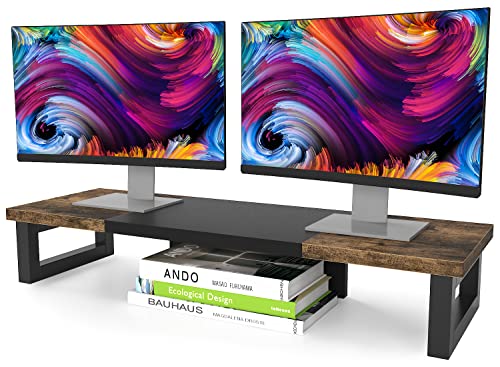
1. WESTREE Dual Monitor Stand
A dual-monitor stand with steel legs and a rustic brown wood-look top, measuring 35.8 x 10.2 x 4.92 inches. The listing mentions anti-slip pads, extra storage underneath and uses as a printer or laptop stand. The load shows as 68 kg in the field, so check the units on the page.
Suits: two monitors on one shelf. Strengths: steel legs and under-shelf room. Weaknesses: a fixed width and a load unit quirk. Skip it if you use a single small monitor.


Best for an angled dual layout
2. BONTEC Dual Monitor Stand
A white wooden stand with a 31.5 to 42.5 inch expandable width, swivel side shelves for straight, angled or corner layouts, three open storage compartments and a smartphone holder. The listing gives a 44 pound load and a lacquered finish.
Suits: an angled dual layout. Strengths: an adjustable width and swivel shelves. Weaknesses: a 44 lb limit. Skip it if you prefer a dark finish.

View BONTEC Dual Monitor Stand Riser, Adjustable Length and Swivel Angle, White on Amazon
Best for a single monitor or laptop
3. WALI PTT001-B
A black plastic riser with a 14.6 x 9.3 inch shelf that lifts a device by 4.5, 5.3 or 6.1 inches and carries up to 44 pounds. The listing mentions rubber pads, vented holes and use under a monitor, laptop or printer.
Suits: a single monitor or laptop. Strengths: three heights and a compact size. Weaknesses: plastic and a small shelf. Skip it if you have two monitors.
View WALI Computer Monitor Stand for Desk, Adjustable Laptop Riser, up to 44 lbs on Amazon

Best for a single monitor with a drawer
4. Klearlook Foldable Monitor Stand
A white ABS stand with three widths (16.5, 18.5 or 20.5 inches), foldable legs, a storage drawer and a hidden tablet or phone holder. The listing gives a 55 pound load and a one year warranty, and says a full-size keyboard fits underneath.
Suits: a single monitor with a drawer. Strengths: folds flat and holds 55 lb. Weaknesses: the manufacturer field names a different company. Skip it if you want a wide dual shelf.


Best for two or three monitors
5. TAVR 3 Shelf Monitor Stand
A black wooden stand 43.3 inches long with adjustable length and angle and three storage spaces underneath. The listing says it holds two or three monitors, weighs 7.2 pounds and carries a 10 year manufacturer warranty.
Suits: two or three monitors. Strengths: wide reach and a long warranty. Weaknesses: a large footprint. Skip it if your desk is shallow.

View TAVR Monitor Stand Riser, Office Desktop Organizer Stand for 2 Monitors on Amazon

Best for a dual setup with organizing needs
6. Simple Houseware Dual Stand with Drawer
A rustic brown engineered wood stand that extends from 33.3 to 45 inches wide, with a sliding drawer, two side caddies, a phone or tablet holder and an organizer tray with six removable dividers. The item count field says 25, which likely counts parts.
Suits: a dual setup with organizing needs. Strengths: a drawer and caddies. Weaknesses: conflicting size fields. Skip it if you want a minimal shelf.

View Simple Houseware Desk Dual Monitor Stand Riser with Drawer, Rustic Brown on Amazon
Setup Notes
- Measure your monitor bases against the shelf width.
- Check the combined weight of the screens against the listed load.
- Level the stand on the desk and use the anti-slip pads where included.
- Keep cables clear of folding or swivel parts.
Mistakes to Avoid
- Buying a single riser for two monitors.
- Ignoring the unit of the load figure.
- Forgetting the depth of the desk behind the stand.
- Assuming a stand will hold a heavy printer without checking the load.
Setting the Right Screen Height and Distance
The main reason to use a monitor stand is comfort. A screen that sits too low makes you tilt your head down, which can strain your neck and shoulders over a long day. A stand lifts the screen closer to eye level, so your head can stay in a more neutral position.
A common guideline is to set the top of the screen at or slightly below eye level when you sit upright. Your eyes then look slightly downward at the center of the screen. The distance should let you read comfortably without leaning forward, roughly an arm’s length for many people, though preferences differ with screen size and eyesight.
To work out how much height you need, sit at your desk with your usual chair and posture. Measure from the desk surface to your eye level, then note where the top edge of your screen currently sits. The difference is roughly the lift you need. Remember that the stand itself adds to the screen’s height, including any shelf thickness.
Consider these points when comparing stands:
- Adjustable-height risers let you fine-tune the lift, which suits people who share a desk.
- Fixed stands are simpler but may give too much or too little height for your chair.
- Laptop users who add a separate keyboard and mouse can raise the laptop screen to eye level.
- If you also use a standing desk, check that the stand stays stable at different heights.
Adjust your chair, desk and keyboard along with the monitor. A stand is a tool for comfort, not a cure on its own.
Checking Width, Depth and Weight Capacity
Dimensions and load limits decide whether a stand fits your desk and your equipment. It is easy to overlook them when browsing, and a mismatch is the most common reason for returns.
Start with width. Measure the combined width of your monitors, including their feet, and compare it with the stand’s usable shelf. For two screens, check the stated width range if the stand is expandable. Remember that monitor feet vary: some are wide and flat, while others are narrow stems with a round base.
Depth matters because the stand should not push your monitor too far back, nor leave too little room for the base. Measure the depth of your monitor foot and compare it with the shelf. Consider the space under the stand for a keyboard, notebook or small items, and check the height clearance.
Weight capacity is the key safety number:
- Add up the weight of everything that will sit on the stand, including monitors, speakers, a laptop or a printer.
- Check the unit on the listing, since some pages mix kilograms and pounds.
- Leave a margin, because load figures are the maker’s own and real-world use includes bumps and leaning.
- Spread the weight evenly across the shelf.
Also look at the desk. A stand on a thin or wobbly desk will not feel stable. Confirm the desk’s depth leaves enough space in front of the stand for your keyboard and wrists.
Materials, Stability and Build Quality
Monitor stands come in several materials, and each has strengths and weaknesses. Knowing them helps you choose a stand that will stay steady and look right on your desk.
- Steel frames: strong and rigid, often used for legs and supports. Look for solid welds or secure fasteners.
- Engineered wood or particleboard: common for shelves and tops. It is light and affordable, but edges can chip, and heavy loads may cause sagging over time.
- Plastic or ABS: light and easy to clean. Quality varies, so check thickness and the stated load.
- Metal mesh or acrylic: a modern look, though acrylic can scratch and mesh may have gaps.
Stability depends on more than the material. A wide base, anti-slip pads and a flat shelf reduce wobble. Fold-away or telescoping parts add convenience but can introduce movement, so make sure locks and hinges feel firm. If the stand has swivel side shelves, check that the joints hold their position.
After assembly, test the stand before placing your monitors. Press gently on each corner, and check that no leg is shorter than the others. Tighten any loose hardware and check again after a week or two, since screws can settle.
Think about the finish as well. Wood-look surfaces should match your desk, while white or black stands blend with many setups. Surfaces that resist fingerprints are easier to keep clean. If you have pets or children, consider how securely the stand sits and whether cables can be reached.
Storage, Drawers and Cable Management
Many stands add storage, which can clear a lot of desk clutter. Think about what you actually need before paying for features you will not use.
Open shelves under the stand suit notebooks, a keyboard when not in use, a small speaker or a router. Drawers hide pens, chargers and small items, but add weight and cost, and make sure the drawer slides smoothly. Side compartments or caddies hold phones and tablets. Some stands include phone or tablet slots, which can help if you often check a second device.
Cable management makes a desk look tidy and reduces the risk of tugging a monitor off its stand. Look for these details:
- Gaps or openings at the back for cables to pass through.
- Space beneath for a power strip or cable box.
- Ventilation holes if a printer or other device will sit on the stand.
- Room for adhesive clips, ties or sleeves that you can add yourself.
Keep chargers and power supplies away from areas where they can overheat. Do not cover ventilation openings on monitors or other devices. If a stand places a printer or laptop beneath a screen, make sure there is enough clearance for airflow.
Finally, measure your keyboard and mouse. A stand that lets you slide the keyboard underneath can save desk space, but only if the clearance suits your keyboard height.
Single Riser, Dual Stand or Monitor Arm
Stands are one way to lift screens, but not the only one. Comparing options helps you pick the right tool.
- Single riser: a small platform for one monitor or a laptop. It is simple, cheap in concept and needs no desk mounting. It suits a single screen and limited desk space.
- Dual or wide stand: a long shelf that spans two monitors or one monitor plus accessories. It suits those who want a tidy bridge and extra storage, but the shelf takes up depth and width.
- Monitor arm: a clamp or grommet mount that holds the screen above the desk. It frees desk space and allows precise adjustment, but needs a compatible monitor and a desk that can support the clamp. Check your monitor for mounting holes and the listed weight limit.
A stand is the easier choice if you do not want to drill or clamp, or if your monitor lacks mounting points. An arm is better if you want to move screens often, share a desk with another person, or use a corner layout.
Ask yourself a few questions:
- How many screens do you use?
- Do you want storage under the screen?
- Can your desk accept a clamp?
- Do you move your setup or work in different locations?
Whichever you choose, check the listing for what is included and what assembly is needed. Keep the instructions, because you may need them if you rearrange your desk later.
Comparing the Picks in This Guide Side by Side
The four wide stands in this guide all promise to carry two screens, but they organise the desk underneath in very different ways, and that difference is what should drive your choice. The WESTREE is the straightforward bridge: a fixed width, steel legs and open room underneath, finished in a rustic brown wood look. It suits a desk whose layout is settled, where the space below the shelf will hold a keyboard, a notebook or a small speaker and nothing more complicated is needed. The BONTEC takes the opposite approach to width, expanding and offering swivel side shelves, so it can run straight, angle into a corner or wrap slightly around your seating position. That flexibility is worth the most on a corner desk or in a room where the desk may move.
The TAVR is the widest idea here, a long three-shelf arrangement that can span two or even three monitors, with storage spaces underneath and a notably long warranty in its listing. It rewards a big, permanent desk and punishes a small one, because its footprint is a commitment. The Simple Houseware stand sits between these poles: expandable like the BONTEC, but its real character is storage, with a sliding drawer, side caddies and a divided organiser tray. If your desk problem is clutter as much as screen height, that drawer-and-caddy layout is the relevant strength. If your problem is purely height, its extra parts are weight and assembly you do not need.
The two smaller stands solve a different problem entirely. The WALI is a compact single riser with three set heights and a vented shelf, suited to one monitor or a laptop and honest about its plastic build and small footprint. The Klearlook is also a single-screen stand, but it folds flat, hides a tablet or phone holder and includes a drawer, so it belongs to desks that must transform: a table that becomes a dining surface in the evening, a spare room that hosts guests, a student room where everything packs away. Choosing between them is really choosing between a stand that stays and a stand that disappears. Neither will grow into a dual setup later, so buy them for the desk you have now, not the one you imagine.
A Measuring Routine That Prevents Returns
Most monitor stand returns begin with a measurement that was never taken, so here is a short routine that takes ten minutes and settles nearly every question in this guide. First, measure each monitor’s foot, not its screen: the width and depth of the base that will actually rest on the shelf. Screens are wider than their feet, and feet are what the stand must carry. Add the feet together for a dual setup, then add a small gap so the screens are not forced to touch.
Second, measure your desk’s depth and mark the stand’s footprint on it with tape, using the shelf depth from the listing. Sit at the desk with the tape in place and check three things: that your keyboard still fits where your hands expect it, that the taped area does not push the screens closer to your face than feels comfortable, and that there is still room behind the stand for cables to drop without being pinched against a wall.
Third, measure the lift you need rather than guessing it. Sit upright in your usual chair, look straight ahead, and note your eye height above the desk. Compare it with the height of the top edge of your screen as it sits today. The stand, plus its shelf thickness, should close most of that gap. If a stand offers set heights, like the WALI in this guide, pick the step nearest that gap rather than the tallest step on principle; too much lift is its own discomfort, pushing your gaze upward and your chin with it.
Last, weigh what will sit on the shelf, or look up each item’s weight in its own documentation, and compare the total with the stand’s listed load, checking the unit as you go. The WESTREE listing in this guide shows its load in kilograms where others use pounds, which is exactly the kind of detail this routine exists to catch.
Ergonomics in Practice: Living With the Height You Chose
Setting a screen at the textbook height is the beginning, not the end, of working comfortably. Your chair, your desk and your habits all interact with the stand, and small mismatches show up as end-of-day tiredness rather than obvious pain. Once the stand is in place, set your chair so your feet rest flat and your elbows sit roughly level with the desk, then judge the screen again. Many people discover that raising the chair slightly and adding the stand together achieve what neither achieved alone.
With two screens, decide which one is primary and place it directly in front of you, with the second angled in from the side. Putting the seam between two screens in the centre and turning your head equally to both is a common home-office mistake; it guarantees that everything you read sits off to one side. If you truly use both equally, bring them closer together in a shallow curve and sit a little further back, so head movements stay small.
Breaks matter as much as angles. A stand cannot compensate for hours without moving. Stand up, look at something far away, and roll your shoulders at natural pauses in the work. If your neck still aches after a week of sensible setup and regular breaks, treat that as information about your chair, your eyesight or your workload rather than a reason to keep stacking the screen higher. A stand is one part of a workstation, and it works best when the other parts are pulling their weight too.
Using the Space Under the Shelf Well
The space a stand creates underneath is easy to waste and valuable when used deliberately. The best tenants for that space are things you reach for often but do not need in front of you all day: a keyboard slid away to make room for writing, a notebook, a closed laptop that is docked and properly ventilated, or a small speaker. Drawers and caddies, like those on the Simple Houseware and Klearlook stands here, suit the smaller clutter that otherwise spreads: charging leads, pens, a phone, sticky notes and the remote for everything.
Some tenants are poor choices. Anything that runs hot needs airflow, so a hard-working laptop with its vents against a shelf, or a games console tucked into a closed gap, will suffer quietly. Paper piles grow to fill any flat space and will colonise the under-shelf area within a month if you let them; a stand is not a filing system. Heavy items belong on the desk itself rather than under a shelf whose legs and joints you would rather not test daily. And keep liquids off the stand and out of its drawers entirely, because a spill above a shelf runs down into everything stored beneath it, including the electronics the shelf was bought to organise.
A simple rule keeps the space honest: everything under the stand should have been chosen, and anything that arrived there by drift should be evicted during a monthly tidy. The stands with open shelves make that tidy easy, which is a quiet argument for open storage over drawers for people who know their own habits.
Assembly, Settling and the First Fortnight
These stands are simple furniture, and their assembly rewards patience more than skill. Lay out every part before you begin, check the count against the instructions, and assemble on a soft surface so finishes are not scratched before the stand ever reaches the desk. Tighten fasteners in stages rather than fully at each step, because shelves and legs align more honestly when everything is loosely together first. With expandable stands, set the width on the desk, in its final position, rather than at a guessed width on the floor.
Expect a short settling period. Screws in wood and engineered wood can relax slightly as the material compresses, legs seat themselves on the desk, and anti-slip pads take the shape of the surface. Put a note in your calendar to check tightness after the first week or two, and again after any rearrangement. A stand that wobbles after re-tightening is telling you something else is wrong: an uneven desk, a leg fitted in the wrong position, or a shelf loaded well off centre.
While you check, look at the desk surface too. Felt or rubber pads protect a good desk from the slow rubbing that a loaded stand can cause, especially on swivel and folding models whose feet move. If a pad has been lost, replace it before the stand goes back into service rather than letting bare wood or metal rest directly on the desk.
Rearranging, Moving and Handing a Stand On
Desks change, and a good stand survives the change. When you rearrange, empty the stand completely before moving it, however light it feels. A loaded shelf lifted by one end twists in ways its joints were never asked to handle, and monitors should never travel on their stand. Folding models like the Klearlook earn their keep here, packing flat for a house move or a term away, while wide fixed stands travel best with their legs removed and their fasteners kept in a labelled bag taped to the shelf.
If a stand moves to a new person or a new purpose, pass on the two numbers that matter: the listed load and the shelf dimensions. A stand that carried one light monitor happily may be asked, in its second life, to carry a printer or a stack of books, and its next owner deserves to judge that against the maker’s figures rather than against optimism. Keep the instructions with the stand for the same reason; the second assembly is always easier with them than without.
Extra Questions Worth Asking Before You Order
Will a stand help if my desk itself is very small?
Yes, within limits. Raising the screen frees the area beneath it, which on a small desk can be the difference between a keyboard that fits and one that does not. Choose a stand whose depth is modest relative to your desk, measure with tape first, and favour a single riser over a wide dual shelf, which can overwhelm a small surface even while organising it.
Can I stack two stands or put a stand on a shelf?
That is a poor idea. Each stand is designed to sit on a firm, flat surface and to carry a stated load in that position. Stacking multiplies wobble, raises screens beyond comfortable height, and loads the lower stand in ways its listing never contemplated. If you need more height, choose a stand with a taller setting or reconsider a monitor arm.
How do I stop cables looking untidy with an open stand?
Route them as one bundle down the back of the stand, with enough slack for the screens to be adjusted, and let them drop behind the desk at one point rather than at several. A few reusable ties or clips added by you will do more for tidiness than any built-in feature, and keeping the bundle at the back preserves the open, useful look of the shelf from the front.
What should I check if one side of a dual stand sits lower?
Check the legs and fasteners on the low side first, then the desk itself with a level or a phone app, then whether the load is centred. Engineered wood shelves can also sag gradually under a heavy, off-centre load, so if the shelf itself has bowed, move the weight toward the legs and consider whether the stand is being asked to carry more than its listing intends.
Stands for Particular Setups: Students, Gamers and Home Workers
A student’s desk is usually small, temporary and shared with everything else in a rented room, which changes what a good stand looks like. Portability and a modest footprint matter more than maximum width, and storage that hides small clutter helps a room feel less crowded. A folding single stand, or a compact riser that can also lift a laptop for essay writing, fits that life well. The stand will probably be packed and moved at the end of every term, so keep its box or a note of its fasteners, and choose a finish that tolerates knocks rather than one that shows every mark.
A gaming desk asks something different. Screens are often larger, sessions are longer, and the area under the shelf tends to collect controllers, headsets and charging leads. Width and load headroom matter here, as does keeping ventilation clear around any console or small computer near the stand. Players also sit differently across a session, leaning in and back, so a screen height that works at the start should be checked again from a relaxed, leaned-back position. If the top of the screen only lines up when you sit at attention, it is set too high for how you actually play.
A full-time home worker sits between those extremes and stays there longest, which makes the boring virtues decisive: stability that never needs thinking about, a height that stays right all week, and storage matched to the real contents of the desk. For that desk, the wider stands with drawers or caddies in this guide earn their footprint, because the drawer swallows the daily small items that otherwise migrate across the work surface. Whatever the setup, the test is the same after a fortnight: if you have stopped noticing the stand, it is doing its job. If you adjust it, curse it or prop things under it, the fit is wrong and the measurements, not your habits, should change.
One more group deserves a mention: anyone setting up a desk for a child or teenager. Choose a stand that can grow, with adjustable height or width where possible, keep loads well within the listed limit, and route cables where small hands cannot pull a screen forward. Revisit the height as they grow, because a stand set correctly one school year can be quietly wrong by the next.
Finally, think about what sits beside the stand, because a desk works as a whole. A lamp placed behind a raised screen can glare off its top edge; a speaker pushed to the very corner by a wide shelf can end up aimed at a wall instead of at you; a webcam that once sat on the desk may now need the top of the screen to see you properly. After fitting any stand in this guide, sit down and run through a normal hour in your head: the call, the document, the note you write by hand, the drink you put down without looking. If each of those still has a natural place, the stand has improved the desk. If one of them has been exiled to a windowsill or balanced on a pile of books, adjust the layout now, while returning or exchanging the stand is still a simple decision rather than a settled regret.
Desktop Monitor Stands FAQ
Which stands fold flat?
The Klearlook lists foldable legs.
Which stands have a drawer?
The Klearlook and the Simple Houseware both list a drawer.
How high should my monitor be?
A common guideline is to place the top of the screen at or slightly below eye level when you sit upright. Adjust to what feels comfortable, and consider your chair and desk height.
Can a monitor stand hold a laptop and a monitor?
Possibly, if the shelf is wide enough and the combined weight is within the listed limit. Make sure the laptop has ventilation and the load is spread evenly.
Do I need a stand if my monitor already adjusts?
Not always. If your monitor has height adjustment that brings the screen to eye level, a stand may be unnecessary. A stand still helps add storage or clear desk space.
Are wooden stands strong enough?
Many are fine for typical monitors, but check the listed load and the thickness of the shelf. Spread weight evenly, and avoid placing very heavy items at one end.
How do I stop a stand from sliding?
Use anti-slip pads or rubber feet, place the stand on a clean, flat surface and avoid putting it on a sloped or wobbly desk.
Can I put a printer under a monitor stand?
Only if the clearance and ventilation suit the printer. Check the printer's height and the stand's opening. Do not block vents.
Is assembly difficult?
Most stands need basic tools or a screwdriver. Follow the instructions, lay out the parts first, and tighten screws again after the first few weeks.
Ultrawide, Curved and Large Monitors on a Stand
Most stand shopping assumes two ordinary flat screens, yet many desks now carry a single ultrawide or a large curved panel. These monitors behave differently on a shelf, and the numbers on the listing need a second look. An ultrawide can be very wide but fairly light, so the shelf width matters more than the load. A large flat panel may be the reverse: modest in width, but heavy enough to test the rating.
Start with the foot. Ultrawides often use a wide V-shaped or flat base, and curved panels may have a deep stand that extends toward you. Measure how far the foot reaches front to back, because a shallow riser can leave part of it hanging over the edge. The shelf should support the whole footprint, not just the center. If the foot is a single wide plate, check that it sits flat and does not rock on the surface or any seams.
- Check the total width of the base, not the screen, against the usable shelf.
- Confirm the load rating covers the monitor plus anything else that sits on the shelf.
- Keep the screen centered so weight does not lean toward one side.
- Avoid stands with a narrow center gap if your monitor foot is a single bar.
Height deserves care too. A tall monitor raised on a tall riser can end up above eye level, which defeats the comfort benefit. For big screens, a low-profile riser is often the better choice.
Pairing a Stand With a Laptop and Docking Setup
A lot of desks mix a laptop with an external screen. A stand can serve both, but the arrangement needs planning. One common layout puts the monitor on the riser and the laptop beside it on the desk. Another places the laptop on a low riser and the monitor on a higher shelf, so the two screens line up at similar heights. Either works if you decide beforehand which one you look at most.
A closed laptop under a shelf is tempting, yet laptops need airflow. Do not tuck a running machine beneath a solid shelf with no clearance. If you use the laptop in clamshell mode with an external display, leave space around the vents and make sure the cable run to the dock is not tight. A dock or hub placed beneath the stand keeps cables tidy, but heat builds around hubs too, so avoid stacking them tightly.
If you carry the laptop between home and office, a folding or low-profile stand is easier to move. Adjustable-leg risers suit shared spaces where several people use the same setup. Remember that raising the laptop screen also raises the keyboard unless you use a separate one, so a standalone keyboard and mouse make the arrangement comfortable rather than awkward.
Layouts for Small and Shared Desks
Space is the real constraint for most buyers. A stand that looks neat in a photo can crowd a compact desk, so sketch the layout before you buy. Mark the monitor positions, the keyboard area and any gear you want underneath. Then check the stand depth against the desk depth, leaving enough room in front for your forearms.
On a shallow desk, a compact single riser usually works better than a wide dual shelf. A stand with open ends lets cables and accessories pass through without crowding. On a corner desk, an angled or swivel layout can bring screens closer to a natural line of sight. If two people share the desk, adjustable height and width settings save arguments, because each person can set the riser to their own seating.
Think about what lives under the stand. Items you reach for daily, such as a notebook or headphones, belong in the open. Less used items can go to the sides or in a drawer. Keep a clear lane for the keyboard if you want to slide it away, and leave space beside the screens so you can still open drawers or reach a power strip without lifting anything.
Cleaning, Moving and Long-Term Care
A stand is mostly furniture, so care is simple, and a few habits help it last. Wipe wood-look and engineered surfaces with a slightly damp soft cloth, then dry them, since standing moisture can swell the edges. Plastic and ABS surfaces clean easily but can scratch, so avoid abrasive pads. Steel legs are usually painted or coated, and a gentle wipe keeps the finish intact.
Dust collects around ventilation openings and cable gaps, which are worth clearing from time to time. If the stand has a drawer or swivel parts, check the joints and slides occasionally, and tighten screws that have loosened. A drop of attention every few months is better than waiting until something wobbles.
When moving a stand, empty it first. Lift it from the underside rather than by an end shelf, and fold or collapse any telescoping or foldable parts only as the instructions describe. Keep the original screws and tools in a labeled bag in case you need to reassemble it. If you notice a shelf sagging, a leg that no longer sits flat or a crack near a joint, lower the load right away and consider replacing the stand rather than hoping it holds.
Frequently Asked Questions
Will a monitor stand fit an ultrawide monitor?
It can, if the shelf is wide and deep enough for the monitor’s base and the load rating covers its weight. Measure the foot front to back as well as side to side, because ultrawide stands often extend toward you. A dual or wide shelf usually suits them better than a compact single riser.
Can I use a monitor stand to hide my keyboard?
Yes, if the clearance under the shelf is taller than your keyboard and deep enough to slide it in. Measure your keyboard height before buying, including any wrist rest. Stands with a drawer or low legs may not leave enough room, so check the listed height under the shelf.
How do I clean a wood-look monitor stand?
Use a soft cloth that is only slightly damp, then dry the surface right away. Avoid soaking engineered wood, because moisture can swell the edges and lift the finish. Skip harsh cleaners and abrasive pads, and dust the cable openings and shelf corners with a dry cloth now and then.
Is it safe to put a laptop under a monitor stand?
Only if there is enough clearance for airflow and the laptop is not running with its vents covered. Never trap a hot laptop under a solid shelf. Keep a gap around it, and use a lower riser or a different spot if the machine runs warm.
The Short Version
For a steel-leg dual shelf, the WESTREE. For an angled dual layout, the BONTEC. For one screen, the WALI. For a foldable drawer stand, the Klearlook. For three monitors, the TAVR. For a dual stand with caddies, the Simple Houseware.