The best CPU coolers for desktops are the ones that keep a processor cool under a real load without turning the case into a wind tunnel. A desktop CPU makes heat every second it works, and that heat has to go somewhere. The stock cooler that ships in the box is built to a price, not to a standard: it is loud under load, it lets the chip run hot, and it leaves no room for a warm room or a long render. A good aftermarket cooler changes the whole machine. Temperatures drop, the fans slow down, and the processor can hold its boost speed for as long as the work lasts instead of slowing down after a minute.
Choosing a cooler is mostly a measurement exercise. The cooler has to clear the case, clear the memory sticks, fit the socket, and move enough heat for the processor it cools. A cooler that is too tall will not let the side panel close. A cooler that is too wide will press against tall memory. A cooler rated for far less heat than the chip produces will let the chip throttle, which makes the whole upgrade pointless. Every cooler in this guide was picked because its listing title states its brand and model exactly, it is sold as a new listing, and it fits a real desktop build rather than a showpiece.
This guide covers both air coolers and liquid coolers, because the right answer depends on the case and the chip. Air coolers are simple, reliable, and easy to install, and the best of them cool as well as many liquid units. Liquid coolers move heat to a radiator at the edge of the case, which suits hot chips in cases with room for a radiator. The six picks below span single-tower air, dual-tower air, low-profile air, and all-in-one liquid, so there is a match for a compact case, a quiet office build, and a hot gaming processor alike.
In this guide
Quick picks: best cpu coolers for desktops egmslim best ofs
| # | Product | Where to buy |
|---|---|---|
| 1 | Noctua NH-D15 G2 | Check on Amazon |
| 2 | Noctua NH-U12A | Check on Amazon |
| 3 | Thermalright Peerless Assassin 120 SE | Check on Amazon |
| 4 | Cooler Master Hyper 212 Black II | Check on Amazon |
| 5 | be quiet! Pure Rock Pro 3 Black | Check on Amazon |
| 6 | MSI MAG Coreliquid A13 240 | Check on Amazon |
How the picks were chosen for the best CPU coolers for desktops
Every cooler below started as a listing returned by the reviewstook.com product lookup, and every listing was checked the same way. First, the title had to name the exact brand and model, including every letter and number in the model code, because one-letter differences mark different products: an NH-D15 and an NH-D15 G2 are not the same cooler, and a Peerless Assassin 120 SE is not a Peerless Assassin 120. Second, the listing had to be a new product, not a used or renewed one, since a used cooler can arrive with a worn fan bearing or a missing mounting kit. Third, the cooler had to be a genuine desktop CPU cooler of the type this guide covers, not an accessory such as a fan, a bracket, or a thermal paste tube.
Cooling capacity was judged against the job. A desktop processor in a gaming or work build can push a lot of heat under a sustained load, so the picks favour coolers with six heatpipes or more in dual-tower form, or a 240mm radiator in liquid form, for the hot end of the range, and proven single-tower designs for mid-range chips. Height was checked against the listing title, because a 168mm tower does not fit a case with 155mm of clearance, and that mismatch is the most common cooler buying mistake. Noise mattered too: a cooler that holds temperatures only by spinning its fans at full speed all day is not a good cooler.
Socket support was checked in the listing title as well. Modern desktop builds use Intel LGA 1700 and AMD AM5 sockets, and the picks in this guide support both, so a buyer is not locked to one platform. Where a cooler ships in more than one version, the version named in the listing title is the version described. No cooler was included on the strength of a brand name alone, and no specification was taken from anywhere except the listing itself.
Air, dual-tower, low-profile, or liquid: which cooler shape fits your desktop
A single-tower air cooler is a stack of fins with one fan, and it is the right shape for most desktops. It is easy to install, it has nothing that can leak, and it cools a mid-range processor with room to spare. A single tower around 155mm tall fits almost every mid-tower case and clears most memory sticks. For a processor that spends its life gaming or working at a moderate load, a good single tower is the sensible default, and it is also the quietest option at low loads because one large fan can move a lot of air slowly.
A dual-tower air cooler adds a second fin stack and a second fan. It moves more heat, which suits a hot processor that runs at full load for minutes at a time, such as during video rendering or a long compile. The cost is size: dual towers are usually around 155mm to 168mm tall and wide enough to overhang the first memory slot, so tall memory with big heatsinks can clash. Before choosing a dual tower, measure the case clearance and check the memory height. If both fit, a dual tower is the best air cooling a desktop can buy.
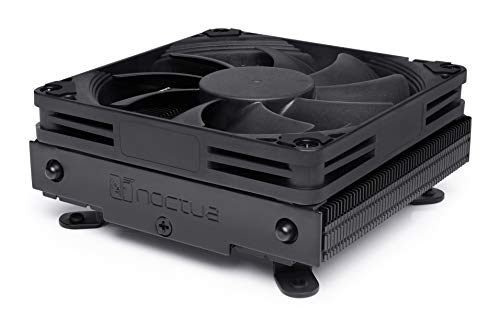
A low-profile cooler is short, usually under 70mm tall, and it exists for small cases where a tower will not fit. It cools less than a tower, so it suits a modest processor in a compact build rather than a hot chip. A liquid all-in-one cooler moves heat through tubes to a radiator mounted at the case edge, which keeps the socket area clear and suits cases with radiator mounts. It cools a hot chip well, but it adds a pump, tubes, and a radiator to install, and it costs more than air for the same cooling.
What makes a CPU cooler good for a desktop
Heatpipes and fin area decide how much heat a cooler can move. A heatpipe carries heat from the base plate up into the fin stack, where the fan blows it away. More heatpipes and a larger fin stack move more heat, which is why a six-heatpipe dual tower outperforms a four-heatpipe single tower on a hot chip. The base plate matters too: a flat, well-machined base makes full contact with the processor, and a cooler that rocks or sits unevenly will leave a hot spot no matter how big its fins are.
The fan decides the noise. A 120mm fan can move the same air as a smaller fan at a lower speed, and lower speed means less noise. A fan with a good bearing stays quiet for years, while a cheap sleeve-bearing fan can start to rattle after a year of daily use. Pulse-width modulation, or PWM, lets the motherboard slow the fan when the processor is idle and speed it up only when the temperature rises, which is the single most useful feature a cooler fan can have. Two fans cool more than one, but the second fan adds noise, so a dual-fan cooler should be run on a gentle fan curve.
Mounting hardware decides whether the cooler is a pleasure or a chore to install. A good mounting kit holds the cooler firmly with even pressure, includes brackets for both Intel and AMD sockets, and can be fitted without removing the motherboard from the case. A poor kit wobbles, needs three hands, or leaves the cooler loose enough to shift in transit. Thermal paste is usually included in the box; a pea-sized dot in the centre is enough, and spreading it by hand is unnecessary because the mounting pressure spreads it evenly.
Quick picks at a glance
| Product | Type and size | Heatpipes / radiator | Best for |
|---|---|---|---|
| Noctua NH-D15 G2 | Dual tower air, 168mm | 8 heatpipes, dual 140mm fans | Hot processors |
| Noctua NH-U12A | Single tower air, 158mm | Dual 120mm fans | Most desktops |
| Thermalright Peerless Assassin 120 SE | Dual tower air | 6 heatpipes, dual 120mm fans | Best value |
| Cooler Master Hyper 212 Black II | Single tower air, 152mm | 4 heatpipes, 120mm fan | Budget builds |
| be quiet! Pure Rock Pro 3 Black | Double tower air, compact | 6 heatpipes, dual 120mm fans | Quiet builds |
| MSI MAG Coreliquid A13 240 | AIO liquid, 240mm radiator | 240mm radiator, dual 120mm fans | Liquid cooling |
The best CPU coolers for desktops

Noctua NH-D15 G2 Dual Tower CPU Cooler
The Noctua NH-D15 G2 is the flagship air cooler in this guide, and it is the cooler for a desktop whose processor runs hot for hours. It is a dual tower design, 168mm tall, with eight heatpipes carrying heat into two fin stacks, and two 140mm fans moving air through them. That is the largest air cooling setup a desktop case can hold, and it cools a high-end processor with the fans barely working, which is why it is also one of the quietest coolers at full load.
The G2 is the second generation of the NH-D15, and the listing title states it exactly, which matters because the original NH-D15 is a different cooler with six heatpipes rather than eight. The kit is generous, with mounting hardware for Intel and AMD sockets and a rich accessory kit in the box. It needs a case with 168mm of clearance and memory that clears its fans, but if the case fits it, no air cooler in this guide cools better.
Key specs:
- Dual tower air cooler, 168mm height
- 8 heatpipes
- Dual 140mm enthusiast-grade fans
- For Intel and AMD sockets
- Rich accessory kit included
Strengths:
- Best air cooling in this guide for hot processors
- Quiet at full load thanks to large, slow fans
- Eight heatpipes move heat fast under sustained loads
Trade-offs:
- 168mm tall, needs a case with generous clearance
- Wide dual tower can overhang tall memory
- Costs more than a single-tower cooler
The NH-D15 G2 fits a desktop with a hot high-end processor, a case with at least 168mm of cooler clearance, and a builder who wants the best air cooling available. It is the cooler for long renders, long compiles, and long gaming sessions where the processor never gets a rest.
Best for: a hot high-end processor in a roomy case. Not suited for: a compact case under 168mm clearance, or a build with very tall memory.
Check price on Amazon: Noctua NH-D15 G2

Noctua NH-U12A Single Tower CPU Cooler
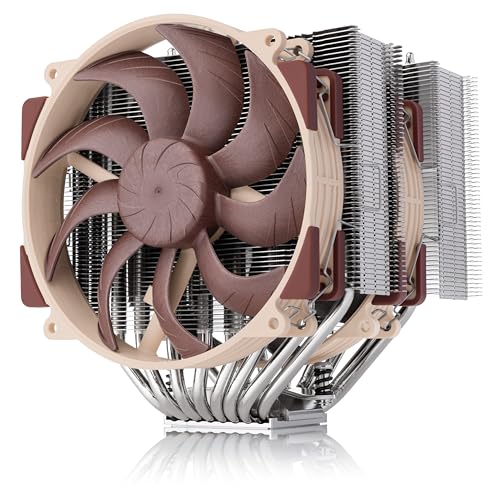
The Noctua NH-U12A is the single-tower cooler that cools like a dual tower, and it is the sensible default for most desktops. It is 158mm tall, with a single fin stack and two 120mm fans pushing air through it, and the listing title promises 100 percent RAM compatibility, which means the cooler clears the memory slots completely. That combination, strong cooling with no memory clash, is why the U12A has been a favourite for years.
The U12A suits a mid-range to high-end processor in a standard mid-tower case. Its 158mm height fits almost every case, its dual fans keep it quiet, and its mounting kit covers Intel and AMD sockets. It is the cooler for a builder who wants excellent cooling without measuring memory clearance or worrying about the side panel.
Key specs:
- Single tower air cooler, 158mm height
- Dual 120mm fans
- 100 percent RAM compatibility
- For Intel and AMD sockets
- Rich accessory kit included
Strengths:
- Strong cooling from a single tower that fits most cases
- Clears all memory, with no clash against tall sticks
- Quiet dual-fan design with a proven mounting kit
Trade-offs:
- Costs more than a budget single tower
- A dual tower cools a very hot chip better
- Brown fans suit some builds more than others
The NH-U12A fits a desktop with a mid-range to high-end processor in a standard mid-tower case, where the builder wants strong, quiet cooling with no memory worries. It is the cooler for a machine that games and works every day.
Best for: most desktops that need strong, quiet air cooling. Not suited for: a very hot processor that needs a dual tower, or a tiny case under 158mm clearance.
Check price on Amazon: Noctua NH-U12A
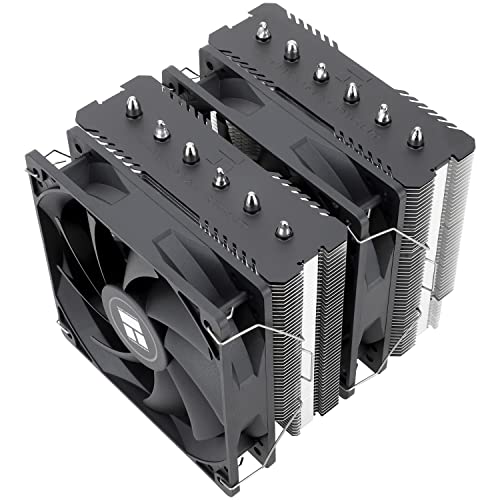
Thermalright Peerless Assassin 120 SE CPU Cooler
The Thermalright Peerless Assassin 120 SE is the value champion of this guide: a dual-tower cooler with six heatpipes and two 120mm PWM fans, for the cost of a budget single tower. It moves enough heat for a hot mid-range processor, and its dual fans spin at up to 1550RPM, which keeps it quiet under normal loads and strong under heavy ones. For a builder who wants dual-tower cooling without the dual-tower cost, this is the cooler.
The 120 SE supports AMD AM4 and AM5 and Intel LGA 1700, 1150, 1151, 1200, and 1851, so it fits almost any desktop built in the last decade. Its AGHP heatpipe technology is stated in the listing title, and its dual towers sit low enough to fit a standard mid-tower case. The value is the story here: six heatpipes and two fans for the price of one fan and four heatpipes elsewhere.
Key specs:
- Dual tower air cooler
- 6 heatpipes with AGHP technology
- Dual 120mm PWM fans, up to 1550RPM
- AMD AM4 and AM5, Intel LGA 1700, 1150, 1151, 1200, 1851
- PC cooler for desktop builds
Strengths:
- Dual-tower cooling at a budget single-tower cost
- Six heatpipes handle a hot mid-range processor
- Broad socket support covers AMD and Intel builds
Trade-offs:
- Dual towers need memory clearance checked
- Fans are louder at full speed than premium rivals
- No RGB lighting for a lit-up build
The Peerless Assassin 120 SE fits a builder who wants the most cooling per dollar, a mid-range to hot processor, and a standard mid-tower case. It is the cooler for a gaming desktop built on a budget that still needs real cooling.
Best for: the most cooling per dollar in a mid-tower build. Not suited for: a build with very tall memory, or a silent build where fan noise matters most.
Check price on Amazon: Thermalright Peerless Assassin 120 SE

Cooler Master Hyper 212 Black II CPU Air Cooler
The Cooler Master Hyper 212 Black II is the classic budget cooler, and it is the cooler for a desktop that needs to be cooler and quieter than stock without spending much. It is a single tower, 152mm tall, with four heatpipes and a 120mm PWM fan, and it supports AMD AM5 and AM4 and Intel LGA1851 and LGA1700. That is enough cooling for a mid-range processor, and a large step up from the cooler that ships in the box.
The Black II is easy to install, with a straightforward mounting kit and a black finish that suits most builds. Its 152mm height fits almost every case, and its single fan keeps it simple. It will not cool a hot high-end chip the way a dual tower does, but for a mid-range processor it is the cheapest meaningful upgrade a desktop can have.
Key specs:
- Single tower air cooler, 152mm height
- 4 heatpipes
- 120mm PWM fan
- AMD AM5 and AM4, Intel LGA1851 and LGA1700
- Easy installation
Strengths:
- The cheapest meaningful upgrade from a stock cooler
- Fits almost every case at 152mm tall
- Simple to install with a proven mounting kit
Trade-offs:
- Four heatpipes limit it to mid-range processors
- A single fan is louder under load than a dual fan
- No headroom for overclocking a hot chip
The Hyper 212 Black II fits a desktop with a mid-range processor, a builder on a budget, and a case that needs a cooler that simply fits and works. It is the cooler for a first build and for a machine that is being made quieter on a small budget.
Best for: a budget upgrade from a stock cooler. Not suited for: a hot high-end processor, or a build that will be overclocked.
Check price on Amazon: Cooler Master Hyper 212 Black II

be quiet! Pure Rock Pro 3 Black CPU Cooler
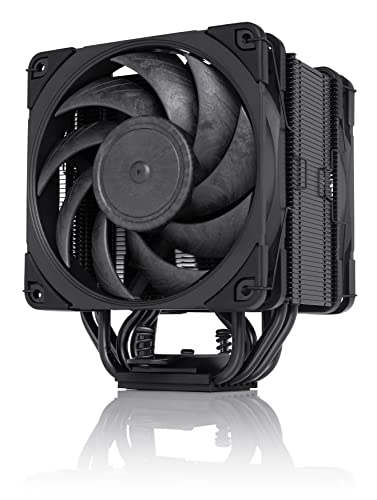
The be quiet! Pure Rock Pro 3 Black is the quiet cooler in this guide, and its name is the promise: a double-tower cooler rated at 250W TDP, with two silent 120mm PWM fans and six 6mm heatpipes, built to cool a hot processor without being heard. It is a compact double tower, so it fits cases that a full-size dual tower cannot, and its high RAM and VRM cooling compatibility means it clears the memory and the motherboard parts around the socket.
The Pro 3 suits a desktop that sits in a bedroom or an office, where fan noise matters as much as temperature. Its 250W TDP rating covers high-end processors, and its two fans run slowly under normal loads. The black finish suits a dark build, and the mounting kit covers AMD and Intel sockets. It is the cooler for a machine that must be both fast and silent.
Key specs:
- Double-tower air cooler, 250W TDP
- 6 high performance 6mm heatpipes
- 2 silent 120mm PWM fans
- High RAM and VRM cooling compatibility
- AMD and Intel sockets
Strengths:
- 250W TDP covers high-end processors
- Very quiet thanks to silent fans and a compact design
- Clears memory and motherboard parts well
Trade-offs:
- Compact double tower cools slightly less than a full dual tower
- Black finish only suits dark builds
- Costs more than a budget dual tower
The Pure Rock Pro 3 fits a desktop in a bedroom or office, a hot processor that must be cooled quietly, and a case that needs a compact double tower. It is the cooler for a build where silence is a feature, not an afterthought.
Best for: a quiet build with a hot processor. Not suited for: a very small case, or a build where the lowest cost matters most.
Check price on Amazon: be quiet! Pure Rock Pro 3 Black

MSI MAG Coreliquid A13 240 CPU Liquid Cooler
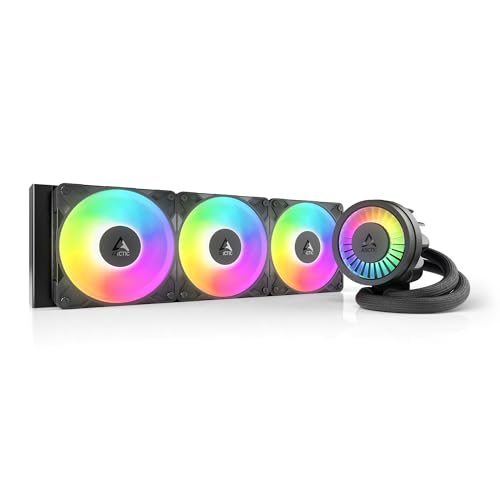
The MSI MAG Coreliquid A13 240 is the liquid cooler in this guide, and it is the cooler for a desktop with a hot processor and a case with room for a radiator. It is an all-in-one unit with a 240mm radiator and two 120mm ARGB PWM fans, and it moves heat from the processor to the edge of the case, where the radiator can shed it. That keeps the socket area clear and cools a hot chip well, with the added look of ARGB lighting on the fans.
The A13 240 supports Intel LGA 1700 and 1851 and AMD AM5 and AM4, so it fits current builds on both platforms. Its 240mm radiator needs two adjacent 120mm fan mounts, usually at the top or the front of the case, and the tubes must reach without kinking. It is more work to install than an air cooler, but for a hot chip in a case with radiator mounts, it is the cooler that keeps temperatures lowest.
Key specs:
- AIO liquid cooler, 240mm radiator
- Dual 120mm ARGB PWM fans
- Intel LGA 1700 and 1851, AMD AM5 and AM4
- ARGB lighting on fans
- All-in-one sealed loop
Strengths:
- Liquid cooling handles a hot chip well
- Radiator at the case edge keeps the socket area clear
- ARGB fans suit a lit-up build
Trade-offs:
- Needs a case with 240mm radiator mounts
- More to install than an air cooler: pump, tubes, radiator
- A pump adds a part that can fail over time
The MAG Coreliquid A13 240 fits a desktop with a hot processor, a case with room for a 240mm radiator, and a builder who wants liquid cooling and ARGB lighting. It is the cooler for a gaming build where the processor runs hot and the case has the mounts.
Best for: a hot processor in a case with radiator mounts. Not suited for: a case with no 240mm radiator mount, or a builder who wants the simplest install.
Check price on Amazon: MSI MAG Coreliquid A13 240
Buying guide
Match the cooler to the heat your processor makes
Start with the processor, not the cooler. A mid-range chip that draws around 65 to 125 watts under load is happy with a good single-tower air cooler, while a high-end chip that draws 150 watts or more under a sustained load wants a dual tower or a 240mm liquid cooler. The processor maker publishes a thermal design power figure, and the cooler maker publishes a cooling capacity figure; the cooler figure should be comfortably above the processor figure, because a cooler running at its limit is loud and leaves no margin for a warm room.
Sustained load matters more than a short burst. A processor can boost for a few seconds on almost any cooler, but a render, a compile, or a long gaming session holds the load for minutes. That is when a small cooler gives up and the chip slows down to protect itself. If the desktop will run heavy loads for hours, buy one size larger than the minimum. The extra headroom costs little and keeps the fans slow and quiet.
Measure the case before you buy
Case clearance is the number that decides everything. The case maker lists a maximum cooler height, usually between 155mm and 170mm for a mid-tower, and the cooler must be shorter than that figure. A 168mm tower in a case rated for 165mm will not let the side panel close, and there is no fix except a different cooler. Measure the memory too: tall memory sticks with decorative heatsinks can clash with a wide dual tower, and the fix is either low-profile memory or a cooler with an offset design that clears the first slot.
For a liquid cooler, the radiator mount matters more than the height. A 240mm radiator needs two adjacent 120mm fan mounts, usually at the top or the front of the case, and the tubes must reach from the pump to the radiator without kinking. Check the case manual for radiator support before ordering, and check that the radiator plus fans will not clash with the memory or the top of the motherboard.
Check the socket and the mounting kit
The cooler must list the socket the motherboard uses. Current desktop sockets are Intel LGA 1700 and AMD AM5, and most coolers in this guide include brackets for both in the box. Older sockets such as AM4 and LGA 1200 are often supported by the same kit, but the listing title is the authority: if the socket is not named, do not assume it fits. Some coolers need a separate bracket for a new socket, and ordering that bracket after the build is finished wastes days.
Read the mounting instructions before the build day. A cooler that mounts from the front of the board, with the backplate held by a bracket, can be fitted with the motherboard already in the case. A cooler that needs a backplate fitted from behind the board is easier with the board out of the case. Either way, fit the cooler before the board goes into a small case, because working space disappears fast once the board is screwed in.
Noise, fans, and the fan curve
A cooler is heard all day, so its noise matters as much as its temperatures. Large fans running slowly are quieter than small fans running fast, which is why a 120mm or 140mm fan is better than an 80mm fan for a desktop. After installing the cooler, set a fan curve in the motherboard firmware: let the fans idle slowly below 50 degrees, ramp gently through 70 degrees, and reach full speed only above 80 degrees. A good curve keeps the desktop silent while browsing and audible only under a real load.
Two fans are not always better than one. A second fan on a dual tower adds a few degrees of cooling at full speed but adds noise at every speed. For a quiet build, run the second fan on the same gentle curve as the first, or remove it entirely if temperatures allow. The difference between one fan and two on a mid-range chip is often a couple of degrees, which is not worth the extra noise.
Setting up and everyday care
Installing the cooler without damaging the board
Work on a flat, clear surface with the case on its side. Fit the backplate and standoffs first, then apply a pea-sized dot of thermal paste to the centre of the processor, then lower the cooler straight down and tighten the screws in a cross pattern, a little at a time on each corner. Even pressure matters more than force: overtightening one corner first can tilt the cooler and leave a gap on the other side. Once the cooler is seated, give it a gentle wiggle; it should not move at all.
Connect the fan to the CPU fan header on the motherboard, not to a case fan header. The CPU fan header is the one the motherboard uses to watch the processor temperature and to warn if the fan stops. A pump on a liquid cooler goes to the pump or AIO header if the board has one, or to a case fan header set to full speed. After the first boot, check the temperature at idle: it should settle near room temperature plus a small margin, and the fan should be slow and quiet.
Keeping the fins and fans clean
Dust is the slow enemy of every cooler. A layer of dust on the fins acts as insulation, and dust on the fan blades unbalances them and adds noise. Every few months, shut the machine down, open the case, and blow the dust out of the fin stack with short bursts of compressed air, holding the fan still so it does not spin freely. A soft brush reaches the dust that air leaves behind. Never use a vacuum cleaner inside a case, because the static it builds up can damage components.
Washable dust filters on the case intakes catch most dust before it reaches the cooler, so clean the filters monthly if the desktop sits on the floor. A desktop on a desk stays cleaner than one on carpet, and a room with pets needs more frequent cleaning. If temperatures creep up over months with no other change, dust is the first thing to check.
When to replace thermal paste
Thermal paste dries out slowly, and after a few years it can lose enough performance to raise temperatures by several degrees. If a desktop that used to idle cool now idles warm, and the fins are clean and the fan is healthy, the paste is the likely cause. Replacing it means removing the cooler, cleaning both surfaces with isopropyl alcohol and a lint-free cloth, applying a fresh pea-sized dot, and remounting the cooler with even pressure.
Do not replace paste on a schedule for its own sake. A cooler that still holds good temperatures does not need new paste, and every remount is a chance to bend a pin or overtighten a screw. Replace it when temperatures say so, or when the cooler has to come off for another reason, such as a processor upgrade.
Common mistakes to avoid
Buying a cooler that does not fit the case
The most expensive mistake in cooler shopping is also the most common: ordering a tall tower and finding the side panel will not close. The case maker publishes a maximum cooler height, and the cooler maker publishes the cooler height, and the two numbers must be compared before ordering. The same applies to radiator size on a liquid cooler. A tape measure and two minutes of checking save a return and a week of waiting.
Using too much thermal paste
Thermal paste fills microscopic gaps, and a thin layer does that job. A thick layer insulates instead of conducting, and paste squeezed out around the edges can creep onto the socket. A pea-sized dot in the centre is enough for a desktop processor; the mounting pressure spreads it into a thin, even layer. Spreading paste by hand with a card traps air bubbles, so let the cooler do the spreading.
Forgetting the memory clearance
A wide dual-tower cooler overhangs the memory slots next to the socket, and tall memory with decorative heatsinks can clash with the fan. The fix is to check the cooler maker memory clearance figure against the memory height, or to choose memory with low-profile heatsinks. Moving the front fan up a few millimetres can help, but only if the case has the headroom for it, which brings the problem back to case clearance.
Running the fans at full speed all day
A cooler set to full speed is loud, and the noise is unnecessary. A desktop at idle makes little heat, and the fans can run slowly without the temperature moving. Set a fan curve that keeps the fans quiet below 60 degrees and only ramps up under load. The processor will be just as cool under load, and the room will be quiet the rest of the time.
Our recommendation
For most desktops, a good single-tower air cooler is the right buy: it is quiet, simple, and cools a mid-range processor with room to spare. If the processor is a hot high-end chip that renders or compiles for hours, step up to a dual-tower air cooler or a 240mm liquid unit, and measure the case first. The cooler that fits, mounts firmly, and runs its fans slowly is the cooler that will still be doing its job quietly in five years.
Buy the cooler for the processor that is actually in the machine, not the one that might be fitted one day. A cooler matched to the real heat load, with a gentle fan curve and clean fins, keeps a desktop fast and quiet for the life of the build.
Related reading on Reviewstook: see our guides to the best CPU air coolers under 100, the best liquid CPU coolers for beginners under 100, the best CPU air coolers for gaming under 100 for more on this topic.
Frequently asked questions
Do I need an aftermarket CPU cooler, or is the stock cooler enough?
The stock cooler is enough for a processor that mostly browses, streams, and does office work, because the chip rarely runs at full load. It is not enough for a processor that games, renders, or compiles for hours: the stock cooler is loud under load and lets the chip run hot, which can make it slow down. An aftermarket cooler is a small cost for a quieter machine and a processor that holds its speed.
Is a liquid cooler better than an air cooler?
A liquid cooler is better at moving heat away from a very hot chip in a case with radiator mounts, and it leaves the socket area clear. An air cooler is simpler, has no pump to fail and nothing that can leak, and the best air coolers match many liquid units on a mid-range chip. For most desktops, air is the better value; liquid wins when the chip is hot and the case has room for a radiator.
How tall a CPU cooler can my case fit?
The case maker lists a maximum CPU cooler height, usually between 155mm and 170mm for a mid-tower case. The cooler must be shorter than that figure, with a few millimetres to spare for the side panel. Measure the case if the figure is not listed, and remember that a fan raised to clear tall memory adds height.
How often should I clean my CPU cooler?
Every few months is enough for a desktop on a desk, and monthly is better for a desktop on the floor or in a home with pets. Blow dust out of the fins with short bursts of compressed air, hold the fan still while doing it, and clean the case intake filters at the same time. If temperatures creep up over time with no other change, dust is the first thing to check.