An Android tablet is a flexible screen for streaming, reading, browsing and note taking, with access to the Google Play store. The real differences come down to screen size and resolution, the processor, how much memory and storage you get, and whether a pen or case is in the box.
The six tablets below run from a 10 inch Teclast to a 12.7 inch Lenovo with a 3K display. Specs come from each product’s listing page. We have not used these tablets ourselves, and performance and battery claims are the makers’ own.
As an Amazon Associate we earn from qualifying purchases. Links below are affiliate links, and they do not change the product information we give.

What to Look For
| Feature | Why it matters |
|---|---|
| Screen size and resolution | Larger, sharper screens suit video and note taking |
| Refresh rate | 90 Hz scrolls more smoothly than 60 Hz |
| Memory and storage | Check physical RAM, not virtual expansion |
| Pen and case | Some listings include them, some do not |
| Warranty | Listings differ in coverage and region |
In this guide
Specs at a Glance
| Tablet | Screen | Memory and storage | Notes |
|---|---|---|---|
| Samsung Tab S10 FE | 10.9 in; 2304 x 1440; 90 Hz | 128 GB; Exynos 1580 | S Pen in the box; 2 year maker warranty |
| Samsung Tab A11+ | 11 in; 1920 x 1200; 90 Hz | 6 GB RAM, 128 GB; expandable | Quad speakers; 2 year maker warranty |
| Lenovo Idea Tab Pro | 12.7 in; 2944 x 1840 (3K) | 8 GB, 128 GB; Dimensity 8300 | Pen and folio case; 45W quick charge |
| Lenovo Idea Tab Plus | 12.1 in; 2560 x 1600; 90 Hz | 8 GB, 128 GB; Dimensity 6400 | Pen and folio case; up to 800 nits |
| Lenovo Idea Tab | 11 in; 2560 x 1600; 90 Hz | 8 GB, 256 GB; Dimensity 6300 | Pen and folio case; quad speakers |
| Teclast P35 | 10.1 in; 1280 x 800; 60 Hz | 3 GB RAM plus 13 GB virtual; 32 GB | Unisoc T7200; 6000 mAh battery; Android 16 |
The 6 Best Android Tablets
Top pickBest for note taking and streaming
1. Samsung Galaxy Tab S10 FE
A 10.9 inch tablet with a 2304 by 1440 display at up to 90 Hz, an Exynos 1580 processor and 128 GB of storage. The listing says an S Pen is in the box and highlights Circle to Search, Handwriting Assist and a 2 year maker warranty.
Suits: note taking and streaming. Strengths: pen included and a sharp screen. Weaknesses: 128 GB base storage. Skip it if you want a 12 inch display.
View Samsung Galaxy Tab S10 FE 128GB Android Tablet on Amazon
Best for everyday browsing and video
2. Samsung Galaxy Tab A11+
An 11 inch tablet with a 1920 by 1200 display at up to 90 Hz, 6 GB of RAM, 128 GB of storage with expansion, quad speakers with Dolby Atmos and a 2 year maker warranty. The marketing text mentions up to 8 GB and 256 GB, but this listing is the 6 GB and 128 GB configuration.
Suits: everyday browsing and video. Strengths: expandable storage and quad speakers. Weaknesses: no pen listed in the box. Skip it if you want a high-resolution display.
View Samsung Galaxy Tab A11+ 6GB 128GB Android Tablet on Amazon
Best for a big screen for video and drawing
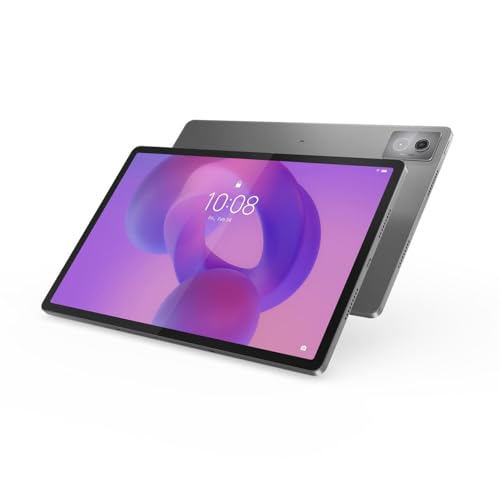
3. Lenovo Idea Tab Pro
A 12.7 inch tablet with a 3K LCD at 2944 by 1840, a MediaTek Dimensity 8300 processor, 8 GB of memory, 128 GB of storage, quad JBL speakers, Wi-Fi 6E and 45W quick charging. A pen and folio case are included.
Suits: a big screen for video and drawing. Strengths: the strongest processor and sharpest panel here. Weaknesses: the largest body in this group. Skip it if you want a pocketable size.

Best for a large screen with a pen
4. Lenovo Idea Tab Plus
A 12.1 inch tablet with a 2.5K display at 2560 by 1600 and 90 Hz, up to 800 nits brightness, a Dimensity 6400 processor, 8 GB of memory and 128 GB of storage. The listing gives a weight of just over a pound, which looks low for a 12.1 inch tablet, so confirm it. It includes a Lenovo Tab Pen and folio case.
Suits: a large screen with a pen. Strengths: bright 2.5K screen and quad speakers. Weaknesses: mid-range processor. Skip it if you want the top processor.

View Lenovo Idea Tab Plus 12.1 Inch Android Tablet on Amazon

Best for a mid-size tablet with room for files
5. Lenovo Idea Tab
An 11 inch tablet with a 2560 by 1600 display at 90 Hz, a Dimensity 6300 processor, 8 GB of memory and 256 GB of storage, quad Dolby Atmos-tuned speakers and a pen and folio case. The maker quotes up to 12 hours of battery life.
Suits: a mid-size tablet with room for files. Strengths: 256 GB of storage and a pen in the box. Weaknesses: the weakest Lenovo processor of the three. Skip it if you want 12 inches or more.


Best for light browsing and video
6. Teclast P35 10 Inch
A 10.1 inch tablet with a 1280 by 800 IPS display at 60 Hz, a Unisoc T7200 octa-core processor, Android 16, 32 GB of storage and a 6000 mAh battery. The 16 GB RAM figure is 3 GB of physical memory plus 13 GB of virtual expansion, so treat it as a 3 GB tablet.
Suits: light browsing and video. Strengths: a charger in the box and GPS. Weaknesses: low resolution, 60 Hz and little physical RAM. Skip it if you plan to multitask heavily.

Setup Notes
- Update the system software before installing apps.
- Add a microSD card where the listing supports expansion.
- Use a case or folio to protect the screen in a bag.
- Turn on a 90 Hz setting where the tablet offers it.
Mistakes to Avoid
- Counting virtual RAM as real memory.
- Buying a region-specific model without checking its warranty.
- Ignoring whether a pen is in the box.
- Choosing by screen size alone and skipping resolution.
Screen Quality Beyond Size: Resolution, Refresh Rate and Brightness
The screen is what you look at all day, so it deserves attention beyond inches. Resolution tells you how many pixels fill the panel. On a tablet of about ten inches, a very low resolution can look soft, with visible pixels in small text. A sharper panel makes reading, drawing and video look cleaner. Compare resolution and size together, because the same pixel count looks sharper on a smaller screen.
Refresh rate describes how often the screen updates each second. A higher rate makes scrolling and pen strokes feel smoother. Many people notice the difference when moving from a standard rate to a higher one, though it is a comfort feature, not a necessity. Higher rates may reduce battery life a little, and some tablets let you switch between rates in settings.
Brightness matters if you use the tablet near windows or outdoors. A dim screen can be hard to read in sunlight. Check whether the listing states a peak brightness, and keep in mind it is the maker’s figure. A glossy screen reflects more light than a matte one, while a matte or anti-glare coating reduces reflections but can slightly soften the image.
Panel type, color accuracy and aspect ratio affect video and reading. A wider ratio suits movies, while a taller one suits documents and web pages in portrait. If you plan to read or write notes a lot, consider the aspect ratio as well as the size.
Processor, Memory and Storage: What You Actually Need
Processor power decides how smoothly the tablet runs apps, switches between them and handles games. For browsing, streaming and reading, a mid-range chip is usually enough. For heavy multitasking, drawing apps with many layers, or demanding games, a stronger chip helps. Compare chip names on the listing and look for independent performance information, rather than relying only on marketing claims.
Memory, or RAM, determines how many apps and tabs can stay active. A low amount can lead to apps reloading when you switch. Some listings mention virtual RAM, which borrows storage space as extra memory. That is not the same as physical RAM, and it does not give the same performance, so check the physical figure.
Storage holds apps, photos, downloads and offline video. Base storage fills faster than expected, particularly with games and downloaded shows. Check whether the tablet has a microSD slot, which makes expansion inexpensive. Some models do not support expansion, in which case choose a larger size at purchase. Cloud storage can help, but depends on your connection.
Think about how long you want to keep the tablet. Software demands grow over time, so a bit of extra memory and storage can extend its useful life. A budget tablet that suits light use today may feel slow in a few years under heavier apps.
Software Updates, Security and Long-Term Support
Updates matter more than many buyers realize. Security patches keep your tablet safer, and new versions of the operating system add features. Policies on how long a tablet receives updates differ between makers and models, and some budget tablets receive fewer updates. Check the listing and the maker’s support page for the stated update period before you buy.
Look at the software experience. Some tablets run a close-to-stock Android look, while others add a custom interface with extra features such as split-screen, desktop modes and pen tools. Extra features can be useful, but they can also add pre-installed apps. Read about what comes installed and whether you can remove it.
Access to the Google Play store is important for most users. Confirm the tablet is certified for it, so apps and updates work as expected. Region matters: some models are sold with different software or warranties depending on the country, and importing may affect coverage and updates.
Finally, set up good habits. Install updates when they arrive, use a screen lock, and review app permissions. Consider backing up important data to the cloud or another device. Factor in the end of support when planning replacements, and avoid keeping a tablet that no longer gets security updates for sensitive tasks like banking.
Pens, Cases and Keyboards: What Is Included and What Is Extra
Accessories can add a lot to the cost of a tablet, so check the box contents. Some tablets include a stylus and a folio case, others include a charger only, and some include nothing but the tablet and a cable. A pen suits note taking, sketching and annotating documents. Check whether it needs charging or batteries, and whether the tablet supports it with pressure sensitivity and palm rejection.
Not every stylus works with every tablet. Pen support depends on the screen technology, so use only pens listed as compatible. Make sure there is a place to attach or store the pen, or you will lose it.
A keyboard case turns a tablet into a small laptop for typing. Look at key size, layout and whether it connects by Bluetooth or contacts. Some tablets have official keyboards, while others work with third-party ones, and fit depends on the exact model. Consider a trackpad if you plan to work on documents.
Cases protect from drops and scratches. Choose one with raised edges to protect the screen. A screen protector can reduce scratches, though some alter the feel of pen input. Charging speed also varies. The listing may mention the charger wattage included. If the tablet does not include a charger, check what output is recommended. Weigh these extras against your needs rather than buying all at once.
Matching the Tablet to Your Use: Family, Student, Reader or Traveler
A family tablet gets passed around, so durability, parental controls and a decent speaker matter. A sturdy case is a must, and expandable storage helps hold shows for trips. Check whether the tablet supports multiple user profiles or has family features, and decide what apps your kids will use.
Students benefit from a pen, a good keyboard option and enough memory for notes, PDFs and video calls. A larger screen makes split-screen work easier. Battery life through a full school day is vital, so check the maker’s stated figure and remember it varies with use.
For reading, a lighter weight and a comfortable screen matter more than raw power. Look for an eye comfort mode or adjustable color warmth. For streaming, good speakers and a bright, sharp display make a difference, and a stand or case keeps it propped up. For travel, size, weight and offline storage matter, along with whether you need cellular connectivity or just Wi-Fi.
Drawing and creative work call for a pen, a laminated or well-bonded display and a capable processor. For simple browsing, email and video calls, an inexpensive tablet is often enough, and spending more brings diminishing returns. Think honestly about your habits, and buy for the main use, not the occasional one.
Android Tablet FAQ
Which ones include a pen?
The Samsung S10 FE and the three Lenovo tablets list one in the box. The Samsung A11+ and Teclast do not.
What is virtual RAM?
It borrows storage space as extra memory. It is not the same as physical RAM.
How long should a tablet last?
Many last several years, though it depends on use, battery wear and software support. Slowing performance or ending updates are common reasons to replace.
Do I need cellular connectivity?
Only if you want internet away from Wi-Fi. Many people use a phone hotspot instead, which avoids a separate plan.
Is a bigger screen always better?
Larger screens suit video, drawing and multitasking but are heavier and harder to carry. Choose based on how you will use it.
Can an Android tablet replace a laptop?
For browsing, email and documents, often yes, especially with a keyboard case. Specialized software may require a computer.
How can I make the battery last longer?
Lower the brightness, reduce the refresh rate if offered, close unused apps and avoid extreme temperatures.
Should I buy a screen protector?
It can prevent scratches, but choose one made for your model and check that it does not interfere with the pen or fingerprint features.
Are cheaper tablets safe for kids?
They can be, with a sturdy case and parental controls. Check the update policy and age-appropriate settings.
Battery Life, Charging and Power Habits
Tablet battery claims are usually measured under light, steady use, such as video playback at moderate brightness, so real-world results vary. Larger screens, high refresh rates, bright displays and heavy games all drain faster. Capacity in milliamp hours is a rough guide, but screen size, processor efficiency and software tuning matter just as much, so two tablets with the same battery number may last quite different times.
Charging speed is another detail worth checking. Some tablets support fast charging but ship with a slower adapter, which means you need to buy a compatible charger to get the advertised speed. Others include a basic charger that takes several hours to fill a large battery. Look at the charging wattage in the listing and see what comes in the box.
- Lower screen brightness and use auto brightness to extend runtime.
- Close apps that run in the background and turn off location when you do not need it.
- Avoid leaving the tablet in a hot car, since heat shortens battery life over time.
Lithium batteries age with charge cycles. If you plan to keep a tablet for several years, a model with a larger battery and efficient chip will usually feel fresh for longer.
Parental Controls, Profiles and Sharing
Many Android tablets end up in family use, so it helps to know what software offers. Google Family Link lets a parent set screen time limits, approve apps, block content and see activity on a child’s account. Some tablets add their own kids mode that wraps the interface in a simplified space with curated apps and a locked exit.
Multiple user profiles let several people share one tablet with separate apps, files and settings. Not every model enables this on the home screen, so check the listing or manual if sharing is a priority. Even without profiles, you can set up a guest mode or a restricted account.
- Create a separate account for each child, and review permissions before installing apps.
- Use the Play Store content filters and require a password for purchases.
- Choose a sturdy case with a handle or stand if the tablet will be handled by young kids.
No filter is perfect, so periodic check-ins and open conversations about what children watch and play remain important.
Audio, Cameras and Wireless Connections
Speakers differ widely among tablets. Models with four speakers can fill a room and give a sense of stereo, while single-speaker designs sound thin. If you watch a lot of video without headphones, check the speaker count. A headphone jack is no longer universal, so confirm whether you need a USB-C adapter or Bluetooth earbuds.
Tablet cameras are generally functional rather than impressive. A decent front camera matters for video calls, and some tablets position it on the long edge, which is more natural in landscape orientation. Rear cameras are mostly for scanning documents and casual shots.
For connectivity, Wi-Fi is standard, and newer Wi-Fi standards offer faster speeds and better performance in crowded homes if your router supports them. Bluetooth handles keyboards, mice, pens and headphones. A USB-C port may support external storage or displays on some models, but not all, so check what it can do. Cellular models cost more and require a data plan, so decide whether you will use it away from Wi-Fi.
Warranty, Returns and When to Buy
A tablet is an electronic device that can arrive defective, so know the return window and warranty terms before ordering. Keep the box and packing for the first weeks. Test the screen for dead pixels and uneven backlight, try every button and the charging port, and confirm that storage and memory match the listing.
Timing affects price. Tablets often drop around major shopping events, and older models see discounts when new versions launch. Waiting can save money, but not if the model you want sells out or if its software support period is running down. Check the manufacturer’s stated update schedule, because a discounted tablet with limited remaining updates may cost more in the long run.
Storage, Memory Cards and Backups
Many Android tablets include a microSD slot, which is a cheap way to add space for photos, downloaded videos and books. Not every model has one, so check before you rely on it. Cards come in different speed classes, and a faster card loads files and records video more smoothly. Format a new card in the tablet so it works properly.
Back up what matters. Android syncs contacts, apps and some settings to a Google account, and photos can sync through cloud storage. For documents and school files, a cloud service or a periodic copy to a computer prevents losses if the tablet is lost, broken or reset. Turn on screen lock and device-finding features right away, so a misplaced tablet can be located or erased remotely.
Frequently Asked Questions
Do Android tablets have parental controls?
Yes. Google Family Link works on most Android tablets and lets parents set app limits, bedtimes and content filters for a child’s account. Some brands also include a built-in kids mode with a locked, simplified interface. You can combine both for stronger control.
Can I use a mouse and keyboard with an Android tablet?
Yes, in most cases. Bluetooth keyboards and mice pair easily, and many tablets also accept wired accessories through USB-C with an adapter. Android supports cursors and keyboard shortcuts, though some apps are not optimized, and productivity features vary by tablet maker.
How long does it take to charge a tablet?
Typically two to four hours from empty with the included charger, depending on battery size and charging wattage. A faster compatible charger can shorten that, if the tablet supports it. Using the tablet while charging slows the process.
Is Wi-Fi 6 worth having on a tablet?
It helps if you have a router that supports it and many devices on your network, since it handles congestion better. If your router is older, you will not see the benefit. For basic streaming and browsing, standard Wi-Fi is adequate.
Matching the Picks in This Guide to Real Households
The six tablets here fall into natural households, and naming yours honestly is the fastest way to a short list. The Samsung Galaxy Tab S10 FE, with its included pen and sharp screen, suits the student, the note-taker and the household that wants one tablet to serve for study, sketches and entertainment without buying accessories on day one. The Galaxy Tab A11+ suits the family workhorse role: shared streaming, browsing, video calls and homework, with expandable storage absorbing the slow growth of downloads and photos that every shared device collects.
Lenovo’s three models divide by screen ambition. The Idea Tab Pro, with the largest and highest-resolution display in this guide, suits the viewer who treats the tablet as a personal cinema and the reader who wants documents and comics rendered large and crisp. The Idea Tab Plus, with its big bright screen, suits bright rooms and shared viewing at an angle, such as cooking along with a video or watching with a child. The Idea Tab, highlighted for its generous built-in storage, suits the downloader: the traveler who loads series, books and music before a trip and does not want to manage a memory card.
The Teclast P35 answers the simplest brief of all: an inexpensive, straightforward ten-inch tablet for browsing, video and light tasks, the kind bought for a spare room, a grandparent or a first device where losing or breaking it would not be a disaster. There is no shame in that brief, and choosing the simple tool for it, rather than stretching to a premium model nobody in that role will use fully, is good buying rather than settling.
Notice what this way of choosing avoids: comparing every model on every specification. Two or three of these will match your household’s actual pattern, and between those, the deciding factors are usually screen size in the hand, whether a pen is included, and how storage grows. Decide those, and the choice usually makes itself.
The First Week With a New Tablet: Setup That Pays Off Later
The first hour with a new tablet decides how pleasant the next few years will be, and a calm order helps. Begin with the system update, before you install anything: a tablet that has sat in a warehouse may be several updates behind, and updating first avoids the odd situation of apps being installed onto software that then changes underneath them. While it updates, decide on the case. A tablet used on sofas and kitchen counters needs grip and corner protection more than it needs beauty, and fitting the case before the device starts traveling around the house is the whole point of having one.
Next, set up accounts deliberately. The main Google account on the tablet will shape its backups, its app purchases and its photo library, so a shared family tablet deserves a shared family account or a clear decision about whose account rules it. Turn on automatic backup and confirm it covers app data and settings, not just photos; the value of that choice only becomes visible on the day a tablet is lost, broken or replaced, which is exactly the day it is too late to make it.
Then arrange the home screen for the person who will actually use the tablet. Put the five or six genuinely used apps on the first screen, group the rest, and remove or disable the pre-installed extras you will never open. Set the screen timeout to something that matches real use — long enough not to dim mid-recipe, short enough not to drain the battery on a forgotten cartoon — and choose a PIN or fingerprint lock the owner will actually keep using.
Finish the week by testing the unglamorous things: a video call to check camera and microphone positions, the charger and cable you will really use, the headphone or Bluetooth connection, and the memory card if you fitted one. Finding a problem in week one, while returns are simple and enthusiasm is high, is a completely different experience from finding it in month four.
Reading, Watching and Listening: Getting the Most From the Screen You Bought
Most tablets spend most of their lives displaying content, so small adjustments to how that content is shown repay attention. For reading, use the reading or eye-comfort mode in the evening, increase text size in the app rather than zooming page by page, and choose the orientation by content: portrait for books and documents, landscape for comics and magazines where double-page spreads matter. A tablet with a large, high-resolution screen, like the biggest Lenovo in this guide, makes reference books, sheet music and study PDFs genuinely comfortable, provided the app you use handles them well.
For video, the aspect ratio conversation is worth understanding once. Films and series are made in different shapes, and a tablet screen is yet another shape, so black bars are sometimes the correct picture, not a fault. Stretching or cropping to fill the screen always costs you part of the image. What you can adjust is brightness for the room, and the streaming quality setting in each app: on a home network, set it high and enjoy the screen you paid for; on a metered connection or a train, download beforehand instead of fighting a fluctuating stream.
For listening, remember that a tablet’s speakers are voiced for voices. Podcasts, audiobooks and calls will sound clear long after music has started to feel thin, and that is a property of small speakers in a thin body, not a defect in your particular unit. A small Bluetooth speaker for the kitchen or a pair of headphones for travel closes the gap completely, and pairing them once, then naming them clearly in the Bluetooth menu, saves the small daily friction of connecting to the wrong device.
For children, use the tools the platform already gives you: individual profiles, app timers and content filters, set up before the tablet becomes a habit rather than after. A tablet that arrives with sensible boundaries in place generates far fewer negotiations than one where the rules arrive later as a confiscation.
Storage, Files and Moving On From an Old Tablet
Storage fills differently from how people expect. The system and apps take a steady share, but the real growth comes from downloads: streaming apps quietly storing series for offline viewing, games with large asset files, and messaging apps keeping every photo and video ever received. A monthly two-minute check of the storage screen, sorted by size, shows you exactly which app is growing and lets you clear its downloads deliberately rather than in a panic on the day an update will not install.
Where a model supports a memory card, as the Samsung A11+ in this guide does, treat the card as a home for media — photos, music, downloaded video — and keep apps and system data on the internal storage, which is faster and more reliable. Cards fail eventually, so anything that exists only on the card effectively exists nowhere safely; the backup habit matters more than the card’s capacity.
Backups deserve one explicit decision: what would you lose if this tablet vanished tonight? Photos are the usual answer, and they should be syncing to a cloud library or copied to a computer on a rhythm you can describe. Documents created in note and office apps usually live in those apps’ clouds already, but check rather than assume, especially for a student whose term’s work sits in one app on one device.
When the tablet is eventually replaced, the old one has useful second lives — a kitchen screen, a dedicated reading device, a child’s first tablet with a fresh profile — provided you hand it over properly. Remove your accounts, perform a factory reset if it leaves the household, and keep the charger with it. A reset tablet with a case and a charger is a gift; the same tablet still signed into your accounts is a liability.
Troubleshooting the Problems Tablet Owners Actually Meet
When a tablet feels slow, the cause is usually accumulation rather than age: dozens of apps updating and syncing in the background, storage nearly full, and a home screen full of widgets polling for news. Work in order. Restart the tablet, which clears more than people expect. Check storage and free space if it is nearly exhausted, because a device with almost no room cannot work properly. Then look at which apps the battery screen says are busiest, and restrict or remove the ones you do not use. Only after those steps is it fair to conclude the hardware itself has become the limit.
Wi-Fi complaints follow a similar pattern. If the tablet drops its connection in one room, the network, not the tablet, is the story; if it drops everywhere including beside the router, restart both devices, forget and rejoin the network, and check for a system update. Public networks in hotels and cafes often need a sign-in page that opens in the browser, and a tablet that ‘will not connect’ in a hotel is frequently just waiting for that page to be completed.
Battery worries should be tested before they are believed. A tablet used for bright video all day will drain quickly and that is normal; a tablet losing charge overnight on standby is not, and the battery usage screen will usually name the app responsible. Charging habits matter at the margins — a tablet used while charging heavily will run hot and charge slowly — but the largest factor in battery lifespan is simply time and total use, which is why a realistic expectation at purchase beats any ritual afterward.
For the small physical problems — a case that lifts a screen protector’s edge, a pen that needs its tip replaced, a charging port full of pocket lint — gentle is the watchword. Power off, use a soft tool rather than a metal one, and never force a connector. A surprising share of ‘broken’ tablets brought for repair need nothing more than a cleaned port and a different cable, tested first.
More Questions About Android Tablets
How do I choose between two tablets that look identical on paper?
Look at the things paper hides: how long each maker supports the model with updates, what is included in the box, how the screen looks at an angle and in a bright room, and how the device feels in one hand over ten minutes rather than ten seconds. Then look at your own household’s history: the brand whose interface your family already knows has a real, if unglamorous, advantage. When specifications tie, support, inclusions and familiarity are not tiebreakers of last resort; they are the substance of the decision.
Should I buy the tablet or the accessories first if the budget is tight?
Buy the tablet that fits the job and a case, and let everything else wait. A pen matters if note-taking is the point — in which case a model with the pen included, like the Samsung in this guide, changes the arithmetic — but keyboards, stands and extra chargers can all be added later, once real use shows which ones you miss. The accessory most often bought in hope and used in vain is the keyboard bought for a tablet that its owner secretly only ever wanted for reading and video.
Is it sensible to buy a tablet mainly for a child?
Yes, provided the setup matches the intention: a child profile with content controls and time limits, a robust case from the first day, and the understanding that the tablet’s job is shared between entertainment and learning apps you have chosen. A modest model bought for this role, like the simpler picks in this guide, is usually a better decision than a premium one, because the risks of the role are drops and losses, and the tasks of the role do not need flagship power.
What should I check in the first days if the tablet might go back?
Check the screen in a dark room for uneven backlight, test every port and button, make a call or recording to test microphone and speakers, connect to your home network and your headphones, and confirm the storage matches what you bought. Do this in the first few days, while the return process is straightforward and before you have invested hours in setup. Keep the box and packaging complete until that period has passed; it is a small discipline that makes any exchange painless.
Tablets for Study and Light Work: A Realistic Routine
An Android tablet earns a place in study and light work when the routine around it is designed honestly. The pattern that succeeds is narrow and repeatable: notes in one app, reading in another, documents stored in one cloud folder, and a keyboard brought out only for the sessions that genuinely involve writing at length. Students who try to make the tablet do everything a laptop does, all at once, usually end up frustrated with both. Students who give it a defined job — the reading, the notes, the revision flashcards, the lecture video — often find it becomes the device they reach for first.
The pen changes this calculation where it is included, as with the Samsung model at the head of this guide. Handwritten notes, annotated PDFs and sketched diagrams are tasks a keyboard does badly and a pen does naturally, and for subjects built on diagrams, formulas or languages with characters you are learning to write, the pen is not an accessory but the point. If your course is essays alone, the honest tool is a keyboard; if it is mixed, the pen-equipped tablet covers more of the week.
Split-screen working deserves one practice session before it matters. Reading on one side and notes on the other is the classic arrangement, and it works best when the apps are chosen for it: a reader that holds its place, a notes app that saves continuously, and files named so you can find them in the week before an exam rather than the night before. Set the arrangement up once, with a real assignment, and save the pairing if the tablet offers it.
Finally, keep the boundary between study and entertainment physical where you can. A separate profile or focus mode for study hours, notifications silenced by schedule rather than by willpower, and the tablet charging outside the bedroom overnight are small structures that protect both the work and the rest. The tablet is not the problem in any of these arrangements; the absence of a routine is, and a routine is free.
How should a tablet be set up for an older relative?
Set it up as if you will not be in the room, because mostly you will not be. Use the largest comfortable text size, place the video-calling, photos, browser and reading apps alone on the home screen, and remove everything else from view rather than merely ignoring it. Turn on automatic updates and backups under an account you can help manage, write the unlock code and the account details on paper that stays in their home, and make one test call together before you leave. Choose the model for this role by screen clarity and simplicity of the interface, not by power: the simpler picks in this guide exist precisely for it, and a calm first week, with one new app introduced at a time, will decide whether the tablet becomes a pleasure or a puzzle.
What is the kindest way to hand a tablet down to someone else?
Reset it fully, then do the first setup with them rather than for them: account, lock, home screen and the two or three apps they asked for. A tablet handed over already humming with your accounts, your photos and your notifications teaches its new owner that the device is really still yours. A clean device, set up together in half an hour, with the charger and case included and one follow-up call promised for the end of the week, becomes theirs in a way that matters.
The Short Version
For a pen and a sharp 10.9 inch screen, the Samsung S10 FE. For expandable storage, the Samsung A11+. For the biggest 3K display, the Lenovo Idea Tab Pro. For a bright 12.1 inch screen, the Idea Tab Plus. For 256 GB, the Idea Tab. For a simple 10 inch tablet, the Teclast P35.