Disclosure: As an Amazon Associate, reviewstook.com earns from qualifying purchases. Links on this page are affiliate links; they cost you nothing extra. Prices and availability change often, so check the current Amazon listing before you buy.
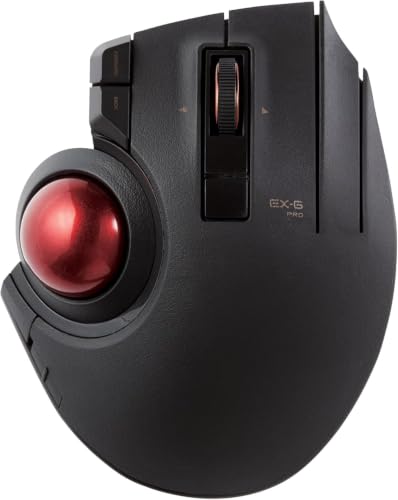
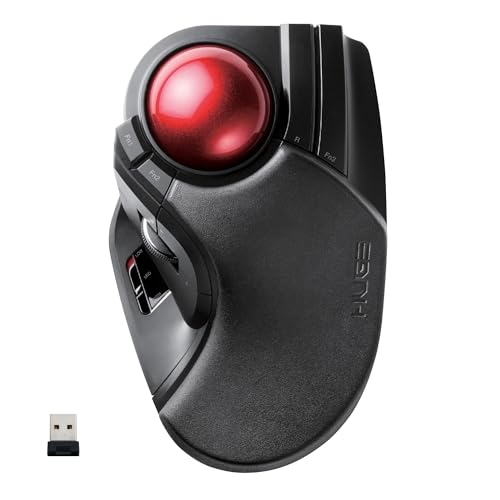
This elecom deft pro review is written for the mouse-weary: the CAD user whose wrist aches at the end of a drawing session, the multi-monitor worker tired of running out of desk, the curious reader who has heard that a stationary ball might change their working comfort and wants to know which one. The Deft Pro is Elecom’s most complete answer — a finger-operated trackball with eight buttons, three ways to connect, and the bearing smoothness the Japanese maker’s fans write poems about — and it is reviewed here against the two rivals that define its decision: Logitech’s MX Ergo S, the thumb-ball ergonomic flagship, and Kensington’s Expert Wireless, the large-ball institution. Three philosophies of the stationary cursor, one desk to choose for.
A trackball review must be honest about the category’s one unavoidable fact: the first week is an apprenticeship. A ball does not ask your arm to travel, so it asks your fingers to learn precision instead, and every verdict in this review assumes the reader will serve that apprenticeship before judging. Readers who will not — who need to be productive at full speed tomorrow morning — should buy the MX Ergo S’s familiarity or keep their mouse another season, and this review will not pretend otherwise for the sake of the headline product. For readers who will serve it, the Deft Pro’s combination of smoothness, buttons and connection flexibility is the most complete finger-ball package in its class, and the sections below make that case in detail.
Elecom itself deserves a sentence of context for readers meeting the name here. The company is a Japanese peripherals maker whose trackball line — the Deft, the Huge, the EX-G families — has been refined for the demanding home market for years, and its balls are the ones the enthusiast community measures others against, particularly for bearing quality and button ambition. The Deft Pro is the line’s most complete expression rather than its largest or its simplest, which is why this review treats it as the enthusiast’s default and judges the rivals by how they answer its completeness.
All three products were verified against their current listings, with model numbers noted — Elecom’s range contains several similar balls, and the Deft Pro’s exact identity (M-DPT1MRXBK) is worth confirming on the listing in front of you before ordering.
Key takeaways
Four properties separate these three trackballs, and they matter in the order given: how the ball rolls, what the buttons can become, how the device connects, and whether the shell fits your hand.
- Ball smoothness and bearing behaviour
- Button reckon and remapping software
- Bluetooth, dongle and wired switching
- Shell size for medium and roomy palms
In this guide
Rapid picks for Elecom Deft Pro Review
The trio in one view: the complete finger-ball, the ergonomic thumb-ball, and the large-ball classic. Detailed reviews follow.
| Item | Best for | Page |
|---|---|---|
| Elecom Deft Pro | Best for specialists | Check price on Amazon |
| Logitech MX Ergo S | Best for lengthy sittings | Check price on Amazon |
| Kensington Expert Wireless | Best for shared chambers | Confirm cost on Amazon |
How the lineup was chosen
The lineup spans the trackball world’s three living traditions so the Deft Pro can be judged against its real alternatives rather than against mice. The MX Ergo S represents the thumb-operated school, where the ball sits under the thumb of a mouse-shaped shell — the gentlest transition for a lifelong mouse user. The Expert Wireless represents the large finger-ball school at its most institutional, with a big ball and a scroll ring refined over decades of office service. The Deft Pro sits between them in size while exceeding both in buttons and connection options, which is precisely its claim: the enthusiast’s finger-ball, complete. A reader who finishes this review should know which tradition their hand belongs to, and that knowledge, not any specification, is the purchase.
Criteria were set from the category’s daily realities. Bearing behaviour, because a trackball’s feel is its bearings and everything else is furniture. Button count and remapping, because a stationary device earns its desk by becoming a control surface, not merely a pointer. Connection flexibility, because trackball users disproportionately run multiple machines. And shell size against hand size, because a trackball that does not fit is furniture you push a ball around on. Every product was verified against its live listing before inclusion.
Detailed reviews

Elecom Deft Pro
Best for finger-ball converts who want smoothness, buttons and every connection at once
| Item | Elecom Deft Pro |
|---|---|
| Family | Trackballs |
| Features named on its entry | wireless operation, Bluetooth connectivity, trackball control |
| Tag | Check price on Amazon |
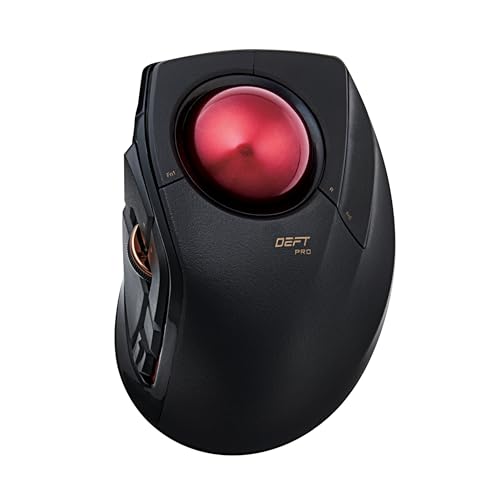
The Deft Pro’s reputation rests on a sensation: the roll. Its red ball rides on bearings that Elecom’s community regards as the smoothest in the business at this level, and the practical consequence is a cursor that starts and stops with a precision your fingers can trust — the micro-adjustment onto a CAD vertex, the pixel-step across a photo, the slow diagonal that lesser balls stutter through. That smoothness is not a luxury in a finger-ball; it is the entire mechanism by which the device persuades your hand to relax, because a ball that rolls truly lets the fingers stay loose, and loose fingers are where the comfort story begins. It is also why experienced trackball users shop with their fingertips rather than their eyes: two balls with identical specifications can feel like different species, and the difference is almost always in these small, unglamorous bearing points that no photograph can show. The shell is shaped for medium and larger hands, with the ball under the index and middle fingers and the primary clicks under the thumb, in the arrangement the finger-ball tradition settled on because it divides labour the way hands prefer.
Around that core, the Deft Pro is the completist’s device. Eight buttons — the most here — all remappable through Elecom’s software, turning the stationary shell into a small control desk: copy and paste under the ring finger, a precision-slow mode for the pixel work, application-specific sets for the CAD package and the editor. And the connection story is the class’s best: wired USB, 2.4 GHz wireless and Bluetooth, three machines’ worth of answers in one device, switchable as your desk demands. For the multi-computer scenario this review treats as central, no rival here matches it — the Logitech offers two connections, the Kensington its wireless, and the Deft Pro simply declines to make you choose.
The honest costs are the tradition’s costs. A finger-ball’s learning curve is the steepest of the three devices here — days of overshoot before the precision arrives — and the Deft Pro’s button wealth is wasted on owners who never open the software, for whom a simpler ball would serve. Its shell will crowd a genuinely small hand. And Elecom’s software, while capable, lacks the polish and the profile-sharing ecosystem of Logitech’s, so the remapping power arrives with a little more manual labour attached. None of these are defects; they are the price schedule of the most complete finger-ball in the comparison, printed in advance.
Strengths
- Bearing smoothness that makes fine cursor work feel effortless
- Eight remappable buttons, the most in this lineup
- Wired, 2.4 GHz wireless and Bluetooth in one device
Trade-offs
- The steepest learning curve of the three for mouse converts
- Shell size suits medium and larger hands best
- Software is capable but less polished than Logitech’s ecosystem
Best for: the committed finger-ball user, the CAD and editing professional, and the multi-machine desk. Not suited for: small hands, instant-productivity needs, or owners who will never remap a button. Check price on Amazon
A first-week prescription specific to this device: resist remapping anything until day four. Use the Deft Pro at its defaults while your fingers learn the ball, because a button layout designed by your day-one confusion will be wrong for your day-seven competence, and you will have to learn the desk twice. Let the precision arrive first; then assign the buttons to the actions your now-honest habits actually repeat, and the layout you build will still be right at month six.

Logitech MX Ergo S
Best for mouse users who want ergonomic relief with the gentlest transition
| Spot | Logitech MX Ergo S |
|---|---|
| Class | Trackballs |
| Extras named on its entry | wireless operation, Bluetooth connectivity, trackball control |
| Price | Check price on Amazon |
The MX Ergo S makes the opposite bet from the Deft Pro: that the winning trackball is the one a mouse user can pick up and use today. Its ball sits under the thumb of a sculpted, tilted shell — the hand keeps its mouse posture, the arm stays still, and only the thumb takes up a new trade. The tilt is the ergonomic headline, angling the hand toward a more natural handshake position, and for the office worker whose wrist complains by Thursday, that combination of stillness and angle is the comfort argument in its most accessible form. Logitech’s software is the class’s most polished, with per-application profiles and six programmable buttons, and the Ergo S charges by USB-C with Bluetooth and dongle connections for two machines.
The thumb-ball’s physics set its limits. A thumb is strong and tireless but less precise than two fingers, so the finest cursor work — the pixel-stepping the Deft Pro’s owners take for granted — asks more patience here, and the thumb carries the whole pointing load, which some hands find migrates the ache rather than retiring it. The Ergo S is also the premium-priced option of the three, paying for its polish and its brand’s support operation. Read it as the professional’s compromise: most of the trackball comfort story, the least retraining, the highest price — a trade many working readers will correctly take.
The Ergo S also benefits from being the trackball least likely to be noticed by anyone else. Its silhouette reads as a mouse to colleagues, its charging is the familiar USB-C of every other device on the desk, and its software updates itself inside an ecosystem many offices already run. For the professional whose desk is observed — by an employer, by clients, by a tidy household — that camouflage has real value. The Deft Pro announces its owner’s convictions; the Ergo S keeps them private, and both choices are respectable.
Strengths
- Thumb-ball design with a tilted shell — the gentlest transition from a mouse
- The most polished remapping software and profile ecosystem here
- USB-C rechargeable, with Bluetooth and dongle for two machines
Trade-offs
- Thumb precision trails the finger-balls for the finest work
- The whole pointing load sits on one thumb
- The premium price of the three
Best for: the mouse veteran seeking comfort without an apprenticeship. Not suited for: the finest precision work, or the buyer who wants buttons and connections in maximum number. Check price on Amazon
If the Ergo S is your choice, give its tilt a fair week before judging: hands that have spent years flat on a mouse read the angle as strange for the first days and as inevitable by the second week. And use the software’s per-application profiles from the start — they are this device’s deepest advantage, the thing its premium actually buys, and owners who leave them unconfigured have purchased a very good trackball and left its best feature in the box.

Kensington Expert Wireless
Best for users who want the large-ball institution and a scroll ring
| Product | Kensington Expert Wireless |
|---|---|
| Class | Trackballs |
| Headline extras from its entry | wireless operation, trackball control |
| Tag | Check price on Amazon |
The Expert is the trackball as office furniture: a large ball centred in a broad, low shell, worked by whichever fingers choose to visit it, with Kensington’s scroll ring — a physical ring around the ball that turns scrolling into a rotary gesture owners describe with unreasonable affection. The big ball has its own physics: more mass, more momentum, a cursor that glides across multiple monitors with a spin and settles with a fingertip’s brake. For the user with limited arm movement, or the desk that serves many hands, or the professional whose scrolling is measured in documents per hour, the Expert’s formula has been refined by decades of exactly that service.
Its compromises are the institution’s: the footprint is the largest here and proud of it, the button count is modest beside the Deft Pro’s eight, and the design’s neutrality — ambidextrous, unshaped — offers none of the sculpted support the Ergo S sells. It is also the least portable object in this comparison, a device that chooses a desk and stays there. Within its brief, none of that matters; the Expert is not trying to be a control desk or a travel companion. It is trying to be the ball that is simply there, rolling truly, for the next decade — and on the evidence of its service record, it succeeds.
The Expert’s ambidexterity deserves emphasis for one specific reader: the one whose hands take turns. Some workers alternate hands across the day or the week — by habit, by workload, by a deliberate strategy of sharing the labour — and every shaped device in this review forbids the practice by design. The Expert permits it completely, being the same device to either hand, and for that reader it is not the compromise option but the only option, a fact the more sculpted rivals’ marketing will never mention.
Strengths
- Large ball with momentum glide and the beloved scroll ring
- Ambidextrous, unhanded design that suits any user and either hand
- Decades-refined institution with a proven service life
Trade-offs
- The largest footprint here; it commits desk space
- Fewer buttons and less remapping ambition than the Deft Pro
- Neutral shell offers no sculpted ergonomic support
Best for: the heavy scroller, the shared desk, the limited-mobility user, the traditionalist. Not suited for: small desks, button maximalists, or anyone who travels with their pointer. Check price on Amazon
The Expert rewards one specific habit from its first day: learn to spin and brake. New owners push the big ball timidly, fingertip by fingertip, and conclude it is slow; owners who learn to throw it — a spin for the cross-screen journey, a fingertip’s touch to stop it dead on the target — discover the device the institution actually built. Give that skill its own practice session in the first week, because it, more than any setting, is the Expert’s learning curve and its pleasure.
Buying walkthrough: what actually decides Elecom Deft Pro Review
Ball smoothness and bearing behaviour
A trackball is its bearings the way a car is its engine: everything else is accommodation around them. The ball rides on small bearing points, and their quality decides the two sensations that make or break the device — the breakaway, the tiny force needed to start the ball moving, and the roll, the evenness of its travel once moving. A low breakaway is what makes fine work possible, because the cursor’s first pixel should cost less effort than its hundredth; a true roll is what makes fast work accurate, because the ball must not wander off its line as it spins. The Deft Pro’s bearings are its fame, and the honest way to evaluate any ball in this comparison is the diagonal test: draw a slow diagonal across the whole screen and watch for stutter, drift and the little corrections your fingers make unconsciously. The device that needs the fewest corrections owns the best bearings, whatever its brochure says.
Bearings are also a maintenance story, which the mistakes section treats as destiny: dust, skin oil and desk grit migrate to the bearing points, and a ball that was glassy in month one turns scratchy by month four if it is never cleaned. The saving grace is that cleaning a trackball is a thirty-second, tool-free ritual — pop the ball, wipe the points, roll on — and owners who build the habit keep the factory feel indefinitely. When you choose among these three, you are also choosing how gracefully each forgives a lazy owner; all forgive reasonably, none forgive forever.
Button tally and remapping software
Eight buttons is a headline that only means something if the software lets you spend them. A trackball’s shell does not move, so its buttons are a stationary control surface — the natural home for the commands your keyboard hand currently travels for: copy, paste, undo, the precision-mode toggle, the application switcher. Elecom’s software covers the essentials with per-application assignments; Logitech’s goes further in polish, profile handling and community-shared setups; Kensington’s serves its fewer buttons adequately. Judge the software by your own top five commands: if the device can place them under your resting fingers, its button count has done its work, whether the total is six or eight.
The precision or sniper function deserves its own sentence, because for CAD, photo and editing work it is the button that justifies the category: a held key that drops the cursor’s speed to a crawl, turning a ball built for screen-crossing into an instrument for single pixels. All three ecosystems offer some version of it. Assign it before any other remapping, learn it in the first week, and the trackball stops being a mouse alternative and becomes the tool its owners describe — the one that made the fine work feel easy.
Bluetooth, dongle and wired switching
Trackball users run multi-machine desks out of proportion to their numbers — the laptop beside the desktop, the work machine beside the personal one — because the same comfort logic that moved them off a mouse tends to apply to their whole setup. The Deft Pro’s three connection types are therefore not a specification flourish but the answer to its audience’s actual desks: Bluetooth for the laptop that travels, the dongle for the desktop that must never hesitate, the wire for the day everything else fails or the battery question must simply not exist. Switching should be a physical, findable control, and part of your first-week setup is learning it blind, because the moment you need the other machine is never the moment you want to read a manual.
Judge wireless behaviour by your own desk’s physics: a dongle buried behind a metal tower will stutter in any brand, and the extension or front-port habit that fixed your wireless mouse will fix your wireless ball. The wired mode, which only the Deft Pro here offers as a full working connection, doubles as the diagnostic of last resort — if the ball misbehaves wirelessly and behaves wired, the radio path is guilty and the device is innocent, a distinction that has saved many owners a needless return.
Shell size for medium and roomy hands
A trackball shell is a resting place, and its fit is judged by what your hand does when you stop thinking: the palm should be able to rest without hovering, the fingers should fall onto the ball without reaching, and the thumb should find its buttons without a search. The Deft Pro’s shell was drawn for medium and larger hands; a small hand on it will stretch for the far buttons and tire by the afternoon, which is a fit verdict, not a quality verdict. The Expert’s breadth suits almost any hand by offering territory rather than sculpture, and the Ergo S’s shaped tilt suits the hand it was moulded for and argues with others. Measure nothing — instead, in your first week, notice whether your hand ever fully relaxes on the device. A trackball you cannot relax on has failed at its founding purpose, whatever its bearings.
Desk height completes the fit, and it is the variable owners most often misdiagnose as a device flaw. A trackball placed too high forces the wrist into extension all day; too low, and the fingers claw. The elbow should rest at roughly a right angle with the hand arriving level at the ball, and a keyboard tray or a chair adjustment is frequently the real purchase hiding behind a trackball return. Set the height before the verdict — the how-to section builds it into the trial for exactly this reason.
Elecom Deft Pro Review in actual customs
Situation: a CAD user panning drawings lacking dragging a mouse
CAD work is the finger-ball’s home fixture: hours of panning, zooming and vertex-hunting, where the cursor’s precision matters and the desk’s edge keeps interrupting a mouse. The Deft Pro serves it as designed — the ball pans without travel, the precision mode turns the vertex hunt into a fingertip exercise, and the spare buttons take the commands the CAD package repeats a thousand times a day. The apprenticeship is real but so is the destination: CAD users are among the category’s most durable converts, because their work exercises exactly the muscles the device trains. The Ergo S serves the lighter CAD user well; the Expert serves the drawing reviewer who scrolls and pans more than they place. But the daily producer of drawings is the Deft Pro’s reader, and this scenario is where its premium over a mouse stops needing an argument.
One CAD-specific habit accelerates the conversion: set the ball’s sensitivity so that a full drawing pan is one comfortable roll, not two, even if that makes the first days feel brisk. New users instinctively slow the ball down for safety, and the slowness doubles their rolls, doubles their effort, and teaches their fingers that the device is laborious. A brisk ball with the precision mode for the fine work is the professional’s configuration — speed for travel, the held button for placement — and it is learnable within the same apprenticeship week.
Situation: an office worker managing wrist strain on extended mornings
The office worker’s brief is comfort across a long morning of ordinary work — documents, mail, spreadsheets, calls — and it deserves a careful, non-medical framing: a trackball changes the movement pattern, keeping the arm still and the hand in one posture, and many workers find that pattern easier to sustain than a mouse’s constant travel. It is a comfort choice, not a treatment, and persistent pain belongs to a professional’s assessment rather than to a peripheral. Within that honest frame, the Ergo S’s tilt is the gentlest first step, the Deft Pro the fuller commitment with the greater eventual control, and the Expert the shared-desk answer. Whichever is chosen, desk height and breaks remain part of the equation — no pointing device repeals the need to move, rest and set up a workstation properly.
Situation: a multi-computer desktop switching betwixt laptop and desktop
The two-machine desk is where the Deft Pro’s connection trio stops being a specification and becomes the product. The laptop docks in the morning, the desktop hums beside it, and the ball — one ball, one hand position, one set of habits — serves both with a switch rather than a second device. Owners of lesser-connected balls solve the same desk with two devices or a KVM’s patience; the Deft Pro owner solves it with a button and a Bluetooth pairing made once. If this scenario is your daily reality, it should weigh more in your decision than any bearing argument in this review, because it is the difference between a device that fits your desk’s architecture and one that merely fits your hand.
Arrangement and initially-seven dates how-to
A trackball trial fails by impatience more often than by product. These steps give the apprenticeship its structure.
Step 1 for Elecom Deft Pro Review: unbox slowly and hold each accessory until the setup survives a full spell
Keep the box, the cable, the dongle and the paperwork together for the first weeks. A trackball’s trial is longer than a mouse’s — the apprenticeship alone runs past most casual return habits — and the full bundle is your insurance if the verdict at the end of the honest trial is no. The accessories also earn their keep during the trial itself: the wired mode is your diagnostic, the dongle’s placement is an experiment, and both need their parts present rather than binned on day one.
Step 2 for Elecom Deft Pro Review: run one unremarkable bout at default controls truly and write down what bothers you
Day one, defaults, real work, notebook open. Record the overshoots, the button your thumb cannot find, the moment your hand hovers because it does not trust the rest. This baseline separates the apprenticeship’s ordinary soreness from the device’s actual faults, and it becomes the checklist your day-four remapping session works from. Owners who skip the baseline remap on day one toward their confusion and spend the month unlearning their own settings along with the mouse habits.
Step 3 for Elecom Deft Pro Review: compare versus the old gear one final time before selling it
Near the end of the trial, give the old mouse one full working session. The comparison is clarifying in a way solo use cannot be: the mouse’s travel will feel suddenly enormous, its precision suddenly crude in the fine work — or, occasionally, its familiarity will feel like relief, which is also a verdict worth having honestly. Only after that session should the mouse be retired to the drawer as the spare every desk eventually needs, rather than sold in the honeymoon or kept in daily competition with the ball.
Step 4 for Elecom Deft Pro Review: connect or fitting the product precisely as its manual describes prior quietly to changing any setting
Set the device up exactly as its maker intends before any customisation: the dongle placed sensibly, the Bluetooth paired in the documented order, the sensitivity at its default, the desk height checked against your elbow. A trackball judged on a bad radio path or a wrong desk height is being tried for another component’s crimes. The manual’s boring sequence exists because the physics is boring; follow it, establish the honest baseline, and only then begin the remapping and tuning that make the device yours.
Stage 5 for Elecom Deft Pro Review: save or photograph often the configuration that finally operates
When the buttons and sensitivity settle, document them: export the profile where the software allows, photograph the assignments, note the sensitivity figure. A trackball’s personality lives in its configuration more than a mouse’s does, and a new PC or a reset can erase a month’s evolution in a moment. The saved configuration is also your gift to your future self at the next device — the map of what your hand actually wanted, learned at the cost of a full apprenticeship, transferable in minutes.
Common mistakes with Elecom Deft Pro Review
Expecting thumb-ball muscle memory to transfer directly
Switchers between the ball schools are this category’s most disappointed buyers, because the two skills feel similar and are not. A thumb-ball veteran’s thumb has a thousand hours of precision the fingers do not; a finger-ball veteran’s fingers mock the thumb’s clumsiness in return. Either switch is a new apprenticeship at a discount — the concepts transfer, the dexterity does not — and budgeting a week for it converts a frustrating purchase into a broadening one. Choose your school by the work and the hand, not by the assumption that your existing skill is portable currency. It is a foreign currency, accepted at a rate, after a queue.
Not once washing the bearings and blaming the sensor
The scratchy, stuttering month-four trackball is almost never a dying sensor; it is a dirty bearing set, and the cure is thirty seconds: pop the ball out, wipe the bearing points and the ball itself, and roll again. Owners who never learn the ritual conclude the device degraded, write the review the category dreads, and buy a replacement that will meet the same dust. Build the clean into a rhythm — with the desk tidy, with the keyboard clean, on any schedule you will actually keep — and the factory smoothness becomes the permanent condition rather than the honeymoon.
Placing it at the mistaken height and shrugging all date
A trackball at the wrong height manufactures the very discomfort it was bought to relieve: too high and the wrist bends back all day, too low and the shoulders creep toward the ears by inches. The device gets blamed, the category gets blamed, and the actual culprit — a chair set for a mouse’s height, a desk built for someone else — escapes unexamined. Before any comfort verdict on any ball in this review, set the workstation: elbow near a right angle, hand arriving level, screen where your neck wants it. Comfort is a system, and the ball is only its most purchasable component.
Head-to-head: separating the lineup
Deft Pro against MX Ergo S is the category’s central argument, and it is about where precision should live. The finger-ball puts it in the two most dexterous fingers and pays for it with an apprenticeship; the thumb-ball puts it in the strongest digit and pays with a lower ceiling on the finest work. Your workload decides: CAD, photo and editing pull toward the fingers; documents, browsing and general office pull toward the thumb’s ease. Your hand’s history argues too — a thumb already troubled should not be handed the whole job, and fingers that have never aimed should be given their week before the verdict. Both devices are excellent at their answers; the review’s only insistence is that you choose the question first.
Deft Pro against Expert Wireless is completeness against institution. The Expert’s big ball and scroll ring serve the heavy scroller and the shared desk with a grace the Deft Pro does not attempt; the Deft Pro’s buttons, bearings and triple connection serve the individual professional’s configured desk as the Expert never tries to. They are less rivals than neighbours, and the reader who cannot decide between them is usually describing two different desks — their own configured one, and the household’s shared one — both of which exist, and only one of which this purchase is for.
Living with the decision: maintenance and longevity
A trackball’s maintenance is the lightest in the pointing world and the most consequential per second spent: the thirty-second bearing clean, performed on a rhythm, preserves the exact feel you bought. Add a seasonal habit of checking the ball itself for scratches — a dropped ball on a hard floor can pick up a nick that your fingers will find ten thousand times — and of confirming the wireless path has not been buried by the desk’s slow accumulation of metal and paper. The device’s electronics, having no cable to flex and no feet to wear, age gracefully; most trackballs are retired by their owners’ changing desks, not by their own failures.
Keep the configuration and the spares together: the saved profile, the cable, the dongle, and — for the Deft Pro — the knowledge of which connection serves which machine, written down where a future you, rebuilding a desk at midnight, can find it. A trackball setup is a small system, and systems survive on documentation. Owners who keep it find their ball outlasts two computers; owners who do not find themselves re-serving the apprenticeship’s administrative half with every new machine.
There is a community dimension to longevity in this category that deserves a closing mention: trackball owners are a small, durable tribe, and their accumulated knowledge — bearing swaps, button maps, desk geometries — circulates freely and makes every device in this review better supported than its manufacturer’s pages alone suggest. Buying into the category buys into that library. The Deft Pro in particular has a deep bench of owner modifications and advice behind it, and a new owner who spends one evening reading it will shortcut a month of solo discovery.
Final recommendation
Choose the Deft Pro if your work is fine, your desk is configured, and your machines are plural — it is the most complete finger-ball in this comparison, and its smoothness is the kind of virtue that compounds across years of daily precision. Choose the MX Ergo S if comfort with the gentlest transition is the brief and your work is the general office’s. Choose the Expert Wireless if scrolling is your labour, your desk is shared, or your arm’s travel must be minimal. All three verdicts carry the same condition: serve the apprenticeship, set the desk height, and judge at the end of the honest trial rather than at the start of it.
A trackball is ultimately a decision about what your hand should stop doing. The mouse asks it to travel; these three ask it to rest and roll instead, each in its own dialect. Pick the dialect your hand wants to learn, give it the week it asks for, and the cursor will start feeling less like something you chase and more like something you simply place — which is the entire promise of the category, kept.
If you are buying for a desk you share with a mouse — most converts keep both for a season — plan the geography now: the ball owns the primary position, the mouse lives to the side as the specialist for the tasks it still wins, and the keyboard stays centred between them. Desks that improvise this geography end up with the ball exiled to a corner where its posture lessons cannot be learned. Give the new device the good land for its apprenticeship month; the mouse, having seniority, can survive the suburbs.
Frequently asked prompts
What counts most when choosing for elecom deft pro review?
The school — finger, thumb or large ball — because it decides the apprenticeship, the precision ceiling and the hand’s daily posture in one choice. Within a school, bearings and fit separate the good from the great; across schools, specifications barely translate. Decide the school by your work’s fineness and your hand’s history, then let this review’s comparisons operate inside it. Buyers who choose the device first and the school by accident are the category’s return statistics; buyers who reverse the order almost never return anything.
How much should a clearly beginner spend for elecom deft pro review?
A newcomer should pitch their spending at the level of the school they have chosen and no further, because the first ball’s job is to teach the hand, and every school has an honest teacher. Within the finger-ball school, the Deft Pro is a defensible first purchase for a buyer committed to the apprenticeship, precisely because its smoothness makes the learning pleasant; a tentative beginner might start simpler and upgrade with knowledge. What a beginner should not do is buy the premium of a school they have not chosen, hoping the price will make the decision for them. It will not; it will only make the wrong school more expensive.
Which slip do customers of elecom deft pro review regret most?
Judging the ball on day two. The regret has a signature shape: the device returned at the bottom of its learning curve, the mouse reinstated, and then — months later, at a colleague’s desk — thirty seconds on a properly learned ball that reveals what the returned one would have become. The trial structure in this review exists to outlaw that verdict: defaults first, notes daily, remapping at day four, the old mouse compared at the end, and no conclusion entertained before the apprenticeship has had its week. Regret in this category is almost never about the product; it is about the calendar.
How long does it take to get used to a finger-operated trackball?
Competence in about a week, fluency in about a month. The first days overshoot; by the end of the first week the ordinary work — documents, browsing, mail — runs at near-mouse speed, and the fine work keeps improving for weeks as the fingers learn the ball’s micro-language. Precision professionals should budget the full month before the device is trusted with deadline work, and should keep the mouse within reach for that month without shame. Fluency, when it arrives, announces itself quietly: you stop noticing the ball at all, which is the category’s definition of success.
When is the premium alternative in elecom deft pro review actually worth it?
When the premium buys the thing your desk will use daily: the Ergo S’s polish and tilt for the comfort-led office worker, the Deft Pro’s buttons and triple connection for the configured multi-machine professional. It is not worth it when it buys capacity your life never exercises — eight buttons for an owner who will remap none, three connections for a one-machine desk. Premium in this category is unusually honest, because the features are physical and countable; count your own desk’s demands first, and the premium either justifies itself in the count or dissolves.
What should I verify initially if my elecom deft pro review purchase disappoints?
Verify the bearings, the desk height and the calendar, in that order. Clean the bearing points and the ball before any other conclusion; set the workstation height against your elbow; then ask honestly which day of the apprenticeship you are on. Those three checks acquit the majority of disappointing trackballs. If the device still disappoints with clean bearings, a correct desk and a completed week, the school was probably wrong rather than the product — and that is a finding worth acting on inside the return window, toward the rival whose school your disappointment just described.
Associated guides
- Dt 1990 Pro Mkii
- Earfun Free Pro 3 Review
- Earfun Updates Air Pro especially 4 Plus
- A Complete Guide to Elecom Trackballs
- Anne Pro 2 vs Rk61 vs Gk61 Outlay 60 Percent Compared
- Anne Pro Ii Review
Companion reading for the considered desk: the Elecom trackball guide that covers the whole family, and the audio and keyboard coverage for the rest of the setup.
One more angle: button tally and remapping software, revisited
Assign your buttons by frequency audit, not by imagination. After the apprenticeship week, list the commands your keyboard hand travelled for most — your software’s history, your own notes from the baseline session — and give the ball’s buttons to the top of that list, in order, under the fingers that rest nearest. Owners who assign by theory end up with a control surface for a workflow they do not have; owners who assign by audit find the ball quietly absorbing a dozen daily journeys within the month. Re-audit each season, because workflows drift, and let the buttons drift with them deliberately rather than fossilising around a job you no longer do.
One more angle: ball smoothness and bearing behaviour, revisited
Learn the sound of your bearings as an early-warning system. A healthy set rolls nearly silently; the first whisper of grit — a faint scratch in the roll, a catch at one point of the ball’s travel — is the cleaning asking to be done this week rather than next month. Owners who respond to the whisper keep the factory feel for years; owners who wait for the shout eventually clean bearings that have been polishing dust into the ball’s surface. It is the same thirty seconds either way. The only variable is whether it is maintenance or rescue, and your fingers can hear the difference before your eyes can see it.
One more angle: shell size for medium and large hands, revisited
Test the shell with your worst posture, not your best. Late in a long session, when you are tired and slumped and the hand arrives at the device however it arrives, notice whether the ball still sits under your fingers and the buttons under your thumb — or whether the end of the day requires a deliberate rearrangement the morning did not. Trackballs are bought for the long sessions, so the tired hand is the fitting hand. A shell that serves it has passed the only examination that predicts your second year; a shell that only serves your fresh, upright, reviewer posture will be renegotiated every evening at six.
One more angle: Bluetooth, dongle and wired switching, revisited
Label your connections like a professional: a dot of tape on the dongle’s machine, the Bluetooth slots assigned in a written order — first slot laptop, second desktop — and the switching sequence practised until it is a single blind motion. Multi-machine desks fail socially, not technically: the ball connected to the wrong machine, the cursor flying on the screen you are not watching, the small daily comedy that teaches owners to keep a mouse as well. Eliminate the comedy with labels and a fixed order in the first week, and the triple connection becomes what it was designed to be — invisible infrastructure, noticed only when a colleague’s single-connection ball cannot follow them across their own desk.
One more angle: the case for a spare ball, revisited
Consider, once you are converted, the accessory nobody lists: a spare ball. The ball is the device’s wear surface and its most losable component — it pops out for cleaning over hard floors, it rolls under furniture with intent, and a nicked ball turns a precision instrument into a daily irritation. A spare, kept in the desk drawer, converts every one of those accidents from a parts order into a ten-second swap. It is the cheapest insurance in the category, and the owners who buy it are invariably the ones who have already lived the alternative — usually at the start of a deadline day, on their knees, with a torch.