Disclosure: As an Amazon Associate, reviewstook.com earns from qualifying purchases. Links on this page are affiliate links; they cost you nothing extra. Prices and availability change often, so check the current Amazon listing before you buy.
If your headphones not working has just ruined the start of a call, a flight, or a study session, take the encouraging fact first: most headphone failures are not failures of the headphones. In case after case, the cause turns out to be a phone sending audio to the wrong output, a Bluetooth connection quietly attached to a different device, a cable that has died at the plug, a flat battery that never actually charged, or a single app whose volume or permissions are set wrong. The headphones themselves, the drivers that make the sound, are the most reliable part of the chain. This guide is built around that reality. It diagnoses by symptom, in the order a technician would check, using tests that are safe to do at home with no tools and no opening of anything.
Work through the section that matches your symptom rather than reading cover to cover, and change one thing at a time. That discipline matters more than any single tip: if you adjust five settings at once and sound returns, you will not know which one fixed it, and the problem will own you again next week. After each fix, test with the same piece of audio so your results are comparable. A spoken podcast is a better test signal than music, because voices make one-sided sound, crackle, and distortion obvious. Keep notes if the problem is intermittent; the pattern of when it happens is usually the clue that solves it.
Headphones Not Working: Start With the Five-Minute Checks
Before any symptom-specific work, run these universal checks, because they resolve a large share of all cases and they cost almost nothing. First, confirm the headphones have power and charge: plug them in for fifteen minutes with the cable and charger you trust most, and watch for the charging indicator; a cable that charges your phone slowly may not charge your headphones at all if the connector is worn. Second, confirm the source is actually playing and its volume is up, using a different app from the one that failed. Third, confirm the source’s audio output is the headphones, in the phone’s or computer’s output selector, because operating systems cheerfully route sound to a monitor, a television, or yesterday’s Bluetooth speaker. Fourth, test the headphones on a second device, and test a second pair of headphones or earbuds on the first device. That cross-test, which takes two minutes, splits every headphone problem in half: it tells you whether you are fixing a headphone, a source, or a connection between them.
Fifth, restart both devices. It is a cliché because it works: Bluetooth stacks, audio services, and headphone firmware all accumulate confused states that a clean restart clears. Sixth, if the headphones are wireless, check whether they have silently connected to another device you own; multipoint and auto-connect features regularly steal connections, and the tablet in your bag or the laptop in the next room may be the thing playing your audio right now. Seventh, inspect the obvious physical points: the plug fully seated rather than a millimetre short, the cable free of kinks at the strain reliefs, the ear cups’ cable connectors pushed home on models with detachable leads, and no pocket lint compacted inside the phone’s socket or the headphone’s charging port. Lint in a charging port is a classic cause of a cable that looks plugged in but never connects.
Symptom map: where to start
| Symptom | Most likely causes | Start at |
|---|---|---|
| No sound at all, wireless | Wrong output selected, connected to another device, flat battery, stale pairing | The Bluetooth section below |
| No sound at all, wired | Plug not seated, dead cable, wrong socket, lint in the port | The wired section below |
| Sound in one ear only | Cable damage, balance setting, mono audio setting, dirty connector | The one-sided sound section |
| Crackling, cutting out, distortion | Wireless interference or range, damaged cable, loose connector, low battery | The crackling section |
| Headphones fine, microphone dead | App permission, wrong input device, cable without a microphone pole, muted boom | The microphone section |
| Will not charge or hold charge | Port lint, failed cable or charger, battery at end of life | The charging section |
| Works on phone, dead on computer | Output and input defaults, app-level device choice, jack type mismatch | The computer section |
Safety notes before you begin
Everything in this guide is external and reversible: settings, cables, cleaning the outside of connectors with a dry cloth or a wooden toothpick used gently on port lint, and resets described by the manufacturer. Do not open sealed headphones, do not puncture or pry at a battery, and if a headphone or its case is swollen, hot, or smells sweet or chemical, stop using it, keep it away from flammable material, and contact the manufacturer; a swollen lithium battery is a replace-and-recycle item, not a repair project. Keep volumes moderate while testing, because a fault that suddenly clears at full volume is an unpleasant surprise for your hearing. If the headphones are under warranty, prefer the manufacturer’s support route before anything that could be described as tampering, and keep your proof of purchase with the serial number.
In this guide
No sound at all from Bluetooth headphones
Work this symptom as a chain with four links: power, connection, routing, and the app. For power, charge the headphones and confirm the indicator behaves as the manual describes; some models will pair happily while too low on charge to play, which produces the maddening state of connected silence. For connection, open the Bluetooth settings on your source and confirm the headphones show as connected for audio, not merely remembered. If the entry exists but will not connect, remove or forget the pairing on the source, put the headphones into pairing mode as if they were new, and pair again from scratch; stale pairings after a phone update or a firmware update are among the most common causes of sudden silence, and a fresh pairing rebuilds the relationship cleanly.
For routing, remember that being connected and being selected are different things. Phones and computers keep a list of outputs and will use the last one unless told otherwise; open the output selector from the volume controls or the playing app and choose the headphones explicitly. Check also whether the headphones are connected to two devices at once and the other device is holding the audio channel: pause or disconnect the second device and test again. For the app link in the chain, try a second app and a locally stored file if you have one. If one streaming app is silent while everything else plays, the problem lives in that app’s settings, its download, or its account state, and reinstalling or re-signing-in is a reasonable final step for that branch.
If a fresh pairing fails on every source you own, use the manufacturer’s reset procedure for the headphones themselves, which is usually a button combination described in the manual or the companion app, and then pair once more. A factory reset clears the headphone’s own memory of devices and settings, so expect to re-pair with everything afterwards. If sound is still absent after a reset and the headphones also fail wired, where a wired mode exists, the fault is probably inside the unit, and the warranty and repair section near the end of this guide is your next stop rather than more settings.
No sound from wired headphones
Wired faults are simpler, and the cable is the prime suspect in almost every case. Begin with seating: push the plug in until it clicks or stops firmly, because a plug held a fraction short by a thick phone case is the single most common wired failure, and it often produces sound that comes and goes as the phone moves. Try the headphones without the case if the case crowds the socket. Next, rotate the plug gently while audio plays; crackle or channels dropping as it turns points to a worn plug or a dirty socket rather than to the headphones’ drivers. Clean the plug with a dry lint-free cloth and try again, and look into the socket with a light: compacted lint at the bottom stops plugs seating fully and can be teased out gently with a wooden toothpick, never a metal tool.
Then isolate the cable. If your headphones have a detachable cable, swap it for any compatible spare, or borrow one, and note that many headphone cables use a locking or recessed connector at the ear cup, so confirm compatibility rather than forcing a plug that almost fits. If the cable is fixed, flex it gently along its length while listening, especially near the plug and near the ear cup entry, the two places cables break internally from repeated bending. Sound that cuts as a section flexes confirms an internal break at that spot. A broken fixed cable on an inexpensive pair usually means replacement of the headphones is the economical answer; on a quality pair with a detachable design, it is the cheapest fix in this entire guide, which is why the troubleshooting kit section below starts with a cable.
Adapters deserve their own paragraph because modern phones removed the headphone socket and made the adapter a component that can fail. A USB-C or Lightning adapter contains a tiny digital-to-analogue converter, and a failed or incompatible adapter produces silence, crackle, or a phone that insists nothing is connected. Test the adapter with another pair of wired headphones, and test your headphones through a different adapter or a device with a native socket. Buy replacements from the phone maker or a reputable accessory brand, because the cheapest adapters are a recurring source of exactly the fault you are trying to fix. This site’s guide to USB-C headphone adapters for Android covers the compatibility details, including why some passive adapters only work with certain phones.
choosing a USB-C adapter that actually works with your phone
Sound in one ear only
One-sided sound has four usual causes, and the cross-test identifies most of them quickly. If the same side is dead on every source and every cable, suspicion moves inside the headphone. If the dead side changes or the fault moves between sources, look outward. Start with settings, because they are free: phones and computers both have a left-right balance control, usually in accessibility settings, and a mono audio option that collapses both channels; either one, set accidentally or left over from sharing earbuds with a friend, mimics a hardware fault. Check both before touching hardware.
Next, the connector. A plug that is not fully seated often loses one channel first, because the contacts for the two channels sit at different points along the plug. Reseat it firmly, clean it, and try again. On detachable-cable models, reseat the ear cup connectors too, and swap the cable if you can; a cable broken in one conductor kills exactly one side, which makes the cable the most likely single component in this whole symptom. For wireless models, one dead side more often means one earbud or one side’s battery or driver has failed, particularly if the dead side also fails to charge in the case or shows no indicator light. Clean the charging contacts on the bud and in the case with a dry cloth, reseat the bud until its charge light confirms contact, and leave it to charge before concluding anything; a bud that never charged is silent for the simplest of reasons.
If a wireless model has one side silent after charging and a factory reset, and the model offers a wired mode, test wired: a side that plays wired but not wireless has a radio or battery fault, while a side silent in both modes has a driver or internal wiring fault. Both outcomes point to warranty or replacement rather than to settings, and knowing which one you have makes the support conversation shorter and more successful.
Crackling, cutting out, and distorted sound
Intermittent faults are diagnosed by correlation: what else is true when the crackle happens? For Bluetooth models, distance and obstruction lead the list. A phone in a back pocket, a body between phone and headphones, a laptop at the far end of a room, or a crowded radio environment full of networks and wireless peripherals all degrade the link, and the symptom is stutter rather than silence. Test with the phone in your hand, in the same room, close to the headphones. If the crackle vanishes, your problem is range and environment, and the fixes are positional: keep the source on the same side of your body as the headphones’ receiver, avoid the most congested areas, and accept that some venues are simply hostile. Low battery produces similar stutter on many models, so repeat the test fully charged before drawing conclusions.
For wired models, crackle that follows movement is a connector or cable story, covered above: rotate, reseat, swap. Crackle that is constant at all volumes, on all sources, with a known-good cable, points to a damaged driver, often from a drop or from moisture; check whether the problem began after exercise, rain, or a fall, and let moisture-suspect headphones dry thoroughly at room temperature for a day before judging them, because temporary moisture faults can clear completely. Distortion only at high volume, on bass-heavy material, can be simple overload of a small driver being asked for more than it can give; test at moderate volume with a clean recording before condemning anything. Distortion in one app only, especially a streaming app with its own equalizer or loudness normalisation, belongs to that app’s settings.
Equalizers deserve a special warning, because an aggressive EQ boost without headroom creates clipping distortion that sounds exactly like broken hardware. If you or an app recently raised bass or overall gain, return the EQ to flat and retest. Many a headphone has been pronounced dead over a software slider. Similarly, spatial audio and head-tracking features occasionally misbehave after updates; toggling them off for a test costs nothing and belongs early in this symptom’s list.
The headphones work but the microphone does not
Microphone faults live in a different chain from playback, which is why your headphones can sound perfect while nobody hears you. Start with permissions: phones and computers gate microphone access per app, and a denied permission produces a silent input that looks exactly like broken hardware. Check the app’s permission in the system settings, and inside the app check that the selected input device is your headphones rather than the computer’s built-in microphone or a webcam. Video call apps are notorious for keeping their own device choice, separate from the system default, and for changing it when a new device appears.
Then check the physical path. On wired headsets, the plug must be a four-pole design with a microphone contact; a three-pole stereo cable, including many audiophile replacement cables, carries no microphone signal at all, and swapping to a cable with an inline microphone restores the mic instantly. On computers, a combined headset plug going into separate microphone and headphone sockets needs a splitter, and the absence of one is a classic cause of this exact symptom. On wireless headsets with a boom, confirm the boom is lowered or attached as the design requires, that its mute switch or the headset’s own mute control is not engaged, and that the companion app has not muted the microphone at the source. Gaming headsets add one more suspect: the detachable boom’s connector, which works loose and rewards a firm reseat.
If the microphone works in the operating system’s own recorder or test screen but not in your call app, the headset is innocent and the app is the project: update it, check its audio settings page specifically, and test in a second app to confirm. If the microphone fails everywhere including the system recorder, after permissions and reseating, treat it as a hardware fault in the microphone path and move to the warranty section. Readers whose work depends on being heard should also weigh a dedicated work headset, where the microphone system is the product rather than a feature; this site’s headset guides cover that category in depth.
headsets built for calls and meetings
office headsets compared for remote work
Computer-specific checks: when the phone works and the PC does not
Computers add two complications: they hold separate defaults for playback and recording, and individual apps often override both. Begin in the system sound settings and set your headphones as the default playback device and, if you use their microphone, the default recording device; a computer happily plays through monitor speakers while showing your headphones as connected, because connected and default are different states. Then open the specific app that failed, a browser tab, a call client, a game, and check its own audio page, since many programs choose their device when they start and ignore later changes until restarted. Restarting the app after setting the system default resolves a stubborn share of computer cases by itself.
On laptops, the analogue socket raises the jack-type question from the microphone section: a single combined socket expects a four-pole headset plug, and it usually asks, through a small prompt from the audio driver, what you plugged in. If that prompt was dismissed or answered wrongly once, the socket may treat your headset as headphones only, or not detect it properly. Reinsert the plug and answer the prompt as headset, or find the same choice in the audio control panel the manufacturer installed. USB and wireless dongle headsets bypass most of this, which is one reason they dominate office use; if you fight a laptop socket weekly, a USB connection is a legitimate fix rather than an extravagance. Bluetooth on computers adds the familiar pairing layer: if the headphones were paired to the computer long ago and have since been updated or paired elsewhere, remove and re-pair them at the computer too, and check that the computer has not connected them in a low-quality call mode for all audio, a state that makes music sound thin and broken while calls sound fine. Choosing the stereo or high-quality profile, where the system exposes it, corrects that instantly.
our full gaming headset buying guide
Charging problems: will not charge, or will not hold charge
Charging faults split into three groups: power never arrives, power arrives but the battery is failing, and the battery is fine but the headphone misreports it. For power never arriving, the suspects in order are port lint, the cable, the charger, and the contacts. Clean the port gently as described earlier, then test with the cable and charger that came with the headphones or the set you trust most from another device, plugged into a wall outlet rather than a hub or a laptop port, and leave it for half an hour before judging; a deeply flat battery can take several minutes to show any sign of life, and unplugging early manufactures a fault that was never there. Earbud cases add contact cleaning: the pins in the case and the pads on the buds must meet cleanly, and a dry cloth on both, plus reseating the buds until their lights confirm, revives many apparently dead sets.
A battery that charges but drains in a fraction of its former time, on a model more than a couple of years old, is most often a battery at the end of its natural life. Lithium batteries age with cycles and with time, and no setting reverses that. Before accepting it, rule out the impostors: noise cancelling left working in the case on models that stay active, a connection held open to a device that keeps waking the headphones, and firmware behaving badly after an update, which a factory reset sometimes cures. If none of those apply, the honest options are a manufacturer battery service where one is offered, or replacement of the headphones, and the buying notes at the end of this guide cover choosing a successor whose battery and parts story is better. A battery that swells, or a case or cup that bulges or will not close, is the safety case from the start of this guide: stop, do not charge it again, and contact the manufacturer.
A small troubleshooting kit worth owning
Four inexpensive items turn most of the diagnoses above from guesswork into certainty, because each one lets you swap a suspect component in seconds. They are listed here as tools, not as upgrades, and each was verified against its manufacturer’s listing through the Creators API on the date in this article’s source notes. Check price on Amazon for current figures on any of them.

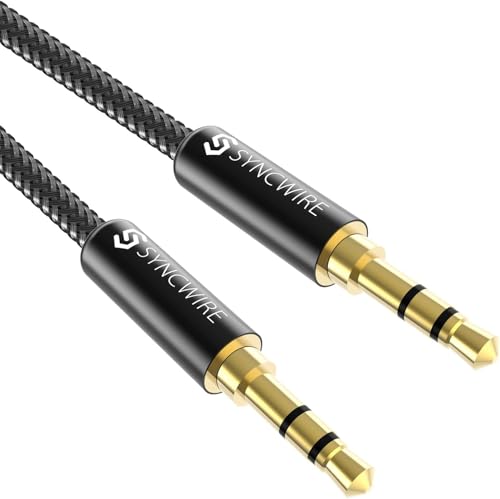
Syncwire 3.5mm nylon braided aux cable — the known-good cable
Badge: First tool in the kit
- Type: 3.5mm male-to-male aux cable, 3.3 ft / 1 m per the listing
- Build per the listing: nylon braided, positioned for headphones, car and home audio
A spare cable from a reputable maker is the highest-value diagnostic in wired audio: swap it in, and in ten seconds you know whether your fault lives in the cable or beyond it. Braided construction tolerates the drawer-and-bag life of a spare, and a one-metre length suits desks and laptops. Note this is a stereo listening cable; if your fault is a dead microphone on a headset, you need a four-pole cable with an inline mic instead, as the microphone section explains.
- Strengths: instantly isolates cable faults; doubles as a car and speaker aux lead
- Strengths: braided jacket resists tangling and fraying in a kit bag
- Strengths: inexpensive enough to own purely as a test tool
- Trade-offs: no microphone pole, so it cannot test or fix headset mic faults
- Trade-offs: one metre is short for across-room home audio runs
- Trade-offs: fixed design means a second spare is the backup plan
Best for: anyone with wired headphones and a drawer. Not suited for: headset owners whose fault is microphone-only. Check price on Amazon

Apple USB-C to 3.5mm headphone jack adapter — the reference dongle
Badge: Best for iPhone and iPad owners
- Type: USB-C to 3.5mm adapter per the listing
- Role: connects wired headphones to USB-C phones, tablets, and laptops
When a phone without a headphone socket goes silent, the adapter is a component, and the phone maker’s own adapter is the reference against which faults are judged: if your headphones work through this and not through a no-name dongle, the dongle was the fault. It also serves as the permanent solution for many owners, being small enough to live on the headphone cable. Android owners should confirm their phone accepts a digital adapter of this type, since a minority of handsets historically expected a different arrangement.
- Strengths: first-party compatibility removes a whole class of doubt
- Strengths: tiny and light enough to stay attached to the cable
- Strengths: works across phones, tablets, and laptops with USB-C audio
- Trade-offs: easy to lose; many owners buy a second for the bag
- Trade-offs: no charging pass-through, so listening and charging need another solution
- Trade-offs: the short cable section is a wear point over years
Best for: Apple device owners diagnosing or solving socket-free listening. Not suited for: anyone needing simultaneous charging. Check price on Amazon

UGREEN USB C to 3.5mm audio adapter — the Android-friendly alternative
Badge: Best for Android and mixed-device owners
- Type: USB-C to 3.5mm adapter with built-in DAC per the listing
- Audio per the listing: 24-bit/96kHz hi-fi DAC specification
A quality third-party adapter with its own digital-to-analogue converter suits Android owners and mixed households, because the conversion happens in the adapter rather than depending on what the phone offers through its port. As a diagnostic it plays the same role as the first-party dongle: a trusted reference that separates adapter faults from headphone faults. As a keeper, its DAC specification comfortably exceeds what streaming services deliver, so it will not be the weak link in a good wired setup.
- Strengths: own DAC sidesteps phone-side analogue compatibility quirks
- Strengths: reputable accessory brand with consistent build quality
- Strengths: works across Android phones, tablets, and USB-C laptops
- Trade-offs: slightly bulkier than first-party dongles
- Trade-offs: no charging pass-through on this model
- Trade-offs: microphone support depends on the cable and phone pairing, so test calls before relying on it
Best for: Android owners and anyone standardising one adapter across devices. Not suited for: owners who must charge while listening. Check price on Amazon

Twelve South AirFly SE — the wireless path tester
Badge: Best for planes and older audio gear
- Type: Bluetooth audio transmitter for 3.5mm sources per the listing
- Battery: 20+ hours per the listing
This transmitter plugs into a wired source, such as a seat-back screen or an older stereo, and sends its audio to your Bluetooth headphones. In a troubleshooting kit its value is isolation: it lets you prove your wireless headphones work perfectly from a source that is not your phone, which settles arguments about which device owns a fault. In ordinary life it earns its place on flights and with gym equipment and older televisions, where it turns one wired socket into a wireless one.
- Strengths: proves wireless headphones independently of a suspect phone
- Strengths: long battery covers long-haul flights with margin
- Strengths: simple pairing aimed at travel use
- Trade-offs: adds a small delay inherent to its wireless link, so competitive gaming is not its home
- Trade-offs: one more device to charge before a trip
- Trade-offs: it transmits only; it does not add Bluetooth receiving to wired headphones
Best for: frequent flyers and anyone separating phone faults from headphone faults. Not suited for: latency-critical gaming. Check price on Amazon
Earbud-specific faults: one bud, case problems, and fit that fools you
True wireless earbuds add a third device to every diagnosis, the case, and several faults that headphones never have. The most common is the bud that never charged because it never quite seated: a waxy contact, a bud placed a fraction short, or a case hinge that no longer closes fully. The cure is the unglamorous one from the charging section: clean both contacts dry, reseat until the indicator confirms, and close the case fully. The second common fault is one bud paired and the other absent after an update or a reset, because the two buds maintain their own partnership as well as their connection to your phone. The manufacturer’s reset, which usually involves placing both buds in the case and holding a button or touch surface for a stated time, exists precisely to rebuild that partnership; do it with both buds charged and in the case, then pair to the phone as if new.
Earbuds also manufacture faults that are really fit. A bud that has worked loose in your ear loses bass and volume and can sound broken beside its partner; reseating it, or changing tip size, restores the seal and the sound. Moisture after exercise produces temporary crackle and imbalance that a day of drying in the open case usually cures, and judging a set in the hour after a run condemns many healthy earbuds. Finally, earbuds fall under sofas, into bags, and out of pockets, and a bud that has been stepped on or washed deserves an honest assessment: if it plays cleanly after drying, keep it; if it crackles at all volumes on all sources, it has told you its story. The Find My style locating features in modern ecosystems, where offered, are worth setting up before you need them, since a lost bud is the one fault no troubleshooting can fix.
Intermittent faults: keeping a log that actually solves them
The faults that survive every quick check share one trait: they come and go, and memory lies about patterns. A two-line log, kept for a week in a notes app, outperforms any amount of frustrated guessing. Record when it happened, what you were doing, which device and app were playing, where the source was, and roughly how full the battery was. Patterns emerge with embarrassing clarity: the dropouts that only happen on the evening train point to interference and range; the silence that only follows a particular laptop waking from sleep points to a connection being claimed; the crackle that only appears below a certain charge points to the battery rather than the radio. Bring the log to any support conversation and you will skip the scripted first steps entirely, because you have already done them and can prove it. Intermittent faults are where method beats knowledge, and the log is the method.
Game consoles and televisions: the forgotten sources
Consoles and televisions cause a distinct family of silences because they route audio with their own logic. A console may send game audio to the television while your headset, plugged into the controller, receives only chat, or the reverse, depending on settings buried in the audio menu; the fix is to find the output and chat-mix controls and set them deliberately rather than assuming the plug decides. A headset that works in menus but not in one game usually points to that game’s own audio device setting or a chat privacy setting on the account, particularly for younger accounts where voice features are restricted. Televisions add the soundbar complication: a television sending audio to a soundbar or receiver over HDMI or optical will often mute or ignore a Bluetooth headphone connection until the output is switched, and some sets allow television speakers and headphones together while others treat it as a strict choice. In every case the method is the same one this guide began with: confirm the source is playing, confirm the output it has chosen, and cross-test with a second device before suspecting the headphones, which are, on consoles and televisions as everywhere else, usually the innocent party.
When to stop fixing: warranty, repair, or replace
Stop troubleshooting and change strategy when one of three patterns appears. The first is a confirmed internal fault on a product under warranty: drivers silent in every mode, a side dead after resets and charging, a swollen battery, or a hinge or yoke cracked in normal use. Photograph the fault, note the results of the cross-tests from this guide, because support teams move faster when you can say the headphones fail on two sources with two cables, and keep the serial number and receipt together. The second pattern is a confirmed internal fault out of warranty on a product built to be repaired: studio-style models with replaceable drivers’ surrounding parts, cables, and pads often justify a manufacturer repair or a parts order, and the economics work because the product was designed for a long life. The third pattern is an internal fault in a sealed, inexpensive product, where a repair quote approaches the replacement price; there, replacement is the honest answer, and your troubleshooting has still earned its keep by proving the new purchase is necessary rather than hopeful.
If you replace, carry the diagnosis into the purchase. A listener whose cables die yearly should buy detachable cables and a spare. A listener whose batteries fade should favour models with strong battery reputations and, where possible, replaceable pads and available parts. A listener whose fault was really a phone’s missing socket should decide deliberately between a quality adapter, a USB-C native model, and wireless, rather than drifting into whichever is nearest. The buying mistake this guide exists to prevent is replacing working headphones because a setting, a cable, or a dongle failed, and the second mistake it prevents is the opposite: spending a weekend nursing a genuinely dead product. The cross-tests tell you which situation you are in, usually within ten minutes.
Common mistakes to avoid
Changing many settings at once is the first, because it destroys your evidence. Skipping the cross-test is the second, because it sends people shopping for headphones when their phone’s output selector was the whole problem. The third is assuming the most expensive component is the guilty one; in practice cables, adapters, and lint, the cheapest parts of the chain, cause most faults. The fourth is forcing connectors that almost fit, particularly ear cup plugs and adapters, which converts a diagnosis into damage. The fifth is testing at maximum volume, which risks your hearing the moment a fault clears. The sixth is forgetting the second device entirely: a headphone connected to a tablet in another room is not broken, it is employed elsewhere, and no reset on the headphone will feel as foolish as the walk to the other room would have. The seventh is throwing away the receipt and box before the warranty period ends, which turns a straightforward support claim into an argument.
A calmer diagnostic order: the ten-minute routine that finds most faults
The fixes earlier in this guide are organised by symptom. This routine is organised by likelihood, and it is the order worth following when you do not yet know what the symptom really is. Work through it once, in sequence, before you repeat any single fix or conclude that the headphones have failed.
Minutes one and two: prove which side is broken
Play a familiar track on a second device — any phone, laptop, or tablet will do. If the headphones fail identically there, the fault travels with the headphones or their cable. If they work perfectly, the fault lives in the first device, its settings, or its port. This single test halves the problem, and skipping it is the most common reason people spend an hour adjusting the wrong device. Note the result before you touch any setting, because later steps can muddy it.
Minutes three and four: the physical inspection
Look, do not guess. Check the plug or connector for lint, bent contacts, and damage; check the cable along its length for kinks, cuts, and the stiff spots that betray an internal break, especially near the ends where cables flex most; check the earcups for a switch, dial, or button left in an odd position. Pocket lint inside a phone’s port is a genuinely frequent cause of one-sided audio and loose connections, and it costs nothing but a careful minute to find.
Minutes five and six: settings that silence headphones politely
Modern devices offer many ways to mute a headphone without anything being broken. Work through them methodically: output selection, per-app volume, mono audio and balance controls in accessibility settings, absolute-volume quirks, and any equaliser or sound-enhancement layer that may have crashed or been set to an extreme. Accessibility settings deserve special attention, because a balance slider moved by accident, or mono audio switched on for a forgotten reason, produces symptoms that feel exactly like hardware failure.
Minutes seven and eight: the wireless reset ladder
For Bluetooth headphones, escalate gently. First, toggle Bluetooth off and on. Second, disconnect and reconnect the headphones. Third, remove the pairing entirely and pair again as if new. Fourth, check whether the headphones are connected to a different device nearby — multipoint and remembered pairings regularly steal audio, so the sound may be playing happily into a laptop in the next room. Only after these steps should you consider a factory reset, and only after a reset should you suspect the hardware.
Minutes nine and ten: decide like a technician
By now you should know which device owns the fault and roughly which layer it sits in. Write down, even mentally, the three facts support staff or a repair shop will ask for: what happens, on which devices, and what changed recently. A recent update, a new case, a dropped phone, or a first pairing with a new device is so often the true beginning of the story that this last question resolves a surprising share of cases on its own. Then use the warranty and repair guidance earlier in this guide with those facts in hand.
Frequently asked questions
Why are my headphones connected but playing no sound?
Connection and routing are separate: the headphones can be paired and connected while the phone or computer still sends audio to a different output. Open the output selector in the volume controls or the playing app and choose the headphones explicitly. Also check that another device you own has not taken the connection, and that the playing app’s own volume and output settings are correct, then re-pair from scratch if the fault survives those checks.
Why do my headphones work on my phone but not on my computer?
Computers hold their own playback and recording defaults, and apps often keep a separate device choice as well. Set the headphones as the system default for playback and recording, restart the app that failed, and if you use an analogue socket, confirm the computer knows a headset was plugged in rather than headphones alone. A long-standing Bluetooth pairing at the computer may also need removing and re-pairing after updates.
Why is sound only coming out of one side?
Check the free causes first: the balance control and mono setting in accessibility options, and a plug that is not fully seated, which commonly loses one channel first. Then swap or reseat the cable, since a conductor broken inside the cable kills exactly one side. On wireless models, charge the silent side properly, clean its case contacts, and reset the set; a side silent in wired mode too, where that exists, indicates an internal fault for warranty or repair.
How do I know if the problem is the cable or the headphones?
Swap the cable, or swap the headphones, and watch whether the fault follows the part. If a known-good cable cures it, the cable was the fault. If the same symptom persists across cables and across two source devices, the fault is inside the headphones. This cross-test, described at the start of the guide, is the single most valuable habit in headphone troubleshooting because it halves every problem immediately.
My headphones will not charge. What should I check first?
Check that power is actually arriving: clean lint gently from the charging port, use the original or a known-good cable and a wall charger rather than a hub, and leave a deeply flat battery connected for at least half an hour before judging, since it may show no sign of life at first. For earbuds, clean the case contacts and reseat the buds until their indicators confirm contact. A unit that is swollen or hot should not be charged again at all; contact the manufacturer.
When is it worth repairing headphones instead of replacing them?
Repair is worth it when the fault is in a replaceable part, a cable, pads, or a battery service the manufacturer offers, and when the model was built for a long service life. It is rarely worth it for internal driver or electronics faults in sealed, inexpensive models, where quotes approach replacement cost. Under warranty, always choose the manufacturer’s route first, and bring your cross-test results to make the claim straightforward.
Why do my headphones work for music but not for calls?
Because calls use a different audio path. Music plays through the high-quality stereo profile, while calls switch the connection to a hands-free mode that routes your microphone and returns the other voice, often at noticeably lower fidelity. When music works and calls fail, suspect the hands-free side: the app may lack microphone permission, the wrong device may be selected as the call microphone, or another paired device may be claiming the call. Check the call app’s own audio settings as well as the system ones, and test with a voice recording app to separate microphone faults from call-app faults.
My headphones cut out at the same place every day. What is going on?
A fault that follows a location rather than a device is usually interference or obstruction, not damage. Busy stations, offices full of wireless equipment, and even some gyms saturate the radio environment Bluetooth uses, and a phone in a back pocket adds your own body as an obstacle between the phone and the headphones. Test by holding the phone in your hand at the same spot: if the dropouts vanish, the fix is placement, not repair. Persistent dropouts everywhere, on several devices, at close range are the pattern that points back at the headphones themselves.
Why did my headphones stop working right after an update?
Updates rearrange the audio stack: they reset output selections, reintroduce sound-enhancement layers, change Bluetooth behaviour, and occasionally ship with faults of their own that are patched in the following weeks. Work the routine in this guide with the update in mind — confirm the output device, re-pair wireless headphones from scratch, and check the maker’s support pages to see whether your symptom is a known issue with a promised fix. If many owners report the identical fault from the same update, your fastest repair is often the next update, and your most useful action is reporting the fault with your device details rather than replacing healthy hardware.
Final recommendation
Approach silent headphones the way this guide is organised: power, connection, routing, app, cable, and only then the headphone itself. Most readers will find their fault in the first half of that list, fix it in minutes, and spend nothing. Those who reach the end with a proven internal fault have something almost as valuable, which is certainty, plus a clear choice between warranty, repair, and a replacement chosen to avoid the same failure next time. Keep a known-good cable and a trusted adapter in a drawer, and the next silence will be a two-minute diagnosis instead of a ruined morning.
wireless gaming headsets if your dead pair was for play