Disclosure: As an Amazon Associate, reviewstook.com earns from qualifying purchases. Links on this page are affiliate links; they cost you nothing extra. Prices and availability change often, so check the current Amazon listing before you buy.
The 1080p 240hz vs 1440p 144hz question is the classic gaming monitor crossroads: do you spend your budget on more frames per second, or on more pixels per frame? Both options sit at similar money, both are sold as esports-ready, and both are genuinely good — which is exactly why the choice confuses people. The short answer is that competitive players who live in fast shooters should take the frames, and everyone who plays a mix of games, works at the same desk, or plays at 27 inches should take the pixels. The long answer, with the math, the GPU reality check, and four verified monitors that represent each side, is the rest of this page.
Quick verdict
Choose 1080p at 240Hz if your main games are competitive shooters and tactical titles where target tracking and motion clarity decide rounds, if your graphics card is happiest at Full HD, or if you play at 24 to 25 inches where 1080p still looks reasonably sharp. Choose 1440p at 144Hz — including the closely related 165Hz and 180Hz models that dominate this class today — if you play a varied library, want a 27-inch screen that doubles for work and media, or have a mid-range-or-better GPU that can feed Quad HD. Neither choice is a compromise in 2026; they are two different optimizations, and this guide’s job is to match the optimization to your games and your hardware.
In this guide
1080p 240Hz vs 1440p 144Hz at a glance
| Factor | 1080p 240Hz | 1440p 144Hz |
|---|---|---|
| Resolution | 1920 x 1080 (about 2.07 million pixels) | 2560 x 1440 (about 3.69 million pixels) |
| Pixels to render per frame | Baseline | Roughly 78 percent more |
| Frame time at max refresh | About 4.2 milliseconds | About 6.9 milliseconds |
| Typical sizes | 24–25 in (also 27 in) | 27 in sweet spot (also 32 in) |
| Sharpness at typical size | Good at 24–25 in, soft at 27 in | Crisp at 27 in, good for text and work |
| GPU demand | Moderate; high frame rates reachable on mid GPUs | High; strong mid-range GPU recommended |
| Motion clarity | Excellent — the esports standard | Very good; a step behind at equal panel quality |
| Immersion and detail | Functional rather than beautiful | Noticeably richer in open-world and story games |
| Desk/work use | Cramped and slightly soft for text | Comfortable second job as a work monitor |
| Best-fit genres | Competitive FPS, battle royale, racing | Mixed libraries, RPGs, strategy, sim, story games |
Where to buy the monitors in this comparison
Each side of this comparison is represented below by two current monitors whose listings were verified against Amazon’s catalog data before writing. The 1080p 240Hz side is represented by the ASUS TUF Gaming VG259QM5A and the Samsung Odyssey G4. The 1440p side is represented by the LG UltraGear 27GP850-B and the Samsung Odyssey G5 — note that today’s 1440p high-refresh class is mostly sold at 165Hz and 180Hz rather than exactly 144Hz, and both of these models sit in that class; the comparison logic against 144Hz is identical, and the spec boxes state each model’s actual refresh rate so nothing is hidden. Every product link says check price on Amazon, because monitor pricing moves constantly.
The numbers that actually decide this: pixels, frames, and frame time
Start with pixel count, because it drives everything else. A 1080p frame contains 2,073,600 pixels. A 1440p frame contains 3,686,400 pixels — about 78 percent more work for your graphics card on every single frame. When people say 1440p is “harder to run,” that ratio is the whole story: at the same settings, a GPU that delivers 240 frames per second at 1080p will deliver something in the region of 135 to 160 frames per second at 1440p in many games, though the exact penalty varies with the title, the settings, and whether the bottleneck is the GPU’s shading power or its memory bandwidth. This is why the two monitor classes pair the way they do: 1080p panels take the frames a mid-range GPU can produce at low resolution and display all of them, while 1440p panels trade some of those frames for a much denser image.
Now frame time, which is the honest way to compare refresh rates. At 240Hz a new frame can appear every 4.17 milliseconds; at 144Hz, every 6.94 milliseconds. The difference — under three milliseconds — sounds trivial, and in one sense it is: no human reacts in three milliseconds. But refresh rate is not really about reaction time. It is about motion clarity and information freshness. At 240Hz, a fast camera pan renders the world in smaller steps, so moving objects smear less and stay readable; your aim corrections also land on screen sooner and more often, which makes tracking feel connected in a way players describe as “locked on.” At 144Hz you still get most of that benefit over a 60Hz screen — the jump from 60 to 144 is far bigger than the jump from 144 to 240 — but the last step in smoothness and clarity belongs to the faster panel.
Verdict on the numbers: 240Hz wins on motion and responsiveness; 1440p wins on image information per frame. Which victory matters depends entirely on what is on your screen, which is what the next sections break down by genre, GPU, and screen size.
Criterion 1: Motion clarity and competitive play
In a fast shooter, the most important pixels are the moving ones. When you flick across a doorway or track a strafing opponent, a 240Hz panel draws that motion with more intermediate positions, so the target stays a defined shape instead of a blur you have to predict. Backlight strobing and motion-blur reduction modes on esports panels sharpen this further, but even without them, raw refresh rate is doing real work. There is a second, quieter advantage: input-to-photon latency shrinks as refresh rises, because the display scans out more often. Each individual gain is small; stacked together across aim, tracking, and target identification, competitive players feel them as one overall sharpness of play.
1440p at 144Hz is not slow — it is faster than what most players used for years, and its extra resolution genuinely helps spot distant targets in large-map games, where an enemy at range is a handful of pixels at 1080p and a recognizable figure at 1440p. Battle royale and extraction players often prefer exactly this trade: slightly less fluid motion in exchange for more readable distance. Pure arena and tactical shooter players, where engagements are close and speed is everything, lean the other way.
Verdict: 1080p 240Hz wins for close-quarters competitive play; 1440p earns an honorable draw in long-range competitive genres where target identification at distance matters as much as tracking.
Criterion 2: Image quality, immersion, and screen size
Resolution is a size-dependent feature. At 24 to 25 inches, 1080p delivers roughly 88 to 92 pixels per inch — acceptable for games, slightly soft for text. Stretch 1080p across 27 inches and density drops to about 82 pixels per inch, where individual pixels and jagged edges become visible at normal desk distances. At 27 inches, 1440p delivers about 109 pixels per inch, which is the density most people find properly crisp for both games and desktop work. This is why the two classes have settled at different sizes: 1080p 240Hz panels concentrate at 24 to 25 inches, and 1440p panels concentrate at 27 inches.
In story-driven and open-world games, the 1440p image is simply richer: foliage, textures, distant architecture, and fine HUD detail all hold together instead of shimmering. Aliasing is reduced before anti-aliasing even gets involved, so edges look calmer in motion. If your gaming includes a lot of single-player, strategy, simulation, or anything where you stop and look at the world, the resolution side of this comparison pays you back every minute. If your screen time is ninety percent ranked matches, you will rarely stop to admire texture detail, and the payback shrinks accordingly.
Verdict: 1440p 144Hz wins clearly on image quality and is the only sensible choice at 27 inches and above; 1080p remains perfectly respectable at 24 to 25 inches.
Criterion 3: GPU demand and the settings you will actually run
A monitor can only show the frames your PC produces, so this comparison is really a question about your graphics card. To use a 240Hz panel properly in competitive titles, you want frame rates that live near or above 200 in your main games at the settings you actually use. Modern mid-range GPUs do that comfortably at 1080p in esports titles, which are deliberately built to run fast. In heavyweight AAA games, nobody sustains 240 frames per second at any resolution without serious hardware and lowered settings — but competitive players happily lower settings, because in their games visibility beats beauty.
At 1440p, the target is a stable 100 to 165 frames per second. A strong mid-range or better GPU achieves that in most current games with sensible settings, often helped by upscaling technologies that render internally at a lower resolution and reconstruct a 1440p image — an option that works especially well at this resolution because the output pixel count is high enough to hide reconstruction artifacts. Variable refresh rate (G-Sync and FreeSync) matters more here than the exact peak number: a 1440p panel with adaptive sync delivering a smooth 110 frames per second feels better than a fixed-refresh panel stuttering around a higher average.
Console players should note a separate reality: current consoles target 60 or 120 frames per second, not 144 or 240, and most render internally below 1440p in performance modes. A 1440p 144Hz monitor is still a fine console display if it accepts a 1440p signal, but a 240Hz panel’s extra refresh goes unused on console. PC players with upgrade plans should also think ahead: buying 1440p today for a GPU you plan to upgrade next year is reasonable; buying 240Hz for competitive games you play today is also reasonable. Buy for the games and the card you have, in that order.
Verdict: a draw that resolves by hardware — modest GPU or esports settings point to 1080p 240Hz; a strong mid-range GPU or a taste for high settings points to 1440p.
Criterion 4: Panel technology and response behavior
Resolution and refresh rate get the headlines, but the panel underneath decides how clean each frame actually looks. The older generation of 240Hz monitors used TN panels: extremely fast pixel transitions, but narrow viewing angles and muted color that made everything outside competitive play look washed out. The current generation — including the ASUS pick below — uses Fast IPS panels that keep most of the speed while restoring proper color and viewing angles, which is why 240Hz no longer means sacrificing image quality everywhere else. On the 1440p side, IPS and Nano IPS dominate for the same reason: at 27 inches you sit close enough to notice TN’s angle shift, and the mixed work-and-play role of these monitors punishes weak color.
Response-time figures need translating. The millisecond numbers in listings are measured under ideal conditions with aggressive overdrive, and the usable setting is usually one notch below maximum, where transitions stay fast without overshoot artifacts — the pale halos that trail moving objects when overdrive is pushed too far. In practice, a well-tuned 240Hz Fast IPS panel and a well-tuned 165Hz Nano IPS panel both deliver clean motion; the 240Hz panel simply draws more, smaller steps. If you play with motion-blur reduction strobing, remember it typically trades brightness for clarity and may disable variable refresh while active, so it suits fixed high frame rates in esports titles rather than fluctuating AAA performance.
Verdict: a draw on panel quality in the current generation — both classes now ship with good IPS-family panels — with 240Hz keeping its edge purely from step count in motion.
Criterion 5: The total cost of the choice, beyond the monitor
The monitor’s sticker is only part of what each option costs you. Choosing 1080p 240Hz is, in system terms, the cheaper path to a balanced setup: a mid-range graphics card genuinely saturates the panel in the games it is bought for, so no second upgrade is forced. Choosing 1440p often starts a small cascade — the stronger GPU to feed it, sometimes a power supply with headroom for that GPU, and a larger desk footprint for a 27-inch panel. None of that makes 1440p a bad buy; it makes it a planned buy. The mistake is purchasing the sharper panel on a whim and then running it at lowered settings or with heavy upscaling everywhere, which quietly gives back the image quality you paid for.
There is also a longevity angle that cuts the other way. A 1440p high-refresh monitor tends to stay satisfying longer as GPUs improve, because tomorrow’s card unlocks more of the panel you already own. A 240Hz 1080p panel, by contrast, delivers its full value on day one with today’s mid-range hardware — but if you later upgrade to a powerful GPU and broaden your game library, you may find yourself shopping for resolution sooner. Think of it as paying now for frames versus paying now for headroom; both are rational, and your upgrade habits decide which is wiser.
Verdict: 1080p 240Hz wins on immediate total cost; 1440p wins on long-term headroom for players who upgrade GPUs over time.
Three player profiles, three clear answers
The ranked grinder. Eighty percent of your hours are in one or two competitive shooters, you play on low-to-medium settings without regret, and you notice frame pacing problems other people cannot see. Your monitor is a tool, and the tool you want is 1080p at 240Hz at 24 to 25 inches. The ASUS TUF pick below exists for you; spend the money you save versus a big 1440p setup on the GPU tier that keeps your frame rate pinned high.
The variety player with a work desk. You rotate between a shooter, an RPG, a strategy title, and a racing game, and the same screen hosts documents and video calls all day. Every part of that description points one way: 27-inch 1440p at 165Hz or 180Hz. The LG and Samsung picks below will feel like a single upgrade that improves your whole desk, not just your aim, and your competitive sessions remain fast enough that the panel is never the reason you lost a fight.
The big-map specialist. Your competitive home is a battle royale or extraction shooter with long sightlines. You are the genuine borderline case. Target identification at 200 meters argues for 1440p; tracking a close-range slide-cancel fight argues for 240Hz. Our call: if your GPU can hold 150-plus frames per second at 1440p in your game, take the resolution — the modern 165Hz and 180Hz class has narrowed the motion gap enough that the spotting advantage wins. If it cannot, take 1080p 240Hz and the guaranteed fluidity.
The 1080p 240Hz side: strengths and trade-offs
Strengths
- Best motion clarity in this price class: fast pans stay readable and targets stay defined.
- Lowest input-to-display latency of the two, with frame times around 4.2 milliseconds.
- Reachable frame rates on mid-range GPUs, especially in esports titles built to run fast.
- Smaller 24–25 inch panels keep 1080p looking tidy and leave desk room to spare.
Trade-offs
- Image is functional, not lush: aliasing and softness show in detailed, slow-paced games.
- Poor second job as a work monitor — limited space and soft text at desk distances.
- At 27 inches the low pixel density becomes hard to unsee once noticed.
- Heavy AAA games will not feed it 240 frames per second without major settings cuts.

ASUS TUF Gaming VG259QM5A — the 1080p 240Hz representative
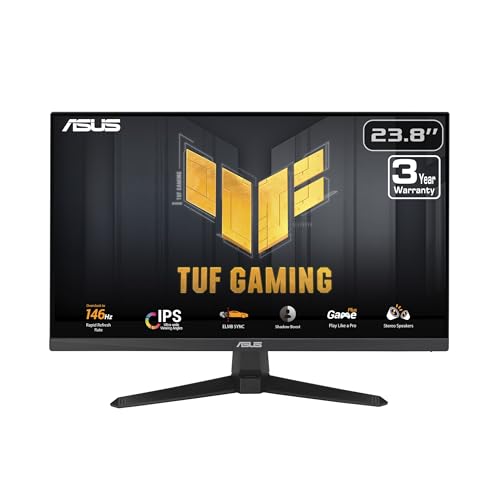
Badge: Best all-round 240Hz pick. This 25-inch ASUS TUF model is the modern face of the 1080p 240Hz class: a Fast IPS panel at a native 240Hz, G-Sync compatibility plus FreeSync Premium, ELMB Sync motion-blur reduction, and a 0.3ms response figure in its listing. Fast IPS matters here — older 240Hz panels used TN screens with washed-out color, while this generation gives competitive players speed without giving up viewing angles and color entirely.
- Size / resolution: 25 in, 1920 x 1080
- Refresh rate: 240Hz
- Panel: Fast IPS, 0.3ms (per listing)
- Sync: G-Sync compatible, FreeSync Premium, ELMB Sync
Best for: competitive players who want 240Hz with respectable color. Not suited for: players who also do color-sensitive work or want a big screen. Check price on Amazon

Samsung Odyssey G4 (27 inch) — the big-screen 240Hz option
Badge: Best if you want 240Hz at 27 inches. Samsung’s Odyssey G4 pairs a 240Hz, 1ms IPS panel with G-Sync compatibility, FreeSync Premium, and HDR10 support in a 27-inch frame. It exists for players who want maximum refresh and a larger canvas, and who accept the softer pixel density that 1080p at 27 inches brings. In fast games, where your eyes follow motion rather than inspect detail, many players never mind; in desktop use, they will.
- Size / resolution: 27 in, 1920 x 1080
- Refresh rate: 240Hz, 1ms (per listing)
- Panel: IPS with HDR10
- Sync: G-Sync compatible, FreeSync Premium
Best for: competitive players who prefer a larger screen and sit a little further back. Not suited for: mixed work-and-play desks where text sharpness matters daily. Check price on Amazon
The 1440p 144Hz side: strengths and trade-offs
Strengths
- Markedly sharper, richer image at the 27-inch size most desks use.
- Genuinely good for work, study, and media outside games.
- Extra resolution helps spot distant detail in large-map games.
- The class now mostly ships at 165Hz or 180Hz — a small free upgrade over 144Hz.
Trade-offs
- Needs a stronger GPU to stay in its high-refresh zone in demanding games.
- Motion clarity and latency sit a step behind 240Hz in fast close-quarters play.
- Upscaling is often part of the recipe in heavy titles, which purists may dislike.
- Larger panels cost more desk space and usually more money than 24-inch 1080p models.

LG UltraGear 27GP850-B — the 1440p class benchmark
Badge: Best all-round 1440p pick. LG’s 27GP850-B is the monitor this class is measured against: a 27-inch Nano IPS panel at 2560 x 1440, 165Hz refresh, 1ms response, G-Sync compatibility and FreeSync Premium, on a tilt, height, and pivot adjustable stand. Nano IPS gives it wider, richer color than basic IPS panels, which is why it keeps appearing in mixed gaming-and-creative setups years after launch.
- Size / resolution: 27 in, 2560 x 1440
- Refresh rate: 165Hz
- Panel: Nano IPS, 1ms (per listing)
- Stand: tilt, height, and pivot adjustable
Best for: mixed libraries and anyone whose monitor doubles for work. Not suited for: esports-first players chasing maximum refresh. Check price on Amazon

Samsung Odyssey G5 (G51F) — the value 1440p high-refresh option
Badge: Best value route into 1440p. The current Odyssey G5 pairs a 27-inch QHD Fast IPS panel with a 180Hz refresh rate, 1ms response, FreeSync, HDR10, and a height-adjustable stand with gaming extras like Black Equalizer and Virtual Aim Point. It demonstrates where the 1440p class has landed: what used to be a 144Hz category now routinely offers 180Hz, narrowing the motion gap to 240Hz panels while keeping the big resolution advantage.
- Size / resolution: 27 in, 2560 x 1440 (QHD)
- Refresh rate: 180Hz, 1ms (per listing)
- Panel: Fast IPS with HDR10
- Stand: height adjustable
Best for: players who want 1440p sharpness and high refresh without flagship money. Not suited for: buyers who need the absolute lowest latency for ranked play. Check price on Amazon — and if you are also weighing the next step up, our guide to the best 4K gaming monitors shows what the 4K tier adds.
Who should buy which
Buy 1080p 240Hz if: your top games are competitive shooters, fighting games, or fast racers; you play ranked and care about every edge in tracking and clarity; your GPU is mid-range and you would rather have frames than pixels; or your desk suits a 24 to 25 inch screen. Players upgrading from 60Hz or 75Hz will feel this as a transformation in their main games, and our roundup of the best 240Hz gaming monitors covers more models in this class.
Buy 1440p 144Hz-class if: your library mixes competitive and single-player games; you work, study, or create at the same desk; you want 27 inches; or your GPU is strong enough to hold triple-digit frame rates at Quad HD. This is the better default for most people, and our guide to the best 144Hz gaming monitors is the natural next read — most of that class is now sold at 165Hz or above, as the two picks above show. For the full three-way picture including 4K, see our explainer 1080p vs 1440p vs 4K for gaming.
Still torn? Answer one question honestly: in the last month, what share of your gaming hours were competitive multiplayer? Above roughly two-thirds, take the frames. Below that, take the pixels. And if your GPU cannot feed either properly, fix that order — a monitor upgrade on an underpowered card disappoints in both directions, while the right monitor on an adequate card delights immediately.
How to set up whichever you choose
Actually enable the refresh rate. A surprising number of high-refresh monitors spend their lives running at 60Hz because nobody changed the setting. On Windows, set the refresh rate in advanced display settings; in each game, confirm the video settings show your panel’s native rate, and use DisplayPort rather than HDMI where the manual recommends it for full refresh at your resolution. Then enable G-Sync or FreeSync in your GPU control panel and turn on the monitor’s adaptive sync in its on-screen menu — both ends must agree.
Calibrate for your games, not for spec sheets. For competitive play, favor the panel’s fastest response-time mode that does not introduce visible inverse ghosting (bright halos behind moving objects); one step below maximum overdrive is usually the sweet spot. For mixed use, a slightly slower overdrive with better color is the right trade. Set brightness for your room rather than maximum — eye strain masquerades as “this monitor feels off” more often than any specification does. Finally, cap your frame rate a few frames below the panel maximum in the GPU panel so variable refresh stays in its range, and in competitive titles use the in-game limiter or a low-latency mode as your setup prefers.
What about the options outside this comparison?
1080p at 360Hz and beyond exists for professional-level players, and the logic of this guide extends to it honestly: the step from 240Hz to 360Hz is smaller than the step from 144Hz to 240Hz, the GPU demands climb again, and the benefit concentrates in the very fastest titles. If you are not already certain you need it, you do not — 240Hz is the point of sensible maximum for almost everyone at 1080p.
1440p at 240Hz is the genuine “both” answer and the premium tier of this whole discussion. It removes the compromise: Quad HD sharpness with 240Hz motion, at 27 inches, with panels that now include excellent IPS and OLED options. Its costs are equally real — flagship pricing and a graphics card strong enough to matter. If your budget and GPU already live in that tier, nothing in this comparison argues against it; it is where players who refuse the trade-off end up, and it reframes this article’s question as a budget decision rather than a technical one.
Ultrawide 1440p (3440 x 1440) deserves a mention for simulation, racing, and immersion-first players. It pushes even more pixels than standard 1440p — about 4.95 million — so GPU demand rises again, and competitive shooters often treat the extra width as a viewing advantage or restrict it, depending on the title. For mixed work it is superb, offering side-by-side document space no 27-inch panel matches. It is a different desk commitment, though, and belongs in its own comparison for most buyers.
OLED panels now appear in both resolution camps and change the response-time conversation entirely, with near-instant pixel transitions and perfect per-pixel contrast that make motion look exceptionally clean at any refresh rate. Their trade-offs — price, and care considerations around static UI elements in always-on desktop use — are real but manageable. If you are shopping at the premium end of either class in this guide, an OLED version of the same resolution-and-refresh combination is worth auditioning before you decide.
How the difference feels day to day
Specifications can make this choice sound abstract, so here is the lived version. On the 240Hz side, the moment that sells the panel comes in the first fast pan of your first match: the world sweeps instead of smearing, doorways stay legible while you turn, and a tracked target holds its shape through a strafe. Players often describe the first evening as feeling like their aim improved, when what actually improved is the information their aim works with. The feeling fades into normalcy within a week — until you sit at a slower screen again and immediately feel the step down.
On the 1440p side, the selling moment is quieter and broader. It is the first time you open a map, a menu, a document, or a detailed game world and everything is simply crisp: small text readable without leaning in, distant detail present instead of suggested, two windows side by side without compromise. It improves the hours around gaming as much as the gaming itself. In matches, the panel feels fast and smooth in the way a good 165Hz screen does — which is to say, fast enough that you stop thinking about the display at all, the compliment most mixed-use buyers actually want.
There is one more honest observation worth making: almost nobody regrets either purchase, because both are large, obvious upgrades over the 1080p 60Hz screens most players are coming from. Regret, when it happens, comes from the mismatch cases this guide keeps flagging — the 27-inch 1080p screen bought for a work desk, the 1440p panel paired with a card that cannot feed it, the 240Hz screen bought for a library of slow games. Avoid the mismatch and the technology takes care of itself.
How to test the difference before you commit
If you have access to any high-refresh screen — a friend’s setup, a store display, even a fast laptop panel — run one simple experiment: in a game you know well, cap the frame rate at 144 and play a round, then uncap toward 240 and play another. The difference you feel in tracking and turning is the entire 240Hz argument, experienced in two minutes. For the resolution side, open a text-heavy page and a detailed game scene on a 27-inch 1440p screen and compare with your current display at your normal seating distance; sharpness at your real distance, not a store’s, is what you are buying. Neither test requires equipment beyond access, and both beat reading specifications — including ours.
A practical checklist before you order
- Confirm your GPU’s real output: look up its frame rates at your target resolution in your top three games — not in one benchmark title — and compare honestly with the panel’s refresh rate.
- Measure your desk and viewing distance: 24 to 25 inches suits closer seating; 27 inches needs a little more depth to stay comfortable for work.
- Check the ports: full refresh at these resolutions generally wants DisplayPort on PC; confirm the monitor’s HDMI version if you also plan console use.
- Verify adaptive sync for your GPU brand: G-Sync compatible and FreeSync Premium certifications, like those on the picks in this guide, cover most modern cards, but confirm before ordering.
- Plan the stand or arm: height adjustability matters for posture; both 1440p picks here include it, and smaller 1080p panels often benefit from a monitor arm later.
- Read the listing’s exact spec: as the 1440p class shows, the number on the box category and the number on the current model can differ — the listing is the truth.
Settings that matter on each side
On a 240Hz panel, your priorities are consistency and clarity. Run competitive titles with settings low enough that frame rate stays near the cap rather than swinging widely — a stable 220 feels better than a fluctuating 180-to-280. Use your GPU’s low-latency mode, cap frames just under 240 if you use variable refresh, and experiment with the panel’s motion-blur reduction in the one or two titles where you can hold a locked high frame rate, since strobing rewards stability. Keep overdrive at the setting just below the point where bright trails appear behind moving objects.
On a 1440p high-refresh panel, your priorities are balance and smoothness. Let variable refresh do its work across the 90-to-180 range where most games will live, use upscaling at its quality preset before reaching for lower settings — at 1440p output it holds up well — and raise texture and draw-distance settings first, because resolution is exactly what makes those settings visible. For desktop use, run native resolution with default scaling; the roughly 109 pixels per inch at 27 inches is sharp enough that most people need no scaling at all, which is part of the point of choosing this class.
Common mistakes to avoid
- Buying 240Hz for a console or a weak GPU. The panel can only show frames that exist; feed it first.
- Buying 27-inch 1080p for a work desk. The softness that is invisible mid-match is obvious in spreadsheets all day.
- Judging by response-time marketing alone. Advertised response figures are best-case; refresh rate, panel type, and overdrive behavior matter more in practice.
- Forgetting the cable and settings. The wrong cable or a missed menu setting can silently cap you at a lower refresh rate.
- Assuming 144Hz is still the 1440p standard. Most current models ship at 165Hz or 180Hz; check the actual spec, as with the picks above.
Coming from 60Hz or 75Hz? Read this first
Most readers of this comparison are not choosing between these two panels in a vacuum; they are upgrading from an ordinary 60Hz or 75Hz screen, and that context changes the emotional math. Either option will feel dramatic. The move to high refresh alone — even to the 144Hz-class side — is the single most noticeable display upgrade a gamer can make, larger in feel than any resolution jump. So do not let the closeness of this comparison paralyze the upgrade itself: the wrong choice between these two is still a much better screen than the one on your desk today.
That said, the upgrade order matters if a new GPU is also in your future. A monitor typically outlives two graphics cards, so if a stronger card is realistically a year away, buying the 1440p panel now and growing into it is defensible and common. If no GPU upgrade is planned, match the panel to today’s card without mercy. And keep your old screen if space allows: a 1080p 240Hz main panel with a basic second monitor for chat, streams, and guides is the classic competitive desk, while a 1440p main panel often makes the second screen unnecessary for everyone else.
Final verdict
1080p 240Hz and 1440p 144Hz are not good and better; they are two different answers to two different questions. If your gaming life is competitive and close-quarters, the ASUS TUF VG259QM5A’s 240Hz clarity is the upgrade you will feel in every match, with the Samsung Odyssey G4 as the larger-screen alternative. If your gaming life is varied and your desk does double duty, the LG 27GP850-B and Samsung Odyssey G5 deliver a sharper, richer, more versatile screen that still runs fast enough for all but the most serious ranked play. Match the panel to your games and your graphics card, enable the refresh rate properly, and either choice will feel like the right one — because, for your desk and your library, it genuinely will be, tonight and for years of sessions to come.
One decision, summarized in four questions
If the detail above has blurred together, these four questions reproduce the whole comparison in miniature. One: are most of your gaming hours competitive multiplayer? Two: is your screen 27 inches or destined to double as a work display? Three: can your graphics card hold frame rates near the refresh rate of the panel you are eyeing, in your actual games? Four: do you expect to upgrade that card within the monitor’s life? Frames win when the first answer is yes and the third is only true at 1080p. Pixels win when the second or fourth answer is yes. When the answers conflict, weight the first most heavily — the games you actually play tonight outrank the setup you might build someday, and a panel that delights you now beats a panel bought for a hypothetical future.
Beyond the headline numbers: panel behaviour, ports, and the settings that decide the experience
Resolution and refresh rate frame this choice, but two monitors with identical headline numbers can feel very different in daily play. The details below are where the remaining difference hides, and they are worth weighing before you decide which side of the comparison wins for your desk.
Response time and overdrive, in plain terms
Refresh rate decides how many new frames the panel can show each second; pixel response decides how cleanly each frame replaces the last. Aggressive overdrive settings sharpen motion but can add bright halos behind moving objects, while the mildest settings stay clean but softer. Most panels ship with a middle overdrive level that suits the top of their refresh range. If you split your time between fast games at high frame rates and slower games at modest frame rates, a monitor whose overdrive stays well behaved across the range saves you from changing settings every time you switch titles.
Why the port version on your graphics card matters
High refresh at either resolution needs a connection that can carry the signal. DisplayPort is the safe default on PC for both pairings in this comparison, and it is the connection that unlocks the full refresh range on most models. HDMI ports vary widely in what they support, and an older HDMI revision can quietly cap your refresh rate even when the monitor itself is capable of more. Before blaming a new monitor for running below its advertised rate, check the cable, the port on the card, and the display settings in your operating system, in that order.
Text clarity and the second-monitor question
Many buyers game on their main display and read on it all day too. At typical desk distances, 1440p renders text with visibly cleaner edges than 1080p at the same screen size, which reduces the graininess you notice in documents and browsers. If your budget forces a choice between one 1440p display now or a 1080p display plus a second screen sooner, think about how you actually work: a single sharper panel suits focused play and reading, while two screens suit streamers, traders, and anyone who keeps references open beside a game.
Console players are solving a different problem
Consoles target their own frame-rate modes, and many popular titles offer a performance mode built around frame rates that both sides of this comparison can display. What consoles reward is a good HDMI implementation, low input lag, and in some cases the ability to accept a higher-resolution signal and downsample it cleanly. If your desk serves both a PC and a console, weigh the console connection as heavily as the PC one, because the monitor that wins on PC specifications can be the weaker console partner.
A practical upgrade sequence
If you cannot upgrade everything at once, buy in the order that removes bottlenecks. A faster monitor attached to a card that cannot feed it shows little benefit, and a stronger card attached to a slow, blurry panel wastes its output. For most players the satisfying sequence is graphics card first if your current one struggles at your target resolution, then the monitor, then the comfort items such as a proper stand or arm. Each step should feel like an improvement on its own; if a planned step only pays off after the next purchase, reorder the plan.
Frequently asked questions
Can you actually see the difference between 144Hz and 240Hz?
Yes, though it is smaller than the jump from 60Hz to 144Hz. The clearest differences are in fast camera pans and target tracking, where motion stays more defined at 240Hz, and in the general sense of responsiveness when aiming. Players in fast competitive games notice it most; players in slower genres may see little practical difference, which is one reason the 1440p side of this comparison wins so many mixed-use buyers.
Is 1440p worth it if I mostly play competitive games?
It depends on the games. In large-map titles — battle royales and extraction shooters — the extra resolution helps identify distant targets and the 165Hz to 180Hz refresh of current models is still very fast, so many competitive players happily choose 1440p. In close-quarters arena and tactical shooters, where engagements are fast and near, 240Hz at 1080p keeps the edge.
What GPU do I need for 1440p at high refresh rates?
Plan on a strong mid-range card or better for modern games at native 1440p with high settings, and expect to use upscaling in the heaviest titles. Esports games are far lighter and run at high frame rates on much more modest hardware. The honest test is your own library: look up how your card performs at 1440p in your top three games, and compare that with the refresh rate you are paying for.
Why are so many “144Hz class” 1440p monitors actually 165Hz or 180Hz?
Panel manufacturing moved on. The current generation of 27-inch QHD panels is natively produced at 165Hz and 180Hz, so brands sell those speeds at the prices 144Hz models used to occupy. For buyers it is a small free win: the decision against 240Hz at 1080p stays the same, but the motion gap is narrower than the classic comparison suggests, as the LG and Samsung picks in this guide show.
Does 1080p look bad at 27 inches?
For games in motion, many players find it acceptable, especially sitting a bit further back. For text, desktop work, and slow detailed games, the low pixel density is visible as softness and jagged edges. If a 27-inch screen will double as your work display, 1440p is the safer choice; if it is purely a fast-gaming screen, the Odyssey G4 in this guide exists precisely for that use.
Should I wait for cheaper 1440p 240Hz monitors instead?
1440p at 240Hz exists and is excellent, but it answers a different budget question and demands an even stronger GPU to justify itself. If your card and budget already support it, it is a legitimate third option rather than a reason to wait. Our three-way explainer, 1080p vs 1440p vs 4K gaming compared, places it in context, and our list of curved gaming monitors covers the immersive end of the market.
Will I notice 240Hz if my games only reach high frame rates sometimes?
You will notice it most in the games and scenes that sustain the highest frame rates: competitive titles, older games, and lighter indie games feel distinctly smoother, while demanding open-world scenes that sit at lower frame rates look much the same as they would on the slower panel. That mixed experience is normal and is not a fault in the monitor. Players who mostly play demanding single-player games get less from the fastest panels than players whose library is weighted toward fast, light titles, which is why this guide keeps returning to your actual game mix.
Does 1440p make older or lower-end graphics cards obsolete?
No, but it changes how you use one. Modern upscaling features let a modest card render internally at a lower resolution and present a convincing 1440p image, and most games let you trade settings such as shadows and reflections for frame rate. A lower-end card at 1440p with sensible settings and upscaling is a workable, often pleasant combination. What does not work is expecting native 1440p at maximum settings in the newest releases from a card that was already stretched at 1080p; the resolution step is real, and your settings need to respect it.
Should I keep my current monitor as a second screen when I upgrade?
Usually yes, and it softens the whole decision. Your existing panel becomes the reference, chat, video, and browsing screen, which means the new monitor only has to be brilliant at games rather than good at everything. That freedom lets competitive players choose the fast 1080p option without giving up a pleasant everyday display, and lets 1440p buyers stop worrying about whether the new panel must also be their perfect reading screen. The practical costs are desk space and one more cable run; the practical gain is that a two-screen desk makes whichever side of this comparison you choose feel less like a compromise and more like a specialisation.