Disclosure: As an Amazon Associate, reviewstook.com earns from qualifying purchases. Links on this page are affiliate links at no extra cost to you; prices and availability change frequently, so check Amazon for the latest.
Where to Buy the Best 2 in 1 Laptop For Students Under $800
Use the links below to check the latest price on Amazon for every pick in this guide to the best 2 in 1 laptop for students under $800. Each name and each check link goes to the same verified listing, so you can compare the exact configuration before you decide. Purchases made through links on reviewstook.com support our research and writing at no extra cost to you.
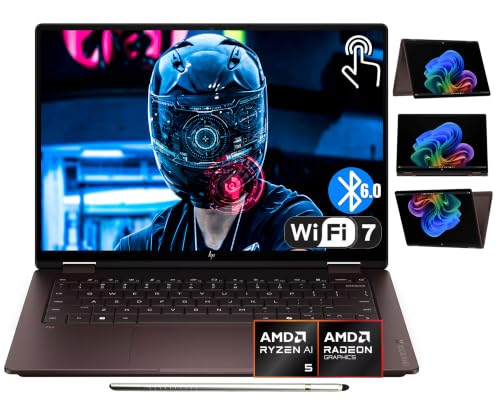
- Best Overall for Students: HP OmniBook X Flip 14 (Ryzen AI 5, 2K OLED) — Check on Amazon
- Best for Note-Taking: Lenovo IdeaPad 5 2-in-1 (Ryzen 7 8845HS, 16-inch) — Check on Amazon
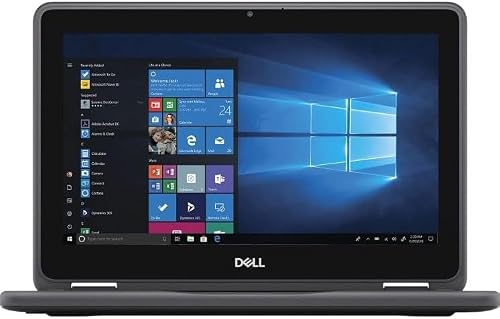
- Best Budget for Students: Dell 14 2-in-1 Laptop (Ryzen 7 8840HS) — Check on Amazon
- Best Premium for Students: Dell Latitude 7450 14-inch 2-in-1 (Core Ultra 7 165U) — Check on Amazon
- Best for Long Study Days: Lenovo ThinkPad X13 Yoga Gen 2 (Renewed, Core i7, 32GB) — Check on Amazon
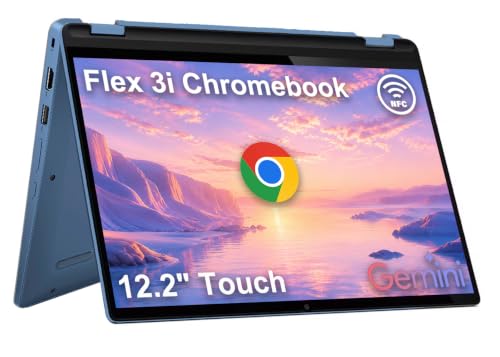
- Best Campus Value: Lenovo Chromebook Plus 2-in-1 (Intel N355, 14-inch) — Check on Amazon
Finding the Best 2 in 1 Laptop For Students Under $800 Without Falling for Spec-Sheet Traps
If you are shopping for the best 2 in 1 laptop for students under $800, you are looking for students who split their days between lectures, library sessions, group projects and streaming in the evening — and you have probably noticed that this category punishes casual shopping. Two machines can share a headline price and a touchscreen and still be three years apart in processor, half the memory, and a completely different operating system. This guide exists to make those differences explicit. We verified every recommended model against the manufacturer’s own listing data through Amazon’s Creators API, kept only genuine convertibles — machines that fold, rotate or detach into a tablet — and ordered the six survivors for the way students actually use them. For wider context before you commit, our related coverage at Best Laptops For Students and Student Laptop Buying Guide is worth a skim.
At this level new machines take over for students: current AMD and Intel processors, OLED options, bundled pens and proper SSDs. Renewed flagships still lurk as value plays, but the default recommendation becomes a new convertible you can keep for the rest of your degree.
One more framing note before the picks: a 2-in-1 is two products in one chassis, which means every design trades something. A detachable tablet is light but wants its keyboard cover to feel complete; a 360-degree convertible is sturdier on the lap but carries its keyboard into tablet mode. Screens, pens, ports and processors all pull the design in different directions, and the right answer depends on which mode you will honestly use most. The reviews below call out, for each pick, who it suits, where it is strong, and the limitation we would want a friend to know about before ordering. If your budget stretches or shrinks after reading, the sibling guides at Best 2 In 1 Laptop Under $800 and Best 2 In 1 Laptop Under $1000 apply the same standards at neighboring price points and use cases.
In this guide
Quick Picks: The Best 2 in 1 Laptop For Students Under $800 at a Glance
Six machines survived our checks for the best 2 in 1 laptop for students under $800. Start with the badge that sounds like you; the full reviews below explain every choice.
- Best Overall for Students: HP OmniBook X Flip 14 — a stylus-ready OLED convertible tuned for creators on the move.
- Best for Note-Taking: Lenovo IdeaPad 5 2-in-1 — a big, fast, pen-ready convertible for people who sketch, tabulate and present.
- Best Budget for Students: Dell 14 2-in-1 — a mainstream 14-inch convertible with desktop-class AMD power.
- Best Premium for Students: Dell Latitude 7450 2-in-1 — the corporate-grade convertible that happens to suit everyone else too.
- Best for Long Study Days: Lenovo ThinkPad X13 Yoga Gen 2 (Renewed) — a renewed ThinkPad Yoga with memory most new convertibles cannot match at the tier.
- Best Campus Value: Lenovo Chromebook Plus 2-in-1 — the grown-up Chromebook convertible, with Plus-grade memory, storage and sign-in.
How These Picks Were Chosen
We built this shortlist from the full field of convertibles and detachables returned by Amazon’s Creators API, then applied four filters with a student’s priorities in mind. First, a true 2-in-1 only: a 360-degree hinge, rotating display or detachable keyboard, verified from the listing title and specification — ordinary touch laptops were excluded. Second, honest tier placement: no premium machines pulled in for glamour, and no entry hardware dressed up beyond its abilities. Third, verifiable specifications: processor, memory, storage and display all confirmed from the listing, with gaps flagged in the spec box rather than guessed. Fourth, for renewed picks, established business and education lines with replaceable parts, because a student bargain that dies in second year is no bargain. Under $800, the filters shift from survival to refinement: everything here is capable, so ordering is about fit.
What we removed says as much as what survived. Touchscreen laptops that never become tablets went first. Machines with memory or storage too small for their operating system followed, unless a student tier left no alternative — and where that happened, we flag it plainly in the review rather than hiding it. Off-brand convertibles with specifications we could not verify were cut even when their headline numbers looked generous on a student budget. The result is six picks per guide we can defend line by line, ordered by badge, not by which listing was discounted the day we checked. Under $800, almost everything is capable; the cuts were about honesty and fit.
Detailed Reviews: Best 2 in 1 Laptop For Students Under $800
Each review follows the same order — what the machine is, its strengths, its trade-offs, the verified specification, and a blunt verdict — so you can compare picks for the best 2 in 1 laptop for students under $800 without translating between formats.

Best Overall for Students — HP OmniBook X Flip 14 (Ryzen AI 5, 2K OLED)
As a stylus-ready OLED convertible tuned for creators on the move, the HP OmniBook X Flip 14 makes its argument through its strongest verified numbers: 14″ 2K OLED touchscreen, AMD Ryzen AI 5 430 (up to 50 TOPS), 16GB LPDDR5X. Those figures decide daily use — how much fits on screen at once, how many tabs stay open without a stutter, and whether your files live on the machine or depend on the cloud. The convertible design earns its place by covering desk work, sofa reading and presentation duty without a second gadget. For lectures, notes and library sessions, that balance matters more than any benchmark. Under $800, this specification is what the money is for.
Strengths
- 2K OLED plus a bundled stylus is the creative starter kit done right
- Copilot+ AI headroom up to 50 TOPS future-proofs Windows features
- Wi-Fi 7 and Bluetooth 6.0 are as current as wireless gets
Trade-offs
- 512GB storage is the compromise in an otherwise premium sheet
- Windows 11 Home, not Pro
- Ryzen AI 5 sits a step below the AI 7 chips in heavy loads
| Display | 14″ 2K OLED touchscreen |
|---|---|
| Processor | AMD Ryzen AI 5 430 (up to 50 TOPS) |
| Memory | 16GB LPDDR5X |
| Storage | 512GB SSD |
| Operating system | Windows 11 Home |
| Extras | Stylus included, Wi-Fi 7, Bluetooth 6.0 |
For student life that means lecture notes in laptop mode, readings annotated in tablet mode, and a machine that survives being shoved into a backpack five days a week. Where it asks for compromise is equally clear: 512GB storage is the compromise in an otherwise premium sheet That is not a flaw so much as the price of admission at this level, and it is better to know before ordering than after.
Treat the HP OmniBook X Flip 14 as a long-term tool and it rewards the mindset: the specification was chosen to age gracefully, the hinge and screen are the parts to protect, and the software side — Windows 11 Home — will keep receiving updates long after the hardware stops feeling new. Set it up once using the routine later in this guide, keep the vents and screen clean, and it settles into the background of your day, which is exactly where a good convertible belongs.
Best for: students whose workload is documents, research, notes and streaming / Not suited for: buyers who need heavy gaming, 3D or video-rendering power from a convertible at this level Under $800, that verdict is a refinement call.
Check on Amazon to confirm the configuration and availability of the HP OmniBook X Flip 14. Verify before you commit; a wrong configuration wastes a student budget. Under $800, confirm the exact processor variant.

Best for Note-Taking — Lenovo IdeaPad 5 2-in-1 (Ryzen 7 8845HS, 16-inch)
As a big, fast, pen-ready convertible for people who sketch, tabulate and present, the Lenovo IdeaPad 5 2-in-1 makes its argument through its strongest verified numbers: 16″ WUXGA touchscreen, AMD Ryzen 7 8845HS, 16GB LPDDR5X RAM. Those figures decide daily use — how much fits on screen at once, how many tabs stay open without a stutter, and whether your files live on the machine or depend on the cloud. The convertible design earns its place by covering desk work, sofa reading and presentation duty without a second gadget. For lectures, notes and library sessions, that balance matters more than any benchmark. Under $800, this specification is what the money is for.
Strengths
- Ryzen 7 8845HS power with fast LPDDR5X memory feels desktop-quick
- The included digital pen makes the 16-inch canvas a sketchbook
- 1TB storage and fingerprint sign-in round out the package
Trade-offs
- A 16-inch convertible is a two-handed tablet
- Windows 11 Home rather than Pro
- HS-class performance draws more power than U-series rivals
| Display | 16″ WUXGA touchscreen |
|---|---|
| Processor | AMD Ryzen 7 8845HS |
| Memory | 16GB LPDDR5X RAM |
| Storage | 1TB SSD |
| Operating system | Windows 11 Home |
| Extras | Digital pen, backlit keyboard, fingerprint reader |
For student life that means lecture notes in laptop mode, readings annotated in tablet mode, and a machine that survives being shoved into a backpack five days a week. At this level, that pattern is where polish shows. Where it asks for compromise is equally clear: a 16-inch convertible is a two-handed tablet That is not a flaw so much as the price of admission at this level, and it is better to know before ordering than after.
Buy the Lenovo IdeaPad 5 2-in-1 as a multi-year tool and its choices start to make sense: a specification picked to age gracefully, a hinge and screen worth protecting, and Windows 11 Home updates arriving long after the hardware stops feeling new. Run the setup routine later in this guide once, keep the vents and screen clean, and it fades into the background of your timetable — exactly where a good study machine belongs. At this tier, the long view is the right view.
Best for: students whose workload is documents, research, notes and streaming / Not suited for: buyers who need heavy gaming, 3D or video-rendering power from a convertible at this level Under $800, that verdict is a refinement call.
Check on Amazon to confirm the configuration and availability of the Lenovo IdeaPad 5 2-in-1. Verify before you commit; a wrong configuration wastes a student budget. Under $800, confirm the exact processor variant.

Best Budget for Students — Dell 14 2-in-1 Laptop (Ryzen 7 8840HS)
As a mainstream 14-inch convertible with desktop-class AMD power, the Dell 14 2-in-1 makes its argument through its strongest verified numbers: 14″ FHD+ touchscreen, AMD Ryzen 7 8840HS, 16GB DDR5 RAM. Those figures decide daily use — how much fits on screen at once, how many tabs stay open without a stutter, and whether your files live on the machine or depend on the cloud. The convertible design earns its place by covering desk work, sofa reading and presentation duty without a second gadget. For lectures, notes and library sessions, that balance matters more than any benchmark. Under $800, this specification is what the money is for.
Strengths
- Ryzen 7 8840HS muscle handles heavy multitasking and light creative work
- 1TB of storage means your photo and project libraries live on the machine
- Dell’s support network is a real advantage over no-name rivals
Trade-offs
- FHD+ IPS is fine rather than dazzling next to OLED options
- Windows 11 Home limits some business management features
- The HS-series chip trades a little battery life for its speed
| Display | 14″ FHD+ touchscreen |
|---|---|
| Processor | AMD Ryzen 7 8840HS |
| Memory | 16GB DDR5 RAM |
| Storage | 1TB SSD |
| Operating system | Windows 11 Home |
| Graphics | AMD Radeon integrated graphics |
For student life that means lecture notes in laptop mode, readings annotated in tablet mode, and a machine that survives being shoved into a backpack five days a week. The honest limitation is baked into the specification: fHD+ IPS is fine rather than dazzling next to OLED options Buyers who accept that trade get exactly what the sheet promises; buyers who secretly want more should step up a tier rather than hope.
Where the Dell 14 2-in-1 fits best is a routine with variety in it: desk work in the morning, a flipped screen for a call or a film at lunch, tablet mode for reading at night. Its verified specification — 14″ FHD+ touchscreen, AMD Ryzen 7 8840HS — sets the ceiling for that routine, and it is a ceiling most everyday workloads never touch. Buyers whose routines are narrower can save money elsewhere in this guide; buyers whose days genuinely change shape will feel the difference this flexibility makes.
Best for: students whose workload is documents, research, notes and streaming / Not suited for: buyers who need heavy gaming, 3D or video-rendering power from a convertible at this level Under $800, that verdict is a refinement call.
Check on Amazon to confirm the configuration and availability of the Dell 14 2-in-1. Verify before you commit; a wrong configuration wastes a student budget. Under $800, confirm the exact processor variant.

Best Premium for Students — Dell Latitude 7450 14-inch 2-in-1 (Core Ultra 7 165U)
As the corporate-grade convertible that happens to suit everyone else too, the Dell Latitude 7450 2-in-1 makes its argument through its strongest verified numbers: 14″ FHD+ touchscreen, Intel Core Ultra 7 165U, 16GB RAM. Those figures decide daily use — how much fits on screen at once, how many tabs stay open without a stutter, and whether your files live on the machine or depend on the cloud. The convertible design earns its place by covering desk work, sofa reading and presentation duty without a second gadget. For lectures, notes and library sessions, that balance matters more than any benchmark. Under $800, this specification is what the money is for.
Strengths
- Latitude build and serviceability are built for years of daily work
- Thunderbolt docks turn it into a desk setup with one cable
- IR webcam and Windows 11 Pro suit security-conscious workplaces
Trade-offs
- 512GB of storage is the modest part of the specification
- FHD+ is practical, not spectacular
- Business pricing logic applies even in a consumer roundup
| Display | 14″ FHD+ touchscreen |
|---|---|
| Processor | Intel Core Ultra 7 165U |
| Memory | 16GB RAM |
| Storage | 512GB SSD |
| Operating system | Windows 11 Pro |
| Extras | Thunderbolt, 1080p IR webcam, Wi-Fi 7 |
On campus it covers the bases that matter: fast sign-in between classes, a screen that stays readable under library lighting, and enough stamina for back-to-back sessions. Where it asks for compromise is equally clear: 512GB of storage is the modest part of the specification That is not a flaw so much as the price of admission at this level, and it is better to know before ordering than after.
Living with the Dell Latitude 7450 2-in-1 means leaning on its Windows 11 Pro strengths: fast wake, a store full of apps suited to touch, and a machine that asks little of you between updates. Within a week the hardware disappears into routine, which is the real test of a convertible — the second week, when the novelty is gone and only usefulness remains, is when this design earns its keep. For students, that invisibility is the point: the machine stops being a project and becomes a habit. At this level, that reliability is the baseline.
Best for: students whose workload is documents, research, notes and streaming / Not suited for: buyers who need heavy gaming, 3D or video-rendering power from a convertible at this level Under $800, that verdict is a refinement call.
Check on Amazon to confirm the configuration and availability of the Dell Latitude 7450 2-in-1. Verify before you commit; a wrong configuration wastes a student budget. Under $800, confirm the exact processor variant.
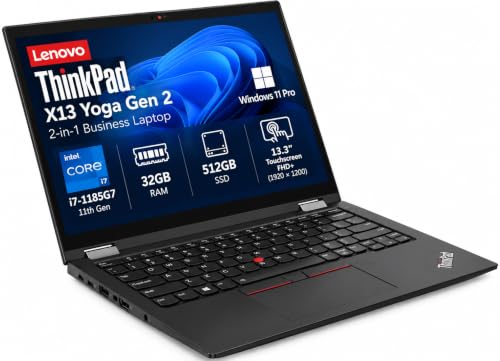
Best for Long Study Days — Lenovo ThinkPad X13 Yoga Gen 2 (Renewed, Core i7, 32GB)
As a renewed ThinkPad Yoga with memory most new convertibles cannot match at the tier, the Lenovo ThinkPad X13 Yoga Gen 2 (Renewed) makes its argument through its strongest verified numbers: 13.3″ touchscreen, Intel Core i7-1185G7, 32GB RAM. Those figures decide daily use — how much fits on screen at once, how many tabs stay open without a stutter, and whether your files live on the machine or depend on the cloud. The convertible design earns its place by covering desk work, sofa reading and presentation duty without a second gadget. For lectures, notes and library sessions, that balance matters more than any benchmark. Under $800, this specification is what the money is for.
Strengths
- 32GB of memory in a 13.3-inch convertible is multitasking luxury
- ThinkPad keyboard and build quality survive the renewed discount intact
- Fingerprint sign-in and Windows 11 Pro complete the business brief
Trade-offs
- The i7-1185G7 is capable but several generations old
- Renewed units vary in battery and cosmetic condition
- Integrated graphics of its era limit gaming and 3D work
| Display | 13.3″ touchscreen |
|---|---|
| Processor | Intel Core i7-1185G7 |
| Memory | 32GB RAM |
| Storage | 512GB SSD |
| Operating system | Windows 11 Pro |
| Extras | Backlit keyboard, fingerprint reader |
On campus it covers the bases that matter: fast sign-in between classes, a screen that stays readable under library lighting, and enough stamina for back-to-back sessions. The honest limitation is baked into the specification: the i7-1185G7 is capable but several generations old Buyers who accept that trade get exactly what the sheet promises; buyers who secretly want more should step up a tier rather than hope.
Treat the Lenovo ThinkPad X13 Yoga Gen 2 (Renewed) as a long-term tool and it rewards the mindset: the specification was chosen to age gracefully, the hinge and screen are the parts to protect, and the software side — Windows 11 Pro — will keep receiving updates long after the hardware stops feeling new. Set it up once using the routine later in this guide, keep the vents and screen clean, and it settles into the background of your day, which is exactly where a good convertible belongs.
Best for: students whose workload is documents, research, notes and streaming / Not suited for: buyers who need heavy gaming, 3D or video-rendering power from a convertible at this level Under $800, that verdict is a refinement call.
Check on Amazon to confirm the configuration and availability of the Lenovo ThinkPad X13 Yoga Gen 2 (Renewed). Verify before you commit; a wrong configuration wastes a student budget. Under $800, confirm the exact processor variant.

Best Campus Value — Lenovo Chromebook Plus 2-in-1 (Intel N355, 14-inch)
As the grown-up Chromebook convertible, with Plus-grade memory, storage and sign-in, the Lenovo Chromebook Plus 2-in-1 makes its argument through its strongest verified numbers: 14″ WUXGA IPS touchscreen, Intel N355, 8GB RAM. Those figures decide daily use — how much fits on screen at once, how many tabs stay open without a stutter, and whether your files live on the machine or depend on the cloud. The convertible design earns its place by covering desk work, sofa reading and presentation duty without a second gadget. For lectures, notes and library sessions, that balance matters more than any benchmark. Under $800, this specification is what the money is for.
Strengths
- Chromebook Plus specification means 8GB of memory and 256GB of storage as standard
- A fingerprint reader is rare convenience in a Chromebook
- WUXGA resolution keeps two windows readable side by side
Trade-offs
- The N355 is efficient rather than powerful
- Still Chrome OS: check your must-have apps exist as web or Android versions
- Integrated graphics limit gaming to cloud and Android titles
| Display | 14″ WUXGA IPS touchscreen |
|---|---|
| Processor | Intel N355 |
| Memory | 8GB RAM |
| Storage | 256GB UFS |
| Operating system | Chrome OS |
| Extras | Fingerprint reader, Google Gemini |
For student life that means lecture notes in laptop mode, readings annotated in tablet mode, and a machine that survives being shoved into a backpack five days a week. Where it asks for compromise is equally clear: the N355 is efficient rather than powerful That is not a flaw so much as the price of admission at this level, and it is better to know before ordering than after.
Living with the Lenovo Chromebook Plus 2-in-1 means leaning on its Chrome OS strengths: fast wake, a store full of apps suited to touch, and a machine that asks little of you between updates. Within a week the hardware disappears into routine, which is the real test of a convertible — the second week, when the novelty is gone and only usefulness remains, is when this design earns its keep. For students, that invisibility is the point: the machine stops being a project and becomes a habit. At this level, that reliability is the baseline.
Best for: students whose workload is documents, research, notes and streaming / Not suited for: buyers who need heavy gaming, 3D or video-rendering power from a convertible at this level Under $800, that verdict is a refinement call.
Check on Amazon to confirm the configuration and availability of the Lenovo Chromebook Plus 2-in-1. Verify before you commit; a wrong configuration wastes a student budget. Under $800, confirm the exact processor variant.
Comparison Table
The verified essentials, side by side for a quick student comparison. Only the first, third and fifth picks are linked here to keep the table readable; every pick is linked in the where-to-buy box and its review. Under $800, the table is a shortlist of equals — your routine, not the numbers, should break the tie.
| Pick | Display | Processor | Memory | Storage | System |
|---|---|---|---|---|---|
| HP OmniBook X Flip 14 | 14″ 2K OLED touchscreen | AMD Ryzen AI 5 430 (up to 50 TOPS) | 16GB LPDDR5X | 512GB SSD | Windows 11 Home |
| Lenovo IdeaPad 5 2-in-1 | 16″ WUXGA touchscreen | AMD Ryzen 7 8845HS | 16GB LPDDR5X RAM | 1TB SSD | Windows 11 Home |
| Dell 14 2-in-1 | 14″ FHD+ touchscreen | AMD Ryzen 7 8840HS | 16GB DDR5 RAM | 1TB SSD | Windows 11 Home |
| Dell Latitude 7450 2-in-1 | 14″ FHD+ touchscreen | Intel Core Ultra 7 165U | 16GB RAM | 512GB SSD | Windows 11 Pro |
| Lenovo ThinkPad X13 Yoga Gen 2 (Renewed) | 13.3″ touchscreen | Intel Core i7-1185G7 | 32GB RAM | 512GB SSD | Windows 11 Pro |
| Lenovo Chromebook Plus 2-in-1 | 14″ WUXGA IPS touchscreen | Intel N355 | 8GB RAM | 256GB UFS | Chrome OS |
How to Choose the Best 2 in 1 Laptop For Students Under $800
Decide the operating system first, because it quietly decides everything else about student life with the machine. If your days run in a browser — documents, mail, learning platforms, streaming — the Chrome OS machines in this guide will feel fast, stay updated for years and ask almost nothing of you between lectures. If your courses need named desktop programs, offline file workflows or PC gaming, you need Windows, budgeted honestly rather than hoping a Chromebook will stretch. Our explainer at Laptop Vs Chromebook walks the decision in more depth, and it is the single most useful page to read before ordering anything in this category. Under $800, choose by ecosystem and offline needs; performance no longer settles it.
Take memory before storage. Memory decides how the machine feels in your final year: 4GB is a discipline, 8GB is the working minimum for Windows, and 16GB or more is where juggling lectures, documents and research tabs stops being a negotiation. Storage decides whether your files live with you — small drives fill with photos, offline lectures and app caches faster than students expect, and cloud subscriptions are a monthly tax on a too-small drive. Where a pick in this guide ships with modest storage, its review says so, and the fix is a higher configuration at the same listing or a step to the next tier, not a different unverified model. Under $800, neither should hurt; if a pick short-changes one, its review explains why it still earns its badge.
Then weigh the two shapes against student life. A 360-degree convertible is the safer campus default: one solid piece that survives backpacks, a keyboard always attached for essays, and tablet mode for reading and annotation. A detachable is the note-taker’s specialist — truly light for handwriting and reading, but dependent on its keyboard cover and happiest on a desk or lecture table. Size follows your day: 10 to 13 inches for moving between classes, 14 inches for balance, 15 to 16 inches for a desk-based study setup. And check the pen story carefully, because included, sold separately and touch-only are very different purchases for a student who plans to write by hand. Under $800, detachables become genuinely competitive for tablet-first buyers.
What Does This Budget Actually Buy in a 2-in-1?
At this level new machines take over: current AMD and Intel processors, OLED options, bundled pens and proper SSDs. Renewed flagships still lurk as value plays, but the default recommendation becomes a new convertible you can keep for years. Within that reality, spend your attention on the components you cannot upgrade. On almost every convertible in this guide the memory and processor are soldered or fixed for the life of the machine, and the display is the display forever. Storage is sometimes replaceable on business models and rarely on consumer ones. That hierarchy — processor and memory first, screen second, storage third — is the opposite of how listings are usually marketed, which lead with storage because big numbers are cheap to print. The picks above were ordered with that hierarchy in mind, which is why a renewed business machine with a strong processor and generous memory can outrank a newer shell with a weaker chip, and why we would rather you bought the right configuration of a verified model than a headline bargain we could not confirm.
Round out the purchase with three student-proof extras when the pick allows them: a pen for annotating slides, a padded sleeve for a backpack that gets dropped daily, and a second charger so one can live in your bag during exam season. Under $800, several picks already bundle a pen, which makes the sleeve and spare charger the only real extras.
How Do You Set Up a 2-in-1 for a Full Semester?
Step 1: Update before you personalize. Connect to campus or home Wi-Fi, sign in, and run system updates fully before installing your study apps or moving your notes across. Hinge sensors, pen firmware and rotation drivers often land in those first updates, and skipping them is behind most ‘tablet mode is glitchy’ complaints in the first week of term. Under $800, expect several rounds; restart when asked rather than postponing.
Step 2: Teach it your modes. Spend ten minutes flipping between laptop, tent, stand and tablet modes with the apps you study in — lecture player, notes, browser. Set whether the keyboard and touchpad disable automatically, configure the pen buttons if your pick has a pen, and pin your three most-used apps to the taskbar or shelf in both orientations. Students who skip this end up with a laptop; students who do it get a study tool that changes shape with the task. Under $800, polish the details — pen buttons, rotation behaviour, per-mode brightness.
Step 3: Fix the power defaults. Set screen timeout for battery and plugged-in use separately, pick battery saver thresholds that match a day of classes, and check which apps are allowed to run in the background. Problem: the machine feels warm and drains in your backpack — fix: disable wake timers and check for a stuck sync client before blaming the battery. Problem: the screen rotates mid-lecture — fix: use the rotation lock while reading in bed or the library, and let it float the rest of the time. Under $800, fine-tune rather than overhaul: the defaults are close, your day is the variable.
Step 4: Protect the glass and the data. Make the sleeve a habit from the first day of term, enable device-finding and encryption — built into both Windows and Chrome OS — and check that your coursework is syncing or backed up somewhere beyond the machine. A convertible’s screen is its most fragile and expensive part; everything else here is free insurance. Under $800, treat data protection as part of the purchase, not a later project.
What Do Students Actually Need From a 2-in-1 Under $800?
Student workloads look light on paper — documents, slides, research, video lectures — but they are relentless in practice: long mixed days, five days a week, in bags that get dropped and cafes with one free outlet. That is why this guide weights battery-friendly processors, durable hinges and quick sign-in so heavily for students, and why a pen matters more here than anywhere: annotating slides and sketching diagrams by hand is the one study habit a keyboard cannot replace. It is also why we are blunt about memory — a machine that feels fine in September with three tabs open will be juggling fifteen by exam season, and the memory you bought is the memory you graduate with. Under $800, this lens becomes a matter of polish rather than survival.
Common Mistakes When Buying a 2 in 1 Laptop
Buying the hinge and ignoring the chip. A folding screen is easy to fall for in the campus store; the processor inside decides whether the machine survives your degree. Entry chips handle documents and lectures, but photo editing, big spreadsheets or forty research tabs demand that you read the processor line of the spec box twice. Confusing touch with pen support. Every pick here takes finger touch; only some take a pen, and fewer still bundle one. If handwritten notes are your study method, confirm pen support in the pick’s specification before ordering. Underbuying memory to save a little. Memory cannot be added later on these machines, and it is the specification that decides whether the laptop still feels fine in your final year. Assuming renewed means risky and new means safe. A renewed business convertible built for corporate fleets can outlast a new ultra-budget shell; the reviews above treat both on their evidence, and a student budget should too. Forgetting the return window test. Whatever you buy, run the first-week checks in the setup section while returns are still painless — ideally before term gets busy. Under $800, the mistakes become subtler: the hardware is good, so fit and configuration decide satisfaction.
Final Recommendation
For most readers of this guide, the HP OmniBook X Flip 14 is the pick to beat: it is the machine we would hand to a friend shopping for the best 2 in 1 laptop for students under $800 and sleep fine afterward. If your budget is tighter than your ambitions, the value pick — the Dell 14 2-in-1 — keeps the essentials honest, and its review explains exactly what you give up. If you can stretch, the premium end of this list, led by the Dell Latitude 7450 2-in-1, buys the screen, memory and build that make a convertible feel like a five-year machine rather than a two-year compromise. Readers whose needs sit between the badges should compare the full table above, then cross-check the neighboring guides at Best 2 In 1 Laptop For Travel Under $800 and Best 2 In 1 Laptop For Work Under $800 before deciding — the same standards apply there, and a tier up or down sometimes fits a real life better than the tier you started with. Whichever pick you choose, verify the exact configuration on the listing before you order; convertibles are sold in multiple memory and storage variants under one name, and the right variant is the whole point of this guide.
How Do You Keep a 2-in-1 Hinge and Screen Healthy for Years?
Hinges and touchscreens decide how long a student convertible lasts, so build the small habits early. Lift the lid from the centre of the top edge instead of a corner to twist the panel less, and never carry the machine by its screen between classes. Before folding into tablet mode, sweep the keyboard deck for pens, coins and crumbs — the display folds directly onto them. Wipe the glass with a dry or barely damp microfiber cloth; ammonia cleaners can strip oleophobic coatings over a semester. And in tent mode, keep the vents clear: some machines breathe through the keyboard deck, and a duvet can quietly throttle them. Under $800, the hinges are sturdier, yet the touchscreen remains the expensive component.
What Should You Check in the First Week With a New Convertible?
Your first week with the machine doubles as a free inspection period, so use it like one. Fold the hinge through its full range slowly and listen for grinding or clicks that were absent on day one. Test each port with a real device, pair your earbuds, and scribble across all four corners of the screen in a notes app, since touch dead zones hide at the edges. For a renewed machine this matters double: check the battery lasts a normal study day, confirm the bundled charger matches the rated wattage, and look for pressure marks on a white screen. Set up sign-in and backups before the semester swallows your attention. At under $800, expect near-flagship manners; hold the machine to that standard while the window is open.
Chrome OS or Windows: Which Belongs on Your 2-in-1?
The Chrome OS and Windows picks in this guide are not ranked versions of one idea; they serve different student lives. Choose Chrome OS if your studies happen in a browser: documents, email, learning platforms, streaming and Android apps. Chromebooks boot in seconds, update themselves quietly and stay quick on modest hardware — one reason they dominate the lower tiers and campus bags. Choose Windows if your courses name their software: full desktop Office, particular creative or technical programs, or offline work with local files. Treat the systems as different tools sharing a hinge, and the right pick usually names itself. Under $800, the decision is about software loyalty and offline needs, not performance.
What Battery Life Should You Realistically Expect From a 2-in-1?
Treat manufacturer battery claims as a best case measured with a dim screen and a light workload. In a real student day — browser tabs, documents, video lectures, streaming between classes — expect a full day from the efficient current-generation machines in this guide, noticeably less from older low-power chips under load, and the least from big bright screens at full tilt. Three habits protect runtime more than any setting: lower brightness one notch below comfortable, since the panel is the biggest single draw; close the lid during long gaps instead of trusting idle sleep; and if the machine lives plugged in at your desk, keep the charge between roughly a fifth and four-fifths, which is kinder to the cells over years. Under $800, current-generation efficiency makes all-day use the norm rather than the hope.
Ports and Connectivity: What Still Matters on a Convertible?
Slim convertibles shed ports, so check the picks above against the kit you already carry. USB-C is the modern default and, on machines that support it, one cable can handle charging, video and data to a dock in the library or dorm. A full-size HDMI port earns its place for seminar-room projectors and televisions without adapter roulette. Ethernet, rare in this category, is a quiet superpower in halls with congested Wi-Fi. Wi-Fi 6E and Wi-Fi 7 help if your campus network supports them and you move large files; otherwise dependable dual-band Wi-Fi is fine for lectures and streaming. Practical rule: name your three most-used accessories, confirm each connects without a dongle you will lose, and move on. Under $800, most picks cover the essentials; the question becomes docking, not survival.
How Do You Choose the Right Screen Size in a 2-in-1?
Choose the size around your timetable, not the showroom. Ten to twelve inches slips into lecture-hall seats and library carrels and reads comfortably one-handed, at the cost of a cramped keyboard and constant scrolling. Thirteen to fourteen inches suits most students best: full-size keys for essays, two windows side by side for research, and a carry weight that survives a full day of classes. Fifteen and sixteen inches turn study sessions into a desk event — lecture slides beside your notes, wide spreadsheets, films after hours — while tablet mode becomes a sofa activity. When in doubt, measure your backpack’s laptop sleeve before ordering. Under $800, OLED enters the conversation at fourteen inches, which reshapes the size decision entirely.
How a 2-in-1 Fits Into a Desk Setup
At a study desk, the convertible format earns its keep twice over. Propped in tent or stand mode beside your notes, it becomes a second display for lecture recordings, source material or a focus timer while your main screen holds the document you are writing. Docked over USB-C or Thunderbolt where supported, it drives a monitor, keyboard and mouse like any laptop, which makes a dorm desk feel like a proper workstation. Leave the bundled charger at that desk and keep a second, correctly rated charger in your bag. Under $800, most picks dock cleanly, and the two-screen convertible setup becomes genuinely productive.
Frequently Asked Questions
Is a 2 in 1 laptop worth it under $800?
Yes, if you will actually use the tablet or tent modes — for reading, annotating, presenting or watching in tight spaces. At this tier the honest answer comes with the framing from the top of this guide: at this level new machines take over: current amd and intel processors, oled options, bundled pens and proper ssds. If you never fold a laptop, a conventional machine can put more of the same money into the processor.
Which pick in this guide is best for most people?
The HP OmniBook X Flip 14 carries our top badge because it balances the verified specification — 14″ 2K OLED touchscreen, AMD Ryzen AI 5 430 (up to 50 TOPS), 16GB LPDDR5X — with the flexibility this category promises. The full review above explains where it compromises, because it does compromise somewhere; every convertible does.
Is Chrome OS enough, or do I need Windows?
For lectures, documents, research and streaming, yes — Chrome OS is enough for most students and keeps modest hardware feeling fast. You need Windows for specific desktop programs, heavy offline file work and PC gaming. Each pick’s spec box in this guide states its system plainly, so check it against your course software. Under $800, Chrome OS becomes a preference for simplicity rather than a budget necessity.
How much memory does a 2 in 1 laptop need?
For study, the bands are simple: 4GB survives documents and streaming, 8GB is the Windows floor for a semester of tabs and lectures, and 16GB is the comfortable level for research-heavy courses. Chrome OS manages with less. Buy for your final-year workload, not your first month. Under $800, 16GB is widely available and worth insisting on.
Does every touchscreen 2 in 1 work with a pen?
No — finger touch and pen input are different technologies. Some picks in this guide include a pen, some support one sold separately, and some are touch-only. If handwritten notes or sketching are why you are buying a convertible, check the individual pick’s specification box before ordering; it is the most common disappointment among student buyers. Under $800, most pen-focused buyers can find support or a bundle; touch-only is a choice here.
Are renewed 2 in 1 laptops a good idea?
For a student budget, often yes: renewed business convertibles were built for corporate fleets, survive servicing well, and undercut new machines hard. Check battery health, screen condition and return terms on arrival, working through the setup routine in this guide during your first week. Under $800, renewed becomes a preference rather than a necessity, but the value case stays strong.
What should I buy first alongside a 2 in 1 under $800?
A sleeve first, because the screen is the pricey part and backpacks are unforgiving; a pen if your pick supports one and handwritten notes are part of your study plan; and a correctly rated spare charger for your bag. A hub can wait — the picks above were chosen to keep accessories optional, not mandatory. Under $800, most buyers need only the sleeve and charger; pens are often in the box.