Disclosure: As an Amazon Associate, reviewstook.com earns from qualifying purchases. Links on this page are affiliate links at no extra cost to you; prices and availability change frequently, so check Amazon for the latest.
How to Choose a Streaming PC: A Step-by-Step Method That Actually Works
Learning how to choose a streaming pc is really learning how to ask questions in the right order. Most buyers start with the graphics card’s gaming benchmarks and end confused, because a streaming PC succeeds or fails on a chain of decisions — what you play, what your viewers receive, what encodes the broadcast, what is left for everything else — and a benchmark answers only one link of that chain. This guide teaches the method itself: seven steps, in order, each with the test to apply and the trap to avoid. Work through them and the right machine usually identifies itself. For the criteria in reference form, keep Streaming PC Buying Guide open alongside, and for worked examples at set budgets see Best 1080p Gaming PC For Streaming Under $800.
In this guide
Key Takeaways
- Decide your stream’s output format before you look at a single tower.
- Choose the encoder first, the gaming performance second.
- Apply hard minimums: 6+ cores, 16GB RAM, 1TB NVMe SSD, named PSU.
- Test your upload speed at streaming hours before finalising anything.
- Reject any listing that hides a core specification.
Where to Buy
The machines discussed in this article are sold through Amazon on reviewstook.com’s behalf as an affiliate storefront; use the links below to check the current specification and availability before ordering.
- ZYNEEX Prebuilt Gaming Desktop PC — discussed as a worked example below — Check on Amazon
- CyberPowerPC Gamer Master (GMA2900A3) — discussed as a worked example below — Check on Amazon
- KOTIN Gaming PC Desktop — discussed as a worked example below — Check on Amazon
- Skytech Gaming PC Shadow 5 — discussed as a worked example below — Check on Amazon
- CyberPowerPC Gamer Xtreme (GXiVR8060A47) — discussed as a worked example below — Check on Amazon
- iBUYPOWER Element Gaming PC (EWA9N5702) — discussed as a worked example below — Check on Amazon
Step 1: Define the broadcast before the PC
Decide what your viewers will receive: platform, output resolution and frame rate. For most new channels that is 1080p60, or 720p60 for fast games on a modest connection. This decision caps everything downstream. A machine built for a 1080p60 broadcast does not need to render games at 4K, and money not spent chasing pixels nobody receives is money available for the microphone, the lighting and the games themselves. Write the target down. Every later step is judged against it, and every salesperson’s attempt to sell you a tier above it can be measured against a sentence you wrote before you were excited.
Step 2: Test your connection like it is a component
Run sustained upload tests at the times you intend to stream, on a wired connection if one is remotely possible. Your sustainable upload must exceed your broadcast bitrate with headroom to spare, because a connection that averages enough but dips constantly produces exactly the stutter viewers describe as unwatchable. If the numbers say 720p60, accept 720p60 proudly and let a good encoder make it look sharp. Choosing a PC before knowing this is buying an engine before checking the road.
Step 3: Choose the encoder, then the graphics card around it
Insist on a current NVIDIA graphics card so the broadcast rides on the NVENC hardware encoder. That single requirement eliminates the entire category of gaming-styled towers with integrated graphics, which are the most expensive mistake a first-time streaming buyer can make. With the encoder settled, size the card to your gaming resolution: an RTX 3050 class card for 1080p, the 5060 class for strong 1080p and lighter 1440p, the 5060 Ti for comfortable 1440p, the 5070 class for high-refresh 1440p. The card serves two masters; check both jobs, in that order.
Step 4: Give the processor enough cores for the whole desk
Count what runs during a stream: the game, the broadcaster, voice chat, a browser of dashboards, alert and chat tools, perhaps a local recording. Six cores is the floor that survives that list; eight cores is where it stops being a calculation. All the mid-range worked examples in this guide sit at eight. Go beyond eight only when editing or heavy production joins the workload — and recognise that is what you are buying, not a better stream.
Step 5: Enforce the memory and storage minimums
Sixteen gigabytes of memory, one terabyte of NVMe SSD. Treat both as pass/fail. A tower that fails either is not a bargain at any tier, because both failures surface mid-stream as stutter and mid-month as a full drive. Thirty-two gigabytes and two terabytes are legitimate upgrades for editors and archivists, and the premium machine among our examples builds both in from the start — but they are upgrades from the minimum, never substitutes for meeting it.
Step 6: Read the power supply like a contract
Find the PSU’s wattage and efficiency rating on the listing. A named 650W or 750W Gold unit, like those in two of our worked examples, means a future graphics card is a swap. An unnamed minimal unit means a future graphics card is a rebuild. If the listing will not state the PSU at all, apply the sceptic’s rule from the end of this guide: the silence is the answer.
Step 7: Verify, then verify the listing itself
Before ordering, re-read the exact listing for the exact configuration: CPU model, GPU model and memory, RAM capacity and speed, storage type and size, PSU, operating system. Configurations change under a single product page. The machines used as examples here were verified against Amazon’s product data on 2026-11-20 precisely because listings drift. Then keep the packaging for a month, register the warranty on day one, and run a private test recording before your first live hour.
Why the encoder matters more than the badge on the case
The single most misunderstood component in a streaming PC is the encoder. Your broadcast software takes the game on your screen and compresses it into a stream your viewers can watch, and that compression has to happen somewhere. If the processor does it in software, the processor splits its attention between the game and the broadcast, and both suffer. If a hardware encoder does it — the dedicated NVENC block inside a modern NVIDIA graphics card is the standard example — the compression happens on silicon that does nothing else, and the game keeps almost all of its performance. This is why two PCs with similar gaming benchmarks can be wildly different streaming machines, and why our first question about any candidate tower is never how fast it games in isolation, but what encodes the stream while it games.
One PC or two? The honest answer for most streamers
The classic streaming setup used two computers: one to play, one to capture and broadcast. That architecture made sense when encoding demanded a whole processor. Hardware encoders changed the maths. A modern single PC with a current NVIDIA card streams and plays simultaneously with a performance cost small enough that most viewers will never perceive it, which is why the two-PC rig is now a specialist choice. It still has real advantages — total isolation of a crash, a dedicated machine for production, the ability to stream console gameplay from the same desk — but it doubles cost, desk space, audio complexity and points of failure. Our advice is consistent: start with one good PC, and add a second only when a specific problem, not an aesthetic, demands it.
Memory: the quiet minimum nobody should go below
Sixteen gigabytes of RAM is the floor for a streaming PC, and it is a floor, not a target. The game takes its share, Windows takes its share, and broadcasting software with browser sources, overlays and a dozen tabs takes more than most people expect. At 8GB — still found on budget towers wearing gaming clothes — the machine starts swapping to storage mid-stream, and viewers see the stutter even if you do not. Thirty-two gigabytes is where the worry ends: editing timelines, heavier production scenes and big multitasking all breathe. When you compare two otherwise similar towers, memory is one of the specifications worth paying to settle permanently, because it is also one of the cheapest to upgrade later if the motherboard has free slots.
Storage fills faster than you think
A streaming PC eats storage in three directions at once. Games are large and getting larger. Local recordings — which you should always make, because the platform’s copy is compressed and temporary — are enormous at high quality. And editing projects multiply both. A 1TB NVMe SSD is the sane minimum in this guide, and the 2TB configuration earns its place for anyone who records every session. What matters beyond capacity is that the drive is an NVMe SSD rather than a spinning disk or a tiny boot drive paired with slow bulk storage: game load times, recording reliability and editing responsiveness all depend on it. When a listing leads with RGB and hides a 256GB drive, read it as the confession it is.
Capture cards and console streaming
A streaming PC has a second career available: broadcasting console gameplay. A capture card takes the console’s output and hands it to the PC, which does everything else — overlays, alerts, encoding, recording — exactly as it does for PC games. This role is far lighter than playing and streaming at once, which is why even an entry tower can be an excellent console-streaming hub, and why an older gaming PC retired from play often becomes the dedicated broadcast box. If console streaming is part of your plan, check the tower has the USB ports or expansion room your capture device needs, and remember that the encoder requirement does not change: the hardware encoder is still what makes the broadcast clean.
Audio: where small money beats big money
Ask regular viewers what makes them leave a stream and audio quality outranks video quality almost every time. A modest USB microphone, positioned close to your mouth with the gain set sensibly, improves a broadcast more than any component upgrade in this article. The PC’s role is to give that microphone clean USB power, enough ports, and a quiet enough case that fans do not become part of the show. Position the tower off the desk or under it, keep microphone gain low and distance short, and use the noise suppression built into modern broadcasting software and graphics drivers. Spend on the microphone before the second monitor; your audience’s ears will notice first.
The Method Applied: Six Worked Examples

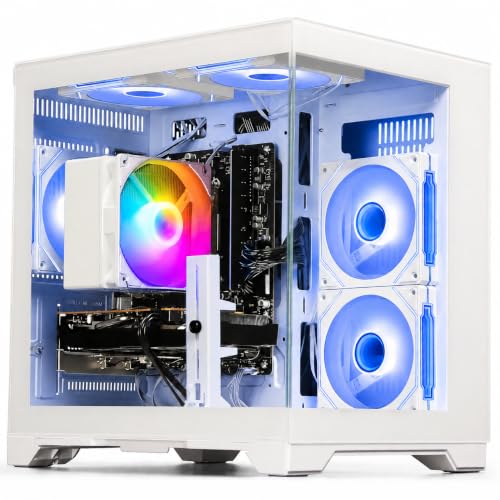
Entry Example — ZYNEEX Prebuilt Gaming Desktop PC
Strengths
- The RTX 3050 carries a hardware encoder, so the GPU can compress your broadcast while it renders the game
- A full 1TB NVMe SSD at this tier, rather than the cramped drives often fitted to entry towers
- 16GB of DDR4 is the honest minimum for gaming and broadcasting at the same time, and it is present
Trade-offs
- The RTX 3050 6GB is an entry graphics card; high-refresh 1440p gaming is beyond its brief
- DDR4 memory and the AM4 platform limit future CPU upgrade paths compared with DDR5 builds
- Six cores handle one-PC streaming well, but heavy multitasking during a broadcast will test it
| CPU | AMD Ryzen 5 5500 |
| GPU | GeForce RTX 3050 6GB |
| RAM | 16GB DDR4 3200MHz |
| Storage | 1TB NVMe SSD |
| Cooling | ARGB air cooling |
| Connectivity | Wi-Fi |
The ZYNEEX is the machine we point to when someone asks what a first streaming PC should actually look like. Its defining virtue is balance at the entry tier: a Ryzen 5 5500 with six cores, an RTX 3050 whose hardware encoder can carry the broadcast, 16GB of memory and a terabyte of fast storage. Nothing in that list is glamorous, and that is precisely the point. A first stream fails far more often because of a missing encoder, a full drive or starved memory than because the graphics card could not push ultra settings.
Set expectations correctly and it rewards you. At 1080p, popular streamed titles — shooters, MOBAs, sports games, indie hits — run smoothly while the encoder handles a 1080p60 or 720p60 broadcast. Demanding open-world releases ask for lowered settings, and the honest limitation is that this is a 1080p machine in both directions: it plays at 1080p and it streams at 1080p, and asking it to anchor a 1440p setup is asking the wrong question of the wrong tower.
The ARGB air cooling and standard tower format matter more than they appear to. A standard case means standard upgrades: a second storage drive, more memory, eventually a stronger graphics card when the channel outgrows the 3050. For a creator testing whether streaming is a hobby or a habit, that upgrade path is the difference between a starter machine and a dead end.
Best for: streamers whose needs match this specification honestly. / Not suited for: buyers asking it to do a tier above its job.
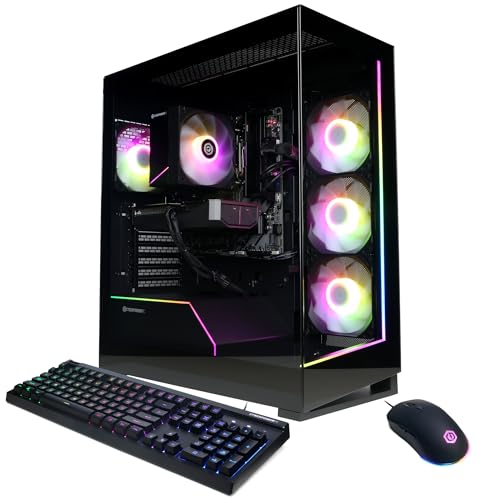
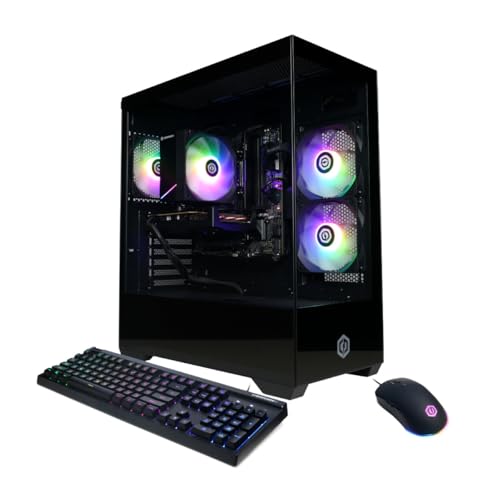
The Balanced Default — CyberPowerPC Gamer Master (GMA2900A3)
Strengths
- The RTX 5060 Ti’s hardware encoder is the centrepiece: clean broadcasts with minimal gaming performance cost
- The Ryzen 7 8700F offers eight cores, comfortable for one-PC streaming plus background apps
- 1TB of PCIe 4.0 storage is the right size for a game library plus local recordings
Trade-offs
- 16GB of RAM is adequate rather than generous for streamers who multitask heavily
- WiFi is provided, but serious streamers should still wire in over Ethernet
- The 8GB graphics memory suits 1080p and 1440p; 4K gaming is not this machine’s job
| CPU | AMD Ryzen 7 8700F |
| GPU | GeForce RTX 5060 Ti 8GB |
| RAM | 16GB DDR5 |
| Storage | 1TB PCIe 4.0 SSD |
| Connectivity | WiFi ready |
| OS | Windows 11 Home |
The CyberPowerPC Gamer Master GMA2900A3 is built around the pairing that defines the modern one-PC stream: an eight-core Ryzen 7 8700F and an RTX 5060 Ti. The graphics card renders the game and its dedicated encoder hardware compresses the broadcast, so a 1080p60 stream costs you almost nothing in frame rate. That division of labour is why a machine like this has replaced the old two-PC streaming rig for most creators.
In practice it is a 1080p high-refresh and 1440p-capable gaming machine that happens to stream beautifully. Sixteen gigabytes of DDR5 is the one specification to read with clear eyes: it is enough for gaming plus broadcasting software plus chat, and it becomes the first upgrade — a second matched stick or a larger kit — if you start editing video on the same box or running heavier production scenes. Storage, at a terabyte of PCIe 4.0 SSD, needs no apology.
CyberPowerPC’s Gamer Master line uses standard parts in a standard case, which keeps the upgrade story simple and the warranty story conventional. For a streamer who wants one machine, bought once, that plays well and broadcasts cleanly at the resolutions audiences actually watch, this is the configuration we would describe as the sensible centre of the market.
Best for: streamers whose needs match this specification honestly. / Not suited for: buyers asking it to do a tier above its job.

Streaming-Focused Example — KOTIN Gaming PC Desktop
Strengths
- Named for the job: the listing itself targets 1080p and 1440p gaming and streaming
- A 650W Gold-rated power supply is a step above the anonymous units in many prebuilts
- WiFi 6 and DLSS 4 support round out a current, well-judged specification
Trade-offs
- KOTIN is a smaller brand than the big US system builders; support is a step less proven
- 16GB of RAM, again, is the first thing a growing production will want to expand
- ARGB cooling looks the part, but check fan noise under load in a quiet streaming room
| CPU | AMD Ryzen 7 8700F |
| GPU | RTX 5060 Ti 8GB |
| RAM | 16GB DDR5 |
| Storage | 1TB SSD |
| Connectivity | WiFi 6 |
| PSU | 650W Gold |
| OS | Windows 11 Home |
The KOTIN tower reads like a specification written by someone who streams. Ryzen 7 8700F, RTX 5060 Ti, DDR5 memory, a terabyte of SSD storage — and then the details that listings often skip: a 650W Gold power supply and WiFi 6. The power supply matters because it is the component that decides whether a future graphics card upgrade is a ten-minute job or a rebuild, and a named Gold-rated unit at this level is a genuinely reassuring line on the spec sheet.
On the desk it is aimed squarely at the 1080p and 1440p streamer. The 5060 Ti’s encoder carries the broadcast, DLSS 4 support helps the game hold frame rates in demanding titles, and eight CPU cores keep production software, chat bots and browser sources from elbowing the game. Fan noise deserves one honest note: any air-cooled tower with ARGB fans should be positioned off the desk or treated with a sensible fan curve if your microphone sits close, because a quiet room makes small noises big.
Where the KOTIN asks for trust is brand depth. The big builders have longer support track records; KOTIN competes on specification per tier. If the spec sheet is what persuades you — and it is a persuasive sheet — register the warranty on day one, keep the packaging through the first month, and you have a streaming tower that needs nothing changed out of the box.
Best for: streamers whose needs match this specification honestly. / Not suited for: buyers asking it to do a tier above its job.

Best PSU Example — Skytech Gaming PC Shadow 5
Strengths
- A 750W Gold power supply is the strongest PSU specification in this guide’s mid-range set
- DDR5 6000 memory is fast, current and well matched to the Ryzen platform
- The RTX 5060 Ti and Ryzen 7 8700F pairing is the proven one-PC streaming combination
Trade-offs
- Wi-Fi 5 rather than WiFi 6 — a small step behind rivals, and wired Ethernet remains best anyway
- 16GB of RAM is the class standard and the class limitation at once
- Skytech’s configurations change over time; verify the exact spec on the listing before ordering
| CPU | AMD Ryzen 7 8700F |
| GPU | NVIDIA RTX 5060 Ti 8GB |
| RAM | 16GB DDR5 6000 |
| Storage | 1TB NVMe SSD |
| PSU | 750W Gold |
| Connectivity | Wi-Fi 5 |
| OS | Windows 11 |
The Skytech Shadow 5 makes its argument in the two places experienced builders look first: the power supply and the memory speed. A 750W Gold unit is more power supply than this configuration needs today, which is exactly the point — it is headroom for tomorrow’s graphics card, bought once, at the start. DDR5 running at 6000 is properly fast memory for the Ryzen 7 8700F, not the slower kits sometimes used to shave a specification’s cost.
The core pairing matches the best mid-range streaming logic in this guide: eight CPU cores for the game and the production stack, and an RTX 5060 Ti whose encoder produces a clean 1080p60 or 1440p broadcast while the game holds its frame rate. Skytech has built its name on exactly this class of machine, and the Shadow line’s formula — current parts, sensible PSU, no exotic proprietary traps — is why.
The one dated note is Wi-Fi 5 in a WiFi 6 world, and our honest advice neutralises it: streamers should run an Ethernet cable regardless, because no WiFi generation beats a wire for a broadcast your audience is watching live. Judged on the desk and on the wire, the Shadow 5 is a complete, upgrade-friendly streaming PC.
Best for: streamers whose needs match this specification honestly. / Not suited for: buyers asking it to do a tier above its job.

Intel Example — CyberPowerPC Gamer Xtreme (GXiVR8060A47)
Strengths
- Intel’s Core i5-14400F is a proven, efficient gaming processor with cores to spare for production apps
- The RTX 5060 brings current-generation encoding and DLSS support to a mid-range tier
- CyberPowerPC’s Gamer Xtreme line is a well-trodden path with standard, upgradeable parts
Trade-offs
- The RTX 5060’s 8GB of memory targets 1080p and lighter 1440p, not maximum settings at 1440p
- 16GB of RAM is the sensible minimum, not a luxury, for streaming multitasking
- No USB Type-C headline feature; check the port layout against your capture devices
| CPU | Intel Core i5-14400F |
| GPU | GeForce RTX 5060 8GB |
| RAM | 16GB DDR5 |
| Storage | 1TB PCIe 4.0 SSD |
| Connectivity | WiFi ready |
| OS | Windows 11 Home |
The Gamer Xtreme GXiVR8060A47 is the Intel-flavoured answer to the same question the AMD towers answer: what does a balanced mid-range streaming PC look like? A Core i5-14400F, an RTX 5060, 16GB of DDR5 and a terabyte of PCIe 4.0 storage. The processor’s mix of performance and efficiency cores suits a desk where the game, the broadcast and a half-dozen support apps all run for hours at a time.
The RTX 5060 is the component doing double duty, and its encoder is why this tier works at all. A few years ago a machine at this level would have asked the CPU to compress the broadcast and the frame rate would have paid for it. Now the stream rides on dedicated silicon, the game keeps its frames, and 1080p60 broadcasting — the format the overwhelming majority of viewers watch — looks clean and stable.
Read the limits plainly: this is a 1080p-first machine that can visit 1440p with settings judgment, and its memory is sized for today rather than for an editing career. Within those lines it is a complete, warrantied, ready-on-arrival streaming PC from one of the largest builders in the market, and for Intel loyalists it is the obvious shortlist entry.
Best for: streamers whose needs match this specification honestly. / Not suited for: buyers asking it to do a tier above its job.


No-Compromise Example — iBUYPOWER Element Gaming PC (EWA9N5702)
Strengths
- A Ryzen 9 7900X brings core counts that shrug at encoding, editing and multitasking simultaneously
- The RTX 5070 12GB is a genuine 1440p gaming card with a modern hardware encoder for the stream
- 32GB of DDR5 removes memory from the list of things a growing channel has to think about
Trade-offs
- This is flagship-tier money; a beginner channel will not use most of its headroom for a long time
- The included keyboard and mouse are starter peripherals most serious streamers replace
- Power and heat output demand a sensibly ventilated desk setup
| CPU | AMD Ryzen 9 7900X |
| GPU | NVIDIA GeForce RTX 5070 12GB |
| RAM | 32GB DDR5 |
| Storage | 1TB NVMe SSD |
| OS | Windows 11 Home |
| Extras | Gamer keyboard and mouse included |
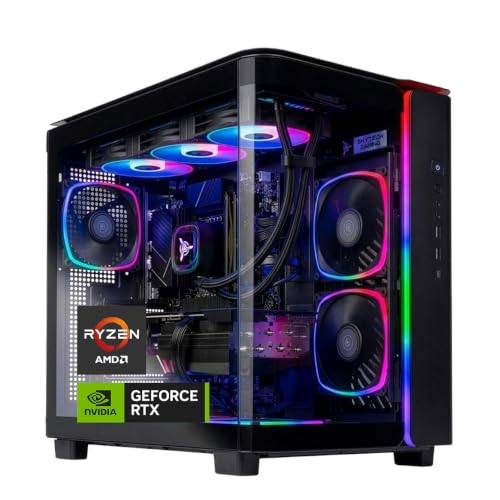
The iBUYPOWER Element is what a streaming PC looks like when the budget stops being the deciding factor. Twelve cores from the Ryzen 9 7900X mean the processor is never the bottleneck: game, broadcast software, chat tools, a browser full of dashboards and a recording running locally all at once still leave headroom. The RTX 5070 pairs that with high-refresh 1440p gaming and a current-generation hardware encoder, so the broadcast looks clean without taxing the game.
This is also the sensible anchor for a two-role life. Many established streamers edit their own videos, and timeline work in an editor is exactly where the core count and 32GB of memory pay rent between streams. The honest limitation is economic rather than technical: if your channel is three weeks old, this machine’s extra capability sits idle while a mid-range tower would have streamed the same games to the same audience. Buy it when growth is a plan with evidence behind it, not as a talisman.
iBUYPOWER’s support network and standard components soften the flagship risk. Everything inside is replaceable and upgradeable, the case is a conventional tower, and Windows 11 Home arrives ready. Treat the bundled keyboard and mouse as a way to start on day one rather than as your long-term setup, budget for a proper microphone before a second monitor, and this Element becomes the last streaming PC you need to think about for years.
Best for: streamers whose needs match this specification honestly. / Not suited for: buyers asking it to do a tier above its job.

What your viewers actually see: resolution and bitrate
Streamers obsess over the resolution they play at; viewers live with the resolution and bitrate they receive. Most platforms cap the bitrate a broadcast can use, and at those bitrates a clean 1080p60 stream — or even a well-encoded 720p60 stream for fast-moving games — often looks better to the audience than a higher resolution starved of data. This reframes the hardware question. You do not need a machine that plays at 4K to stream beautifully. You need a machine that plays well at the resolution you enjoy, encodes cleanly at the resolution your platform handles best, and never drops frames when the action peaks. Every tower recommended in this article is judged against that real target, not against a spec-sheet fantasy.
CPU cores: how many does a stream actually use?
A modern game wants several fast cores. Broadcasting software, a browser with dashboards, chat tooling, voice chat and alert overlays all want a share of what is left. Six cores is the workable floor for a one-PC stream; eight cores is the comfortable standard that every mid-range pick in this guide meets or exceeds. Beyond that, extra cores stop improving the live broadcast itself and start paying off in the work around it — faster video exports, smoother multitasking, local recording at high quality while you stream. That is why the flagship picks carry twelve cores without us claiming your stream needs them: the stream does not, but the creator workflow wrapped around the stream genuinely does.
Your internet connection is part of the PC
No streaming PC outperforms its upload connection. A stable wired upload with genuine headroom above your broadcast bitrate matters more than the difference between two graphics cards in this guide. Run an Ethernet cable to the streaming PC — not a range extender, not powerline adapters if a cable is possible, a cable — and test your sustained upload speed at the hours you plan to stream, because evening congestion is real. If your upload cannot sustain a 1080p60 bitrate, stream at 720p60 and let a good encoder make it look clean; viewers forgive resolution long before they forgive a buffering, stuttering broadcast. Budget for the cable and, if needed, a better router before budgeting for a bigger graphics card.
Prebuilt versus building your own
Building a PC yourself can save money and teaches you the machine you will depend on, but a streaming schedule is a production commitment, and production commitments change the calculation. A prebuilt arrives tested as a system, carries a single warranty for the whole tower, and can be streaming the evening it lands. Every pick in this guide is a prebuilt for that reason, and every one uses standard components, so the upgrade path a self-builder enjoys — new graphics card, more memory, bigger drive — stays open to you later. The prebuilt premium buys time and a warranty; the standard-parts requirement makes sure it does not also buy a dead end. Check any candidate for proprietary power supplies or cramped cases before ordering, because those are the two traps that close the upgrade door.
Software settings that matter as much as hardware
Hardware sets the ceiling; settings decide how close you get. Use the hardware encoder in your broadcasting software, not the software x264 default that many installs still ship with. Match your output frame rate to your gameplay — 60 frames per second for fast games, 30 for slow ones where bitrate per frame matters more. Turn on the setting that records locally while streaming if your storage allows it. Keep game overlays and instant-replay features from competing for the encoder. And update broadcasting software between streams, never immediately before one: the streamer who updates five minutes before going live is volunteering as a beta tester in front of an audience.
Troubleshooting the problems every streamer meets
Problem: the stream stutters but the game feels smooth. That pattern points at the encoder or the network, not the game — check that the hardware encoder is selected, lower the output resolution a step, and confirm the PC is wired, not on WiFi. Problem: dropped frames climb in the evening. That is your connection under neighbourhood load; reduce bitrate or shift your schedule. Problem: the whole PC stutters, game included. Look at memory pressure and background apps first, thermals second. Problem: viewers hear fans or an echo. Move the microphone closer, lower its gain, and route audio deliberately rather than through default devices. Nearly every streaming fault is in one of those four buckets, and each fix is cheaper than the hardware people usually buy to chase it.
Common Mistakes
Skipping step one and buying for a broadcast you will never send. Skipping step two and blaming the PC for an evening-congestion connection. Letting a benchmark choose the card before the encoder question is asked. Accepting 8GB of memory because the case looked good. Forgetting that the microphone budget outranks the second-monitor budget — a point the balance sheet in Streaming PC Pros And Cons makes from the other direction. And the meta-mistake: treating choosing as a single evening’s research rather than a method, which is how the traps in Best 1080p Gaming PC For Streaming Under $800 price brackets keep catching careful people.
Final Recommendation
Run the seven steps and most readers land where our examples cluster: an eight-core tower with a 5060 Ti-class card, 16GB of memory, a terabyte of storage and a power supply with a name. That is the CyberPowerPC Gamer Master (GMA2900A3) pattern, echoed by the KOTIN Gaming PC Desktop and the Skytech Gaming PC Shadow 5. Budget honestly and the ZYNEEX Prebuilt Gaming Desktop PC passes every pass/fail test at the entry tier. Outgrow the method’s assumptions — editing daily, archiving everything, multitasking hard — and the iBUYPOWER Element Gaming PC (EWA9N5702) is waiting. The method, more than any single machine, is the deliverable: keep it, and your second streaming PC will be even easier to choose than your first. Compare the conclusion with Streaming PC Review before you buy.
One PC or two? The honest answer for most streamers
The classic streaming setup used two computers: one to play, one to capture and broadcast. That architecture made sense when encoding demanded a whole processor. Hardware encoders changed the maths. A modern single PC with a current NVIDIA card streams and plays simultaneously with a performance cost small enough that most viewers will never perceive it, which is why the two-PC rig is now a specialist choice. It still has real advantages — total isolation of a crash, a dedicated machine for production, the ability to stream console gameplay from the same desk — but it doubles cost, desk space, audio complexity and points of failure. Our advice is consistent: start with one good PC, and add a second only when a specific problem, not an aesthetic, demands it.
Memory: the quiet minimum nobody should go below
Sixteen gigabytes of RAM is the floor for a streaming PC, and it is a floor, not a target. The game takes its share, Windows takes its share, and broadcasting software with browser sources, overlays and a dozen tabs takes more than most people expect. At 8GB — still found on budget towers wearing gaming clothes — the machine starts swapping to storage mid-stream, and viewers see the stutter even if you do not. Thirty-two gigabytes is where the worry ends: editing timelines, heavier production scenes and big multitasking all breathe. When you compare two otherwise similar towers, memory is one of the specifications worth paying to settle permanently, because it is also one of the cheapest to upgrade later if the motherboard has free slots.
Audio: where small money beats big money
Ask regular viewers what makes them leave a stream and audio quality outranks video quality almost every time. A modest USB microphone, positioned close to your mouth with the gain set sensibly, improves a broadcast more than any component upgrade in this article. The PC’s role is to give that microphone clean USB power, enough ports, and a quiet enough case that fans do not become part of the show. Position the tower off the desk or under it, keep microphone gain low and distance short, and use the noise suppression built into modern broadcasting software and graphics drivers. Spend on the microphone before the second monitor; your audience’s ears will notice first.
Prebuilt versus building your own
Building a PC yourself can save money and teaches you the machine you will depend on, but a streaming schedule is a production commitment, and production commitments change the calculation. A prebuilt arrives tested as a system, carries a single warranty for the whole tower, and can be streaming the evening it lands. Every pick in this guide is a prebuilt for that reason, and every one uses standard components, so the upgrade path a self-builder enjoys — new graphics card, more memory, bigger drive — stays open to you later. The prebuilt premium buys time and a warranty; the standard-parts requirement makes sure it does not also buy a dead end. Check any candidate for proprietary power supplies or cramped cases before ordering, because those are the two traps that close the upgrade door.
Software settings that matter as much as hardware
Hardware sets the ceiling; settings decide how close you get. Use the hardware encoder in your broadcasting software, not the software x264 default that many installs still ship with. Match your output frame rate to your gameplay — 60 frames per second for fast games, 30 for slow ones where bitrate per frame matters more. Turn on the setting that records locally while streaming if your storage allows it. Keep game overlays and instant-replay features from competing for the encoder. And update broadcasting software between streams, never immediately before one: the streamer who updates five minutes before going live is volunteering as a beta tester in front of an audience.
Capture cards and console streaming
A streaming PC has a second career available: broadcasting console gameplay. A capture card takes the console’s output and hands it to the PC, which does everything else — overlays, alerts, encoding, recording — exactly as it does for PC games. This role is far lighter than playing and streaming at once, which is why even an entry tower can be an excellent console-streaming hub, and why an older gaming PC retired from play often becomes the dedicated broadcast box. If console streaming is part of your plan, check the tower has the USB ports or expansion room your capture device needs, and remember that the encoder requirement does not change: the hardware encoder is still what makes the broadcast clean.
One PC or two? The honest answer for most streamers
The classic streaming setup used two computers: one to play, one to capture and broadcast. That architecture made sense when encoding demanded a whole processor. Hardware encoders changed the maths. A modern single PC with a current NVIDIA card streams and plays simultaneously with a performance cost small enough that most viewers will never perceive it, which is why the two-PC rig is now a specialist choice. It still has real advantages — total isolation of a crash, a dedicated machine for production, the ability to stream console gameplay from the same desk — but it doubles cost, desk space, audio complexity and points of failure. Our advice is consistent: start with one good PC, and add a second only when a specific problem, not an aesthetic, demands it.
Frequently Asked Questions
What is the first thing to decide when choosing a streaming PC?
Your broadcast format — platform, output resolution and frame rate — because it caps how much machine you actually need.
How do I know if a tower can stream and game at once?
Check for a modern NVIDIA graphics card with a hardware encoder, at least six CPU cores, and 16GB of RAM. All three, not two of three.
Is an Intel or AMD processor better for streaming?
Either. Both camps offer six and eight-core parts that stream comfortably when paired with a hardware encoder; choose on the whole specification and the power supply.
What upload speed do I need?
A sustained, wired upload comfortably above your broadcast bitrate, tested at the hours you plan to stream — headroom matters more than the headline number.
Can a cheap tower with integrated graphics stream?
It can broadcast light content and console capture, but it cannot play and stream modern games on one machine. That job needs a discrete card with an encoder.
Should I choose a laptop instead?
A desktop gives more performance per tier, better cooling for long streams, quieter operation near a microphone and real upgrade paths. Choose a laptop only when portability is the point.
When should I choose the premium option?
When editing, archiving and heavy multitasking are already part of your week — not as insurance for a channel that has not started yet.