Disclosure: As an Amazon Associate, reviewstook.com earns from qualifying purchases. Links on this page are affiliate links at no extra cost to you; prices and availability change frequently, so check Amazon for the latest.
How to Choose a Gaming Desktop: The Complete Picture
Learning how to choose a gaming desktop is mostly learning what to ignore. Ignore the lighting, ignore the adjectives, ignore the photograph of the tower looking heroic against a dark background — and read six lines of specification in a fixed order until the machine tells you the truth about itself. This guide teaches that order, then applies it to six verified systems so you can watch the method work on real hardware. By the end, the question of how to choose a gaming desktop will feel less like shopping and more like auditing, which is exactly the shift that saves buyers money.
The method exists because the market needs it. For every honest midrange tower on sale, there is a machine with previous-generation graphics wearing gaming clothes, a renewed office PC with a gaming label, or — the purest form of the trick — a tower with no discrete graphics card at all, sold on the strength of its fans’ colours. None of these survive a calm read of their own spec sheets. The six systems recommended here all passed the audit this guide teaches: current-generation GPU, balanced CPU, DDR5 memory, NVMe storage, and a builder willing to print the details. Our companion Gaming Desktop Buying Guide applies the same method as a pure shopping list.
Work through the steps in order. Each one eliminates a class of mistake, and by the final step the field of every marketplace narrows to a handful of machines genuinely worth your money — several of which are reviewed in detail below.
Where to Buy
- Best Overall: MSI Codex R2 Gaming Desktop (RTX 5060) — Check on Amazon
- Best Value: CyberPowerPC Gamer Master (RTX 5060 Ti) — Check on Amazon
- Best Balanced Pick: Skytech Gaming PC Desktop (Ryzen 7 7700) — Check on Amazon
- Best for Online Play: ASUS ROG G700 (2025) Gaming Desktop — Check on Amazon
- Best Premium: iBUYPOWER Element Gaming PC (Ryzen 9 7900X) — Check on Amazon
- Best Budget Door-Opener: Alienware Gaming Desktop (RTX 5060 Ti) — Check on Amazon
These are the six teaching examples for the audit method — each one passed all six steps, and each demonstrates a different lesson. All six listings were verified against the pick sheet maintained for reviewstook.com on 2026-11-20; listings change hands and variants over time, so the spec boxes in the reviews below are the reference to check against at checkout.
In this guide
Quick Picks
- Best Overall — MSI Codex R2 Gaming Desktop (RTX 5060): The careful 5060: Gold PSU, WiFi 6E and VR readiness at the value tier.
- Best Value — CyberPowerPC Gamer Master (RTX 5060 Ti): Value-engineered 5060 Ti performance on standard, upgrade-friendly parts.
- Best Balanced Pick — Skytech Gaming PC Desktop (Ryzen 7 7700): The 5060 Ti done properly — 32GB of DDR5 and a named Gold PSU included.
- Best for Online Play — ASUS ROG G700 (2025) Gaming Desktop: The design-led 5070 from the ROG stable, with cooling culture to match.
- Best Premium — iBUYPOWER Element Gaming PC (Ryzen 9 7900X): Twelve cores and a 5070 — the gaming rig that is also a serious workstation.
- Best Budget Door-Opener — Alienware Gaming Desktop (RTX 5060 Ti): Midrange frames with premium networking, lighting and support.
How These Picks Were Chosen
The six systems below were selected as teaching examples as much as recommendations: together they cover the RTX 5060, 5060 Ti and 5070 classes, Intel and AMD processors, and builders from value brands to Alienware, with every specification verified against listing data on 2026-11-20. Each one demonstrates a different lesson from the method — the MSI Codex R2 shows above-class details at the value tier, the Skytech shows a spec sheet that fixed its rivals’ weakness, the Alienware 5060 Ti shows what polish costs and buys. Deliberately excluded, and discussed only as warnings, are the category’s traps: integrated-graphics towers marketed for gaming, builds centred on RX 590 or GT 1030-era graphics, and renewed office desktops. A machine that cannot survive the audit does not get a link here; it gets a paragraph in the mistakes section.
Detailed Reviews
Best Overall — MSI Codex R2 Gaming Desktop (RTX 5060), NVIDIA GeForce RTX 5060
Strengths
- 80+ Gold PSU and WiFi 6E are above-class details at the RTX 5060 tier
- 14400F plus RTX 5060 is the proven high-refresh 1080p pairing
- VR-Ready, so the machine can grow into a headset later
Trade-offs
- 16GB of RAM is the standard midrange caveat
- RTX 5060 means 1440p requires settings discipline in newer titles
- No image was available in the verified sheet for this model
| CPU | Intel Core i5-14400F |
|---|---|
| GPU | NVIDIA GeForce RTX 5060 |
| RAM | 16GB DDR5 |
| Storage | 1TB SSD |
| PSU | 80+ Gold |
| Extras | ARGB air cooling, WiFi 6E, VR-Ready |
| Model | A14NVL5-454US |
The Codex R2 is the RTX 5060 tier executed with unusual care. MSI specifies an 80+ Gold power supply and WiFi 6E — two lines that cheaper 5060 systems quietly downgrade — and pairs the card with the i5-14400F, the sensible Intel gaming chip of its generation. The result is a high-refresh 1080p machine with the platform manners of a more expensive one: current memory standard, fast wireless, VR readiness, and a PSU you do not need to apologise for when upgrade day comes. Its limits are the tier’s limits. Sixteen gigabytes of RAM serves now and pinches later; the RTX 5060 asks for settings discipline at 1440p in the newest games. Within those honest boundaries, this is the 5060 system we would hand to a friend who asked for the sensible one.
Approached as a choosing exercise, the MSI Codex R2 Gaming Desktop (RTX 5060) is a study in which specification does the talking. Start with the NVIDIA GeForce RTX 5060: that is your resolution and settings ceiling. Move to the Intel Core i5-14400F: that is your frame-rate floor in busy scenes. Finish with 16GB DDR5: that is your multitasking comfort for the next several years. A buyer who learns to read those three lines in that order can evaluate this machine — and every rival on this page — in about thirty seconds.
Best for: buyers who want 80+ Gold PSU and WiFi 6E are above-class details at the RTX 5060 tier / Not suited for: buyers who cannot accept that 16GB of RAM is the standard midrange caveat
Check on Amazon — see the latest price on Amazon, and verify the live configuration against the spec box above before you order.
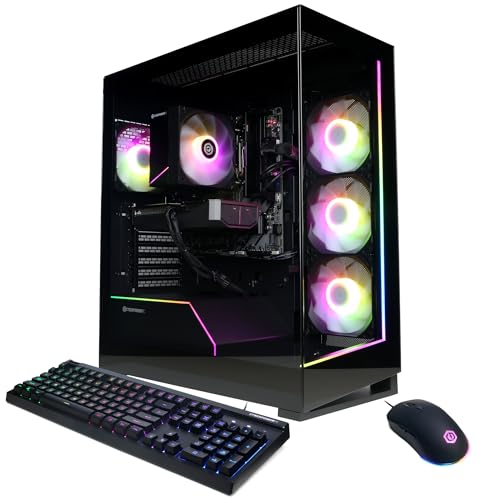
Best Value — CyberPowerPC Gamer Master (RTX 5060 Ti), GeForce RTX 5060 Ti 8GB
Strengths
- Ryzen 7 8700F gives an eight-core foundation at a midrange system price
- RTX 5060 Ti 8GB is well matched to 1080p high-refresh and 1440p play
- Standard-parts construction makes future upgrades simple and cheap
Trade-offs
- 8GB of VRAM is the ceiling to plan around for future texture-heavy games
- 16GB of system RAM again — fine now, first upgrade later
- Case styling leans gamer-aggressive, which not every desk wants
| CPU | AMD Ryzen 7 8700F |
|---|---|
| GPU | GeForce RTX 5060 Ti 8GB |
| RAM | 16GB DDR5 |
| Storage | 1TB PCIe 4.0 SSD |
| Extras | WiFi Ready |
| OS | Windows 11 Home |
| Model | GMA2900A3 |
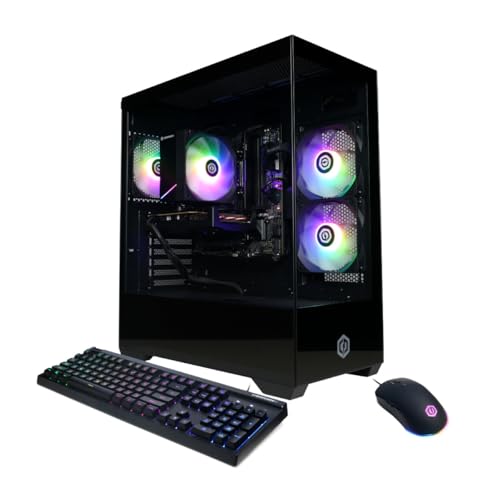
The Gamer Master GMA2900A3 is the value-engineered way into the 5060 Ti tier. CyberPowerPC builds from standard parts, which sounds unglamorous until the day you want to change something — then it becomes the entire point. The Ryzen 7 8700F brings eight cores that will outlast the GPU, the PCIe 4.0 SSD keeps load times modern, and the whole system sits on DDR5 so memory upgrades stay relevant. In games it trades blows with any 5060 Ti system: excellent at 1080p, capable at 1440p with DLSS, and honest about its 8GB frame buffer in the heaviest texture loads. The limitations are the familiar midrange pair — RAM and storage capacities that serve today and invite a modest upgrade tomorrow. As a platform to grow with, few machines in the sheet make the maths work this cleanly.
Approached as a choosing exercise, the CyberPowerPC Gamer Master (RTX 5060 Ti) is a study in which specification does the talking. Start with the GeForce RTX 5060 Ti 8GB: that is your resolution and settings ceiling. Move to the AMD Ryzen 7 8700F: that is your frame-rate floor in busy scenes. Finish with 16GB DDR5: that is your multitasking comfort for the next several years. A buyer who learns to read those three lines in that order can evaluate this machine — and every rival on this page — in about thirty seconds.
Best for: buyers who want ryzen 7 8700F gives an eight-core foundation at a midrange system price / Not suited for: buyers who cannot accept that 8GB of VRAM is the ceiling to plan around for future texture-heavy games
Check on Amazon — see the latest price on Amazon, and verify the live configuration against the spec box above before you order.
Best Balanced Pick — Skytech Gaming PC Desktop (Ryzen 7 7700), GeForce RTX 5060 Ti 8GB
Strengths
- 32GB of DDR5 5600 fixes the one weakness most 5060 Ti systems share
- A named 650W Gold PSU is a reassuring line on a midrange spec sheet
- Ryzen 7 7700 is efficient and cool-running as well as fast
Trade-offs
- Wi-Fi 5 is a generation behind the Wi-Fi 6E/7 systems elsewhere in the sheet
- 8GB VRAM ceiling applies here as on every 5060 Ti
- Skytech’s support network is smaller than Dell’s or ASUS’s
| CPU | AMD Ryzen 7 7700 |
|---|---|
| GPU | GeForce RTX 5060 Ti 8GB |
| RAM | 32GB DDR5 5600 |
| Storage | 1TB NVMe SSD |
| PSU | 650W Gold |
| Extras | Wi-Fi 5, Crystal Series |
| OS | Windows 11 |
The Skytech Crystal build reads like it was specified by someone who read the reviews of its rivals. Where most 5060 Ti systems ship 16GB of RAM, this one ships 32GB of DDR5 5600 — the upgrade everyone else makes you buy later is simply included. The power supply gets the same treatment: a named 650W Gold unit instead of an anonymous box, which matters for upgrade confidence and long-term reliability. The Ryzen 7 7700 is the efficient eight-core choice, sipping power while feeding the GPU properly. The compromises live in connectivity — Wi-Fi 5 in a sheet full of Wi-Fi 6E and 7 machines — and in the 5060 Ti’s universal 8GB frame buffer. For a buyer whose router is close, whose games are current rather than next-generation, and who wants the midrange tier done properly the first time, this is arguably the best-balanced 5060 Ti configuration here.
Approached as a choosing exercise, the Skytech Gaming PC Desktop (Ryzen 7 7700) is a study in which specification does the talking. Start with the GeForce RTX 5060 Ti 8GB: that is your resolution and settings ceiling. Move to the AMD Ryzen 7 7700: that is your frame-rate floor in busy scenes. Finish with 32GB DDR5 5600: that is your multitasking comfort for the next several years. A buyer who learns to read those three lines in that order can evaluate this machine — and every rival on this page — in about thirty seconds.
Best for: buyers who want 32GB of DDR5 5600 fixes the one weakness most 5060 Ti systems share / Not suited for: buyers who cannot accept that wi-Fi 5 is a generation behind the Wi-Fi 6E/7 systems elsewhere in the sheet
Check on Amazon — see the latest price on Amazon, and verify the live configuration against the spec box above before you order.

Best for Online Play — ASUS ROG G700 (2025) Gaming Desktop, NVIDIA GeForce RTX 5070
Strengths
- ROG engineering shows in cooling and acoustics — ASUS builds serious gaming hardware
- Core Ultra 7 plus RTX 5070 is the current mainstream performance pairing
- A design-led tower that looks like gaming hardware, not office equipment
Trade-offs
- 16GB of RAM where two rival 5070 systems in this sheet ship 32GB
- Storage is a single 1TB drive
- ROG branding carries a price premium over white-label equivalents
| CPU | Intel Core Ultra 7 265F |
|---|---|
| GPU | NVIDIA GeForce RTX 5070 |
| RAM | 16GB DDR5 |
| Storage | 1TB M.2 NVMe PCIe 4 SSD |
| Extras | ROG design and cooling heritage |
| OS | Windows 11 Home |
| Model | G700TF-DS774 |
The ROG G700 is what happens when a company that sells gaming motherboards and laptops by the container-load decides to build the whole tower. The Core Ultra 7 265F and RTX 5070 pairing is the same heart as the Alienware 5070 system, but the character differs: ROG’s cooling culture and gaming-first design language run through the machine, and owners who already live in the ASUS ecosystem will feel at home in its software. Performance expectations are identical to the tier — excellent 1440p, credible 4K in lighter games, strong creative capability. The spec sheet’s soft spot is memory: 16GB where the MSI and Alienware 5070 builds ship 32GB, and that difference will show up first in heavy multitasking and future titles. It is a cheap fix later, but it should be a knowing purchase now. For ROG loyalists and design-conscious buyers, this is the 5070 machine with the strongest identity.
Approached as a choosing exercise, the ASUS ROG G700 (2025) Gaming Desktop is a study in which specification does the talking. Start with the NVIDIA GeForce RTX 5070: that is your resolution and settings ceiling. Move to the Intel Core Ultra 7 265F: that is your frame-rate floor in busy scenes. Finish with 16GB DDR5: that is your multitasking comfort for the next several years. A buyer who learns to read those three lines in that order can evaluate this machine — and every rival on this page — in about thirty seconds.
Best for: buyers who want rOG engineering shows in cooling and acoustics — ASUS builds serious gaming hardware / Not suited for: buyers who cannot accept that 16GB of RAM where two rival 5070 systems in this sheet ship 32GB
Check on Amazon — see the latest price on Amazon, and verify the live configuration against the spec box above before you order.

Best Premium — iBUYPOWER Element Gaming PC (Ryzen 9 7900X), NVIDIA GeForce RTX 5070 12GB
Strengths
- Ryzen 9 7900X brings twelve cores — the multitasking and productivity ceiling here is very high
- RTX 5070 12GB as listed suits 1440p high settings with room to spare
- Keyboard and mouse in the box makes it a genuinely complete unboxing
Trade-offs
- The 7900X runs warm and rewards good case airflow and a tidy desk setup
- 1TB of storage again — plan a second drive for a big library
- Creator-class CPU is more than pure gaming strictly requires
| CPU | AMD Ryzen 9 7900X |
|---|---|
| GPU | NVIDIA GeForce RTX 5070 12GB |
| RAM | 32GB DDR5 |
| Storage | 1TB NVMe SSD |
| Extras | Gaming keyboard and mouse included |
| OS | Windows 11 Home |
| Model | EWA9N5702 |
The Element EWA9N5702 is the pick for the buyer whose desktop is also a workstation. Twelve Zen cores from the Ryzen 9 7900X change what the machine is for: game development, 3D work, heavy photo and video pipelines, virtual machines, streaming with software encoding — the workloads that make lesser CPUs feel their age all sit comfortably here, while the RTX 5070 12GB handles the gaming side at 1440p without drama. The included keyboard and mouse sound like a footnote until you price a full setup from scratch. Honest limitations: the 7900X is a warm, power-hungry chip that wants airflow respect, and a pure gamer who never touches a creative workload is paying for cores that will mostly watch. If your desk life mixes play and production, though, this is the most versatile machine in the sheet.
Approached as a choosing exercise, the iBUYPOWER Element Gaming PC (Ryzen 9 7900X) is a study in which specification does the talking. Start with the NVIDIA GeForce RTX 5070 12GB: that is your resolution and settings ceiling. Move to the AMD Ryzen 9 7900X: that is your frame-rate floor in busy scenes. Finish with 32GB DDR5: that is your multitasking comfort for the next several years. A buyer who learns to read those three lines in that order can evaluate this machine — and every rival on this page — in about thirty seconds.
Best for: buyers who want ryzen 9 7900X brings twelve cores — the multitasking and productivity ceiling here is very high / Not suited for: buyers who cannot accept that the 7900X runs warm and rewards good case airflow and a tidy desk setup
Check on Amazon — see the latest price on Amazon, and verify the live configuration against the spec box above before you order.

Best Budget Door-Opener — Alienware Gaming Desktop (RTX 5060 Ti), NVIDIA GeForce RTX 5060 Ti
Strengths
- A Core Ultra 7 in a 5060 Ti system is generous CPU headroom for the GPU class
- Best networking in its tier: Wi-Fi 7 BE200 plus Killer 2.5Gb Ethernet
- AlienFX lighting and Aurora design for buyers who care how the desk looks
Trade-offs
- You pay Alienware money for midrange GPU performance — the maths must be justified by the extras
- 16GB of RAM is the configuration’s soft spot
- Proprietary design can complicate some upgrades
| CPU | Intel Core Ultra 7 265F |
|---|---|
| GPU | NVIDIA GeForce RTX 5060 Ti |
| RAM | 16GB DDR5 |
| Storage | 1TB SSD |
| Networking | Killer 2.5Gb Ethernet, Wi-Fi 7 BE200, Bluetooth |
| Extras | AlienFX lighting, KB216 keyboard |
| Model | ACT1250 |
This Aurora variant asks a fair question: what is a midrange gaming PC actually missing? Usually not frames — the RTX 5060 Ti handles its resolutions well — but polish, networking and support. Alienware answers with a Core Ultra 7 that will never bottleneck the card, Wi-Fi 7 and Killer Ethernet that embarrass most rivals at this tier, AlienFX lighting, and Dell’s warranty operation. The counterargument is arithmetic: systems in this cluster with the same GPU class cost less, and the 16GB of RAM is the one spec that reads midrange on an otherwise premium sheet. Buy this machine if the whole ownership experience matters to you — the unboxing, the software, the support call that gets answered. Buy a CyberPowerPC or MSI instead if every unit of currency must become frames. Both answers are defensible; this page’s job is to make sure you know which buyer you are.
Approached as a choosing exercise, the Alienware Gaming Desktop (RTX 5060 Ti) is a study in which specification does the talking. Start with the NVIDIA GeForce RTX 5060 Ti: that is your resolution and settings ceiling. Move to the Intel Core Ultra 7 265F: that is your frame-rate floor in busy scenes. Finish with 16GB DDR5: that is your multitasking comfort for the next several years. A buyer who learns to read those three lines in that order can evaluate this machine — and every rival on this page — in about thirty seconds.
Best for: buyers who want a Core Ultra 7 in a 5060 Ti system is generous CPU headroom for the GPU class / Not suited for: buyers who cannot accept that you pay Alienware money for midrange GPU performance — the maths must be justified by the extras
Check on Amazon — see the latest price on Amazon, and verify the live configuration against the spec box above before you order.
Comparison Table
| System | CPU | GPU | RAM | Storage |
|---|---|---|---|---|
| MSI Codex R2 Gaming Desktop (RTX 5060) | Intel Core i5-14400F | NVIDIA GeForce RTX 5060 | 16GB DDR5 | 1TB SSD |
| CyberPowerPC Gamer Master (RTX 5060 Ti) | AMD Ryzen 7 8700F | GeForce RTX 5060 Ti 8GB | 16GB DDR5 | 1TB PCIe 4.0 SSD |
| Skytech Gaming PC Desktop (Ryzen 7 7700) | AMD Ryzen 7 7700 | GeForce RTX 5060 Ti 8GB | 32GB DDR5 5600 | 1TB NVMe SSD |
| ASUS ROG G700 (2025) Gaming Desktop | Intel Core Ultra 7 265F | NVIDIA GeForce RTX 5070 | 16GB DDR5 | 1TB M.2 NVMe PCIe 4 SSD |
| iBUYPOWER Element Gaming PC (Ryzen 9 7900X) | AMD Ryzen 9 7900X | NVIDIA GeForce RTX 5070 12GB | 32GB DDR5 | 1TB NVMe SSD |
| Alienware Gaming Desktop (RTX 5060 Ti) | Intel Core Ultra 7 265F | NVIDIA GeForce RTX 5060 Ti | 16GB DDR5 | 1TB SSD |
Use the columns, not the rows: GPU for the resolution you can honestly run, RAM for the multitasking you actually do, storage for the library you actually own. Every cell above is drawn from verified listing data, not brochure copy.
Step One to Three: GPU Class, CPU Balance, Memory Standard
Step one: name the GPU’s class and generation before anything else. Current classes behave predictably — RTX 5060 for high-refresh 1080p, 5060 Ti for 1440p value, 5070 for high-settings 1440p, 5080 for 4K — and generation matters as much as class, because newer architectures bring better upscaling and efficiency. A previous-generation card with a proud name is the classic trap; step one exists to spring it. Step two: check the CPU can feed the card. Six to eight current cores is the gaming window; the systems here run from the i5-14400F to the Ryzen 9 7900X, and the right choice depends on whether the machine also works for a living. Step three: confirm DDR5 memory and at least 16GB of it, with 32GB preferred. DDR4 in a new machine is yesterday’s platform at tomorrow’s prices.
Notice what these steps have in common: each checks a relationship, not a number in isolation. GPU against your monitor, CPU against your GPU, memory against your multitasking. Buyers who shop numbers get sold numbers; buyers who shop relationships get machines that feel right for years. The detailed reviews below grade each pick explicitly on these three relationships so you can see the grading done, not just described.
Step Four to Six: Storage, Power and the Builder’s Honesty
Step four: storage. One terabyte of NVMe is the floor for a modern library; check the interface (PCIe 4.0 on several picks here) and treat anything under 512GB, or any spinning hard drive presented as primary storage, as disqualifying. Step five: the power supply. You are looking for a named wattage and an efficiency rating — the Codex R2’s 80+ Gold unit and the Skytech’s named 650W Gold supply are what honesty looks like in print. An unnamed PSU is not automatically bad, but a builder who hides it is telling you where the budget went. Step six: judge the builder. Support network, warranty handling, standard versus proprietary parts — Alienware sells the strongest support story here, the standard-parts builders sell the easiest upgrade story. Choose which story your ownership will need.
Run all six steps on any listing, in order, and write the answers down. The writing matters: a spec sheet on paper cannot dazzle you with photography. When a listing refuses to answer a step — no PSU details, vague GPU naming like ‘RTX graphics’, memory described without its standard — the refusal is the answer. Our Gaming Desktop Review applies this audit forensically to one machine; the traps named in this guide’s margins are what the audit catches in the wild.
Your First Evening With the New Desktop: A Setup Walkthrough
Setup begins before the power button. Place the tower where air moves — clearance on every vented side, off carpet if the bottom intakes exist — and remove all internal transit packing. Connect the display cable to the graphics card’s outputs, which sit lower on the back panel than the motherboard’s; this single detail decides whether your first game runs on the GPU you paid for. Connect Ethernet if you possibly can for the first night: the update queue is long and wired speed halves it.
Power on and take Windows setup slowly, declining optional extras. Then: Windows Update until empty, restart, repeat; the latest GPU driver direct from NVIDIA or AMD; your monitor’s refresh rate raised in display settings from its likely 60Hz default; one familiar game installed and played as a baseline before any tweaking. Finish by creating a restore point and noting your model number somewhere safe — future you, mid-upgrade or mid-support-call, will be grateful. If anything misbehaves tonight, the troubleshooting notes below cover the usual suspects.
Problem: games run at low frame rates despite the new GPU -> the display cable is almost certainly in the motherboard port, or the monitor is still set to 60Hz; check both before anything else.
Problem: Wi-Fi speeds are far below your plan -> confirm the antenna is attached if the system uses external aerials, and test a wired connection to separate a PC problem from a router problem.
Practice Audits: Three Listings, Three Verdicts
Run the method on the extremes of this cluster’s wider sheet and watch it work. First, a tower whose listing leads with RGB fans and names its graphics as integrated: step one ends the audit — no discrete GPU, no gaming desktop, whatever the headline claims; it appears in this guide’s sources as a prose-only warning for exactly that reason. Second, a build centred on an RX 590: step one again — the card was respectable in its era, but its era closed years ago, and DDR4-era support specs confirm the story. Third, any pick from the reviews above: step one places it in a current class, steps two and three confirm balance and platform, and the audit ends in a shortlist instead of a rejection. Three listings, three verdicts, one method.
The deeper lesson is that the audit scales beyond this category. Laptops, handhelds, even consoles’ rival claims all yield to the same habit: identify the component that does the work, check its generation, check its support act, and refuse to be hurried. Sellers optimise for the skim; the audit is simply the refusal to skim, written down as six steps. Keep the steps and you keep the advantage permanently, in every future hardware market you enter.
Matching the Machine to the Monitor You Own
Every recommendation in this guide quietly assumes a display, so make yours explicit before choosing. A 1080p high-refresh monitor is the natural partner of the 5060-class picks; a 1440p panel is where the 5060 Ti and 5070 systems justify themselves; 4K belongs to flagships reviewed elsewhere in this cluster. If a monitor upgrade is planned within the year, buy the desktop for the future panel — GPUs are harder to swap than screens in most budgets. And if the current panel is old and small, consider that splitting the budget — a mainstream desktop plus a modern monitor — produces a bigger visible improvement than a flagship desktop strangling on a decade-old display. The system is the desk, whole.
Practising the Audit on This Page’s Own Picks
Methods stick when they are practised, so run the six steps against the picks above and watch each machine pass differently. The Codex R2 passes step five — the power supply — more loudly than its rivals, printing an 80+ Gold unit where the tier usually whispers. The Skytech passes step three with emphasis: 32GB of DDR5 in a class where 16GB is the norm. The Alienware 5060 Ti passes step six, the builder test, with its networking and support, while conceding ground on step-three capacity. The iBUYPOWER passes step two so emphatically — twelve cores — that the audit itself asks the follow-up question: does your workload need what this machine is proud of? A pick that passes every step identically to its rivals would be a commodity; these pass like individuals, which is why choosing remains a human decision after the audit ends.
Notice, too, what the audit does not grade: taste. Case design, lighting, brand affinity — the audit deliberately ignores them until the end, then lets them decide between machines that have all passed. That ordering is the whole philosophy. Taste applied first produces beautiful mistakes; taste applied last produces a machine you love that also happens to be right. Keep the order and the method will keep you.
When to Stop Choosing and Start Playing
There is a failure mode this guide has not yet named: choosing forever. The market refreshes constantly, every shortlist has a successor rumoured, and the perfect configuration is always one announcement away. Meanwhile the games sit unplayed. The audit’s purpose is to end deliberation, not extend it — when a machine passes all six steps, fits the monitor, and its trade-offs do not describe your life, the choosing is done, and further research has a negative return measured in evenings. Set yourself the discipline buyers of every mature market learn: research in a bounded window, decide, and let the next generation be someone else’s dilemma.
The consoling truth is that the current generation makes stopping easy. The platform floor — DDR5, NVMe storage, current GPUs across every pick in this cluster — means a well-chosen machine today is not a compromise you will spend years apologising for. It is a foundation with an upgrade path, bought at a moment when the technology is settled and the drivers are mature. Choose with the audit, stop with confidence, and spend the saved deliberation where it was always meant to go: on the games themselves.
The Ten-Minute Version for Impatient Buyers
Everything in this guide compresses into ten minutes, for buyers whose patience is the scarcest resource in the purchase. Minute one: write down your monitor’s resolution and refresh rate. Minutes two and three: pick the GPU class that resolution demands — 5060 for 1080p, 5060 Ti for value 1440p, 5070 for full 1440p — and refuse to look at any other class. Minutes four and five: filter for DDR5 and at least 16GB of it, NVMe storage of 1TB or more. Minute six: confirm the CPU is a current six-to-eight-core part whose name you recognise from this cluster’s picks. Minute seven: glance at the power supply line and the networking line; named and current is a pass. Minutes eight and nine: check the model fingerprint against a review — this cluster has done the checking for its six picks. Minute ten: buy, and close the tabs.
What the ten-minute version sacrifices is optimisation — the fine grading between near-equal machines that the full method performs. What it preserves is everything that prevents disaster: the right class, a current platform, no traps. Most buying catastrophes are not failures of optimisation; they are failures of those basics, usually purchased in a hurry under a countdown timer. A method that survives being rushed is worth more than a perfect method that requires a free weekend, which is why this page teaches both speeds of the same audit.
And if the ten minutes reveal that no current listing passes — the class is out of stock, the fingerprints do not match, the variants have drifted — the method’s final instruction is patience. A week of waiting beats five years of the wrong machine, every single time.
A Note on Second-Hand and Refurbished Desktops
The audit applies to used machines with two amendments. First, add a step zero: verify the machine exists as described, in person or through a protected marketplace, because the used market’s fraud rate dwarfs the new market’s. Second, discount every specification by its age in a way the new market never asks: storage health, fan wear, thermal paste and battery-free but dust-rich years all hide inside a spec sheet that reads identically to a new one. A used current-platform system from a careful owner can be the best value in this entire cluster’s subject matter — the DDR5 machines reviewed here will be exactly those bargains in a few years — but the discount must price the unknowns, and the unknowns are larger than the discount in most listings.
Refurbished and renewed machines from manufacturers occupy the defensible middle: warranty-backed, inspected, and honestly labelled — the opposite of the rebadged office stock this guide warns against, whose sin is the gaming costume rather than the renewal itself. Read the label precisely. ‘Renewed’ describing a business desktop sold as a business desktop is a fair product; the same machine under a gaming headline is the trap, and the audit’s first step exists to catch the costume, not the computer.
The Method, Pocket-Sized
Carry the audit as a pocket list: GPU class and generation; CPU balance; DDR5 and capacity; NVMe size; named power supply; a builder you can reach. Six checks, in that order, against any listing, anywhere. Everything else in this long guide is commentary on those six lines — the stories, the worked examples and the traps all exist to make the six lines unforgettable, because a method you remember at the moment of purchase is worth a shelf of methods you admired and forgot.
Common Mistakes
Choosing by case aesthetics first
The tower is furniture, but it is a computer first. Every pick here looks respectable; none was chosen for its looks. Reverse the order — audit the hardware, then let appearance break ties between machines that pass.
Assuming a bigger brand premium means more performance
The Alienware in this set costs more than same-GPU rivals and delivers its value in networking, design and support — real things, but not frames. Buy premiums knowingly, for what they actually contain.
Skipping the variant check at checkout
Marketplace pages bundle several configurations under one listing. The model numbers printed throughout this guide exist so you can confirm the exact machine in your cart is the machine you audited.
Buying yesterday’s platform to save a little
DDR4 systems and older GPUs look like bargains until upgrade day reveals the dead end. The current-platform premium is small; the platform’s lifespan is the product.
Final Recommendation
How to choose a gaming desktop, compressed to a sentence: read the GPU first, demand balance everywhere else, and let no listing rush you past its own spec sheet. The six machines reviewed here each pass that audit in a different dialect — MSI’s careful value, Skytech’s corrected spec sheet, ASUS’s design confidence, iBUYPOWER’s creator muscle, Alienware’s polish, CyberPowerPC’s upgrade-friendly value. Any of them, matched to the right monitor and workload, is a purchase you can defend in three years.
For the pure shopping version of this method, revisit Gaming Desktop Buying Guide; for the format’s honest costs and benefits, Gaming Desktop Pros And Cons argues both sides. And when a listing elsewhere tries the old tricks — integrated graphics in a gaming tower, office hardware in gaming dress — you will now see the spec sheet confess before the price tag tempts you. That is the whole skill, and it is yours permanently.
Frequently Asked Questions
What is the very first thing to check on a gaming desktop listing?
The exact GPU model and its memory, in writing. Not ‘RTX graphics’, not a series logo — the full model name. That single line sets the machine’s resolution class, and every other judgement follows from it.
How do I know if the CPU is good enough for the GPU?
Match generations and tiers: current six-to-eight-core processors pair cleanly with the 5060-to-5070 classes. Every system in this guide is balanced by construction. Imbalance looks like a flagship card beside an ageing budget CPU — a pairing honest builders avoid.
Is 16GB of RAM enough in a new gaming desktop?
Enough for gaming today, yes; comfortable for the machine’s whole life, not quite. Treat 16GB systems as one cheap upgrade away from complete, or choose a 32GB configuration like the Skytech here and never think about it again.
What power supply should a midrange gaming desktop have?
A named unit around 650W with an 80+ Gold rating gives headroom for the GPU classes in this guide and for one upgrade cycle. The rating matters less than the naming: builders who print the PSU spec are builders with nothing to hide.
Should I choose standard parts or a bespoke design like Alienware?
Standard parts (CyberPowerPC, MSI, iBUYPOWER here) make upgrades and repairs simplest. Bespoke designs sell integration, looks and support. Decide which ownership story fits your skills and patience; both are legitimate, and the price difference is the cost of the story.
How can I spot a fake gaming PC?
Three confessions give them away: ‘integrated graphics’ anywhere in the spec, graphics models from two or more generations ago presented as current, and office-PC branding (business model names, ‘renewed’ labels) under a gaming headline. Walk away from all three.
When is the best time to buy?
When you have done the audit and the configuration matches — model-level deals rotate constantly, and a verified spec at a fair tier price beats a dramatic discount on the wrong machine every time. Check the live listing through the links here and confirm the variant before paying.