To move Lightroom Classic to a new computer or drive, copy the catalog folder and your photo folders to the new location, then open the catalog and point Lightroom at the moved photos. The catalog stores edits and metadata, while the photos live in separate folders, so both must move and be reconnected.
Before You Move Anything
- Close Lightroom and make a fresh catalog backup on a separate drive.
- Check that the new drive has enough free space for the photos, the catalog and the cache files.
- Find your catalog location through the catalog settings in preferences, and note where your photo folders are.
- Format the new drive in a way your system supports, and prefer a fast internal or high speed external drive for the working catalog.
In this guide
Move the Catalog and Photos
- Copy the entire catalog folder, which contains the .lrcat file and cache files, to the new location. Copy rather than move, so the original stays until you confirm the result.
- Copy the photo folders to the new drive. Keeping the same folder structure makes relinking much easier.
- Open the new .lrcat file by double clicking it, or through File and Open Catalog in Lightroom.
- Look at the Folders panel. Folders with a question mark are not linked to the files.
- Right click each missing top level folder and choose Find Missing Folder, then select its new location.
- Once the top folders are relinked, subfolders usually reconnect on their own.
Alternative: Use Export as Catalog
If you want to move only part of your library, select the photos, choose File, then Export as Catalog. Include the negatives and cache files if you want the files copied with it. The result is a new catalog and photo folder you can open on another machine.
| Method | Best for |
|---|---|
| Copy whole catalog and folders | Moving everything to a new machine or drive |
| Export as Catalog | Moving a project or a subset |
| Move folders inside Lightroom | Rearranging photos on the same system |
Check the Result
- Confirm that no folders show a question mark.
- Open several photos in the Develop module and check that edits appear.
- Rebuild thumbnails if they look missing or slow.
- Set up automatic catalog backups to a drive other than the working one.
- Keep the old copy for a while before you delete it.
If you use presets, plug-ins or other custom settings, copy them across or sync them as well. Sign in to your Adobe account on the new computer and reinstall Lightroom Classic before opening the catalog.
Choosing the Right Destination Drive
The drive you move to affects performance, reliability and how easy the library is to maintain. For the working catalog and any photos you edit often, a fast internal drive or a fast external drive connected through a good-quality cable is generally the most comfortable option. Slower drives can make browsing and loading previews feel sluggish, especially with large libraries.
Capacity matters as much as speed. Your library will grow, so choose a drive with comfortable room beyond today’s needs. Also consider the drive type. Solid-state drives are quick and have no moving parts, while traditional hard drives usually offer more space for the same cost level and are often used for archives. Many photographers use a fast drive for current work and a larger one for older projects.
- Check that the file system format works with the computers you will use, since some formats are read-only or unsupported on certain systems.
- Prefer a direct connection to the computer over a hub when possible.
- Avoid using a drive that you also use as the only backup.
- Consider a drive with a good reputation for reliability, and read the maker’s specifications.
Decide where the catalog and photos will live before copying, so you only do the move once.
Understanding Previews, Caches and Supporting Files
A Lightroom library includes more than the catalog file and the photos. The catalog folder usually holds preview files, which store the image thumbnails and larger previews that Lightroom displays. These are not essential to keep, because they can be rebuilt, but copying them saves time and avoids a slow regeneration. A separate camera raw cache stores data to speed up editing, and it can be set in preferences. Sidecar files may exist alongside raw photos if you have chosen to write metadata to XMP files.
It is useful to know which files are valuable and which are replaceable. The catalog and the original photos are irreplaceable. Previews and caches are replaceable. Presets, profiles and plug-in settings are in other locations and should be copied separately if you want to keep them.
- Back up the catalog and originals first.
- Decide whether to copy previews or rebuild them after the move.
- Check your cache size and location in preferences, and place it on a fast drive if you can.
- Note the location of custom presets and templates, and copy them across.
Menu locations change between versions, so confirm the details in the maker’s help documentation.
A Step-by-Step Test Before You Delete the Old Copy
The biggest risk in a migration is deleting the original copy too early. Treat the first period after the move as a testing phase. Keep the old catalog and photos untouched until you have confirmed that everything works as expected on the new setup.
Begin by opening the new catalog and checking that the folder structure matches the old one. Spot-check a variety of photos, including recent imports, old projects and images with heavy edits. Open them in the Develop module and confirm that adjustments, crops and metadata are present. Test exporting a few photos to be sure the files are readable.
- Search for a known keyword or rating to confirm metadata moved correctly.
- Check collections and smart collections for expected contents.
- Look for any photos marked as missing or offline.
- Run the new setup for a week or two, importing and editing as usual.
Only after this trial period should you consider removing the old library. Even then, consider keeping it on an offline drive for a while longer as an extra layer of protection.
Common Migration Problems and Fixes
Most migration issues are simple to fix once you recognize them. If many folders show as missing, the new drive may have a different letter or name, or the folder structure may have changed. Relink the top-level folder and check whether subfolders reconnect. If photos open but edits are missing, you may be viewing the wrong catalog, so check the catalog name in the title or preferences.
Slow performance after the move often comes from rebuilding previews or caches, a slow connection or a nearly full drive. Give the software time to finish background tasks, and check the drive’s free space and connection. If Lightroom cannot open the catalog, it might be on a drive format or location that it does not support, such as certain network locations or read-only storage.
- Missing folders: use the find missing folder option on the highest-level folder.
- Missing edits: confirm that you opened the copied catalog, not a new empty one.
- Slow loading: check the drive speed and let previews rebuild.
- Duplicate files: avoid importing the moved photos again, which creates copies.
Keep notes of the steps you took, which helps if you need to retrace them.
Building a Safer Long-Term Setup
A migration is a good time to improve how your library is protected. A common approach is to keep multiple copies of your photos and catalog in different places. One copy is the working library, another is a local backup on a separate drive, and another is stored off-site or in cloud storage. The exact method depends on your budget and comfort, but the principle is the same: a single drive failure should never destroy the only copy of your work.
Set up automatic catalog backups through Lightroom’s catalog settings, and place them on a different drive from the working catalog. Schedule regular backups of the photos using a tool that suits your operating system. Test restoring from a backup occasionally, since an untested backup may not work when needed.
- Keep a consistent folder structure, such as year and event, to make future moves easier.
- Avoid renaming or moving folders outside Lightroom unless you plan to relink them.
- Label drives clearly, and keep a simple record of what each one holds.
- Replace drives that show errors or are very old, according to the maker’s guidance.
A little organization now will make the next migration much smoother.
Plan the Folder Layout Before You Copy
The easiest moves happen when the destination already has a tidy structure. Before copying a single file, decide where the catalog will live and where the photographs will sit. Many photographers keep one top-level folder for all images, with year and shoot folders inside, and a separate folder for catalogs and backups. A clear layout means that Lightroom can find everything with a single reconnect step.
Write a short sketch on paper. Note the current location of your catalog, your main photo folder and any extra folders that hold older work or imports from other drives. Those scattered folders are what trip people up, because the catalog remembers each one separately.
If your library is spread over several places, consider gathering it into one parent folder first, using Lightroom itself to drag folders in the panel rather than the file manager. That way the catalog updates its records as the files move and nothing goes missing along the way.
Gathering Everything You Need to Carry Over
A catalog is not the whole story. Several supporting items live in other places and are easy to forget until the new setup looks different from the old one. Make a list and tick each item off.
- The catalog file itself and its companion files in the same folder.
- Every photo folder, including drives you rarely connect.
- Develop presets, export presets and any custom templates.
- Watermarks, keyword lists and metadata presets.
- Third-party plug-ins and their licence details.
- Your Adobe account sign-in details.
Presets and templates are stored in a user folder separate from the catalog. Lightroom Classic offers a setting for storing presets with the catalog, which makes carrying them across simpler. Check the current menu options in your version, since the exact wording can change between releases.
Check Free Space and Drive Format First
Few things stall a move like running out of room halfway through. Add up the size of your photo folders and the catalog, then compare the total with the free space on the destination. Leave a healthy margin, because the catalog grows over time and you will keep adding photos.
Drive format matters too. A drive set up for one type of computer may not accept writes from another, or may have file size limits that cause errors with large files. If you plan to use the same external drive on both Windows and Mac machines, look for a format that both can read and write, and understand that formatting erases what is already stored. Back up anything important before you reformat.
Finally, check the connection. A slow cable or a hub shared with several devices can stretch a copy from hours into a whole day. Plug directly into a fast port, and avoid putting the computer to sleep during the transfer.
Comparing Your Main Options at a Glance
Several routes can get the same library onto new hardware. This table summarizes how they differ so you can pick one that matches your situation.
| Method | Best for | Watch out for |
|---|---|---|
| Copy catalog and photos by hand | Whole library to a new computer | Reconnecting folders afterwards |
| Move folders inside Lightroom | Reorganizing into one parent folder | Slow on very large libraries |
| Export as catalog | A single project or part of a library | Smaller catalog lacks your wider history |
| Cloud-based sync | Light access across devices | Storage limits and different feature set |
Keeping the Old Copy Safe Until You Are Sure
The golden rule of any move is to treat the old copy as untouchable until the new one has proved itself. Copy rather than cut, so the original stays exactly where it is. Disk space costs far less than the sinking feeling of a half-finished transfer with no fallback.
Keep the original catalog and photos for at least a few weeks. Use the new setup for real work during that time: edit, export, search by keyword and open old shoots from different years. If something odd appears, you can compare against the original and understand what changed.
- Copy the catalog folder and photo folders to the new location.
- Open the new catalog and confirm that the photo count matches.
- Work normally for a period of days or weeks.
- Make a fresh backup of the new setup.
- Only then retire or reuse the old drive.
Repairing Missing Folders and Question Marks
After a move, you may see question marks beside folders or a prompt that photos cannot be found. That simply means the catalog still points at the old location. The fix is to tell Lightroom where the folder lives now.
Reconnecting a single folder
Right-click the folder with the question mark in the panel, choose the option to find the missing folder, and browse to its new place. Lightroom then updates the paths for everything inside.
Reconnecting a single photo
If only some images show a warning, click the exclamation icon in the grid cell and locate the file. You can often let Lightroom search nearby for others with matching names.
Work from the top of the folder tree downward. Reconnecting the parent folder usually restores its children in one step, which is far quicker than fixing hundreds of individual files.
Handling Backups and Version Differences
Catalog backups made by Lightroom are separate from your regular copy and live in their own folder. Decide where they should go on the new setup, and make sure that location has space and is not on the same drive as the catalog itself. A backup stored beside the original does little if that drive fails.
If the new computer runs a newer version of the software, the first time you open an older catalog it may offer to upgrade it. Upgrading usually creates a new catalog file and leaves the old one intact, but follow the on-screen instructions and the maker’s documentation. Once upgraded, an older version of the program may no longer open it.
Make a habit of backing up before every major change, whether that is a software update or a drive swap. A few minutes spent copying a catalog can save weeks of rebuilding if something goes wrong.
Settings Worth Re-Checking on the New Machine
Preferences do not always travel with the catalog, so open the settings screens and compare them with your old setup. Look at the file handling options, the default import locations, the cache sizes and the external editor choices. These small details control how the program behaves day to day.
- Set the default catalog so Lightroom opens the right one at launch.
- Choose a location for the cache with plenty of free space, ideally on a fast drive.
- Confirm the metadata writing option fits your habits.
- Reinstall plug-ins and sign in again where needed.
- Check that the colour settings and monitor profile match your old display.
Your new screen may display colours differently from the old one, so a fresh profile could be useful if you edit for print. Consult the display maker’s instructions for how to set that up.
Building a Routine to Avoid Another Big Move
Once the library is settled, set up habits that make the next change painless. Keep all photos under a single parent folder, store catalogs in a dedicated place and schedule regular backups to at least two separate locations. Name folders in a consistent way so you can find shoots by date.
It also helps to keep a simple text note describing where everything lives, which version of the software you use and when you last backed up. Future you, or anyone helping you, will be grateful. A well-ordered library moves easily, while a messy one multiplies every problem described above.
Common Slip-Ups Worth Avoiding
Most failed moves come down to a handful of habits. Dragging photo folders around in the file manager while the catalog is closed is the classic one, since the catalog then loses track of them. Another is opening two copies of the same catalog and editing in both, which leaves you with two different histories. Finally, many people delete the old drive the same afternoon, before the new setup has been checked. Slow down, follow your list and keep the original until you are completely satisfied.


Products Worth a Look
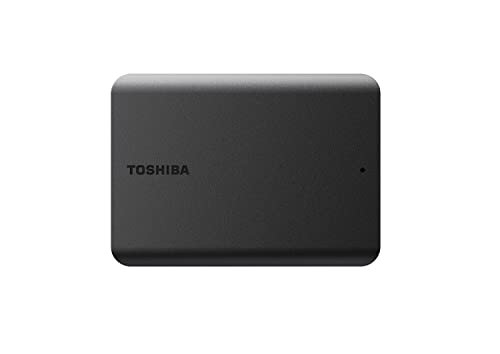
As an Amazon Associate, Reviews Took earns from qualifying purchases. These picks come from our guide: 6 Best Photo Backup Drives for Photographers (2026).
-
Toshiba Canvio Basics 4TB Portable Hard Drive
 Toshiba Canvio Basics 4TB Portable External Hard Drive USB 3.0
-
Seagate Portable 5TB External Hard Drive
 Seagate Portable 5TB External Hard Drive HDD – USB 3.0 for PC
-
LaCie Rugged USB-C 5TB
 LaCie Rugged USB-C
Going Deeper: Judging What Really Matters
This section takes a deeper look at the criteria look at migrating a Lightroom catalog and photo library, expanding on the guidance already given above without changing any of its recommendations. It is written for a photographer moving to a new computer or drive who wants dependable results rather than lucky ones, and it focuses on judgement, habit, and preparation, the three things that most often separate a smooth experience of catalog migration from a frustrating one. Read it alongside the earlier sections and apply the parts that match the way you actually work.
Keep notes as you compare, even rough ones on your phone, because memory flatters whichever option you tried last and written observations keep the comparison fair. Pay close attention to handling and feel, because small frustrations that seem minor in a shop or on a desk tend to grow when you are tired, rushed, or working in poor light. Think about the whole system around the choice, including bags, cards, batteries, software, and the way files or images move afterwards, since migrating a Lightroom catalog and photo library rarely fails on one headline feature and often fails on a weak link nearby. Test in conditions that resemble your real work as closely as you can, with the same light, the same pace, and the same pressure, rather than relying on calm tests at home.
Consider how the decision ages over time, because a choice that still suits you after a season of regular use is worth far more than one that only impresses during the first weekend. Judge each option against the work you really do week after week, not the rare edge case you imagine once a year, since migrating a Lightroom catalog and photo library rewards tools and habits that fit your ordinary routine. Keep notes as you compare, even rough ones on your phone, because memory flatters whichever option you tried last and written observations keep the comparison fair. Be honest about your current skill level and how much time you can give to learning, as the best route through catalog migration is the one you will actually practise until it becomes second nature.
Keep notes as you compare, even rough ones on your phone, because memory flatters whichever option you tried last and written observations keep the comparison fair. Separate needs from preferences early, and let the needs decide first, because preferences can be indulged later while a missing need will keep resurfacing on every job. Start by writing down what success actually looks like for migrating a Lightroom catalog and photo library, in plain language, before you look at any gear list or setting menu, because a clear outcome makes every later decision about catalog migration far easier to judge. Test in conditions that resemble your real work as closely as you can, with the same light, the same pace, and the same pressure, rather than relying on calm tests at home.
In Practice: Building a Routine That Holds Up
This section takes a working routine look at migrating a Lightroom catalog and photo library, expanding on the guidance already given above without changing any of its recommendations. It is written for a photographer moving to a new computer or drive who wants dependable results rather than lucky ones, and it focuses on judgement, habit, and preparation, the three things that most often separate a smooth experience of catalog migration from a frustrating one. Read it alongside the earlier sections and apply the parts that match the way you actually work.
Share your working method with a trusted peer and invite honest comment, because another pair of eyes will spot habits around catalog migration that you have stopped noticing yourself. Practise the awkward parts deliberately at home, where failure costs nothing, instead of meeting them for the first time in front of a client or in unrepeatable light. Review your results soon after each session while the details are fresh, and write down one thing to keep and one thing to change, which compounds into real progress over a season. In day to day practice, migrating a Lightroom catalog and photo library is less about a single dramatic moment and more about a chain of small, calm decisions made in the right order, each one protecting the next.
Slow down at the start of a session and speed will follow naturally later, since most mistakes in migrating a Lightroom catalog and photo library are planted in the first hurried minutes and only discovered at the end. Keep your kit and your files predictable, with the same layout, the same naming, and the same order of operations, so your attention stays on the subject rather than the process. Finish each session by resetting everything to a known good state, ready for next time, which removes a whole class of avoidable errors before they can happen. Build a simple repeatable routine around catalog migration and follow it until it feels boring, because boring routines are the ones that still hold together when a shoot becomes hectic.
Share your working method with a trusted peer and invite honest comment, because another pair of eyes will spot habits around catalog migration that you have stopped noticing yourself. Review your results soon after each session while the details are fresh, and write down one thing to keep and one thing to change, which compounds into real progress over a season. Build a simple repeatable routine around catalog migration and follow it until it feels boring, because boring routines are the ones that still hold together when a shoot becomes hectic. In day to day practice, migrating a Lightroom catalog and photo library is less about a single dramatic moment and more about a chain of small, calm decisions made in the right order, each one protecting the next.
Setup and Preparation, Step by Step in Spirit
This section takes a preparation look at migrating a Lightroom catalog and photo library, expanding on the guidance already given above without changing any of its recommendations. It is written for a photographer moving to a new computer or drive who wants dependable results rather than lucky ones, and it focuses on judgement, habit, and preparation, the three things that most often separate a smooth experience of catalog migration from a frustrating one. Read it alongside the earlier sections and apply the parts that match the way you actually work.
Keep a small reserve kit of the consumables and spares that migrating a Lightroom catalog and photo library quietly depends on, stored in one known place, so a missing item never cancels a session. If you work with an assistant or a second shooter, walk through the setup together once, agreeing who handles what, which prevents duplicated effort and missed steps on the day. Decide in advance where the results of each session will live and how they will be backed up, rather than improvising storage decisions when you are tired at the end of a long day. Make a short written checklist tailored to your own way of working and keep it where you will actually see it, since even experienced photographers skip steps when they are distracted.
Photograph your own setup with your phone once it works well, as a visual reference you can rebuild from quickly after travel, storage, or a change of location. Before the first real use, set aside an unhurried block of time to work through setup for catalog migration step by step, checking each stage before moving on rather than rushing to the end. Keep a small reserve kit of the consumables and spares that migrating a Lightroom catalog and photo library quietly depends on, stored in one known place, so a missing item never cancels a session. Label things plainly and consistently while everything is new and fresh in your mind, because labels written months later tend to rely on guesses that turn out to be wrong.
If you work with an assistant or a second shooter, walk through the setup together once, agreeing who handles what, which prevents duplicated effort and missed steps on the day. Make a short written checklist tailored to your own way of working and keep it where you will actually see it, since even experienced photographers skip steps when they are distracted. Decide in advance where the results of each session will live and how they will be backed up, rather than improvising storage decisions when you are tired at the end of a long day. Label things plainly and consistently while everything is new and fresh in your mind, because labels written months later tend to rely on guesses that turn out to be wrong.
Care, Troubleshooting and Staying Out of Trouble
This section takes a care and troubleshooting look at migrating a Lightroom catalog and photo library, expanding on the guidance already given above without changing any of its recommendations. It is written for a photographer moving to a new computer or drive who wants dependable results rather than lucky ones, and it focuses on judgement, habit, and preparation, the three things that most often separate a smooth experience of catalog migration from a frustrating one. Read it alongside the earlier sections and apply the parts that match the way you actually work.
Regular gentle care keeps everything involved in migrating a Lightroom catalog and photo library working longer and more predictably, and it costs far less time than the troubleshooting that neglect eventually forces on you. Protect your work with a backup habit that does not depend on remembering, ideally automatic or tied to a fixed point in your routine, and test restoring from it occasionally. Carry a minimal field repair kit suited to your work, and learn the few fixes you can safely do on location, while leaving internal repairs to qualified service. Keep a simple log of problems, fixes, and service visits connected with catalog migration; patterns in that log often reveal a cause that single incidents hide.
Keep a simple log of problems, fixes, and service visits connected with catalog migration; patterns in that log often reveal a cause that single incidents hide. Protect your work with a backup habit that does not depend on remembering, ideally automatic or tied to a fixed point in your routine, and test restoring from it occasionally. Carry a minimal field repair kit suited to your work, and learn the few fixes you can safely do on location, while leaving internal repairs to qualified service. Retire or replace worn items before they fail mid job; with migrating a Lightroom catalog and photo library, a planned replacement on a quiet day is always cheaper than an emergency one on a busy day.
Keep a simple log of problems, fixes, and service visits connected with catalog migration; patterns in that log often reveal a cause that single incidents hide. Store gear in a dry, stable place away from extremes of heat and cold, and let cold equipment warm up gradually in a sealed bag after winter work to keep condensation off delicate surfaces. Inspect cables, mounts, contacts, and moving parts under good light every few weeks, because wear announces itself quietly long before it becomes an outright failure. If results suddenly change for the worse, ask what else changed at the same time, such as a software update, a new accessory, or a different working environment, before blaming the core gear.
Choosing Between the Options Already Covered Above
This section takes a head to head reflection look at migrating a Lightroom catalog and photo library, expanding on the guidance already given above without changing any of its recommendations. It is written for a photographer moving to a new computer or drive who wants dependable results rather than lucky ones, and it focuses on judgement, habit, and preparation, the three things that most often separate a smooth experience of catalog migration from a frustrating one. Read it alongside the earlier sections and apply the parts that match the way you actually work.
If you remain torn after honest testing, choose the option that better supports the work you want more of in the future, not only the work you happen to have today. Try to handle or trial both options in the same conditions on the same day if you can, because back to back experience reveals handling differences that separate tests blur together. If your work regularly pushes into difficult light, fast movement, or unforgiving deadlines, the more capable option discussed above usually earns its keep through consistency rather than spectacle. For a photographer moving to a new computer or drive, resale and upgrade paths matter too; popular, well supported options tend to hold their usefulness longer and are easier to pass on when your needs change.
Whichever option you choose, commit to it for a fair stretch of real work before judging, since early impressions of migrating a Lightroom catalog and photo library are often about unfamiliarity rather than genuine weakness. Remember that the guide above describes strengths and honest limitations for each pick, so reread the limitation lines with your own work in mind rather than skimming to the verdict. If your work regularly pushes into difficult light, fast movement, or unforgiving deadlines, the more capable option discussed above usually earns its keep through consistency rather than spectacle. Comparing the options already covered in this guide, the honest differences show up less in headline specifications and more in how each one behaves across a long, ordinary day of work.
Consider the lenses, accessories, software, and skills you already own, since an option that builds on what you have can outperform a theoretically better option that forces a fresh start. Comparing the options already covered in this guide, the honest differences show up less in headline specifications and more in how each one behaves across a long, ordinary day of work. Try to handle or trial both options in the same conditions on the same day if you can, because back to back experience reveals handling differences that separate tests blur together. If your priority is the lightest, simplest setup for everyday use, lean toward the option in this guide that asks the least of you in setup and carrying, and accept its stated trade offs.
Common Mistakes and How to Avoid Them
This section takes a mistakes to avoid look at migrating a Lightroom catalog and photo library, expanding on the guidance already given above without changing any of its recommendations. It is written for a photographer moving to a new computer or drive who wants dependable results rather than lucky ones, and it focuses on judgement, habit, and preparation, the three things that most often separate a smooth experience of catalog migration from a frustrating one. Read it alongside the earlier sections and apply the parts that match the way you actually work.
A common mistake with migrating a Lightroom catalog and photo library is changing several things at once and then being unable to tell which change helped, which hurt, and which made no difference at all. Another frequent error is preparing for the impressive scenario while neglecting the ordinary one, even though ordinary sessions are where reputations and portfolios are actually built. Copying another photographer's exact settings or choices rarely transfers cleanly, since their subjects, light, clients, and taste differ from yours in ways that matter. Overcomplicating the process early on is understandable but unhelpful; master the simple version of catalog migration first, then add refinements one at a time as real needs appear.
Many photographers underestimate how much environment matters, blaming equipment for results that were really shaped by light, weather, timing, or a rushed brief. Overcomplicating the process early on is understandable but unhelpful; master the simple version of catalog migration first, then add refinements one at a time as real needs appear. Letting storage, batteries, or media run to the edge is a mundane mistake with dramatic consequences, so build generous margins into every plan. Copying another photographer's exact settings or choices rarely transfers cleanly, since their subjects, light, clients, and taste differ from yours in ways that matter.
Another frequent error is preparing for the impressive scenario while neglecting the ordinary one, even though ordinary sessions are where reputations and portfolios are actually built. Treating the first attempt as the final attempt leads to frustration; expect an iteration or two, build time for it, and migrating a Lightroom catalog and photo library becomes a craft rather than a gamble. A common mistake with migrating a Lightroom catalog and photo library is changing several things at once and then being unable to tell which change helped, which hurt, and which made no difference at all. Overcomplicating the process early on is understandable but unhelpful; master the simple version of catalog migration first, then add refinements one at a time as real needs appear.
Practise the awkward parts deliberately at home, where failure costs nothing, instead of meeting them for the first time in front of a client or in unrepeatable light. Neglecting communication is a recurring theme wherever other people are involved, and a short confirming message beforehand prevents a remarkable number of problems on the day. Start by writing down what success actually looks like for migrating a Lightroom catalog and photo library, in plain language, before you look at any gear list or setting menu, because a clear outcome makes every later decision about catalog migration far easier to judge. If you work with an assistant or a second shooter, walk through the setup together once, agreeing who handles what, which prevents duplicated effort and missed steps on the day.
More Questions, Answered in Depth
The questions below extend the main frequently asked questions above and tackle the points readers most often raise after their first attempt at migrating a Lightroom catalog and photo library. Each answer stays practical and avoids promising results that depend on conditions, subjects, or budgets that this guide cannot know.
How long does it take to get comfortable with this?
Most people feel noticeably more confident after a handful of deliberate sessions spread over a few weeks, especially if they review results after each one and change only one thing at a time. Comfort with catalog migration grows fastest when practice is regular and modest rather than rare and intense.
What should I do first if results disappoint me?
Go back to the last point where results were good and rebuild from there, checking the basics in order before touching advanced settings. With migrating a Lightroom catalog and photo library, disappointment usually traces back to one small skipped step rather than a fundamental lack of ability or equipment.
How do I know whether to upgrade or keep practising?
If you can name a specific, recurring limitation that practice and technique cannot remove, an upgrade may be justified. If the limitation appears only occasionally or in tests rather than real work, more time with your current approach to catalog migration is usually the wiser investment.
Can beginners follow the approach in this guide?
Yes, provided they work through it in order and resist skipping the preparation stages. The fundamentals behind migrating a Lightroom catalog and photo library are learnable, and beginners often progress quickly precisely because they build good habits before bad ones take hold.
How should I adapt this to a tight schedule?
Shorten the session, not the standards: keep the checklist, keep the review, and reduce only the volume of work attempted. A smaller amount of careful work on catalog migration teaches more and fails less than a rushed full attempt.
What is the single habit that helps most?
Consistent review after every session, without exception, because it turns experience into knowledge instead of repetition. Photographers who review improve steadily at migrating a Lightroom catalog and photo library; those who only shoot tend to plateau at the level of their earliest habits.
How do I handle difficult conditions on the day?
Fall back on the simplest version of your routine that you trust completely, and prioritise a solid result over an ambitious one. Difficult conditions reward the calm, practised side of catalog migration and punish improvisation with unfamiliar methods.
When should I ask for professional help or service?
Ask when a problem repeats after you have checked power, connections, settings, and media, or whenever safety or a paid commitment is at stake. Forcing faulty equipment through an important job connected with migrating a Lightroom catalog and photo library risks far more than an early service visit costs.
FAQ
Can I run the catalog from an external drive?
Yes, if it is a reasonably fast local drive. Avoid network storage for the working catalog because it can cause errors.
What if file paths change between Windows and Mac?
Lightroom can relink them through the Find Missing Folder step. Keep the folder names unchanged to reduce manual work.
Do I need to keep the old computer until I finish?
It is wise to keep it, or at least its drive, until you have tested the new setup thoroughly. That way you can return to the original if something goes wrong.
Can I move only part of my library?
Yes. You can export selected photos as a catalog, or move folders within Lightroom so the catalog tracks the change. Choose the method that fits the size and purpose of the move.
Will my presets and plug-ins come with the catalog?
Usually not. Presets, profiles and plug-ins are stored in separate locations, so copy or reinstall them on the new computer. Check the maker's help pages for the folders used by your version.
Why does Lightroom say the catalog is locked?
A lock file may remain if Lightroom closed unexpectedly, or the catalog may be open in another session. Close the application, check for other users and consult the maker's help guidance.
Should I move the catalog and the photos at the same time?
You can do both in one project, but handle them carefully and in order. Copy the catalog and photos, open the catalog, then relink. Doing both together is simpler if the folder structure stays the same.
How long does a migration take?
It depends on the library size, the drive speeds and the connection. Large libraries can take hours, so plan the work for a time when you do not need the computer.
The Short Version
Back up first, copy the catalog folder and the photo folders to the new place, and open the catalog there. Relink any missing top level folders, check a few edits, and keep the old copy until you are sure everything works.