Disclosure: As an Amazon Associate, reviewstook.com earns from qualifying purchases. Links to Amazon on this page are affiliate links; they cost you nothing extra.
A desk setup can have a powerful PC, a great monitor and an expensive chair and still feel unpleasant to use. Two quiet culprits are lighting and cables. Bad lighting causes glare on the screen, squinting and tired eyes. A rat’s nest of cables traps dust, gets snagged by feet and chairs, hides loose connections and makes every change of equipment a chore. The fixes are cheap and the result is a desk that is more comfortable and easier to live with.
This guide covers how to light a desk properly, from task lamps to monitor light bars and bias lighting behind the screen, how to choose brightness and color temperature, and how to reduce glare. It then walks through a practical cable management plan with the tools to use, how to route power and data cables safely, and how to keep the setup tidy over time. It is based on general ergonomic and electrical safety guidance, not medical advice, and not on testing of specific products.
Last updated: November 1, 2026.
Why Lighting and Cables Matter
Your eyes work harder when the screen is much brighter than the room, when light reflects off the display, or when lighting flickers or is the wrong color. Most people notice dry eyes, headaches or a tired feeling after long sessions. Good lighting does not remove the need for breaks, but it removes avoidable strain.
Cables matter for safety and sanity. Tangled power cords can overheat if bundled tightly, cables hanging off a desk can be pulled loose, and clutter makes cleaning difficult. A neat layout also makes airflow better for devices and lets you add or remove devices without chaos.
In this guide
Lighting Basics
A well-lit desk uses three layers of light.
| Layer | Purpose | Examples |
|---|---|---|
| Ambient light | General room light so the screen is not alone in the dark | Ceiling lights, floor lamps, daylight |
| Task light | Light on the desk surface for reading and writing | Desk lamps, monitor light bars |
| Bias or accent light | Soft light behind the screen to reduce contrast | Light strips behind the monitor |
The key idea is to avoid a bright screen in a dark room, and to avoid bright lights shining into your eyes or reflecting off the screen.
Reduce Glare First
Glare comes from bright light sources reflecting on your screen or shining into your eyes.
- Place the monitor at right angles to windows, not facing or backing onto them. A window behind you reflects in the screen. A window in front of you blinds you.
- Use blinds or curtains to control daylight.
- Avoid bare overhead lights directly above or behind the screen.
- Tilt the monitor slightly to avoid reflections.
- Consider a matte screen or an anti-glare filter if reflections are a persistent problem.
- Keep the screen clean. Smudges scatter light.
The test is simple: turn the monitor off and look at the black screen. Whatever you see reflected is what will bother you when it is on.
Brightness and Color Temperature
Brightness
Match the screen’s brightness to the room. In a bright room, a higher screen brightness is fine. In a dim room, turn it down so that white pages are not glowing. A simple check is to compare a white page on the screen to a sheet of paper nearby; they should look similar. Our monitor calibration guide walks through setting screen brightness.
Color temperature
Light color is measured in kelvin (K).
| Color temperature | Look | Good for |
|---|---|---|
| 2700 to 3000 K | Warm, yellowish | Evenings and relaxing |
| 3500 to 4000 K | Neutral white | General use |
| 5000 to 6500 K | Cool, bluish white | Daytime focus and color work |
Many people like cooler light during the day and warmer light in the evening. Lamps with adjustable color temperature give you both. For color-critical work, use neutral light of around 5000 to 6500 K so that colors on screen match the surroundings.

Color quality (CRI)
The color rendering index (CRI) measures how accurately a light shows colors. A higher CRI makes objects look more natural. A CRI of 80 or more is typical, and 90 or more is better for color work.
Desk Lamps
A desk lamp lights paper, keyboard and desk surface without lighting the screen.
- Adjustable arm. Lets you aim light where you need it.
- Dimmable brightness. Match the lamp to the room and time of day.
- Adjustable color temperature. Convenient across the day.
- Clamp mount. Saves desk space.
- USB ports or a power strip. Some lamps include charging ports.
- Flicker-free. Cheap LEDs can flicker, which some people notice as eye strain.
Place the lamp to the side opposite your writing hand to avoid shadows, and angle it away from the screen. Our desk lamp list compares options.
Monitor Light Bars
A monitor light bar sits on top of the display and shines light down onto the desk. It uses special optics to avoid lighting the screen, so you get desk light without glare and without taking up desk space.
- Check that the clip fits your monitor, especially curved or thin ones.
- Look for brightness and color temperature control, and for an auto-dimming sensor if you want the light to follow the room.
- Choose one without distracting backlights if you prefer a simple look.
Our monitor light bar list compares models.
Bias Lighting and Ambient Glow
Bias lighting is a soft light placed behind the screen that shines on the wall. It reduces the contrast between a bright screen and a dark surround, which many people find more comfortable in the evening and which can make dark scenes look better.
- Use a soft, neutral light, around 6500 K is a popular choice, at a low brightness.
- Keep it behind the screen so it does not reflect.
- Avoid saturated colors that distract.
- Do not use it as your only light.
RGB lighting looks fun but is cosmetic. Use it as an accent, not as your main work light.
Eye Comfort Habits
This is general information, not medical advice. If you have persistent discomfort, see an eye care professional.
- Follow the common 20-20-20 guideline: every 20 minutes, look at something about 20 feet (6 meters) away for around 20 seconds.
- Blink regularly, since staring reduces blinking.
- Position the top of the screen at or slightly below eye level and at about an arm’s length.
- Increase text size if you find yourself leaning forward.
- Take longer breaks to stand and move.
Cable Management: Plan Before You Tidy
A good cable layout starts with a plan.
- Map your devices. List what plugs into power and what plugs into the PC.
- Decide where power comes in. A power strip mounted under the desk keeps cords short.
- Group cables by route. Cables going to the same place can run together.
- Choose lengths. Cables that are too long make a mess, and too short can strain connectors. Leave a little slack for movement, especially with a standing desk.
- Label cables. A small label on each end saves time later.
Tools for Tidying
| Tool | Use | Notes |
|---|---|---|
| Hook-and-loop (Velcro) straps | Bundle cables, reusable | Easier to change than zip ties |
| Cable trays | Hold power strips and slack under the desk | Keep weight within the rated limit. See our cable management tray list. |
| Adhesive cable clips | Guide cables along edges and legs | Clean the surface before sticking |
| Cable sleeves and raceways | Bundle and hide groups of cables | Leave space for airflow |
| Grommets and desk holes | Pass cables through the desk | Use a cover to keep the hole neat |
| Cable labels and tags | Identify cables | Use on both ends |
| Surge-protected power strip | Power several devices safely | See our surge protector list |
Choose reusable straps over permanent ties when you expect to change your setup. Avoid stapling or nailing cables, which can damage insulation.
Step-by-Step: A Tidy Desk in an Afternoon
- Turn everything off and unplug. Remove cables you do not need.
- Mount the power strip under the desk or on the back with a bracket or tray.
- Route power cords along the back edge or leg, using clips or sleeves.
- Route data and video cables separately where practical, with the PC cables going to a single point.
- Bundle excess length with straps rather than coiling tight loops.
- Label each cable at the plug.
- Test the monitor, keyboard and mouse before you hide everything.
- Check movement. Move the chair and, if you have one, raise and lower a standing desk to make sure nothing pulls.
Safety Rules
- Do not overload a power strip. Check the total wattage against the rating.
- Do not daisy-chain power strips.
- Do not bundle tightly a lot of power cords carrying heavy loads. Heat can build up.
- Keep cables away from heaters and out of walkways.
- Do not run cables under rugs where they can be damaged or overheat.
- Keep liquids away from power strips and connectors.
- Replace frayed or hot cables immediately.
- Leave air space around power bricks and the PC.
Reduce Cables in the First Place
- Use wireless keyboards and mice, where latency is not critical.
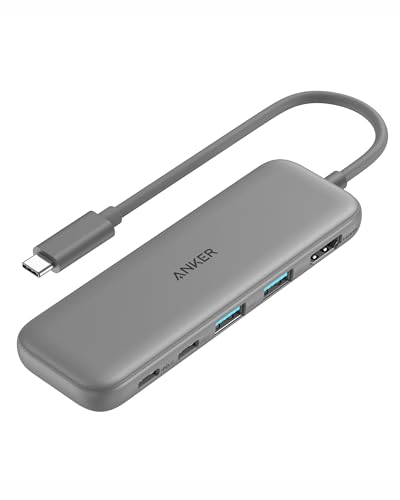
- Use a single dock or hub for laptop connections.
- Choose devices that share a charger.
- Use right-angle connectors where space is tight.
- Remove cables for devices you no longer use.
Maintenance
- Dust cables and trays every few months.
- Check that straps are not too tight on delicate cables.
- Recheck connections after moving the desk or PC.
- Update lighting to the season, since daylight changes through the year.
- Replace failing lamps and strips promptly.
Common Mistakes
- Using a single bright light that reflects in the screen.
- Leaving the monitor at full brightness in a dark room.
- Relying only on colorful accent lighting.
- Choosing flickering cheap lights.
- Making cable bundles too tight or too tidy so that you cannot change anything.
- Overloading power strips.
- Hiding cables without leaving slack for movement.
- Skipping labels, then unplugging the wrong cable later.
Ready to Buy? Start Here
If this guide helped you decide what to look for, these products are a place to start.
As an Amazon Associate we earn from qualifying purchases. Prices and availability are shown on Amazon.
Planning the Layout on Paper First
A tidy desk is easier to achieve when you sketch it before you touch a single cable. Grab a sheet of paper and draw the desk from above. Mark the monitor or monitors, the keyboard, the mouse, the laptop dock if you use one, the lamp, the power strip and every device that needs a cord. Then draw lines for the cables between them. Seeing the paths in advance shows you where the knots will form.
Look for crossings. If a cable from the left must reach a device on the right, ask whether the device could move or whether a longer or shorter cable would be neater. Group items that share a power source, and decide where the strip should sit, preferably out of the way yet reachable. Note the position of any window, because light direction affects where the lamp and monitor should go.
- List every device and the cable it needs
- Mark which cables are for power and which for data
- Choose one place for the power strip
- Plan a route along the back edge or under the desk
- Leave slack where a monitor arm or standing desk moves
Light Sources Compared
Different light fixtures solve different problems, and many desks do best with a combination. This table shows how the common options compare.
| Option | Best at | Watch for |
|---|---|---|
| Adjustable desk lamp | Task light for paper, books and keyboard | Glare on the screen if the head points the wrong way |
| Monitor light bar | Lighting the desk without shining on the screen | Fit on the top of your monitor, especially curved or thin ones |
| Bias light behind the screen | Soft glow that reduces contrast with a dark wall | Color accuracy for photo work, since colored light can mislead |
| Overhead room light | General brightness | Reflections on glossy screens |
| Window light | Natural brightness during the day | Changing conditions and glare at certain hours |
Place the main light to the side of the screen, not in front or behind it, and angle it to avoid direct reflection. Left-handed users usually prefer a lamp on the right, and right-handed users on the left, so the hand does not cast a shadow over the work area.
Cable Types and What to Do With Each
Not every cable is the same, and handling them well depends on knowing what they do.
- Power cables. Keep them neat but never wrap them tightly around themselves while in use, and follow the guidance that comes with your power strip regarding loads.
- Video cables. Choose a length that reaches without strain. Very long runs may need a good-quality cable, so check the specs.
- USB cables. Short ones work well for peripherals. A powered hub can reduce the number of cables running to the computer.
- Audio cables. Keep them away from power cables where possible to reduce the chance of noise.
- Charging cables. Leave a few within reach at the desk edge, and use clips to stop them from sliding off.
Label both ends of each cable with small tags, so you can unplug the right one later without tracing it by hand.
Setups for Three Kinds of Desk
The right arrangement depends on how you use the space, so here are three common situations with practical notes.
The home office desk. This desk is used for hours at a time, usually with a monitor, a laptop and a phone charger. Put the power strip underneath, run a single bundle of cables along the back edge, and keep a lamp on the side opposite your writing hand. A light bar suits this desk well when the monitor sits against a wall.
The gaming or creative desk. More devices mean more cables. Consider a powered hub for peripherals and a cable tray under the desk for the bulky bricks. Soft background lighting can make long sessions feel more relaxed, but if you edit photos or video, keep the light neutral near the screen so colors are not skewed.
The shared or standing desk. A height-adjustable desk needs slack in every cable and a place for it to fold without catching. Use a cable chain or a flexible sleeve, secure the strip to the underside, and test the full range of movement before you rely on it. Lamps with clamp mounts should be positioned so they do not hit the wall as the desk rises.
In all three cases, take photos of your layout once you are happy with it. If a cable comes loose or you rearrange the room, the photo will remind you where everything belonged.
A Weekly and Seasonal Routine
Once your desk looks the way you like, a tiny routine keeps it that way. Each week, spend two minutes tucking loose cables, wiping the surface and checking that nothing is pinched under the monitor stand or a chair wheel. Every few months, unplug the power strip, dust the cables and connectors with a dry cloth, and check for damage such as a frayed jacket or a loose plug. Replace any damaged item rather than repairing it with tape.
Lighting needs a little care, too. Dust on a lamp shade or diffuser reduces output, so wipe it according to the maker’s instructions. If a bulb flickers or a light bar dims, consult the manual before opening anything.
When to Ask for Professional Help
Most desk tidying is simple enough for anyone, but some jobs belong with a qualified electrician. If you need extra outlets near the desk, if your power strip feels warm, if a plug smells hot or if a breaker trips repeatedly, stop and have the wiring checked. Do not hide power cords inside walls unless the product is made for that use and installed to local codes. Always follow the manuals for your lights, strips and stands, and treat any sign of overheating as a reason to unplug and seek expert advice.
Reading Your Own Desk: A Slow Audit Before You Buy Anything
The sections above explain lighting layers and cable tools, and both topics reward the same preliminary act, which is to sit at your desk for one ordinary session and audit what is actually happening before you change or buy anything. Most desks were never designed; they accumulated. A lamp arrived, a monitor replaced another, chargers multiplied, and the result feels vaguely tiring and vaguely chaotic without any single cause being obvious. An audit makes the causes obvious, and it costs nothing but attention. The method below takes one session and a notebook, and it turns the general advice in this guide into a list written in your desk’s own specifics.
Begin with light. Note where daylight enters across the day, not only at the moment you sit down, because a desk that is perfect in the morning can be a mirror by afternoon. Use the switched-off screen test from the glare section to see what the screen sees, and look at the room the way your eyes experience it at your usual working hour, with the screen much brighter than everything around it or a lamp shining where it reflects. Then note your own symptoms honestly: the hour your eyes begin to feel tired, whether you lean toward the screen as the evening comes, whether headaches follow long sessions. Lighting problems announce themselves in the body before they are understood in the room, and that record is what tells you later whether your changes worked.
The Cable Census: Counting What You Actually Have
Now count the cables, and do it literally, one by one, naming each cable’s job and the device it serves. The census surprises almost everyone. Behind a typical desk there are cables for devices that left months ago, duplicate chargers for the same job, a cable kept for a printer that now lives elsewhere, and at least one cable nobody can identify. Each orphan is clutter without a purpose, trapping dust and complicating every future change. Mark the cables you cannot identify, then disconnect one marked cable at a time over the following days, and only remove it permanently once a full working week has passed without anything missing it. That patience prevents the classic tidy-up regret, where the mystery cable turns out to have been the one thing the household needed on a deadline.
The census also reveals the shape of your real cable problem, which is rarely the sheer number. It is usually one of three patterns. Power cables may dominate, because every device brought its own supply and they were all plugged in wherever they fit. Data cables may dominate, in setups that grew by adding hubs and docks. Or the problem may be length, cables far longer than their journey, coiling behind the desk and collecting everything that falls. Each pattern has a different remedy in the tools and planning sections of this guide, which is why counting comes before buying: a tray solves a different desk from the one a shorter cable solves, and both are cheaper than the complete kit bought in hope.
Lighting Decisions Worked Through for Real Rooms
With the audit in hand, the lighting choices in this guide can be worked through concretely. Take the common case of a desk against a wall in a room with one window to the side. The glare section’s placement rule, screen at right angles to the window, is already satisfied by the wall, so this desk’s problem is usually contrast: a bright screen in a room that darkens early. The layered answer follows the basics section in order. Keep some gentle ambient light in the room so the screen is never the only light, add bias light behind the screen to soften the contrast the bias section describes, and let a task light serve paper work rather than asking the screen’s glow to do it. Color temperature, chosen from the temperature section to suit the hour you mostly work, ties the layers together so the desk feels like one place rather than three competing ones.
Take the harder case, a desk facing a window because the room allows nothing else. Here the honest order is control first and equipment second: blinds or curtains that tame the daylight, as the glare section advises, will do more than any lamp bought to fight the sun. With daylight controlled, a monitor light bar earns its place in the way its section explains, lighting the desk surface without adding reflections to the screen, and it suits this desk precisely because the space in front of the screen is where its owner reads and writes. The lesson generalises. Every lighting product in this guide solves a named problem, and the audit’s job is to name your problem before the product is chosen, so the purchase is an answer rather than an experiment.
Cable Routing as a Design, Not a Tidy-Up
The step-by-step section of this guide walks through a tidy desk in an afternoon, and the difference between a tidy that lasts and a tidy that dissolves in a month is whether the routing was designed around change. Devices will be added, chargers will travel and return, a monitor arm will move. Design for that future by following three principles the planning section implies. First, give every cable a path with a little slack at both ends, because cables pulled tight transmit every nudge to their connectors and eventually work themselves loose. Second, keep the power distribution in one reachable place, as the safety section’s rules require, so that adding or removing a device is a deliberate act at one point rather than an excavation. Third, label both ends of any cable that leaves your sight along its route, because the cable you cannot identify is the cable the census warned you about, returning in a new generation.
Standing desks deserve the specific attention the questions list gives them, because movement turns routing into engineering. The cables serving a moving desk need a managed path that travels with the desk through its whole range, tested at the lowest and highest positions before the setup is declared finished. Test with the desk loaded as it will be in life, monitors, lamp and all, and watch for the cable that only just reaches at full height, because that cable will be found, by tension, on the day you raise the desk while something fragile sits at its edge. A few minutes of that testing is the entire difference between a standing desk that feels liberating and one its owner quietly stops adjusting.
Safety and Comfort: The Rules That Outrank Tidiness
It is worth pausing on the safety section, because tidiness pursued without it can make a desk worse rather than better. Cables bundled tightly for appearance can trap heat where the safety rules say they should breathe, and a power strip hidden inside a closed tray or behind insulation asks for trouble in the name of invisibility. The rules in this guide are not obstacles to a clean desk; they are the definition of a finished one. A setup is not tidy if it cannot be inspected, if its power strip cannot be reached and switched, or if nobody in the household can tell which plug serves which device in an urgent moment. Build the inspection habit into the maintenance routine below, and treat any warmth, smell or discoloration at a plug or strip as the stop-and-investigate signal the safety section describes, not as a cosmetic issue to schedule for later.
Comfort has its own non-negotiables, drawn from the eye-comfort habits in this guide. Breaks, distance and a screen set to match the room do more for tired eyes than any single product, and lighting should be judged after a week of evenings rather than at the moment of installation, because eyes adapt and first impressions flatter novelty. If symptoms persist despite a desk that follows this guide faithfully, that persistence is itself information, and the professional-help section’s advice applies: persistent eye strain, headaches or any electrical concern in the home deserves qualified attention rather than another accessory. A guide can arrange a desk. It should also know where its competence ends, and this one does.
The Maintenance Rhythm That Keeps the Desk Finished
The weekly and seasonal routine sketched earlier in this guide deserves expansion into something specific enough to survive contact with real life. Weekly, the desk asks for two minutes: cables checked by eye where they bend and plug, since fraying begins at flex points; the power area glanced at for dust and for anything new plugged in by another household member without a plan; and the lamp and light bar wiped, because a dusty light is a dimmer light and owners often raise brightness to compensate for dirt. None of this requires tools, and attaching it to an existing habit, the end of the working week, say, is what makes it happen at all.
Seasonally, the desk deserves the census again, in miniature. Devices changed, chargers travelled, daylight moved with the year, and the audit that designed the desk no longer describes it exactly. Re-run the switched-off screen test in the new season’s light, re-check the standing desk’s cable travel if furniture moved, and remove the orphans the season added. This is also the moment to revisit color temperature and brightness against the season’s working hours, since a desk tuned for bright summer evenings can feel harsh in winter darkness. Desks do not stay finished by being finished once. They stay finished by being re-finished lightly, on a rhythm, before disorder becomes the kind of project that needs an afternoon and a free weekend.
Three Desks, Three Different Right Answers
The three-desk section earlier in this guide can be closed with the principle that unifies this whole topic: there is no universal tidy desk, there is only the desk that serves its owner’s work without taxing their eyes, their time or their safety. The focused writing desk needs the least: controlled daylight, one honest task light, and so few cables that management is almost a courtesy. The multi-screen work desk needs the most deliberate routing, power planned as carefully as data, and bias light doing quiet work across long hours. The shared family desk needs robustness above elegance, cables protected from chairs and feet and curiosity, and lighting that several people of several heights can adjust without a manual.
Judge your own result by use, not by photographs. A finished desk is one where you can add a device in minutes, find any cable’s ends without lying on the floor, work an evening without your eyes filing a report, and switch everything off at one known point when you leave. If your desk does those things, it is done, whatever it looks like from the doorway. If it does not, the audit at the start of these extra sections is where its next improvement is written, in your own handwriting, about your own room. That is the real promise of combining lighting and cables in one guide: the desk stops being an accumulation and becomes a decision, renewed lightly, season by season, for as long as you work at it.
Worked Example: One Afternoon, One Real Desk, Start to Finish
To make the method in this guide tangible, follow one ordinary desk through the afternoon the step-by-step section promises. The desk holds a monitor, a laptop that docks and leaves, a lamp inherited from another room, chargers for a phone and a tablet, and a power strip somewhere behind a tangle that nobody has seen in a year. The owner begins not with tools but with the audit from these extra sections: the census finds eleven cables, two serving nothing, and the light check finds the real problem is not darkness but contrast, a bright screen in a room that goes dim early, with the inherited lamp aimed so it reflects in the screen’s corner. Two orphans removed, one lamp repositioned, and the desk is already better before anything is bought, which is the audit’s recurring lesson.
The purchases, when they come, are small and named: a tray to hold the power strip accessibly rather than invisibly, ties to route rather than to strangle, and a bias light to answer the contrast problem the audit identified. The routing follows the design principles from these sections, slack at both ends, one reachable power point, both ends labelled on the cables that disappear from sight, and the laptop’s travelling charger is deliberately left out of the permanent routing, with its own home by the door, because a cable that leaves weekly should not be woven into a system that stays. The afternoon ends with the switched-off screen test repeated, the reflection gone, and the owner’s notebook entry recording what changed, which is the maintenance rhythm’s first entry and the reason the desk will still be finished in six months.
Renters, Shared Desks and Other Real Constraints
Much desk advice quietly assumes a homeowner with a drill and a permanent room, and this guide should correct that assumption explicitly, because renters and sharers are most of its readers. Every improvement in these sections can be achieved without fixing anything to a wall or a desk that must be returned unmarked: trays that clamp or rest, ties that release, lamps that stand, and bias light that adheres to the monitor rather than the room. The constraint is actually a discipline in disguise, since a setup that can be dismantled in an hour is a setup whose owner understands every cable in it, and understanding, as the census argues, is the true product being built. Renters who embrace that discipline often keep tidier desks than owners, because nothing in theirs is allowed to become permanent by neglect.
Shared desks add negotiation to engineering. The lighting must suit more than one pair of eyes and more than one working hour, so adjustability outranks perfection for any single user, and the cable system must be understandable to the person who did not build it, which is where the labelling habit graduates from virtue to necessity. Agree the one reachable power point and the rule that nothing joins the system without a label and a reason, and a shared desk can stay finished under several owners where a private desk sometimes cannot stay finished under one. Constraints, handled this way, stop being apologies. They become the design brief, and briefs, as every section of this guide insists, are what turn accumulation into intention.
Questions That Arrive a Season Later
A season after the tidy-up, owners ask whether the desk should need any attention at all if it was done properly. It should, lightly, and the maintenance section’s rhythm is the answer rather than an admission of failure: daylight has moved, a device has changed, dust has done its quiet work, and the five-minute seasonal pass exists precisely because rooms are alive. They ask whether a new device justifies re-routing or can simply be added. Add it properly the day it arrives, label, slack and reachable power included, because the exception admitted casually is how the old tangle reboots itself, one reasonable exception at a time. They ask whether their eyes should still tire sometimes. Sometimes, yes, on long days in dark seasons, and the comfort habits, breaks and distance and light matched to the hour, remain the first response, with persistent symptoms routed to professional advice as this guide directs.
The last seasonal question is whether to redo the whole system when a major change arrives, a new desk, a second monitor, a move. Redo the audit, not the shopping. The census and the light check will tell you what the new room needs, and most of what you own will answer it, because the tools in this guide are deliberately ordinary and reusable. That is the closing thought of the whole topic: a well-kept desk is not a purchase but a practice, light arranged against glare and contrast, cables arranged against chaos and risk, both renewed lightly as life changes around them. Practised that way, the desk disappears, and what remains is the work, which was the point of the desk all along.
A Note on Children, Pets and the Desk in a Living Household
A desk in a living household answers to more critics than its owner, and the lighting and cable plan should include them from the start rather than discovering them by accident. Small children read a dangling cable as an invitation and a glowing strip as a toy, so the routing principles in this guide gain a safety margin in family homes: no reachable loops, no cable within pulling range of the floor, and the one reachable power point placed where an adult, and only an adult, reaches it without thinking. The audit habit helps here too, because a desk reviewed at a child’s eye height looks very different from the same desk reviewed from a chair, and five minutes spent at that height is among the most valuable safety work this guide can recommend.
Pets contribute their own engineering requirements. Cats favour warm equipment and the tops of monitors, dogs trail leads and tails through the cable zone beneath desks, and both regard a cable tie as a challenge issued personally. Route with that in mind, keep the floor run either protected or absent, and check the flex points in the weekly glance for the tooth marks that announce a new hobby before they announce a failure. None of this is a reason to banish the desk or the animals. It is a reason the finished desk in a living household is a small act of diplomacy, arranged so that everyone who shares the room, on two legs or four, can use it safely without ever needing to understand it.
The Five-Minute Version for Readers in a Hurry
Everything in this guide compresses, in an emergency, into five minutes and five acts. Kill the worst reflection by moving either the lamp or yourself, using the switched-off screen as your witness. Give the screen some company by turning on a gentle light behind it or elsewhere in the room, so it stops glowing alone in the dark. Rescue the one cable that is actually in danger, the one being pinched, pulled or walked on, and leave the merely ugly ones for the planned afternoon. Put the power strip where you can reach it without lying down, even if that means it is visible for now, because reachable beats hidden in every rule this guide keeps. And write, in the notebook or the phone, the two problems your five minutes revealed but could not solve, because that note is the audit beginning itself, and a desk whose problems are written down is already halfway to finished. The full method will still be here when the afternoon is, and it will start from your note rather than from chaos.
Frequently Asked Questions
What is the best lighting for a computer desk?
A combination of soft ambient light, a task lamp or monitor light bar for the desk and optional low-level bias light behind the screen, all positioned to avoid glare.
What color temperature should I use?
Neutral to cool light (about 4000 to 6500 K) suits daytime work. Warmer light suits evenings.
Do monitor light bars really work?
They light the desk without lighting the screen, which reduces glare and saves desk space.
Is bias lighting worth it?
It can make dim-room use more comfortable and improve the look of dark scenes. It is optional.
How do I hide cables on a standing desk?
Use a cable tray and flexible sleeves with enough slack for the desk’s full movement range.
Can I bundle power and data cables together?
You can for tidiness, but keep audio and sensitive cables apart from heavy power cords if you hear hum.
How do I avoid overloading a power strip?
Add up the wattage of all devices and keep it well below the strip’s rating.
Do blue-light glasses help?
Evidence is mixed. Good lighting, breaks and correct screen settings are better first steps.
Bottom Line
Light the desk, not the screen: reduce glare, match screen brightness to the room, use a task lamp or monitor light bar, and add soft bias light if you like. For cables, plan the route, mount a surge-protected power strip under the desk, use reusable straps, trays and labels, leave slack for movement and follow basic electrical safety. Do it once carefully and your desk will be more comfortable and much easier to maintain.
Related Reading
- Best Desk Lamps
- Best Monitor Light Bars
- Best Cable Management Trays
- Best Surge Protectors
- Best Keyboard Wrist Rests
- How to Calibrate a Monitor
- All Desk Setup guides