Best student laptops for video editing need a discrete graphics card, enough memory for a timeline, and a screen that shows colour honestly, all in a machine a student can carry to class and afford on a student budget. That mix is the heart of this guide. A laptop with only integrated graphics can cut a short 1080p clip, but a 4K timeline with effects and colour work needs a discrete GPU, and every pick below has one, except for the OLED ultrabook and the MacBook Air, which use strong integrated graphics in a different way.
The listings in this guide split into two kinds, and it helps to know the difference before you buy. Some picks are creator laptops, such as the MSI Creator M14, which are built for editing with a high resolution screen and a discrete GPU. Other picks are gaming laptops, such as the HP Victus 15 and the Acer Nitro V, which students often use for editing because the same discrete GPU that runs games also accelerates renders and effects. Both kinds belong here, because both cut video well, but they suit different students and different budgets.
This guide compares published specs and design traits. We have not used these laptops ourselves, so every claim below traces to a spec printed in the listing title or to a basic design trait of the processor, the graphics card, the memory, and the screen. Use the comparison table to match a pick to your editing software, your footage, and your budget.

In this guide
Quick picks: best student laptops for video editing
| # | Product | Where to buy |
|---|---|---|
| 1 | MSI Creator M14 | Check on Amazon |
| 2 | HP Victus 15 | Check on Amazon |
| 3 | Acer Nitro V ANV15-51-51H9 | Check on Amazon |
| 4 | ASUS Vivobook S16 OLED | Check on Amazon |
| 5 | Apple MacBook Air M5 | Check on Amazon |
| 6 | Alienware 15 DA15260 | Check on Amazon |
How the picks were chosen
We started with listings that name a creator or gaming laptop model in the title, then kept only the ones where the brand and every model code in the title match the product. A listing that sold a 4GB Celeron laptop was dropped, because 4GB of memory cannot run an editing timeline, and so were generic student laptops with integrated graphics only, monitors, and accessories that are not laptops at all.
We favoured a spread of prices and uses: a creator laptop with a 2.8K screen for colour work, two RTX 4050 gaming laptops for accelerated renders, an OLED ultrabook with 32GB of memory for colour accuracy, a MacBook Air with an M5 chip for macOS editing, and a 16GB Alienware laptop for a student who games as well as edits. That spread covers film students, YouTube creators, and coursework editors on a student budget.
Processor, graphics card, memory, storage, and screen size came straight from the listing titles. Where a title states a memory figure, it is shown, because memory is the first limit a student hits on a timeline. The screen matters here too, so the guide notes the resolution and the panel type of each pick.
Best student laptops for video editing: the picks in detail
MSI Creator M14 A13VE-083US 14 Inch Creator Laptop
The MSI Creator M14 A13VE-083US is a 14 inch creator laptop with a 2.8K display, an Intel Core i7-13620H processor, an NVIDIA GeForce RTX 4050 graphics card, 16GB of DDR5 memory, and a 1TB NVMe SSD. The 2.8K display is the key detail: a higher resolution screen shows more of the timeline and a sharper preview, which suits colour work and fine detail in an edit.
A creator laptop is built for editing first, so the screen, the cooling, and the GPU are tuned for long renders rather than short gaming bursts. The 14 inch size keeps the machine portable for a student who carries it to class, while the RTX 4050 accelerates effects and exports in editing software. The 1TB NVMe SSD gives room for project files and footage without an external drive.
Key specs: 14 inch 2.8K display creator laptop; Intel Core i7-13620H; NVIDIA GeForce RTX 4050; 16GB DDR5; 1TB NVMe SSD; MSI Creator M14 A13VE-083US.
Strengths:
- 2.8K display shows more timeline and a sharper preview for colour work.
- RTX 4050 accelerates effects, renders, and exports.
- 14 inch size stays portable for a student who carries it to class.
Trade-offs:
- 14 inch screen feels small for a long editing session without an external monitor.
- Creator tuning costs more than a gaming laptop with the same GPU.
- 16GB of memory suits 1080p and light 4K work more than heavy 4K timelines.
Who it fits: Film and media students who want a portable creator laptop with a sharp screen.
Best for: portable editing with a sharp screen and a discrete GPU. Not suited for: heavy 4K timelines that need 32GB of memory.
Check price on Amazon: MSI Creator M14

HP Victus 15 15.6 Inch Gaming Laptop with RTX 4050
The HP Victus 15 is a 15.6 inch gaming laptop with a Full HD 144Hz display, an NVIDIA RTX 4050 6GB graphics card, an AMD Ryzen 7 7445HS processor, 16GB of DDR5 memory, and a 512GB SSD. The RTX 4050 with 6GB of video memory is the key detail: a discrete GPU with 6GB of video memory handles 1080p and 4K timelines far better than integrated graphics, and it accelerates effects and exports in editing software.
A gaming laptop is a practical editing machine for a student, because the same GPU that runs games also runs the editing pipeline. The 144Hz display suits fast motion in a preview, and the 15.6 inch size gives a larger timeline than a 14 inch machine. The 512GB SSD is the limit to watch: footage fills it quickly, so plan for an external drive or a storage upgrade.
Key specs: 15.6 inch Full HD 144Hz gaming laptop; NVIDIA RTX 4050 6GB; AMD Ryzen 7 7445HS; 16GB DDR5; 512GB SSD; HP Victus 15.
Strengths:
- RTX 4050 with 6GB of video memory handles 1080p and 4K timelines.
- 144Hz display suits fast motion in a preview.
- 15.6 inch screen gives a larger timeline than a 14 inch machine.
Trade-offs:
- 512GB of storage fills quickly with footage; plan for an external drive.
- Gaming styling may not suit a classroom or a lecture hall.
- Full HD resolution shows less timeline than a 2.8K creator screen.
Who it fits: Students who edit and game on one machine and want a discrete GPU at a student cost.
Best for: editing and gaming on one affordable machine. Not suited for: colour critical work that needs a high resolution screen.
Check price on Amazon: HP Victus 15

Acer Nitro V ANV15-51-51H9 15.6 Inch Gaming Laptop
The Acer Nitro V ANV15-51-51H9 is a 15.6 inch gaming laptop with a Full HD IPS 144Hz display, an Intel Core i5-13420H processor, an NVIDIA GeForce RTX 4050 graphics card, 8GB of DDR5 memory, and a 512GB Gen 4 SSD. The RTX 4050 is the reason this laptop makes the guide: a discrete GPU accelerates renders and effects, even in a machine at the affordable end of the range.
The 8GB of memory is the honest limit to know before you buy. 8GB suits 1080p coursework and short clips, but a 4K timeline with many tracks will push against it, and a memory upgrade is the first upgrade to plan. The 15.6 inch IPS display gives a wider viewing angle than a basic TN panel, which suits colour work at a desk. The Gen 4 SSD keeps project files loading quickly.
Key specs: 15.6 inch Full HD IPS 144Hz gaming laptop; Intel Core i5-13420H; NVIDIA GeForce RTX 4050; 8GB DDR5; 512GB Gen 4 SSD; Acer Nitro V ANV15-51-51H9.
Strengths:
- RTX 4050 accelerates renders and effects at an affordable cost.
- IPS display gives a wider viewing angle than a basic panel.
- Gen 4 SSD keeps project files loading quickly.
Trade-offs:
- 8GB of memory limits 4K timelines; plan a memory upgrade.
- 512GB of storage fills quickly with footage.
- Full HD resolution shows less timeline than a 2.8K creator screen.
Who it fits: Students on a tight budget who need a discrete GPU for 1080p coursework.
Best for: affordable 1080p editing with a discrete GPU. Not suited for: heavy 4K timelines without a memory upgrade.
Check price on Amazon: Acer Nitro V ANV15-51-51H9
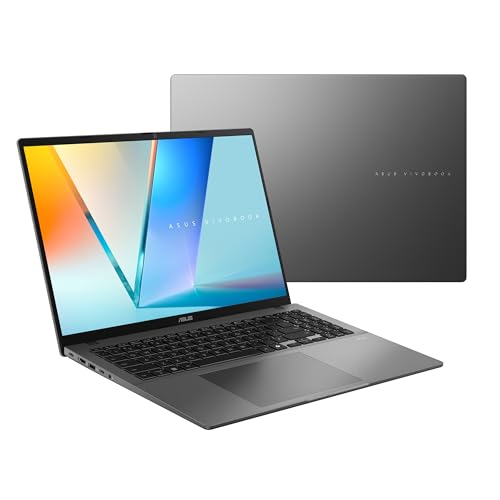
ASUS Vivobook S16 M3607GA-DS79 16 Inch OLED Laptop
The ASUS Vivobook S16 M3607GA-DS79 is a 16 inch laptop with a WUXGA OLED display, an AMD Ryzen AI 7 445 processor, AMD Radeon graphics, 32GB of memory, and a 1TB SSD. The OLED display is the key detail: an OLED panel shows deep blacks and vivid colour, which suits colour grading and preview work far better than a basic LCD panel. The 32GB of memory is the highest figure in this guide, and it suits long timelines with many tracks.
The Radeon integrated graphics is the trade to know. Integrated graphics cannot match a discrete RTX 4050 for effects and exports, but the OLED screen and the 32GB of memory make this machine a strong pick for colour work, 1080p editing, and light 4K cuts. The 16 inch screen gives a large timeline, and the 1TB SSD gives room for project files and footage.
Key specs: 16 inch WUXGA OLED display laptop; AMD Ryzen AI 7 445; AMD Radeon graphics; 32GB memory; 1TB SSD; ASUS Vivobook S16 M3607GA-DS79.
Strengths:
- OLED display shows deep blacks and vivid colour for grading.
- 32GB of memory is the highest figure in this guide.
- 16 inch screen gives a large timeline for editing.
Trade-offs:
- Integrated Radeon graphics cannot match a discrete RTX 4050 for effects.
- OLED panels need care to avoid static images burning in.
- No discrete GPU means slower exports on heavy timelines.
Who it fits: Students who grade colour and cut 1080p or light 4K footage on a large OLED screen.
Best for: colour grading and long timelines with 32GB of memory. Not suited for: heavy effects work that needs a discrete GPU.
Check price on Amazon: ASUS Vivobook S16 OLED

Apple 2026 MacBook Air 13 Inch Laptop with M5 Chip
The Apple 2026 MacBook Air 13 inch laptop has an M5 chip, a 13.6 inch Liquid Retina display, 16GB of unified memory, and a 512GB SSD, in the Midnight finish. The M5 chip is the key detail: Apple silicon handles video editing efficiently, with hardware acceleration for common codecs and a quiet fanless design that suits a library or a lecture hall. The Liquid Retina display shows colour honestly for a student screen.
A fanless design means the MacBook Air stays silent during a long edit, which suits a shared room or a quiet library. The 16GB of unified memory is shared between the processor and the graphics, so it behaves like more than 16GB in a traditional split-memory machine. The 13.6 inch size keeps the machine light for a student who carries it all day, though a long editing session suits an external monitor.
Key specs: 13 inch laptop with M5 chip; 13.6 inch Liquid Retina display; 16GB unified memory; 512GB SSD; Apple MacBook Air, Midnight.
Strengths:
- M5 chip handles editing efficiently with hardware codec acceleration.
- Fanless design stays silent in a library or a lecture hall.
- Liquid Retina display shows colour honestly for a student screen.
Trade-offs:
- 13.6 inch screen feels small for a long editing session without a monitor.
- 512GB of storage fills quickly with footage; plan for external storage.
- macOS only, so Windows-only editing software is not an option.
Who it fits: Students who edit on macOS and want a silent, portable machine for class and the library.
Best for: portable macOS editing with a quiet fanless design. Not suited for: Windows-only editing software or heavy 4K effects work.
Check price on Amazon: Apple MacBook Air M5

Alienware 15 DA15260 Gaming Laptop with RTX 4050
The Alienware 15 DA15260 is a 15 inch gaming laptop with a WUXGA 1920×1200 display at 165Hz, an Intel Core 7 240H processor, an NVIDIA GeForce RTX 4050 graphics card, 16GB of DDR5 memory, and a 1TB SSD. The 165Hz display and the 16 by 10 aspect ratio give a taller timeline and smoother motion in a preview, which suits a student who edits and games on one machine.
Alienware is the premium gaming brand in this guide, and the DA15260 brings a strong build and a 1TB SSD, which gives twice the footage room of the 512GB picks. The RTX 4050 accelerates renders and effects, and the 16GB of DDR5 memory suits 1080p and light 4K timelines. The premium build costs more than the Victus or the Nitro V, so this pick suits a student who wants one machine for both editing and gaming at a higher standard.
Key specs: 15 inch WUXGA 1920×1200 165Hz gaming laptop; Intel Core 7 240H; NVIDIA GeForce RTX 4050; 16GB DDR5; 1TB SSD; Alienware 15 DA15260.
Strengths:
- 165Hz display with a taller 16 by 10 timeline view.
- 1TB SSD gives twice the footage room of the 512GB picks.
- RTX 4050 accelerates renders, effects, and exports.
Trade-offs:
- Premium build costs more than the Victus or the Nitro V.
- Gaming styling may not suit a classroom or a lecture hall.
- 16GB of memory suits 1080p and light 4K work more than heavy 4K timelines.
Who it fits: Students who want one premium machine for both editing and gaming.
Best for: editing and gaming on one premium machine with 1TB of storage. Not suited for: a tight student budget or a quiet classroom.
Check price on Amazon: Alienware 15 DA15260
Comparison table
| Model | Key feature | Power and size | Who it fits |
|---|---|---|---|
| MSI Creator M14 | 14 inch 2.8K, RTX 4050 | 16GB, 1TB | Portable creator editing, sharp screen |
| HP Victus 15 | 15.6 inch FHD 144Hz, RTX 4050 | 16GB, 512GB | Editing and gaming, affordable |
| Acer Nitro V | 15.6 inch FHD IPS 144Hz, RTX 4050 | 8GB, 512GB | Tight budget, 1080p coursework |
| ASUS Vivobook S16 | 16 inch OLED, Radeon graphics | 32GB, 1TB | Colour grading, long timelines |
| MacBook Air M5 | 13.6 inch Liquid Retina, M5 | 16GB, 512GB | macOS editing, silent portable use |
| Alienware 15 | 15 inch WUXGA 165Hz, RTX 4050 | 16GB, 1TB | Premium editing and gaming machine |
Buying guide
Start with the graphics card, because it sets the editing ceiling. A discrete GPU, such as the RTX 4050 in four picks in this guide, accelerates effects, renders, and exports, and it handles 4K timelines far better than integrated graphics. The Vivobook S16 OLED and the MacBook Air M5 use strong integrated graphics in a different way, with a colour-accurate screen and efficient hardware acceleration, but a discrete GPU is still the safer pick for heavy effects work.
Check the memory figure before you buy. 16GB is the baseline for student editing, and it suits 1080p and light 4K work. 8GB, such as the Acer Nitro V in this guide, suits 1080p coursework but limits a 4K timeline, so plan a memory upgrade. 32GB, such as the Vivobook S16 OLED, suits long timelines with many tracks and effects. Memory is the first limit a student hits, and it is cheaper to buy enough now than to upgrade later.
Match the screen to your editing. A higher resolution screen, such as the 2.8K display on the MSI Creator M14, shows more timeline and a sharper preview. An OLED screen, such as the Vivobook S16 OLED, shows deep blacks and vivid colour for grading. A 144Hz or 165Hz display, such as the Victus 15, the Nitro V, and the Alienware 15, suits fast motion in a preview. A basic Full HD screen works, but it shows less timeline and less colour detail.
Check the storage figure against your footage. 512GB fills quickly with video, so the Victus 15, the Nitro V, and the MacBook Air in this guide all need an external drive or a storage upgrade for a serious project. 1TB, such as the Creator M14, the Vivobook S16, and the Alienware 15, gives twice the room and suits a semester of projects. A fast NVMe or Gen 4 SSD also keeps project files loading quickly.
Read the listing title in full before you buy. Some laptop listings bundle the machine with a hub or a docking station, and the title may mix the laptop specs with the bundle extras. The title also tells you the exact processor, the graphics card, the memory, and the storage, so it is the most reliable source for matching a laptop to your editing software. A model code mismatch is the most common buying error in student laptops.
Use and care
Keep the vents clear and the laptop cool during a long render. A render pushes the processor and the graphics card hard, and blocked vents cause thermal throttling, which slows the export and shortens the life of the machine. Use the laptop on a hard flat surface, not on a bed or a cushion, and clean the vents with compressed air each term.
Store footage on an external drive and keep the internal SSD below 80 percent full. A full SSD slows down, and a slow SSD slows the timeline. Move finished projects to an external drive, keep only the active project on the internal drive, and back up every project in two places before a deadline.
Calibrate the screen before a colour critical project. A laptop screen drifts over time, and a grading decision made on a drifted screen will look wrong on another display. A basic calibration with a colour tool, or a check against a known reference image, keeps your grades honest. The OLED screen on the Vivobook S16 deserves the same care, with no static image left on screen for hours.
Update the graphics driver and the editing software together. A new driver can fix a render bug, and a new software version can add hardware acceleration for a codec. Update before a project starts, not in the middle of it, and keep a known good driver version noted down in case an update causes trouble.
Common mistakes
Buying a laptop with 4GB of memory for editing is the first error. 4GB cannot run an editing timeline with effects, and a Celeron processor cannot keep up with a 4K clip. The 4GB listings in our search looked affordable, but they are not editing machines. Check the memory figure in the title before you order, and treat 16GB as the baseline.
Ignoring the graphics card is the second error. A laptop with integrated graphics only can cut a short 1080p clip, but it will struggle with 4K, effects, and colour work. A discrete GPU, such as the RTX 4050 in four picks in this guide, is the single biggest upgrade for editing speed. If the title names no discrete GPU, the machine is not an editing laptop.
Forgetting storage is the third error. A 512GB SSD fills quickly with footage, and a student who buys a 512GB machine with no external drive will run out of room mid-project. Budget for an external drive with a 512GB pick, or choose a 1TB machine such as the Creator M14, the Vivobook S16, or the Alienware 15.
Expecting a laptop screen to match a studio monitor is the fourth error. A laptop screen, even a 2.8K or OLED panel, is smaller and less consistent than a calibrated external monitor. Use the laptop screen for cutting and a calibrated external monitor for final colour decisions. The screen on a student laptop is a working preview, not a grading reference.
Final recommendation
For most students, the MSI Creator M14 is the balanced starting point: a portable creator laptop with a sharp 2.8K screen, an RTX 4050, and 16GB of memory, built for editing first. If you edit and game on one machine, the HP Victus 15 gives the same RTX 4050 at a student cost, and if your budget is tight, the Acer Nitro V gives a discrete GPU for 1080p coursework, with a memory upgrade to plan.
If colour grading matters most, the ASUS Vivobook S16 OLED gives an OLED screen and 32GB of memory for long timelines. If you edit on macOS, the MacBook Air M5 gives a silent fanless machine for class and the library. If you want one premium machine for editing and gaming, the Alienware 15 gives a 165Hz display and 1TB of storage.
Whichever pick you choose, check the graphics card first, buy at least 16GB of memory, and plan for external storage if the machine has only 512GB. A student laptop for video editing rewards careful matching more than a big budget, and the six picks above cover creator laptops, gaming laptops, an OLED ultrabook, and a MacBook without forcing you into a machine that cannot run a timeline. The best student laptops for video editing are the ones that fit your software, your footage, and your budget, not the ones with the biggest numbers on the listing.
Why a discrete GPU matters for editing
A discrete GPU, such as the RTX 4050 in four picks in this guide, has its own video memory and its own processor cores, so it can run effects, colour work, and exports in parallel with the main processor. Integrated graphics shares memory with the processor, so it slows down when the timeline gets busy. The difference shows up in export times: a discrete GPU can cut a render from minutes to seconds on a heavy timeline.
The video memory figure matters too. The HP Victus 15 lists 6GB of video memory, which gives room for 4K frames and effects layers. A GPU with less video memory will spill frames to system memory, which slows the edit. When you compare two laptops with the same GPU name, check the video memory figure, because a 6GB version and a 4GB version of the same card behave differently.
Hardware acceleration is the third reason a discrete GPU matters. Modern editing software offloads decoding and encoding to the GPU, so a supported GPU speeds up both playback and export. The M5 chip in the MacBook Air does the same work with dedicated media engines, which is why a fanless MacBook can edit smoothly without a discrete card. Either route works; a machine with no acceleration at all does not.
Memory and storage: the two limits students hit first
Memory is the first limit a student hits on a timeline. 8GB suits 1080p coursework with few tracks, 16GB suits 1080p and light 4K work, and 32GB suits long timelines with many tracks, effects, and colour layers. The Acer Nitro V in this guide has 8GB, so a memory upgrade is the first upgrade to plan. The Vivobook S16 OLED has 32GB, so it will not hit the memory limit on a student project.
Storage is the second limit. Video footage is large, and a 512GB SSD fills quickly: a single afternoon of 4K shooting can take a large share of the drive. The Victus 15, the Nitro V, and the MacBook Air in this guide have 512GB, so an external drive is part of the real cost. The Creator M14, the Vivobook S16, and the Alienware 15 have 1TB, which gives twice the room for a semester of projects.
Speed matters as well as size. An NVMe SSD or a Gen 4 SSD loads project files and footage far faster than an old hard drive or a slow SATA drive. The Nitro V lists a Gen 4 SSD, and the Creator M14 lists an NVMe SSD, so both keep the timeline responsive. A slow drive causes stuttering playback even on a fast machine, so check the drive type in the title, not just the size.
Editing on a student schedule
A student edit is rarely a single long session. It is a series of short sessions between classes, in a library, on a bus, or in a shared room, and the laptop must suit that rhythm. A portable 14 inch machine, such as the MSI Creator M14, fits a bag and a small desk, while a 16 inch machine, such as the Vivobook S16, gives a larger timeline but a heavier bag. The MacBook Air M5 is the lightest pick in this guide, and its fanless design suits a quiet library.
Battery life matters on a student schedule, though editing itself drains a battery quickly. A student who edits on battery should keep projects on the internal drive, lower the preview resolution, and save often. A long render should run on mains power, because a battery render can stop mid-export if the battery runs out. Plan renders for a desk with power, and use battery sessions for cutting and review.
Backup is the habit that saves a student project. A single drive failure can lose a semester of work, so keep every project in two places: the internal drive and an external drive, or the internal drive and a cloud copy. Back up before a deadline, not after a failure. The 1TB machines in this guide give room for a local copy, but no internal drive replaces a second copy.
Frequently asked questions
What is the best student laptop for video editing?
A laptop with a discrete GPU, at least 16GB of memory, and a good screen. The MSI Creator M14 in this guide is the balanced pick, with a 2.8K screen, an RTX 4050, and 16GB of memory in a portable 14 inch machine.
Do I need a discrete GPU for student video editing?
Yes, for 4K work, effects, and colour grading. A discrete GPU such as the RTX 4050 accelerates renders and exports far better than integrated graphics. The MacBook Air M5 and the Vivobook S16 OLED are exceptions, with efficient hardware acceleration and a colour-accurate screen.
Is 8GB of memory enough for video editing?
8GB suits 1080p coursework and short clips, but it limits a 4K timeline. The Acer Nitro V in this guide has 8GB, so a memory upgrade is the first upgrade to plan. 16GB is the baseline for student editing, and 32GB suits long timelines.
Can I edit video on a gaming laptop?
Yes. A gaming laptop with a discrete GPU, such as the HP Victus 15 or the Acer Nitro V in this guide, edits well, because the same GPU that runs games also accelerates renders and effects. Many students edit on gaming laptops for exactly that reason.
Is a MacBook Air good for video editing?
Yes, for macOS editing. The MacBook Air M5 in this guide handles editing efficiently with hardware codec acceleration, and its fanless design stays silent in a library. It suits 1080p and light 4K work, though a 512GB drive needs external storage for serious projects.
How much storage do I need for video editing?
1TB is a comfortable size for a semester of projects. 512GB fills quickly with footage, so the 512GB picks in this guide need an external drive. Keep finished projects on an external drive and only the active project on the internal drive.
Do I need an OLED screen for video editing?
No, but it helps for colour grading. The Vivobook S16 OLED in this guide shows deep blacks and vivid colour, which suits grading work. A higher resolution screen, such as the 2.8K display on the Creator M14, also helps by showing more timeline.
Can I edit 4K video on a student laptop?
Yes, with a discrete GPU and at least 16GB of memory. The RTX 4050 picks in this guide handle 4K timelines, though heavy 4K work with many tracks suits 32GB of memory, such as the Vivobook S16 OLED. Use proxy files for smooth playback on a long 4K timeline.
More from Reviewstook: Best Laptops for Video Editing, Best Laptops for Students, Best Lightweight Gaming Laptop for Students Under 1000.