A document scanner turns a pile of paper into searchable files, and a home office is often where that pile builds up. The main choices are how many sheets the feeder holds, whether it scans both sides in one pass, how it connects and how much desk space it takes.
The six scanners below run from a 100-sheet Wi-Fi desktop model to a one-sheet USB-powered portable. Sizes, speeds and connections come from each product’s listing page. We have not used these scanners ourselves, and speeds are the makers’ own figures.
As an Amazon Associate we earn from qualifying purchases. Links below are affiliate links, and they do not change the product information we give.
What to Look For
| Feature | Why it matters |
|---|---|
| Feeder size | A larger feeder handles stacks in one batch |
| Duplex | Scans both sides of a sheet in one pass |
| Connection | USB only, or Wi-Fi for scanning without a cable |
| Footprint | Depth and height decide where it fits on a desk |
| Software | Searchable PDF output and cloud sending vary by maker |
In this guide
Specs at a Glance
| Scanner | Feeder | Connection | Size and weight |
|---|---|---|---|
| ScanSnap iX2500 | 100 sheets; 45 ppm duplex | Wi-Fi and USB-C | 6.26 x 11.5 x 6.34 in; 7.7 lb |
| Epson ES-400 II | 50 sheets; duplex | USB | 11.6 x 11.6 x 6.9 in; 3.7 kg |
| ScanSnap iX1300 | 20 sheets; up to 30 ppm duplex | Wi-Fi and USB | 4.5 x 11.7 x 3.3 in; 4.4 lb |
| Canon R30 | 60 sheets; up to 25 ppm duplex | USB | 9.88 x 11.54 x 9.65 in; 6.6 lb |
| Epson ES-C220 | 20 pages; up to 30 ppm duplex | USB | 4.1 x 11.7 x 4.9 in; 3.9 lb |
| Epson ES-50 | One sheet at a time | USB powered | 9.44 oz; listing size looks like the box |
The 6 Best Document Scanners

Top pickBest for big batches and shared use
1. ScanSnap iX2500 Wireless or USB Document Scanner
The largest scanner here, with a touchscreen, a 100-sheet feeder and double-sided scanning at 45 pages per minute by the maker’s figure. It connects over Wi-Fi 6 or USB-C and lists a multi-feed sensor and skew detection.
Suits: big batches and shared use. Strengths: a 100-sheet feeder and Wi-Fi 6. Weaknesses: the heaviest and deepest here at 7.7 lb. Skip it if you scan a few pages a week.

View ScanSnap iX2500 Wireless or USB High-Speed Document Scanner on Amazon

Best for mid-size stacks into document software
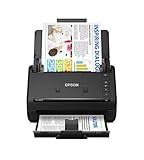
2. Epson Workforce ES-400 II Desktop Document Scanner
A USB duplex scanner with a 50-sheet feeder, ultrasonic double-feed detection and a TWAIN driver. Epson ScanSmart software makes searchable PDFs with OCR and sends files to cloud services. The listing gives 300 dpi and a weight of 3.7 kg.
Suits: mid-size stacks into document software. Strengths: double-feed detection and TWAIN. Weaknesses: USB only and a wide 11.6 inch footprint. Skip it if you want wireless scanning.
View Epson Workforce ES-400 II Color Duplex Desktop Document Scanner on Amazon

Best for a small desk with Wi-Fi
3. ScanSnap iX1300 Wireless or USB Double-Sided Scanner
A space-saving 4.5 inch deep scanner with a 20-sheet feeder and double-sided scanning up to 30 pages per minute. It connects over USB or Wi-Fi, can be used without a computer and sends to mobile devices and cloud services.
Suits: a small desk with Wi-Fi. Strengths: a small footprint and wireless use. Weaknesses: a 20-sheet feeder. Skip it if you scan thick stacks.

View ScanSnap iX1300 Wireless or USB Double-Sided Scanner Black on Amazon
Best for plug-and-scan with no install
4. Canon imageFORMULA R30 Office Document Scanner
A USB duplex scanner with a 60-sheet feeder, up to 25 pages per minute and 600 dpi. The software is embedded in the device, so no installation is needed, though the listing says TWAIN and ISIS drivers are not supported.
Suits: plug-and-scan with no install. Strengths: a 60-sheet feeder and embedded software. Weaknesses: no TWAIN or ISIS. Skip it if your document software needs TWAIN.
View Canon imageFORMULA R30 Office Document Scanner on Amazon

Best for a tight desk
5. Epson Workforce ES-C220 Compact Document Scanner
A compact USB scanner, 4.1 inches deep, with a 20-page feeder and duplex scanning at up to 30 pages per minute by the maker’s figure. A flexible scan path takes cards and passports, and ScanSmart software handles OCR and file naming.
Suits: a tight desk. Strengths: a small footprint and a flexible scan path. Weaknesses: USB only and 300 dpi. Skip it if you need a big feeder.

View Epson Workforce ES-C220 Compact Duplex Document Scanner on Amazon

Best for occasional receipts and forms
6. Epson Workforce ES-50 Portable Document Scanner
A one-sheet-at-a-time scanner that weighs 9.44 ounces and takes power over USB, with no batteries or adapter. It handles pages up to 8.5 by 72 inches and lists 1200 dpi. The listing size looks like packaging, and the system requirement reads Windows 7 while the bullets say Windows and Mac.
Suits: occasional receipts and forms. Strengths: light and bus powered. Weaknesses: one sheet per feed. Skip it if you scan stacks.

View Epson Workforce ES-50 Compact Mobile Document Scanner on Amazon
Setup and Care
- Remove staples and clips before feeding paper.
- Fan a stack and square the edges to reduce misfeeds.
- Wipe rollers and glass with a dry or lightly damp lint-free cloth.
- Pick one file naming scheme before the first batch.
Mistakes to Avoid
- Buying a scanner with a small feeder for large stacks.
- Skipping a check of the driver or software your workflow needs.
- Putting a deep model on a shallow shelf.
- Forgetting that a portable model feeds one sheet at a time.
Working Out Your Real Paper Volume
The best scanner for a home office is the one sized to the paper you actually handle. Begin with an honest count. How many pages do you scan in a typical week, and does the work come in bursts, such as tax season, or steadily? A household that scans a handful of receipts a week has very different needs from someone digitizing years of files. Consider also whether the stack is mixed. Business cards, receipts, thin statements, thick folders and stapled pages all behave differently in a feeder.
Match volume to feeder capacity and duty. A small feeder is fine for occasional batches, but you will feed it again and again for a large archive, which is tedious. A larger feeder saves time but takes more desk space. Look at any duty or daily volume guidance on the maker’s page, and treat it as a guide to what the machine is designed to handle rather than a number to chase.
It also helps to separate one-time projects from ongoing use. For a one-time clear-out, some people borrow or rent equipment, or use a scanner they already own. For ongoing use, a dependable desktop model that stays on the desk makes scanning a habit instead of a chore. Ask yourself:
- How many pages will I scan in the first month, and how many afterward?
- Are the pages mostly standard letter size, or do I have odd sizes?
- Do I need to scan both sides most of the time?
Your answers should drive the choice more than any feature list.
Paper Types and Special Media
Scanners handle different media in different ways, and the exceptions cause the most frustration. Standard office paper is easy. Thin receipts, curled statements, glossy photos, plastic cards, envelopes, folded sheets and stapled documents all need attention. Check the listing for the supported paper weight range, the maximum and minimum sizes, and any stated support for plastic cards or long pages. Receipts are a common home-office item, and some scanners are better at narrow or very thin paper than others, so read the details.
Think about delicate originals. Old photographs, torn pages and fragile documents may be damaged by feeders that pull paper through rollers. For those, a flatbed or a carrier sheet is a gentler option, and some scanners support carrier sheets. Remove staples and clips before feeding, and flatten folds. Feeding books or bound items is not what sheet-fed scanners are made for.
If you work with large drawings or oversized pages, check the maximum scan length and width. Some scanners handle long pages in a special mode, while others cannot. Also verify color and resolution settings for photos: higher resolution makes bigger files. Consider the quality of the scan lamp and sensor, but rely on the maker’s description and your own test scans rather than assumptions. When in doubt, scan a few sample pages of your own paper types as soon as the scanner arrives, and check the return window.
Software, OCR and File Organization
A scanner is only as useful as the files it produces and how easily you can find them. Optical character recognition, or OCR, converts the picture of a page into searchable text. Check what software ships with the scanner, whether OCR is included, what languages it supports, and whether it runs on your operating system. Some makers bundle their own scanning apps, while others rely on standard drivers that work with third-party software. Confirm the driver type if you plan to use other document software.
Plan your filing system before the first scan. Decide on a simple folder structure, such as by year and category, and a consistent file naming pattern with dates and short descriptions. Many scanning tools can apply names automatically or sort pages into folders by rules, and some can send files to cloud storage or email. If you want that, check the listing and the software description, and review the privacy terms of any cloud service you plan to use.
File format matters too. Searchable PDF is the common choice for documents, and JPEG or TIFF suits photos. Multi-page PDF saves clutter, while single-page files are easier to attach. Set a reasonable resolution to keep file sizes manageable, since higher settings make large files. Back up your scanned archive in a second location, because losing a digital copy defeats the purpose. Keep originals that you legally need to retain, and ask a tax or legal professional if unsure.
Desk Space, Connection and Network Setup
Where the scanner lives affects how often you use it. Measure the desk or shelf, including the space at the front and back for the paper to feed in and out. Some models take paper straight through, which needs depth at both ends, while others use a front tray. A compact scanner that stays out and ready will be used more than a bulky one tucked away in a closet. Check the weight if you plan to move it.
Connection options change the setup. A USB connection is simple and reliable, requiring a cable and a computer. Wi-Fi allows scanning without a cable and can send files to a phone, tablet or cloud service, and it suits a shared office or a scanner on a shelf. Wireless setup depends on your network, so read the instructions and check whether the scanner supports your Wi-Fi bands and security type. Some models need a computer for the first setup. If you want to scan to a phone, check the app and its supported operating systems.
Power also matters. A scanner that draws power over USB may be handy for travel, while a mains-powered desktop unit is usually steadier for large batches. Keep the scanner away from dust, direct sun and humid areas. Place it where cables will not be tugged, and use a surge protector for your equipment if you do not already. These small steps help the scanner run reliably for years.
Maintenance and Troubleshooting Common Problems
Feeders pick up dust, ink and paper fibers, which cause streaks, double feeds and jams. Follow the maker’s cleaning instructions, which typically involve a lint-free cloth and a recommended cleaner for the glass and rollers. Turn the scanner off and unplug it first. Do not spray liquid directly into the machine. Clean rollers on a regular schedule, and replace consumables such as pick rollers and pads when the maker recommends it. Check the listing for the availability and replacement guidance.
If you see vertical lines on the scans, the glass or rollers may be dirty or the sensor may need calibration, which the software may offer. If pages feed crooked, check the paper guides and straighten the stack. Frequent multi-feeds can come from static, damp paper or sheets stuck together, so fan the stack and use a smaller batch. Paper jams should be cleared by following the manual, and never forced.
Signs of wear include noisy rollers, repeated pick failures, persistent lines after cleaning and software that no longer connects after operating system updates. Check the maker’s support page for updated drivers before replacing the hardware. If the scanner is out of warranty and parts are not available, it may be time to replace it. Keep the original packaging if possible, and note the date of purchase for warranty claims.
A Checklist Before You Choose a Scanner
A scanner can tame a mountain of paper, but only if it matches your workload. Use this checklist while comparing the six models above, and write down your real needs first.
- Estimate how many pages you plan to scan in a typical week or month.
- Decide whether you need double-sided scanning in one pass.
- Check the paper sizes it handles, including receipts, business cards and long documents.
- Look at the connection options: USB, wireless or both.
- Find out what software ships with it and how it handles text recognition.
- Measure your desk and consider where the paper path needs open space.
Be realistic about volume. A compact unit may be perfect for a few dozen pages a week, but a large backlog calls for a sturdier feeder. Think about this year and the next, not only this afternoon.
Sheet-Fed, Flatbed and Portable Scanners Compared
Scanner designs suit different jobs. The table summarizes the main types.
| Type | Best for | Limits |
|---|---|---|
| Sheet-fed desktop | Stacks of ordinary paper, fast batches | Not for books or fragile items |
| Flatbed | Books, photos, odd shapes | Slower, one page at a time |
| Portable compact | Travel and small spaces | Smaller feeder and slower speed |
| All-in-one printer scanner | Occasional use | Often limited feeder and software |
If you mostly handle bills, contracts and receipts, a sheet-fed model is hard to beat. If you also want to digitize old photos or bound material, you may need a flatbed alongside it.
Steps for Building a Simple Scanning Routine
The scanner is only half the solution. A routine keeps the digital files organized and useful.
- Sort papers into keep, shred and file piles before scanning.
- Remove staples, clips and sticky notes that could jam the feeder.
- Scan in batches by category, such as taxes, medical, home and receipts.
- Name files with a consistent pattern, for example the date followed by a short description.
- Save to a main folder and make a backup copy in a second location.
- Dispose of paper originals according to legal and tax guidance for your country.
Check official guidance on which original documents you must keep. Some paperwork has legal requirements that differ from region to region, and a scan may not replace the original. When in doubt, ask a professional adviser.
Protecting Your Scanned Files
Digital copies of personal papers deserve care. Store them in a folder protected by a strong password or built-in encryption, and avoid keeping sensitive files in places that share automatically. Make regular backups, and keep one copy away from the computer.
Maintain the scanner too. Wipe the glass and rollers with the cleaning supplies the maker suggests, and keep the paper path free of dust and clips. A tidy machine and a tidy folder system mean you can find any document within a minute, which is the whole point of going digital.
Reading Resolution, Speed and Duty Figures Sensibly
Scanner listings quote resolution, pages per minute and a daily capacity figure. Treat them as a guide for comparison, not as a promise. Resolution of around 300 dots per inch is usually enough for text documents, while photos benefit from more. Higher settings create larger files and slower scans, so choose the level that suits the job.
Speed figures are often measured with ideal paper at a basic setting, so real throughput depends on resolution, color mode and the software. A suggested daily volume from the maker shows how heavy a workload the machine was designed for, and running far above it may shorten the life of the rollers. Match the figures to your routine and leave some headroom for busy months, such as tax season or a house move.
From Paper Piles to a System: Designing Your Scanning Workflow
A scanner only solves the paper problem when it sits inside a workflow you actually follow, and the workflow matters more than any specification in this guide. The reliable pattern has four beats: a single inbox tray where every document lands when it enters the house, a short weekly scanning session rather than a heroic annual one, a naming rule simple enough to apply when tired, and a decision about the paper’s fate made once, in advance, rather than per document. Households that adopt the pattern find the scanner’s feeder capacity and speed quickly stop mattering, because no session ever holds more than a modest stack.
The naming rule deserves care. A format that puts the date first, then the source, then a plain description, sorts itself in any folder and can be understood years later by someone who did not create it. Resist elaborate codes and deep folder trees; they feel organised and collapse in practice because every filing decision becomes a small research project. One folder per year, or per broad category such as tax, property, medical and school, with searchable filenames inside, outperforms any intricate hierarchy because scanning software’s text recognition makes the contents themselves findable.
Decide the paper rules with the household, not alone. Originals of certain documents, deeds, certificates, signed agreements, belong in a safe place regardless of scanning, while routine statements and letters can be recycled once a clear scan is verified. Writing those two lists down once prevents both the anxious keeping of everything and the overconfident shredding of the one document that mattered.
Scanning Quality Settings in Plain Language
Resolution, colour and file format are the three settings that decide whether a scan remains useful, and each has a sensible default for home paperwork. For text documents, a moderate resolution produces files that are sharp to read and print while staying small enough to back up without thought; photographs and detailed images deserve higher settings, but a gas bill does not. Scanning everything at the highest setting is the digital equivalent of keeping every envelope: it costs storage and time and adds nothing you will ever use.
Colour is similarly misunderstood. Most paperwork scans best in colour at the desk of real life, because stamps, signatures, highlighter marks and the faint grey of a thermal receipt all carry information that a black-and-white scan can lose. Greyscale is a reasonable middle ground for bulky archives of plain text. The setting to avoid for anything you may need to prove is an aggressive black-and-white threshold, which can erase faint print entirely, as anyone who has scanned a faded till receipt and received a blank page can testify.
Format decides longevity. A widely supported document format with searchable text, produced by the recognition software bundled with scanners like the ScanSnap and Epson picks in this guide, is the safe archival choice, because the file opens anywhere and its words can be found by your computer’s search. Keep the original scan untouched as the archive copy; if you need a smaller or edited version for sending, make a copy and leave the master alone.
Receipts, Photos and Awkward Originals
Real paper is not a stack of identical sheets, and the awkward items are where scanning systems either prove themselves or create a junk drawer of unscanned exceptions. Receipts fade, curl and arrive in lengths no feeder loves; scanning them promptly, flattened under a book for an hour if they are determined to roll, preserves amounts that will be illegible within a year or two. For expenses and warranties, that prompt scan is often the entire value of the exercise, because the paper copy is a disappearing document from the day it is printed.
Photographs need a gentler decision. A sheet-fed scanner is built for documents, and precious original photographs deserve either a flatbed’s care or a dedicated photo approach, not a journey through rollers and guides. Modern phone scanning handles casual photos well, but for a family archive project, borrow or buy time on the right tool rather than forcing the document scanner to be something it is not. The ES-50 and other portable picks in this guide shine for receipts and letters on the move, not for the shoebox of prints in the loft.
Bound and fragile items, passports, booklets, old letters on thin paper, should be copied page by page with patience or photographed rather than fed. A feeder jam that crumples a grandparent’s letter is a poor trade for five saved minutes. Knowing which items bypass the feeder is part of owning a scanner wisely, and the list is short enough to keep on a note beside the machine.
Sharing a Scanner With a Household or a Small Team
In a shared home office, the scanner becomes a small piece of common infrastructure, and a few agreements keep it that way. A shared destination folder with clear naming prevents the archaeology of searching three people’s laptops for the house insurance scan. Wireless models earn their premium here, because each person can scan from their own machine without moving the hardware or negotiating for the desk, while a USB-only model quietly becomes one person’s scanner that others borrow with friction.
Privacy deserves an explicit word. Shared scanning means shared visibility unless profiles and destinations are set with care, and households contain documents, medical letters, school reports, financial statements, that not everyone needs to see. Use the scanner’s profiles or separate destination folders per person, and treat the shared folder as the household’s public shelf: house documents in, personal documents elsewhere. Small teams face the same question with higher stakes, and the answer is the same: decide destinations deliberately rather than accepting the default.
Maintenance in a shared setting fails by diffusion, everyone assuming someone else cleans the rollers and empties the jammed staple. Naming one owner of the machine’s upkeep, however informal, keeps it feeding sweetly. The task is minutes a month: a wipe of the glass and rollers as the maker directs, a check that the output tray and guides are set where the next user expects them.
Security and Backups: Protecting the Archive You Built
A scanned archive concentrates your household’s most sensitive documents into one folder, which is both its power and its risk. That folder deserves the same protection as the filing cabinet it replaced: an account password on the computer, encryption where your system offers it, and a backup that does not live in the same building as the original. The classic pattern is one local backup on an external drive and one copy elsewhere, whether a cloud service you trust or a drive kept with family, refreshed on a schedule you set as a recurring reminder rather than a good intention.
Backups only count if they can be restored, so open a few files from the backup once or twice a year and confirm they read correctly. Drives fail silently and cloud accounts lapse; a thirty-second check converts an assumption into knowledge. Keep the folder structure boring and the filenames self-explanatory, so that if someone else ever needs to find the deeds or the insurance details in a hurry, the archive explains itself without you standing beside it.
Finally, think about disposal. The paper you shred after scanning should be shredded properly if it carries account numbers or personal details, and the scans of documents you later destroy digitally should be deleted from every copy, including backups, when they are no longer needed. An archive is a living system with an end as well as a beginning, and tending both ends is what keeps it an asset rather than a liability.
Troubleshooting the Scans That Disappoint
Most scanning disappointments have ordinary causes. Skewed pages usually mean the guides were not snugged to the stack or the pile mixed sizes that fed unevenly; scan mixed sizes in small groups sorted by width. Streaks down every page point to a speck on the scanner’s glass strip, cleaned in moments with the cloth and method the maker specifies, and the same speck explains the mysterious line that appears in exactly the same place on every document. Faint pages respond to a colour scan and a modest resolution increase, while doubled pages, two sheets fed as one, call for fanning the stack and checking for the staples and sticky notes that glue sheets together.
Software frustrations have their own patterns. If recognition produces gibberish, the page may be upside down or the language setting wrong; if files land in unexpected places, a profile changed silently after an update. Keeping one known-good profile, exported or at least written down, turns a frustrating evening into a two-minute restoration. Update scanner software occasionally, but not the night before a deadline; the tax-return session is not the moment to meet a redesigned interface.
When a scanner truly begins to fail, missed feeds on clean paper, persistent lines after cleaning, grinding noises from the rollers, the cause is often wear in parts the maker designs to be replaced or serviced. Consult the manual’s maintenance section before concluding the machine is finished; rollers in particular are consumables with a long but finite life, and replacing them can return an elderly scanner to first-year behaviour for a fraction of a new machine’s cost.
Digitising a Lifetime of Paper: A Realistic Plan
Many home offices hold a backlog, boxes of statements, school reports, manuals and letters accumulated over years, and the backlog intimidates people out of starting at all. The workable plan is triage before technology. Sort the backlog into three piles: documents with lasting value that deserve careful scanning, documents with temporary value that can be scanned quickly or not at all, and paper that can be recycled unscanned because its moment has passed, old catalogues, expired offers, duplicates. In most households the third pile is the largest, and removing it first shrinks the project from impossible to merely substantial.
Then work in sessions with a visible finish line: one box, one drawer, one year per session, with the scanned pile leaving the room the same day, to recycling or to the archive box for originals you keep. Momentum matters more than speed; a household that clears a drawer a week owns a finished archive within a season, while the household waiting for a free weekend to do everything at once usually owns the same boxes next year. The desktop scanners in this guide, with their feeders and one-touch profiles, are built exactly for that rhythm of repeated modest sessions.
Enlist the family historian instinct where it exists. Older relatives often know which papers carry the stories, the letters and certificates that a purely financial triage would undervalue. Scanning those well, at settings that do justice to handwriting and photographs pasted into albums, preserves the part of the archive that cannot be reissued by any bank or office, and it is worth the slower pace it demands.
Scanning for Tax, Insurance and Emergencies
Three occasions justify the whole system on their own. At tax time, a searchable archive turns a weekend of drawer archaeology into an afternoon of retrieval, because every receipt and statement can be found by the words inside it. Set up the tax folder and naming habit before the season arrives, and scan each relevant document as it lands during the year; the return then assembles itself from a folder that was built gradually rather than reconstructed in a panic.
Insurance claims reward preparation even more starkly. After a leak, a theft or a fire, the household that can produce purchase records, photographs of belongings and policy documents from an off-site backup negotiates from evidence, while the household whose records were in the damaged room starts from memory. A simple inventory pass, photographing or scanning the contents of each room and the receipts for major items once a year, is one of the highest-value uses a home scanner ever gets.
Emergencies are the third case. A small set of essential scans, identity documents, insurance details, medical essentials and key contacts, kept securely and accessibly, is the digital equivalent of the grab-bag by the door. It should be protected with the strongest practical security, shared only with the one or two people who would need it, and reviewed whenever the underlying documents change.
Choosing Between the Picks for Common Situations
The six scanners in this guide divide by lifestyle more than by quality. A household drowning in daily paperwork, two jobs, school letters, a small business on the side, benefits from the full desktop treatment: a generous feeder, fast duplex scanning and profiles for each family member, which is the territory of the larger ScanSnap and Epson desktop models. The investment is repaid in sessions that finish before the kettle boils rather than after it has gone cold.
A tidy household with modest paper, or a worker whose office is a corner of a shared room, is better served by the compact models that store in a drawer and appear when needed. Their smaller feeders are no hardship when a week’s paper is a dozen sheets, and the reclaimed desk space is a daily benefit rather than an occasional one. Portability follows the same logic further: the truly portable pick suits the person who scans at clients’ premises, in relatives’ homes while sorting their paperwork, or in a vehicle between sites.
Renters and students sit in a special category: their scanner must pack, move and set up in minutes, and must not demand a permanent desk. For them the compact and portable end of this guide is not a compromise but the correct tool, and money saved against a desktop flagship is better spent on the backup drive that makes the archive safe.
The First Month: Habits That Make the System Stick
New scanners fail socially before they fail mechanically: the first month decides whether scanning becomes the household’s habit or the machine becomes an expensive paperweight with a blinking light. Stack the odds by placing the scanner where paper arrives, not where the desk looks tidy, and by keeping the inbox tray beside it visibly small, because a small tray fills and prompts a session while a large one hides a growing backlog. Scan at a fixed moment, after the post arrives on a Saturday, before the weekly shop, so the task attaches to an existing routine rather than floating in good intentions.
Celebrate the visible win: the first drawer emptied, the first box recycled. Paper reduction is unusually satisfying progress because it can be seen and touched, and households that notice it tend to protect the system. Name the folders, write the two lists of what to keep and what to shred, and put them where anyone in the house can find them, because a system only its inventor understands is one illness or holiday away from collapse.
At the end of the month, review what the scanner actually handled. If receipts dominate, move it nearer the door or the shopping bags’ landing spot; if school paperwork dominates, a profile for each child pays off; if the machine mostly scanned one person’s work documents, the household system may need its own small solution. Adjusting the setup to the evidence of the first month is how a purchase becomes infrastructure.
Helping Relatives Go Paperless
Once your own system works, relatives will ask for help with theirs, and the same principles apply with extra gentleness. An older parent’s paperwork carries legal and emotional weight in equal measure, so the triage decisions must be theirs, made at their pace, with the scanner as a servant rather than an agenda. Start with the category that causes them anxiety, often the tax file or the insurance folder, and let the relief of one conquered pile motivate the rest. Set up the simplest possible routine, one button, one folder, names they would naturally use, because a system they can run alone on a quiet morning is worth ten features they will telephone you about. Leave written instructions in large, plain steps beside the machine, and keep a copy of the archive within the family’s backup arrangements, with their knowledge and consent, so the work survives any single computer’s failure.
Choosing a Home for the Scanner Itself
Where the scanner lives decides how much it is used, and the best address is the one paper already visits: beside the tray where post is opened, at the end of the desk where bills are paid, within reach of the chair where the household’s administrator actually sits. A scanner exiled to a spare room or a high shelf will be used in heroic monthly sessions that everyone dreads, while one placed in the path of daily life gets fed a few sheets at a time and never allows a backlog to form. Give it a permanent spot with its cable managed and its output tray able to open fully, because a machine that must be set up before use has a toll booth at the start of every session, and small tolls are what habits die of.
Document Scanner FAQ
Do I need Wi-Fi?
Only the two ScanSnap models here list Wi-Fi. The others connect by USB.
What does duplex mean?
It scans both sides of a page in one pass. The ES-50 is the one model here that takes a single sheet at a time.
What resolution should I scan documents at?
For plain text documents, a moderate setting is usually enough and keeps file sizes manageable. Photos and detailed images may benefit from a higher setting. Test a sample page and check readability.
Can I scan receipts with a document scanner?
Many can, but thin or narrow receipts may need special handling. Check the listing for supported paper sizes and weights, and test a few receipts when the scanner arrives.
Should I keep the paper originals after scanning?
Some documents, such as certain tax and legal records, may need to be kept in paper form. Ask a qualified professional about your situation before discarding anything important.
What is OCR?
OCR stands for optical character recognition. It turns scanned images of text into searchable and selectable text. Accuracy depends on the scan quality and the language.
Why does my scanner feed two pages at once?
Sheets may be stuck together, damp or charged with static. Fan the stack, load fewer pages and clean the rollers. Some scanners have double-feed detection.
Is a flatbed better than a sheet-fed scanner?
A flatbed is gentler on fragile items and bound documents, while a sheet-fed scanner is faster for stacks. Choose based on what you scan most.
How should I back up scanned files?
Keep a copy on a second drive or a trusted backup service, in addition to your main computer. Review the privacy terms of any cloud service you use.
How long should I keep scanned documents?
Keep them as long as the underlying matter is live, and follow the retention guidance that applies to your taxes and records where you live. A practical approach is to keep household financial scans for several years, property and identity documents permanently, and routine correspondence until the matter it concerns is closed. When in doubt, storage is cheap; keep the scan and review annually.
Can a document scanner handle double-sided pages automatically?
Models described as duplex scan both sides in one pass, which the desktop picks in this guide generally do. Single-sided models require you to flip the stack manually. If your paperwork includes many double-sided statements and letters, duplex is one of the most valuable features you can choose.
What should I do with a page that keeps jamming?
Remove it from the feeder route. Flatten it under weight, repair tears with care, or scan it on a flatbed or with a phone instead. Repeatedly feeding a damaged page risks a worse jam and possible harm to the original, and one stubborn page should not hold the rest of the stack hostage.
Is it safe to scan documents with staples still in them?
No. Remove staples and paper clips before feeding; they scratch glass, cause jams and can damage the mechanism. A staple remover kept with the scanner makes the habit painless, and a quick fan of the stack catches the clips hiding between pages.
Can I scan directly to cloud storage?
Many current models and their bundled software can send scans to popular cloud services once set up. That convenience suits households already organised around a cloud drive, but keep a local copy within your backup system too, so the archive does not depend on a single account.
Why do my scans look grey and washed out?
The usual causes are a black-and-white or aggressive auto setting, a dirty glass strip, or very light original print. Switch to colour, clean the glass as the maker directs, and raise the resolution slightly for faint originals such as thermal receipts.
Can I scan books or magazines with a document scanner?
Sheet-fed scanners cannot handle bound books without removing pages, which suits old manuals you are willing to dismantle but not books you value. For bound material, a flatbed or an overhead approach is appropriate. Magazines with staples removed can feed, but glossy pages sometimes slip, so feed them in small batches.
What is the best way to scan very long receipts?
Feed them slowly and straight, supporting the tail so it does not drag and skew, or scan in two overlapping sections and keep both files together. Many scanning apps also offer a long-page mode; check your software’s settings. Scan promptly, because thermal print fades whether you file it or not.
The Short Version
For big batches and Wi-Fi, the ScanSnap iX2500. For TWAIN and double-feed detection, the Epson ES-400 II. For a small wireless unit, the ScanSnap iX1300. For no-install USB, the Canon R30. For the shallowest desk, the Epson ES-C220. For a pocket scanner, the Epson ES-50.