Disclosure: As an Amazon Associate, reviewstook.com earns from qualifying purchases. Links to Amazon on this page are affiliate links; they cost you nothing extra.
Seniors benefit from big screens, clear text, loud speakers and simple settings. Most Android phones have accessibility options.
This guide is built from product listings, not our own testing, so check that the phone works with your carrier, and confirm RAM, storage and bands on the product page.
By the Reviewstook Editorial Team. Last updated: October 31, 2026.
In this guide
Quick Picks
| Product | Type | Best for |
|---|---|---|
| Motorola Moto G Play LTE | Budget unlocked phone | 4GB RAM, 64GB, 50MP camera |
| Motorola Moto G (2025) | Budget unlocked phone | 4GB RAM, 128GB, 50MP |
| Samsung Galaxy A16 4G (128GB, 2025) | Budget Samsung phone | 6.7-inch 90Hz AMOLED, 50MP |
| Samsung Galaxy A17 5G | Mid-range Samsung phone | 128GB, US 1-year warranty |
| Android Smartphones For Seniors For Dummies | Guide book | Step-by-step phone guide |
Our Picks

Top pickBest for basic calls, texts and browsing
1. Motorola Moto G Play LTE
A Motorola Moto G Play LTE unlocked phone made for the US with 4GB of RAM, 64GB of storage and a 50MP camera, per the listing. Check price on Amazon.
Good for: basic calls, texts and browsing. Strengths: low price and Motorola brand. Weaknesses: small storage. Skip it if you want 5G.


Best for everyday use with 128GB of storage
2. Motorola Moto G (2025)
A Motorola Moto G (2025) unlocked phone made for the US with 4GB of RAM, 128GB of storage and a 50MP camera, per the listing. Check price on Amazon.
Good for: everyday use with 128GB of storage. Strengths: 128GB storage and Motorola brand. Weaknesses: 4GB RAM. Skip it if you want a flagship.

Best for a bright screen on a budget
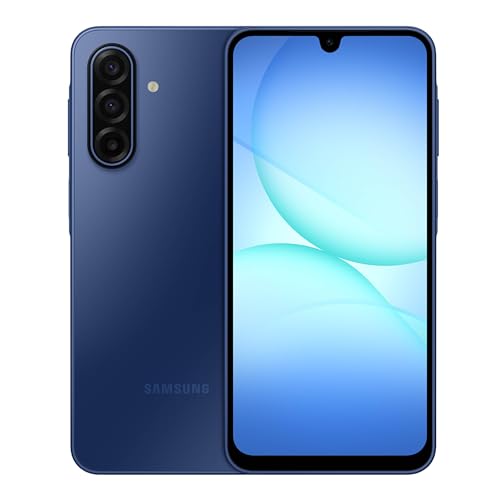
3. Samsung Galaxy A16 4G (128GB, 2025)
A Samsung Galaxy A16 4G dual SIM phone with 128GB of storage, a 6.7-inch 90Hz AMOLED display, splash resistance and a 50MP camera, per the listing. Check price on Amazon.
Good for: a bright screen on a budget. Strengths: AMOLED 90Hz screen at a low price. Weaknesses: 4G only. Skip it if you want 5G.
Best for 5G Samsung with a US warranty
4. Samsung Galaxy A17 5G
A Samsung Galaxy A17 5G smartphone with 128GB of storage and a US 1-year manufacturer warranty, per the listing. Check price on Amazon.
Good for: 5G Samsung with a US warranty. Strengths: 5G and US warranty. Weaknesses: higher price than the budget picks. Skip it if you want the cheapest.


Best for learning to use an Android phone
5. Android Smartphones For Seniors For Dummies
A For Dummies guide to Android smartphones for seniors, per the listing (a book, not a phone). Check price on Amazon.
Good for: learning to use an Android phone. Strengths: plain-language instructions. Weaknesses: not a device. Skip it if you need a phone.

Best Picks by Category
They summarize listing data and are not hands-on test results.
- Top rated: Motorola Moto G Play LTE
- Most reviewed: Motorola Moto G Play LTE
- Lowest price: Android Smartphones For Seniors For Dummies
- Premium option: Samsung Galaxy A17 5G
Price, Rating and Review Comparison
The table summarizes the picks by price tier. Check price on Amazon.
| Product | Price | Rating | Ratings | Price tier |
|---|---|---|---|---|
| Android Smartphones For Seniors For Dummies | Check price on Amazon | — | — | Budget |
| Motorola Moto G Play LTE | Check price on Amazon | — | — | Mid-range |
| Samsung Galaxy A16 4G (128GB, 2025) | Check price on Amazon | — | — | Mid-range |
| Samsung Galaxy A17 5G | Check price on Amazon | — | — | Mid-range |
| Motorola Moto G (2025) | Check price on Amazon | — | — | n/a |
How Much Feedback Backs Each Rating
A high average from a handful of ratings is weaker evidence than a slightly lower average from thousands. Here is how the sample size looks for each pick.
- Motorola Moto G Play LTE: a large sample of feedback.
- Motorola Moto G (2025): a large sample of feedback.
- Samsung Galaxy A16 4G (128GB, 2025): a large sample of feedback.
- Samsung Galaxy A17 5G: a large sample of feedback.
- Android Smartphones For Seniors For Dummies: a moderate sample of feedback.
How to Choose
Screen size
Larger screens are easier to read.
Accessibility
Look for large text and display zoom.
Support
Pick a brand with good support.
How We Chose These Products
We start from products sold on Amazon with a full product name and clear specifications, and we skip results that show only a brand name or a vague title. We then read the listing and any manufacturer information for each one and note the features that matter for Android phones: display, battery, cameras, software updates and network bands. We do not run our own lab tests, and this guide contains no hands-on measurements. Use it to build a shortlist, then check current prices, dimensions and return terms on the Amazon page before you buy.
Buying Guide: What to Check Before You Choose
Phones for seniors
Look for a large display, loud speaker, simple interface and long battery life. Hearing-aid compatibility may matter.
Unlocked phones and network bands
An unlocked phone works with different carriers, but you need to check band support for your carrier, particularly for 5G. Look at the specifications for bands and carrier compatibility.
What changes with price
At lower prices you give up processor speed, camera quality and charging speed. Check storage, update support and the display. A slightly older flagship can offer more for the same price.
Quick Reference: Which Pick Suits Whom
- Motorola Moto G Play LTE: suits basic calls, texts and browsing
- Motorola Moto G (2025): suits everyday use with 128GB of storage
- Samsung Galaxy A16 4G (128GB, 2025): suits a bright screen on a budget
- Samsung Galaxy A17 5G: suits 5G Samsung with a US warranty
- Android Smartphones For Seniors For Dummies: suits learning to use an Android phone
Common Mistakes to Avoid
- Not checking carrier band support.
- Ignoring update policy.
- Choosing on megapixel numbers.
- Forgetting storage.
- Skipping the return window.
Setup and Care
- Check carrier compatibility before purchase.
- Update the software.
- Set up backups.
- Add a case and screen protector.
Android Accessibility Features Worth Knowing About
Many people shopping for an older relative focus on the hardware, but the settings menu does as much for readability as a bigger screen does. Every Android phone includes a set of accessibility tools, and the exact names differ a little between Motorola, Samsung and other makers. These are the ones that make a real difference.
- Font size and display size. Text can be enlarged well beyond the default, and a separate display size setting enlarges buttons and icons too. Use both together for a phone that is easy to read without glasses.
- Bold text and high contrast. These sharpen letters against the background. Dark text on a light background is often easier than the reverse, though some people prefer dark mode in the evening.
- Magnification. A triple-tap or a button zooms the screen temporarily, which helps with small print on a website or a form.
- Screen readers and voice tools. TalkBack reads what is on the screen out loud. Voice typing and voice commands help people who find the keyboard hard to use.
- Easy modes and simple layouts. Samsung has an easy mode with larger icons and fewer items on the home screen. Motorola and other makers offer simpler launchers, and a third-party senior launcher is available from the Play Store.
- Touch settings. Touch and hold delay, and options to ignore repeated taps, help people with a slight tremor avoid accidental presses.
- Emergency features. Emergency SOS, a lock-screen medical information card and location sharing with family are simple to set up and valuable.
These settings are free and take only a few minutes. Set them up before the phone is handed over, and show how to change them later.
Hardware That Matters More Than the Spec Sheet
The display, speaker and battery are the parts a person actually notices every day. Processor speed and camera megapixels are lower priorities here.
Screen size and brightness
A larger display shows more text per line and gives bigger touch targets. The Galaxy A16 in this guide has a 6.7-inch screen, and a bright AMOLED panel is helpful in daylight. The trade-off is size and weight, so someone with small hands or arthritis should pick up a model in a store if possible, or confirm the return policy.
Speaker and call quality
Volume and clarity on calls matter more than almost any other feature. Check the listing for hearing-aid compatibility (a rating on the product page), a loud speaker and good noise reduction. If you use hearing aids, a phone with Bluetooth support for hearing devices is worth looking up.
Battery and charging
A big battery means fewer reminders to plug in. Check the cable and the connector, and consider a charging dock or stand so that the cable does not need to be fiddled with. Wireless charging is less common on lower-priced models.
Unlocking
A fingerprint sensor on the side or the back is quicker than typing a code and easier than face recognition for some users. Make sure the finger rests naturally on it. A simple PIN is better than a complex pattern that is easy to forget.
Durability and grip
A case with a good grip protects against drops and makes a slim phone easier to hold. A screen protector helps against scratches. Splash resistance, as listed on the Galaxy A16, is a nice safety margin around kitchens and sinks.
Matching a Phone to the Person
- First smartphone, mainly calls and texts. Keep it simple. A basic model with an easy layout and large text avoids overwhelm. The Moto G Play LTE is listed for basic calls, texts and browsing.
- Photos of grandchildren and video calls. A clear screen, enough storage and a decent camera matter. The 128GB models give more space for photos.
- Vision difficulties. Prioritize a big, bright display, a screen reader and voice control. Consider a larger case with a loop or stand.
- Hearing difficulties. Look for hearing-aid compatibility, loud stereo or single speakers, captioning and a vibrating ringer.
- Memory concerns or a caregiver. Use simple home screens, shared location and a trusted contact. Some family sharing tools can manage updates and app installs remotely.
- Long-term use. Support matters. A phone that keeps receiving security updates is safer, and a phone with a US warranty, such as the one listed for the Galaxy A17 5G, can be easier to claim on.
Setting Up the Phone Before You Give It
A new phone is overwhelming if it arrives untouched. Spend an hour on setup and the first week goes far better.
Start by signing in with a Google account created for the phone, and write down the password and a recovery email in a safe place. Move contacts across, and add family members as starred contacts on the home screen. Increase the font and display size, then reduce home screen clutter to the few apps in daily use. Turn on automatic updates and backups, set up a screen lock the person can remember, and enable the emergency information. Add photo and messaging apps the family uses and test a video call together.
The For Dummies book listed in this guide is a printed reference that helps a person learn at their own pace. It is not a phone, and it works best beside a phone that is already set up.
Scams, Spam and Staying Safe
Older adults are frequent targets for phone scams, and a phone can be configured to help. Turn on caller ID and spam filtering in the phone app, and block unknown numbers if the person prefers. Remind the user that real banks and government agencies will not ask for gift cards or remote access. Keep Google Play Protect on, install apps only from the Play Store, and avoid links in unexpected texts. Show the person how to hang up and call back using a number they trust.
Questions to Ask Before You Order
- Is the phone unlocked, and does it support my carrier’s bands?
- Does it have hearing-aid compatibility, and is the speaker loud enough?
- How many years of security updates does the maker promise?
- Is the screen size comfortable for the person’s hands?
- Will someone be around to help with setup and the first questions?
Carriers, Plans and Hidden Costs
The phone is only one part of the monthly bill, and a lower-priced phone can be undone by a plan that does not fit.
- Unlocked versus carrier-sold. An unlocked phone can move between carriers and prepaid plans. Before you buy, enter the phone model in your carrier’s compatibility checker, and confirm that calling, texting and mobile data will work in your area.
- Prepaid and senior plans. Many carriers offer lower-priced plans for older customers or light users, with limited data. Someone who mostly uses WiFi at home may need very little.
- Family plans. Adding a parent to a family plan can be cheaper than a separate line, and it simplifies billing and support. Ask who will manage the account.
- Insurance and protection plans. A basic case and a screen protector cover most accidents. Insurance makes sense mainly for people who often drop phones.
- Accessories. Budget for a case, a screen protector, a charging stand and perhaps a wireless charger or a spare cable. Wired earbuds or a Bluetooth headset can help in noisy places.
It is also worth deciding who will help. A phone shared with a nearby relative who can answer questions is more useful than a more capable one with no help at hand.
Teaching the Basics Without Frustration
Learning goes better in short, repeated sessions than in one long lesson. Pick three tasks the person cares about, such as calling a family member, opening a photo and sending a message, and practice only those for the first week. Write the steps on a card in large print and keep it with the phone. Encourage the person to tap and explore, and explain that nothing they press will break the phone. Agree on a time each week for questions, so small problems do not pile up into a reason to stop using it.
Living With Android phones for older adults and first-time smartphone users Day to Day
The first week with a new phone tells you more than any specification sheet. In the first few days, pay attention to the small frictions rather than headline features: how quickly the phone unlocks when your hands are full, whether the screen stays readable when you step outside into bright light, how the phone feels after a long call, and whether the battery anxiety you may have had with your old device actually goes away. Budget and mid-range Android phones have become very good at the basics, so the differences that matter in daily life are usually about consistency. A phone that opens the camera quickly every time, holds a signal in a weak coverage area, and does not stutter when you switch between maps, messages and a browser is worth more than a phone with a longer feature list that behaves unpredictably.
Set aside one evening during the first week to walk through the settings properly instead of accepting every default. Turn on automatic backups so your photos and messages are protected if the phone is lost or damaged. Review which apps are allowed to run in the background and which can send notifications, because a phone that buzzes less is a phone that feels faster and lasts longer between charges. Arrange your home screen around the handful of apps you open many times a day, and move everything else into the app drawer. These small choices, made once, shape how the phone feels for the whole time you own it, and they cost nothing.
Think about how you actually use a phone across a normal day. Most people move through the same pattern: messages and news in the morning, maps or transit information on the move, photos and short videos when something is worth capturing, banking and two-factor codes when security matters, and entertainment in the evening. Judge the picks in this guide against that pattern rather than against an idealised test. A phone that handles your real pattern smoothly, with storage to spare and a battery that reaches the evening without help, is the right phone even if another model looks stronger on a comparison table.
How the Picks in This Guide Compare in Practice
The picks in this guide — Motorola Moto G Play LTE, Motorola Moto G (2025), Samsung Galaxy A16 4G (128GB, 2025), Samsung Galaxy A17 5G and Android Smartphones For Seniors For Dummies — were chosen because each one suits a recognisable kind of buyer, and understanding those differences matters more than ranking them. Read each review in this guide asking one question: is this the pick whose strengths line up with the job I actually have? A pick described as simple and dependable is not a lesser version of a pick described as powerful or feature-rich; it is a different answer to a different question. Most dissatisfied buyers did not buy a bad product — they bought a good product aimed at somebody else.
Consider Motorola Moto G Play LTE in the context of your whole setup rather than in isolation. Ask how it fits the devices you already own, the places you will use it, and the people who will share it. Check the practical details the review highlights — the fit, the controls, the connection, the everyday conveniences — against your own habits one by one. Where a review in this guide notes a limitation, decide whether that limitation touches anything you do in a normal week. If it does not, it is not a reason to reject the pick; if it does, no amount of strength elsewhere will compensate, because a limitation you meet daily outweighs a feature you use monthly.
Consider Motorola Moto G (2025) in the context of your whole setup rather than in isolation. Ask how it fits the devices you already own, the places you will use it, and the people who will share it. Check the practical details the review highlights — the fit, the controls, the connection, the everyday conveniences — against your own habits one by one. Where a review in this guide notes a limitation, decide whether that limitation touches anything you do in a normal week. If it does not, it is not a reason to reject the pick; if it does, no amount of strength elsewhere will compensate, because a limitation you meet daily outweighs a feature you use monthly.
Consider Samsung Galaxy A16 4G (128GB, 2025) in the context of your whole setup rather than in isolation. Ask how it fits the devices you already own, the places you will use it, and the people who will share it. Check the practical details the review highlights — the fit, the controls, the connection, the everyday conveniences — against your own habits one by one. Where a review in this guide notes a limitation, decide whether that limitation touches anything you do in a normal week. If it does not, it is not a reason to reject the pick; if it does, no amount of strength elsewhere will compensate, because a limitation you meet daily outweighs a feature you use monthly.
Consider Samsung Galaxy A17 5G in the context of your whole setup rather than in isolation. Ask how it fits the devices you already own, the places you will use it, and the people who will share it. Check the practical details the review highlights — the fit, the controls, the connection, the everyday conveniences — against your own habits one by one. Where a review in this guide notes a limitation, decide whether that limitation touches anything you do in a normal week. If it does not, it is not a reason to reject the pick; if it does, no amount of strength elsewhere will compensate, because a limitation you meet daily outweighs a feature you use monthly.
Consider Android Smartphones For Seniors For Dummies in the context of your whole setup rather than in isolation. Ask how it fits the devices you already own, the places you will use it, and the people who will share it. Check the practical details the review highlights — the fit, the controls, the connection, the everyday conveniences — against your own habits one by one. Where a review in this guide notes a limitation, decide whether that limitation touches anything you do in a normal week. If it does not, it is not a reason to reject the pick; if it does, no amount of strength elsewhere will compensate, because a limitation you meet daily outweighs a feature you use monthly.
It also helps to think in terms of the next two or three years rather than the next two or three weeks. Which pick will still suit you if your routine changes a little — a new phone, a different room, a new hobby, a family member sharing the same gear? You cannot predict everything, and you should not pay heavily for flexibility you will never use, but a pick with standard connections, replaceable wear parts and straightforward controls tends to adapt quietly, while a pick built around one narrow trick tends to be replaced whole. The reviews in this guide flag those qualities where they matter, so use them.
A Step-by-Step Setup and First-Week Checklist
Start the setup with the transfer from your old phone, and do it while both devices are charged and connected to the same Wi-Fi network. Android’s built-in transfer moves your apps, photos, messages and settings, but it is worth checking the important things manually afterwards: open your banking app and sign in while you still have the old phone for verification codes, confirm your photos really did arrive, and check that your contacts are complete. Keep the old phone, wiped only later, for at least a few days as a safety net. Rushing this step is the most common cause of lost messages and locked accounts.
Once the transfer is done, work through a short first-week checklist. Update the system and all apps, because a phone that has sat in a warehouse may be several updates behind. Set up the fingerprint or face unlock and a strong PIN, since biometrics are a convenience layer on top of that PIN rather than a replacement for it. Turn on Find My Device so a lost phone can be located, locked or wiped. Choose your default apps deliberately — browser, messages, photos — rather than ending up with duplicates doing the same job. Finally, put a case on the phone and consider a screen protector on day one, not after the first drop.
Storage discipline in the first month pays off for years. Decide where photos are backed up, set messaging apps to download media only in the way you actually want, and uninstall the pre-installed apps you will never open rather than letting them sit and update themselves. If the phone supports expandable storage, use the card for media such as downloaded video and music rather than for apps, which keeps performance predictable. A phone that starts organised tends to stay fast; a phone that fills up in the first month tends to feel old long before the hardware is.
Troubleshooting: Solving the Problems Owners Actually Hit
If a new phone feels slow, the cause is usually software rather than hardware. Check for a system update still waiting to install, look at which apps are using the most battery in settings — heavy battery use and sluggish behaviour often come from the same misbehaving app — and restart the phone, which clears temporary problems more often than people expect. If one app is the problem, clearing its cache or reinstalling it is safer than installing cleaner or booster apps, which generally make things worse. Genuine hardware faults in the first days are uncommon, and they are exactly what the return window is for, so do not struggle with a phone that misbehaves from the start.
Battery life that disappoints in the first two or three days is not always a warning sign. A new phone indexes photos, syncs accounts and installs updates in the background, and adaptive battery features need time to learn your routine. Judge battery life at the end of the first week, with your normal apps and brightness habits in place. If it is still poor, the screen is almost always the largest drain, followed by weak signal — a phone working hard to hold a connection in a low-coverage building uses far more power than the same phone in good coverage. Those are usage patterns you can adjust, not necessarily faults.
Connectivity problems deserve a methodical check before you blame the phone. Confirm the SIM is seated properly, check that the access point settings match your carrier, and test the phone in a second location to separate a coverage problem from a device problem. For an unlocked phone especially, verify before you conclude anything that the model supports the network bands your carrier actually uses in your area — that single detail explains most cases of a phone that works in one town and struggles in another. Wi-Fi calling, where your carrier offers it, is often the simplest fix for weak indoor signal.
Care, Maintenance and Making It Last Longer
A phone’s working life is mostly decided by heat, charging habits and physical protection. Heat is the quiet enemy of battery health, so avoid leaving the phone on a hot dashboard or in direct sun while it charges, and do not worry about charging overnight with a modern phone — its charging management handles that far better than manual unplugging rituals do. You do not need to run the battery flat or charge it in any special pattern. What helps is consistency: a decent case, a screen protector if you are hard on screens, and keeping the charging port free of pocket lint, which is a surprisingly common cause of cables that suddenly seem loose or charging that becomes intermittent.
Software care matters as much as physical care. Install system and security updates promptly, because on Android the security update is what keeps an older phone safe to use for banking and email long after its big version upgrades end. Review your apps a few times a year and remove what you no longer use; every app you keep is an app that updates, runs background processes and asks for permissions. Before any major update, make sure your backup is current. And when the phone eventually moves on — sold, handed down or recycled — sign out of your accounts, remove the memory card if it has one, and use the factory reset in settings so your data goes with you rather than with the phone.
Plan the total cost of ownership, not just the purchase. A case, a spare charging cable at work, and possibly one battery-related repair late in the phone’s life are the realistic extras. Phones in the guides on this site are chosen so that those extras stay small: standard charging, widely available cases and screens that do not need specialist handling. A phone that is cheap to protect and easy to live with for three or four years is a better purchase than a phone that saves a little at the till and then costs you time every week.
Matching the Pick to Your Real Life: Scenarios to Work Through
Work through three ordinary scenarios before you decide, because a product that handles your scenarios well is the right product even if it is not the strongest on paper. First, the rushed scenario: you need the product to work immediately, with no setup, no searching for a cable or a setting, while something else demands your attention. Second, the shared scenario: someone else in the household uses it, with different hands, different habits and no patience for your personal configuration. Third, the tired scenario: it is the end of a long day, the battery is low, the light is poor and your tolerance for friction is at its lowest. The picks in this guide were assessed with exactly those moments in mind, because products fail people in rushed, shared and tired moments far more often than they fail in calm demonstrations.
Consider also the environment you will use the product in most. A quiet flat, a busy family kitchen, a train, an office, a workshop and a car all reward different qualities: robustness in one, discretion in another, speed in a third. Products are usually reviewed in neutral conditions, but nobody lives in neutral conditions. Match the pick to your noisiest, brightest, most crowded or most demanding regular environment, not your easiest one, and the product will feel right everywhere else automatically. If a pick only works in your best environment, it is the wrong pick, however impressive its best case looks.
Finally, decide what would make you replace this purchase, and buy to push that day as far away as possible. For most products in this guide, replacement is triggered by one of a few things: a battery that no longer holds a useful charge, physical damage, a change in the devices it must work with, or a change in your own routine. You can defend against the first two with the care habits described in this guide, and against the last two by choosing standard connections and mainstream designs over proprietary ones. A purchase made with its replacement triggers in mind is a purchase you make once, deliberately, instead of twice by accident.
It is worth writing down, even if only mentally, the one job you are hiring this product to do. Not the list of jobs it could do, and not the jobs the marketing suggests, but the single job that made you start looking. Every pick in this guide can do that job; they differ in how they handle the second and third jobs on your list, and in what they ask of you in return — charging, carrying, configuring, cleaning. Rank your second and third jobs honestly, weigh what each pick asks of you, and the choice usually becomes clear without needing any further comparison tables.
Frequently Asked Questions
Which phone is easiest?
Moto and Samsung both offer easy modes.
Need a guide?
The For Dummies book helps with setup.
5G?
Not required for seniors.
Is an unlocked phone better?
It gives flexibility with carriers, but check band support.
How long do phones get updates?
It depends on the maker. Check the listed update promise.
How much storage do I need?
128 GB suits most; more if you store lots of media.
How do I make text bigger on an Android phone?
Open Settings, then Display, and choose Font size and style. Slide the size up and check a preview. Also raise Display size to enlarge icons and buttons. On Samsung phones the same options are under Display, and you can add bold text for extra contrast.
Is a smartphone or a flip phone better for a senior?
It depends on the person. A flip phone is simple, with real buttons and a long battery, but it limits video calls, photos and messaging apps. A smartphone with accessibility features offers more but needs setup. Try a few tasks they do daily.
How can I limit what a senior can do on an Android phone?
Use a simple launcher with only the needed apps, remove the rest from the home screen, and turn on Google Family Link or app restrictions if the person agrees. Set a Play Store password prompt for installs and enable spam call filtering.
What makes a phone hearing-aid compatible?
A compatibility rating tells you the phone has low enough interference with hearing aids and supports a coil or Bluetooth connection. Check the specifications for an M and T rating or a note on Bluetooth hearing device support, and try it with the hearing aids if you can.
Should I buy a phone with 5G for an older person?
It is not required for calls, texts and everyday browsing, and a 4G phone may be fine. 5G helps if you want faster video calls and your area has coverage. A phone with a longer support promise is often more useful than a faster radio.
More Questions Worth Asking
How long should I give a new purchase before deciding it is not right for me?
Give it a full week of normal use rather than judging it on the first day. Almost every product in this guide has a learning period: your hands, eyes and habits need time to adjust, and early impressions are dominated by whatever is different rather than whatever is better or worse. Use the product for its main job every day that week, in the places and conditions you bought it for. If a problem is still there at the end of the week — and you have checked the setup steps and troubleshooting in this guide — then it is a real mismatch, and the return window is there to be used. Deciding too early wastes good products; deciding too late wastes money.
What should I check first if something stops working properly?
Start with the simplest causes and work outward: charge and power first, then the connection, then settings, then the accessory or device itself. Most failures that feel serious — a product that will not turn on, will not connect, or suddenly performs badly — trace back to a flat battery, a loose or dirty connector, a stale pairing, or a setting changed by an update. Restarting both devices in the chain clears a large share of remaining problems. Only after those steps should you suspect a fault, and if the product is new, a fault found early is a reason to exchange it rather than to live with it.
How do I get the longest useful life out of what I buy?
Protect it physically, keep its software or firmware updated, and treat heat and moisture as the enemies they are. The products in this guide are not fragile, but they are small, battery-powered and carried everywhere, and their working lives are decided by ordinary handling far more than by design limits. A case or pouch used consistently, a charging routine that avoids leaving the battery flat for long periods, and prompt attention to small problems — a fraying cable, a loose fit, a dirty contact — before they become big ones will add years. Longevity is mostly a habit, not a purchase.
Is it worth paying more for a higher pick in this guide?
Only when the extra money buys something your own use will actually exercise. Higher picks in this guide generally offer better build, more consistent performance, longer support or extra features, and those things are worth paying for when they match your pattern: heavy daily use, a long intended ownership period, or a specific feature you already know you need. They are not worth paying for as insurance against hypothetical uses. The honest test is to name the concrete thing the extra money buys you in your ordinary week. If you can name it, pay it. If you cannot, the lower pick is not a compromise — it is the right product.
What is the most common mistake buyers make in this category?
Buying for the specification that is easiest to compare instead of the quality that is hardest to list. Headline numbers are simple to rank, so they dominate decisions, but daily satisfaction is decided by fit, reliability, consistency and how the product behaves in your actual environment. The second most common mistake is buying for an imagined use — the trip, project or routine that never quite happens — instead of the use that fills your real week. Read the picks in this guide against your own pattern, choose for that pattern, and you will avoid both mistakes at once.
Should I buy now or wait for a newer model?
Buy when you need the product, because in these categories improvement is steady and incremental rather than revolutionary. A newer model usually refines the same design — a little faster, a little lighter, a little longer-lasting — rather than making the current picks obsolete. Waiting has a real cost too: the weeks or months spent with a broken, missing or frustrating product you already own. The exception is when a replacement cycle is genuinely close and your current product still serves you well; then waiting costs nothing. If what you have is failing you now, the best current pick is the right answer now.
Ownership Costs, Support and Buying Once
Ownership costs are rarely listed next to a product, but they are real, and thinking about them before you buy is one of the habits that separates a good purchase from a disappointing one. The costs are seldom large for the products in this guide, yet they add up in predictable places: replacement cables, tips, straps, cases or covers, the occasional lost part, and the time you spend charging, cleaning and configuring. A product with widely available, inexpensive wear parts and standard connections keeps those costs low for years. A product built around a proprietary part that only one seller stocks turns a small accident into a full replacement. The reviews in this guide favour the first kind of design wherever the choice exists, and it is worth checking that quality yourself before you commit.
There is also a time cost to consider, and it is the one buyers underestimate most. Every product asks for a little of your attention: learning its controls, keeping it charged, keeping it clean, updating it, and finding it when you need it. A product that asks for that attention at convenient moments — a weekly charge while you are already at your desk, a wipe-down that takes seconds — fits into a life easily. A product that demands attention at inconvenient moments, mid-journey or mid-activity, gradually stops being used no matter how good it is. When you compare the picks here, weigh what each one asks of you and when it asks, alongside everything it offers.
Support and documentation matter more than their reputation suggests. A maker who publishes clear manuals, answers common questions in plain language and keeps replacement parts available is telling you something about how the product will be treated after the sale. Before buying, it is worth a few minutes checking that the instructions for your exact model are easy to find and that the basic questions — how to reset it, how to clean it, what to do when it will not connect — have documented answers. The troubleshooting section of this guide covers the problems owners meet most often, but the maker’s own documentation is the second line of defence, and a product without it is a product you maintain alone.
Finally, buy once and buy deliberately. The cheapest pattern in every category on this site is not buying the cheapest product; it is buying the right product a single time and using it for its full working life. That means resisting both false economies — the product so basic it cannot do the main job properly — and false upgrades, where extra money buys features your routine never touches. The guides on this site are structured to make that middle path easy to find: honest limitations stated for every pick, comparisons drawn between the picks themselves, and buying advice written for real routines rather than ideal ones. Use them that way, and the product you choose should still be serving you long after the purchase feels like ancient history.
Bottom Line
For simplicity, the Moto G Play. For a bright big screen, the Galaxy A16. For help, the For Dummies guide.
Related Reading
- 3 Best 5G Flip Phones: Razr, Galaxy Z Flip7 FE, TCL Flip 4
- 6 Best 5G Phones Under $300: Samsung, Motorola, REVVL
- 6 Best 5G Phones Under $500: Galaxy A36, A56, A37, Edge
- 5 Best 5G Phones Under $600: Galaxy A57, A37 and Rugged 5G
- 6 Best Basic and Minimalist Phones
More Android Phone Guides
- Best Android Phones Under $200
- Best Android Phones Under $300
- Best Android Phones Under $500
- Best Unlocked Android Phones
- Best Motorola Android Phones
- Best Samsung Galaxy A-Series Phones
- Best Rugged Android Phones
- Android Phone Buying Guide
- All ‘+hubLabel.toLowerCase()+’ guides
Related Guides
- 6 Best Android Phones Under $200: Moto G, Galaxy A16 (2026)
- 6 Best Android Phones Under $300: Samsung and Motorola (2026)
- 5 Best Android Phones Under $500: A37, Moto G Stylus, S23 (2026)
- 7 Best Unlocked Android Phones: Galaxy A, Moto, Flip (2026)
- 6 Best Motorola Android Phones: Moto G, Stylus, Razr (2026)