Disclosure: As an Amazon Associate, reviewstook.com earns from qualifying purchases. Links on this page are affiliate links; they cost you nothing extra. Prices and availability change often, so check the current Amazon listing before you buy.
Dell’s flagship answer to a question the whole premium laptop market keeps asking is the xps 14: how much genuine work — code, photographs, video, documents at scale — can be carried in a machine that still feels like a design object rather than a workstation’s luggage? This generation, built around Intel’s Core Ultra 7 255H processor and Intel Arc graphics in a 14.5-inch chassis, comes in two personalities that this review treats as the central decision: a 3.2K OLED touch configuration with 32GB of memory for buyers who want the screen and the headroom, and an FHD+ 120Hz configuration with 16GB for buyers who would rather have endurance and a gentler demand on the battery. Both are verified listings of the same DA14250 platform, reviewed here under their own configurations, and the guidance that follows is organised around the real fork in this purchase — display first, memory second, everything else after — because the XPS 14 is a laptop whose screen you will judge ten thousand times and whose processor you will judge mostly by its silence.
Key takeaways
- The XPS 14’s identity is its combination of a compact, beautifully built chassis with a genuinely high-end display choice at the top of the range.
- The OLED configuration is the one for visual work — colour, contrast, and a variable high refresh — while the FHD+ configuration is the endurance and value play within the line.
- Core Ultra 7 255H performance suits creators, developers, and heavy multitaskers, with integrated Arc graphics that handle photo and light video work rather than serious gaming.
- Memory is a buy-it-forever decision on machines of this class, and the 32GB configuration is the safer long-term ownership for demanding workloads.
- Three Thunderbolt 4 ports make the XPS 14 a natural dock-driven desk machine, provided your accessories live in the USB-C world.
- Buyers who need many legacy ports, a number pad, or gaming-grade graphics should look at the alternatives discussed in this review instead.
In this guide
Xps 14: what is this generation of the XPS line trying to be?
The XPS name has carried Dell’s premium ambitions for a decade, and its formula has stabilised into something recognisable: an aluminium chassis cut with unusual care, a display that leads the spec sheet and the conversation, and internals chosen for the professional mainstream rather than for benchmark theatre. The current 14 sits between the ultraportable 13 and the larger creator machines, and its 14.5-inch panel in a footprint closer to older 13-inch laptops is the size argument in physical form — screen enough for split-window work, bag presence small enough for daily travel. Intel’s Core Ultra 7 255H brings a 16-core hybrid design and a modern neural processing unit for the AI-assisted features that current Windows workloads increasingly call on, while the integrated Intel Arc graphics handle the visual side with competence aimed at creators rather than gamers.
The design language will divide opinion, as it has since this generation of XPS styling arrived: a clean, minimal deck, a haptic touchpad that disappears into the palm rest, and a capacitive function row where physical keys used to live. Admirers call it the laptop as a single machined thought; traditionalists miss their tactile function keys and their visible touchpad borders. This review’s position is that the styling is honest — it is what the machine is, a premium object that asks its owner to live in the present tense of ports and input — and that buyers should audition the keyboard and touchpad with their own hands if they can, because those two surfaces, not the processor, are where daily affection or irritation will be decided.
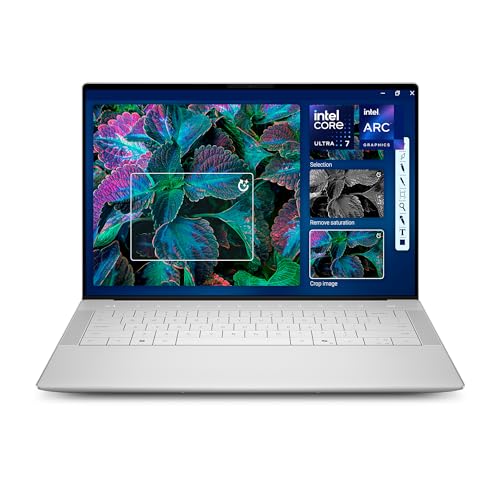
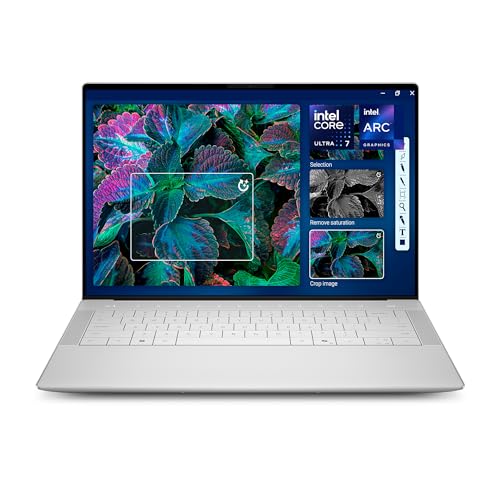
Dell XPS 14 with 3.2K OLED touch — the flagship configuration
Badge: The configuration to buy for visual work. This is the XPS 14 as its designers dream about it: a 14.5-inch 3.2K OLED touch display with a variable 48–120Hz refresh, the Core Ultra 7 255H, 32GB of memory, and a 1TB SSD. The OLED panel is the argument — perfect blacks, cinematic contrast, colour that makes photographic and video work feel less like proofing and more like viewing — and the memory doubles the other configuration’s, which matters every day a demanding workload is open rather than only on benchmark day.
At a glance: 14.5-inch 3.2K OLED touch display, 48–120Hz; Intel Core Ultra 7 255H; Intel Arc graphics; 32GB memory; 1TB SSD; backlit keyboard with fingerprint reader.
Strengths
- The display is the finest reason to buy this laptop, for creators and for anyone whose work is judged on a screen.
- 32GB of memory gives the machine a long, unbothered life with heavy multitasking and large files.
- The full specification means no compromise needs explaining to yourself in year three.
Trade-offs
- OLED richness is paid for in battery endurance compared with the FHD+ configuration, especially at high brightness.
- It is the premium configuration of a premium line, and its positioning reflects that.
- Touch and gloss finishes invite fingerprints and reflections that matte-screen loyalists will notice.
Best for: photographers, video editors, designers, and buyers who keep a flagship for many years. / Not suited for: endurance-first travellers or anyone who finds OLED pricing hard to justify for document work.
Dell XPS 14 with FHD+ 120Hz — the endurance configuration
Badge: The sensible configuration for the working week. The second verified listing keeps the same chassis and processor and changes the equation around them: a 14.5-inch FHD+ display at 120Hz, 16GB of memory, the same 1TB of storage, and a business-leaning Windows 11 Pro installation with the full port and security set — three Thunderbolt 4 ports, a 1080p infrared webcam for face sign-in, a fingerprint reader, and Wi-Fi 7. For the professional whose work is documents, code, calls, and cloud tools, this is the configuration whose compromises are theoretical and whose endurance advantage is weekly.
At a glance: 14.5-inch FHD+ display, 120Hz; Intel Core Ultra 7 255H, 16-core; 16GB memory; 1TB SSD; 3x Thunderbolt 4; 1080p IR webcam; fingerprint reader; Wi-Fi 7; Windows 11 Pro.
Strengths
- The FHD+ panel at 120Hz stays smooth for work while asking far less of the battery than the OLED.
- The business specification — Pro Windows, IR sign-in, fingerprint reader — suits professional deployment.
- Same chassis, same processor, same storage: the essentials are not rationed.
Trade-offs
- 16GB of memory is the ceiling of this configuration’s ambition and the first place a heavy workload will feel it.
- Side by side with the OLED, the display’s contrast and colour are a clear class below.
- Creators who proof colour-critical work should not talk themselves into this panel.
Best for: professionals, developers, and frequent travellers whose week is documents, code, and calls. / Not suited for: colour-critical creators or heavy multitaskers who will outgrow 16GB.
How does the XPS 14 perform in real work?
The Core Ultra 7 255H is a processor aimed at the professional mainstream’s actual shape: bursts of heavy work — compiling, exporting, filtering, recalculating — interleaved with long stretches of communication and documents. In that rhythm the XPS 14 feels swift and, more importantly, composed; the chassis manages its thermals with the quiet confidence expected at this tier, reserving audible effort for sustained exports rather than announcing every spreadsheet. The integrated Arc graphics define the machine’s honest boundary. Photo editing, interface design, and light-to-moderate video work run comfortably, with the OLED configuration’s memory headroom helping exactly there; modern games at native resolution do not belong in this laptop’s brief, and buyers whose evenings include them should be reading gaming-laptop reviews, several of which start at AMD Ryzen gaming laptops compared.
Storage and memory deserve the buyer’s longest thought, because on a machine of this class they are effectively permanent. The 1TB SSD both configurations share is the right size for a working life of projects and media without constant housekeeping. Memory is the fork: 16GB serves the document-and-browser professional indefinitely, while 32GB serves the creator, the virtual-machine user, the data worker, and the heavy multitasker who keeps three worlds open at once — and it cannot be added later. This review’s standing advice for the whole premium class applies with full force here: when the budget forces a choice between the prettier screen and the larger memory, buyers who work visually take the screen, and buyers who work heavily take the memory, and buyers who do both should take the OLED configuration and be done deliberating.
What is the keyboard, touchpad, and camera like to live with?
The keyboard is a low-travel, precisely machined deck that rewards accurate typists and asks a short adjustment from anyone arriving from a deep-travel board; its backlighting and the fingerprint reader set into the power button make sign-in a single touch. The touchpad is the design’s boldest stroke — a haptic surface blended invisibly into the palm rest, large and glassy in use, whose borders your fingers must learn by geography rather than by touch. Most owners complete that learning in a week and then enjoy the cleanliness; a minority never stop missing a visible edge, and they should weight that honestly because no software update will draw the line for them. The capacitive function row is the companion debate: elegant, adaptable in principle, and less tactile than physical keys for touch-typists who live on F-keys. Neither choice is a defect; both are the machine’s character, and character should be chosen knowingly.
The camera and audio story is straightforwardly professional. The 1080p infrared webcam on the FHD+ configuration — and the platform’s camera set generally — delivers the clarity that a week of video calls deserves, with Windows Hello face sign-in that works at the speed of opening the lid, backed by the fingerprint reader for the rooms where cameras are unwelcome. Speakers and microphones sit at the standard the flagship tier has normalised: calls are clear, media is enjoyable, and nobody’s buying decision should turn on them. Connectivity is modern and complete — Wi-Fi 7 for the networks arriving now, Thunderbolt 4 for everything on the desk — and the port count’s leanness is the XPS philosophy in miniature: three fast, identical ports and a dock, rather than a museum of single-purpose holes. Buyers building that desk should read setting up a new laptop properly before the machine arrives.
How does the XPS 14 compare with its real rivals?
The premium 14-inch class is a small room with famous occupants, and the XPS 14’s position in it is distinctive. Against Apple’s MacBook Pro 14, the contest is operating system first and hardware second: the Dell offers Windows, touch, and its OLED at the top, while the Apple offers its silicon’s efficiency and its own display excellence, and most buyers’ ecosystems have already voted before the comparison begins. Against Lenovo’s ThinkPad X1 line, the XPS trades the keyboard-and-ports traditionalism of the business classic for design and display ambition. Against creator-leaning rivals with discrete graphics, the XPS concedes the gaming and heavy-3D ground and wins on thinness, quiet, and screen quality per kilo carried. The pattern is consistent: this is the premium Windows ultraportable for buyers whose work is visual and mobile, and its rivals each beat it somewhere specific — ports, keyboard tradition, graphics muscle — while none of them beats it at being this exact combination. The wider laptop landscape, including the Chromebook world that garbled searches sometimes confuse with this machine, is untangled at the XPS and Googlebook naming puzzle explained.
How do you choose between the two configurations?
Decide by the screen’s job in your life. If your work is judged visually — photographs, video, design, presentations that must land — the OLED configuration is not an indulgence but the tool itself, and its 32GB of memory future-proofs the same purchase. If your work is judged in documents, code, and calls, and your weeks include airports, the FHD+ configuration’s endurance and Pro trimmings will please you more often than the OLED’s blacks would have. Decide memory second and pessimistically: count the heaviest day of your current workload, imagine it in three years, and buy for that day, because this class of machine does not accept upgrades graciously. Decide storage last and calmly; 1TB is the right default for almost everyone, with external and cloud overflow for the media-rich. And whichever configuration you choose, budget the dock and the case in the same breath, because a three-port flagship is a system purchase whether its buyer plans it as one or discovers it as one.
What should you set up in the first week?
Begin with the unglamorous essentials that protect a premium machine’s long life: system updates completed before real work migrates, sign-in set to the fingerprint and face options the hardware provides, and a backup habit established while the disk is still nearly empty. Calibrate the display to your work — the OLED rewards owners who set its brightness discipline early, since panel longevity and battery both prefer restraint at the top of the range — and set the refresh behaviour to favour smoothness at the desk and endurance on the road. Arrange the desk around the Thunderbolt ports: one dock cable for monitors, power, and peripherals, so the laptop’s daily arrival and departure are a single gesture. Then attend to the battery habits in keeping a laptop battery healthy for years and the thermal commonsense in keeping a laptop cool under load, because a thin flagship repays owners who treat heat and charge as design constraints rather than as surprises.
What mistakes do XPS buyers make?
Buying the OLED for status and the workload of a novelist is the gentle error; the screen will delight, and the battery will quietly tax every travel day for it. Buying 16GB for a workload that already strains it is the serious error, because it cannot be corrected later at any price. Assuming the port selection will adapt to a legacy desk is the logistical error — count your peripherals before the laptop arrives, not after. Expecting gaming performance from integrated graphics is the category error, and it is made by someone every season. And judging the touchpad and function row from photographs rather than from the honest question — will my hands learn this in a week? — is the error this review has tried hardest to prevent, because the XPS 14’s character is its interface, and interfaces are marriages, not specifications.
The display decision, examined properly
Because the screen decides this purchase, it deserves more than the product cards gave it. The OLED’s virtues are physical rather than rhetorical: each pixel lights itself, so black is the absence of light, contrast is effectively unbounded in a dark room, and colour volume at low brightness — where laptop screens actually live — exceeds what backlit panels manage. For photographic work that means shadow detail you can trust; for video it means the preview resembles the deliverable; for ordinary reading it means a richness that makes long days marginally kinder. Its variable refresh, spanning a low idle to 120Hz, lets the panel sip power on static documents and run smooth in motion, a combination earlier OLED generations could not offer. The honest debits are equally physical: brightness-hungry, light-themed work draws more power than on the FHD+ panel; static interface elements held at high brightness for years are the theoretical wear case for the technology, mitigated by modern panel management and by the simple habit of not running maximum brightness indoors; and the glossy touch surface reflects the room it sits in, which bright offices will notice at certain angles.
The FHD+ panel’s case is the case for enough. Its resolution at this size keeps text clean for the document work that fills most professional weeks, its 120Hz refresh preserves the smoothness the whole premium class now promises, and its power draw is the single largest lever on the machine’s endurance. Buyers sometimes apologise for choosing it, as though they had declined the real product; they have not. They have chosen the configuration whose strengths — endurance, mattes-adjacent practicality, a gentler demand on every component — compound daily, and whose weakness appears only in the side-by-side comparison most owners never perform after purchase week. The screen question, properly examined, is not which panel is better but which panel’s virtues your calendar will actually collect, and that is a question about your life rather than about Dell’s catalogue.
Performance by workload: a guided tour
For software development, this platform is in its element: the 16-core hybrid processor chews through compiles and container builds with the brief, well-managed urgency of a machine that knows the difference between a sprint and a marathon, and the memory fork decides comfort — 16GB for ordinary projects, 32GB the moment virtual machines, large monorepos, or a local AI-assisted toolchain enter the day. For data work, the same logic scales: notebooks and frames that fit in memory fly, and the buyer who knows their datasets are growing should read the memory decision as the whole decision. For office and communication work at scale — the forty-tab, five-application, three-meeting morning — both configurations feel unhurried, and the FHD+ machine’s endurance makes it the better colleague. For content creation, the OLED configuration is the deliberate choice, with the integrated graphics setting the ceiling at enthusiastic-amateur and light-professional video rather than at effects-heavy production. And for the growing class of AI-assisted local workloads, the platform’s neural processing unit handles the operating system’s and applications’ inference features as designed, while anyone planning serious local model work should be shopping for discrete graphics and a different thermal class altogether. The tour’s conclusion is unfashionable but useful: this laptop is excellent at the centre of professional work and honest at its edges, and buyers who place their work at the centre will never meet the edges.
Travelling with the XPS 14
A flagship earns its price in airports as much as in offices, and this one’s travel character follows from its design decisions. The chassis is compact for its screen, rigid in the hand, and indifferent to the knocks of a well-packed bag, provided the bag itself is chosen with the care suggested at carrying a laptop safely day after day. USB-C charging means one adapter standard across the travel kit, and the same Thunderbolt dock logic that organises the desk organises the hotel room in miniature. The travel fork between configurations is endurance, again: the FHD+ machine is the one to carry when the day is measured in terminals and client sites, while the OLED machine travels happily between powered desks. Weight of accessories deserves one honest line — a compact USB-C charger and a slim hub add little, and the traveller who budgets them from the start will never resent the port philosophy that the home office found so elegant.
XPS 14 or XPS 13: the size question inside the family
Many buyers arrive at this review having half-decided on the smaller XPS, and the family’s internal logic deserves a clear statement. The 13-inch class machine is the traveller’s minimum: the least weight, the smallest bag footprint, a screen that serves documents and calls beautifully and split-window work adequately. The 14’s extra inch and a half of display is not a luxury increment; it is the difference between side-by-side windows that breathe and side-by-side windows that negotiate, and for buyers whose work is inherently two-document — code and reference, draft and source, ledger and mail — that difference is collected every hour of every day. The 14 also carries the stronger configuration ceiling in this generation, including the OLED and memory options this review recommends, which makes it the family’s centre of gravity for anyone whose laptop is their main computer rather than their travel accessory. The honest rule is the usual one stated in screen terms: buy the 13 if the laptop accompanies a desktop, buy the 14 if the laptop is the desktop’s replacement, and let the bag you already own cast the tie-breaking vote.
Ownership, support, and the long view
Premium laptops are kept, and kept machines accumulate a service history, so the ownership layer deserves a paragraph of respect. Dell’s support and warranty apparatus for the XPS line is the large-manufacturer kind: structured, option-rich, and most satisfying to buyers who choose their coverage tier deliberately at purchase, with accidental-damage protection earning its keep precisely for a machine designed to travel. The platform’s standard parts and wide installed base make competent help easy to find years in, and the machine’s resale value follows the flagship pattern — strong while the design is current, gentler afterwards — which matters to the upgraders who fund their next laptop with this one. Longevity’s enemies are the usual ones, heat and charge habits and physical knocks, and this review has already pointed at the guidance for each. A buyer who treats the XPS 14 as a five-year instrument, configures it for the third year rather than the first, and protects it accordingly will find the machine’s design ambition matched by its staying power; a buyer who configures for this quarter’s workload will meet the memory ceiling with three good years still on the chassis, which is the one genuinely avoidable disappointment in this entire purchase.
The design debate, settled as far as it can be
Every XPS review eventually argues about the invisible touchpad and the capacitive function row, and this one will close the argument with the only verdict the evidence supports. These choices trade a small amount of tactile certainty for a large amount of design coherence, and whether the trade profits you depends on how your hands work. Touch-typists who navigate by landmarks adapt more slowly; gesture-led users adapt in days and thereafter find bordered touchpads faintly archaic. Video editors who scrub with F-key shortcuts held down will miss physical keys in a way writers never will. The machine does not hide any of this — it announces it in every photograph — so the buyer’s task is self-knowledge rather than research. If you can, spend ten minutes with the deck at a retailer or a colleague’s desk; ten honest minutes will settle what ten reviews, this one included, can only describe. And if the verdict is no, the premium class is full of excellent traditionalists, and choosing one is not a defeat but the system working as intended.
The XPS 14 in a hybrid working life
The defining professional rhythm of the moment — two days at a headquarters desk, three at a home desk, calls throughout — reads like a design brief for this machine. At each desk, a single Thunderbolt cable wakes the same arrangement of monitors and peripherals, and the laptop’s own screen becomes the third display or the closed lid beneath a stand. Between desks, the machine’s size and build make the commute a non-event, and its sign-in — face or fingerprint at the speed of sitting down — suits a life of many small sessions rather than one long one. The configuration fork reappears in this rhythm with a practical answer: hybrid workers whose desks are both powered can buy the OLED’s beauty without paying its endurance tax anywhere that matters, while hybrid workers whose third place is a train, a site visit, or a client’s borrowed table should let the FHD+ machine’s stamina make the decision. It is also worth saying that the XPS’s quiet thermal manners are a hybrid virtue in themselves, because a laptop that stays composed in a shared office and silent in a home study is a colleague as much as a tool, and colleagues are judged on exactly such manners across a working year.
Accessories that complete the system honestly
A three-port flagship invites an accessories conversation, and the honest version is short. The dock is not an accessory but the second half of the product: choose a Thunderbolt dock with the monitor outputs your desk actually uses and power delivery that feeds the laptop at full appetite, and the XPS becomes a desktop that happens to leave at night. A compact travel charger and a slim hub form the road kit, together lighter than the legacy adapter bricks they replace. A sleeve or a properly padded bag compartment protects the aluminium’s finish, which is part of the machine’s value and all of its vanity. An external drive or a cloud tier completes the backup habit the first-week section prescribed. Beyond those four, restraint is the accessory strategy this machine rewards: its design premise is that a laptop, a cable, and a well-chosen dock are a complete professional system, and every additional gadget should have to argue its way into the bag against that premise.
Month six with the XPS 14: what owners stop noticing and what they keep noticing
Long-ownership reports on machines of this class follow a pattern, and anticipating it helps a buyer weight the review’s claims. What disappears: the touchpad’s invisibility, which the fingers map completely within weeks; the function row debate, which resolves into habit for most and into a permanent small sigh for a few; and the processor, which is the highest compliment a professional machine can earn, since speed that is never thought about is speed that is sufficient. What remains: the screen, judged fresh every morning because displays are the one component a laptop shows its owner continuously; the build, whose rigidity and finish continue to register every time the machine is lifted one-handed from a desk’s edge; and the battery’s character, which by month six is a known rhythm the owner’s day has quietly organised itself around. The lesson for the buyer standing where this review’s reader stands is to weight the durable impressions over the adjustable ones. You will stop noticing the touchpad’s borders, or their absence. You will never stop noticing the panel you chose, the memory you rationed, or the endurance you bought — so choose those three as though they were the whole purchase, because by month six they will be.
There is also a social dimension to month six that spec sheets never capture: this is a laptop other people notice in meetings, in the way they notice a well-made watch, and its owner should be comfortable with a machine that reads as a deliberate, premium choice. For some professionals that presence is part of the product, a small daily dividend of confidence in rooms where impressions are currency. For others it is a reason to choose the quieter rival. Neither response is superficial; both are honest data about the life the machine will actually lead, and a buyer does well to consult them before the checkout rather than discover them in the first boardroom.
Buying this laptop well: the checkout traps
The final practical section is a short list of ways this specific purchase goes wrong at the moment of buying rather than in the years after. The first trap is configuration drift: beginning with the endurance configuration in mind and leaving with the OLED because it photographed better, or the reverse, without either decision passing through the workload test this review prescribed. The second is accessory amnesia — a flagship, a dock-dependent desk, and no dock in the basket — which converts the first week into a scavenger hunt. The third is warranty vagueness, accepting whatever default coverage the checkout presents rather than choosing the tier that matches a travelling machine’s actual risks. The fourth is name confusion, the subject of this site’s companion explainer: the XPS line’s models differ by size and generation in ways that small suffixes carry, and a buyer should read the exact configuration title on the listing as carefully as this review read it, confirming processor, memory, storage, and panel before anything is paid for. None of these traps is Dell’s fault or the buyer’s shame; they are the standard friction of a configurable flagship, and an hour of the deliberation this guide has modelled disarms all four.
Driving a desk of monitors from a 14-inch laptop
Because so many XPS 14s will spend their weekdays as the engine of a larger desk, the multi-monitor question deserves its own examination. Through Thunderbolt, the platform drives the dual-display arrangements that professional work has standardised on, with the laptop’s own panel serving as the third surface for communication tools or closing to give the external pair the stage. The integrated graphics set the honest ceiling: office and creative 2D work across large panels is this machine’s home ground, while multi-monitor gaming is not, and buyers should not let a successful spreadsheet test talk them into expecting the other. Cable discipline decides the experience’s quality more than any specification does — one dock, one cable to the laptop, monitors and peripherals married to the dock permanently — and the owners who arrange it that way describe the daily docking as the single most satisfying ritual of the setup. Those planning the desk from scratch will find the ergonomics half of the project at laptop desk mounts and arm setups, and the two halves together — a flagship that travels, a desk that welcomes it home — are the complete picture of what this laptop is for.
What about the AI features this generation advertises?
Current premium laptops all arrive speaking of artificial intelligence, and the XPS 14’s version of the conversation is its processor’s neural processing unit, which exists to run the operating system’s and applications’ inference features — background effects on calls, transcription, search and recall conveniences, and the steady accumulation of assisted tools — without taxing the main processor or the battery as heavily as doing that work on the CPU would. The honest calibration for a buyer is this: those features are genuinely useful at the margins of a working day and will grow more so across the machine’s life, and none of them, today, should decide a purchase against the durable fundamentals of screen, memory, and build that this review has spent its length on. Treat the NPU as headroom for the software’s future rather than as a present-tense reason to buy, and you will have weighted it exactly as a five-year owner should. The buyers for whom AI capability is the purchase itself — local model development, heavy inference work — need discrete graphics and a different class of machine, and this guide’s consistent honesty requires steering them there rather than stretching this laptop’s brief to cover them.
A note on noise, heat, and the shared office
Thin flagships are judged in shared spaces by their manners, and this one’s deserve a closing word. Under the ordinary professional load — documents, calls, browsing, the background sync of a modern working life — the XPS 14 is effectively silent and cool to the touch, which is the state its owners will inhabit for most of its life. Under sustained exports and compiles the fans announce themselves with the purposeful hush of a machine moving air honestly rather than apologising for it, and the chassis warms without developing the localised hot spots that make lesser thin laptops unpleasant on a lap. Video calls from a quiet room, library work, and the bedside final hour of email all sit comfortably within its manners. None of this will appear on a specification sheet, and all of it will appear in the owner’s affections by the end of the first month, because a laptop is a roommate as much as a tool and this one has been raised well.
Final recommendation
Buy the OLED configuration if your work is visual and your ownership horizon is long; it is the complete expression of what this laptop exists to be. Buy the FHD+ configuration if your week is professional documents, code, and travel, and you value endurance and the business trimmings over the last word in contrast. Either way you are buying one of the finest Windows ultraportables of its generation — a machine whose compromises are visible, deliberate, and honestly priced into its design, which is more than most flagships can claim. The XPS line has survived a decade of fashion by understanding its owner precisely: a professional whose work is visual, whose desk is wherever the day puts it, and whose tools are expected to be beautiful without being fragile and powerful without being loud. This generation honours that understanding in full, and the buyer who recognises themselves in it can order with the rare confidence that the machine’s character and their own were designed, independently, to the same brief.
Frequently asked questions
Is the XPS 14 good for photo and video editing?
Yes, within the integrated-graphics class’s honest limits. Photo work and light-to-moderate video editing run comfortably, the OLED configuration’s colour and contrast are genuinely suited to proofing, and its 32GB of memory serves large files and layered projects well. Heavy 3D, effects-dense timelines, and professional colour pipelines with external reference monitoring belong on machines with discrete graphics and different thermal budgets.
Can the XPS 14 play games?
Light and older titles at modest settings, and cloud gaming, are reasonable expectations; modern demanding games at native resolution are not what integrated Arc graphics in a thin chassis are for. Buyers whose gaming matters should choose a gaming laptop and accept its size and noise as the price, rather than asking this machine to be two products and resenting it for being one.
How much memory should I choose, 16GB or 32GB?
Choose by your heaviest realistic day, projected a few years forward, because memory in this class is not upgradeable after purchase. Documents, browsing, communication, and moderate development sit happily in 16GB. Large photo and video projects, virtual machines, data work, and keeping many heavy applications open at once argue clearly for 32GB — which, in this line, arrives with the OLED configuration.
Does the XPS 14 have enough ports?
For a USB-C desk, yes: three Thunderbolt 4 ports run docks, monitors, storage, and charging with room to spare, and a single-cable dock turns the laptop into a desktop in one gesture. For a desk full of legacy USB-A devices, HDMI cables, and card readers, the honest answer is that a dock or hub is part of the purchase, and it should be budgeted and chosen with the same care as the laptop.
OLED or FHD+: which screen is better for battery life?
The FHD+ configuration, clearly. OLED’s per-pixel lighting spends more energy, particularly on bright, light-themed content at high brightness, while the FHD+ panel’s lower resolution and simpler demands extend the working day. Travellers and all-day unplugged workers should weight that difference heavily; desk-based creators with a charger in reach can buy the OLED’s beauty with a clear conscience.
Is the XPS 14 a good laptop for students?
For students whose budgets reach the premium tier and whose courses involve design, media, engineering software, or heavy multitasking, it is an excellent long-degree machine, and its build suits being carried daily. For coursework that is documents and browsing, the same money buys a very good mid-range laptop and everything else a student needs, and this review’s honesty requires saying so.
How long will the XPS 14 stay fast enough?
Configured with 32GB of memory, the honest horizon is a long professional life — five years of mainstream workloads without the machine becoming the bottleneck — because its processor class ages gracefully and its memory headroom absorbs software’s steady appetite. The 16GB configuration’s horizon is shorter for growing workloads, not because the processor tires but because memory pressure arrives first. Either way, the chassis and display will likely outlast the buyer’s patience, which is the premium class’s usual story.
Should I buy the XPS 14 or wait for the next generation?
Buy on need, not on calendar. Laptop generations refine processors and panels incrementally, and a current flagship bought when your work demands it will serve through several of its successors’ launches without embarrassment. Waiting makes sense only when your present machine fully serves you and a specific, announced feature answers a specific lack — a rare alignment that should not be allowed to postpone a purchase your workload is requesting today.
Is the XPS 14 secure enough for professional and client work?
Its provisions are the modern professional set: face sign-in through the infrared camera and a fingerprint reader as complementary biometrics, the platform security built into current Windows Pro on the business configuration, and encryption that should be enabled and whose recovery keys should be stored deliberately in the first week. For regulated work, the deciding factors are usually the employer’s own policies and management tooling rather than the hardware, and the XPS’s mainstream enterprise support makes it an easy citizen of those systems.
What is the first accessory I should buy with it?
The dock, before everything else, because the machine’s desk life is designed around it and a week without one teaches habits you will have to unlearn. After the dock, a protective sleeve or bag that fits the machine properly, then the travel charger and hub kit if your work leaves the building. Everything beyond that list should have to justify itself against the laptop’s own minimalist premise.
Can I upgrade the memory or storage later?
Treat memory as permanent and choose it accordingly at purchase; that assumption is the safe one across this class of thin flagship, and this review’s configuration advice is built on it. Storage overflow is the easier problem, answered by the fast external drives the Thunderbolt ports welcome and by cloud tiers, so a buyer torn between storage sizes should protect the memory decision first and let storage be the flexible variable.
Is the XPS 14 worth it over a mid-range laptop?
For buyers who will keep it for years and whose work is visual or heavily multitasked, the premium buys things that compound: the display, the build’s durability and resale, the memory ceiling, and the daily pleasure of an object made without visible compromise. For a buyer replacing a laptop every couple of years for document work, the mid-range machine plus the savings is the rational answer, and this review’s role is to help you know which of those two buyers you are before the checkout decides for you.
Does the XPS 14 work well with a single-cable dock?
It is designed for exactly that life. One Thunderbolt connection carries displays, peripherals, network, and charging, so arriving at a desk is a single gesture and leaving is its reverse. Choose a dock whose power delivery matches the laptop’s appetite and whose display outputs match your monitors, and the setup will feel less like docking a laptop and more like waking a desktop that happens to travel.
What should I do on the first day I own it?
Finish every system update before migrating real work, set up both biometric sign-ins, turn on device encryption and record its recovery key somewhere safe, and establish the backup routine while the disk is young. Then calibrate the display to your rooms, arrange the dock, and resist installing the accumulated software of your old machine wholesale — a flagship’s first week is a rare chance to audit what you actually use.
Is the keyboard comfortable for writing all day?
For accurate typists, yes, after a short adjustment to its low travel and precise deck; the keys are well spaced for the chassis size and the backlighting is even for night work. Writers arriving from deep-travel desktop boards should expect a week of recalibration, and the small minority who type by slamming to the bottom of a long stroke may always prefer a traditional deck — one more reason the ten-minute hands-on test this review recommends is worth arranging.
How does the XPS 14 handle a second monitor for presentations?
Through the same Thunderbolt connection that runs the desk: a dock or a single USB-C to display cable presents to a meeting-room screen without adapters archaeology, and the laptop’s own panel remains free for notes. Presenters who travel should keep one known-good cable in the bag, because meeting rooms’ house cables are the least reliable component in any professional’s week.
Also useful: choosing a laptop bag that protects a flagship · laptop stands for a docked desk setup · cleaning a laptop screen and keyboard safely