Disclosure: As an Amazon Associate, reviewstook.com earns from qualifying purchases. Links on this page are affiliate links; they cost you nothing extra. Prices and availability change often, so check the current Amazon listing before you buy.
Front panel usb c looks like the simplest upgrade in PC building — the case already has the little oval port, so surely it just needs plugging in — and it regularly turns into the most confusing one, because a USB-C port on a case front is only a socket at the end of a cable. Everything that decides what that socket can actually do lives elsewhere: the header on the motherboard that the cable lands on, the controller behind that header, and the negotiated speed of whatever you plug in. A front USB-C port can be a 20 Gbps doorway for an external SSD, a 5 Gbps convenience port for a phone, or a completely dead hole in the case if the board has no header for it at all, and from the outside the three look identical.
This guide separates those cases properly. It explains the header types a motherboard can offer, why two ports with the same shape run at very different speeds, what adapters can and cannot rescue when the board lacks the right header, and how to verify what your finished port actually negotiated rather than what the case box promised. The three products reviewed below cover the three real situations: adding a front panel to a case with a spare drive bay, adding a fully wired bay unit with fast storage duties, and extending a motherboard header to a usable port when the case’s own provision falls short.
Key takeaways
- USB-C front header types on motherboards
- Speed differences behind identical-looking ports
- Case cord standard and bend radius
- Adapters and their honest compromises
In this guide
The short reply on Front Panel USB C
Find out what your motherboard offers before you think about the case. The front-panel USB-C cable in a modern case ends in a compact connector — the USB Type-E header, also described as Key-A — that plugs into a matching socket on the board, usually near the front edge or beside the main power connector. If your board has that header, your case’s port can work, and its speed ceiling is set by the controller behind the header: some boards wire it for USB 3.2 Gen 1 speeds, many for Gen 2, and a smaller number for Gen 2×2. If your board has no Type-E header at all, the case port cannot be connected directly, full stop — your choices are an adapter that borrows a lesser header and accepts a lower speed, a bay unit that brings its own connections, or a header card that sits in a PCIe slot.
Speed is the second thing to settle, and it is a chain, not a label. The port’s real rate is the slowest of the header’s controller, the cable run, and the device you plug in — and the device’s own cable matters too, because the short, stiff cable in an external SSD’s box may be rated for full speed while the long, soft charging cable in a drawer is rated for USB 2.0 data rates no matter what it is plugged into. Nothing about the USB-C shape guarantees anything: the connector is a shape standard, and everything interesting — data rate, charging behaviour, video — is negotiated per connection. The rest of this guide takes each link of that chain in turn, so you can predict a port’s behaviour before you buy anything.
Tools and pieces that genuinely help
The three products here answer three different versions of the problem, and choosing among them starts with which version you have. The UTECHMIX hub gives an older case a modern front face — USB-A ports, a USB-C port and card readers in a 3.5-inch bay — for owners whose case predates front USB-C entirely. The GraugeAR 5.25-inch unit is the heavy-duty answer for a case with a full-size optical bay: a Gen 2×2-class USB-C port fed by a proper Type-E header, plus card reading and bays for 2.5-inch drives. The GraugeAR adapter cable is not a panel at all but a bridge: a 60 cm Type-E extension with a PCI bracket, for builds where the header exists but the case’s own cable or port arrangement does not reach or does not suit.
| Product | Status | Listing |
|---|---|---|
| UTECHMIX 3.5 Inch Front Panel Hub | Checked page | Check expense on Amazon |
| GraugeAR 5.25 Inch Front Panel USB Hub | Confirmed entry | Check price on Amazon |
| GraugeAR USB-C Front Panel Adapter Cable | Confirmed entry | Confirm cost on Amazon |
None of the three can invent a header your motherboard does not have, and the honest reading of the table is by requirement: bay space for the two hubs, a Type-E header for full speed from any of them, and a spare 19-pin USB 3.0 header where a hub asks for one. Check those three facts about your machine first and the shortlist usually narrows itself to one.
A word about the fastest generation, since it decides real purchases: Gen 2×2 headers are the minority. Most Type-E headers in the field run at Gen 2 or Gen 1, which means a hub advertising a 20 Gbps port is describing its own ceiling, not your system’s. That is not a criticism of such hubs — a port that out-rates today’s board will still be correct on tomorrow’s — but it is a reason to shop from the board manual outward. The builder who knows their header is Gen 2 can value a 20 Gbps-capable hub as future-proofing, the builder whose header is Gen 2×2 can value it as performance, and the builder whose header is Gen 1 should value it not at all and buy the panel that matches their traffic instead.
How the lineup was chosen
A front-panel guide earns its products by covering the decision points a builder actually reaches, not by listing every hub on sale. The first decision point is a case with no front USB-C and a free floppy-sized bay, which the UTECHMIX answers with ports and card slots in one unit. The second is a case with a full optical bay and a motherboard that has a modern Type-E header going spare, where a builder may as well have the fastest front port the header allows plus somewhere to dock 2.5-inch drives — the GraugeAR 5.25-inch unit’s exact brief. The third is the awkward remainder: the header exists, the case’s port exists, but the cable is too short, damaged, or the builder wants the port at the rear bracket instead — a cable problem, answered by the GraugeAR extension. Units that merely duplicate a case’s existing front ports, charge-only gadgets with no data path, and hubs whose speed claims depend on headers almost no board provides were excluded, because each fails the test of solving a named situation cleanly.
Detailed reviews

UTECHMIX 3.5 Inch Front Panel Hub
Best for travellers
| Unit | UTECHMIX 3.5 Inch Front Panel Hub |
|---|---|
| Class | PC Building |
| Functions named on its entry | its core feature set |
| Entry tag | Check price on Amazon |
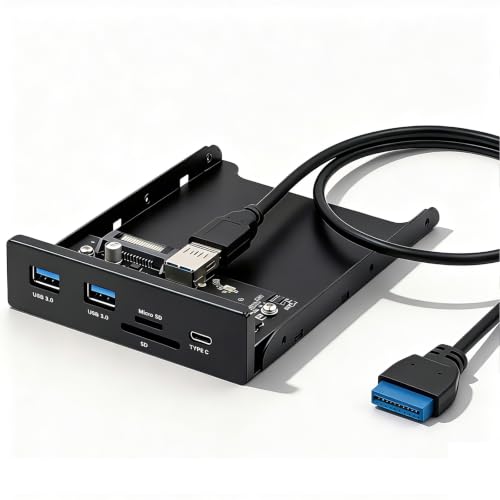
This hub is aimed at the large population of good cases built just before front USB-C became standard. It occupies a 3.5-inch bay — the floppy bay that most tower cases still carry and almost nobody uses — and gives the front of the machine two USB-A ports, one USB-C port and SD and microSD card slots. Its connections run at USB 3.0 class speeds, and that framing matters: this is a convenience panel, built for the daily traffic of flash drives, card dumps from a camera, phone top-ups and headset dongles, not a high-speed dock for editing video straight off an external SSD. Judged on that brief it is well aimed, because the devices most people plug into a front panel are exactly the ones that never needed more.
Installation is the standard bay-unit routine: slide it in, fix it with the bay screws, and route its internal cables to the board’s USB headers — which means the honest prerequisite is a spare internal USB 3.0 header for the ports and, on units that split the card reader onto its own connection, a spare USB 2.0 header as well. Builders with a single 19-pin header already feeding the case’s own front USB-A ports need to count headers before ordering, because a hub and a case front cannot share one header without a splitter arrangement that brings its own compromises. As a finished upgrade it suits the photographer or drone owner who empties cards at the desk, the household PC that serves everyone’s phones and drives, and any older case whose owner likes everything about it except its dated front face.
Strengths
- Adds USB-C, two USB-A ports and card readers to a case that had none of them
- Uses the 3.5-inch bay that most towers carry empty
- Speed class matches the flash drives, cards and phones that dominate front-panel use
Trade-offs
- USB 3.0 class speeds are not the tool for fast external SSD work
- Needs spare internal headers, which a fully populated board may not offer
- Card reader and ports share the bay’s cable run, so routing needs a little care
Best for: reviving an older case’s front panel for everyday drives, cards and phones. / Not suited for: creators moving large footage through the front port daily. Check price on Amazon

GraugeAR 5.25 Inch Front Panel USB Hub
Top pick
| Unit | GraugeAR 5.25 Inch Front Panel USB Hub |
|---|---|
| Class | PC Building |
| Page highlights | USB-C connection |
| Expense | Verify expense on Amazon |
The 5.25-inch bay is the largest front-panel canvas a case offers, and this unit uses the space the way a workstation would want: a USB-C port wired for Gen 2×2 20 Gbps service from a Type-E Key-A header, an SD and microSD reader, and two slots that accept 2.5-inch SSDs or hard drives, turning the bay into a small internal docking station. The supporting connection is the familiar 19-pin USB 3.0 header alongside the Type-E, which is how a unit like this feeds its lesser ports and reader while the headline port gets the fast header. For a builder whose motherboard carries a Gen 2×2-capable Type-E header — a feature worth verifying in the board’s manual, since many Type-E headers are Gen 2 or Gen 1 — this is the front panel that actually uses it.
The drive slots change the character of the upgrade. A 2.5-inch SSD mounted in the front bay is swappable in a way an M.2 stick buried under a graphics card never is, which suits anyone who rotates backup drives, moves a game library between machines, or keeps a clone of a system drive ready. The compromises are the bay itself — many current cases have deleted the 5.25-inch bay entirely, which ends the conversation before it starts — and the cable population behind it: a Type-E lead, a 19-pin lead and drive cabling all converging in one corner of the case asks for patient routing. Where the bay exists and the header is fast, though, this is the most complete front-panel upgrade in the guide, and the one that keeps earning its space after the novelty of a new port wears off.
Strengths
- Gen 2×2-class USB-C front port for boards whose Type-E header can feed it
- Two 2.5-inch drive slots turn dead bay space into genuinely useful storage access
- Card reader and secondary ports handled by the 19-pin header, keeping duties separated
Trade-offs
- Requires a 5.25-inch bay, which many modern cases no longer have
- Full speed depends on the motherboard header’s generation, not on the hub alone
- The densest cable run of any option here; tight cases will test your patience
Best for: a workstation case with an optical bay and a fast Type-E header going unused. / Not suited for: bayless cases, or boards whose front header is Gen 1 only. Check price on Amazon
GraugeAR USB-C Front Panel Adapter Cable
Best for modest desks
| Label | GraugeAR USB-C Front Panel Adapter Cable |
|---|---|
| Category | PC Building |
| Entry highlights | USB-C connection |
| Page price | Check cost on Amazon |
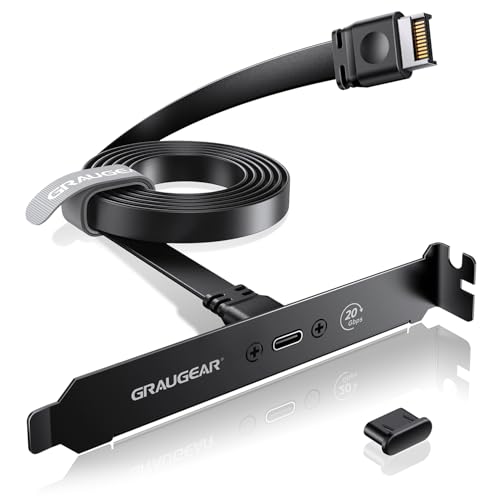
Not every front-panel problem is a missing panel; sometimes the header and the intent are both present and only the geometry fails. This cable is 60 cm of Type-E extension ending at a PCI bracket, rated for 20 Gbps service, and it exists for the builds where the case’s own front cable will not reach a header placed at the far edge of a large board, where a case’s front port is damaged but its owner wants USB-C at the bracket instead, or where a test bench and an open frame need a Type-E port that no case is providing. Sixty centimetres is a deliberate length: long enough to cross a full-tower interior, short enough that the cable run stays within the discipline that high-speed USB signalling prefers.
Its honesty is in what it does not claim. It adds no controller and no ports beyond the one it carries; the speed you get is the speed of the header you plug it into, and a Gen 1 header at the end of this cable gives you a Gen 1 port with excellent posture. It also spends a PCI bracket slot, which small cases may begrudge. Within its brief it is the cleanest of the three products here, because it solves exactly one problem — distance and placement between a Type-E header and where you want its port — with no extra electronics to configure, no drivers, and nothing to go obsolete when the board changes, since the next board’s header will accept the same cable.
Strengths
- Solves reach and placement problems between a Type-E header and a usable port
- Rated for 20 Gbps, so it never becomes the bottleneck on a fast header
- No controller or drivers involved; it carries whatever the header offers
Trade-offs
- Occupies a PCI bracket slot for its port
- Cannot raise the speed of a slow header or create one on a board without
- A cable, not a panel — it brings no card reader or extra ports with it
Best for: builds where the Type-E header exists but the case’s own cable or port falls short. / Not suited for: boards with no Type-E header at all. Check price on Amazon
The GraugeAR cable has a second, quieter use worth naming: diagnosis. When a case’s own front USB-C misbehaves — intermittent drops, a port that works only with the cable held just so — substituting a known-good extension on the same header separates case-cable guilt from motherboard guilt in one swap. If the extension behaves, the case’s lead or port is condemned and can be replaced or abandoned with confidence; if the extension misbehaves identically, the header or its controller is the story, and no further case parts should be bought. A cable that can acquit a motherboard earns its drawer space even in builds that never adopt it permanently.
Buying guide: what really determines Front Panel USB C
Four facts decide what a front USB-C port will do for you, and none of them is printed on the port itself. The header type sets whether a connection exists at all, the controller generation sets the speed ceiling, the case cable decides whether that ceiling survives the journey across the case, and the negotiation between port and device settles what any given plug-in actually delivers. Take them in that order and front USB-C stops being a lottery.
USB-C front header types on motherboards
The connector that matters is the USB Type-E header — a small, keyed, roughly rectangular socket on the motherboard, formally the header for front-panel USB 3.2, and often labelled USB 3.2 Gen 2, Type-C, or F_USB31C in board manuals. “Key-A” describes its keying variant, the one used for a single front USB-C port. Boards position it near the front edge or beside the 24-pin power connector, and it is still not universal: budget boards and older boards omit it entirely, which is the single most common reason a case’s front USB-C port sits dead. Before any purchase, find your board’s manual — the manufacturer’s PDF, not a forum post — and confirm the header exists and note its stated generation.
Where no Type-E header exists, the fallbacks each cost something specific. An adapter from the 19-pin USB 3.0 header gives the port life at USB 3.0 speeds and is a perfectly reasonable answer for drives and phones; what it cannot give is the faster generations or the fuller USB-C feature set. A PCIe header card adds a real Type-E header and its own controller, at the price of a slot and a card whose controller quality varies. And some builders simply leave the port dark and use the rear I/O, which is unfashionable but free — the right answer when front USB-C was a case feature you never actually needed. Knowing which situation you are in is the whole game; every product in this guide assumes you have checked.
Two neighbouring facts belong with the header discussion because they end common misunderstandings. First, a front USB-C port is a data port: it does not carry a display signal. DisplayPort alternate mode — the trick that lets one USB-C cable drive a monitor — is a feature of ports wired for it on laptops and some rear I/O, and front-panel headers are not wired for it, so a monitor plugged into a case’s front USB-C will sit black no matter how good the cable is. Second, the card readers in bay hubs usually hang off an ordinary internal USB connection of their own, independent of the headline port; a reader’s speed is its own modest affair, set by the reader chip and its connection, and judging a hub’s reader by the USB-C port’s generation — or the reverse — mixes two separate subsystems that happen to share a plastic face.
Speed differences behind identical-looking ports
USB’s naming is the obstacle here, so translate it once: the generations a front port can belong to run from USB 3.2 Gen 1 at 5 Gbps, through Gen 2 at 10 Gbps, to Gen 2×2 at 20 Gbps — and all three can hide behind the same USB-C shape and the same Type-E header. A board maker chooses which controller feeds the header, and plenty of boards offer a Type-E header that runs at Gen 1. The device side negotiates down just as readily: a Gen 2 external SSD on a Gen 1 port works at Gen 1 without complaint or warning, and the only evidence is a transfer timer. This is why the verification step at the end of this guide — timing a real file copy — tells you more than any specification page.
Charging follows its own negotiation and should not be confused with data speed. A front port fed from a motherboard header delivers the modest power the USB specifications provide for such ports; it will charge a phone slowly and run bus-powered drives happily, but it is not a fast charger, and no front-panel hub turns it into one, because the power comes from the header, not the hub. Owners who need serious charging at the desk need a proper desktop charger beside the PC, not a different front panel — the two jobs share a connector shape and nothing else.
Bandwidth sharing is the quieter half of the speed story. Ports fed from one header share that header’s controller, so two fast devices working at once on sibling ports divide attention rather than each receiving a private lane. For front-panel traffic this rarely matters — a card dump and a phone do not contend in any way a human notices — but the creator copying to two external SSDs through one hub should expect the pair to behave like roommates, not strangers. It is another reason the timed-transfer test should use one device at a time: you are measuring the chain, and a second busy device muddies the measurement with a variable that has nothing to do with the port’s health.
Older boards add one more wrinkle: some provide a front USB-C port’s ancestor in spirit — a USB 2.0 header pressed into service through adapters sold for exactly that purpose. A port adapted from USB 2.0 runs at USB 2.0 speeds, which were respectable in their era and are now best suited to keyboards, receivers and the slowest of card duties. There is no shame in such a port for a household machine, but there is real confusion when it is sold or assumed as more. If your board is old enough that its manual lists only USB 2.0 and 19-pin USB 3.0 headers, calibrate the whole project to convenience rather than speed, and let the products you choose be the ones whose promises stop there too.
Case cable standard and bend radius
The cable between header and port is an active participant in the speed story. High-speed USB signalling tolerates only so much cable, which is why front-panel leads are shorter and stiffer than builders expect, and why the Type-E connector is compact and latching rather than a loose plug. A cable bent sharply at the header, pinched under a drive cage, or extended with a bargain no-name lead can drop a Gen 2 connection to Gen 1 behaviour or to intermittent drops that look like a faulty drive. Route the lead with gentle curves, keep it off sharp metal edges, and resist coiling the excess tightly behind the motherboard tray; a lazy loop the size of your palm is kinder than a tight bundle.
Connector handling deserves the same respect. The Type-E plug keys one way and seats with a click; forcing it against its key can bend the header’s fine pins, after which no cable will ever sit correctly. If a plug resists, stop and look — the header’s orientation is printed in the board manual, and a phone torch shows the keying clearly. This is the one step in a front-panel job where force converts a five-minute task into a motherboard repair, and it is entirely avoidable by treating resistance as information.
Adapters and their candid compromises
Every adapter in this space is a trade written in small print, so read them as trades. A 19-pin-to-Type-E adapter trades speed for existence: the port lives, at 5 Gbps. A Type-E extension cable trades a bracket slot for placement. A bay hub trades a drive bay and spare headers for a whole new front face. A PCIe header card trades a slot and money for a genuine modern header. None of these is a swindle; each is the right trade for a specific machine. The swindles live one shelf down, in charge-only “adapters” that pass power and no data at all, and in splitters that promise to share one header between two front panels without mentioning that the devices then share one controller’s bandwidth and attention. Name the trade you are making before you pay for it, and the adapter market becomes honest very quickly.
One confusion deserves clearing before the scenarios, because it sends buyers shopping for the wrong thing: Thunderbolt. A front-panel header port is a USB port, full stop — it does not become a Thunderbolt port by shape, and Thunderbolt devices that insist on a Thunderbolt host will not wake up on it, though most storage devices speak plain USB as a fallback and work happily at USB speeds. If your workflow depends on a Thunderbolt dock or drive enclosure, its home is a rear port on a board or card that explicitly provides Thunderbolt, and no front-panel product in this guide changes that. Knowing the boundary keeps a good USB port from being blamed for not being a different technology wearing the same connector.
Front Panel USB C in real schedules
Scene: a builder whose case has USB-C but board lacks the header
This builder’s port is a dummy until they choose a fallback, and the choice should follow the devices they actually plug in. If the front port’s future is flash drives, a phone and the occasional card reader, the 19-pin adapter path — or a bay hub running from that header — satisfies it completely, and spending on a header card buys speed nothing will use. If an external SSD is already on the desk and its owner edits from it, the calculation flips: a PCIe header card or accepting the rear port for SSD duty are the honest options, because a 5 Gbps front port will tax every working day. The mistake is the middle purchase — an expensive hub whose fast port is fed by a slow adapter — which combines the costs of both routes with the speed of neither.
The UTECHMIX’s card slots deserve a workflow note, because a front reader changes habits in a way a port alone does not. A photographer who previously fished a USB reader out of a drawer, cabled it, and put it away again tends, with the reader built into the case, to empty cards the moment they sit down — which means cards get formatted in camera sooner, backups start earlier, and the little pile of un-dumped cards on the desk disappears. That is the actual product being sold by every bay hub: not the slots themselves, but the removal of the small friction that made the task postponable.
Situation: an upgrader adding a front bay gadget
For the upgrader, the bay unit decision is really an inventory: one free bay of the right size, one spare Type-E header for the fast port, one spare 19-pin header for the rest, and power for any drive slots. The GraugeAR 5.25-inch unit rewards a full inventory with the most capable front panel in this guide; the UTECHMIX asks less — a 3.5-inch bay and USB 3.0-class headers — and gives back a panel matched to everyday traffic. Either way, measure the bay before ordering, because “5.25-inch bay” on a case specification sometimes means a bay whose front bezel is a fixed design statement rather than a removable blank, and discovering that with the hub in your hand is a poor afternoon.
Situation: a creator who plugs SSDs in to the front daily
Daily SSD use is the scenario that separates honest front panels from decorative ones. The creator’s chain has four links — Gen 2 or Gen 2×2 header, a cable run that respects the signal, a hub or port rated for the same, and the SSD’s own short rated cable — and the working speed is set by whichever link they neglected. Their verification habit matters more than any single component: one timed copy of a large file, repeated after any change inside the case, catches a cable that got pinched during an unrelated upgrade. For this user the front port is a tool of the trade, and treating its speed as something to be measured rather than assumed is the whole professional difference.
Setup and first-week how-to
The installation sequence that avoids the two classic failures — a forced connector and a port that works at half speed unnoticed.
Step 1: inventory the board before touching the case
From the motherboard manual, record three facts: whether a Type-E header exists, which generation its controller provides, and which internal USB headers are free. Photograph the header’s location and orientation. Every later decision — hub, adapter, cable, or nothing — reads straight off those three facts.
Step 2: choose the path that matches the inventory
Fast header present and a bay free: the bay hub that uses it. Fast header present but the case cable cannot reach or the port is damaged: the extension cable. No Type-E header but a spare 19-pin: a USB 3.0-class hub or adapter, bought with your eyes open about speed. No spare headers at all: stop, and let the rear panel do the work until the next board.
Step 3: install with the power off and the connector keyed correctly
Fit the bay unit or bracket, route cables with gentle bends, and seat the Type-E plug by its key until it clicks — never by force. Connect the 19-pin lead where the unit asks for one, and any power the drive slots require. Keep the audio and front-panel switch leads clear of the new cable run while you work.
Step 4: verify the negotiated speed with a real transfer
Copy a file of several gigabytes to the fastest USB-C device you own and time it, then compare with the same device on a rear port whose generation you know. A front port performing far below its rear twin has a cable, header-generation or device-cable explanation; find it now, while the build is fresh in your mind, rather than after a month of slow copies has been blamed on the SSD.
Step 5: test the small devices too, and label what the port is
Plug in a phone, a flash drive and a card, and confirm each behaves. Then do the future a favour: note the port’s verified speed somewhere durable — a label inside the side panel works — because in two years nobody in the household will remember whether the front port is the fast one, and the note settles it without opening the case.
Common mistakes with Front Panel USB C
Assuming each front USB-C runs at full speed
The shape promises nothing, the case box implies plenty, and the gap between the two is where disappointment lives. A front port can be Gen 1 behind a Type-E header, Gen 2 behind a cable that limits it, or fast hardware fed by a slow device cable from a drawer. The only trustworthy speed is a measured one, which is why this guide treats the timed copy as part of installation rather than an optional extra for the curious.
Forcing the minor header connector the poor manner
The Type-E plug is small, keyed and unforgiving. Builders working by feel in a dark case corner push it against its key, bend pins, and create a header that no plug will ever seat in again — converting a port upgrade into board damage. Light, the manual’s diagram, and a willingness to stop when resistance feels wrong are the entire technique. A connector that will not go in is telling you something; the skill is listening before the pins fold.
Buying an adapter that delivers charge but not data
Charge-only adapters and cables exist because the USB-C shape is also a charging standard, and they are sold in the same listings breath as data hardware. The symptom is maddening — the phone charges happily and never appears as a device — and owners misdiagnose it as a driver fault for days. Read listings for an explicit data specification and a stated speed; if a product’s page talks only about charging, believe it, and keep it away from any job that involves files.
Charging expectations deserve one direct paragraph, because they generate more returns in this category than any defect. A front header port is a polite power source: it will run bus-powered drives all day and charge a phone at an unhurried rate while you work. It will not fast-charge a phone to half in half an hour, wake a hungry laptop, or substitute for the charger that came with a tablet, and a hub cannot change that, because the hub passes through what the header provides. Owners who set their expectation there are never disappointed by front panels; owners who expect the oval shape to imply a wall charger’s muscle are disappointed by every front panel ever made, through no fault of any of them.
Head-to-head: separating the lineup
The two hubs divide by bay and ambition. The UTECHMIX is the modest, sensible panel: it asks for a floppy bay and USB 3.0-class headers and returns a front face that handles the traffic most desks actually generate. The GraugeAR 5.25-inch unit asks for more of everything — the big bay, the fast header, the extra cabling — and returns the only front panel here that a storage-heavy workflow can lean on, drive slots included. Between them, the deciding question is not budget but inventory: what your case and board genuinely have to give. The adapter cable stands outside the comparison as the specialist tool — it competes with nobody, because it is the answer only when the problem is distance between a header and a port, and when that is the problem, nothing else on the page substitutes for it.
Consider also who else uses the front of the machine. In a household or a small office, front ports are public infrastructure: they get the vacuum cleaner’s bump, the toddler’s curiosity, the colleague’s mystery flash drive. A bay hub’s card slots and ports are cheap to replace relative to a case, which is an underappreciated argument for putting the wear surface in a removable unit. And a port that will sit unused for long stretches deserves a dust cover or at least an occasional inspection, because the failure that owners report as sudden — a port dead after a quiet year — is usually just a year of dust arriving at its conclusion.
Software, for once in a troubleshooting-adjacent topic, is nearly innocent here: USB storage and hub behaviour ride on class drivers built into the operating system, so a front port that misbehaves is pointing at hardware — the cable, the connector, the device — far more often than at anything a reinstall would touch. Keep that ordering in mind before spending an evening on drivers for a port that dropped a connection when the cable was nudged; the nudge was the diagnosis.
Living with the choice: care and longevity
Front ports live a public life and wear accordingly. The USB-C socket itself is rated for a great many insertions, but its enemies are angle and grit: plugs pushed in half-seated and levered, pockets’ worth of dust carried in on a phone cable. A soft brush and an occasional blast of air keep the socket honest, and a port that starts dropping connections when a cable is touched is reporting worn contacts or a cable at the end of its own life — test with a second cable before blaming the panel. Keep the internal lead’s routing as you left it when you next work inside the case; more front-port speed faults are born during unrelated upgrades, when a well-meaning cable tidy pinches the lead, than at any other time.
Whichever route you take, resist the one upgrade reflex this category punishes: buying the panel first and inventorying the machine afterwards. Front-panel hardware is unusually literal — it connects to specific headers, occupies specific bays, and delivers specific generations — and every return story in this space begins with a perfectly good product meeting a machine that could not host it. Ten minutes with a motherboard manual and a look inside the case is the entire discipline, and it converts front USB-C from the most confusing upgrade in the build into one of the most predictable.
Final recommendation
Start from the board, not the case: confirm the Type-E header and its generation, then buy the product that matches the inventory you actually have. A free 3.5-inch bay and everyday traffic point to the UTECHMIX; a 5.25-inch bay, a fast header and storage duties point to the GraugeAR hub; a header that exists but cannot be reached points to the GraugeAR extension cable. Whatever you fit, finish the job with a timed transfer, because a front USB-C port’s real speed is a measurement, not a promise. And if your inventory comes back empty — no header, no bay, no spares — the correct purchase is none of these, and the rear panel will carry your USB-C life without complaint until the next motherboard makes the question interesting again.
Frequently asked prompts
What signifies most when choosing for front panel usb c?
The motherboard header: whether a Type-E header exists at all, and which USB generation its controller provides. Those two facts cap everything downstream — hub, cable and port all inherit the header’s ceiling. Bay space comes second, because it decides which physical form of upgrade is even available to you.
How much should a beginner budget for front panel usb c?
Budget follows the situation rather than a tier list. A cable or a simple adapter is the small spend for a placement or existence problem; a bay hub is the moderate spend for a new front face; a header card plus a hub is the larger spend for a board that lacks the header entirely. Spending hub money before checking the board manual is the classic waste in this category.
Which slip do shoppers of front panel usb c regret most?
Assuming the port’s shape guarantees its speed, then discovering — usually months later, mid-project — that the front port has been running at the slowest generation all along. The regret is avoidable with one timed file copy on installation day, which is why this guide treats verification as part of the purchase rather than an afterthought.
How long does it take to get used to a front-panel USB-C port?
A day, if the port is genuinely faster or genuinely new: hands learn new plug positions quickly. The adjustment that takes longer is remembering the port’s limits — which of the desk’s ports is the fast one, which cable in the drawer is the rated one. The label-inside-the-case habit from the setup steps exists precisely to shorten that second adjustment to zero.
When is the premium option in front panel usb c genuinely worth it?
When the front port does daily heavy work: large transfers from external SSDs, card dumps against a deadline, drives rotated through the bay slots. The GraugeAR 5.25-inch unit earns its premium in a workstation rhythm and nowhere else; for a household PC whose front traffic is phones and flash drives, the premium buys specifications the week never touches.
What should I confirm at the outset if my front panel usb c purchase disappoints?
Three things, in order: that the internal connectors are fully seated and keyed correctly; that the device and the cable you tested with are themselves rated for the speed you expected; and that the motherboard header’s generation — checked in the manual, not the listing — matches what you assumed. Most disappointments resolve at one of those three, and none of them is the hub’s fault.
Associated guides
- Best 100w USB C Chargers
- Best 27 Inch Monitor With USB C Under 100
- Best 27 Inch Monitor With USB C Under 150
- Best 32 Inch Monitor With USB C Under 100
- Front Panel Audio Not Working
- Best 32 Inch Monitor With USB C Under 150
One more angle: speed differences behind identical-looking ports, revisited
A footnote the speed discussion deserves: the same negotiation logic applies at the rear panel and on laptops, so the habit of measuring rather than assuming travels well. Owners who time one transfer per port, once, end up with a mental map of their whole machine — which ports are fast, which are merely present — that no specification sheet ever gave them, because sheets describe the best case and measurements describe their desk.
One more angle: USB-C front header types on motherboards, revisited
When you next buy a motherboard, the front-header line in its specification deserves more attention than it usually gets. Boards at similar prices differ here — one offers a Gen 2×2 Type-E header, the next a Gen 1, the next none — and the difference is invisible until a case’s front port underperforms two years later. Choosing the board with the header your case can use is the cheapest front-panel upgrade there is, because it is bought before the problem exists.
One more angle: adapters and their frank compromises, revisited
There is a respectable place for the humble 19-pin adapter that this guide’s speed talk might seem to deny it. A port that exists at 5 Gbps serves flash drives, input devices, card readers and phones at full satisfaction, and for a case whose board will be replaced in a year anyway, the adapter is the proportionate spend. Compromises are only failures when they are surprises; an adapter bought knowingly, for traffic that fits it, is simply good housekeeping.
One more angle: case cord standard and bend radius, revisited
Case makers deserve a sentence of defence: the stiff, short front-panel lead that builders curse is stiff and short because the signalling demands it, and the cases with the most graceful cable runs are usually the ones whose designers routed a channel for that lead rather than leaving it to chance. When you next choose a case, look at the photographs of its interior cable routing with that lead in mind — it is a small detail that predicts a surprising amount of build-day happiness.
One more angle: speed differences behind identical-looking ports, revisited
Finally, keep the device’s own cable with the device. The short, rated cable that ships with a fast external SSD is part of the product’s speed, and swapping it for a longer, softer charging cable — the swap every desk eventually makes — silently demotes the whole chain. A small label or a coloured tie on the rated cable sounds fussy until the first time a “slow port” turns out to have been a slow cable all along.