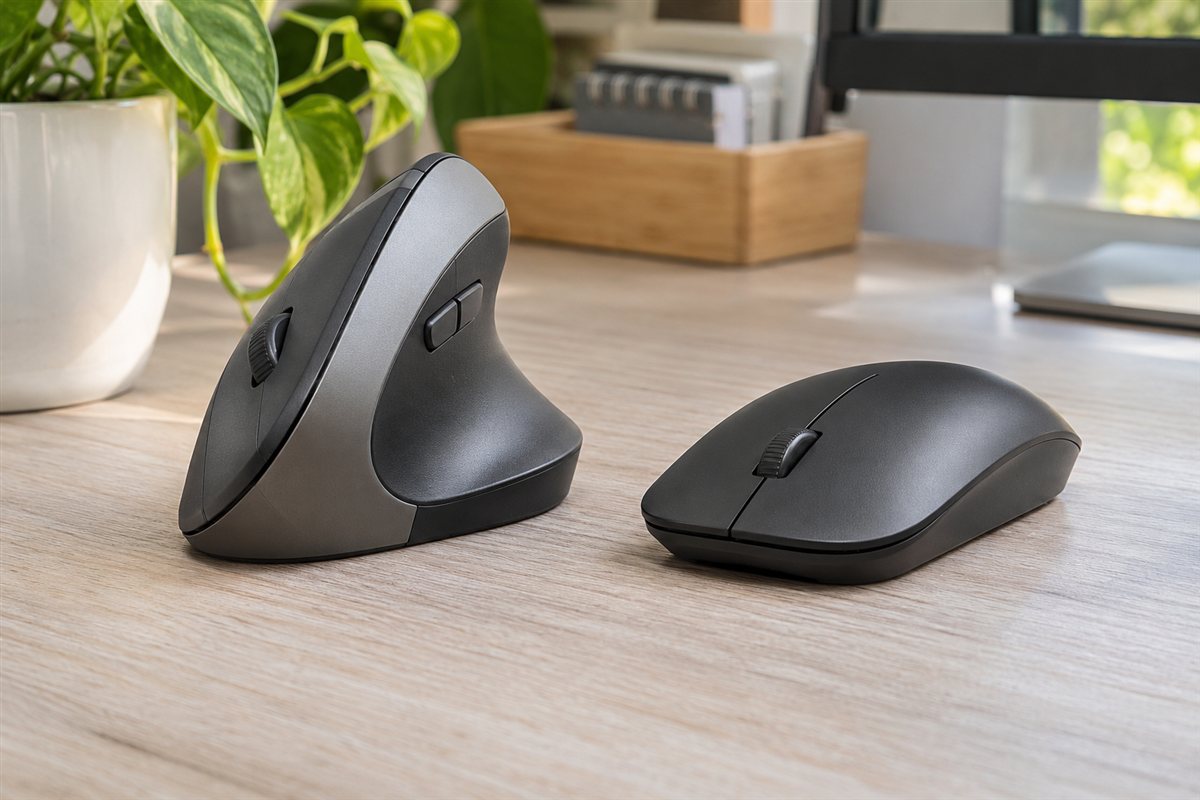
A wireless ergonomic mouse has a shaped body that holds your hand at a different angle than a flat, standard mouse. Common designs include vertical, trackball, and sculpted styles. Because comfort is personal, the best approach is to compare shapes, sizes, and features against your hand and your desk habits.
We have not used these products ourselves, so this guide describes design and features only and makes no claims about health outcomes. It shows how to read a listing: which shapes exist, what the sensor and connection numbers mean, and which details, like button layout and hand size, deserve attention.
As an Amazon Associate we earn from qualifying purchases. Links on this site are affiliate links, and they do not change the information we give.
In this guide
Quick Picks
| Pick | Product | Best For |
|---|---|---|
| 1 | Logitech MX Vertical | Best overall vertical mouse |
| 2 | Logitech Lift | Best for small to medium hands |
| 3 | Logitech Ergo M575S | Best trackball |
| 4 | Logitech MX Master 3S | Best sculpted mouse for productivity |
| 5 | Anker 2.4G Wireless Vertical Ergonomic Mouse | Best budget pick |
Our Picks

1. Logitech MX Vertical — Best overall vertical mouse
The MX Vertical is Logitech’s flagship upright mouse, built around a steep vertical angle that turns the hand toward a handshake position, with the thumb resting on a shelf above the buttons. Its sensor reaches 4000 DPI and is adjustable, so you can slow it down for detailed work or speed it up for large monitors. It connects by Bluetooth or the included USB receiver and can pair with up to three computers, moving content between them, which suits a desk shared between a laptop and a desktop. Power comes from a built-in rechargeable battery charged over USB-C, so there are no cells to swap. The body is on the larger side, so it fits medium and large hands best in a palm grip; small-handed users may find the Lift below easier to reach. If you want one vertical mouse with premium tracking, multi-device pairing and no battery upkeep, this is the reference model in the category and the one most office workers should look at first.

2. Logitech Lift — Best for small to medium hands
The Lift takes the same vertical idea as the MX Vertical and scales it down for smaller hands: Logitech describes it as crafted specially for small to medium hands, and the body measures 108 by 70 by 71 mm. The grip angle keeps the hand in a handshake position with a soft thumb rest, and the clicks are quiet, which helps in shared offices and on calls. Tracking goes up to 4000 DPI and is fully adjustable. You can connect by Bluetooth or the included Logi Bolt USB receiver, and Logitech rates the single AA battery at up to 24 months, so upkeep is minimal even though the battery is replaceable rather than rechargeable. There are four buttons, with customisation through Logitech’s software on Windows and macOS. A separate Lift for Mac version and a left-hand version exist in the range, so check the variant on the listing matches your hand and system. For smaller hands that find full-size vertical mice a stretch, this is the most complete option here.

3. Logitech Ergo M575S — Best trackball
The Ergo M575S keeps the mouse body still and moves the pointer with a thumb-driven ball, which makes it the pick for narrow desks, tray tables and anyone who wants to cut arm movement to almost nothing. The sculpted right-hand body holds the hand in a relaxed position while the thumb rolls the ball, and the clicks are quiet. It connects by Bluetooth or the included Logi Bolt USB receiver with an encrypted link, so it works with a laptop on the move or a desktop without a free pairing slot. Power is a single AA battery, which Logitech rates at up to 18 months of use. As the guide above notes, a trackball needs occasional cleaning: the ball pops out so you can wipe the ball and the sensor points. Precision feels different from a moving mouse and takes a few days to learn, but for spreadsheets, browsing and long reading sessions it is a comfortable, space-saving design. This listing is the Graphite version with the blue ball (model 910-007027).
View Logitech Ergo M575S on Amazon

4. Logitech MX Master 3S — Best sculpted mouse for productivity
If a vertical shape or a trackball feels like too big a change, the MX Master 3S is the sculpted option: a contoured body with a deep thumb shelf that stays close to a familiar flat-mouse layout while supporting the palm. Its sensor goes up to 8000 DPI and tracks on most surfaces, including glass, and the main clicks are quiet. The electromagnetic scroll wheel is the headline feature, spinning freely for long documents and ratcheting for precise steps, and there is a separate thumb wheel for sideways scrolling. It connects by Bluetooth or the included Logi Bolt receiver (this is the standard edition, model 910-006557, in Graphite), pairs with multiple computers, and recharges over USB-C. Button customisation runs through Logitech’s software, so locked-down work computers should be checked against the guide’s advice above. For heavy spreadsheet, editing and multi-app work where the scroll wheel earns its keep every hour, this is the productivity pick of the five.

5. Anker 2.4G Wireless Vertical Ergonomic Mouse — Best budget pick
Anker’s vertical mouse (model AK-98ANWVM-UBA) is the low-cost way to find out whether an upright grip suits you before spending more. The handshake shape carries five buttons, including next and previous thumb buttons for browsing, and the optical sensor switches between 800, 1200 and 1600 DPI with a button on top. Connection is by a 2.4 GHz USB receiver only — there is no Bluetooth — and the receiver stores in the base of the mouse for travel. It runs on two AAA batteries, which are not included, and the body measures about 4.72 by 2.47 by 2.94 inches at 3.4 ounces, a mid-size fit for palm grips. There is no companion software and the buttons cannot be remapped, and Anker notes the thumb buttons are not recognised on macOS, so Mac users should weigh that against the guide’s compatibility advice. As a first vertical mouse for a Windows laptop or a spare for a second desk, it covers the basics honestly at a budget price.
View Anker 2.4G Wireless Vertical Ergonomic Mouse on Amazon
What to Look For
| Factor | Why it matters | What to check |
|---|---|---|
| Shape style | Decides how your hand rests. | Vertical, trackball, or sculpted, and right or left hand version. |
| Hand size | A mismatch feels awkward. | Maker’s size guidance and body length. |
| Sensor | Controls tracking feel. | DPI range and adjustable steps. |
| Connection | Affects setup and range. | Bluetooth, USB receiver, or both. |
| Buttons | Extra buttons save time. | Thumb buttons, scroll wheel type, and software options. |
| Power | Batteries or a cell decide upkeep. | Replaceable cells or built-in rechargeable pack. |
| Noise | Matters in shared spaces. | Quiet click descriptions from the maker. |
Setup and Care Tips
- Give yourself a few days to adjust to a new shape before judging it.
- Set the tracking speed in your system settings until it feels natural.
- Keep the desk surface clean so the sensor reads cleanly.
- Plug the receiver into a nearby port for a steady link.
- Wipe the body with a lightly damp cloth, following the maker’s notes.
Mistakes to Avoid
- Choosing a size that does not match your hand.
- Buying a left-hand user a right-hand model.
- Ignoring what the connection needs, such as a free USB port.
- Expecting software features on a system the maker does not support.
- Switching styles too often to give any design a fair chance.
Vertical, Trackball and Sculpted Compared
The three main ergonomic shapes ask your hand to do different things. A vertical mouse turns your hand toward a handshake position, so the thumb sits on top or side and the palm faces inward. It moves across the desk like a standard mouse, but the grip is new, and the learning period is about that angle. A trackball keeps the body still while your thumb or fingers roll a ball, which saves desk space and wrist travel. A sculpted mouse stays closer to the familiar flat layout but adds a contoured palm rest and a thumb shelf.
Each has trade-offs. Vertical designs can feel odd for precise pointing at first. Trackballs give a different kind of precision that some people love and others never warm to, and they need an occasional ball cleaning. Sculpted shapes are an easier switch but may offer less change in posture. Think about your work. Heavy editing, design or gaming may call for a different balance of speed and control than spreadsheets and email. If you have limited desk space or a narrow work surface, a trackball may suit you. If you move the mouse across a wide area, a vertical or sculpted body may be more natural.
Fitting the Mouse to Your Hand
Size is the single most common cause of discomfort. A body that is too small makes your fingers curl and your palm hover, while one that is too large stretches the hand and can strain the thumb. Measure your hand from the wrist crease to the tip of your middle finger and compare it with the size guidance on the listing. Not every maker gives clear numbers, so look for length, width and height in the dimensions, and compare them with a mouse you already find comfortable.
Pay attention to your grip. Palm grip rests the whole hand on the body, claw grip arches the fingers and fingertip grip uses only the fingertips. Different shapes favor different grips, and a body built for palm grip may feel clumsy to a fingertip user. Left-handed users need a model made for the left hand or a symmetrical design, because a mirrored layout matters for the thumb buttons. If you share a computer, remember that a strongly shaped right-hand body may not suit another person. Where possible, check the return policy so you can send a mouse back if the fit feels wrong after a fair trial.
Connection Options and Battery Habits
Wireless mice connect in a few ways. A small USB receiver gives a plug-and-play link on a desktop or laptop with a free port. Bluetooth skips the receiver and works with many laptops, tablets and phones, though pairing steps vary. Some models offer both, plus the ability to switch between devices. Think about your setup: a laptop with few ports may prefer Bluetooth, while a desktop under a desk may do better with a receiver on a short extension to avoid interference.
- Receiver stability: keep it clear of metal obstructions and away from crowded USB hubs when possible.
- Multi-device switching: useful if you use a laptop and a desktop, but check how many devices the maker lists.
- Replaceable batteries: easy to swap, but you must buy and carry spares.
- Built-in rechargeable: convenient, though it ties the mouse life to the battery and you need a cable or dock.
Look for an on/off switch, as it saves power and prevents the mouse moving in a bag. Read how long the maker says the battery lasts and whether quick charging is offered, treating those figures as claims that depend on use.
Buttons, Software and Everyday Workflow
Extra buttons can save time if you use them and get in the way if you do not. Thumb buttons for back and forward are popular for browsing and file navigation. Others can be assigned to shortcuts, copy and paste or program macros, usually through companion software. Check whether that software exists for your operating system and whether settings stay on the mouse or need the software running. If you plan to use a locked-down work computer, confirm that you can use the mouse without installing anything.
Also consider the scroll wheel, which varies in feel and in whether it tilts for sideways scrolling. A quiet click is helpful in shared offices. Sensor controls, such as adjustable tracking speed, let you tune the pointer to your screen size. A high-resolution display may feel slow with a low setting, while a small laptop screen may feel jumpy on a high one. Find the middle that suits you in system settings. When comparing models, list the buttons you will actually press daily and ignore the rest. A cleaner layout is often easier to learn, especially when you are already adjusting to a new shape.
Adjusting Your Workspace and Habits
A new mouse is only part of a comfortable setup. Position the mouse close enough that your elbow stays near your side, with your forearm roughly level and your wrist in a neutral line instead of bent up or sideways. Keyboard placement, chair height and desk height all influence how your arm sits. If you reach far to use the mouse, even a well-shaped body will not help much.
Build in variety and breaks. Short pauses to stretch your hands, shake out your arms and change posture are commonly suggested, and they help whatever device you use. When switching to a new shape, many people ease in by using it for part of the day at first and extending the time as it feels natural. If you notice persistent pain, numbness or tingling, take it seriously and speak with a qualified health professional, because a mouse is not a treatment. Clean the sensor window and the feet regularly, keep the surface free of crumbs and use a mouse mat if your desk is glossy or glass. Replace the mouse if buttons double-click on their own, the scroll wheel skips or the battery no longer holds a useful charge.
Fitting a Mouse to Your Hand Size and Grip
Ergonomic mice vary widely in size, and a shape that suits one person can feel awkward to another. Measure your hand from the base of the palm to the tip of the middle finger, then compare the number with the maker’s size notes. A mouse that is too small makes you curl your fingers, while one that is too large can force your wrist to bend.
- Palm grip: the whole palm rests on the body, so look for a taller shape with a supportive thumb rest.
- Claw grip: the fingers arch while the palm touches the rear, which favors a shorter, rounded design.
- Fingertip grip: only the fingertips make contact, often better with lighter, smaller mice.
Try to keep your forearm resting in a neutral position, with your elbow near your side. If you have ongoing pain or numbness, talk to a qualified health professional rather than relying on a gadget.
Week One With a New Shape
Switching from a flat mouse to a vertical or trackball design takes time. Plan for an adjustment period, and ease into it rather than swapping everything at once.
- Use the new mouse for short tasks, such as email, for the first few days.
- Lower the pointer speed in the software or system settings, then raise it slowly as your control improves.
- Remap the side buttons to actions you already use, like back, forward or copy, so they feel purposeful.
- Check the wireless connection method, whether a small receiver or a Bluetooth link, and keep the receiver in a port near the mouse.
- Take brief breaks and stretch your hands and wrists if they feel tired.
Keep your desk surface clean, since a smooth, matte surface helps the sensor track well. Replace or recharge the battery as the maker instructs, and keep a note of which connection mode you picked so you can switch back after a pairing hiccup.
Cleaning and Battery Care
An ergonomic mouse touches your skin for hours, so it collects oils and dust. Once a week, wipe the body with a lightly damp cloth, avoiding the sensor opening and button gaps. Use a dry cotton swab to clear grit from the optical lens, or the ball and rollers on a trackball. Switch the mouse off when you travel, and remove or recharge the battery according to the manual. If the pointer jumps, check for a dirty sensor, a glossy surface or a low battery before assuming the mouse has failed.
A Practical Decision Workflow Before You Buy
Most disappointing purchases in this category do not happen because the product itself is poor. They happen because the buyer skipped a short round of honest homework and ordered on a single headline feature. A wireless ergonomic mouse has to fit a specific space, a specific routine and a specific set of habits, and those three things differ far more between households than any specification sheet suggests. The workflow below takes about fifteen minutes, needs nothing more than a tape measure, a notebook and your phone, and it will narrow the picks in this guide down to one or two clear candidates.
Start with the space, not the product. Measure the area where the ergonomic mouse will live or be used, and write down the fixed obstacles as well: doors that swing through the space, sockets that are already spoken for, furniture that cannot move, and anything that generates heat, moisture or dust nearby. Photograph the space from two angles. It sounds excessive, but a photograph taken now will answer questions later that memory will not, especially once you are comparing dimensions on a product page late in the evening.
Next, write down the job in one sentence. Not a wish list, just the main job: what should be different the week after this arrives? Keep that sentence visible while you shop. Every feature you consider after that has to earn its place by serving that sentence. Features that do not serve it are not bargains; they are future clutter, extra cleaning, or settings you will scroll past for years without touching.
Then list your constraints honestly. Budget is only one of them. Time is another: how many minutes a week will you genuinely give to cleaning, charging, adjusting or maintaining this purchase? Storage is a third: where does it, and everything that comes with it, go when it is not in use? Noise tolerance, the patience of other people in the household, and any physical limits such as lifting weight or reaching height all belong on the same short list.
Only now open the product pages, and read them in a fixed order. First the dimensions and requirements, because a mismatch there ends the discussion. Second the controls and the everyday operating steps, because those are what you will live with daily. Third the care requirements, because they decide whether the product still pleases you in month six. Marketing language comes last, if at all. When two picks look identical, the one whose everyday steps are simpler almost always wins in real life.
Finally, do a short reality check against the picks above. The option labelled as the best overall choice earns that label by balancing the most common needs, which makes it the sensible default if your written job sentence sounds ordinary. The more specialised picks earn their place when your constraints list contains something unusual: a very small space, a very heavy workload, a strict noise limit, or a user with specific physical needs. If none of your constraints are unusual, resist paying extra for specialisation you will never call on.
Use Cases in Detail: Matching the Pick to the Situation
Abstract advice only goes so far, so it helps to walk through the situations buyers describe most often and see how the decision changes in each one. Read the scenarios below and find the one closest to your own household; the right choice usually becomes obvious once the situation is stated plainly.
A desk worker spending long hours editing documents
In this situation the priority is reliability under daily repetition. The ergonomic mouse will be used when people are tired, rushed or distracted, so controls need to be forgiving and the basic setup needs to stay put without constant adjustment. Choose the pick whose everyday operation is described most simply in the reviews above, set it up once with care, and then leave the settings alone for the first week so you learn its normal behaviour before you start fine-tuning anything.
A designer making precise movements all day
Here the deciding factor is usually comfort over long stretches rather than peak performance in short bursts. Think about posture, reach, noise and heat over hours, not minutes. A wireless ergonomic mouse that feels fine in a five-minute test can become irritating by the third hour, so weight the comments in this guide about sustained use more heavily than the headline features. It is also worth planning the surrounding details: lighting, seating, cable routes or storage within arm’s reach make as much difference as the product itself.
A laptop user working from different tables
When several people share the same ergonomic mouse, the purchase has to survive handovers. Settings get changed, parts get moved, and nobody reads instructions twice. Favour the pick with the clearest controls and the fewest fragile accessories, agree one house rule for how it is left after use, and keep any small parts together in one labelled container. Shared use also raises the value of easy cleaning, because a product that is simple to wipe down or empty actually gets cleaned, while a fiddly one quietly gets worse.
Someone whose wrist aches with a standard mouse
This last situation rewards planning for the awkward moments rather than the average day. Think about the hottest, coldest, busiest or most tiring version of the routine, and choose the pick that still works then. Capacity, reach and durability matter more than refinements. It is also the situation where buying once, properly, beats buying cheaply twice: a ergonomic mouse that struggles at the edges of its range tends to be replaced within a year, which costs more than starting with the stronger option would have done.
Comparing the Picks Head to Head
Comparison tables compress a lot of judgement into a few rows, which makes them useful starting points and poor finishing points. The paragraphs below slow the comparison down and look at each pick in this guide on its own terms, using only what the reviews above already establish. Work through them with your constraints list open, and cross picks off rather than ranking them: the right purchase is usually the last one standing, not the one with the longest feature list.
Logitech MX Vertical. Its role in this guide — best overall vertical mouse — tells you the job it was picked for, so judge it against that job rather than against every other pick at once. Re-read its section above with your written job sentence beside you, and note the one honest limitation mentioned there. If that limitation touches something you do every day, move on to the next pick; if it touches something you rarely do, it is a fair trade for the strengths the review describes.
Logitech Lift. Its role in this guide — best for small to medium hands — tells you the job it was picked for, so judge it against that job rather than against every other pick at once. Re-read its section above with your written job sentence beside you, and note the one honest limitation mentioned there. If that limitation touches something you do every day, move on to the next pick; if it touches something you rarely do, it is a fair trade for the strengths the review describes.
Logitech Ergo M575S. Its role in this guide — best trackball — tells you the job it was picked for, so judge it against that job rather than against every other pick at once. Re-read its section above with your written job sentence beside you, and note the one honest limitation mentioned there. If that limitation touches something you do every day, move on to the next pick; if it touches something you rarely do, it is a fair trade for the strengths the review describes.
Logitech MX Master 3S. Its role in this guide — best sculpted mouse for productivity — tells you the job it was picked for, so judge it against that job rather than against every other pick at once. Re-read its section above with your written job sentence beside you, and note the one honest limitation mentioned there. If that limitation touches something you do every day, move on to the next pick; if it touches something you rarely do, it is a fair trade for the strengths the review describes.
Anker 2.4G Wireless Vertical Ergonomic Mouse. Its role in this guide — best budget pick — tells you the job it was picked for, so judge it against that job rather than against every other pick at once. Re-read its section above with your written job sentence beside you, and note the one honest limitation mentioned there. If that limitation touches something you do every day, move on to the next pick; if it touches something you rarely do, it is a fair trade for the strengths the review describes.
Two patterns are worth watching for as you compare. First, the gap between the best overall pick and the specialised picks is rarely about quality; it is about fit. A specialised pick is not a lesser product, it is a narrower one, brilliant inside its niche and merely adequate outside it. Second, accessories and extras sway decisions out of proportion to their value. Ask of every extra whether you would use it weekly. If the honest answer is monthly or never, let it go, and let the core performance, the controls and the care routine decide instead.
If you finish this comparison with two picks still standing, break the tie with ownership questions rather than performance questions. Which one will be easier to clean in your actual space? Which one’s controls will the other people in the household understand without asking you? Which one stores more neatly when it is not in use? Those unglamorous questions predict satisfaction six months from now far better than any single specification does.
Day-to-Day Use, Cleaning and a Simple Care Routine
The first week with a new ergonomic mouse sets habits that tend to stick, so spend a little of that week deliberately. Run through the full operating cycle slowly once, from start to finish, while you are not in a hurry. Notice the order things have to happen in, where your hands naturally go, and which step feels awkward. Awkward steps are where mistakes and breakages concentrate later, so rearrange the surrounding space now, while changing it is still easy.
Build cleaning into the routine the product already has, rather than treating it as a separate chore. A quick wipe, shake, rinse or empty at the natural end of each use takes seconds and prevents the slow build-up that eventually needs a deep clean. Keep whatever you use for that quick job within arm’s reach of where the ergonomic mouse lives; supplies stored in another room might as well be stored in another house, because the quick job simply stops happening.
A workable care schedule
After each use: return everything to its resting state, clear away residue, moisture or loose debris, and leave the ergonomic mouse somewhere air can reach it if it needs to dry. Weekly: give the surfaces and contact points a proper clean with a soft cloth and mild cleaner suited to the material, check moving parts and connections for looseness, and deal with small issues while they are still small. Monthly: do the deeper job — the full wash, descaling, sharpening, re-tightening or inspection the manual describes — and look honestly at wear. Seasonally: review storage, replace anything consumable that has quietly expired or worn out, and reconsider placement if the household’s routine has changed.
Storage deserves the same thought as use. Keep the ergonomic mouse dry, out of direct extremes of heat and cold, and away from the crush zone at the back of a cupboard or the bottom of a pile. Small parts belong in one container, labelled, stored with the main item rather than near it. If the original packaging includes shaped inserts that protect fragile parts, consider keeping it; flat-pack storage boxes look tidier but protect less.
When something goes wrong, troubleshoot in order of likelihood before assuming failure. Check power, connections and settings first, then positioning, then cleanliness, then wear. Most problems reported with products in this category trace back to one of those four, and most are fixed in minutes without tools or spare parts. Keep the manual, or a photo of its troubleshooting page, somewhere you can find it on a bad evening rather than at the bottom of a drawer.
More Mistakes That Shorten a Product’s Life
Beyond the mistakes covered earlier in this guide, a few quieter habits do most of the long-term damage. The first is running the ergonomic mouse at its maximum setting as a default. Maximum settings exist for occasional peaks; used constantly, they raise noise, heat and wear while often delivering little extra benefit. Find the lowest setting that does the job properly and treat anything above it as a reserve.
The second is ignoring the environment. Dust, steam, direct sun, cramped airflow and unstable surfaces all age a wireless ergonomic mouse faster than ordinary use does. You cannot always choose the environment, but you can usually improve it by a few centimetres: a small gap for air, a mat for stability, a move away from a heat source. Those tiny adjustments compound over years.
The third is postponing small maintenance until it becomes a repair. A loose fitting, a frayed edge, a filter or part that is past its best — each is cheap and quick to address when noticed, and expensive or impossible later. The weekly check in the care schedule above exists precisely to catch these while they are still trivial.
The fourth is buying replacement parts, refills or accessories on price alone without checking fit. Incompatible extras are a false economy: they perform poorly, can damage the main product, and usually cannot be returned once opened. Match the part to the model exactly as the manual specifies, and keep a note of the model details on your phone so the information is with you when you need it.
The last is letting the purchase drift away from its original job. Households change, and a ergonomic mouse bought for one routine gets pressed into another it was never suited to. When that happens, the honest options are to adapt the routine back, accept the compromise knowingly, or replace the product with one designed for the new job. Blaming the product for a job it never claimed to do helps nobody, and recognising the mismatch early saves both money and frustration.
One more practical note for wireless ergonomic mouse buyers: revisit your original job sentence after the first month of ownership. Many households find the ergonomic mouse has quietly taken on a second job — a neighbouring task it handles well enough that the routine has shifted around it. That is fine, and often a pleasant surprise, but it is worth noticing, because the second job changes what matters when you clean, store and eventually replace it. Note the change in the same place you kept your measurements, set a reminder to review any consumables or accessories the new job depends on, and adjust the weekly care check to cover the parts the second job uses most. Buyers who do this short review tend to get noticeably more value from the same purchase, simply because the product’s real role in the household is understood rather than assumed, and small mismatches between the role and the setup get corrected before they turn into daily irritations.
FAQ
Is a trackball easier to use than a vertical mouse?
It is a different style. A trackball stays in place while your thumb or fingers move the ball, while a vertical mouse moves across the desk. Try to find which suits your habits and desk space.
Do these work with both Windows and Mac?
Many do through Bluetooth or a receiver, but extra software may be limited to certain systems. Check the compatibility list on the listing page. Look for notes on tablets and phones too, since not every model pairs with those devices, and confirm whether customizing buttons needs an app that runs on your system.
How long does it take to adjust to a vertical mouse?
It varies from person to person. Many people need a few days of regular use before the grip feels natural. Give it a fair trial before deciding.
Are ergonomic mice good for small hands?
They can be, if the body is sized for you. Check the listing for dimensions or a small-size version, and compare with the measurement of your own hand.
Can I use an ergonomic mouse for gaming?
Some people do, but speed and button response matter in games. Check the sensor details and button layout, and note that many ergonomic designs focus on comfort over fast movements.
Do trackballs need cleaning?
Usually, yes. Dust and skin oils can build up around the ball and sensors, which can make movement feel rough. The manual explains how to remove the ball and wipe the parts.
Does a wireless mouse lag?
A good connection should feel responsive for everyday work. Interference or a weak battery can cause stutter, so try a closer receiver position and fresh power.
Is a rechargeable mouse better than one with batteries?
It depends on your habits. Rechargeable models save buying cells but need charging, while battery models can be refreshed in seconds. Check which suits you.
Will an ergonomic mouse cure wrist pain?
No device can promise that. A mouse that fits well may be more comfortable, but pain should be discussed with a health professional.
How long should a wireless ergonomic mouse realistically last?
Longevity depends far more on routine care and a suitable environment than on the badge on the front. A ergonomic mouse that is cleaned on the simple schedule described in this guide, stored dry and used within the job it was bought for will normally serve for years of regular household use. The earliest signs that replacement is approaching are usually a slow decline in performance, controls or fittings becoming loose or unreliable, and replacement parts getting hard to find. When two of those three appear together, start planning a replacement rather than spending on repairs.
Is it worth paying more for the top pick in this guide?
Only if the extra money buys something your own constraints list actually asks for. The top pick earns its place by balancing the needs most buyers share, which makes it the safest choice for an ordinary household. Paying more for a specialised model makes sense when your situation is genuinely specialised — an unusually large or small space, a much heavier workload than average, or a user with specific needs. If your written job sentence sounds like most people’s, the balanced pick will satisfy you, and the saving is better kept for the accessories or consumables you will genuinely use.
What should I check in the first week of ownership?
Check fit, controls and routine, in that order. Confirm the ergonomic mouse sits, fits or operates in your space exactly as you measured it, and that doors, sockets and neighbouring items still work as they should. Run every control once so nothing is a surprise later. Then watch your own routine: note anything you keep working around, because small rearrangements made in week one are easy, while workarounds left for a month become permanent habits. Keep packaging until the end of that first week in case an exchange is needed.
How do I know whether to repair or replace?
Compare three things: the cost of the repair against the remaining life you would get from it, the availability of the correct parts, and whether the fault is isolated or part of a general decline. A single failed part on an otherwise sound ergonomic mouse is usually worth repairing. Repeated faults, declining performance and worn fittings arriving together signal that the product is wearing out as a whole, and money spent on one repair tends to be followed by another. Safety always overrides the calculation: anything electrical, load-bearing or heat-related that behaves unpredictably should be taken out of use until it is checked.
Can I use a ergonomic mouse for jobs beyond what it was bought for?
Sometimes, cautiously, and only within the limits the manual describes. Products in this category are designed and tested around a particular job, load and environment. Occasional light use outside that pattern is unlikely to cause harm, but making an unsuitable job part of the regular routine accelerates wear and can create safety risks the design never anticipated. If a new job has become a regular part of your household’s life, that is a sign to look at a product designed for it, rather than asking the current one to stretch further every week.
What is the single most useful habit for getting value from this purchase?
The end-of-use reset. Returning the ergonomic mouse to a clean, dry, ready state every time you finish with it takes under a minute and does more for long-term satisfaction than any other habit. It prevents build-up, reveals small problems while they are still trivial, means the product is always ready when the next person reaches for it, and quietly extends its working life. Most products that disappoint early were not badly made; they were badly reset, day after day, until small neglects added up.
The Short Version
Pick a shape style that appeals to you, match the size to your hand, and check connection and power options. Allow time to adjust, and use the maker’s compatibility notes to avoid mismatches. Measure your hand from wrist crease to fingertip, note whether you work mostly on a laptop or a desktop, and decide how many extra buttons you will really use. A simple, well-fitting shape often beats a long feature list.
Related Guides
- How to Choose the Best Ergonomic Foot Rests: A Buyer's Guide
- How to Choose the Best Wireless Alarm Systems: A Buyer's Guide
- How to Choose the Best Wireless Dmx Systems: A Buyer's Guide
- How to Choose the Best Wireless Earbuds: Buyer's Guide (2026)
- 6 Best Wireless Doorbell Chimes: Plug-In and Battery (2026)