To carry a laptop with care, shut it down or let it sleep fully, close the lid, place it in a padded sleeve or compartment, and keep heavy items away from it. Handle it by the base, not the screen. No method removes every risk, so follow the maker’s handling instructions too.

Prepare the Laptop
- Save your work and close programs.
- Shut the laptop down, or use sleep if the maker says that is fine for travel. A laptop that wakes up in a closed bag can get warm.
- Remove anything resting on the keyboard, such as a pen or cable, since it can mark the screen when the lid closes.
- Unplug the charger and any attached drives.
- Close the lid gently with both hands.
In this guide
Packing the Bag
- Use a padded sleeve or a bag with a dedicated laptop compartment.
- Place the laptop against the side of the bag that rests against your back, so it is less likely to be knocked.
- Pack heavy, hard objects such as bottles in a separate section from the laptop.
- Store the charger in its own pocket so it does not press on the case.
- Close the zip fully and check it before lifting the bag.
Moving Around
Hold the bag by its strap or handle and avoid swinging it. Set it down gently on a flat surface, not dropping it. When carrying the laptop without a bag, close the lid and hold it with both hands along the base. Avoid carrying it by the screen edge.
Match the Method to the Journey
| Situation | Suggestion |
|---|---|
| Short walk indoors | Close the lid, hold the base with both hands |
| Daily commute | Padded sleeve inside a bag with a laptop compartment |
| Crowded transport | Keep the bag in front of you or on your lap |
| Rain or wet weather | Choose a bag with weather protection or add a cover |
| Long trips | Check the maker’s travel advice and consider a hard case |
Extra care on the move. Take the laptop out of the bag at security checks or other handovers only as instructed, and put it back with the lid closed. Do not stuff papers, cables or notebooks into the sleeve, because the extra pressure can press on the screen. If your bag has a hip or chest strap, use it to keep the weight steady.
Wipe the case and screen now and then, since grit trapped in a sleeve can scratch surfaces over time. Shake out the sleeve before you slip the laptop in.
A Worked Walkthrough: Packing for a Day Out
This routine suits a commute or a day at another workplace.
- Finish and save. Close open files and let any updates or transfers finish.
- Shut down unless the maker says sleep is fine for transport.
- Check the keyboard and screen. Wipe off crumbs or smudges with a soft, dry cloth and make sure nothing is between the keys and the screen.
- Unplug everything, including the power lead, mouse receiver and drives. Coil cables loosely, without tight bends at the connector.
- Slide the laptop into its sleeve. Check that the sleeve is clean and that nothing else shares the space.
- Place the sleeve in the bag against the padded back panel, and lay soft items such as a jumper beside it.
- Put the charger and cables in their own pocket.
- Keep liquids in a sealed container, in a pocket apart from the laptop, and close the lid of any bottle fully.
- Close all zips, lift the bag by the handle, and look for any bulge pressing on the laptop.
- At your destination, set the bag on a stable surface before opening it.
Common Scenarios
Cycling or walking with a backpack
Wear the bag on both shoulders so the load stays steady. Keep the laptop against your back and add a rain cover if the weather is wet.
Public transport
Keep the bag on your lap or between your feet, closed and in view. Do not hang it on a hook where it can swing.
Flying
Check the airline’s and airport’s current instructions about carrying and screening laptops and batteries. Keep the laptop in cabin baggage unless told otherwise.
Carrying from room to room
Close the lid, support the base with one hand and the other under the front edge. Avoid holding it by a corner or while using your phone.
Mistakes to Avoid
- Carrying it open. Hinges and the screen take strain, and cables can pull on ports.
- Leaving it running in a closed bag. Heat can build with little airflow.
- Packing it with bottles or hard objects. Leaks and knocks are the most common risks.
- Squeezing it into a full bag. Pressure on the lid can mark or bend the screen.
- Leaving it in a vehicle in hot or cold weather. Extreme temperatures strain the battery and parts.
- Dropping the bag from a height. Even padded bags do not absorb every impact.
Quick Troubleshooting
| Symptom | Likely cause | What to try |
|---|---|---|
| Marks on the screen after a trip | Grit or an object pressed between lid and keys | Clean with a soft cloth as the maker advises; keep the keyboard clear next time |
| Laptop is warm when removed | It was awake inside the bag | Shut down fully before packing |
| Port feels loose | Cable strain from a packed lead | Unplug before carrying and have a technician look if it persists |
| Scratches on the case | Dirty sleeve or loose items | Shake out and wash the sleeve; use a separate pocket for items |
| Strap or zip is wearing | Overloaded bag | Lighten the load or replace the bag before it fails |
Terms Worth Knowing
- Sleeve: a padded cover that fits closely around a laptop.
- Compartment: a section of a bag made to hold a laptop.
- Sleep: a low-power state in which the laptop stays on in the background.
- Shut down: fully turning off the machine.
- Hard case: a rigid shell that guards against knocks.
- Load-bearing strap: the strap that carries the weight of the bag.
Checklist Before You Leave
- The laptop is shut down and the lid is closed.
- The keyboard is clear and the screen is clean.
- Cables and the charger are in their own pocket.
- The sleeve is clean and the bag has no heavy objects pressing on the laptop.
- The zips are closed and the strap is in good condition.
- You know where the bag will sit during the journey.
Sleeves, Backpacks and Hard Cases Compared
The right carrying gear depends on how far you go, how you travel and how much else you carry. No single option suits everyone, so it helps to understand what each type does well.
A sleeve is a slim padded cover that fits closely around the laptop. It protects against scratches and light bumps, adds little bulk and slides into a larger bag or a briefcase. Its weakness is that it offers limited protection from drops and pressure, and it has no pockets for accessories. A sleeve works well as an inner layer inside a bag that has its own padding.
A backpack with a laptop compartment gives more structure. The compartment is usually padded and sits against the back panel, which spreads weight across your shoulders. Look for a compartment that is sized to your laptop with a small margin, a lining that does not trap grit and a base that is raised slightly from the bottom of the bag, so setting the bag down hard does not transmit the full impact.
A messenger or shoulder bag is easy to open and good for short trips, but it loads one shoulder and can swing when you move. Over a long commute, a backpack tends to be more comfortable.
A hard case or rigid shell offers the best protection against crushing and impact. It is heavier and bulkier, and it suits long trips, rough handling or situations where the laptop will be stacked with other items. Some hard cases fit inside a larger bag.
Fit and Size
Check your laptop’s dimensions, including thickness, and compare them with the sleeve or compartment dimensions listed by the maker. A snug fit keeps the laptop from sliding, but a sleeve that is too tight puts pressure on the screen and edges. Leave a little room, and try the laptop in the case before you rely on it.
| Carrier | Best for | Limits |
|---|---|---|
| Padded sleeve | Slim protection inside another bag | Little impact protection alone |
| Backpack | Daily commute, long walks | Bulk, overstuffing risk |
| Shoulder bag | Short trips, easy access | Uneven load on one side |
| Hard case | Travel, rough handling | Weight and size |
Protecting the Screen, Hinges and Ports
A laptop’s most fragile parts are the screen, the hinges and the ports. Understanding how each can be damaged helps you avoid the common causes.
The screen is thin and often has little clearance above the keyboard when the lid is closed. Pressure on the lid from a stack of books or a bulging bag can flex the screen and leave pressure marks or damage the panel. Keep the laptop in a part of the bag where nothing heavy rests against the lid. Use a webcam cover or a thin cloth only if the maker approves, since added thickness between the keys and the screen can cause pressure marks.
Hinges carry the weight of the lid and take strain when you pick up the laptop by the screen or twist it. Always hold the base. Open and close the lid gently, using both hands at the center if the hinges feel stiff. A hinge that creaks or has become loose may need a technician’s attention.
Ports are held by solder joints and connectors that can be strained by cables. Unplug cables and adapters before you pack. A USB drive or dongle sticking out of the side can snag and bend or break the port if the laptop is knocked. If you must carry a laptop with a dongle attached, check the maker’s guidance, and ideally remove it.
Vents and fans need airflow. Do not pack the laptop where the vents will be blocked by cloth if it is still warm. Let it cool before closing it into a tight sleeve. If the case smells hot or the laptop is too warm to touch after a journey, shut it down fully next time.
Weather and Spills
Moisture can damage electronics. A water-resistant bag helps in light rain, but most bags are not waterproof. For heavy rain, use a rain cover or a waterproof liner. Keep drinks in a separate pocket or outside the main compartment, and use a bottle with a leak-proof cap. If the laptop does get wet, switch it off, unplug it, do not charge it and contact the maker or a repair service for advice. Do not try to dry it with a hair dryer or by putting it in rice.
Weight, Posture and Comfort on Long Carries
A laptop, charger and accessories can add up to a heavy load, and a bag that is uncomfortable tends to be handled roughly. Comfort and safety go together.
As a general guide, many health sources suggest keeping a backpack to a modest fraction of your body weight, often cited as around ten percent or less for daily carrying, though individual needs vary. If you have back or shoulder problems, ask a health professional for personal advice.
- Use both shoulder straps on a backpack, and adjust them so the bag sits high and close to your back.
- Use the chest or hip strap if the bag has one, to keep the load from swaying.
- Pack the heaviest items closest to your back and near the center of the bag.
- Take out anything you do not need that day, such as spare cables and old paperwork.
- Switch shoulders if you use a one-shoulder bag, to avoid strain.
Consider the charger. Some chargers are heavy bricks, and a slim travel charger can cut weight. Check that any replacement charger is the right type for your laptop, and follow the maker’s guidance. Cheap or unbranded chargers can overheat and damage the laptop.
When you have to walk a long distance or climb stairs, take your time. A trip or fall with a laptop in your bag is a common way for damage to happen. If you are carrying the bag in a crowd, hold it in front of you.
Security, Theft and Data Safety on the Move
Carrying a laptop also means carrying the data on it. A few habits reduce the risk of loss and theft.
Keep the bag with you in public places and avoid leaving it unattended, even briefly. On trains or in cafes, put a strap around your leg or chair if you must put the bag down. Do not leave a laptop in a car, where heat, cold and theft are all risks. If you must leave it, lock it out of sight, though taking it with you is much safer.
Use a strong password or other sign-in method, and turn on any built-in disk encryption your operating system provides. Keep backups of important files in a second place, such as an external drive kept at home or a trusted cloud service. If the laptop is lost, a backup means you lose the machine but not your work. Many systems also offer a feature to locate or lock a missing device, and it is worth setting up before you travel.
Be careful with public networks. Avoid logging into sensitive accounts on open Wi-Fi, and use a trusted connection or a virtual private network if you must. Keep the system and apps updated, and consider a privacy screen if you often work in crowded places where others can see the display.
Record the serial number and model somewhere other than the laptop, such as in a note at home. If it is lost or stolen, you will need it for reports and insurance. Check whether your insurance covers laptops away from home, and read the terms for any conditions, such as the requirement to lock devices out of sight.
When Damage Happens: First Steps
If your laptop takes a knock, stay calm and act in a sensible order. Turn it off if it still runs, since continuing to use a damaged machine can make problems worse. Unplug the charger and any accessories. Look over the case, screen, hinges and ports for cracks, dents or loose parts.
If the screen is cracked, do not press on it or pick at the glass. If there is a smell of burning, swelling of the case or unusual heat, stop using the laptop and keep it away from flammable items, since a damaged battery can be dangerous. Contact the maker or a qualified repair service for advice, and do not open a sealed battery yourself.
Back up your data as soon as it is safe, and check your warranty or insurance. Take photos of the damage for any claim. Accidental damage is often not covered by a basic warranty, so read the terms before you call.
Understanding What Actually Damages a Laptop in Transit
Most laptops that die on the move are not dropped from a height. They are damaged quietly, by forces their owners never noticed: a bag set down firmly a hundred times, a heavy book resting against the lid on every commute, a charger plug levering against a port in a crowded pocket. Understanding the four forces involved makes every packing choice in this guide easier to judge, because you can reason about a new situation instead of memorising rules for each one.
Impact, and why the corners matter
Impact is the sudden stop at the end of a fall or a knock. A laptop’s corners are its most vulnerable points, because a corner concentrates the force of a landing onto a small area and because the frame there is close to the screen’s edge. This is why padding that only covers the flat faces of the machine leaves the real risk exposed, and why a case that wraps the corners, or a bag whose padding continues around the edges, protects better than a thicker pad that stops short. When you set a bag down, setting it down base-first and gently matters more than the surface it lands on: the habit of placing rather than dropping is the cheapest protection you own.
Flex and pressure on the lid
A laptop lid is a wide, thin panel, and wide thin panels bend. Pressure applied to the middle of a closed lid, from a bottle, a book spine or another passenger’s bag, flexes the screen towards the keyboard. The results range from faint pressure marks that only show on plain backgrounds to, in the worst case, a cracked panel. Flex also explains why carrying a laptop by one corner of its base is unwise: the body twists slightly, the hinges take uneven strain, and over months a machine carried that way can develop a looseness that a machine carried flat never does. The defence is simple and consistent: keep hard, narrow objects away from the lid, spread any unavoidable load across the whole surface, and lift the machine with two hands or a full flat palm beneath it.
Vibration and slow loosening
Buses, bicycles and luggage racks add a third force: repeated small vibration. A single journey does nothing, but months of rattling journeys can work at anything that is already slightly loose, and they rub unprotected surfaces against zips, keys and cable ends thousands of times. This is the force a sleeve is really for. It does not stop a fall, but it stops the slow abrasion and keeps the machine from knocking against its neighbours on every bump. If your route involves a bike basket or a vehicle boot, treat the sleeve as part of the machine rather than an optional extra.
A Packing Routine You Can Repeat Without Thinking
Protection fails most often not because the equipment is wrong but because packing happens in a hurry, in a different order each time, with one step skipped on the day it mattered. A fixed routine, always in the same order, removes the decision-making from the rushed mornings. Adapt the steps to your bag, but keep the order stable once you have chosen it.
Shut down or sleep, deliberately
Decide rather than default. For a short move between rooms, sleep is convenient and harmless. For anything longer, or for a bag that will sit in a warm place, shutting down removes the small risk of a machine waking in an enclosed space and warming itself with nowhere for the heat to go, and it guarantees no half-finished update or unsaved state is riding on a jolt. Whichever you choose, wait for the machine to finish: close the lid only once the screen has gone dark and any fan has settled, because a laptop that is still working while being swung into a bag is a laptop being carried at its most fragile moment.
Cables and small items, contained
Unplug everything, every time, including the small receivers and adapters that feel permanent. A plug left in a port turns the port into a lever handle: any knock on the cable applies force exactly where the machine is least able to take it. Coil the charging cable loosely rather than winding it tightly around its adapter, since tight bends at the same points, repeated daily, are what eventually split cable insulation near the ends. Keep cables and chargers in their own pocket or pouch, separated from the laptop itself, so that hard adapter corners never share a space with the lid.
The final check before the zip closes
Run a hand over the laptop pocket before closing the bag. You are feeling for anything that has slipped in uninvited: a pen, a coin, a memory stick, the end of a keyring. Small hard objects migrate in bags, and a single pen trapped between lid and bag wall can do more harm on one journey than a month of careful commuting. Then lift the bag by its handle and give it one gentle shake. Anything that rattles or shifts is something that will keep moving for the whole journey, and it is better discovered at your desk than inferred from a scratched lid at your destination.
Troubleshooting by Symptom After a Journey
When a laptop behaves oddly after being carried, work through the symptoms in this order, from the outside in, and resist the urge to open the machine or force anything. Many travel symptoms are temporary or external, and the first checks cost nothing.
It will not start, or the screen stays dark
First, connect the charger and wait a few minutes: a battery that was low before the journey may simply have run down in sleep. Look and listen for signs of life, such as a power light, fan noise or keyboard backlight, which would suggest the machine is running and the problem is the display rather than the computer. If it was carried in the cold, let it warm to room temperature before trying again, because condensation and a chilled battery can both make a healthy machine seem dead for a while. If there are no signs of life at all after charging and warming, stop there and seek repair advice rather than repeatedly pressing the power button.
The screen flickers, shows lines or has a new bright patch
Note when it happens: a flicker that changes as you adjust the lid angle points towards the hinge area or the cable that passes through it, while a fixed bright patch that appeared after a journey usually records a point where pressure was applied to the lid. Photograph the symptom and note the date, because a clear record helps any repairer and helps you judge whether it is stable or spreading. Avoid pressing on the patch to test it, and avoid repeatedly flexing the lid through its range to reproduce a flicker; each reproduction is another dose of the strain that caused it.
Something rattles, or a port no longer grips its plug
A new rattle after a drop should be taken seriously and gently: power the machine down, do not shake it to investigate, and have it looked at, because loose internal parts and healthy electronics do not mix. A port that has stopped gripping, by contrast, is often just harbouring pocket debris carried in during travel; with the machine off, inspect it in good light and remove any visible lint with a wooden or plastic tool, never metal. If a plug was knocked while connected and the port now sits at an angle or the plug wobbles freely, treat that as damage rather than dirt and stop using the port until it has been assessed.
Long Trips, Storage and Handing Your Laptop to Others
Long journeys add two risks that short carries do not: time, during which conditions change, and other people, who will handle your bag with none of your habits. Before a long trip, back up anything you cannot afford to lose, because the real catastrophe of a stolen or broken laptop is rarely the machine itself. Charge the battery to a comfortable level, note the machine’s serial number somewhere separate from the bag, and make sure your sign-in is protected by a password or code that you would be content to rely on if the bag left your sight.
When a bag must be handed over, to a luggage hold, a cloakroom or a colleague, pack on the assumption that it will be placed under other bags and handled by its straps. That means the laptop goes in the centre of the bag rather than against an outer wall, surrounded by the softest contents you have, with nothing hard sharing its compartment. If you can keep the laptop with you instead, do: a machine in a cabin bag under your seat lives a gentler life than one in a hold, and it stays within your control at every stage.
Storage between trips deserves the same thinking. A laptop left in its bag in a hallway is being stored inside its padding, which is fine for days but poor for months, because bags trap damp and hide problems. For longer storage, take the machine out, leave it somewhere dry at ordinary room temperature with the lid closed, and keep the charger with it rather than in a different house, car or office. When you return to it, inspect the bag before the machine goes back in: empty every pocket, shake out the grit that collects in the seams, and check that zips still run smoothly, because the grit in a neglected bag is the abrasion your sleeve has been protecting against all along.
Choosing Where the Laptop Sits in Any Vehicle or Room
Where a bag rests during a journey matters almost as much as how the laptop is packed inside it, because position decides what forces reach the bag at all. In a car, the safest common place is on the floor behind a front seat or secured in the boot among soft items, low down, where it cannot slide or fall; the least safe is loose on a seat, from where one firm brake turns it into a projectile that lands corner-first. Never leave a laptop visible in a parked car, both for the theft risk and because a closed car in sun becomes an oven that no padding protects against. Take the machine with you, or leave it at home, but do not leave it baking on display.
On trains and coaches, keep the bag between your feet or in a rack where you can see it, rather than in an overhead rack where it will be shoved, dropped and landed on by other people’s luggage, and where retrieving it invites the one-handed grab this guide has warned against. At a desk that is not yours, a meeting room, a library, a classroom, place the bag flat under your chair or against a wall rather than hanging it on a chair back, where one passer-by’s shoulder can send the whole chair over. In cafés and other public places, the same placement doubles as security: a bag looped around a chair leg or kept between your feet is a bag that stays yours.
At home between journeys, give the travelling laptop a resting place that is not the floor of a hallway or the top of a washing machine. A shelf or a drawer near where bags are packed makes the routine in this guide easy to keep, keeps the machine out of the path of feet, pets and vacuum cleaners, and means the charger lives in one known place instead of migrating. Small consistencies like these, repeated daily, are what separate laptops that look and work like new after years of commuting from those that arrive at the same age scarred, loose-hinged and unreliable, and none of them costs anything but the decision to make them habits.
Carrying a Laptop You Borrow, and Lending Your Own
Borrowed machines deserve the same routine as your own, plus one extra layer of care: return them in a condition you can describe honestly. Before you carry someone else’s laptop, note any existing marks or looseness, ideally with the owner present, and pack it to the standard in this guide rather than to the standard of the bag it arrived in. If anything happens to it in your care, say so when you return it, promptly and plainly; most owners care far more about being told than about a scuff, and silence converts a small accident into a lasting grievance.
Lending your own laptop calls for the mirror-image habits. Hand it over in its sleeve or bag rather than bare, with its charger, and say clearly how you expect it to travel, in the bag, out of the car boot, off the floor. Back up anything precious before it leaves, not because you distrust the borrower but because accidents are no respecters of trust, and make sure the machine locks when its lid closes. When it comes home, give it the same inspection you would after one of your own rough journeys: corners, lid, ports and a start-up check, done the same day, while any conversation about damage is still easy to have. Borrowed and lent machines move through the world with two people’s habits applied to them; making those habits explicit, kindly and in advance, is what keeps a generous arrangement generous.
A Note on Carrying for Someone Who Cannot Carry
Sometimes the laptop you are protecting is not travelling with you at all: it is being carried by a courier, a removal firm or a friend doing you a favour. Your habits cannot travel with it, so the protection has to be built into how you hand it over. Shut it down rather than sleeping it, back it up before it leaves your hands, and pack it in its sleeve inside a bag or box that cannot crush it, with padding on every side rather than only beneath it. Write down who has it, when it left and when it is expected, and agree how it will be carried and where it will be kept at the other end. Most handovers go perfectly well; the point of the care is that the one that does not go well finds you with a backup, a record and a machine that was packed for a stranger’s handling rather than for your own careful hands. That difference, arranged in ten minutes, is the whole philosophy of this guide in miniature: laptops are rarely damaged by dramatic accidents, and almost always by ordinary moments nobody prepared for.
Ready to Buy? Start Here
If this guide helped you decide what to look for, these products are a place to start.
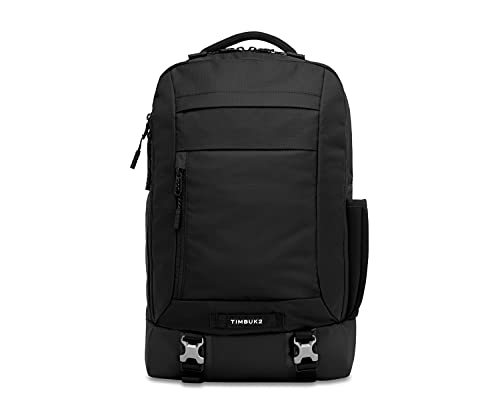
View Timbuk2 Authority Laptop Backpack on Amazon
As an Amazon Associate we earn from qualifying purchases. Prices and availability are shown on Amazon.
FAQ
Is it fine to leave the laptop in a hot car?
Avoid it. Heat and cold are both hard on batteries and parts, so take it with you where you can.
Do I need a sleeve if my bag is padded?
A sleeve adds a layer and keeps the laptop from rubbing against other items. It is a sensible extra, not a requirement.
Can I carry the charger in the same pocket?
It is better in its own pocket. The brick is hard and can press into the case, and the cable can wrap around other items.
Is it all right to carry a laptop one-handed?
For a short distance with the lid closed, support the base and keep a firm grip. For longer distances, use a bag so your hands stay free and the laptop is protected.
Should I take the battery out for travel?
Most modern laptops have built-in batteries that should stay in place. If yours has a removable battery, follow the maker’s instructions and any carrier or airline rules.
What is the safest way to carry a laptop on a bike?
Use a backpack with a padded laptop compartment worn on both shoulders, or a pannier with its own padding, packing the laptop upright against the back panel. Use a rain cover in wet weather, and avoid bumpy surfaces at speed. Check the bag zips and straps before each ride.
Should I use a sleeve inside my backpack?
A sleeve adds a protective layer and stops the laptop from rubbing against other things in the compartment. It is not required if your compartment is well padded, but it is a low-cost extra. Make sure the sleeve is the right size and kept clean.
Can I put my laptop in checked luggage?
It is usually safer to keep a laptop in cabin baggage, where it is handled less and kept with you. Rules on batteries and electronics vary by airline and country, so check the carrier’s current instructions before you travel and follow them.
How do I protect my laptop from rain?
Use a water-resistant bag, a waterproof liner or a rain cover, and keep the laptop in the center of the bag. Seal the top closed fully. If the bag gets soaked, take the laptop out as soon as you can, power it off and contact the maker if you suspect water got in.
Is it okay to carry a laptop in a tote bag?
A tote without padding or a closure gives poor protection and lets items shift against the lid. If you must use one, put the laptop in a padded sleeve first, keep it upright and carry the bag with both hands over short distances. A padded bag with a zip is better.
Should I shut the laptop down for a short trip across town?
It is the safer default for any trip where the bag will be closed for more than a few minutes, especially in warm weather, because a sleeping machine can occasionally wake for an update or a notification and warm itself in an enclosed space. For a brief, cool, supervised carry, sleep is a reasonable convenience. The important part is choosing deliberately rather than closing the lid on a machine that is still mid-task.
Is it all right to carry a laptop by its base with one hand?
Occasionally, across a room, with the lid closed and your palm spread flat beneath the centre of the machine, the risk is low. As a habit it is worth breaking: one-handed carries concentrate the grip at one edge, let the body flex, and leave no hand free when a door or a step surprises you. Two hands, or the bag, for anything beyond a few steps.
What should I do if my bag gets soaked in the rain?
Take the laptop out as soon as you are somewhere dry, keep it switched off if any water may have reached it, and let everything dry slowly at room temperature before charging or starting the machine. Do not use direct heat, and do not test whether it still works while it is still damp, because powering a wet machine is what turns a soaking into damage. If water clearly got inside rather than onto the case, have it checked before use.
How can I tell whether a bag in a shop will really fit my laptop?
Take the laptop, or its exact measurements including thickness, with you. Published bag sizes are often measured externally or rounded, and a compartment that claims to fit your screen size may still pinch at the corners or refuse the machine’s thickness once a sleeve is added. Slide the machine in and out a few times, close every zip fully, and check that the corners of the compartment are padded rather than being the first thing the laptop meets.
Can I carry a laptop in a bag with books and a water bottle?
Yes, if each item is kept in its place. Books belong flat against the laptop’s base side or in a separate compartment, never spine-first against the lid, and a water bottle belongs in an outside pocket, upright, with its lid checked, so that a leak has to travel before it can reach the machine. The arrangement matters more than the company: a well-separated mixed bag is safer than a dedicated bag with a loose bottle rolling inside it.
What records should I keep in case a carried laptop is lost?
Keep the serial number, a note of the make and model, and proof of purchase somewhere that is not inside the bag, such as in your email or a note at home. Make sure your important files are backed up to somewhere independent of the machine, and that the laptop requires a sign-in before it can be used. Those three steps, taken once, are what turn a loss from a disaster into an expensive inconvenience.
Is a hard case always better than a padded sleeve?
Not always. A hard case resists crushing better, which suits luggage holds and crowded boots, but it is heavier, bulkier, and often worse at the everyday knocks of commuting, where good padding and corner protection matter more. Match the protection to the journey you actually make most often, and remember that a sleeve inside a structured bag gives many travellers the useful middle: abrasion protection, corner padding and a case that still fits their daily life. The best protection is the one you will still be using in six months.
How do I carry a laptop in very hot weather?
Keep it out of direct sun and out of parked cars entirely, carry it in the shade of your bag rather than in a black case left on a sunny seat, and let a machine that has become hot cool down before you charge it or work it hard. Heat and batteries are poor companions, and a laptop carried through a hot afternoon and then plugged straight into intensive work is being stressed at both ends. Shade, air and patience are the whole method; none of them weighs anything.
The Short Version
Shut down, clear the keyboard, close the lid and pack the laptop in padded space apart from heavy items. Carry it by the base and put it down gently, and follow the maker’s instructions for your model.