An external SSD is a small drive with no moving parts that holds files outside your computer. The right one depends on how much you store, which port your computer offers, and whether you carry it around or leave it on the desk. The sections below walk through capacity, connectors, a worked set-up and the habits that keep a drive dependable.

Work out the capacity you need
Add up the files you want to hold now, then leave generous room for growth. Photos, video and project files grow faster than most people expect. If you plan to keep a full copy of your computer, the drive should be at least as large as the data you are copying, and larger if you want to keep older versions.
In this guide
Interface and cable
The drive, the cable and the computer’s port all affect how quickly files move. The slowest of the three sets the pace. Read the maker’s notes on the port type and check that the cable in the box matches your computer.
- Look at the connector shape on both your computer and the drive.
- Check whether an adapter is needed for older ports.
- Remember that speed figures quoted by makers are peak numbers, so treat them as a rough guide.
Build and portability
Solid state storage has no spinning parts, so it tolerates being carried better than a spinning disk. Still, the case matters. A metal shell helps spread heat, while a rubber sleeve cushions bumps. If you work in a garage or workshop, think about dust and where the drive will rest.
Quick comparison of use cases
| Use | Main concern | What to look for |
|---|---|---|
| Carrying files between places | Size and toughness | Compact case, short cable |
| Editing from the drive | Steady transfer | Interface that matches your port |
| Keeping copies of a computer | Room for history | Larger capacity |
| Use with a tablet or phone | Connector match | Support listed by the maker |
A Worked Example: Choosing and Setting Up
The numbers here are invented to show the method. Suppose you have 200 GB of photos and documents and expect to add about 50 GB each year.
- Estimate three years ahead: 200 plus 150 gives 350 GB. If you also want older versions of changed files, round up well beyond that.
- Look at the ports on your computer and write down the connector shape. If it is an older shape, look for a drive that lists support or comes with a suitable cable.
- Choose a case that suits where it will live. A pocket-sized shell suits a bag, while a drive that stays on a desk can be any size.
- Plug the drive in with the supplied cable, directly into the computer where possible.
- Read the maker’s guide to see which file format it uses. If your computers differ, check that the format works on each and what file size limit it has.
- Copy a few files, open them from the drive, and compare the number of files and total size to the source before you delete anything.
Common Scenarios
- Photographer on location: a compact, tough case, a short cable and a second drive kept apart from the first.
- Video editor: an interface that matches the computer’s fastest port, a cable of the right type, and plenty of free space on the drive while working.
- Student moving between a laptop and a library computer: a file format that both can read, and a habit of ejecting before unplugging.
- Phone or tablet storage: a drive with listed support from the maker for that device and the right connector.
Heat is worth a thought. Drives that move a lot of data can grow warm, so leave some air around the case and avoid covering it with papers or cloth. Name the drive clearly in your computer’s settings so you can tell it apart from other storage. Before you rely on it, copy a handful of files to it and open them again to confirm that everything reads correctly. Finally, keep the maker’s guide for notes on safe removal and on any software that came with the drive.
Mistakes to Avoid
- Using an unknown cable. A cable that fits the plug may still not carry the signal the drive can handle, which slows transfers.
- Relying on peak speed figures. Real transfers depend on file size, the computer and the cable, so treat the number as an upper guide.
- Skipping the eject step. Unplugging while the computer is writing can damage files.
- Filling the drive to the edge. Leave free space so the drive and computer can work comfortably.
- Keeping the only copy on it. Any drive can fail or be lost.
Quick Troubleshooting
| Symptom | Likely cause | What to try |
|---|---|---|
| Drive not recognised | Cable, port or format issue | Try another cable and port, then check the format in the maker’s guide |
| Transfers slower than expected | Slow cable, port, or a full drive | Use the supplied cable in the matching port and free up space |
| Drive feels warm | Heavy transfers in a covered spot | Pause, give it air, and keep the case uncovered |
| Disconnects during use | Loose plug or a power limit on a hub | Plug straight into the computer and check the connector |
Care and Upkeep Over Time
An external SSD needs little maintenance, but a few habits help it stay dependable. Keep the connector clean and free of lint, and check the cable for kinks, frayed jackets and loose plugs, since the cable often fails before the drive does. Store the drive in a dry place, away from strong magnets, heat and direct sun, and avoid leaving it in a hot car. Update any software the maker supplies only from the maker’s own site, and read the notes before changing anything on a drive that holds important files.
Every so often, open a few older files from the drive to confirm they still read, and look at the free space. If the drive is nearly full, move older projects to a second drive instead of squeezing in more. If you carry the drive daily, a small pouch or sleeve protects the case and the connector, and a label with your contact details gives a lost drive a chance of coming home. When you retire a drive, erase it using the method the maker describes before passing it on.
Glossary
- SSD: a solid state drive that stores data on memory chips instead of spinning disks.
- Interface: the connection type and standard used between drive and computer.
- Capacity: the total amount of data the drive can hold.
- File format: how data is organised on the drive, which affects which computers can use it.
- Peak speed: the highest transfer figure a maker quotes, usually under ideal conditions.
- Eject: the step that tells the computer to finish writing before you unplug.
Understanding Real-World Speed Claims
Speed figures on external SSD listings are usually best-case numbers for large, sequential transfers under ideal conditions. Real use rarely matches them, and knowing why helps you avoid paying for performance you cannot use.
Sequential and Small-File Performance
Sequential speed describes how fast a drive reads or writes one large file, such as a video. Small-file performance, often measured in operations per second, matters when copying thousands of photos or a software project. A drive can post great sequential numbers and still feel slower when handling many small files. If your work involves lots of small files, look for reviews that discuss mixed workloads, and compare more than one number.
Why Speeds Drop During Big Transfers
- Many SSDs use a fast cache that fills up, after which speed falls to the rate of the underlying memory.
- Heat can cause the controller to slow itself to protect the drive.
- The computer port, cable or adapter may cap the speed below the drive rating.
- Nearly full drives can slow down because there is less free space to work with.
For most home use, such as photos, documents and everyday backups, the difference between a mid-range and a top-tier drive is small in practice. Higher speeds pay off mainly for large video files, game libraries run directly from the drive, or frequent transfers of tens of gigabytes.
Matching the Drive to Your Computer and Phone
Compatibility trips up more buyers than speed does. Before you order, check what ports your devices offer and what the drive supports.
Port Types
Many modern laptops and phones use the USB-C connector, but the connector shape does not tell you the speed. A USB-C port may support older, slower standards, or faster ones. Look at the device manual or spec page for the port standard, and match the drive to it. A fast drive on a slow port simply runs at the port limit, which is not harmful but wastes money. Older computers with rectangular USB-A ports can still use most external SSDs with a suitable cable or adapter.
Phones, Tablets and Consoles
Some phones and tablets can read an external drive directly, and some can record video straight to it. Support depends on the device and its software, so check the maker documentation. Game consoles often have their own rules about which drives they accept for storing or running games, including format requirements and size limits. Confirm those details before buying.
Formats and File Systems
Drives are formatted with a file system, and not all systems read every format. exFAT works across modern Windows and Mac computers and many other devices, making it a common choice for sharing. NTFS suits Windows, while APFS suits newer Macs. Reformatting erases the drive, so copy anything you need first and follow your operating system instructions.
Backups, Security and Data Safety
An external SSD is a convenient place to keep files, but a single copy is never a backup. If the only copy of your photos lives on one drive, loss or failure means the files are gone.
- Follow the common 3-2-1 idea: three copies of important data, on two kinds of storage, with one copy kept elsewhere, such as cloud storage or another location.
- Schedule automatic backups using your operating system tools, and check occasionally that they are really running.
- Open a few backed-up files now and then to confirm they can be read.
Encryption and Passwords
If the drive holds private documents, consider encrypting it using built-in tools on your operating system, such as BitLocker on some Windows editions or FileVault and encrypted APFS volumes on Mac. Store your recovery key safely, because losing both the password and the key can make the data unreadable. Some drives include hardware encryption or a keypad, but check how it works and what happens if the password is lost. Do not rely on obscure security claims, and read the manufacturer documentation.
Physical Protection
Solid-state drives have no moving parts, so they handle small knocks better than spinning hard drives, but they are not indestructible. A rubberized sleeve or a hard case reduces risk in a bag. Keep connectors free of dust, avoid pulling on the cable, and eject the drive through the operating system before unplugging, so pending writes finish.
Common Buying Mistakes and How to Avoid Them
| Mistake | What happens | Better approach |
|---|---|---|
| Buying by capacity alone | Slow or fragile drive for the job | Weigh speed, build and warranty alongside size |
| Ignoring the cable | Speed capped by a low-rated cable | Use the cable supplied or a rated replacement |
| Skipping capacity headroom | Drive fills up and slows down | Leave 20 percent or more of space free |
| Trusting unknown sellers | Counterfeit or mislabeled capacity | Buy from reputable sellers and test the drive on arrival |
| Using it as the only copy | Total loss after a failure | Keep a second backup |
After purchase, check the real capacity in your operating system. Fake drives report a large size but hold much less, so copy test files near the stated capacity if you suspect a problem. Read the warranty terms, noting the length, the coverage and any data-written limits, and keep the proof of purchase.
A Realistic Scenario: Choosing for a Small Photo Library
Suppose someone has a laptop with a full internal drive and about 400 GB of photos and family videos, with more arriving each year. A sensible plan is to pick a drive with at least double the current library, so 1 TB would offer room to grow and to keep a few other files. A basic portable model with a modern USB-C interface is enough for photos, and a premium high-speed model would add cost without much benefit.
They would copy the library over, confirm the files open, and then keep a second backup in cloud storage or on another drive. Over the next few years, they would watch the free space and upgrade when the drive nears about 80 percent full. If they later start editing large video files directly from the drive, a faster model would be worth revisiting at that point.
First-Day Setup Checklist
A few minutes of checking when the drive arrives can prevent surprises later. Work through these steps in order.
- Inspect the packaging and the drive for damage, and confirm the model matches your order.
- Connect it directly to your computer instead of through a hub, using the cable that came with it.
- Confirm that the operating system sees the drive and shows the expected capacity, allowing for the normal difference between decimal and binary units.
- Check the manufacturer website for firmware or software updates and read the notes before installing anything.
- Format the drive with a file system that suits your devices, naming it clearly.
- Copy a folder of mixed files, such as photos, documents and one large video, then open several to confirm they are intact.
- Note the serial number and keep the receipt for warranty claims.
Reading the Speed You Actually Get
Copy a large file and watch the transfer rate in your operating system. If the rate is far below the listed figure, try another port on the computer, try the supplied cable, and avoid hubs or long extension cables. If speed is still low, check the specification of the port itself. Do this check early, while the return window is still open.
Cost and Value Considerations
External SSD pricing depends heavily on capacity, speed class, brand and market conditions, so any figure in a guide can age quickly. A more useful approach is to compare cost per gigabyte or terabyte across the models you are considering, and then decide how much a higher speed or a tougher case is really worth to you.
Where Paying More Makes Sense
- Frequent transfers of large video or raw photo files, where faster drives save real time.
- Field work and travel, where water and dust resistance and drop protection matter.
- Professional projects that call for a longer warranty and dependable support.
Where Saving Is Reasonable
- Occasional backups of documents and photos.
- A secondary copy that sits on a shelf most of the time.
- Moving files between home computers now and then.
Also compare the warranty. Terms range from a couple of years to five or more, and some include a limit on total data written. A longer warranty does not guarantee a longer life, but it shows what the maker is willing to stand behind. Reading user reviews for patterns, such as repeated disconnections or heat complaints, adds a layer of caution that specs alone cannot give.
Bare Drives, Enclosures and Other Options
Some people build an external drive from a bare internal SSD and an enclosure. This can offer flexibility on size and price, but it also adds steps and compatibility checks. You need to match the drive type, such as NVMe or SATA, with the enclosure, and ensure that the enclosure handles heat well. Ready-made portable drives are simpler and come with a single warranty.
Cloud storage is another option for backups and sharing. It protects against loss of a local device, though it depends on internet speed and a subscription. Many people use both: an external SSD for fast local access and a cloud service for an off-site copy. The best mix depends on how much data you have, how often it changes and how comfortable you are with online storage.
Ready to Buy? Start Here
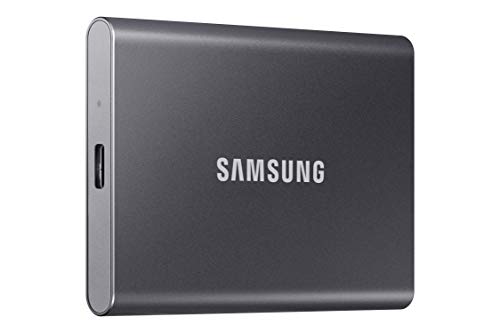
If this guide helped you decide what to look for, these products are a place to start.
As an Amazon Associate we earn from qualifying purchases. Prices and availability are shown on Amazon.
Audit the Workload: Active Files or Cold Storage
An external solid-state drive is a tool for movement: of files, of projects and of yourself between machines and places. Choosing one well starts with a workload audit rather than a speed claim. For a few days, notice what you would actually put on it. Is it the active project you open every day, video being edited, photographs being culled, a game library being played? Or is it finished work being carried somewhere, installers and documents being ferried, a backup that is written occasionally and read rarely? Active work rewards a drive that feels invisible in daily use. Cold carrying rewards capacity, toughness and price per amount of space. Confusing the two is the classic error: buyers pay for performance their archive will never use, or save money on a drive their daily editing will resent for years.
Note also the machines in the story. Which computers, phones, tablets or consoles will it meet, and what ports do they honestly offer? The fastest drive in the world is limited by the slowest connection it is plugged into, and by cables and adapters borrowed along the way. Write the machine list down. Then write the movement pattern: desk to desk, home to studio, pocket to site, drawer to laptop once a month. An SSD lives a physical life as well as an electronic one, and the audit should capture both, because the right enclosure, cable arrangement and capacity all follow from where the drive actually goes.
Find your bottleneck before paying to remove the wrong one
Every transfer chain has a slowest link: the computer’s port, the cable, an adapter, the drive itself or the destination it is copying to. Paying to upgrade any other link buys nothing. Before shopping, run one honest test with equipment you already own: copy a large file you really use and watch roughly how the copy behaves. If your existing setup is already limited by an older port or a borrowed cable, the audit has just saved you from buying performance you cannot reach. Spend first on the link that is actually holding you back, which is sometimes the cable in the drawer.
A Decision Checklist in Working Order
Judge a shortlist in this order. First, the job: active work, carrying or backup, taken from the audit, because it sets how much the next points matter. Second, compatibility: the connector, the cable in the box and the formats, checked against every machine on your list, including the phone or console people forget until the day it matters. Third, capacity: the workload total plus growth room, remembering that drives used for active projects fill faster than their owners predict, because projects breed versions, exports and caches. Fourth, the physical life: size, weight, toughness and whether the cable is captive or separate, judged against the movement pattern from the audit. Fifth, the ownership extras: encryption for a drive that travels with private work, and warranty and maker support for a drive your livelihood touches daily.
- Name the job in one sentence before comparing any two models.
- List every machine it must serve and check the port on the weakest of them.
- Confirm what cable is included and what a spare would need to be.
- Size for the workload in a year, not the workload on delivery day.
- Decide about encryption before the first real files go on, not after a scare.
Notice again what this order demotes: the headline speed figure, which appears nowhere in the first five checks. That is deliberate. For the carrying and backup jobs it barely matters at all, and for active work it matters only after compatibility has had its say, because an incompatible fast drive is simply a fast drive you cannot use at full pace on your machines. Fit first, speed second, is the whole philosophy of buying storage well.
Three Worked Examples
Example one: the video editor’s shuttle
An editor moves active projects between a home workstation and a studio machine, working directly from the drive in both places. The audit shows large files, daily use and two modern computers. The brief is compatibility confirmed on both machines, capacity for several projects plus their exports, a cable arrangement that survives daily plugging, and a case, because this drive’s life is lived in bags and on shared desks. The editor also keeps finished projects elsewhere: the shuttle is a working tool, not the archive, and confusing those roles is how projects get lost with a stolen bag.
Example two: the photographer’s field drive
A photographer wants the day’s cards copied each evening on trips, freeing cards for the next day. The audit shows bursty writing, small physical space, hotel-room working and irreplaceable content. The brief is a compact tough drive, simple one-cable operation with the laptop used for the copies, and a strict evening routine: copy, verify by opening a sample from across the day, and only then format cards in the camera. Capacity is sized by trip length rather than by the whole archive at home, which keeps the field drive affordable and the routine honest.
Example three: the student’s everything drive
A student carries coursework, a media library and game installs between a laptop, a library computer and a console at a friend’s house. The audit is a portrait of variety, so the brief prizes compatibility and capacity over peak behaviour, plus a label with the owner’s name and number, because student drives live dangerously social lives. The student also learns the guide’s hardest small lesson early: the drive holds copies and installs, while the only copy of the thesis draft lives in more than one place, always.
The First-Week Verification Routine
New storage should be verified before it is trusted, and the first week is when verification is easy. Begin by confirming the drive reports the capacity you bought, and treat any wild mismatch as a stop sign rather than a quirk, because mislabelled storage exists and the time to discover it is before your files do. Copy a realistic test load: a large file, a folder of many small files and something precious with a duplicate kept safely elsewhere. Open files from the drive, play the video, edit the document copy. Then practise the safe ejection habit on every machine you use, until it is muscle memory, because the most common way these drives lose data is not failure but being pulled mid-write by a person in a hurry.
Across the week, also verify the physical routine. Does the cable stay seated when the laptop moves? Does the drive get knocked, sat on or buried in the bag it will live in, and does it need its case? Does your backup or copying software find it reliably under the same name each time? Finish by writing the drive’s name, purchase date and job on a label and in your notes. Storage multiplies quietly in a household, and the labelled, documented drive is the one whose contents future you can trust without an archaeological dig through mystery volumes.
Living With the Drive: Habits That Prevent the Usual Losses
Most external SSD losses are domestic, not electronic. The drive left in a trouser pocket meets the washing machine. The drive that is the only copy of a project meets a stolen bag, a spilled drink or a hotel room’s checkout time. The drive pulled out mid-copy, repeatedly, eventually presents a corrupted folder at the worst moment. The habits that prevent these are unglamorous: a fixed home for the drive when it is not connected, the case used every time rather than on virtuous days, safe ejection as a reflex, and the standing rule that anything precious exists in at least two places, of which this small, losable, stealable object may only ever be one.
Add a light calendar. Monthly, glance at free space and at whether the drive’s job has changed; drives drift from shuttle to archive to clutter without anyone deciding it. Seasonally, open a sample of older files and check the cable and connector for wear, since the cable is the cheapest component and the most abused. When the drive is eventually replaced, migrate deliberately: copy, verify by opening, and only then retire the old one, labelled with its retirement date. Storage bought by audit, verified in its first week and lived with by habit rarely surprises its owner. That absence of surprise is the entire product, and it is worth more than any figure on the box.
A Folder System That Future You Can Navigate
An external drive quietly becomes a junk drawer unless its organisation is decided once, early, and kept deliberately simple. The system that survives contact with real life has few rules. Top-level folders by job, not by date or by whim: one for active work, one for material being carried between places, one for copies that exist for safety. Inside active work, one folder per project, named so a stranger could guess its contents, with the project’s own internal order left to the tools that created it. Inside the safety area, one folder per backup, named with its date written in a consistent order, so the copies sort themselves and the oldest is obvious when space must be reclaimed.
Two habits keep the system honest. First, a landing folder for arrivals: everything new goes there first, and is filed or deleted at the end of the session, so the drive never accumulates anonymous downloads and mystery exports at its root. An empty landing folder is the sign of a healthy drive. Second, a short text note at the top level, updated whenever the drive’s job changes, saying what this drive is for, what must never be deleted from it, and where its contents also live. That note takes three minutes to write and converts the drive from a private memory test into a tool another person, or yourself in three years, can use safely. Storage is cheap. Confusion about storage is what actually loses files, and it is cured entirely by naming, dating and one honest note.
Lending, Sharing and Handing Over a Drive Safely
Small drives get lent, borrowed and carried into other people’s machines, and each handover deserves thirty seconds of thought. Before lending, ask what else is on the drive besides the files being shared: drives accumulate personal material in forgotten folders, and connecting them to another computer displays the whole contents, not just the folder you meant. The tidy solution is a dedicated sharing habit: copy what is being shared into the landing folder, or keep a separate inexpensive drive purely for exchanges, so lending never becomes accidental disclosure. After any drive returns from another machine, treat it with mild suspicion: unfamiliar files appearing on it should be deleted unread, and important contents verified before the drive resumes its normal duties.
Handing work over permanently, to a client, a colleague or a family member taking over the archive, deserves a fuller ceremony. Copy, verify by opening files on the destination, and include the top-level note explaining what the drive holds and how it is organised. Say out loud what the drive is not: not the only copy, or, if it is, that this fact is now the receiver’s problem to fix promptly. Many data losses are really handover losses, occurring in the gap where each side assumed the other still held a copy. A two-minute conversation closes that gap, and it is the cheapest data protection in this entire guide.
Knowing Your Drive’s Normal, So Abnormal Gets Noticed
Every healthy drive has a personality its owner learns without trying: how its light behaves during a copy, the sound it makes, which is usually none worth mentioning, how warm it gets during the long evening transfer, how the computer greets it by name. This unglamorous familiarity is a diagnostic instrument, because faults announce themselves as changes in the familiar. A drive that suddenly takes long to appear, that disconnects when its cable is breathed on, that runs hotter than its own history during the same job, is telling you something in the only language it has. Owners who know their drive’s normal act on the first whisper: they copy the precious material elsewhere, swap the cable, test on another machine. Owners who never noticed the normal meet the fault later, louder, with fewer options.
Build the familiarity deliberately during the first weeks. Watch one whole long copy from start to finish, not because it needs watching but because you are learning the drive’s ordinary behaviour: how the progress rises and falls between large and small files, how the enclosure warms and cools, how the machine behaves when the copy completes. Note the drive’s name, its capacity as reported and its purchase date in the note file described in this guide. Repeat the long copy each season as part of the housekeeping rhythm, and compare against memory. Storage fails less often than people fear, but it fails with warning more often than people notice. Noticing is a skill, it costs a few attentive minutes a year, and it is the difference between replacing a drive as an errand and mourning one as an event.
If You Only Remember Three Things
First, fit before speed. The job from your audit, active work, carrying or backup, decides how much performance matters at all, and compatibility with every machine you own decides whether any of it reaches you. A drive that matches your ports, your cable drawer and your formats will feel fast. A drive that does not will feel like an argument, whatever its box promises. Second, the chain is the product: computer port, cable, enclosure and destination all share the result, so find your bottleneck with one honest copy test before paying to upgrade whichever link happens to be fashionable. Sometimes the correct purchase is a cable. Sometimes it is nothing at all, because the limit lives in the older machine and the work is fine as it is.
Third, trust is earned in the first week and kept by habit. Verify the capacity, copy a realistic load, open the files, practise the safe ejection until it is reflex, and label the drive with its job and date. Afterwards, let the fixed home, the used case and the two-copies rule for precious material do their quiet work. Learn the drive’s normal behaviour so its abnormal behaviour gets noticed while copying elsewhere is still easy. An external SSD is a small object that will hold large parts of your life. Bought by audit, verified early and lived with deliberately, it earns that trust completely.
FAQ
Is an SSD safer than a hard drive for backups?
Neither is a perfect home for your only copy. Any drive can fail, so keep a second copy of anything important in another place.
Do I need to format it before use?
Many come ready to use, but formats differ between computer systems. Check the maker’s guide to see which format suits the machines you use.
Will it work with my phone or tablet?
It depends on the connector and on support from the device maker. Check the notes for both before you buy.
Can I leave it plugged in all the time?
Many people do, but unplugging after use reduces wear on the connector and avoids accidental changes. Follow the maker’s guidance either way.
Why does my drive show less space than advertised?
Makers and computers count capacity differently, and the format takes a little room. A modest gap is normal, but check the guide if the difference seems large.
How much storage do I need in an external SSD?
Add up what you plan to store now, then at least double it for growth and free space. For documents and photos, 500 GB to 1 TB often suffices. Video editing, game libraries and large archives may call for 2 TB or more. Keep some free space to maintain speed.
Does USB-C always mean fast speeds?
No. USB-C is only the connector shape. The port and cable behind it may support slow or fast standards. Check your device specs and the drive rating, and use a cable rated for the speed you want. The slowest part of the chain sets the speed.
Can an external SSD be used for gaming?
Many can store game libraries, and some consoles and PCs can run games from them. Speeds and rules vary. Check your console or PC documentation for supported drive types, formats and size limits. A faster drive reduces loading time, while a slower one may be fine for older titles.
How do I check that my external SSD is not a fake?
Buy from reputable sellers, then check the real capacity in your operating system and copy test files that fill most of the stated size. Compare the model and serial details with the maker site. Unusual pricing, odd packaging or errors during large copies are warning signs.
Should I encrypt my external SSD?
If it holds private documents, financial records or work files, encryption is wise, because a lost drive could expose them. Use your operating system built-in tools, and store the recovery key somewhere safe. Without the password and key, encrypted data cannot be recovered.
Can I run programs or games directly from an external SSD?
Often yes, and many people keep a game library or portable tools on one. Performance in use depends on the whole chain: the port, the cable and the machine, as with copying. Install with the drive connected the way you will normally use it, keep the drive letter or name stable where your system allows, and remember that unplugging the drive makes its programs unavailable until it returns.
Why does my external SSD feel warm during big copies?
Moving a lot of data quickly is hard work, and the enclosure sheds that energy as warmth. Warmth during a long transfer is normal; a drive that becomes uncomfortable to touch, or that slows dramatically as it heats, deserves a rest and better airflow rather than being wrapped in a case or buried under papers while working. Short everyday copies should not trouble it at all.
Should I keep the cable that came in the box?
Yes, and treat it as part of the drive. It is the cable the maker intended for it, and using it removes one variable when anything misbehaves. If you buy a spare or a longer one, test it with a large copy before trusting it in the field, and keep the original somewhere findable. Many mysterious slow drives are simply good drives on the wrong cable.
How do I safely share an external SSD between work and personal machines?
Decide the format for the machines involved before loading it, keep work and personal material in clearly named folders, and use encryption or separate volumes where privacy requires it. Check any workplace rules about personal drives and data before connecting to an employer’s machine. Eject properly on every machine, because shared drives meet more systems and more hurried hands than most.
When should I replace an external SSD?
Replace by plan rather than by failure: when capacity no longer fits the job, when the connector or cable shows wear that a new cable does not cure, when it behaves erratically during verification copies, or when its age and importance simply argue for fresh hardware. Migrate while the old drive still works, verify the new one by opening files, and let the old drive retire as a labelled extra copy rather than a bin item.
The Short Version
Choose capacity with room to grow, match the connector to your computer, and choose a case that fits where you will use it. Keep a second copy of anything you cannot replace.


