An external hard drive is a roomy, familiar way to hold files outside your computer. Choose by deciding how much space you need, whether it will sit on a desk or travel in a bag, and which port your computer uses. The sections below also cover a worked set-up, common situations and the checks that keep your files safer over time.

Desktop or portable?
Two body styles are common. Desktop drives are larger, usually need a wall adapter, and are meant to stay in one place. Portable drives are smaller, draw power through the data cable, and fit in a bag.
- Desk use: a larger body is fine, and the extra space is often useful.
- Travel use: choose a compact body and a short cable.
- Shared workshop or office use: think about where it can sit without being knocked.
In this guide
How much space is enough
Look at the total size of the files you want to keep, then multiply by a comfortable margin. If the drive will hold copies of your computer, remember that each copy takes room. A drive that fills up completely leaves you with no space for the next copy, which defeats the purpose.
Connection and compatibility
Check the connector on the drive and the ports on your computer. Cables differ even when plugs look alike, so use the cable the maker supplies where you can. Also check the file format: some formats work on only one kind of computer, while others work across several but have limits on file size. The maker’s guide will describe the format the drive ships with.
Quick decision table
| Situation | Leaning | Reason |
|---|---|---|
| Drive lives on one desk | Desktop style | Larger body, wall power, no cable-power limits |
| Drive travels in a bag | Portable style | Small and powered through the cable |
| Used with both computer types | Cross-system file format | Check file size limits first |
| Holding long-term copies | Larger capacity or two drives | Room for several copies and a spare |
Handling and care
Hard drives contain moving parts, so they dislike drops and knocks while running.
- Place the drive on a flat, stable surface.
- Eject it from the computer before unplugging.
- Keep it away from damp, heat and heavy dust.
- Do not move it while it is working.
It also helps to think about noise and power. Spinning drives hum and click a little, which some people notice in a quiet room. Desktop models draw power from the wall, so you need a nearby outlet and a spot where the adapter lead will not be tugged. Portable models take power through the data cable, which can be a problem with some unpowered hubs, so plug them straight into the computer where possible. Label the drive and keep the cable with it, so that a copy job is never delayed by a missing lead.
Finally, consider how you will use the space. A single large drive is simple, but two smaller drives let you keep one at home and one elsewhere, which spreads the risk.
A Worked Example: Setting Up a Drive for Copies of Your Files
The sizes below are invented to show the method. Suppose your documents and photos come to about 300 GB.
- Add up your files. Right-click the main folders on your computer and read their size, or use the storage page in your settings.
- Allow room for growth and for more than one copy. A drive at least two or three times the size of your data, so 600 to 900 GB in this example, leaves space for older versions.
- Check your computer’s port and buy a drive that uses it or comes with the right cable. Do not rely on an adapter you have not confirmed.
- Plug the drive in directly, wait for it to appear, and read the maker’s guide for the format it uses. If you need to reformat it for your computer, copy off anything on it first, since formatting erases the contents.
- Copy your files over, then open a few of them from the drive to confirm they read properly.
- Eject the drive from the computer’s menu before unplugging, and store it somewhere dry and stable.
Common Scenarios
- Family photo archive: a desktop drive in a cupboard, with a second copy on another drive kept elsewhere.
- Student with a laptop: a portable drive in a padded case, plugged directly into the laptop.
- Home office with two computers: a drive using a file format both can read, with a note on any file size limits.
- Working from a trip: a portable drive with a short cable, and a second copy left at home.
Mistakes to Avoid
- Treating one drive as the only copy. Drives can fail without warning, so important files should exist in two places.
- Pulling the plug during a transfer. Files can be damaged if the computer is still writing to the drive.
- Moving the drive while it spins. Knocks can harm the moving parts.
- Filling it to the brim. A full drive leaves no space for the next copy or for the system to work.
- Ignoring the format. A drive that cannot be read by your other computer is not useful there.
Quick Troubleshooting
| Symptom | Likely cause | What to try |
|---|---|---|
| Drive does not appear | Loose cable, wrong port, or no power | Reseat the cable, try another port, check the adapter |
| Computer asks to format it | File format not recognised | Do not format until you have checked the maker’s guide and backed up anything you need |
| Clicking or grinding sounds | Possible mechanical trouble | Stop using it, copy files elsewhere if it still reads, and contact the maker |
| Copies stall or fail | Poor cable or a failing drive | Try a different cable and port, and check the files |
Care and Upkeep Over Time
A spinning drive benefits from a routine. Place it where it cannot be knocked, and keep vents and the area around it free of dust, cloth and paper. Check the cable and adapter for wear, and replace any that look frayed. Eject the drive each time before unplugging, and avoid moving it until the disks have stopped. If it makes unusual noises, slows down or shows errors, copy your files to another place and contact the maker.
Every few months, open a handful of files from the drive and check they are readable. Make a note of the date you last added new copies, and plan a refresh before the drive gets old. Many people replace drives on a schedule rather than waiting for a failure, though the right interval depends on use, so treat any single drive as temporary. Keep a list of what each drive holds, either on a paper label or in a simple file, so you can find things quickly and know which drive to copy next. When you retire a drive, erase it using the method the maker describes before disposing of it or passing it on, because deleted files can sometimes be recovered.
Glossary
- File format: the way a drive organises files, which decides which computers can read it.
- Eject: telling the computer to finish writing and release the drive before you unplug it.
- Capacity: the total amount of data a drive can hold.
- Bus power: power supplied through the data cable instead of a wall adapter.
- Copy job: a transfer of files from one place to another.
- Formatting: preparing a drive for use, which erases what is on it.
Spinning Disk or Solid-State: Matching Drive Type to Your Habits
Most external drives sold as “hard drives” use spinning disks, while solid-state drives store data on flash memory chips with no moving parts. The two suit different habits, and the right pick depends less on raw speed than on how you treat the drive.
Where a spinning drive makes sense
A spinning drive usually costs less per gigabyte, so it is a common choice for large photo libraries, video archives and full computer copies that sit on a shelf most of the time. The trade-off is sensitivity to knocks while the disks are turning, and a little noise and heat.
Where a solid-state drive makes sense
A solid-state drive tolerates a bumpy bag better, runs silently and is usually quicker to open large folders. It tends to cost more per gigabyte, so people often choose a smaller capacity for files they carry and a larger spinning drive for the archive at home. Prices change often, so compare current listings instead of relying on a rule of thumb.
- Mostly stays on a desk and holds a big archive: a spinning drive is often enough.
- Rides in a bag every day: consider solid-state, or at least a padded case.
- Opens and edits files straight from the drive: speed matters more, so look at solid-state.
- Stored in a drawer for long periods: either type works, but check it every few months.
Backing Up Properly: The Three Copies Idea
An external drive is a storage place, not a guarantee. A widely used rule of thumb is to keep three copies of anything important, on two different kinds of storage, with one copy somewhere else. In home terms, that means the original on your computer, a second copy on an external drive, and a third copy on another drive kept at a relative’s house, in a safe-deposit box or in an online storage service.
The reason is simple. Fire, theft, a spilled drink and a failing drive can each take out a single device. Two copies in the same room protect you from a dying drive but not from a burst pipe. A copy in another location covers that gap.
Copy or backup?
Dragging files onto a drive makes a copy. A backup program, such as the one built into your computer or one from the drive maker, can repeat the job on a schedule and keep older versions of changed files. If you delete or overwrite a file by mistake, a plain copy may already carry the same mistake, while a versioned backup lets you go back. Read the program’s help pages to see how many versions it keeps and how much space they use.
A simple routine
- Pick one day a week or month and put it in your calendar.
- Connect the drive, run the backup and wait for it to finish.
- Open two or three files from the drive to confirm they read.
- Eject, then put the drive away.
- Swap with the offsite drive every few months if you use two.
File Formats in Plain Language
The format decides which computers can read the drive and how large a single file may be. Names vary by system, so treat the table as a general guide and confirm details in the maker’s instructions and your computer’s help pages.
| Format | Typically works with | Main catch |
|---|---|---|
| exFAT | Recent versions of Windows and macOS, many cameras and game consoles | Less protection if the drive is unplugged mid-write |
| NTFS | Windows; macOS often reads it but may not write to it without extra software | Limited on Mac and some devices |
| APFS or Mac OS Extended | Apple computers | Windows needs extra software to read them |
| FAT32 | Almost everything | Single files are limited to just under 4 GB |
If one drive must serve both a Windows computer and a Mac, exFAT is the usual compromise. If it only serves one computer, that computer’s native format is often the sturdiest option. Remember that changing the format erases everything on the drive, so move your files off first.
Reading a Product Listing Without Being Misled
Listings pack a lot into a few lines. A few points save disappointment after delivery.
Capacity is rounded
Makers count a terabyte as one trillion bytes, while many computers report sizes in a different unit, so a drive sold as 1 TB commonly shows up as roughly 930 GB of usable space. Some space also goes to formatting. Neither is a fault.
Port names and speeds
The plug shape does not tell you the speed. Several generations of USB use the same connector, and the drive will run at the slower of what the drive, the cable and the computer port support. If transfer time matters, check each of the three. A fast drive on an old port will only go as fast as the port allows.
Extras worth checking
- Cable included: and whether it is the right connector for your computer, or if you need an adapter.
- Included software: some drives ship with backup or encryption tools, which you may or may not want.
- Warranty length and terms: read what is actually covered.
- Shock resistance claims: the maker should say how they were measured. A claim of resistance is not a license to drop it.
- Power needs: a portable drive that needs more power than one port supplies may come with a Y-cable or ask for a powered port.
Privacy, Passwords and Encryption
A portable drive is easy to leave on a train or in a cafe. If it holds tax papers, scans of identity documents or private photos, think about encryption. Both Windows and macOS include tools that can lock a whole drive behind a password, and some drives include their own hardware or software lock.
Encryption brings one serious responsibility: if you forget the password or lose the recovery key, nobody can open the drive for you. Write the recovery key on paper and keep it away from the drive. Test it by following the maker’s steps for unlocking on a second computer before you trust the drive with your only copy.
Also note that a locked drive is not a replacement for good habits. It still needs a second copy, because encryption does nothing against a hardware failure.
Planning for the Long Term
Storage has a shelf life. Spinning drives wear and flash drives can lose data if left unpowered for very long periods, so a drive in a drawer for years is not a safe archive. Plan to move your files onto fresh storage every few years, and check the maker’s guidance on storage conditions.
Keep a short text file at the top level of the drive that lists what it holds, the date of the last full copy and which computer it belongs to. When you replace the drive, copy everything across first, compare the folder sizes, and only then retire the old one using the maker’s erase method.
When to ask for help
If the drive stops appearing, repeats clicking sounds or reports read errors, stop writing to it. Further use can make recovery harder. Contact the maker, and for irreplaceable files consider a professional recovery service, accepting that results are not guaranteed and costs can be high. The better answer is to have a second copy before trouble starts.
Ready to Buy? Start Here
If this guide helped you decide what to look for, these products are a place to start.
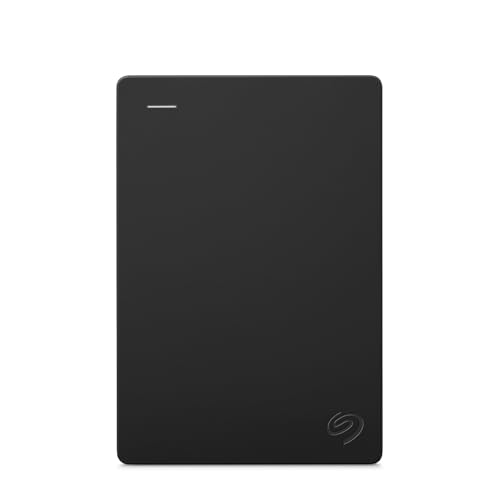
View Seagate Portable Drive on Amazon
As an Amazon Associate we earn from qualifying purchases. Prices and availability are shown on Amazon.
Inventory Your Files Before You Choose a Capacity
Capacity is the first decision in this purchase and the one most often made by guessing. Replace the guess with a short inventory. On the computer you will back up or relieve, look at the honest totals: how much space the system reports as used, and which folders hold the bulk of it. In most homes the answer is a familiar cast: photographs, videos, a documents folder that is smaller than its importance suggests, downloads that nobody has sorted, and the large quiet libraries created by games, music software or a camera that shoots everything. Write the total down, then write down how fast it grows. A household adding modest phone photos grows slowly. A household with a new camera, a drone or a teenager editing video grows at a pace that will embarrass a drive bought with no headroom.
The inventory also reveals what kind of drive you need, because not all files ask the same of storage. Files that change daily, such as documents and an active photo library, want a drive that is connected often and backed up by routine. Files that barely change, such as scanned family archives or finished projects, can live on a drive that is connected rarely and stored carefully. Files that travel, between home and office or between computers, want portability and toughness more than raw size. Sorting your inventory into those three behaviours, active, archive and travelling, is the real beginning of choosing well, and it frequently leads to the calm conclusion that one drive can serve two of the roles while a different arrangement serves the third.
Plan for the restore, not only the backup
While inventorying, ask the question buyers avoid: if this computer vanished tonight, what would I actually do tomorrow? The answer exposes whether the drive is a convenience or a lifeline. If it is a lifeline, the plan must include where the drive lives when not copying, how you would connect it to a replacement computer, and whether the most precious folder exists anywhere else at all. Drives are inexpensive compared with irreplaceable photographs. The inventory is the moment to discover that your safety depends on a single box, while fixing that still costs very little.
A Decision Checklist Organised by Role
Choose the drive by the role it will play, in this order. First, role: primary backup for one computer, shared household storage, an archive that is mostly written once, or a travelling companion. Second, form: a portable drive that takes its power from the computer and goes in a bag, or a desktop drive that stays put, takes its own power and suits a fixed routine. Third, capacity: the inventory total, plus growth room for the years you expect to keep the drive, with the honest reminder that a drive filled to the brim is a drive whose backups start failing quietly. Fourth, connection and format, matched to every computer in the plan, decided before the drive fills rather than after. Fifth, the extras that serve the role: encryption for a travelling drive, a case for one that moves, a long enough cable for one that lives on a shelf.
- Write the inventory total and a realistic growth estimate before shopping.
- Name the drive’s main role in one sentence and let that role settle the form.
- List every computer it must work with, including the borrowed or future one in the restore plan.
- Decide the format and any encryption before the first big copy, not after.
- Decide where the drive will live when idle, because storage conditions decide lifespan habits.
This order prevents the standard disappointment of this category: a drive that is technically excellent and practically wrong, too small within a year, formatted for the wrong machine, or so awkward to connect that the backup routine quietly dies. A backup that requires effort is a backup that happens rarely, and a backup that happens rarely is mostly a hope with a cable attached.
Three Worked Examples
Example one: the family photo archive
A family’s photographs live on one laptop, in phone backups and in a shoebox of old prints being scanned gradually. The inventory is moderate but priceless and slow-growing. The role is archive plus backup, so the choice is a portable drive kept at home, with the most precious folder also copied to a second location as the wider guide advises. The routine is monthly: connect, copy the new scans and phone exports, verify a handful of files open, eject properly, return the drive to its drawer. Nothing here needs speed or glamour. It needs consistency, and the drive chosen is the one the family will actually keep using in year three.
Example two: the student laptop
A student’s whole academic life is one laptop: coursework, notes, a growing media library and no budget for drama. The inventory is small, the growth steady, the risk concentrated. The role is single-computer backup, the form portable so it can travel home at holidays, and the deciding feature is not capacity but the routine: the student’s calendar holds a weekly backup appointment, and the drive lives in the desk drawer rather than permanently attached, so a stolen or dropped laptop does not take its only copy with it. Encryption earns its place here because the drive moves around and holds personal material.
Example three: the small office shelf
A two-person office needs shared project files and a backup of both computers. The inventory is larger, the role is fixed, and the form is a desktop drive on a shelf, connected on a schedule, with a written note of whose job the weekly check is. The office example shows the checklist scaling: same questions, larger answers, and one addition that homes should copy anyway, which is naming the human responsible. Drives do not fail routines. Routines fail when everybody assumed somebody else was running them.
The First Backup and the First Restore Drill
The first backup deserves ceremony. Connect the drive, confirm the format suits your machines, run the backup or copy with the computer plugged into power, and let it finish without interruption. Then do the step most people skip: open files from the drive itself. Open photographs from the middle of the set, a document from last year, a video and let it play. A backup is not a progress bar that reached the end; it is files that open, and the only evidence is opening them. Note the date and what was included, on paper kept with the drive or in a note you will find again. Future you, mid-crisis, will be grateful for pedantry that present you finds tedious.
Within the first month, run a small restore drill. Choose one folder, pretend the original is gone, and restore it to a new location from the drive alone, using only the instructions you have written down. Time it, notice the confusing moments, and improve the notes. This drill is the difference between owning a backup and owning a story about a backup. Households that have done it once are calm in a real failure. Households that have not are conducting their first experiment at the worst possible moment, with the highest possible stakes and shaking hands.
A Housekeeping Calendar That Keeps the Drive Useful
Drives age quietly, so give yours a calendar rather than relying on memory. Monthly, or at whatever rhythm your routine sets, connect the drive, run the backup, glance at the free space and confirm the trend still leaves headroom. A drive creeping towards full is telling you next year’s purchase date; listen early, while replacing it is a plan rather than an emergency. Seasonally, open a sample of older files, check the cable for damage at its bends, and confirm the drive still lives somewhere cool, dry and unlikely to be knocked off a shelf by a passing sleeve or pet.
Yearly, revisit the whole arrangement against the inventory. Has a new computer arrived that the format no longer suits? Has the household’s most precious material outgrown the single-drive arrangement? Is the drive old enough that its contents deserve migration to a fresh one while copying is still easy? Drives rarely die with drama; they die with a strange noise, a mounting error or a copy that never finishes, usually at the least convenient hour. The calendar exists so that your data has already moved, calmly and in duplicate, long before that hour arrives.
The Two-Drive Rotation, Explained Simply
Once a household accepts that one drive is a single point of failure, the natural next step is a rotation of two. The idea is simple enough to explain to anyone: two drives take turns. One is connected and receives the current backup. The other rests somewhere else, in a drawer in another room, at a relative’s house, or in a workplace locker, holding the previous backup. At each routine, they swap. The connected drive is updated, verified in the usual way, and then it becomes the resting one, while the previous resting drive comes home to be updated next time. At every moment, a complete recent copy exists in a different place from the computer, and a slightly older copy exists in a different place from both.
The rotation protects against the failures a single drive cannot: theft of the computer and its attached backup together, fire or flood in one room, and the slow disaster of a backup drive failing silently and being discovered only when the computer fails too. Its costs are modest: a second drive, and the discipline of the swap, which most households attach to an existing rhythm, the first weekend of the month or the day a particular bill arrives. Label the drives clearly, A and B, with their rotation noted on the calendar, because a rotation that depends on remembering which drive is current is a rotation that will eventually update the same drive twice and rest the stale one forever. Written down, the system runs itself, and it is the single largest upgrade in safety available to a home user for the price of one more drive.
When a Drive Shows Warning Signs: A Calm Triage
Drives usually whisper before they shout. The whispers include new clicking or buzzing from a spinning drive, copies that stall or fail partway, files that refuse to open after copying cleanly before, the computer taking oddly long to recognise the drive, or the drive vanishing mid-session and returning. Any one of these deserves the same first response, and it is not a repair attempt: copy the most precious material elsewhere first, starting with what cannot be replaced, while the drive is still cooperating. Data rescue is a race usually won by the person who copies first and diagnoses second. Running checks, scans and experiments on a whispering drive before securing its contents spends the drive’s remaining life on curiosity.
Once the precious material is safe, diagnose in the cheap order. Try a different cable, because cables fail more often than drives and mimic them cruelly. Try a different port and, if possible, a different computer, which separates drive faults from machine faults in one move. Listen again, and note exactly what happens, in writing, with dates. If the drive misbehaves on two machines with two cables, retire it from backup duty regardless of whether it later has a good day; trust, once lost by a backup drive, should not be restored by optimism. Replace it, restore the rotation or routine, and let the old drive’s fate follow the erasure guidance elsewhere in this guide. Handled this way, a failing drive is an errand. Handled hopefully, it is how archives end.
Teaching the Household: Backups That Survive Their Owner
A backup system that only one person understands is a backup system with an expiry date, because its owner goes on holiday, falls ill, changes jobs or simply forgets, and the routine dies quietly in their absence. Spend twenty minutes making your system teachable. Write the routine on one page, in plain steps a competent stranger could follow: where the drive lives, what to connect where, what to click or copy, how to verify by opening files, how to eject safely, and where the page itself lives. Keep the page with the drive, not in a folder on the computer it describes, because the day the page is needed most may be the day that computer will not start. Then watch someone else run the routine once, start to finish, while you say nothing. Every place they hesitate is a place the page needs another sentence. This is not bureaucracy. It is how a household’s photographs survive the decade rather than the enthusiast.
The same principle extends to the worst day. Somewhere in the page, answer the question nobody wants to write: if the main computer died tonight, what exactly do we do tomorrow morning? Which drive, connected to what, opened how, containing what, and what is simply gone because it was never included? Writing that paragraph in calm times feels gloomy. Reading it in a crisis feels like a letter from a competent friend. Households that have the page treat computer death as an inconvenience with a procedure. Households without it treat it as a bereavement with a search party. The drive you chose so carefully deserves the page, and the page, in the end, is the cheapest and most valuable accessory in this entire guide.
If You Only Remember Three Things
First, inventory before capacity. The honest total of what you hold, plus a realistic guess at how fast it grows, is the only sound basis for choosing a size, and it takes ten minutes on the computer you already own. Second, role before model. A drive that will live on a shelf as a scheduled backup, a drive that will travel in a bag, and a drive that will hold the family archive are three different purchases wearing similar boxes; name the role in one sentence and let it settle the form, the format and the extras, in that order. Most disappointments in this category are excellent drives bought for the wrong role by people who skipped the sentence.
Third, a backup is files that open, verified by opening them, on a routine somebody else could follow from a page kept with the drive. Run the first backup with ceremony, run the restore drill within the month, and let the calendar, not your memory, carry the rhythm afterwards. If the material is precious, let one drive become two in rotation, because the second drive is the cheapest large increase in safety a household can buy. Choose by inventory and role, verify by opening, and document for the person who was not in the room. A drive bought and kept that way stops being a product and becomes what it was always meant to be: quiet insurance you hope never to claim and completely trust if you must.
FAQ
How long will a hard drive last?
There is no fixed answer. Drives can fail without warning, so treat any single drive as temporary and keep another copy of important files.
Can I use one drive for several computers?
Yes, if the format is readable by all of them. Check the format before you fill the drive with files.
Should I leave the drive plugged in all the time?
Desktop drives are designed to stay connected, while many people prefer to unplug portable ones after use. Follow the maker’s guidance, and make sure you eject before unplugging.
Is a bigger drive always better?
Only if you will use the space. A larger drive is a single point of loss, so some people choose two smaller ones and keep copies on both.
What if my files will not copy?
Check the free space, the file format limits and the cable. If the computer reports read errors, stop and copy what you can to another location.
What is the difference between an external hard drive and an external SSD?
A hard drive stores data on spinning disks and usually costs less per gigabyte, while an SSD uses flash memory with no moving parts. SSDs tolerate knocks better and are generally faster. Choose by budget, how much you carry the drive and how fast you need it.
Why does my 1 TB drive show less than 1 TB of space?
Makers count a terabyte as one trillion bytes, while many computers display sizes in a different unit, so the number looks smaller. Formatting also takes a little room. A reduction of roughly seven percent is normal and not a defect.
What is the best file format for a drive shared by Windows and Mac?
exFAT is the usual choice because both systems can read and write it without extra software, and it handles files larger than 4 GB. Check that any other device you use, such as a TV or camera, also supports it.
How do I back up my computer to an external drive?
Use your system’s built-in backup tool or the software from the drive maker, connect the drive, choose it as the destination and run the first full backup. Then schedule regular runs. Open a few files afterward to confirm the copy is readable.
Do I need to encrypt an external hard drive?
It is worth doing if the drive holds private papers or travels outside your home, since it protects the files if the drive is lost. Keep the recovery key on paper somewhere safe, because a forgotten password usually cannot be reset.
Can I use an external hard drive with a television or games console?
Often yes, but consoles and televisions frequently want to format the drive for their own use, which erases it and makes it unsuitable for sharing with your computer files. Read the device’s prompts carefully before agreeing to any format. Many households keep a separate modest drive for the console or television, precisely so the backup drive is never one mistaken prompt away from being wiped.
Why does copying start fast and then slow down?
A copy made of many small files is slower work than the same amount of data in a few large files, because each file carries its own handling overhead. Photographs, documents and project folders are thousands of small items, so a slowing progress estimate is normal behaviour rather than a fault. Judge a backup by whether it completes and verifies, not by whether its speed impresses you in the first minute.
Should I defragment or maintain an external drive?
For a backup or archive drive, the maintenance that matters is the routine in this guide: verified copies, free-space headroom, safe ejection and a restore drill. Avoid running unfamiliar optimisation tools on a drive holding your only copies. If the drive’s own maker offers a health-check utility, that is the reasonable tool to use, and any worrying result is a prompt to copy everything elsewhere first and ask questions second.
What should I do with an old drive when I replace it?
First, confirm the new arrangement holds everything, by opening files rather than trusting a copy report. Then decide the old drive’s fate: keep it, clearly labelled, as an extra archive copy stored elsewhere, or retire it responsibly. If it held private material and will leave your hands, use a proper erasure method appropriate to the drive type, because ordinary deletion leaves files recoverable.
Is it safe to buy a refurbished external hard drive?
For unimportant, easily replaced data it can be a reasonable economy. For the drive that will hold your only backup, be cautious: its history is unknown and its remaining life is a guess. If you do use one, give it the strictest version of this guide’s routine, keep another copy of anything precious, and let the restore drill, not optimism, decide how much you trust it.
Where is the worst place to keep an external hard drive?
On top of the computer it backs up is high on the list, because theft, spills and knocks then threaten both copies together. Other poor homes include damp cupboards, the top of a vibrating appliance, a sunny windowsill and the bottom of a bag that gets thrown into cars. The best home is boring: a drawer or shelf, in another part of the room or another room entirely, cool, dry, labelled and findable, where the drive can wait quietly between its scheduled appearances.
Can children be trusted with the family backup routine?
Older children and teenagers often run it very well, especially when the one-page routine is written clearly and the first run is supervised. Giving a young person real responsibility for the family photographs, with the verification steps treated as non-negotiable, teaches the value of the archive better than any lecture. Keep the encryption passwords and the erasure decisions with an adult, and let the routine itself be shared work.
The Short Version
Choose desktop or portable by how you work, leave room beyond what you hold today, and match the connector and file format to your computer. Handle it gently and keep a second copy.


