Disclosure: As an Amazon Associate, reviewstook.com earns from qualifying purchases. Links on this page are affiliate links at no extra cost to you; prices and availability change frequently, so check Amazon for the latest.
Where to Buy the Best Graphics Card Under $500
Use the links below to check the latest price on Amazon for every linked pick in this guide to the best graphics card under $500. Each name and each check link goes to the same verified listing, so you can compare the current board contents before you decide. Purchases made through links on reviewstook.com support our testing and writing at no extra cost to you.
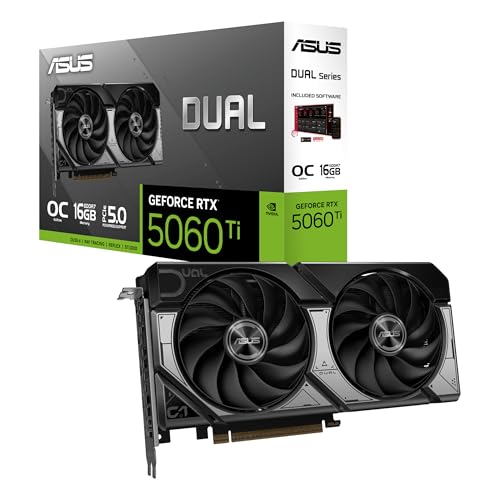
- Best Overall: ASUS Dual RTX 5060 Ti 16GB OC — Check on Amazon
- Best Value: XFX Swift Radeon RX 9060 XT 16GB OC — Check on Amazon
- Best for White Builds: ASUS Dual RTX 5060 Ti 16GB White OC — Check on Amazon
- Best Compact Option: ASUS Dual Radeon RX 9060 XT 16GB — Check on Amazon
- Best for Work and Play: ASUS Prime RTX 5060 Ti 16GB — Check on Amazon
- Best Budget Ti: ASUS Dual RTX 5060 Ti 8GB OC — Check on Amazon
Finding the Best Graphics Card Under $500 Without Wasting the Budget
If you are shopping for the best graphics card under $500, the honest starting point is what this budget can and cannot do. Cards in this band are built around one job: strong 1440p in most current titles. Judge them on that job and several of them look excellent; judge them on flagship ambitions and all of them look broken. Picture a work-from-home machine that turns into a gaming rig when the laptop lid closes: that is the machine this guide is written for, and its priorities shaped every choice below.
Two cards with the same GPU name on the box can be very different purchases once memory, cooling and size enter the picture. A generous frame buffer ages gracefully, a stingy one forces texture compromises within a year or two, and an oversized cooler is worthless the day it meets a case it cannot enter. For mixed-use builders, the emphasis in this guide is balance — performance, memory capacity, noise and power draw weighed together rather than any single headline number. Background reading that genuinely helps at this tier sits in Best Graphics Card For Compact Builds Under $200 and Best PC Building Tool Kits, both written for the same platform decisions this purchase touches.
Read the quick picks for the shortlist, the reviews for the reasoning, and the later sections for the checks that protect you from the common expensive mistakes. Everything is framed around a card you keep through several years of releases, and where a pick has a real weakness, the review says so in plain language.
In this guide
Quick Picks
For readers in a hurry: the six names below are the whole argument of this guide in miniature, ordered for mixed-use builders chasing strong 1440p in most current titles. Badges here match the badges in the full reviews exactly, so the two sections can be read against each other.
- Best Overall: ASUS Dual RTX 5060 Ti 16GB OC — the GeForce RTX 5060 Ti, 16GB GDDR7 option whose compromises land where this tier can afford them.
- Best Value: XFX Swift Radeon RX 9060 XT 16GB OC — a Radeon RX 9060 XT, 16GB GDDR6 board that spends its money on memory and cooling rather than decoration.
- Best for White Builds: ASUS Dual RTX 5060 Ti 16GB White OC — the GeForce RTX 5060 Ti, 16GB GDDR7 option whose compromises land where this tier can afford them.
- Best Compact Option: ASUS Dual Radeon RX 9060 XT 16GB — the Radeon RX 9060 XT, 16GB GDDR6 option whose compromises land where this tier can afford them.
- Best for Work and Play: ASUS Prime RTX 5060 Ti 16GB — chosen for GeForce RTX 5060 Ti in a board that respects this budget’s real priorities.
- Best Budget Ti: ASUS Dual RTX 5060 Ti 8GB OC — a GeForce RTX 5060 Ti, 8GB GDDR7 board that spends its money on memory and cooling rather than decoration.
How These Picks Were Chosen
Every linked pick in this guide was cross-checked against the site’s verified product data before a single word was written, and the model name, memory configuration and board design in each review come from that verified listing rather than from memory or marketing summaries. Cards were then filtered by tier honesty: nothing from a higher price class was pulled down to fill space, and nothing from a lower class was dressed up as a bargain for this budget. What remained was ranked for mixed-use builders, weighting balance — performance, memory capacity, noise and power draw weighed together rather than any single headline number. Also excluded: mobile and laptop GPU parts, professional workstation boards sold for certified software rather than play, accessories masquerading as cards in search results, and whole prebuilt PCs, which answer a different question than the one this guide asks.
Post-purchase life counted in the ranking too — driver support cadence, idle noise, warranty realism and the way a card holds up in year three matter more to most owners than a launch-week comparison ever will.
Detailed Reviews: The Best Graphics Card Under $500 Contenders in Full

Best Overall — ASUS Dual RTX 5060 Ti 16GB OC, 16GB GDDR7
Strengths
- 16GB buffer with current NVIDIA features
- Dual BIOS and fan-stop in a 2.5-slot card
- Balanced specification with no styling tax
Trade-offs
- A step below the true upper tier at 4K
- Dual-fan cooler is adequate, not luxurious
- Ti pricing sits above the 8GB crowd
| Specification | Verified detail |
|---|---|
| GPU | NVIDIA GeForce RTX 5060 Ti |
| Memory | 16GB GDDR7 |
| Interface | PCIe 5.0 |
| Outputs | HDMI 2.1b / DisplayPort 2.1b |
| Design | Dual 2.5-slot, Axial-tech fans, 0dB technology, dual BIOS |
The standard ASUS Dual RTX 5060 Ti 16GB OC is the reference point for sensible current-generation buying: dual BIOS, fan-stop, a 2.5-slot footprint and the full 16GB frame buffer, without a styling or lighting surcharge. For mixed-use builders, the question is whether it fits the brief of best overall, and the answer is in the details: the memory configuration, the cooler and the outputs all pull in the same direction here, towards strong 1440p in most current titles.
It is the balance of the specification that earns its place — enough memory for texture-heavy games, a current architecture with the full modern upscaling toolkit, and a cooler sized for real-world cases rather than review benches. Expect strong 1440p in most current titles from it in its element, with the understanding that its element is defined by the GPU class in the specification box, not by optimism; for a typical home gaming PC, that element is the whole point. Noise and heat follow the cooler design more than the GPU name, which is why the board partner’s choices get so much attention in reviews written for mixed-use builders.
It will not match the dedicated upper-tier cards at higher resolutions in the heaviest releases, and dual-fan cooling is adequate rather than luxurious during long sessions in warm rooms. Buyers who recognise their own habits in that description will be happy with it; buyers who do not should move one pick up the list rather than hope, especially if their aim is really strong 1440p in most current titles and beyond.
Best for: mixed-use builders whose target is strong 1440p in most current titles and whose habits match the strengths above / Not suited for: buyers who know the limitation paragraph describes exactly the compromise they cannot live with.

Best Value — XFX Swift Radeon RX 9060 XT 16GB OC, 16GB GDDR6
Strengths
- 16GB buffer on a current RDNA 4 GPU
- Triple-fan cooler runs cool and quiet
- Excellent native-resolution value in its class
Trade-offs
- Ray tracing still behind NVIDIA rivals
- Long triple-fan board limits small cases
- HDMI count is one, with two DisplayPorts
| Specification | Verified detail |
|---|---|
| GPU | AMD Radeon RX 9060 XT |
| Memory | 16GB GDDR6 |
| Interface | PCIe (RDNA 4 generation) |
| Outputs | HDMI / 2x DisplayPort |
| Design | Swift triple-fan gaming edition, factory OC |
XFX’s Swift triple-fan edition of the Radeon RX 9060 XT is built around the specification this whole price band has been waiting for: a current RDNA 4 GPU carrying a full 16GB of memory. Judged against what this guide asks of a best value pick for a typical home gaming PC, it makes its case the practical way — the right memory, a sensible cooler and no money spent on theatre.
The triple-fan Swift cooler gives that silicon quiet, sustained running, and the combination of modern architecture plus a large buffer is exactly what lets a card stay useful through several years of growing game installs. In everyday use that translates to strong 1440p in most current titles when settings are chosen with the card’s class in mind, and to a machine that stays composed rather than frantic while it works — the quality mixed-use builders notice long after the purchase. Noise and heat follow the cooler design more than the GPU name, which is why the board partner’s choices get so much attention in reviews written for mixed-use builders.
Ray-traced performance, while much improved in this Radeon generation, still asks for sensible settings in the heaviest titles, and the triple-fan board is long, so compact cases need a tape-measure check first. None of that disqualifies it at this budget — in a guide framed around a card you keep through several years of releases, it defines the buyer it suits, which is exactly what a review is supposed to do.
Best for: buyers who value balance over headline chasing, in a build aimed at strong 1440p in most current titles / Not suited for: buyers who know the limitation paragraph describes exactly the compromise they cannot live with.
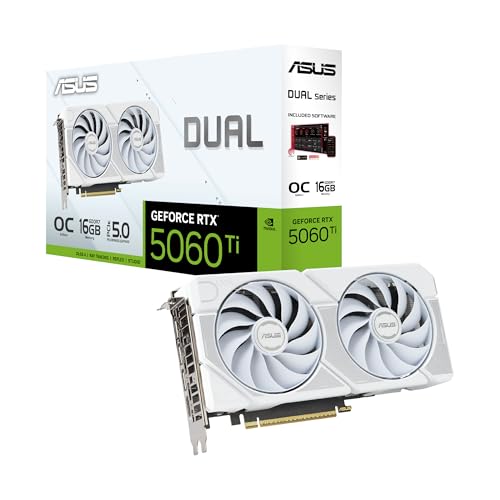
Best for White Builds — ASUS Dual RTX 5060 Ti 16GB White OC, 16GB GDDR7
Strengths
- 16GB Ti specification with white styling
- 2.5-slot size fits most mid-towers
- 0dB fan-stop keeps showcase builds silent
Trade-offs
- White finish carries a cosmetic premium
- Dual-fan cooling trails triple-fan editions
- Colour only matters in a windowed case
| Specification | Verified detail |
|---|---|
| GPU | NVIDIA GeForce RTX 5060 Ti |
| Memory | 16GB GDDR7 |
| Interface | PCIe 5.0 |
| Outputs | HDMI 2.1b / DisplayPort 2.1b |
| Design | Dual 2.5-slot white edition, Axial-tech fans, 0dB technology |
This White OC edition of the ASUS Dual RTX 5060 Ti 16GB exists for the builder whose case has a window and a colour scheme: the full 16GB Ti specification, finished in white, in a manageable 2.5-slot twin-fan body. Within a guide aimed at a card you keep through several years of releases, this is the best for white builds candidate, and its case rests on the unglamorous specifics — buffer, board and outputs — that mixed-use builders feel every day rather than on launch-week excitement.
Underneath the colour, the specification is the one longevity hunters want — the larger frame buffer removes the texture ceiling that hangs over the 8GB cards, while fan-stop keeps a white showcase build silent on the desktop. Expect strong 1440p in most current titles from it in its element, with the understanding that its element is defined by the GPU class in the specification box, not by optimism; for a typical home gaming PC, that element is the whole point. Paired with a processor that can feed it and a power supply with sensible headroom, it behaves exactly as its class promises — no drama in either direction, which at this tier is praise.
White editions habitually cost a little more than identical black cards, and you are paying for appearance as well as silicon; if the case has no window, the standard Dual edition delivers the same performance for less. That limitation is not a reason to reject it; for mixed-use builders it is a reason to buy it with open eyes, at the right street price, for the job it is actually built to do.
Best for: mixed-use builders whose target is strong 1440p in most current titles and whose habits match the strengths above / Not suited for: anyone planning a near-term jump to a much higher resolution without replacing the card.
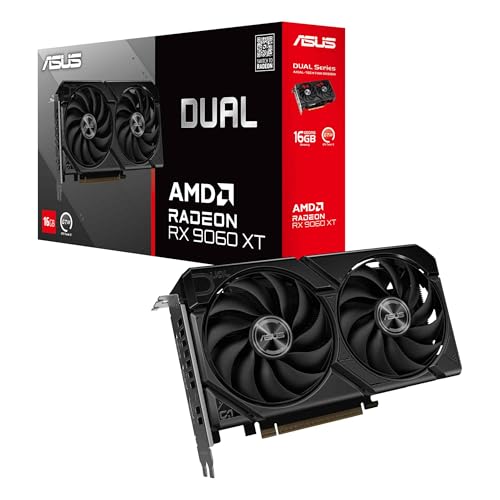
Best Compact Option — ASUS Dual Radeon RX 9060 XT 16GB, 16GB GDDR6
Strengths
- 16GB RDNA 4 card in a 2.5-slot body
- 0dB fan-stop for silent idle and desktop work
- PCIe 5.0 and current display outputs
Trade-offs
- Less cooling headroom than triple-fan rivals
- Ray tracing is the weaker side of the card
- Dual-fan design runs warmer under marathon loads
| Specification | Verified detail |
|---|---|
| GPU | AMD Radeon RX 9060 XT |
| Memory | 16GB GDDR6 |
| Interface | PCIe 5.0 |
| Outputs | HDMI 2.1b / DisplayPort 2.1a |
| Design | Dual 2.5-slot, Axial-tech fans, 0dB technology |
ASUS’s Dual edition of the RX 9060 XT 16GB trims the same RDNA 4 formula into a 2.5-slot, twin-fan card whose fans stop at idle, making it the version of this GPU that fits the widest range of cases. For mixed-use builders, the question is whether it fits the brief of best compact option, and the answer is in the details: the memory configuration, the cooler and the outputs all pull in the same direction here, towards strong 1440p in most current titles.
That shorter, slimmer footprint is the whole argument: you keep the 16GB buffer and current architecture, and give up only the oversized cooler, which matters in compact towers and older chassis with drive cages in the way. Day to day, it is a card for strong 1440p in most current titles; push a class beyond its design and the settings menu, not the hardware, has to absorb the difference — a trade mixed-use builders should make knowingly, not accidentally. The ownership details matter too: driver software from the GPU maker, a standard installation in the primary slot, and display outputs that decide how far the desk of a typical home gaming PC can grow.
A two-fan cooler has less thermal headroom than the triple-fan editions under sustained summer-room loads, and as with all current Radeon cards, heavy ray tracing remains the weaker side of the ledger. That limitation is not a reason to reject it; for mixed-use builders it is a reason to buy it with open eyes, at the right street price, for the job it is actually built to do.
Best for: buyers who value balance over headline chasing, in a build aimed at strong 1440p in most current titles / Not suited for: builders whose case or power supply fails the checks in the setup section below.
Best for Work and Play — ASUS Prime RTX 5060 Ti 16GB, 16GB GDDR7
Strengths
- 16GB Ti specification in an understated design
- Dual BIOS with Axial-tech cooling
- Suits work-and-play dual-purpose builds
Trade-offs
- Restrained styling will not excite everyone
- Same Ti-tier ceiling in heavy 4K play
- No image was available in the verified sheet
| Specification | Verified detail |
|---|---|
| GPU | NVIDIA GeForce RTX 5060 Ti |
| Memory | 16GB GDDR7 |
| Interface | PCIe 5.0 |
| Outputs | HDMI / DisplayPort 2.1 |
| Design | Prime 2.5-slot, Axial-tech fans, dual BIOS |
ASUS’s Prime line takes the RTX 5060 Ti 16GB and presents it in the company’s most understated clothing: a 2.5-slot card with Axial-tech fans and dual BIOS, designed to blend into professional-looking builds as easily as gaming ones. Judged against what this guide asks of a best for work and play pick for a typical home gaming PC, it makes its case the practical way — the right memory, a sensible cooler and no money spent on theatre.
Prime cards suit the dual-purpose machine — the desk that does spreadsheets and video calls by day and games by night — because nothing about the design shouts, while the 16GB buffer serves both texture-heavy games and GPU-accelerated work. Expect strong 1440p in most current titles from it in its element, with the understanding that its element is defined by the GPU class in the specification box, not by optimism; for a typical home gaming PC, that element is the whole point. The ownership details matter too: driver software from the GPU maker, a standard installation in the primary slot, and display outputs that decide how far the desk of a typical home gaming PC can grow.
The Prime brief is restraint, so buyers chasing the lowest temperatures or the boldest styling will find other editions more exciting, and the card shares the Ti tier’s ceiling in the most demanding high-resolution gaming. None of that disqualifies it at this budget — in a guide framed around a card you keep through several years of releases, it defines the buyer it suits, which is exactly what a review is supposed to do.
Best for: the a typical home gaming PC scenario described at the top of this guide, played at strong 1440p in most current titles / Not suited for: builders whose case or power supply fails the checks in the setup section below.
Best Budget Ti — ASUS Dual RTX 5060 Ti 8GB OC, 8GB GDDR7
Strengths
- Current Ti-tier pace in a 2.5-slot body
- Dual BIOS and 0dB fan-stop behaviour
- Strongest upscaling ecosystem in the group
Trade-offs
- 8GB buffer beside a 16GB sibling
- Less future headroom for texture growth
- No image was available in the verified sheet
| Specification | Verified detail |
|---|---|
| GPU | NVIDIA GeForce RTX 5060 Ti |
| Memory | 8GB GDDR7 |
| Interface | PCIe 5.0 |
| Outputs | HDMI 2.1b / DisplayPort 2.1b |
| Design | Dual 2.5-slot, Axial-tech fans, 0dB technology, dual BIOS |
The ASUS Dual RTX 5060 Ti 8GB is the compact route into NVIDIA’s current Ti tier: a 2.5-slot twin-fan card with dual BIOS, fan-stop behaviour and GDDR7 memory, sized for ordinary cases rather than showcase builds. Judged against what this guide asks of a best budget ti pick for a typical home gaming PC, it makes its case the practical way — the right memory, a sensible cooler and no money spent on theatre.
Dual BIOS is a quietly practical feature at this level — one profile for quiet running, one for maximum cooling — and the current NVIDIA software stack brings the strongest upscaling and frame-generation support in this roundup. In everyday use that translates to strong 1440p in most current titles when settings are chosen with the card’s class in mind, and to a machine that stays composed rather than frantic while it works — the quality mixed-use builders notice long after the purchase. The ownership details matter too: driver software from the GPU maker, a standard installation in the primary slot, and display outputs that decide how far the desk of a typical home gaming PC can grow.
The 8GB buffer is this card’s defining compromise, because the 16GB version of the same GPU exists precisely for buyers worried about texture growth; if your games are the texture-heavy kind, that sibling is the safer long-term buy. None of that disqualifies it at this budget — in a guide framed around a card you keep through several years of releases, it defines the buyer it suits, which is exactly what a review is supposed to do.
Best for: buyers who value balance over headline chasing, in a build aimed at strong 1440p in most current titles / Not suited for: anyone planning a near-term jump to a much higher resolution without replacing the card.
Comparison Table
The six picks side by side, using only verified specification details, for a target of strong 1440p in most current titles. The table is a fit-finding tool, not a league table: the right row is the one whose memory, size and outputs match the machine mixed-use builders are actually building.
| Pick | GPU | Memory | Design |
|---|---|---|---|
| Best Overall: ASUS Dual RTX 5060 Ti 16GB OC — Check on Amazon | NVIDIA GeForce RTX 5060 Ti | 16GB GDDR7 | Dual 2.5-slot, Axial-tech fans, 0dB technology, dual BIOS |
| Best Value: XFX Swift Radeon RX 9060 XT 16GB OC — Check on Amazon | AMD Radeon RX 9060 XT | 16GB GDDR6 | Swift triple-fan gaming edition, factory OC |
| Best for White Builds: ASUS Dual RTX 5060 Ti 16GB White OC — Check on Amazon | NVIDIA GeForce RTX 5060 Ti | 16GB GDDR7 | Dual 2.5-slot white edition, Axial-tech fans, 0dB technology |
| Best Compact Option: ASUS Dual Radeon RX 9060 XT 16GB | AMD Radeon RX 9060 XT | 16GB GDDR6 | Dual 2.5-slot, Axial-tech fans, 0dB technology |
| Best for Work and Play: ASUS Prime RTX 5060 Ti 16GB | NVIDIA GeForce RTX 5060 Ti | 16GB GDDR7 | Prime 2.5-slot, Axial-tech fans, dual BIOS |
| Best Budget Ti: ASUS Dual RTX 5060 Ti 8GB OC | NVIDIA GeForce RTX 5060 Ti | 8GB GDDR7 | Dual 2.5-slot, Axial-tech fans, 0dB technology, dual BIOS |
How to Choose the Best Graphics Card Under $500 for Your Machine
The first decision is not which card — it is what the card is for. Name the resolution and the games, and this tier answers with strong 1440p in most current titles. Everything after that is refinement. For the platform questions that surround the purchase, Best Graphics Card For Gaming Under $250 and Best Graphics Card Under $200 are the companion pieces worth an evening.
Next, audit the machine the card is joining. Processor generation decides the ceiling in busy scenes; power supply quality decides whether the ceiling is reachable without shutdowns; case dimensions decide which boards are even candidates. None of these checks costs money, and together they prevent nearly every failed purchase this category produces. For mixed-use builders, the deciding emphasis remains balance — performance, memory capacity, noise and power draw weighed together rather than any single headline number.
Memory deserves its own paragraph because it is where this market hides its compromises. Two boxes can carry the same GPU name and very different futures: the one with the larger, wider memory system will still be setting textures freely when the other is negotiating. Every specification box above prints the buffer and the bus for exactly this reason. Best DDR5 RAM takes the same forensic approach to the rest of the platform.
What Does This Budget Actually Buy in a Graphics Card?
Honestly accounted, this money buys a card you keep through several years of releases. That is a real capability, not a consolation prize — as long as the spending lands on silicon and memory. What the budget will not do is abolish the settings menu; the heaviest effects remain a negotiation at every tier, and this one is no exception.
The other thing this budget buys, if you choose from the upper half of the picks, is time. A card with memory headroom and a decent cooler stays pleasant through several release cycles at strong 1440p in most current titles, while the bargain at the very bottom often asks to be replaced just as its owner settles in. Spread across those extra years, the mid-list pick is frequently the cheapest card in the guide — a piece of arithmetic worth doing before the cheapest box wins by default.
Which Specifications Actually Matter, and Which Are Decoration?
If you read nothing else on a listing, read these: the GPU’s generation, the size and type of its memory, the width of the bus behind that memory, and the physical cooler bolted on top. Together they predict the ownership experience — pace, longevity, noise — with very little help from anything else in the marketing copy.
Buyers love comparing boost clocks because they are single, sortable numbers. Resist. Between partner versions of one GPU, the clock gap is the smallest difference on the page; the cooler gap and the size gap are the ones that follow you home. Sort by fit, cooling and support, and let the megahertz settle their own argument.
How Do You Install and Set Up a New Graphics Card?
Installation is the same careful hour for every pick in this guide, and it rewards slowness. Work through the steps in order, and keep the old card — if there is one — until the new one has survived a week of ordinary use.
Step 1: Prepare the workspace. Shut the PC down, switch the power supply off at its own switch, and work on a clear surface with the case manual or its online equivalent within reach. Touch a metal part of the case before handling the card to discharge static.
Step 2: Remove the old card, if there is one. Work backwards from the cables: displays out, power connectors squeezed and wiggled free, bracket screws out. Only then press the little latch at the slot’s far end and draw the old card straight up. If it resists, the latch — not your grip — is the problem.
Step 3: Seat the new card. With the slot latch open, lower the card in squarely, connectors aligned, and press along its top edge until the latch closes over the notch by itself. If the bracket holes do not line up with the case, the card is not fully home — reseat rather than reaching for longer screws.
Step 4: Connect power and displays. Feed the card its power first, each connector pushed until its clip snaps, then attach the display leads to the card’s bracket. A monitor plugged into the motherboard will show you a desktop that ignores your new card entirely, which has fooled better builders than any of us.
Step 5: First boot and drivers. Boot with patience: the first display may take a moment. Then install the current driver package from the GPU maker’s own site, restart when asked, and set the monitor’s full refresh rate in the display settings before judging performance.
Step 6: Verify under a real load. The acceptance test is a game you already know, played for a while at the settings you actually intend to use. Temperatures settling, fans behaving, no crashes and no strange artefacts — that combination, not a synthetic score, is what ‘working’ means.
The extra step most people skip. Note the driver version you installed and the date. When an update arrives months later and something feels different, that note turns a mystery into a timeline.
When Something Goes Wrong: Three Common Problems
Problem: No display after installation -> fix: nine times out of ten the screen is plugged into the motherboard — move the cable to the card’s outputs, reseat the card until the latch clicks, and confirm each power connector is fully home.
Problem: The PC shuts down during games -> fix: load-related shutdowns are the power supply’s resignation letter — reseat every connector, give the card separate cable runs where it has multiple sockets, and if it happens twice more, replace the supply rather than the card.
Problem: Stutter in one game but not others -> fix: isolate before you medicate — one title stuttering while others run clean points at that title’s drivers, caches or settings, so reinstall the driver cleanly, delete the game’s shader cache, and retest before touching hardware.
Living With the Card: Ownership Notes That Outlast the Unboxing
On memory capacity: Frame-buffer capacity is the specification that ages fastest, because game texture sets only ever grow. The working rule for mixed-use builders is simple: watch how texture settings behave in the newest release you own, not the oldest. At this tier especially, where every purchase must stretch, the unglamorous details are the ones carrying the value.
On warranty and support: Board partners differ in warranty handling and support quality, and at the budget end that difference can be the whole ownership experience. So the advice is unglamorous and effective — register the card when it arrives and keep the invoice somewhere findable. At this tier especially, where every purchase must stretch, the unglamorous details are the ones carrying the value.
Consider case airflow for a moment, because a card can only be as cool as the air it is fed, and a sealed glass case starves even the best cooler design. So the advice is unglamorous and effective — give the intake fans a clear path and check temperatures after a long session, not a short one. It is the kind of detail that separates a card chosen well from a card merely chosen.
On ray tracing: Ray-traced lighting is the most expensive beauty treatment in modern games, and its cost lands hardest on cards in the middle and entry classes. At this budget the practical move is to treat it as a per-game experiment — wonderful in a slow adventure, expendable in a fast shooter. Launch reviews cannot measure this for you; only ownership does, which is why it is weighted so heavily in a guide written for owners.
Consider power supply headroom for a moment, because a graphics card does not draw power politely; it spikes, and a power supply that is merely adequate on paper can shut a system down mid-game. At this budget the practical move is to keep a quality supply with comfortable headroom and use separate cable runs where the card asks for them. It is the kind of detail that separates a card chosen well from a card merely chosen.
Extra displays cost a card almost nothing on the desktop and a great deal in some games, which is why output counts appear in every specification box here, and multi-monitor use is where that shows up first. So the advice is unglamorous and effective — count the outputs your desk will need in two years, not the ones it needs today. At this tier especially, where every purchase must stretch, the unglamorous details are the ones carrying the value.
Consider noise for a moment, because fan noise is the specification nobody prints and everybody hears, shaped by cooler size, fan-stop behaviour and where the case sits. At this budget the practical move is to a card under the desk can be louder on paper than a quieter card inside a desk-level case. Ignore it and the card still benchmarks the same on day one — the difference arrives quietly, month after month, in the games that follow.
Consider ray tracing for a moment, because ray-traced lighting is the most expensive beauty treatment in modern games, and its cost lands hardest on cards in the middle and entry classes. So the advice is unglamorous and effective — treat it as a per-game experiment — wonderful in a slow adventure, expendable in a fast shooter. It is the kind of detail that separates a card chosen well from a card merely chosen.
A graphics card and a monitor are a system, and the most common imbalance is a strong card feeding a dim old panel, or the reverse, and monitor pairing is where that shows up first. The working rule for mixed-use builders is simple: match the card’s realistic resolution to the panel you own, or budget for the panel you actually want. Ignore it and the card still benchmarks the same on day one — the difference arrives quietly, month after month, in the games that follow.
Consider processor balance for a moment, because the graphics card and the processor take turns being the bottleneck, and a mismatch wastes money in whichever direction it leans. At this budget the practical move is to if frame rates refuse to rise when settings drop, the processor — not the card — is the wall. Buyers who get this right rarely think about their graphics card again, which is the highest compliment the component can earn.
A card can only be as cool as the air it is fed, and a sealed glass case starves even the best cooler design, and case airflow is where that shows up first. The working rule for mixed-use builders is simple: give the intake fans a clear path and check temperatures after a long session, not a short one. Buyers who get this right rarely think about their graphics card again, which is the highest compliment the component can earn.
On memory capacity: Frame-buffer capacity is the specification that ages fastest, because game texture sets only ever grow. The working rule for mixed-use builders is simple: watch how texture settings behave in the newest release you own, not the oldest. None of this appears on the box, which is precisely why it decides whether a card still feels like a good buy two winters from now.
Consider the used market for a moment, because previous-generation cards circulate cheaply for a reason: unknown mining or heavy-use histories, expired warranties and no recourse when a fan fails. The working rule for mixed-use builders is simple: price the risk honestly against a new card with a warranty before calling it a saving. Launch reviews cannot measure this for you; only ownership does, which is why it is weighted so heavily in a guide written for owners.
Common Mistakes
Keeping a tired power supply out of loyalty. An old supply that ran an old card is not evidence it should run a new one; shutdowns under load are its way of resigning — precisely the error the checks earlier in this guide exist to intercept, and one mixed-use builders can dodge simply by refusing to rush the boring parts.
Assuming every version of a card is the same size. Board partners build the same GPU into compact twins and triple-fan giants; the box you want is a specific board, not a GPU name — precisely the error the checks earlier in this guide exist to intercept, and one mixed-use builders can dodge simply by refusing to rush the boring parts.
Skipping the driver cleanup on a brand switch. Leftover drivers from the other camp are the leading cause of the mysterious crashes blamed on new hardware — precisely the error the checks earlier in this guide exist to intercept, and one mixed-use builders can dodge simply by refusing to rush the boring parts.
Chasing the GPU name and ignoring the memory configuration. The same GPU name can hide very different frame buffers, and the cheaper box is usually cheaper in exactly the place that ages worst — a mistake this guide’s checks are designed to catch before money moves, and one that is entirely avoidable with ten slow minutes at exactly this point in the process.
Forgetting the monitor in the budget. A card bought for a resolution the monitor cannot display is money parked in the wrong component — the kind of error that feels like bad luck afterwards and was, in fact, a skipped step — every section above contains the step that prevents it.
Final Recommendation
Pressed for a single name, we would hand most readers the ASUS Dual RTX 5060 Ti 16GB OC and feel the guide had done its job. It represents the tier honestly: no borrowed glory from a higher class, no apology needed at its own. Read the alternatives as answers to narrower questions, and if one of those questions is yours, follow it instead with our blessing.
Whichever pick you choose, run the three free checks first — case fit, power supply, monitor match — and then buy with the return window in mind. Readers continuing their research will find the natural next steps in Best Graphics Card For Beginners Under $500 and Best Power Supplies, which cover the neighbouring decisions this purchase touches.
Frequently Asked Questions
What should I do first after installing the card?
Drivers first — the current package from the GPU maker’s own site, not whatever the operating system found. Then set the panel’s full refresh rate in the display settings; an astonishing number of fast monitors live their lives at a default they were never meant to keep. One known game, twenty minutes, eyes and ears open — that is the acceptance test.
What if the card does not fit my case?
The case maker’s stated clearance and a ruler settle this question in advance — believe them over optimism. This guide flags the slimmer boards in every tier because fit failures are the category’s most preventable return. A card on the desk that cannot fit goes back in its box, not in at an angle. Exchanges are boring; damaged slots are expensive.
Is the best graphics card under $500 enough for modern games?
For the workload this budget targets — strong 1440p in most current titles — yes, with the settings menu used as intended. The newest, heaviest releases will ask for settings discipline and upscaling help, while esports titles, older libraries and well-optimised games are comfortably in reach. Judge it against your own library — that list, not a reviewer’s torture test, is the workload it has to satisfy.
How long will a card from this guide stay useful?
Follow the buffer and cooler advice above and the honest answer is several years at this tier’s target resolution. The decline, when it comes, arrives as settings drifting downward in new games — a slope, not a cliff. Plan the replacement when the compromises annoy you weekly, not when a launch video tells you to.
Do I need to remove old drivers before installing?
The rule is simple — changing GPU families means a clean start, staying in the family means an ordinary update. Leftover drivers from the other maker are a reliable source of crashes that get blamed on innocent hardware. Either way, the first boot after a card change is the moment to be patient, not worried.
Will my existing power supply run these cards?
Two checks answer it: wattage headroom against the card maker’s recommendation, and whether the supply has the right PCIe connectors without adapters. Frugal cards forgive an ageing supply; flagship-class cards invoice it. Headroom is not waste; it is the difference between a card that boosts happily and a system that reboots at the worst moment.
Does my processor matter, or only the card?
Both matter, in sequence: the processor decides the maximum frame rate the system can ever deliver, and the card decides how much visual quality it can carry there. Crowded scenes, simulation games and high-refresh play expose a weak processor first. Balance the pair and the whole budget works; mismatch them and part of every purchase idles.